
ESP32 UNO - Button - Servo Motor
Need a push button that swings a servo arm back and forth on the ESP32 Uno? Press once and the servo motor goes to 90 degrees; press again and it returns to 0. You build the button control servo motor circuit on the ESP32 Uno form board, then write the sketch two ways: a plain version and a debounced version that never counts a single press twice.
By the end, you can:
- Connect a button and a servo to the ESP32 Uno headers
- Spot a button press by comparing two digitalRead() results
- Drive a servo motor angle with the ESP32Servo library
- Clean up button noise with the ezButton library
Components You Need
Or you can buy the following kits:
| 1 | × | DIYables Sensor Kit (18 sensors/displays) |
Additionally, some of these links are for products from our own brand, DIYables .
Buy Note: For controlling multiple servo motors, use the PCA9685 16 Channel PWM Servo Driver Module to save MCU pins and simplify wiring.
ESP32 Uno Pinout
Your sketch names pins by GPIO number, while the board labels them as Uno headers. Use the diagram to find D7 and D9 before you plug in the jumper wires.

How to Connect
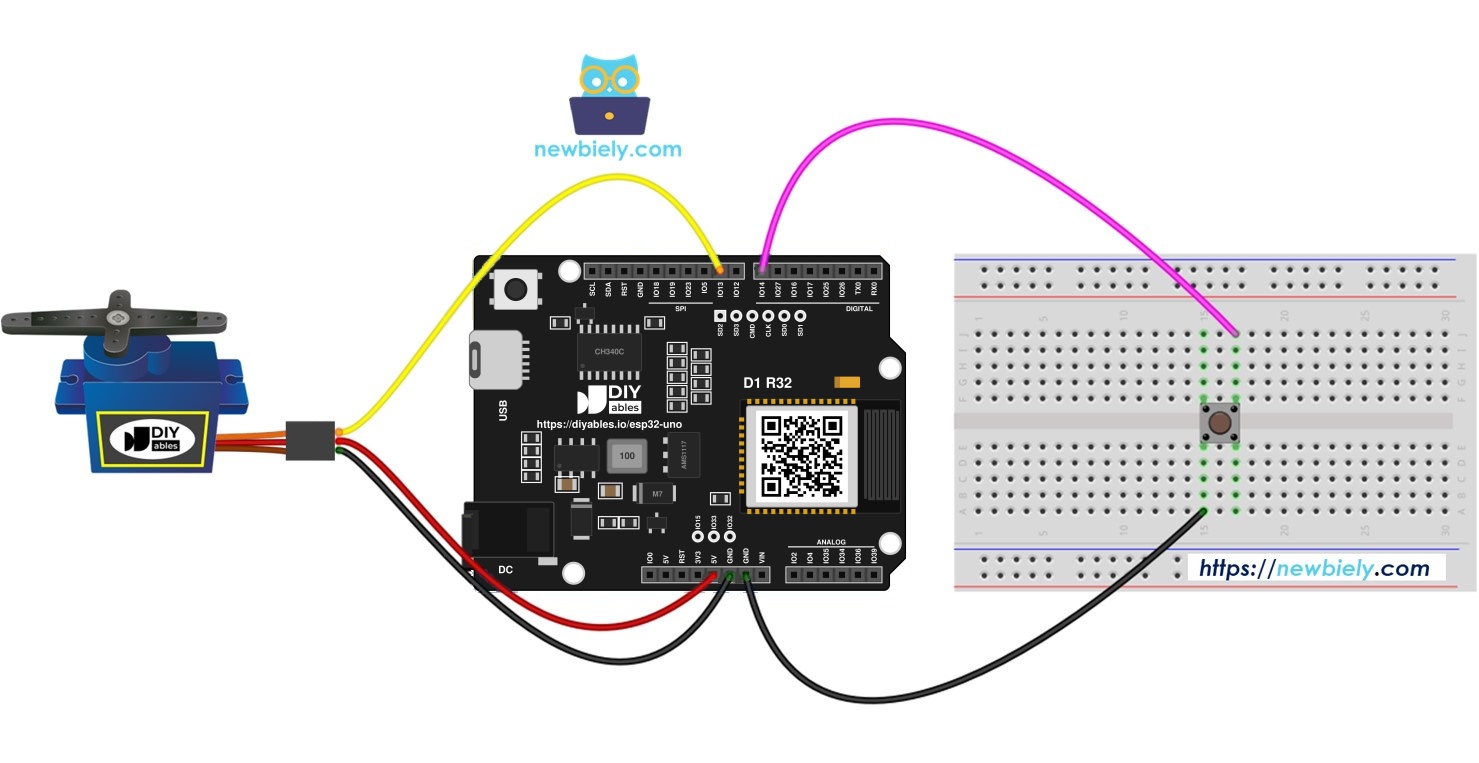
When this part is done, the button and servo are on the board and ready for code.
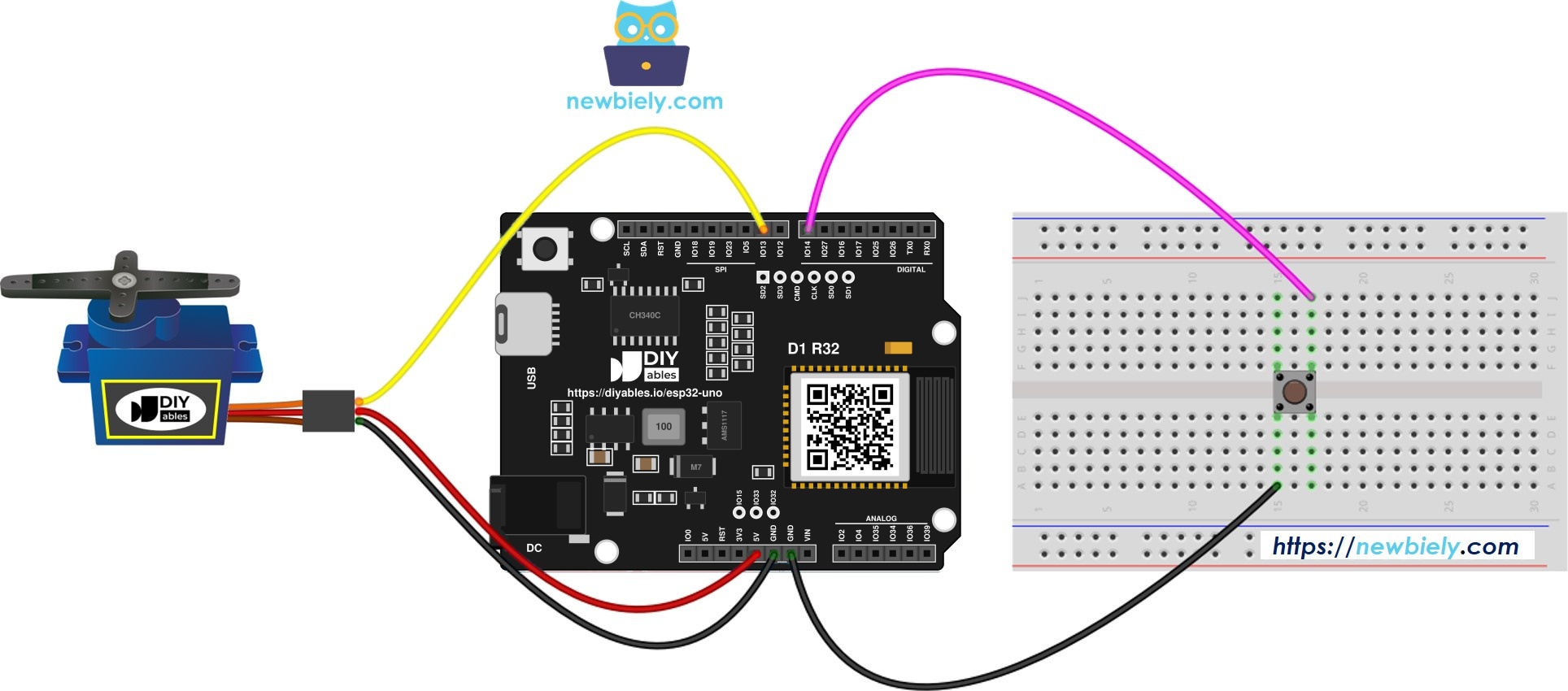
This image is created using Fritzing. Click to enlarge image
| Component Pin | ESP32 Uno Pin |
|---|---|
| Button leg 1 | D7 (GPIO14) |
| Button leg 2 | GND |
| Servo red wire (power) | 5V |
| Servo brown or black wire (ground) | GND |
| Servo orange or yellow wire (signal) | D9 (GPIO13) |
Good to know: ESP32 Uno pins run at 3.3V and are not 5V tolerant. Here that is safe: the button only pulls D7 to GND, and the servo signal leaves the board, so no 5V reaches a GPIO.
※ NOTE THAT:
The servo motor gets 5V on its red wire, but its control line only needs a 3.3V pulse from D9 (GPIO13). Common hobby servos such as the SG90 or MG90S follow a 3.3V pulse fine, so you do not need a level shifter.
Video Tutorial
See the ESP32 Uno build in action in the video below.
Code Explanation
Both sketches share the same idea. The table lists the key parts.
| Code Part | What It Does |
|---|---|
| #define BUTTON_PIN 14 and #define SERVO_PIN 13 | Name the GPIOs behind D7 and D9 |
| pinMode(BUTTON_PIN, INPUT_PULLUP) | Turns on the internal pull-up, so a free button reads HIGH |
| lastButtonState == HIGH && currentButtonState == LOW | Catches the moment of a new press (first sketch) |
| button.loop() and button.isPressed() | Update the debounced state, then report one clean press (second sketch) |
| if(angle == 0) angle = 90; else ... | Swaps the target between 0 and 90 degrees |
| servo.write(angle) | Pushes the chosen angle out on D9 (GPIO13) |
The result: the servo always holds one of two positions, and each press moves it to the other one.
ESP32 Uno vs UNO R4 for This Project
Moving this build from the UNO R4 to the ESP32 Uno changes the library and the pin numbers, not the wires.
| Item | Arduino UNO R4 | ESP32 Uno |
|---|---|---|
| Logic voltage | 5V | 3.3V |
| Button pin | D7 (pin 7 in code) | D7 (14 in code) |
| Servo pin | D9 (pin 9 in code) | D9 (13 in code) |
| Servo library | Servo.h | ESP32Servo.h |
| Arduino IDE board | Arduino UNO R4 WiFi or Minima | ESP32 Dev Module |
| WiFi and Bluetooth | WiFi only on the R4 WiFi | WiFi plus Bluetooth Classic and BLE |
You can keep the same wiring as-is. The servo still takes 5V power, and the 3.3V signal from D9 drives it without extra parts.
Go Wireless: Move the Servo From Your Phone
Here you get an idea for adding a phone control next to the physical button.
The ESP32 Uno has WiFi and Bluetooth built in. Keep the button for local control, and add a slider or a rotating knob on your phone that sets the servo angle. Both inputs can call the same servo.write() on D9 (GPIO13), so the arm follows whichever one you use last.
Try These Next
- Make each press step the arm by 30 degrees (0, 30, 60 … 180) and then wrap back to 0.
- Add a second button on D6 (GPIO27) that always sends the servo home to 0.
- Sweep the arm slowly with a short delay between angle steps instead of jumping.
Troubleshooting
| Problem | Possible Cause | Solution |
|---|---|---|
| No COM port appears in Arduino IDE | CH340 driver missing or a charge-only USB cable | Install the CH340 driver and try a USB cable that carries data |
| Upload stops at "Failed to connect" or "Waiting for download" | Board did not enter download mode | Hold the BOOT button while the upload starts, then let go |
| Error "Servo.h No such file or directory" | The AVR servo library is used | Install ESP32Servo and include ESP32Servo.h |
| Error "ezButton.h No such file or directory" | ezButton library not installed | Install ezButton in Library Manager |
| Servo is silent and does not turn | Signal wire on the wrong header or no 5V | Check red on 5V, brown on GND, signal on D9 (GPIO13) |
| Board restarts every time the servo moves | Servo current spike drops the USB voltage | Feed the servo from a separate 5V supply and tie its GND to the board GND |
| Serial Monitor shows nothing on press | Button legs on the same internal side or wrong pin | Turn the button 90 degrees on the breadboard and check D7 (GPIO14) and GND |
| Serial Monitor shows strange symbols | Baud rate does not match the sketch | Set the Serial Monitor to 9600 baud |
FAQ
Which servo motors work with this ESP32 Uno project?
Small hobby servos like the SG90 and MG90S work well from the board's 5V pin over USB. Larger metal-gear servos (MG996R and similar) pull much more current. Give those their own 5V supply and join the grounds.
Is a resistor needed for the push button?
No. The sketch sets INPUT_PULLUP, which turns on a resistor inside the chip on D7 (GPIO14). Wire one leg to D7 and the other to GND, and the pin reads LOW only while you hold the button.
Why does the sketch say 13 when the wire goes to D9?
The ESP32 Uno prints Uno names on its headers, but the chip knows only GPIO numbers. Header D9 is GPIO13 and D7 is GPIO14, so the code uses 13 and 14. The pinout image shows every pair.
Can I copy UNO R4 servo code straight to the ESP32 Uno?
Almost. Change #include <Servo.h> to #include <ESP32Servo.h> and swap the pin numbers for the GPIO numbers. The rest of the logic runs as-is.
Do I need the CH340 driver for the ESP32 Uno?
The board talks to your computer through a CH340 USB chip. Windows 10 and 11 often install it alone, but older systems and some macOS versions need the driver. Without it, no COM port appears.
How do I change the angles from 0 and 90 to other values?
Edit the two numbers in the if/else block. For example, use 45 and 135 to swing the arm around the middle. Keep both values between 0 and 180.
Can one button control two servos at the same time?
Yes. Create a second Servo object, attach it to another PWM pin such as D3 (GPIO25), and call write() on both in the same place. Power both from an external 5V supply.
Can the ESP32 Uno use Uno shields for this build?
Many Uno shields fit the headers, but the ESP32 Uno runs at 3.3V. A servo shield that only passes signals and 5V power usually works. Check that the shield never sends 5V back into a pin.
My build needs another button or servo, but the Uno headers are full. What now?
The ESP32 Uno has a few extra holes near the power header: GPIO32 and GPIO33 (I/O, PWM, analog on ADC1, so they still work while WiFi is on) and GPIO15 (I/O, PWM, analog on ADC2). Add a pin header strip to those holes, then put the plain GPIO number in your sketch. For an extra button or servo here, choose GPIO32 or GPIO33. Two warnings: GPIO15 and GPIO0 (the IO0 pin at the unused Uno NC position) are boot strapping pins, so a wrong connection can stop the board from booting or uploading code; use GPIO32/33 first. Never use the six holes under the digital header (SD0–SD3, CMD, CLK = GPIO6–GPIO11), because they are wired to the flash chip and using them crashes the board.
Can I add WiFi control and keep the button?
Yes. The ESP32 Uno has WiFi and Bluetooth, so a phone slider and the button can both set the servo angle. See the Go Wireless section for ready-made app pages.