
ESP32 UNO - Button
Need a simple way to send a command to your board? Hook up an ESP32 Uno button on one digital pin and two wires, and your sketch can see every press. A push button (also sold as a tactile button or momentary switch) costs almost nothing, and the ESP32 Uno form board reads it with one function call. You get a 1/0 stream and clear press/release messages on the Serial Monitor.
What you will do:
- Find the two button pins that really switch
- Wire a push button to the ESP32 Uno with no extra resistor
- Turn on the internal pull-up with pinMode() and INPUT_PULLUP
- Print the pin level with digitalRead()
- Spot the exact moment of a press and a release in Arduino code
※ NOTE THAT:
Watch out for two classic button bugs before you start:
- Floating input. The pin reads random HIGH and LOW values, even with nobody near the button. Reason: the input has no resistor to hold it at a known level. Fix: hold the line with a pull-up or pull-down resistor. The internal pull-up used on this page solves it for free.
- Chattering (contact bounce). One push, but the code counts two, three or more. Reason: the metal contacts spring back and forth for a few milliseconds, so the level flips many times. Fix: debounce it in software. See ESP32 Uno - Button - Debounce.
Bounce only hurts when the exact number of presses counts. A sketch that just checks "held or not held" works fine without debouncing.
Components You Need
Or you can buy the following kits:
| 1 | × | DIYables Sensor Kit (18 sensors/displays) |
Additionally, some of these links are for products from our own brand, DIYables .
The Push Button in Short
After this part, you know which button to pick and how its contacts behave.
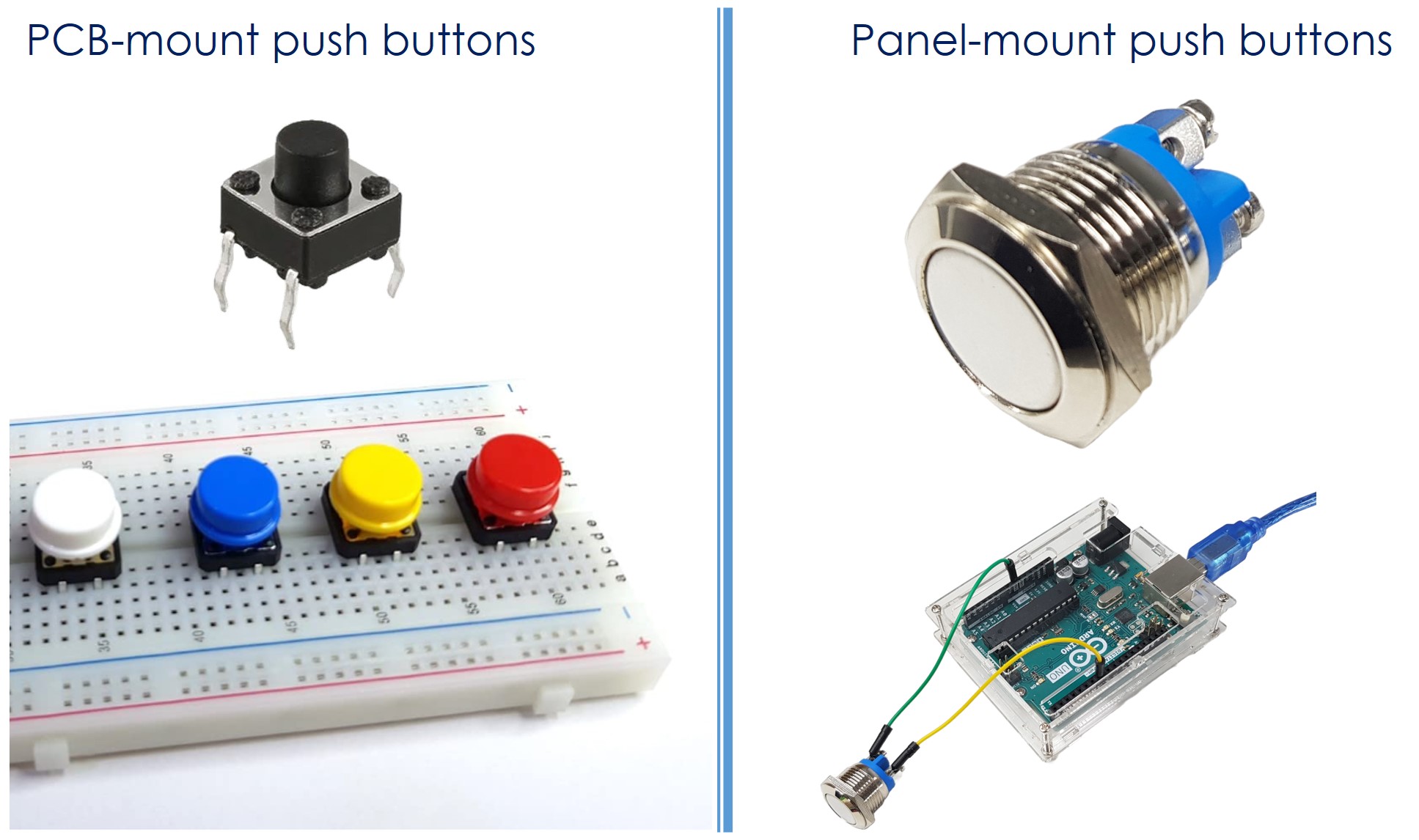
A push button closes its circuit only while you hold the cap down. Release it and a spring opens the contacts again. Pick the style that fits your build:
| Button Style | Typical Pins | Best For |
|---|---|---|
| PCB-mount (tactile) | 4 | Breadboard tests and small PCBs |
| Panel-mount | 2 | Front panels and project boxes |
| Button module | 3 (GND, VCC, OUT) | Quick wiring with a resistor already on board |
Pinout
Pick the right two pins here, or the button may look "stuck pressed".
PCB-mount buttons: four pins
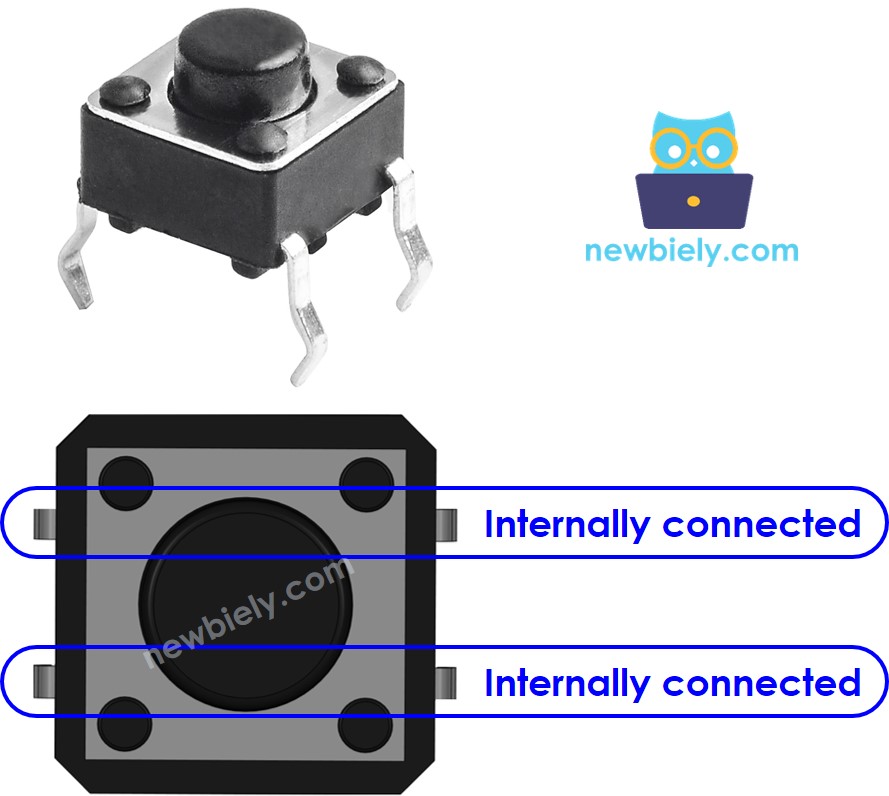
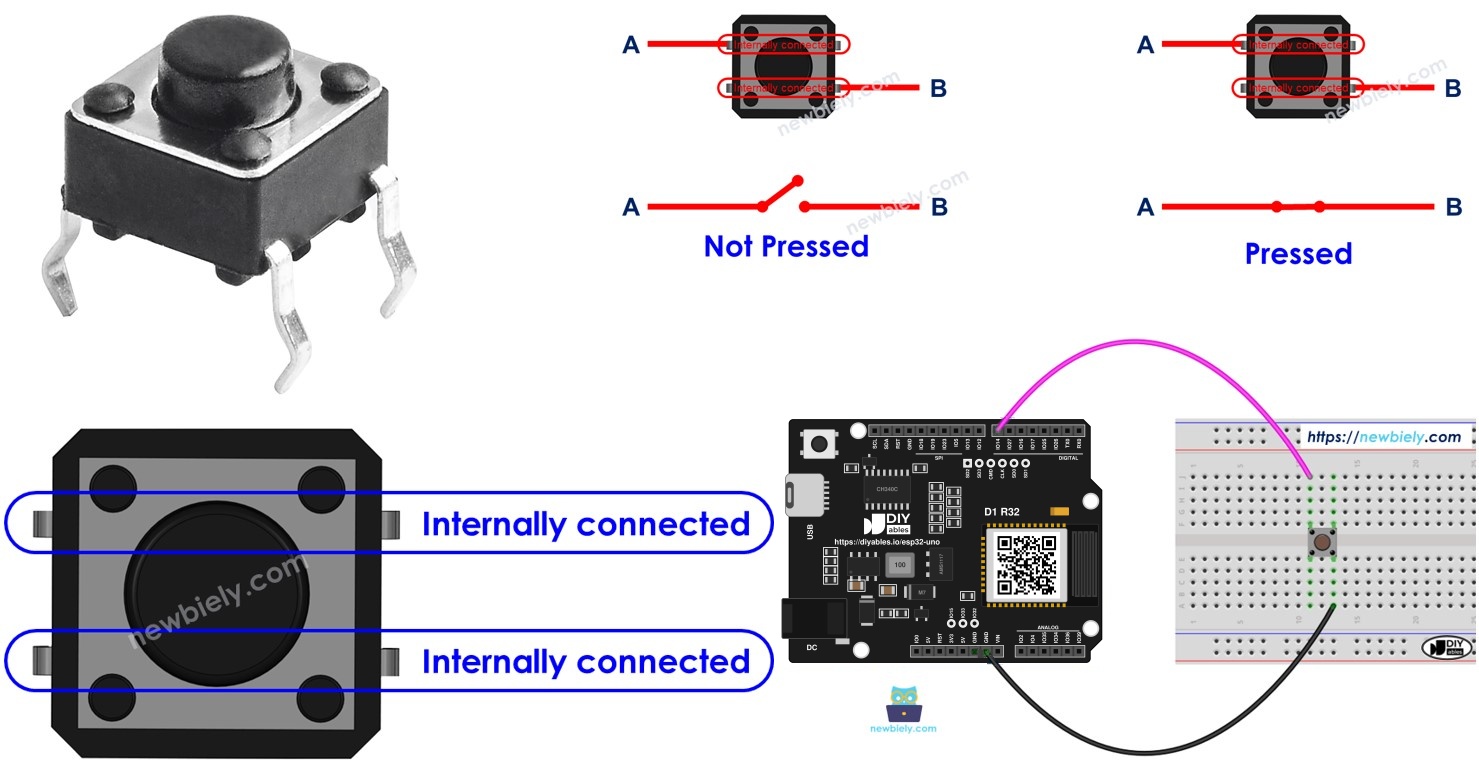
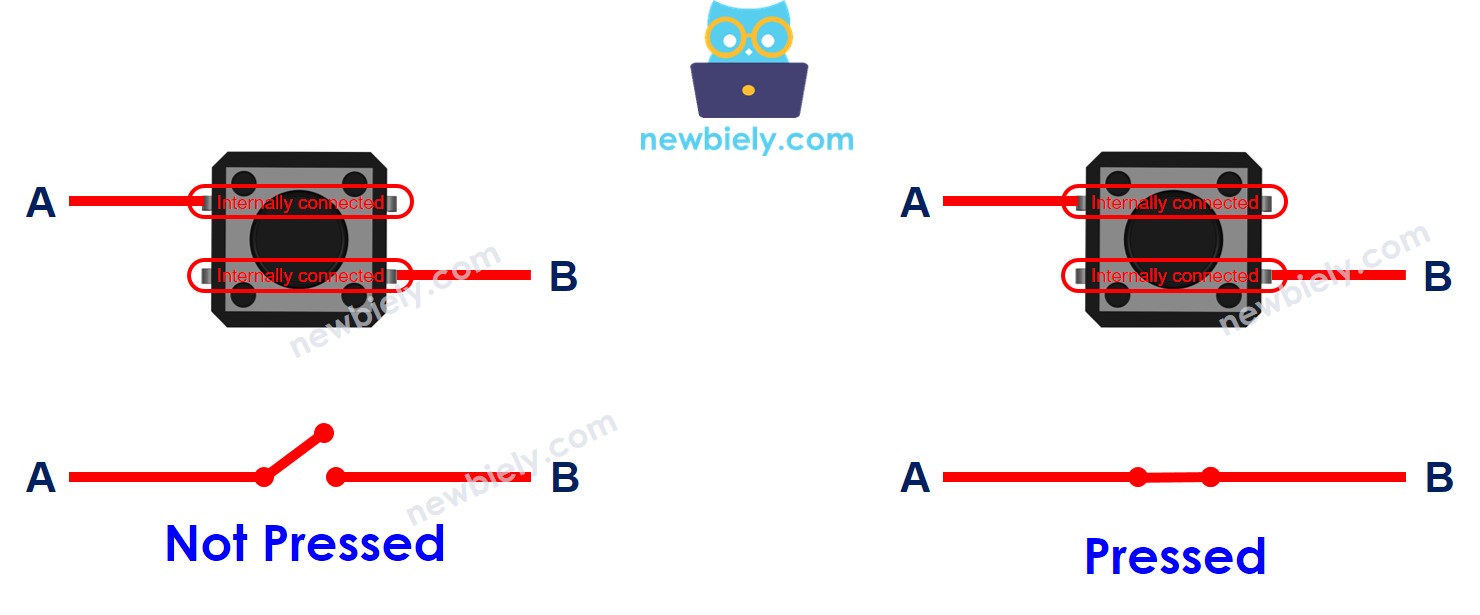
The four legs form two pairs that are always joined inside the body. For a working switch, take one leg from each pair. Two legs from the same pair give a closed path all the time.
The image shows four ways to hook it up. Since the pairs are identical, they reduce to two real choices.

Why four legs then? The extra two give mechanical strength, so the button stays solid on the board when you press it hard.
Panel-mount buttons: two pins
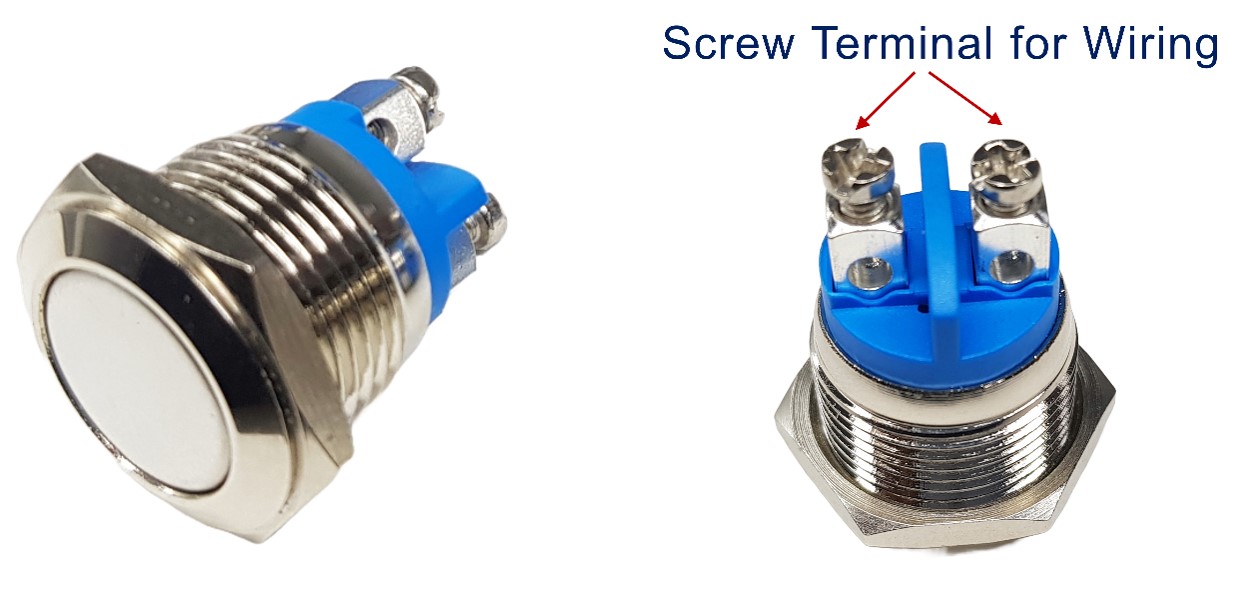
No pairs to worry about. One leg goes to the board pin, the other to GND.
The push button module adds a pull-down resistor and has three pins.
The on-board resistor keeps OUT at LOW until someone presses the cap.
| Module Pin | Connect To |
|---|---|
| GND | Ground |
| VCC | 3.3V on the ESP32 Uno (the module also accepts 5V, but do not use it here) |
| OUT | Any digital input pin of the ESP32 Uno |
Released gives LOW on OUT. Pressed gives HIGH.
How It Works
Up position: pin A and pin B are apart. Down position: a small contact plate bridges pin A and pin B.
Button Plus ESP32 Uno - The Basic Idea
Here is the idea in one picture: one leg of the button goes to VCC or GND, and the other leg goes to an ESP32 Uno input pin. Your sketch then reads that pin to find out whether the button is down or up.
Pin Level vs Button Position
A HIGH reading does not always mean "pressed". It depends on the wiring and on the pin mode. Two setups work:
| Setup | Wiring | Pressed Reads | Released Reads | Resistor |
|---|---|---|---|---|
| Pull-down | Button between 3.3V and the pin, resistor from pin to GND | HIGH | LOW | External only |
| Pull-up | Button between GND and the pin, resistor from pin to 3.3V | LOW | HIGH | External or the internal one |
Good to know: ESP32 Uno pins run at 3.3V logic. In the pull-down setup, take the button supply from 3.3V, never from 5V.
※ NOTE THAT:
With no resistor at all, a released button leaves the pin floating. The pin then acts like a small antenna and picks up noise, so the reading jumps around.
- Avoid: pinMode(BUTTON_PIN, INPUT) with no resistor anywhere.
- Prefer: pinMode(BUTTON_PIN, INPUT_PULLUP), which switches on the resistor inside the chip, so you add no part.
This page uses the pull-up setup with the internal resistor. You run one wire from the button to the pin, one wire to GND, and the code takes care of the rest.
ESP32 Uno Pinout
Every Uno-style header on the ESP32 Uno form board has its own GPIO number, and the sketch needs that number, not the printed label. Find D7 on the diagram below before you plug in a wire.

How to Connect the Button
When you finish this part, the button sits between D7 and GND. Choose the picture for your button style.
- Wiring for the ESP32 Uno with a PCB-mount button
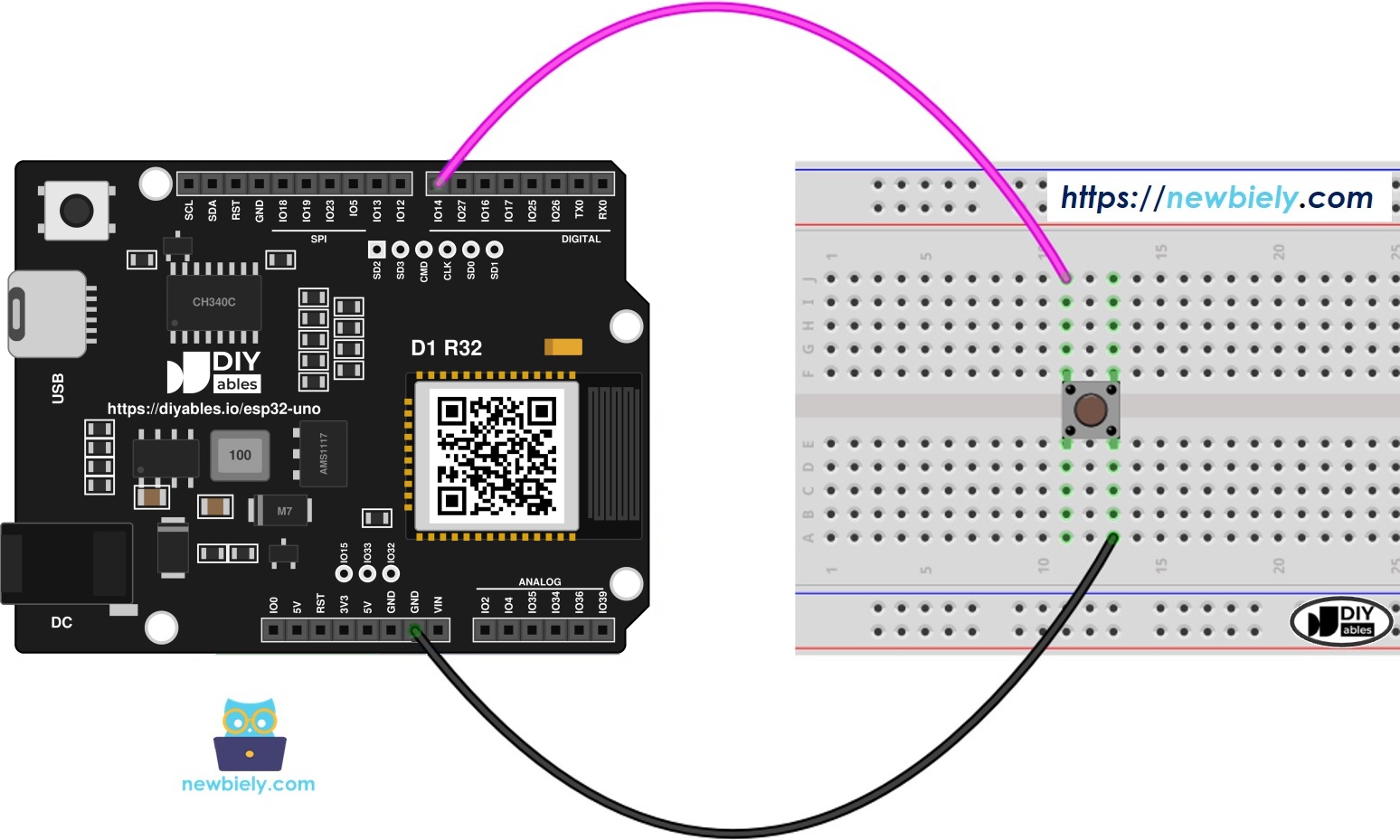
This image is created using Fritzing. Click to enlarge image
- Wiring for the ESP32 Uno with a panel-mount button
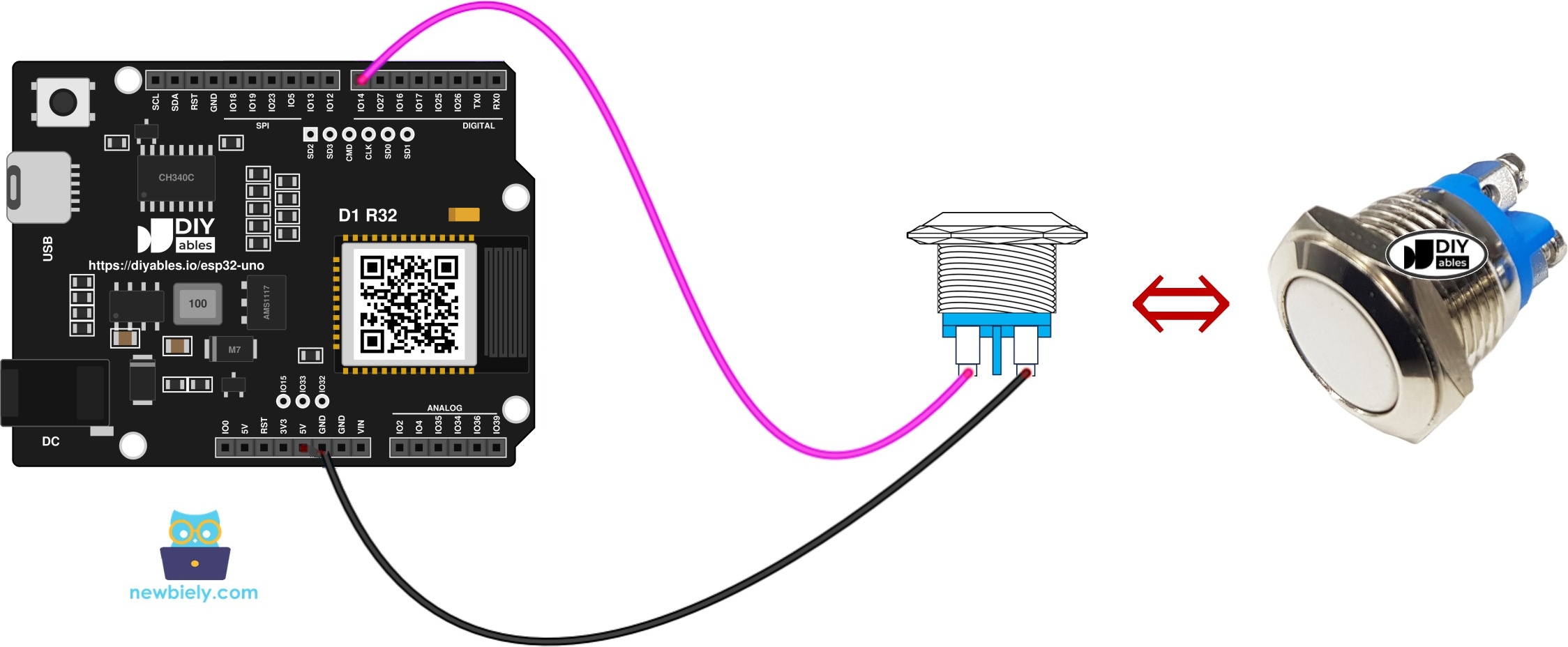
This image is created using Fritzing. Click to enlarge image
| Button Pin | ESP32 Uno Pin |
|---|---|
| Pin A | D7 (GPIO14) |
| Pin B | GND |
Good to know: D7 (GPIO14) is a normal I/O pin with an internal pull-up, so it is a safe choice for a button.
WARNING
Using a button module? Feed its VCC from the 3.3V pin. OUT copies the VCC level, and ESP32 Uno pins are NOT 5V tolerant, so a 5V module can harm GPIO14.
ESP32 Uno Code - Print the Button Level
The sketch below prints the level of GPIO14 twice per second: 1 while the button is up, 0 while you hold it down.
Upload and Test
- First time with this board? Set it up with ESP32 Uno - Getting Started before you continue.
- Build the circuit by following the wiring table above.
- Plug in the USB Type-C cable between the ESP32 Uno and your computer.
- Select the board in Arduino IDE: pick ESP32 Dev Module and the COM port of the board (CH340).
- Paste the sketch into a new Arduino IDE window.
- Hit Upload (Upload) and wait until the IDE says "Done uploading".
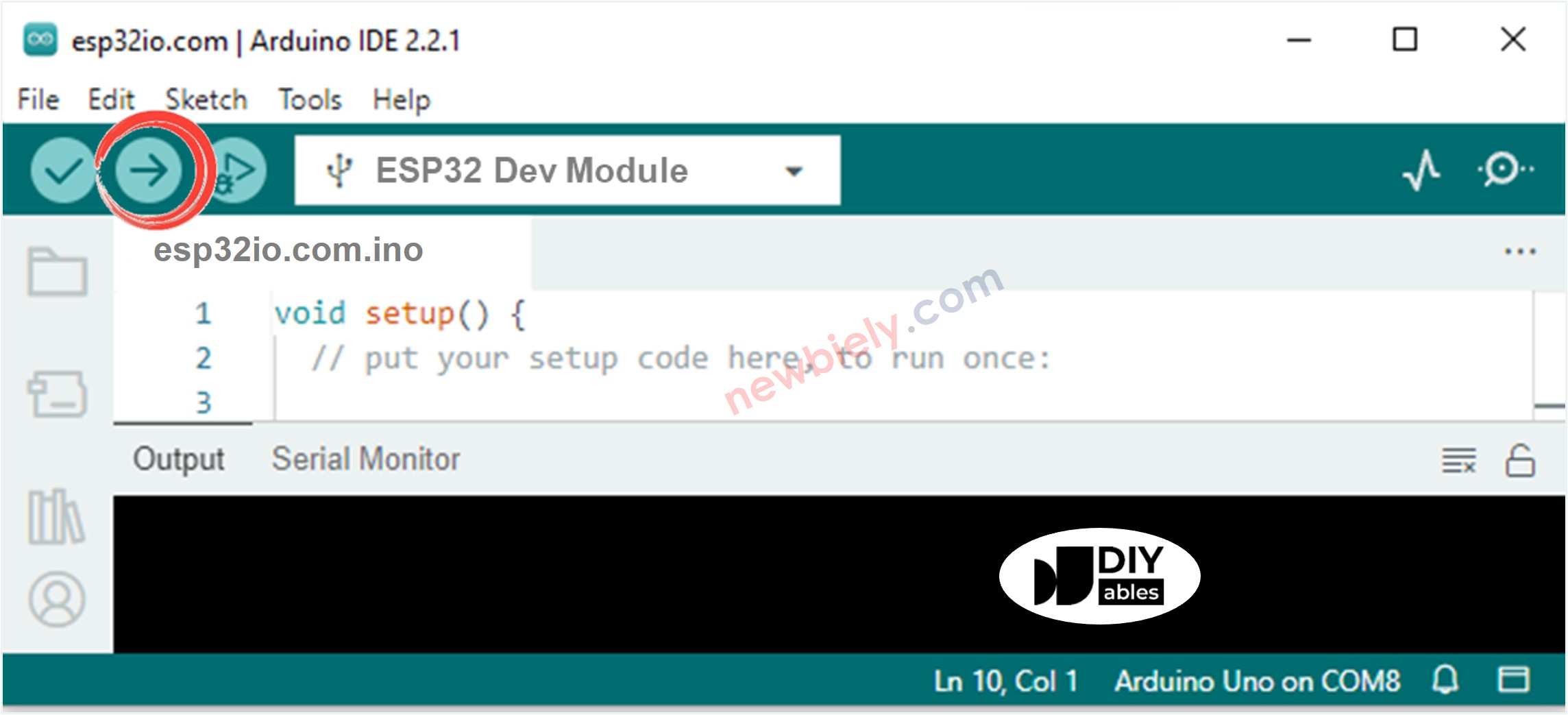
- Open the Serial Monitor window and pick 9600 baud.
- Hold the button for about two seconds, then let go.
- Read the output. Each line is one sample, taken every 0.5 s:
- Pro tip: count the zeros to time your press. Four 0 lines in a row mean you held the button for about two seconds (4 x 0.5 s).
Video Tutorial
See the ESP32 Uno build in action in the video below.
Code Explanation
After this part, you can read every line of both sketches.
| Code Part | What It Does |
|---|---|
| #define BUTTON_PIN 14 | Names GPIO14, the pin behind the D7 header |
| Serial.begin(9600) | Opens the USB serial link to the Serial Monitor |
| pinMode(BUTTON_PIN, INPUT_PULLUP) | Makes the pin an input and holds it HIGH through the internal resistor |
| digitalRead(BUTTON_PIN) | Returns 1 (released) or 0 (pressed) |
| delay(500) | Waits half a second between prints in the first sketch |
| prev_button_state | Keeps the last level so the second sketch can spot a change |
The first sketch reports the level. The second compares two readings in a row, so it reports only the moments when the level changes.
ESP32 Uno Code - Catch Each Press and Release
This version stores the previous reading. A HIGH-to-LOW change prints "pressed", and a LOW-to-HIGH change prints "released".
Upload and Test
- Paste the sketch into Arduino IDE, replacing the old one.
- Hit Upload (Upload) to flash it to the ESP32 Uno.
- Bring up the Serial Monitor (9600 baud again).
- Give the button two separate presses.
- Read the output:
- Pro tip: press very slowly and lightly. Extra "pressed/released" pairs show up more often then, which makes contact bounce easy to see.
※ NOTE THAT:
- A single press can produce a burst of events. That is contact bounce ("chattering"). The fix is in ESP32 Uno - Button Debounce.
- Working with several buttons? The ezButton library keeps the code short and handles debouncing. Read the ezButton library guide to get started.
- With the button module, switch the mode to pinMode(BUTTON_PIN, INPUT). Its own pull-down resistor makes OUT read LOW when idle and HIGH when pressed.
ESP32 Uno vs UNO R4 for This Project
This table lists what changes when you move the button project from the UNO R4 to the ESP32 Uno.
| Item | Arduino UNO R4 | ESP32 Uno |
|---|---|---|
| Logic voltage | 5V | 3.3V |
| Button pin | D7 (pin 7 in code) | D7 (GPIO14, 14 in code) |
| Pull-up | Internal, INPUT_PULLUP | Internal, INPUT_PULLUP |
| Button module VCC | 5V or 3.3V | 3.3V only |
| Arduino IDE board | Arduino UNO R4 WiFi or Minima | ESP32 Dev Module |
| Wireless | WiFi on the WiFi model only | WiFi and Bluetooth built in |
The same wiring works as-is, because the button only connects the pin to GND. The one thing to watch is a button module: run it from 3.3V, not 5V.
Go Wireless: A Doorbell Alert on Your Phone
At the end of this idea, the button press shows up on your phone instead of the USB cable.
The ESP32 Uno has WiFi and Bluetooth on board, so the button does not have to stay tied to the Serial Monitor. Turn it into a wireless doorbell or a "call me" button: each press sends a message to a phone page or to the Bluetooth app. You can also show the live 1/0 level of GPIO14 next to other pins.
- ESP32 Uno - Web Monitor to send "The button is pressed" to a browser
- ESP32 Uno - Web Digital Pins to see the pin level on a web page
- ESP32 Uno - Bluetooth Monitor to get the same messages over Bluetooth
- ESP32 Uno - Bluetooth Digital Pins to watch the pin from the Bluetooth app
Troubleshooting
| Problem | Possible Cause | Solution |
|---|---|---|
| No COM port in Arduino IDE | CH340 driver missing or a charge-only USB cable | Install the CH340 driver and use a USB Type-C data cable |
| Upload stops at "Failed to connect" or "Waiting for download" | Board did not enter download mode | Hold the BOOT button while the upload starts, then release it |
| Serial Monitor shows strange symbols | Baud rate does not match the sketch | Choose 9600 baud in the Serial Monitor |
| Output flips between 1 and 0 on its own | Pin left floating or a loose GND wire | Keep INPUT_PULLUP in the code and push the GND jumper firmly into the breadboard |
| Output stays at 0 all the time | Both legs taken from the same internal pair | Rotate the 4-leg button by 90 degrees on the breadboard |
| Output stays at 1 when pressed | Button on another header, or a different GPIO in the code | Wire the button to D7 and keep BUTTON_PIN set to 14 |
| Press and release are swapped with a module | The module uses a pull-down resistor | Use INPUT instead of INPUT_PULLUP and expect HIGH for pressed |
FAQ
Why does a released button print 1 instead of 0?
INPUT_PULLUP connects the pin to 3.3V through an internal resistor, so the idle level is HIGH (1). Pressing the button shorts the pin to GND, and the reading goes to 0. That is called active-low logic.
How long does a push button last?
Small tactile buttons are usually rated for about 100,000 presses or more. Panel-mount buttons are often rated even higher. For a hobby project, the button rarely wears out before the rest of the build.
Is it safe to wire the button to the 5V pin of the ESP32 Uno?
No. ESP32 Uno GPIO pins accept 3.3V at most. With the wiring on this page, the button only joins the pin to GND, so 5V is never involved. If you use a pull-down setup or a module, take the supply from 3.3V.
Which ESP32 Uno headers are good for buttons?
D2 to D7, D9 and D11 to D13 are normal I/O pins with internal pull-ups. Skip D0 and D1, because they carry the USB serial. Also skip D8 (GPIO12), D10 (GPIO5) and A0 (GPIO2) if you can: they are boot strapping pins, and a button held during reset can stop the board from starting.
Can I put a button on A2 to A5 of the ESP32 Uno?
Yes, but these pins (GPIO35, 34, 36, 39) are input only and have no internal pull-up. INPUT_PULLUP does nothing there, so you must add a 10kΩ resistor from the pin to 3.3V.
Is the button code different from the UNO R4 code?
Only the pin number changes. The UNO R4 sketch uses 7, and the ESP32 Uno sketch uses 14, the GPIO behind the D7 header. The functions pinMode() and digitalRead() work the same way.
How do I read two or more buttons at once?
Give each button its own pin and its own #define, and call digitalRead() for each one. For many buttons with debouncing, the ezButton library saves a lot of code.
My buttons need more pins than the Uno headers have. What can I use?
The ESP32 Uno has a few extra holes near the power header. GPIO32 and GPIO33 are I/O pins with PWM and analog on ADC1, so they work fine even with WiFi on. GPIO15 is an I/O pin with PWM and analog on ADC2. Add pin headers with a soldering iron, then put the plain GPIO number in your sketch. For extra buttons, GPIO32 and GPIO33 are the best choice, and both have internal pull-ups. Two cautions apply. First, GPIO15 and GPIO0 (the IO0 pin at the unused Uno NC position) are boot strapping pins, so a wrong connection can stop the board from booting or uploading code. Use GPIO32/33 first. Second, never use the six holes under the digital header (SD0 to SD3, CMD, CLK, which are GPIO6 to GPIO11). They are wired to the flash chip, and using them crashes the board.
Can the button wake the ESP32 Uno from deep sleep?
Yes. The ESP32 Uno can wake from deep sleep on a pin change, using esp_sleep_enable_ext0_wakeup(). The pin must be an RTC-capable GPIO, and GPIO14 (D7) is one of them.
Can a button press send a message over WiFi?
Yes. The ESP32 Uno has WiFi and Bluetooth built in. Read the button as shown here, and when it is pressed, send a text to a web page or to the Bluetooth app. The Go Wireless section above lists ready-made tutorials.