ESP32 UNO - TFT LCD Touch Display SPI

Want a bright color screen on your ESP32 Uno? Connect an SPI TFT LCD to the ESP32 Uno form board and draw shapes, text, pictures and touch buttons with the DIYables_TFT_SPI library. The guide fits ILI9341, ILI9488 and ST7789 panels from 1.3 to 3.5 inch, with or without the XPT2046 touch layer.

By the end, you can:

  1. Wire an SPI TFT display and its touch chip to the ESP32 Uno
  2. Draw shapes, colors, text and numbers with Adafruit GFX calls
  3. Show a bitmap from flash memory or from a micro SD card
  4. Use a custom font and a custom SPI bus
  5. Read, calibrate and use touch input for drawing and buttons
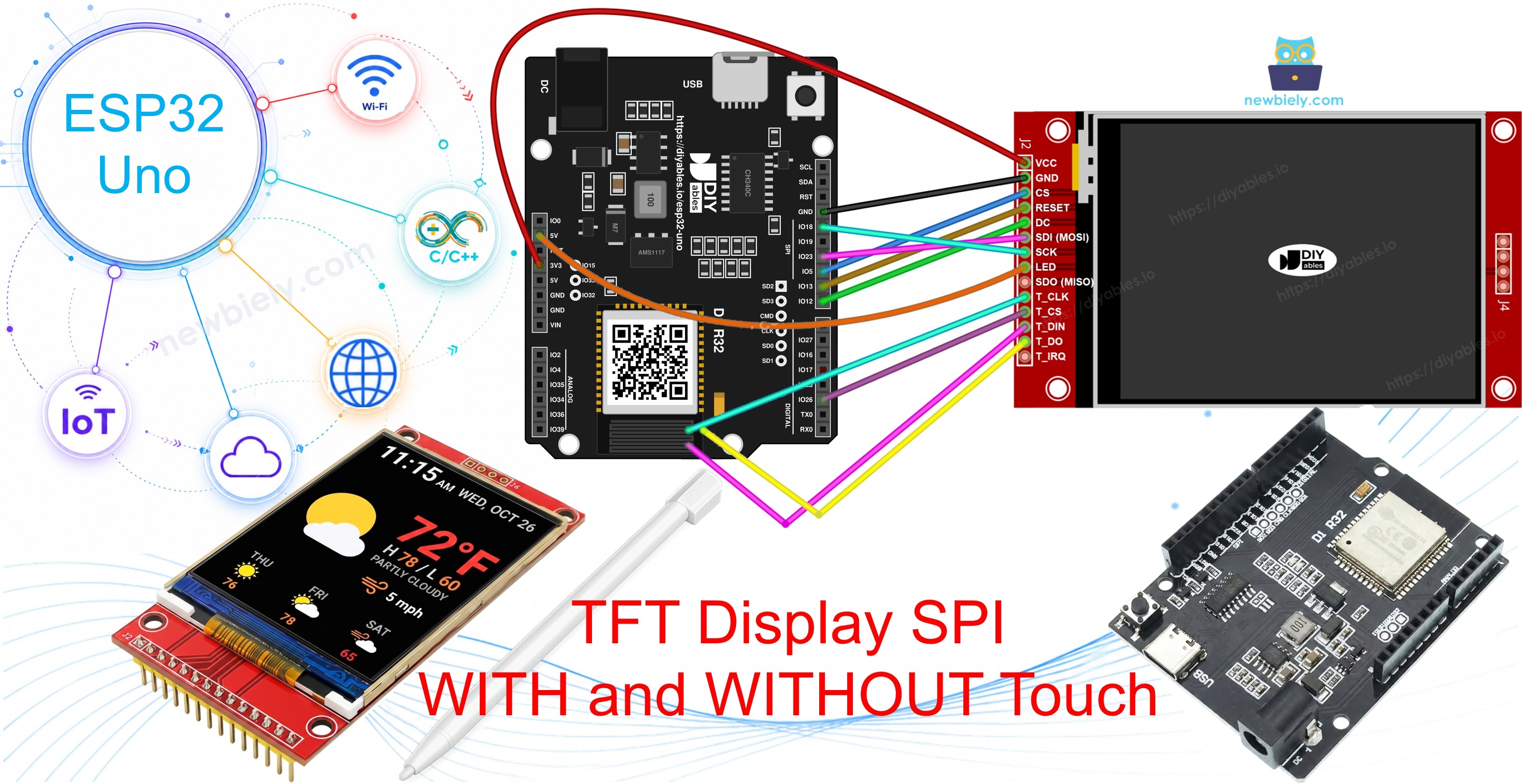
ESP32 Uno TFT LCD touch display

Good to know: the ESP32 Uno works at 3.3V logic, and these display modules accept 3.3V signals. So the signal wires go straight from the board to the display, with no level converter.

Other option: a TFT touch shield plugs onto the Uno headers and needs no jumper wires. It uses a parallel interface, which moves pixels faster than SPI. Read ESP32 Uno - TFT LCD Touch Screen Display if you want that path.

Components You Need

1×ESP32 Uno-form Board
1×USB Cable Type-A to Type-C (for USB-A PC)
1×USB Cable Type-C to Type-C (for USB-C PC)
1×SPI TFT display module
1×Jumper Wires

Or you can buy the following kits:

1×DIYables Sensor Kit (18 sensors/displays)
Disclosure: Some of the links provided in this section are Amazon affiliate links. We may receive a commission for any purchases made through these links at no additional cost to you.
Additionally, some of these links are for products from our own brand, DIYables .

SPI TFT Display Basics

By the end of this part, you know what the display chip does and which driver to pick.

An SPI TFT module is a color LCD with a small driver chip on the back. The ESP32 Uno sends drawing commands to that chip over SPI. The DIYables_TFT_SPI library supports three chips, and it builds on Adafruit GFX, so all the usual shape and text functions work.

Driver Chip Color Depth Max SPI Speed
ILI9341 16-bit RGB565 40 MHz
ILI9488 18-bit RGB666 24 MHz
ST7789 16-bit RGB565 40 MHz

Buying tip: if you do not own a display yet, take one with the ST7789 chip. It is easy to find and runs at the full 40 MHz.

Pinout

Most SPI TFT modules print the same pin names, so the tables below match almost every board.

Display pins

Pin Function
VCC Power supply
GND Ground
CS Chip select, pulled low to talk to the display
DC / RS Data or command select, high for pixels and low for commands
RST Hardware reset, optional (tie to 3.3V if unused)
MOSI / SDI / SDA SPI data from the board to the display
SCK / CLK SPI clock
MISO / SDO SPI data from the display to the board, optional for display-only use
LED / BL / BLK Backlight power, 3.3V or a PWM pin for dimming

SD card pins (only if you read files from the card)

Pin Function
SD_CS / TF_CS SD card chip select
MOSI / SDI Data from the board to the card
SCK / CLK SPI clock
MISO / SDO Data from the card to the board

Touch pins (only on touch versions)

Pin Function
T_CS Touch chip select
T_CLK SPI clock
T_DIN Data from the board to the touch chip
T_DO Data from the touch chip to the board
T_IRQ Touch interrupt, optional

※ NOTE THAT:

Some non-touch modules still show the T_CS, T_CLK, T_DIN, T_DO and T_IRQ pins. They do nothing there, because the touch chip is not soldered on. The maker reused the touch PCB layout for both versions.
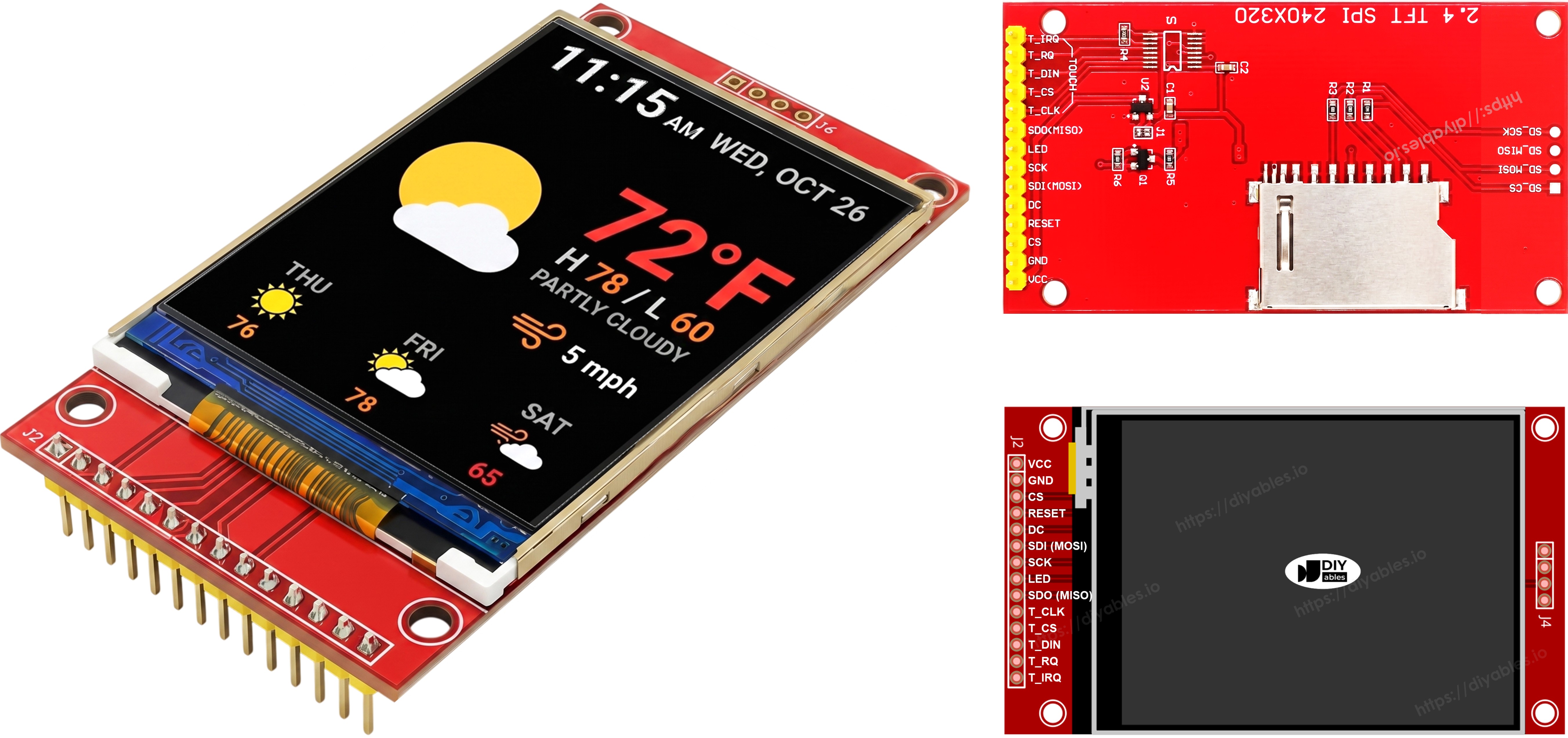
TFT SPI Display Pinout

ESP32 Uno Pinout

Every Uno header pin on the ESP32 Uno form board sits on one GPIO, and your sketch uses that GPIO number. Find D2, D3, D9 to D13 in the picture before you pick up a jumper wire.

ESP32 Uno pinout diagram

How to Connect the Display

By the end of this part, the display (and the touch chip, if you have one) is wired to the ESP32 Uno.

※ NOTE THAT:

The SDO (MISO) wire only carries data from the display back to the board. None of the sketches here read from the display, so you can leave it unconnected. On modules where the touch chip shares the bus, a connected SDO wire can even disturb touch, so skipping it is the safer choice.

Without Touch

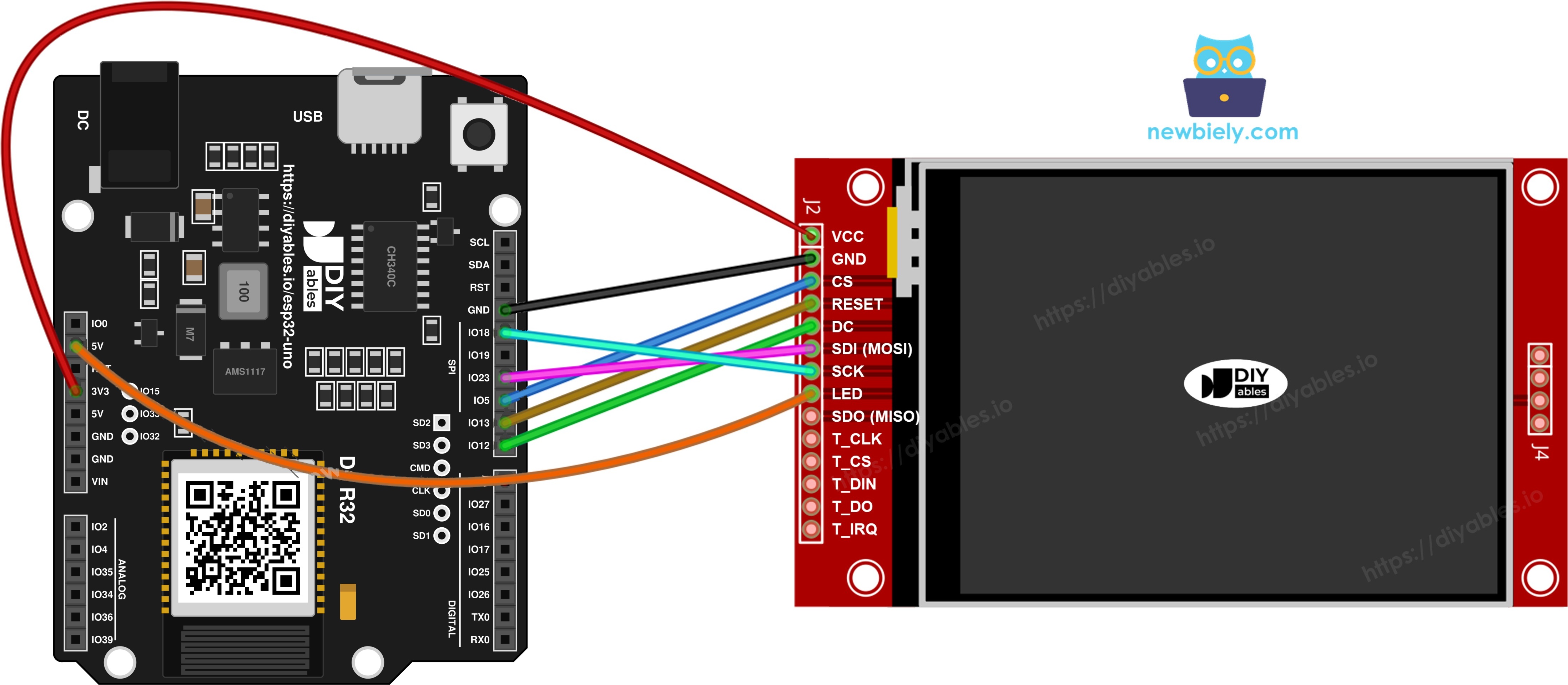
MOSI goes to D11 (GPIO23), SCK to D13 (GPIO18) and MISO to D12 (GPIO19). CS, DC and RST can use any free pin. The sketches use D10 (GPIO5), D3 (GPIO25) and D9 (GPIO13).

Display

TFT Pin ESP32 Uno Pin Description
VCC 3.3V Power supply
GND GND Ground
CS D10 (GPIO5) Chip select
DC / RS D3 (GPIO25) Data or command select
RST D9 (GPIO13) Reset (optional)
MOSI / SDI D11 (GPIO23) Hardware SPI MOSI
SCK D13 (GPIO18) Hardware SPI clock
MISO / SDO D12 (GPIO19) Hardware SPI MISO (optional)
LED / BL 3.3V Backlight power

SD card (only if you use the card)

SD Pin ESP32 Uno Pin Description
SD_CS / TF_CS D4 (GPIO17) SD card chip select
MOSI / SDI D11 (GPIO23) Shared with the display MOSI
SCK / CLK D13 (GPIO18) Shared with the display SCK
MISO / SDO D12 (GPIO19) Shared with the display MISO
The wiring diagram between ESP32 Uno TFT SPI Display  without touch

This image is created using Fritzing. Click to enlarge image

※ NOTE THAT:

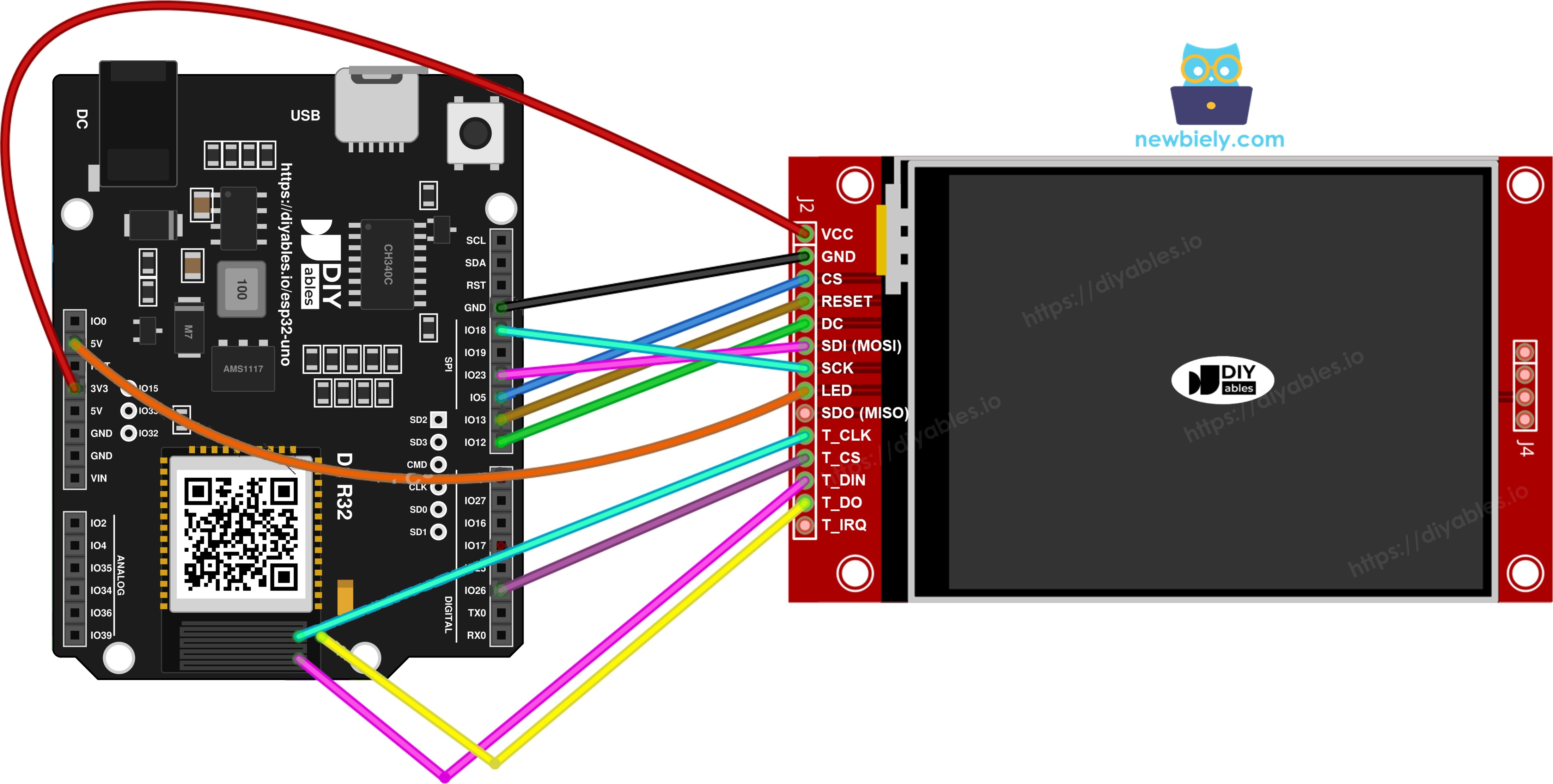
The wiring diagram may not show the correct pins. On the ESP32 Uno, DC goes to D3 (GPIO25), not D8 as the picture may show. The diagram may also show the touch wires on other pins (D7 and D6). On the ESP32 Uno, T_CS goes to D2 (GPIO26) and T_IRQ is not connected. We will update the diagram soon. Until then, follow the wiring table and the code on this page, not the picture.

With Touch

The XPT2046 touch chip joins the same SPI wires. It only needs its own chip select line.

Display - wire it exactly as in the table above.

Touch controller

Touch Pin ESP32 Uno Pin Description
T_CS D2 (GPIO26) Touch chip select
T_IRQ not connected Touch interrupt (optional, the sketches pass -1)
T_DIN D11 (GPIO23) Shared with the display MOSI
T_CLK D13 (GPIO18) Shared with the display SCK
T_DO D12 (GPIO19) Shared with the display MISO
The wiring diagram between ESP32 Uno TFT SPI Display  with touch

This image is created using Fritzing. Click to enlarge image

One SPI bus or two?

The ESP32 Uno has more than one SPI peripheral, but this tutorial puts the display, the SD card and the touch chip on one bus (D11, D13, D12). Each device has its own chip select, so only one talks at a time. The library drives both the display and the XPT2046 through one API, so you need no extra touch library.

Install the Library

By the end of this part, the DIYables_TFT_SPI library is ready in Arduino IDE.

  1. Connect the ESP32 Uno to your computer with a USB Type-C cable.
  2. In Arduino IDE, select the board ESP32 Dev Module and the right COM port.
  3. Click the Libraries icon in the left sidebar.
  4. Search for "DIYables_TFT_SPI" and find the entry by DIYables.
  5. Click Install. Accept the Adafruit GFX Library dependency when Arduino IDE asks.
  • Search for DIYables TFT SPI created by DIYables.io and click the Install button.
∞
Newbiely | Arduino IDE 2.3.8
──
☐
✕
File
Edit
Sketch
Tools
Help
ESP32 Dev Module
Library Manager
Type:
All
Topic:
All
DIYables TFT SPI by DIYables.io
Works with both touch and non-touch versions of the same SPI TFT modules. Supports ILI9341 (240x320, 16-bit RGB565), ILI9488 (320x480, 18-bit RGB666), and ST7789 (240x320, 16-bit RGB565) displays over SPI. Includes built-in driver for XPT2046 / HR2046 / ADS7843 SPI touch controllers and 4-wire resistive touch panels - no separate touch library required. Use the display-only API for non-touch panels, or add initTouchSPI() to enable touch on modules that include a touch controller. Extends Adafruit GFX for full graphics support. Works with any Arduino-compatible board that has SPI. More info
1.0.3
INSTALL
Newbiely.ino
···
1 void setup() {
Output
Serial Monitor
Ln 1, Col 1
ESP32 Dev Module on COM15
1

Sketch Skeleton

Every example below starts from this frame. It shows the three pin lines and the one driver line you may need to change.

#include <DIYables_TFT_SPI.h> #define TFT_CS_PIN 5 // D10 (GPIO5) #define TFT_DC_PIN 25 // D3 (GPIO25) #define TFT_RST_PIN 13 // D9 (GPIO13) // Keep only the line that matches your driver chip: // DIYables_ILI9341_SPI TFT_display(240, 320, TFT_CS_PIN, TFT_DC_PIN, TFT_RST_PIN); // DIYables_ILI9488_SPI TFT_display(320, 480, TFT_CS_PIN, TFT_DC_PIN, TFT_RST_PIN); DIYables_ST7789_SPI TFT_display(240, 320, TFT_CS_PIN, TFT_DC_PIN, TFT_RST_PIN); void setup() { TFT_display.begin(); TFT_display.setRotation(1); } void loop() { // drawing code here }

Give the constructor the real pixel size of your panel. One chip is sold in many panel sizes.

Code Part What It Does
TFT_CS_PIN TFT_DC_PIN TFT_RST_PIN GPIO numbers of the three control wires
DIYables_ST7789_SPI Driver class, swap it for the ILI9341 or ILI9488 class if needed
(240, 320, ...) Width and height of the panel in pixels
begin() Starts the SPI bus and the display chip
setRotation(1) Turns the picture to landscape

Upload and Test Any Example

Use these steps for every example in this guide.

  1. First time with this board? Set it up with ESP32 Uno - Getting Started before you continue.
  2. Build the circuit by following the wiring tables above.
  3. Plug in the USB Type-C cable between the ESP32 Uno and your computer.
  4. Select the board in Arduino IDE: pick ESP32 Dev Module and the COM port of the board (CH340).
  5. Copy the example code, check the driver line and the panel size, and click Upload.
  6. Watch the screen. The picture appears a second or two after the upload ends.
  7. Pro tip: if the colors look inverted or the picture is mirrored, you picked the wrong driver class. Try the other two lines one at a time.

Draw Shapes

The DrawShapes sketch paints circles, triangles, rectangles, rounded rectangles, diamonds and lines on a white screen, then redraws them every ten seconds.

/* * This ESP32 Uno code was developed by newbiely.com * * This ESP32 Uno code is made available for public use without any restriction * * For comprehensive instructions and wiring diagrams, please visit: * https://newbiely.com/tutorials/esp32-uno/esp32-uno-tft-lcd-touch-display-spi */ /* Created by DIYables This example code is in the public domain Product page: https://diyables.io */ // --------------------------------------------- // One include pulls in the base class and every driver class // --------------------------------------------- #include <DIYables_TFT_SPI.h> // --------------------------------------------- // ESP32 Uno wiring for the TFT module // --------------------------------------------- // TFT pin ESP32 Uno header // ------------ ------------------------------- // VCC -> 3.3V // GND -> GND // CS -> D10 (GPIO5) chip select, set by TFT_CS_PIN // RESET -> D9 (GPIO13) reset line, set by TFT_RST_PIN // DC / RS -> D3 (GPIO25) data or command, set by TFT_DC_PIN // SDI / MOSI -> D11 (GPIO23) default hardware SPI data out // SCK -> D13 (GPIO18) default hardware SPI clock // SDO / MISO -> D12 (GPIO19) only used to read back from the panel // LED -> 3.3V backlight always on // --------------------------------------------- // --------------------------------------------- // Pin numbers (GPIO numbers on the ESP32 Uno) // --------------------------------------------- #define TFT_CS_PIN 5 // D10 (GPIO5) is the display chip select #define TFT_DC_PIN 25 // D3 (GPIO25) is the data/command line #define TFT_RST_PIN 13 // D9 (GPIO13) is the reset line // Native portrait size of your panel - edit these two numbers to fit your module #define TFT_WIDTH 240 #define TFT_HEIGHT 320 // --------------------------------------------- // Make the display object (keep only the line for your driver chip) // --------------------------------------------- // DIYables_ILI9341_SPI TFT_display(TFT_WIDTH, TFT_HEIGHT, TFT_CS_PIN, TFT_DC_PIN, TFT_RST_PIN); // DIYables_ILI9488_SPI TFT_display(TFT_WIDTH, TFT_HEIGHT, TFT_CS_PIN, TFT_DC_PIN, TFT_RST_PIN); DIYables_ST7789_SPI TFT_display(TFT_WIDTH, TFT_HEIGHT, TFT_CS_PIN, TFT_DC_PIN, TFT_RST_PIN); #define BLACK DIYables_TFT_SPI::colorRGB(0, 0, 0) #define BLUE DIYables_TFT_SPI::colorRGB(0, 0, 255) #define RED DIYables_TFT_SPI::colorRGB(255, 0, 0) #define GREEN DIYables_TFT_SPI::colorRGB(0, 255, 0) #define ORANGE DIYables_TFT_SPI::colorRGB(255, 165, 0) #define PINK DIYables_TFT_SPI::colorRGB(255, 192, 203) #define VIOLET DIYables_TFT_SPI::colorRGB(148, 0, 211) #define TURQUOISE DIYables_TFT_SPI::colorRGB(64, 224, 208) #define WHITE DIYables_TFT_SPI::colorRGB(255, 255, 255) // Fills a diamond by joining two triangles that share a middle edge void fillDiamond(int cx, int cy, int h, int v, uint16_t color) { int x0 = cx, y0 = cy - v; int x1 = cx + h, y1 = cy; int x2 = cx, y2 = cy + v; int x3 = cx - h, y3 = cy; TFT_display.fillTriangle(x0, y0, x1, y1, x2, y2, color); TFT_display.fillTriangle(x0, y0, x2, y2, x3, y3, color); } void setup() { TFT_display.begin(); TFT_display.setRotation(1); // wide (landscape) view } void loop() { TFT_display.fillScreen(WHITE); uint16_t w = TFT_display.width(); uint16_t h = TFT_display.height(); // Grid positions are fractions of the screen so any panel size works int col1 = w / 8; int col2 = w * 3 / 8; int col3 = w * 5 / 8; int col4 = w * 7 / 8; int row1 = h / 4; int row2 = h / 2; int row3 = h * 3 / 4; // Row 1: circle outline, solid circle, triangle outline, solid triangle TFT_display.drawCircle(col1, row1, 30, RED); TFT_display.fillCircle(col2, row1, 30, RED); TFT_display.drawTriangle(col3 - 30, row1 + 25, col3 + 30, row1 + 25, col3, row1 - 25, BLUE); TFT_display.fillTriangle(col4 - 30, row1 + 25, col4 + 30, row1 + 25, col4, row1 - 25, GREEN); // Row 2: rectangle outline, solid rectangle, rounded outline, solid rounded TFT_display.drawRect(col1 - 35, row2 - 20, 70, 40, ORANGE); TFT_display.fillRect(col2 - 35, row2 - 20, 70, 40, TURQUOISE); TFT_display.drawRoundRect(col3 - 35, row2 - 20, 70, 40, 10, VIOLET); TFT_display.fillRoundRect(col4 - 35, row2 - 20, 70, 40, 10, PINK); // Row 3, left: a diamond outline made of four lines int diamond1_x = (col1 + col2) / 2; TFT_display.drawLine(diamond1_x, row3 - 30, diamond1_x + 25, row3, GREEN); TFT_display.drawLine(diamond1_x + 25, row3, diamond1_x, row3 + 30, GREEN); TFT_display.drawLine(diamond1_x, row3 + 30, diamond1_x - 25, row3, GREEN); TFT_display.drawLine(diamond1_x - 25, row3, diamond1_x, row3 - 30, GREEN); // Row 3, right: a solid diamond from the helper above int diamond2_x = (col3 + col4) / 2; fillDiamond(diamond2_x, row3, 25, 30, BLUE); delay(10000); // wait ten seconds, then draw everything again }

Run It

  1. Wire the display to the ESP32 Uno.
  2. Upload the code with the steps in the section above.
  3. A grid of colored shapes appears.

Method Cheat Sheet

Method What It Does Example
begin() Starts the display, call once in setup() TFT_display.begin();
setRotation(r) Turns the picture, 0 is portrait and 1 is landscape TFT_display.setRotation(1);
fillScreen(color) Clears the screen with one color TFT_display.fillScreen(WHITE);
colorRGB(r,g,b) Builds a 16-bit RGB565 color from three 8-bit values colorRGB(0, 128, 255)
fillCircle(x,y,r,color) Draws a solid circle TFT_display.fillCircle(80, 80, 40, RED);
fillRect(x,y,w,h,color) Draws a solid rectangle TFT_display.fillRect(10, 10, 60, 40, BLUE);
drawRoundRect(x,y,w,h,r,color) Draws a rounded rectangle outline TFT_display.drawRoundRect(5,5,100,50,10,GREEN);

Show Text and Number

The ShowTextAndNumber sketch prints a temperature and a humidity value in big magenta letters.

/* * This ESP32 Uno code was developed by newbiely.com * * This ESP32 Uno code is made available for public use without any restriction * * For comprehensive instructions and wiring diagrams, please visit: * https://newbiely.com/tutorials/esp32-uno/esp32-uno-tft-lcd-touch-display-spi */ /* Created by DIYables This example code is in the public domain Product page: https://diyables.io */ // --------------------------------------------- // One include pulls in the base class and every driver class // --------------------------------------------- #include <DIYables_TFT_SPI.h> // --------------------------------------------- // ESP32 Uno wiring for the TFT module // --------------------------------------------- // TFT pin ESP32 Uno header // ------------ ------------------------------- // VCC -> 3.3V // GND -> GND // CS -> D10 (GPIO5) chip select, set by TFT_CS_PIN // RESET -> D9 (GPIO13) reset line, set by TFT_RST_PIN // DC / RS -> D3 (GPIO25) data or command, set by TFT_DC_PIN // SDI / MOSI -> D11 (GPIO23) default hardware SPI data out // SCK -> D13 (GPIO18) default hardware SPI clock // SDO / MISO -> D12 (GPIO19) only used to read back from the panel // LED -> 3.3V backlight always on // --------------------------------------------- // --------------------------------------------- // Pin numbers (GPIO numbers on the ESP32 Uno) // --------------------------------------------- #define TFT_CS_PIN 5 // D10 (GPIO5) is the display chip select #define TFT_DC_PIN 25 // D3 (GPIO25) is the data/command line #define TFT_RST_PIN 13 // D9 (GPIO13) is the reset line // Native portrait size of your panel - edit these two numbers to fit your module #define TFT_WIDTH 240 #define TFT_HEIGHT 320 // --------------------------------------------- // Make the display object (keep only the line for your driver chip) // --------------------------------------------- // DIYables_ILI9341_SPI TFT_display(TFT_WIDTH, TFT_HEIGHT, TFT_CS_PIN, TFT_DC_PIN, TFT_RST_PIN); // DIYables_ILI9488_SPI TFT_display(TFT_WIDTH, TFT_HEIGHT, TFT_CS_PIN, TFT_DC_PIN, TFT_RST_PIN); DIYables_ST7789_SPI TFT_display(TFT_WIDTH, TFT_HEIGHT, TFT_CS_PIN, TFT_DC_PIN, TFT_RST_PIN); #define MAGENTA DIYables_TFT_SPI::colorRGB(255, 0, 255) #define WHITE DIYables_TFT_SPI::colorRGB(255, 255, 255) void setup() { Serial.begin(9600); Serial.println(F("TFT SPI Display - Show text and numbers")); TFT_display.begin(); TFT_display.setRotation(1); // wide (landscape) view TFT_display.fillScreen(WHITE); // Pick the text color and a 3x scale TFT_display.setTextColor(MAGENTA); TFT_display.setTextSize(3); // Made-up readings, just to have numbers to print float temperature = 23.5; float humidity = 78.6; // First line: temperature with one decimal and a degree sign TFT_display.setCursor(20, 20); TFT_display.print("Temperature: "); TFT_display.print(temperature, 1); TFT_display.print(char(247)); TFT_display.println("C"); // Second line: humidity in percent TFT_display.setCursor(20, 60); TFT_display.print("Humidity: "); TFT_display.print(humidity, 1); TFT_display.print("%"); } void loop() { // the picture is static, so there is nothing to repeat }

Run It

  1. Upload the code.
  2. Two text lines show on the screen.

Method Cheat Sheet

Method What It Does Example
setTextColor(color) Sets the text color TFT_display.setTextColor(BLACK);
setTextSize(size) Scales the text, size 1 is 6x8 pixels TFT_display.setTextSize(2);
setCursor(x, y) Moves the text cursor TFT_display.setCursor(10, 30);
print(value) Prints a string or number at the cursor TFT_display.print(12.5);
println(value) Prints, then moves to the next line TFT_display.println(25.4);

Draw Image

The DrawImage sketch shows an RGB565 picture that lives in flash memory. The pixels sit in bitmap.h as a const uint16_t array marked PROGMEM, so they stay out of RAM.

Copy the header file into the sketch folder before you compile. Arduino IDE picks it up with #include "bitmap.h".

/* * This ESP32 Uno code was developed by newbiely.com * * This ESP32 Uno code is made available for public use without any restriction * * For comprehensive instructions and wiring diagrams, please visit: * https://newbiely.com/tutorials/esp32-uno/esp32-uno-tft-lcd-touch-display-spi */ /* Created by DIYables This example code is in the public domain Product page: https://diyables.io */ // --------------------------------------------- // One include pulls in the base class and every driver class // --------------------------------------------- #include <DIYables_TFT_SPI.h> #include "bitmap.h" // holds the myBitmap pixel array (keep it in the sketch folder) // --------------------------------------------- // ESP32 Uno wiring for the TFT module // --------------------------------------------- // TFT pin ESP32 Uno header // ------------ ------------------------------- // VCC -> 3.3V // GND -> GND // CS -> D10 (GPIO5) chip select, set by TFT_CS_PIN // RESET -> D9 (GPIO13) reset line, set by TFT_RST_PIN // DC / RS -> D3 (GPIO25) data or command, set by TFT_DC_PIN // SDI / MOSI -> D11 (GPIO23) default hardware SPI data out // SCK -> D13 (GPIO18) default hardware SPI clock // SDO / MISO -> D12 (GPIO19) only used to read back from the panel // LED -> 3.3V backlight always on // --------------------------------------------- // --------------------------------------------- // Pin numbers (GPIO numbers on the ESP32 Uno) // --------------------------------------------- #define TFT_CS_PIN 5 // D10 (GPIO5) is the display chip select #define TFT_DC_PIN 25 // D3 (GPIO25) is the data/command line #define TFT_RST_PIN 13 // D9 (GPIO13) is the reset line // Native portrait size of your panel - edit these two numbers to fit your module #define TFT_WIDTH 240 #define TFT_HEIGHT 320 // --------------------------------------------- // Make the display object (keep only the line for your driver chip) // --------------------------------------------- // DIYables_ILI9341_SPI TFT_display(TFT_WIDTH, TFT_HEIGHT, TFT_CS_PIN, TFT_DC_PIN, TFT_RST_PIN); // DIYables_ILI9488_SPI TFT_display(TFT_WIDTH, TFT_HEIGHT, TFT_CS_PIN, TFT_DC_PIN, TFT_RST_PIN); DIYables_ST7789_SPI TFT_display(TFT_WIDTH, TFT_HEIGHT, TFT_CS_PIN, TFT_DC_PIN, TFT_RST_PIN); #define WHITE DIYables_TFT_SPI::colorRGB(255, 255, 255) // Size of the stored picture in pixels int img_width = 120; int img_height = 53; void setup() { Serial.begin(9600); Serial.println(F("TFT SPI Display - Draw Image")); TFT_display.begin(); uint16_t SCREEN_WIDTH = TFT_display.width(); uint16_t SCREEN_HEIGHT = TFT_display.height(); // Top-left corner that puts the picture in the middle of the screen int x = (SCREEN_WIDTH - img_width) / 2; int y = (SCREEN_HEIGHT - img_height) / 2; TFT_display.fillScreen(WHITE); TFT_display.drawRGBBitmap(x, y, myBitmap, img_width, img_height); } void loop() { // flip to inverted colors and back every two seconds delay(2000); TFT_display.invertDisplay(true); delay(2000); TFT_display.invertDisplay(false); }

Run It

  1. Save bitmap.h next to the .ino file.
  2. Upload the code.
  3. The picture shows in the middle of the screen and flips to inverted colors every two seconds.

Method Cheat Sheet

Method What It Does Example
drawRGBBitmap(x,y,bitmap,w,h) Draws an RGB565 PROGMEM picture from pixel (x, y) TFT_display.drawRGBBitmap(0, 0, myBitmap, 240, 320);
fillScreen(color) Clears the screen before drawing TFT_display.fillScreen(BLACK);
invertDisplay(on) Swaps all colors on or off TFT_display.invertDisplay(true);

Draw Image from SD Card

The DrawImageSDcard sketch opens a 24-bit BMP file named diyables.bmp on a micro SD card and draws it pixel by pixel in small chunks. The full picture is never held in RAM.

Put the SD module on the same SPI wires as the display (D11, D13, D12) and give the card its own chip select on D4 (GPIO17).

/* * This ESP32 Uno code was developed by newbiely.com * * This ESP32 Uno code is made available for public use without any restriction * * For comprehensive instructions and wiring diagrams, please visit: * https://newbiely.com/tutorials/esp32-uno/esp32-uno-tft-lcd-touch-display-spi */ /* Created by DIYables This example code is in the public domain Product page: https://diyables.io */ // --------------------------------------------- // One include pulls in the base class and every driver class // --------------------------------------------- #include <DIYables_TFT_SPI.h> #include <SD.h> // micro SD card library // --------------------------------------------- // ESP32 Uno wiring for the TFT module // --------------------------------------------- // TFT pin ESP32 Uno header // ------------ ------------------------------- // VCC -> 3.3V // GND -> GND // CS -> D10 (GPIO5) chip select, set by TFT_CS_PIN // RESET -> D9 (GPIO13) reset line, set by TFT_RST_PIN // DC / RS -> D3 (GPIO25) data or command, set by TFT_DC_PIN // SDI / MOSI -> D11 (GPIO23) default hardware SPI data out // SCK -> D13 (GPIO18) default hardware SPI clock // SDO / MISO -> D12 (GPIO19) only used to read back from the panel // LED -> 3.3V backlight always on // SD CS -> D4 (GPIO17) micro SD chip select, set by SD_CS // (the SD card shares MOSI, MISO and SCK with the display) // --------------------------------------------- // --------------------------------------------- // Pin numbers (GPIO numbers on the ESP32 Uno) // --------------------------------------------- #define TFT_CS_PIN 5 // D10 (GPIO5) is the display chip select #define TFT_DC_PIN 25 // D3 (GPIO25) is the data/command line #define TFT_RST_PIN 13 // D9 (GPIO13) is the reset line // Native portrait size of your panel - edit these two numbers to fit your module #define TFT_WIDTH 240 #define TFT_HEIGHT 320 #define SD_CS 17 // D4 (GPIO17) is the SD chip select (must not equal TFT_CS_PIN) // --------------------------------------------- // Make the display object (keep only the line for your driver chip) // --------------------------------------------- // DIYables_ILI9341_SPI TFT_display(TFT_WIDTH, TFT_HEIGHT, TFT_CS_PIN, TFT_DC_PIN, TFT_RST_PIN); // DIYables_ILI9488_SPI TFT_display(TFT_WIDTH, TFT_HEIGHT, TFT_CS_PIN, TFT_DC_PIN, TFT_RST_PIN); DIYables_ST7789_SPI TFT_display(TFT_WIDTH, TFT_HEIGHT, TFT_CS_PIN, TFT_DC_PIN, TFT_RST_PIN); #define WHITE DIYables_TFT_SPI::colorRGB(255, 255, 255) #define BUFFPIXEL 20 // how many pixels are read from the card in one go File bmpFile; uint16_t SCREEN_WIDTH; uint16_t SCREEN_HEIGHT; // Small readers that rebuild numbers from the BMP header bytes (little-endian) uint16_t read16(File &f) { uint16_t result; result = f.read(); result |= (f.read() << 8); return result; } uint32_t read32(File &f) { uint32_t result; result = f.read(); result |= ((uint32_t)f.read() << 8); result |= ((uint32_t)f.read() << 16); result |= ((uint32_t)f.read() << 24); return result; } int32_t readS32(File &f) { int32_t result; result = f.read(); result |= ((uint32_t)f.read() << 8); result |= ((uint32_t)f.read() << 16); result |= ((uint32_t)f.read() << 24); return result; } bool getBMPDimensions(const char *filename, uint32_t &w, uint32_t &h) { File f = SD.open(filename); if (!f) return false; if (read16(f) != 0x4D42) { f.close(); return false; } read32(f); // skip: file size read32(f); // skip: reserved bytes read32(f); // skip: pixel data offset read32(f); // skip: DIB header size w = read32(f); int32_t sh = readS32(f); h = (sh < 0) ? -sh : sh; f.close(); return true; } void drawBMP(const char *filename, int x, int y) { bmpFile = SD.open(filename); if (!bmpFile) { Serial.println("File not found"); return; } if (read16(bmpFile) != 0x4D42) { Serial.println("Not a BMP file"); bmpFile.close(); return; } uint32_t fileSize = read32(bmpFile); read32(bmpFile); // skip: reserved bytes uint32_t imageOffset = read32(bmpFile); uint32_t dibHeaderSize = read32(bmpFile); uint32_t bmpWidth = read32(bmpFile); int32_t bmpHeight = readS32(bmpFile); bool topDown = false; if (bmpHeight < 0) { bmpHeight = -bmpHeight; topDown = true; } if (read16(bmpFile) != 1) { Serial.println("Invalid BMP file"); bmpFile.close(); return; } uint16_t depth = read16(bmpFile); if (depth != 24) { Serial.println("Only 24-bit BMP is supported"); bmpFile.close(); return; } if (read32(bmpFile) != 0) { Serial.println("Unsupported BMP compression"); bmpFile.close(); return; } bmpFile.seek(imageOffset); uint8_t sdbuffer[3 * BUFFPIXEL]; uint16_t color; uint32_t rowSize = (bmpWidth * 3 + 3) & ~3; if (x >= SCREEN_WIDTH || y >= SCREEN_HEIGHT) return; uint32_t maxRow = min((uint32_t)bmpHeight, (uint32_t)(SCREEN_HEIGHT - y)); uint32_t maxCol = min(bmpWidth, (uint32_t)(SCREEN_WIDTH - x)); for (uint32_t row = 0; row < maxRow; row++) { int32_t rowPos = topDown ? row : bmpHeight - 1 - row; uint32_t filePosition = imageOffset + rowPos * rowSize; bmpFile.seek(filePosition); for (uint32_t col = 0; col < maxCol; col += BUFFPIXEL) { uint32_t pixelsToRead = min((uint32_t)BUFFPIXEL, maxCol - col); bmpFile.read(sdbuffer, 3 * pixelsToRead); for (uint32_t i = 0; i < pixelsToRead; i++) { uint8_t b = sdbuffer[i * 3]; uint8_t g = sdbuffer[i * 3 + 1]; uint8_t r = sdbuffer[i * 3 + 2]; color = DIYables_TFT_SPI::colorRGB(r, g, b); if ((x + col + i) < SCREEN_WIDTH && (y + row) < SCREEN_HEIGHT) { TFT_display.drawPixel(x + col + i, y + row, color); } } } } bmpFile.close(); Serial.println("BMP drawn"); } void setup() { Serial.begin(9600); // Start the card first; stop here if it is missing if (!SD.begin(SD_CS)) { Serial.println("SD card initialization failed!"); return; } Serial.println("SD card initialized."); TFT_display.begin(); TFT_display.setRotation(1); // wide (landscape) view SCREEN_WIDTH = TFT_display.width(); SCREEN_HEIGHT = TFT_display.height(); TFT_display.fillScreen(WHITE); // Read the picture size, then draw it in the middle of the screen uint32_t imgWidth, imgHeight; if (getBMPDimensions("diyables.bmp", imgWidth, imgHeight)) { int x = (SCREEN_WIDTH - imgWidth) / 2; int y = (SCREEN_HEIGHT - imgHeight) / 2; drawBMP("diyables.bmp", x, y); } else { Serial.println("Failed to get BMP dimensions"); } } void loop() { // the image is drawn once in setup() }

Run It

  1. Wire the SD card module as in the SD table above.
  2. Copy a 24-bit BMP file called diyables.bmp to the root of the card.
  3. Upload the code and open the Serial Monitor at 9600 baud.
  4. The picture appears on the display.

Method Cheat Sheet

Method What It Does Example
SD.begin(cs) Starts the SD card on the given chip select GPIO SD.begin(17);
SD.open(name) Opens a file on the card SD.open("diyables.bmp");
drawPixel(x, y, color) Draws a single pixel TFT_display.drawPixel(10, 10, WHITE);

Use an External Font

The UseExternalFont sketch prints the same two lines with a bold Adafruit GFX font instead of the built-in 5x7 font. One call to setFont() switches the font.

/* * This ESP32 Uno code was developed by newbiely.com * * This ESP32 Uno code is made available for public use without any restriction * * For comprehensive instructions and wiring diagrams, please visit: * https://newbiely.com/tutorials/esp32-uno/esp32-uno-tft-lcd-touch-display-spi */ /* Created by DIYables This example code is in the public domain Product page: https://diyables.io */ // --------------------------------------------- // One include pulls in the base class and every driver class // --------------------------------------------- #include <DIYables_TFT_SPI.h> #include <Fonts/FreeSansBold12pt7b.h> // bold sans font that ships with Adafruit GFX // --------------------------------------------- // ESP32 Uno wiring for the TFT module // --------------------------------------------- // TFT pin ESP32 Uno header // ------------ ------------------------------- // VCC -> 3.3V // GND -> GND // CS -> D10 (GPIO5) chip select, set by TFT_CS_PIN // RESET -> D9 (GPIO13) reset line, set by TFT_RST_PIN // DC / RS -> D3 (GPIO25) data or command, set by TFT_DC_PIN // SDI / MOSI -> D11 (GPIO23) default hardware SPI data out // SCK -> D13 (GPIO18) default hardware SPI clock // SDO / MISO -> D12 (GPIO19) only used to read back from the panel // LED -> 3.3V backlight always on // --------------------------------------------- // --------------------------------------------- // Pin numbers (GPIO numbers on the ESP32 Uno) // --------------------------------------------- #define TFT_CS_PIN 5 // D10 (GPIO5) is the display chip select #define TFT_DC_PIN 25 // D3 (GPIO25) is the data/command line #define TFT_RST_PIN 13 // D9 (GPIO13) is the reset line // Native portrait size of your panel - edit these two numbers to fit your module #define TFT_WIDTH 240 #define TFT_HEIGHT 320 // --------------------------------------------- // Make the display object (keep only the line for your driver chip) // --------------------------------------------- // DIYables_ILI9341_SPI TFT_display(TFT_WIDTH, TFT_HEIGHT, TFT_CS_PIN, TFT_DC_PIN, TFT_RST_PIN); // DIYables_ILI9488_SPI TFT_display(TFT_WIDTH, TFT_HEIGHT, TFT_CS_PIN, TFT_DC_PIN, TFT_RST_PIN); DIYables_ST7789_SPI TFT_display(TFT_WIDTH, TFT_HEIGHT, TFT_CS_PIN, TFT_DC_PIN, TFT_RST_PIN); #define MAGENTA DIYables_TFT_SPI::colorRGB(255, 0, 255) #define WHITE DIYables_TFT_SPI::colorRGB(255, 255, 255) void setup() { Serial.begin(9600); Serial.println(F("TFT SPI Display - Use external font")); TFT_display.begin(); TFT_display.setFont(&FreeSansBold12pt7b); // switch from the built-in font to the bold one TFT_display.setRotation(1); // wide (landscape) view TFT_display.fillScreen(WHITE); TFT_display.setTextColor(MAGENTA); TFT_display.setTextSize(1); // the font is already big, so keep scale 1 // Made-up readings to print float temperature = 23.5; float humidity = 78.6; // With a custom font the cursor marks the text baseline TFT_display.setCursor(20, 30); TFT_display.print("Temperature: "); TFT_display.print(temperature, 1); TFT_display.print(char(247)); TFT_display.println("C"); TFT_display.setCursor(20, 70); TFT_display.print("Humidity: "); TFT_display.print(humidity, 1); TFT_display.print("%"); } void loop() { // nothing to update after the first draw }

Run It

  1. Upload the code.
  2. The text looks smoother than the default font.

Method Cheat Sheet

Method What It Does Example
setFont(&FontName) Picks a GFX font, pass NULL to go back to the built-in font TFT_display.setFont(&FreeSans12pt7b);
setCursor(x, y) Sets the text baseline position TFT_display.setCursor(10, 40);
setTextColor(color) Sets the text color TFT_display.setTextColor(WHITE);
print(text) Prints text with the active font TFT_display.print("Hello!");

Touch Get Point

The TouchGetPoint sketch reads the finger position and prints it in the Serial Monitor. It also puts a red dot where you press.

Touch wiring from the table above: T_CS to D2 (GPIO26), T_CLK to D13, T_DIN to D11, T_DO to D12. The sketch passes -1 as the interrupt pin, so T_IRQ stays free.

/* * This ESP32 Uno code was developed by newbiely.com * * This ESP32 Uno code is made available for public use without any restriction * * For comprehensive instructions and wiring diagrams, please visit: * https://newbiely.com/tutorials/esp32-uno/esp32-uno-tft-lcd-touch-display-spi */ /* Touch Get Point Example ----------------------- Reads the finger position from a DIYables SPI TFT display that has a resistive touch layer. Each touch prints the mapped screen X and Y to the Serial Monitor and puts a red dot on the spot you pressed. NOTE: Run the TouchCalibration sketch first and paste your numbers into setTouchCalibration() below if the touch position is off. Created by DIYables This example code is in the public domain Product page: https://diyables.io */ // --------------------------------------------- // One include pulls in the base class and every driver class // --------------------------------------------- #include <DIYables_TFT_SPI.h> // --------------------------------------------- // ESP32 Uno wiring for the TFT module and the touch chip // --------------------------------------------- // TFT pin ESP32 Uno header // ------------ ------------------------------- // VCC -> 3.3V // GND -> GND // CS -> D10 (GPIO5) set by TFT_CS_PIN // RESET -> D9 (GPIO13) set by TFT_RST_PIN // DC / RS -> D3 (GPIO25) set by TFT_DC_PIN // SDI / MOSI -> D11 (GPIO23) default hardware SPI data out // SCK -> D13 (GPIO18) default hardware SPI clock // SDO / MISO -> D12 (GPIO19) only used to read back from the panel // LED -> 3.3V backlight always on // // XPT2046 / HR2046 / ADS7843 touch chip // (module pins: T_CS, T_CLK, T_DIN, T_DO, T_IRQ) // Touch pin ESP32 Uno header // ------------ ------------------------------- // T_CS -> D2 (GPIO26) set by TOUCH_CS_PIN // T_IRQ -> not connected (TOUCH_IRQ_PIN is -1) // T_CLK -> D13 (GPIO18) same wire as the display SCK // T_DIN -> D11 (GPIO23) same wire as the display MOSI // T_DO -> D12 (GPIO19) same wire as the display MISO // --------------------------------------------- // --------------------------------------------- // Pin numbers (GPIO numbers on the ESP32 Uno) // --------------------------------------------- #define TFT_CS_PIN 5 // D10 (GPIO5) is the display chip select #define TFT_DC_PIN 25 // D3 (GPIO25) is the data/command line #define TFT_RST_PIN 13 // D9 (GPIO13) is the reset line // Native portrait size of your panel - edit these two numbers to fit your module #define TFT_WIDTH 240 #define TFT_HEIGHT 320 // --------------------------------------------- // Touch pins (XPT2046 / HR2046 touch chip) // --------------------------------------------- #define TOUCH_CS_PIN 26 // D2 (GPIO26) is the touch chip select #define TOUCH_IRQ_PIN -1 // -1 means the T_IRQ wire is not used // --------------------------------------------- // Touch calibration numbers // Run the TouchCalibration sketch and paste your own values here // Usual raw range for an XPT2046 chip is about 200 to 3900 // --------------------------------------------- #define TOUCH_LEFT_X 300 #define TOUCH_RIGHT_X 3700 #define TOUCH_TOP_Y 300 #define TOUCH_BOT_Y 3700 // --------------------------------------------- // Make the display object (keep only the line for your driver chip) // --------------------------------------------- // DIYables_ILI9341_SPI TFT_display(TFT_WIDTH, TFT_HEIGHT, TFT_CS_PIN, TFT_DC_PIN, TFT_RST_PIN); // DIYables_ILI9488_SPI TFT_display(TFT_WIDTH, TFT_HEIGHT, TFT_CS_PIN, TFT_DC_PIN, TFT_RST_PIN); DIYables_ST7789_SPI TFT_display(TFT_WIDTH, TFT_HEIGHT, TFT_CS_PIN, TFT_DC_PIN, TFT_RST_PIN); #define RED DIYables_TFT_SPI::colorRGB(255, 0, 0) #define WHITE DIYables_TFT_SPI::colorRGB(255, 255, 255) void setup() { Serial.begin(9600); TFT_display.begin(); TFT_display.setRotation(0); // tall (portrait) view TFT_display.fillScreen(WHITE); // Start the touch chip on the shared SPI bus TFT_display.initTouchSPI(TOUCH_CS_PIN, TOUCH_IRQ_PIN); // Mirrored X axis on your panel? Remove the slashes on the next line //TFT_display.setTouchInvertX(true); // Mirrored Y axis on your panel? Change the argument as needed //TFT_display.setTouchInvertY(false); // Map raw chip values to screen pixels TFT_display.setTouchCalibration(TOUCH_LEFT_X, TOUCH_RIGHT_X, TOUCH_TOP_Y, TOUCH_BOT_Y); Serial.println("Touch the screen to see coordinates."); } void loop() { int x, y; if (TFT_display.getTouch(x, y)) { // true while a finger is down Serial.print("Touch at: "); Serial.print(x); Serial.print(", "); Serial.println(y); TFT_display.fillCircle(x, y, 4, RED); delay(200); // short pause so the Serial Monitor is not flooded } }

Run It

  1. Wire the touch chip to the ESP32 Uno.
  2. Upload the code and open the Serial Monitor at 9600 baud.
  3. Press the screen and read the coordinates:
∞
Newbiely | Arduino IDE 2.3.8
──
☐
✕
File
Edit
Sketch
Tools
Help
ESP32 Dev Module
Newbiely.ino
···
8 Serial.println("Hello World!");
Output
Serial Monitor
Message (Enter to send message to 'ESP32 Dev Module' on 'COM15')
New Line
9600 baud
Touch the screen to see coordinates. Touch at: 118, 203 Touch at: 121, 207 Touch at: 164, 88
Ln 11, Col 1
ESP32 Dev Module on COM15
2

Method Cheat Sheet

Method What It Does Example
initTouchSPI(cs, irq) Starts the XPT2046 on the shared SPI bus, use -1 when T_IRQ is unused TFT_display.initTouchSPI(26, -1);
setTouchCalibration(minX,maxX,minY,maxY) Maps raw chip values to screen pixels TFT_display.setTouchCalibration(300, 3700, 300, 3700);
getTouch(x, y) Gives the touch position, returns true while pressed TFT_display.getTouch(x, y)

Touch Draw

The TouchDraw sketch is a tiny paint program. Each touch sample leaves a small red dot, so dragging your finger draws a line.

/* * This ESP32 Uno code was developed by newbiely.com * * This ESP32 Uno code is made available for public use without any restriction * * For comprehensive instructions and wiring diagrams, please visit: * https://newbiely.com/tutorials/esp32-uno/esp32-uno-tft-lcd-touch-display-spi */ /* Touch Draw Example ------------------- Paints a trail of dots that follows your finger. - Press and drag on the screen to draw. - Lift your finger to stop. - Press again to start a new stroke. NOTE: Run the TouchCalibration sketch first and paste your numbers into setTouchCalibration() below if the touch position is off. Created by DIYables This example code is in the public domain Product page: https://diyables.io */ // --------------------------------------------- // One include pulls in the base class and every driver class // --------------------------------------------- #include <DIYables_TFT_SPI.h> // --------------------------------------------- // ESP32 Uno wiring for the TFT module and the touch chip // --------------------------------------------- // TFT pin ESP32 Uno header // ------------ ------------------------------- // VCC -> 3.3V // GND -> GND // CS -> D10 (GPIO5) set by TFT_CS_PIN // RESET -> D9 (GPIO13) set by TFT_RST_PIN // DC / RS -> D3 (GPIO25) set by TFT_DC_PIN // SDI / MOSI -> D11 (GPIO23) default hardware SPI data out // SCK -> D13 (GPIO18) default hardware SPI clock // SDO / MISO -> D12 (GPIO19) only used to read back from the panel // LED -> 3.3V backlight always on // // XPT2046 / HR2046 / ADS7843 touch chip // (module pins: T_CS, T_CLK, T_DIN, T_DO, T_IRQ) // Touch pin ESP32 Uno header // ------------ ------------------------------- // T_CS -> D2 (GPIO26) set by TOUCH_CS_PIN // T_IRQ -> not connected (TOUCH_IRQ_PIN is -1) // T_CLK -> D13 (GPIO18) same wire as the display SCK // T_DIN -> D11 (GPIO23) same wire as the display MOSI // T_DO -> D12 (GPIO19) same wire as the display MISO // --------------------------------------------- // --------------------------------------------- // Pin numbers (GPIO numbers on the ESP32 Uno) // --------------------------------------------- #define TFT_CS_PIN 5 // D10 (GPIO5) is the display chip select #define TFT_DC_PIN 25 // D3 (GPIO25) is the data/command line #define TFT_RST_PIN 13 // D9 (GPIO13) is the reset line // Native portrait size of your panel - edit these two numbers to fit your module #define TFT_WIDTH 240 #define TFT_HEIGHT 320 // --------------------------------------------- // Touch pins (XPT2046 / HR2046 touch chip) // --------------------------------------------- #define TOUCH_CS_PIN 26 // D2 (GPIO26) is the touch chip select #define TOUCH_IRQ_PIN -1 // -1 means the T_IRQ wire is not used // --------------------------------------------- // Touch calibration numbers // Run the TouchCalibration sketch and paste your own values here // Usual raw range for an XPT2046 chip is about 200 to 3900 // --------------------------------------------- #define TOUCH_LEFT_X 300 #define TOUCH_RIGHT_X 3700 #define TOUCH_TOP_Y 300 #define TOUCH_BOT_Y 3700 // --------------------------------------------- // Make the display object (keep only the line for your driver chip) // --------------------------------------------- // DIYables_ILI9341_SPI TFT_display(TFT_WIDTH, TFT_HEIGHT, TFT_CS_PIN, TFT_DC_PIN, TFT_RST_PIN); // DIYables_ILI9488_SPI TFT_display(TFT_WIDTH, TFT_HEIGHT, TFT_CS_PIN, TFT_DC_PIN, TFT_RST_PIN); DIYables_ST7789_SPI TFT_display(TFT_WIDTH, TFT_HEIGHT, TFT_CS_PIN, TFT_DC_PIN, TFT_RST_PIN); #define RED DIYables_TFT_SPI::colorRGB(255, 0, 0) #define WHITE DIYables_TFT_SPI::colorRGB(255, 255, 255) #define PEN_RADIUS 3 // size of each painted dot void setup() { TFT_display.begin(); TFT_display.setRotation(0); // tall (portrait) view TFT_display.fillScreen(WHITE); // Start the touch chip on the shared SPI bus TFT_display.initTouchSPI(TOUCH_CS_PIN, TOUCH_IRQ_PIN); // Mirrored X axis on your panel? Remove the slashes on the next line //TFT_display.setTouchInvertX(true); // Mirrored Y axis on your panel? Change the argument as needed //TFT_display.setTouchInvertY(false); // Map raw chip values to screen pixels TFT_display.setTouchCalibration(TOUCH_LEFT_X, TOUCH_RIGHT_X, TOUCH_TOP_Y, TOUCH_BOT_Y); } void loop() { int x, y; if (TFT_display.getTouch(x, y)) { // paint one dot per touch sample TFT_display.fillCircle(x, y, PEN_RADIUS, RED); } }

Run It

  1. Wire the touch chip as in the Touch Get Point part.
  2. Upload the code.
  3. Drag a finger over the screen to paint.

Method Cheat Sheet

Method What It Does Example
initTouchSPI(cs, irq) Starts the XPT2046 on the shared bus TFT_display.initTouchSPI(26, -1);
setTouchCalibration(minX,maxX,minY,maxY) Maps raw values to pixels, take the numbers from the TouchCalibration sketch TFT_display.setTouchCalibration(200, 3800, 300, 3700);
setTouchInvertX(invert) / setTouchInvertY(invert) Flips an axis that is mirrored on your panel, call it BEFORE setTouchCalibration() TFT_display.setTouchInvertY(true);
getTouch(x, y) Gives the calibrated touch position if (TFT_display.getTouch(x, y)) { }
fillCircle(x, y, r, color) Draws the dot under your finger TFT_display.fillCircle(x, y, 3, RED);

Touch Button

The TouchButton sketch draws one red button. Touch inside it and it turns gray and says PRESSED. Let go and it turns red again. A 50 ms debounce stops flicker.

T_IRQ is optional here. The sketch already passes -1 for it.

/* * This ESP32 Uno code was developed by newbiely.com * * This ESP32 Uno code is made available for public use without any restriction * * For comprehensive instructions and wiring diagrams, please visit: * https://newbiely.com/tutorials/esp32-uno/esp32-uno-tft-lcd-touch-display-spi */ /* Touch Button Example --------------------- Shows how to catch press and release on a rectangular on-screen button with a DIYables SPI TFT display that has a resistive touch layer. While your finger is inside the button it turns gray and says "PRESSED". When you lift it, the button goes back to red. NOTE: Run the TouchCalibration sketch first and paste your numbers into setTouchCalibration() below if the touch position is off. Created by DIYables This example code is in the public domain Product page: https://diyables.io */ // --------------------------------------------- // One include pulls in the base class and every driver class // --------------------------------------------- #include <DIYables_TFT_SPI.h> // --------------------------------------------- // ESP32 Uno wiring for the TFT module and the touch chip // --------------------------------------------- // TFT pin ESP32 Uno header // ------------ ------------------------------- // VCC -> 3.3V // GND -> GND // CS -> D10 (GPIO5) set by TFT_CS_PIN // RESET -> D9 (GPIO13) set by TFT_RST_PIN // DC / RS -> D3 (GPIO25) set by TFT_DC_PIN // SDI / MOSI -> D11 (GPIO23) default hardware SPI data out // SCK -> D13 (GPIO18) default hardware SPI clock // SDO / MISO -> D12 (GPIO19) only used to read back from the panel // LED -> 3.3V backlight always on // // XPT2046 / HR2046 / ADS7843 touch chip // (module pins: T_CS, T_CLK, T_DIN, T_DO, T_IRQ) // Touch pin ESP32 Uno header // ------------ ------------------------------- // T_CS -> D2 (GPIO26) set by TOUCH_CS_PIN // T_IRQ -> not connected (TOUCH_IRQ_PIN is -1) // T_CLK -> D13 (GPIO18) same wire as the display SCK // T_DIN -> D11 (GPIO23) same wire as the display MOSI // T_DO -> D12 (GPIO19) same wire as the display MISO // --------------------------------------------- // --------------------------------------------- // Pin numbers (GPIO numbers on the ESP32 Uno) // --------------------------------------------- #define TFT_CS_PIN 5 // D10 (GPIO5) is the display chip select #define TFT_DC_PIN 25 // D3 (GPIO25) is the data/command line #define TFT_RST_PIN 13 // D9 (GPIO13) is the reset line // Native portrait size of your panel - edit these two numbers to fit your module #define TFT_WIDTH 240 #define TFT_HEIGHT 320 // --------------------------------------------- // Touch pins (XPT2046 / HR2046 touch chip) // --------------------------------------------- #define TOUCH_CS_PIN 26 // D2 (GPIO26) is the touch chip select #define TOUCH_IRQ_PIN -1 // -1 means the T_IRQ wire is not used // --------------------------------------------- // Touch calibration numbers // Run the TouchCalibration sketch and paste your own values here // Usual raw range for an XPT2046 chip is about 200 to 3900 // --------------------------------------------- #define TOUCH_LEFT_X 300 #define TOUCH_RIGHT_X 3700 #define TOUCH_TOP_Y 300 #define TOUCH_BOT_Y 3700 // --------------------------------------------- // Make the display object (keep only the line for your driver chip) // --------------------------------------------- // DIYables_ILI9341_SPI TFT_display(TFT_WIDTH, TFT_HEIGHT, TFT_CS_PIN, TFT_DC_PIN, TFT_RST_PIN); // DIYables_ILI9488_SPI TFT_display(TFT_WIDTH, TFT_HEIGHT, TFT_CS_PIN, TFT_DC_PIN, TFT_RST_PIN); DIYables_ST7789_SPI TFT_display(TFT_WIDTH, TFT_HEIGHT, TFT_CS_PIN, TFT_DC_PIN, TFT_RST_PIN); #define BLACK DIYables_TFT_SPI::colorRGB( 0, 0, 0) #define WHITE DIYables_TFT_SPI::colorRGB(255, 255, 255) #define GRAY DIYables_TFT_SPI::colorRGB(128, 128, 128) #define RED DIYables_TFT_SPI::colorRGB(255, 0, 0) // Button rectangle (x, y, width, height) in pixels #define BUTTON_X 30 #define BUTTON_Y 100 #define BUTTON_W 180 #define BUTTON_H 60 #define DEBOUNCE_DELAY 50 // ms a new state must hold before it counts bool lastPressed = false; bool stablePressed = false; unsigned long lastDebounceTime = 0; // Draws the button in its pressed or released look void drawButton(bool pressed) { uint16_t bg = pressed ? GRAY : RED; TFT_display.fillRect(BUTTON_X, BUTTON_Y, BUTTON_W, BUTTON_H, bg); TFT_display.drawRect(BUTTON_X, BUTTON_Y, BUTTON_W, BUTTON_H, BLACK); TFT_display.setTextColor(WHITE, bg); TFT_display.setTextSize(3); TFT_display.setCursor(BUTTON_X + 10, BUTTON_Y + 16); TFT_display.print(pressed ? "PRESSED" : " PRESS "); } void setup() { Serial.begin(9600); TFT_display.begin(); TFT_display.setRotation(0); // tall (portrait) view TFT_display.fillScreen(WHITE); // Start the touch chip on the shared SPI bus TFT_display.initTouchSPI(TOUCH_CS_PIN, TOUCH_IRQ_PIN); // Mirrored X axis on your panel? Remove the slashes on the next line //TFT_display.setTouchInvertX(true); // Mirrored Y axis on your panel? Change the argument as needed //TFT_display.setTouchInvertY(false); // Map raw chip values to screen pixels TFT_display.setTouchCalibration(TOUCH_LEFT_X, TOUCH_RIGHT_X, TOUCH_TOP_Y, TOUCH_BOT_Y); drawButton(false); // start with the released look } void loop() { int x, y; bool pressed = false; // A touch only counts when it lands inside the button rectangle if (TFT_display.getTouch(x, y)) { if (x >= BUTTON_X && x < (BUTTON_X + BUTTON_W) && y >= BUTTON_Y && y < (BUTTON_Y + BUTTON_H)) { pressed = true; } } // Restart the debounce timer whenever the raw state flips if (pressed != lastPressed) { lastDebounceTime = millis(); } lastPressed = pressed; // Accept the new state only after it stayed the same long enough if ((millis() - lastDebounceTime) > DEBOUNCE_DELAY) { if (pressed != stablePressed) { stablePressed = pressed; drawButton(stablePressed); Serial.println(stablePressed ? "Button PRESSED" : "Button RELEASED"); } } }

Run It

  1. Connect T_CS to D2 (GPIO26) and leave T_IRQ free.
  2. Upload the code.
  3. Tap the button. The Serial Monitor prints Button PRESSED and Button RELEASED.

Method Cheat Sheet

Method What It Does Example
initTouchSPI(cs, irq) Starts the XPT2046, -1 skips the interrupt pin TFT_display.initTouchSPI(26, -1);
setTouchCalibration(minX,maxX,minY,maxY) Makes getTouch() return screen pixels TFT_display.setTouchCalibration(200, 3800, 300, 3700);
setTouchInvertX(invert) / setTouchInvertY(invert) Flips a mirrored axis, call it BEFORE setTouchCalibration() TFT_display.setTouchInvertY(true);
getTouch(x, y) Returns true while the screen is pressed if (TFT_display.getTouch(x, y)) { }
fillRect(x, y, w, h, color) Draws the button background TFT_display.fillRect(10, 10, 120, 60, BLUE);

Touch Calibration

The TouchCalibration sketch finds the raw range of your own touch panel. It shows a blinking dot in each corner. Press and hold each dot, and the Serial Monitor prints four numbers for setTouchCalibration().

/* * This ESP32 Uno code was developed by newbiely.com * * This ESP32 Uno code is made available for public use without any restriction * * For comprehensive instructions and wiring diagrams, please visit: * https://newbiely.com/tutorials/esp32-uno/esp32-uno-tft-lcd-touch-display-spi */ /* Touch Screen Calibration Example --------------------------------- Measures the raw touch values at the four screen corners and prints numbers you can paste straight into your sketch. It calls readTouchRaw() directly - it does NOT use getTouch() or any saved calibration, so it still works when touch is totally off. HOW TO USE: 1. Upload this sketch to the ESP32 Uno. 2. Open the Serial Monitor (Ctrl+Shift+M) and pick 9600 baud. 3. A blinking red dot appears in each corner, numbered 1 to 4: 1 = Top-left 2 = Top-right 3 = Bottom-right 4 = Bottom-left 4. Press and HOLD firmly on the blinking dot until the Serial Monitor prints "Captured!" for that corner. 5. Let go, wait for the next dot, and repeat. 6. After the fourth corner the Serial Monitor shows the final numbers and a ready setTouchCalibration() line. Copy it into your sketch. NOTE: While you wait, the Serial Monitor keeps printing the live raw Z/X/Y values so you can see that touches are detected. Created by DIYables This example code is in the public domain Product page: https://diyables.io */ // --------------------------------------------- // One include pulls in the base class and every driver class // --------------------------------------------- #include <DIYables_TFT_SPI.h> // --------------------------------------------- // ESP32 Uno wiring for the TFT module and the touch chip // --------------------------------------------- // TFT pin ESP32 Uno header // ------------ ------------------------------- // VCC -> 3.3V // GND -> GND // CS -> D10 (GPIO5) set by TFT_CS_PIN // RESET -> D9 (GPIO13) set by TFT_RST_PIN // DC / RS -> D3 (GPIO25) set by TFT_DC_PIN // SDI / MOSI -> D11 (GPIO23) default hardware SPI data out // SCK -> D13 (GPIO18) default hardware SPI clock // SDO / MISO -> D12 (GPIO19) only used to read back from the panel // LED -> 3.3V backlight always on // // XPT2046 / HR2046 / ADS7843 touch chip // (module pins: T_CS, T_CLK, T_DIN, T_DO, T_IRQ) // Touch pin ESP32 Uno header // ------------ ------------------------------- // T_CS -> D2 (GPIO26) set by TOUCH_CS_PIN // T_IRQ -> not connected (TOUCH_IRQ_PIN is -1) // T_CLK -> D13 (GPIO18) same wire as the display SCK // T_DIN -> D11 (GPIO23) same wire as the display MOSI // T_DO -> D12 (GPIO19) same wire as the display MISO // --------------------------------------------- // --------------------------------------------- // Pin numbers (GPIO numbers on the ESP32 Uno) // --------------------------------------------- #define TFT_CS_PIN 5 // D10 (GPIO5) is the display chip select #define TFT_DC_PIN 25 // D3 (GPIO25) is the data/command line #define TFT_RST_PIN 13 // D9 (GPIO13) is the reset line // Native portrait size of your panel - edit these two numbers to fit your module #define TFT_WIDTH 240 #define TFT_HEIGHT 320 // --------------------------------------------- // Touch pins (XPT2046 / HR2046 touch chip) // --------------------------------------------- #define TOUCH_CS_PIN 26 // D2 (GPIO26) is the touch chip select #define TOUCH_IRQ_PIN -1 // -1 means the T_IRQ wire is not used // --------------------------------------------- // Make the display object (keep only the line for your driver chip) // --------------------------------------------- // DIYables_ILI9341_SPI TFT_display(TFT_WIDTH, TFT_HEIGHT, TFT_CS_PIN, TFT_DC_PIN, TFT_RST_PIN); // DIYables_ILI9488_SPI TFT_display(TFT_WIDTH, TFT_HEIGHT, TFT_CS_PIN, TFT_DC_PIN, TFT_RST_PIN); DIYables_ST7789_SPI TFT_display(TFT_WIDTH, TFT_HEIGHT, TFT_CS_PIN, TFT_DC_PIN, TFT_RST_PIN); // Lowest pressure reading that counts as a real touch #define TOUCH_Z_MIN 10 // Good readings in a row needed before a corner is accepted #define SAMPLES_NEEDED 10 // Pause between two readings in milliseconds #define SAMPLE_DELAY_MS 30 #define DOT_RADIUS 12 #define BLACK DIYables_TFT_SPI::colorRGB( 0, 0, 0) #define WHITE DIYables_TFT_SPI::colorRGB(255, 255, 255) #define RED DIYables_TFT_SPI::colorRGB(255, 0, 0) // Pixel spot of each corner dot, filled in setup() when the screen size is known // Index order: 0 top-left, 1 top-right, 2 bottom-right, 3 bottom-left int cx[4], cy[4]; // Averaged raw readings kept for each corner int cap_x[4], cap_y[4]; // ----------------------------------------------------------------------- // Shows or hides the numbered dot for one corner void drawDot(int corner, bool on) { uint16_t color = on ? RED : WHITE; TFT_display.fillCircle(cx[corner], cy[corner], DOT_RADIUS, color); TFT_display.setTextSize(2); TFT_display.setTextColor(BLACK, color); TFT_display.setCursor(cx[corner] - 6, cy[corner] - 8); TFT_display.print(corner + 1); } // Waits until the user holds a corner long enough, then stores the average void captureCorner(int corner) { const char* names[] = { "Top-left", "Top-right", "Bottom-right", "Bottom-left" }; Serial.println(); Serial.print("Corner "); Serial.print(corner + 1); Serial.print(" ("); Serial.print(names[corner]); Serial.println(")"); Serial.println(" Press and HOLD firmly on the blinking dot."); Serial.println(" Keep holding until you see 'Captured!'"); unsigned long lastBlink = 0; unsigned long lastPrint = 0; bool dotOn = false; int goodSamples = 0; long sumX = 0, sumY = 0; while (true) { // Toggle the dot every 400 ms so it is easy to spot if (millis() - lastBlink > 400) { lastBlink = millis(); dotOn = !dotOn; drawDot(corner, dotOn); } int raw_x, raw_y, z; TFT_display.readTouchRaw(raw_x, raw_y, z); // Echo the live raw numbers twice a second to prove touch works if (millis() - lastPrint > 500) { lastPrint = millis(); Serial.print(" Z="); Serial.print(z); Serial.print(" X="); Serial.print(raw_x); Serial.print(" Y="); Serial.println(raw_y); } if (z >= TOUCH_Z_MIN) { sumX += raw_x; sumY += raw_y; goodSamples++; if (goodSamples >= SAMPLES_NEEDED) { cap_x[corner] = sumX / goodSamples; cap_y[corner] = sumY / goodSamples; Serial.print(" Captured! raw_x="); Serial.print(cap_x[corner]); Serial.print(" raw_y="); Serial.println(cap_y[corner]); drawDot(corner, false); delay(500); return; } } else { goodSamples = 0; sumX = 0; sumY = 0; } delay(SAMPLE_DELAY_MS); } } // ----------------------------------------------------------------------- void setup() { Serial.begin(9600); TFT_display.begin(); TFT_display.setRotation(0); // calibrate only in rotation 0 TFT_display.fillScreen(WHITE); TFT_display.initTouchSPI(TOUCH_CS_PIN, TOUCH_IRQ_PIN); // Mirrored X axis? Remove the slashes on the next line BEFORE calibrating, // so the printed numbers fit your panel //TFT_display.setTouchInvertX(true); // Mirrored Y axis? Change the argument as needed //TFT_display.setTouchInvertY(false); int w = TFT_display.width(); int h = TFT_display.height(); int m = DOT_RADIUS + 4; cx[0] = m; cy[0] = m; cx[1] = w - m; cy[1] = m; cx[2] = w - m; cy[2] = h - m; cx[3] = m; cy[3] = h - m; Serial.println("=== Touch Calibration ==="); for (int i = 0; i < 4; i++) { captureCorner(i); } // Combine the four corner readings into edge values int min_x = (cap_x[0] + cap_x[3]) / 2; // left edge int max_x = (cap_x[1] + cap_x[2]) / 2; // right edge int min_y = (cap_y[0] + cap_y[1]) / 2; // top edge int max_y = (cap_y[2] + cap_y[3]) / 2; // bottom edge Serial.println(); Serial.println("=== Calibration Results ==="); Serial.print(" Left X (min_x): "); Serial.println(min_x); Serial.print(" Right X (max_x): "); Serial.println(max_x); Serial.print(" Top Y (min_y): "); Serial.println(min_y); Serial.print(" Bot Y (max_y): "); Serial.println(max_y); Serial.println(); Serial.println("Copy this line into your sketch:"); Serial.print(" TFT_display.setTouchCalibration("); Serial.print(min_x); Serial.print(", "); Serial.print(max_x); Serial.print(", "); Serial.print(min_y); Serial.print(", "); Serial.print(max_y); Serial.println(");"); TFT_display.fillScreen(WHITE); TFT_display.setTextColor(BLACK); TFT_display.setTextSize(2); TFT_display.setCursor(10, 10); TFT_display.println("Done! Check"); TFT_display.setCursor(10, 35); TFT_display.println("Serial Monitor"); } void loop() {}

Run It

  1. Wire the touch chip as before.
  2. Upload the code and open the Serial Monitor at 9600 baud.
  3. Hold each blinking dot until you see Captured, in the order top-left, top-right, bottom-right, bottom-left.
  4. Copy the final line into your touch sketches. The output looks like this:
∞
Newbiely | Arduino IDE 2.3.8
──
☐
✕
File
Edit
Sketch
Tools
Help
ESP32 Dev Module
Newbiely.ino
···
8 Serial.println("Hello World!");
Output
Serial Monitor
Message (Enter to send message to 'ESP32 Dev Module' on 'COM15')
New Line
9600 baud
=== Touch Calibration === Corner 1 (Top-left) Press and HOLD firmly on the blinking dot. Z=0 X=0 Y=0 Captured! raw_x=412 raw_y=358 ... === Calibration Results === Left X (min_x): 395 Right X (max_x): 3742 Top Y (min_y): 361 Bot Y (max_y): 3688 Copy this line into your sketch: TFT_display.setTouchCalibration(395, 3742, 361, 3688);
Ln 11, Col 1
ESP32 Dev Module on COM15
2

Method Cheat Sheet

Method What It Does Example
initTouchSPI(cs, irq) Starts the touch chip TFT_display.initTouchSPI(26, -1);
readTouchRaw(x, y, z) Reads raw ADC values without calibration TFT_display.readTouchRaw(x, y, z);
setTouchCalibration(minX,maxX,minY,maxY) Stores the numbers so getTouch() maps to pixels TFT_display.setTouchCalibration(395, 3742, 361, 3688);
setTouchInvertX(invert) / setTouchInvertY(invert) Flips a mirrored axis, call it BEFORE you calibrate so the numbers match your panel TFT_display.setTouchInvertY(true);

Custom SPI Bus

The CustomSPI sketch passes your own SPIClass pointer to the display constructor. Do this when the default bus is busy with another device, or when you want a second bus.

The ESP32 Uno default SPI object is VSPI, and its pins are already D11, D12 and D13, so the plain &SPI works with no remap. The sketch also holds a commented HSPI option that you can route to the same header pins.

/* * This ESP32 Uno code was developed by newbiely.com * * This ESP32 Uno code is made available for public use without any restriction * * For comprehensive instructions and wiring diagrams, please visit: * https://newbiely.com/tutorials/esp32-uno/esp32-uno-tft-lcd-touch-display-spi */ /* Created by DIYables This example code is in the public domain Product page: https://diyables.io Shows how to hand the display library your own SPI bus object instead of the default one. This helps when the default bus is busy, or when the board has more than one SPI peripheral. The ESP32 Uno has two usable buses: VSPI (default) and HSPI. */ // --------------------------------------------- // One include pulls in the base class and every driver class // --------------------------------------------- #include <DIYables_TFT_SPI.h> // --------------------------------------------- // ESP32 Uno wiring for the TFT module // --------------------------------------------- // TFT pin ESP32 Uno header // ------------ ------------------------------- // VCC -> 3.3V // GND -> GND // CS -> D10 (GPIO5) chip select, set by TFT_CS_PIN // RESET -> D9 (GPIO13) reset line, set by TFT_RST_PIN // DC / RS -> D3 (GPIO25) data or command, set by TFT_DC_PIN // SDI / MOSI -> D11 (GPIO23) default hardware SPI data out // SCK -> D13 (GPIO18) default hardware SPI clock // SDO / MISO -> D12 (GPIO19) only used to read back from the panel // LED -> 3.3V backlight always on // --------------------------------------------- // The default SPI object on the ESP32 Uno is VSPI, and its pins already // match the D11 / D12 / D13 header positions, so no remap is needed. // --------------------------------------------- // Pin numbers (GPIO numbers on the ESP32 Uno) // --------------------------------------------- #define TFT_CS_PIN 5 // D10 (GPIO5) is the display chip select #define TFT_DC_PIN 25 // D3 (GPIO25) is the data/command line #define TFT_RST_PIN 13 // D9 (GPIO13) is the reset line // Native portrait size of your panel - edit these two numbers to fit your module #define TFT_WIDTH 240 #define TFT_HEIGHT 320 // --------------------------------------------- // Choose the SPI bus (default is the plain SPI object) // --------------------------------------------- // --- Option: use the second peripheral (HSPI) on the same header pins --- // SPIClass hspi(HSPI); // #define MY_SPI &hspi // --- Default: VSPI --- #define MY_SPI &SPI // --------------------------------------------- // Make the display object with the chosen bus // (keep only the line for your driver chip) // --------------------------------------------- // DIYables_ILI9341_SPI TFT_display(TFT_WIDTH, TFT_HEIGHT, TFT_CS_PIN, TFT_DC_PIN, TFT_RST_PIN, MY_SPI); // DIYables_ILI9488_SPI TFT_display(TFT_WIDTH, TFT_HEIGHT, TFT_CS_PIN, TFT_DC_PIN, TFT_RST_PIN, MY_SPI); DIYables_ST7789_SPI TFT_display(TFT_WIDTH, TFT_HEIGHT, TFT_CS_PIN, TFT_DC_PIN, TFT_RST_PIN, MY_SPI); #define BLACK DIYables_TFT_SPI::colorRGB(0, 0, 0) #define WHITE DIYables_TFT_SPI::colorRGB(255, 255, 255) #define RED DIYables_TFT_SPI::colorRGB(255, 0, 0) #define GREEN DIYables_TFT_SPI::colorRGB(0, 255, 0) #define BLUE DIYables_TFT_SPI::colorRGB(0, 0, 255) void setup() { Serial.begin(9600); // Only for the HSPI option: route it to the Uno header pins first // hspi.begin(18, 19, 23, -1); // SCK D13 (GPIO18), MISO D12 (GPIO19), MOSI D11 (GPIO23), no SS TFT_display.begin(); TFT_display.setRotation(1); // wide (landscape) view TFT_display.fillScreen(BLACK); uint16_t w = TFT_display.width(); uint16_t h = TFT_display.height(); // Three vertical color bars as a quick test picture TFT_display.fillRect(0, 0, w / 3, h, RED); TFT_display.fillRect(w / 3, 0, w / 3, h, GREEN); TFT_display.fillRect(w * 2 / 3, 0, w / 3, h, BLUE); TFT_display.setTextColor(WHITE); TFT_display.setTextSize(2); TFT_display.setCursor(10, h / 2 - 10); TFT_display.print("Custom SPI bus OK"); } void loop() { // the test picture is drawn once, so the loop stays empty }

Run It

  1. Wire the display as in the main wiring table.
  2. Upload the code.
  3. Three color bars and the text Custom SPI bus OK appear.

Method Cheat Sheet

Method What It Does Example
DIYables_ST7789_SPI(w,h,cs,dc,rst,spi) Constructor that takes a pointer to any SPIClass, the default is &SPI DIYables_ST7789_SPI tft(240, 320, 5, 12, 13, &SPI);
begin() Starts the display on the chosen bus TFT_display.begin();

ESP32 Uno vs UNO R4 for This Project

When you move this display project from the UNO R4 to the ESP32 Uno, the wiring stays on the same headers and only the pin numbers in code change.

Item Arduino UNO R4 ESP32 Uno
Logic voltage 5V 3.3V
TFT CS pin in code 10 (D10) 5 (D10 is GPIO5)
TFT DC pin in code 8 (D8) 25 (D3 is GPIO25)
TFT RST pin in code 9 (D9) 13 (D9 is GPIO13)
Touch CS pin in code 2 (D2) 26 (D2 is GPIO26)
SD CS pin in code 4 (D4) 17 (D4 is GPIO17)
Arduino IDE board Arduino UNO R4 Minima or WiFi ESP32 Dev Module

The library and all drawing calls stay the same. The DC wire moves from D8 to D3, because D8 (GPIO12) is a boot strapping pin on the ESP32 Uno. Do not feed a 5V signal into any ESP32 Uno pin.

Go Wireless: Show Messages on Your Display from a Phone

By the end of this part, you know how WiFi or Bluetooth can feed text to the display.

The ESP32 Uno has WiFi and Bluetooth built in. A phone or a web page can send text, and your sketch prints it on the TFT with the same print() calls used above. That turns the display into a small wireless notice board.

Try These Next

  • Show a live sensor value in big letters with the external font.
  • Combine Touch Button and Draw Shapes to build a menu with several buttons.
  • Add a second button beside the first one and give it its own color change.
  • Log touch points to the SD card.

Platform Support

The DIYables_TFT_SPI library uses only standard Arduino calls (SPI, digitalWrite, millis), so it runs on the ESP32 Uno and on many other boards.

Troubleshooting

Problem Possible Cause Solution
Black or white screen CS, DC, MOSI or SCK wire is loose Check the four wires against the wiring table. A missing CS wire leaves the display idle
Wrong colors or garbage Wrong driver class in the sketch Keep only one constructor line active and match it to your chip
Shifted or clipped picture Width and height do not fit the panel Set TFT_WIDTH and TFT_HEIGHT to the real pixel size
Touch does nothing Touch chip not wired or wrong calibration Check T_CS on D2 (GPIO26), then run TouchCalibration and use its numbers
Touch is mirrored Axis flipped on this panel batch Call setTouchInvertX(true) or setTouchInvertY(true) before setTouchCalibration()
No COM port CH340 driver missing or charge-only cable Install the CH340 driver and use a data USB cable
Failed to connect or Waiting for download Board is not in upload mode Hold the BOOT button while the upload starts
SD card initialization failed Wrong SD_CS pin or bad card format Use D4 (GPIO17), format the card as FAT32 and check the 3.3V supply
Display and touch fight each other SDO (MISO) wire disturbs the touch bus Leave the SDO wire unconnected

FAQ

Which ESP32 Uno pins does the SPI TFT display use?

MOSI uses D11 (GPIO23), SCK uses D13 (GPIO18) and MISO uses D12 (GPIO19). The sketches use D10 (GPIO5) for CS, D3 (GPIO25) for DC and D9 (GPIO13) for RST. In code, always write the GPIO numbers.

Do I need a level converter between the ESP32 Uno and the TFT?

No. The ESP32 Uno works at 3.3V and the TFT chip expects 3.3V, so connect the signal wires directly. Just never send a 5V signal into an ESP32 Uno pin.

Which driver chip should I choose for a new display?

Pick ST7789 if you can. It is widely sold, runs at 40 MHz and is easy to set up. ILI9341 is also fine, and ILI9488 is slower because it sends 18 bits per pixel.

How do I know which driver my display has?

Look at the seller page or at the print on the module. If the picture shows wrong colors or noise, switch the constructor to another driver class and upload again.

Can I use the same code as on the UNO R4?

Almost. The library calls are the same. Just the pin values differ, since code on the ESP32 Uno takes GPIO numbers. D10 becomes 5, D8 becomes 25 (the DC wire moves to D3), D9 becomes 13, D2 becomes 26 and D4 becomes 17.

Can I use an 8-bit parallel TFT shield on the ESP32 Uno instead?

A parallel shield is faster, but it uses many pins and is made for classic Uno pin functions. The SPI module in this tutorial needs few wires and works well. Check the shield pin list before you try a parallel one.

How do I fix a touch screen that is mirrored or off target?

Run the TouchCalibration sketch and paste its four numbers into setTouchCalibration(). If an axis is still flipped, call setTouchInvertX(true) or setTouchInvertY(true) before the calibration call.

Can I show the display text from a phone with the ESP32 Uno?

Yes. The ESP32 Uno has WiFi and Bluetooth, so a web app or a Bluetooth app can send text and your sketch prints it with the same TFT calls. See the Go Wireless part above for links.

What if my project needs more pins than the Uno headers give?

The ESP32 Uno has a few extra holes near the power header: GPIO32 and GPIO33 (I/O, PWM, analog on ADC1, so they also work while WiFi is on) and GPIO15 (I/O, PWM, analog on ADC2). Solder headers into the holes first, then use the plain GPIO number in your sketch. For this project, GPIO32 or GPIO33 can serve as a spare chip select, for example for a second device. Two warnings: (1) GPIO15 and GPIO0 (the IO0 pin at the unused Uno NC position) are boot strapping pins, so a wrong connection can stop the board from booting or uploading code. Use GPIO32 and GPIO33 first. (2) Never use the six holes under the digital header (SD0 to SD3, CMD, CLK = GPIO6 to GPIO11). They are wired to the flash chip, and using them crashes the board.

※ OUR MESSAGES

  • As freelancers, We are AVAILABLE for HIRE. See how to outsource your project to us
  • Please feel free to share the link of this tutorial. However, Please do not use our content on any other websites. We invested a lot of effort and time to create the content, please respect our work!