
ESP32 UNO - Fade LED
Make an LED glow up and down like a slow breath with the ESP32 Uno fade LED circuit. One LED, one resistor and a PWM pin on the ESP32 Uno form board are all you need to dim an LED smoothly from Arduino code. You get three ready sketches: a looping fade, a timed fade-in and a timed fade-out.
By the end, you can:
- Connect an LED and a 220 ohm resistor to a PWM pin
- Change LED brightness with analogWrite() values from 0 to 255
- Fade an LED in and out in a loop with delay()
- Fade in or fade out an LED over 3 seconds with millis(), so the rest of the sketch keeps running
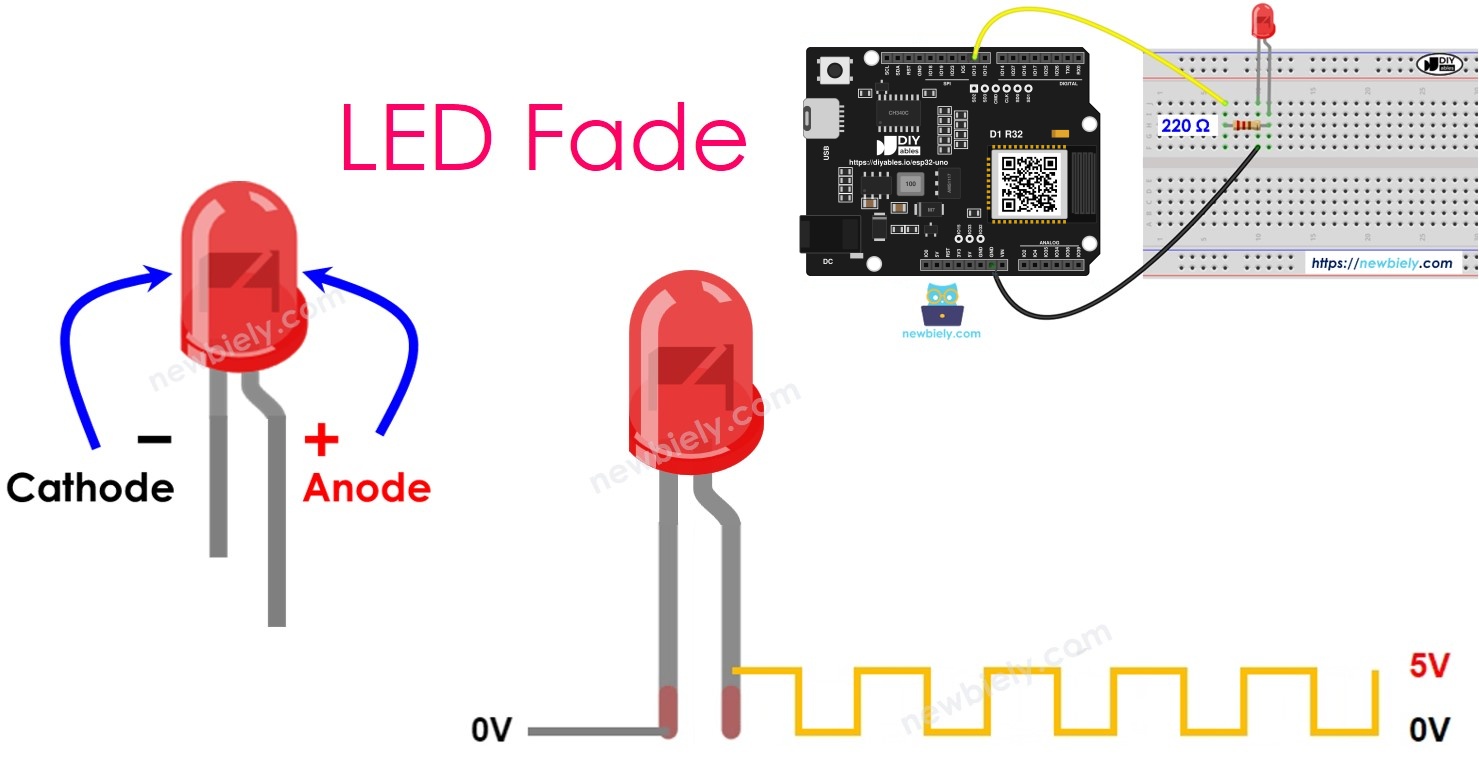
Components You Need
Or you can buy the following kits:
| 1 | × | DIYables Sensor Kit (18 sensors/displays) |
Additionally, some of these links are for products from our own brand, DIYables .
Buy Note: Use the LED Module for easier wiring. It includes an integrated resistor.
LED Facts for Dimming
After this part, you know which LED leg goes where and how a digital pin can make "half bright".
Pinout
| LED Leg | How to Spot It | Connect To |
|---|---|---|
| Cathode (-) | Short leg, flat edge on the rim | GND (0V) |
| Anode (+) | Long leg | The control pin, through the resistor |
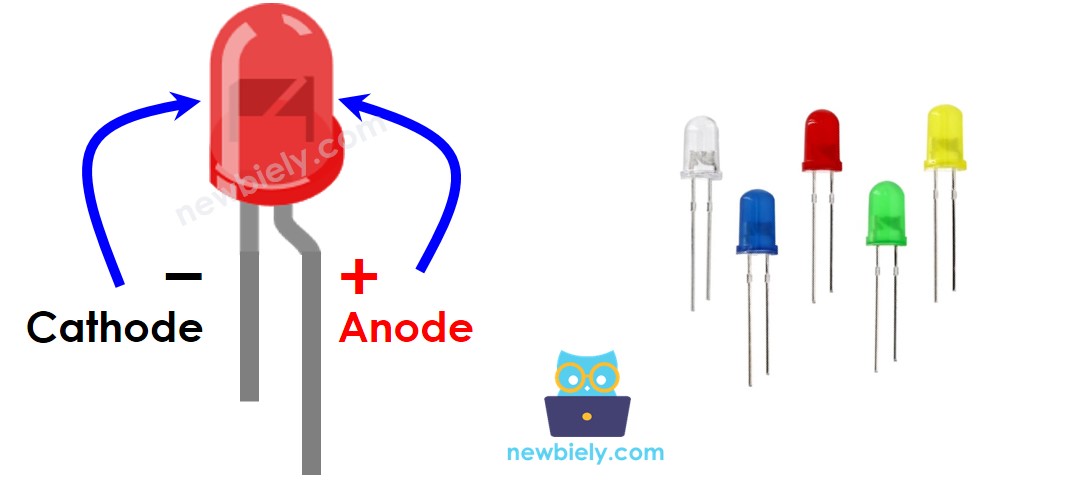
How It Works
Tie the cathode to GND first. Then the signal on the anode sets the light level:
| Signal on the Anode | LED Result |
|---|---|
| GND (0V) | Dark |
| Steady supply voltage | Full brightness |
| PWM signal | Any level in between |
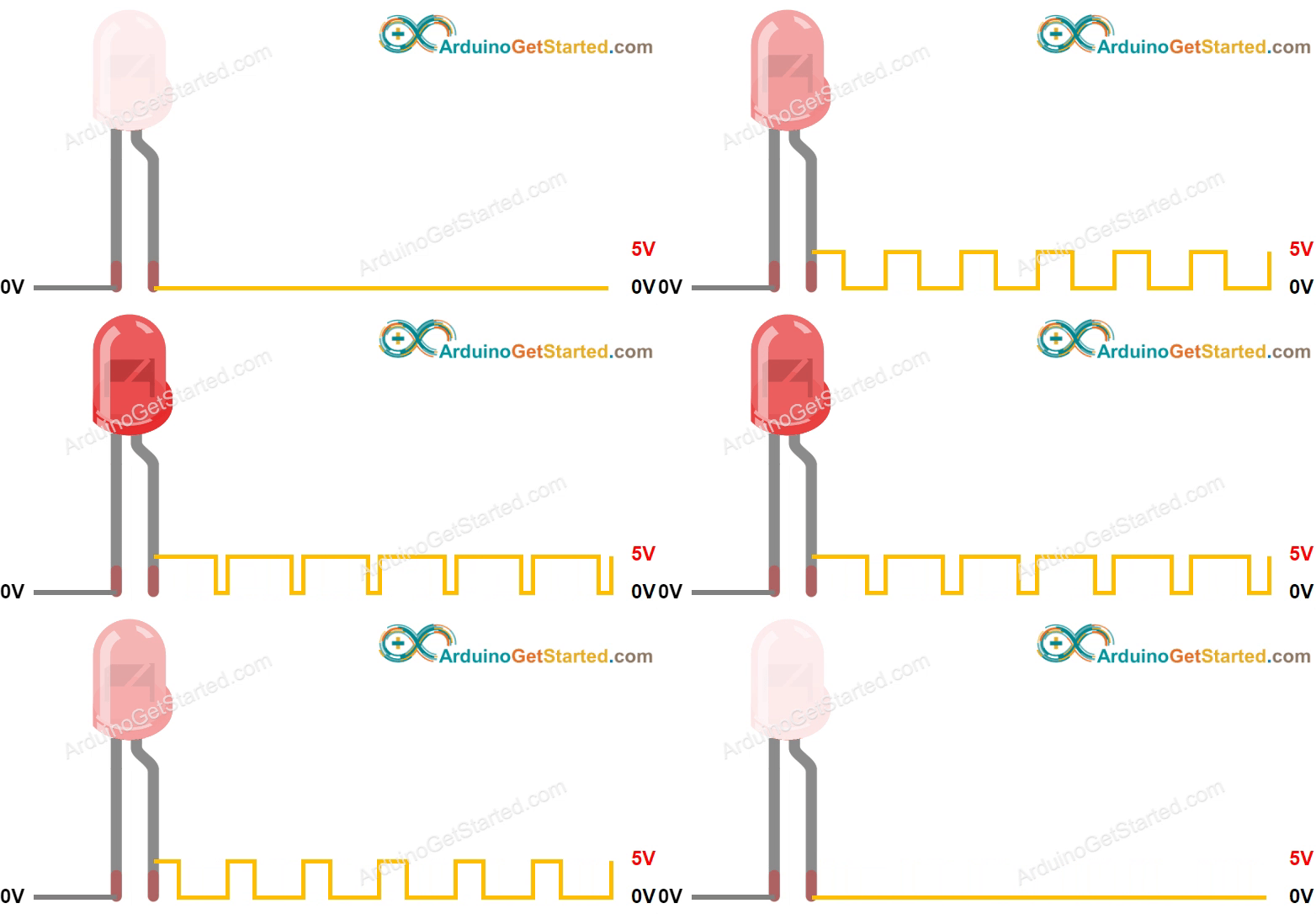
PWM flips the pin between on and off thousands of times per second. Your eye cannot follow the flicker, so it sees the average. In Arduino code, the PWM value runs from 0 to 255:
- 0 keeps the pin low all the time, so the LED is dark.
- 255 keeps the pin high all the time, so the LED is at full power.
- 128 keeps the pin high about half of each cycle, so the LED looks roughly half bright.
※ NOTE THAT:
Put a resistor in series with the LED to cap the current. The exact value depends on the LED type. For a standard 5 mm LED on a 3.3V pin, 220 ohm keeps the current low and safe.
Dimming an LED with the ESP32 Uno
To fade, the LED must sit on a pin that can output PWM. Nearly every Uno header pin on the ESP32 Uno can do this, so you pick D9 here, as on the original diagram. Run the anode through the resistor to that pin, take the cathode to GND, and let the code change the PWM value over time.
Good to know: ESP32 Uno pins give 3.3V when high, not 5V, so the top brightness is a little lower than on a 5V board.
ESP32 Uno Pinout
Your sketch talks to GPIO numbers, while the board labels show Uno names like D9. Use this diagram to find the GPIO behind each header pin before you place the jumper wires.

How to Connect
After this step, the LED sits on D9 and is ready for PWM.
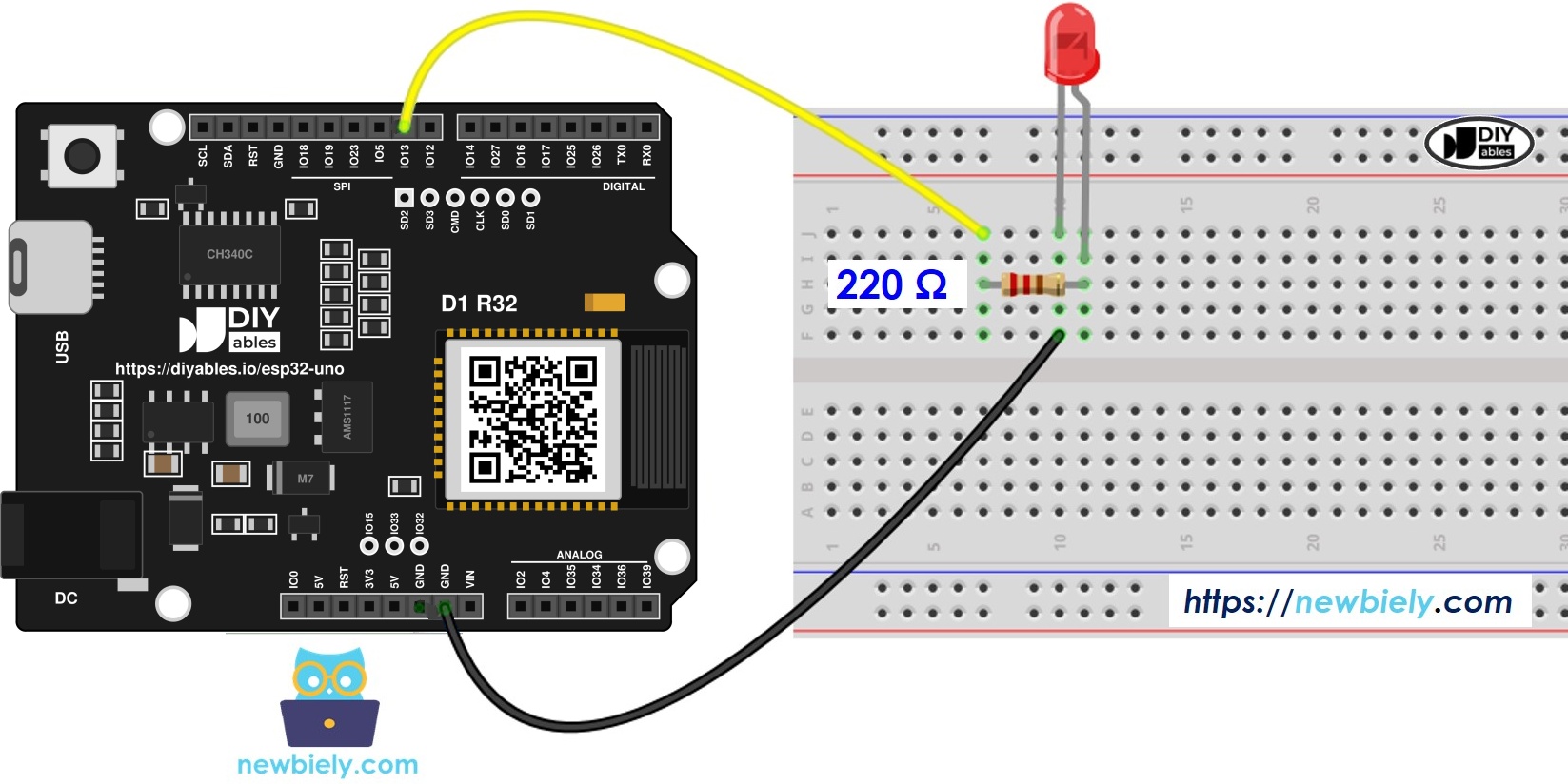
This image is created using Fritzing. Click to enlarge image
| LED Pin | ESP32 Uno Pin |
|---|---|
| Anode (+) via 220 ohm resistor | D9 (GPIO13) |
| Cathode (-) | GND |
Good to know: D9 is GPIO13, a normal I/O pin with PWM and no boot role, so you can leave the LED plugged in during uploads.
Two Functions That Control Brightness
After this part, you know the two calls behind every fade sketch.
Step 1 — Set the pin as an output
Call pinMode() one time in setup(). D9 is GPIO13, so the code uses 13:
Step 2 — Write a brightness level
Call analogWrite() each time you want a new level:
brightness takes any whole number from 0 (dark) to 255 (brightest).
ESP32 Uno Code - Classic Fade Sketch
This is the well-known Fade example from the Arduino IDE, with the pin set to GPIO13. Every 30 ms it moves the brightness by 5 and turns back at 0 and 255, so the LED rises and falls forever.
Upload and Test
- First time with this board? Set it up with ESP32 Uno - Getting Started before you continue.
- Build the circuit by following the wiring table above.
- Plug in the USB Type-C cable between the ESP32 Uno and your computer.
- Select the board in Arduino IDE: pick ESP32 Dev Module and the COM port of the board (CH340).
- Paste the sketch into a new Arduino IDE window.
- Press Upload and wait for "Done uploading" at the bottom.
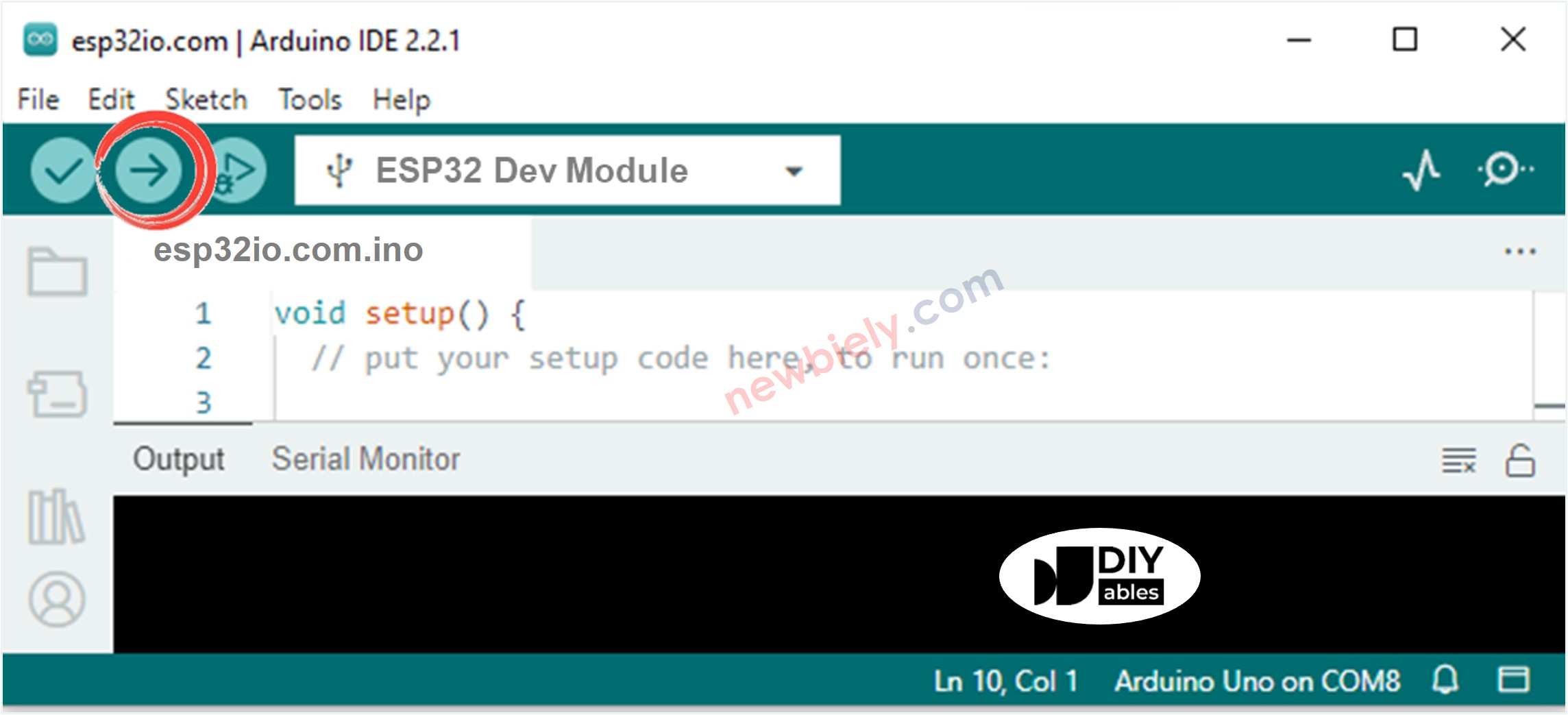
- Check the LED: one full dark-to-bright-to-dark cycle takes about 3 seconds (51 steps up and 51 down, 30 ms each).
- Pro tip: set fade_step to 1 and delay(30) to delay(6). The cycle time stays almost the same, but the 255 small steps look much smoother at low brightness.
Video Tutorial
See the ESP32 Uno build in action in the video below.
Code Explanation
After this part, you can change the speed and range of the fade with confidence.
| Code Part | What It Does |
|---|---|
| #define LED_PIN 13 | Names GPIO13 (header D9) once for the whole sketch |
| int brightness = 0 | Keeps the PWM level that goes out next |
| int fade_step = 5 | Sets how much the level changes per pass |
| analogWrite(LED_PIN, brightness) | Sends the level to the LED as PWM |
| fade_step = -fade_step | Turns the fade around at 0 and 255 |
| delay(30) | Holds each level for 30 ms |
The result is a steady triangle wave of light that never stops.
※ NOTE THAT:
delay() freezes the board for those 30 ms on every pass. A button press or sensor read in the same loop would be late or missed. The two sketches below fix this: they look at millis() to know how far the fade has gone, so loop() never waits.
Timed Fade-Out Without delay()
After this part, the LED dims from full to dark in 3 seconds and then starts over.
| Code Part | What It Does |
|---|---|
| millis() - fade_start_ms | Time passed since this fade began |
| map(progress, 0, FADE_PEDIOD, 0, 255) | Turns 0 to 3000 ms into 0 to 255 |
| 255 - map(...) | Flips the value so the light goes down |
| fade_start_ms = millis() | Starts the next 3-second cycle |
Halfway through, at 1500 ms, the LED gets a level of about 128.
Timed Fade-In Without delay()
After this part, the LED rises from dark to full in 3 seconds and repeats.
The only change from the fade-out sketch is that the map() value goes straight to analogWrite(). Edit FADE_PEDIOD to set a longer or shorter fade, for example 8000 for a slow sunrise effect.
ESP32 Uno vs UNO R4 for This Project
This table lists what really changes when you move this fade project from the UNO R4 to the ESP32 Uno.
| Item | Arduino UNO R4 | ESP32 Uno |
|---|---|---|
| Logic voltage | 5V | 3.3V |
| LED pin | D9 (pin 9 in code) | D9 (GPIO13, 13 in code) |
| PWM range in analogWrite() | 0 to 255 | 0 to 255 (default) |
| Brightness at 255 | A bit brighter (5V) | A bit lower (3.3V) |
| Arduino IDE board | Arduino UNO R4 WiFi or Minima | ESP32 Dev Module |
| Wireless | WiFi only on the WiFi model | WiFi and Bluetooth built in |
The same wiring works as-is. Only the pin number in the code changes from 9 to 13.
Go Wireless: Set the Glow from Your Phone
After this part, you have an idea for setting the LED brightness without touching the board.
The ESP32 Uno has WiFi and Bluetooth on the chip. Replace the automatic fade with a slider on your phone: each slider value from 0 to 255 goes straight into analogWrite(13, value). You can also add an on/off switch on the same page for the LED.
Function References
Open these pages for the full details of each function in the sketches:
Troubleshooting
| Problem | Possible Cause | Solution |
|---|---|---|
| Arduino IDE lists no COM port | CH340 driver missing or a charge-only cable | Install the CH340 driver and swap to a USB data cable |
| Upload ends with "Failed to connect" or "Waiting for download" | Board did not go into download mode | Hold the BOOT button when the upload starts and let go once writing begins |
| LED stays dark the whole time | LED legs swapped or loose breadboard wire | Turn the LED so the long leg faces the resistor and D9, and press all wires in firmly |
| LED blinks hard on and off instead of fading | Code still uses pin 9 | Set LED_PIN to 13, the GPIO behind header D9 |
| "analogWrite was not declared" when compiling | esp32 core older than 2.0.11 | Update esp32 by Espressif Systems in the Boards Manager |
| Fade looks steppy near dark | Step of 5 is coarse at low levels | Use a step of 1 or 2 with a shorter delay |
| LED is weak even at 255 | Resistor too big for a 3.3V pin | Use 100 to 220 ohm, never no resistor |
| Board resets when the LED is plugged in | Short between 3.3V or 5V and GND on the breadboard | Check the resistor and cathode rows for a bridge |
FAQ
Can the ESP32 Uno use analogWrite() like a normal Arduino board?
Yes, with the esp32 by Espressif Systems core 2.0.11 or newer (including 3.x). It takes the usual 0 to 255 value. Older cores only had the ledc functions, so update the core if the compiler complains.
What PWM frequency does analogWrite() use on the ESP32 Uno?
The default is about 1 kHz with 8-bit resolution. That is far too fast to see, so the LED looks steady at every level. You can change it with analogWriteFrequency() and analogWriteResolution() if you ever need to.
Why does the code use 13 when the LED is wired to D9?
The ESP32 Uno code uses the chip GPIO number, not the Uno label. Header D9 is wired to GPIO13. If you type 9, the sketch drives GPIO9, which is a flash pin, and the LED will not fade.
Do I need the resistor if the pin is only 3.3V?
Yes. Without it, the LED pulls too much current from the pin. That can damage the LED and the ESP32 Uno pin. A 220 ohm resistor gives a safe current of a few milliamps.
Can I fade the LED on pins A2 to A5?
No. On the ESP32 Uno, A2 to A5 are GPIO35, 34, 36 and 39, and these pins are input only. They cannot output PWM. Use a digital header pin such as D3, D5, D6, D7 or D9 instead.
Is D8 a good choice for a fading LED?
Avoid it if you can. D8 is GPIO12, a boot strapping pin that must be LOW at startup. A circuit that pulls it high can stop the board from starting. D9 (GPIO13), used here, has no such role.
How can I fade two LEDs at different speeds?
Use the millis() style from the timed sketches. Give each LED its own start time, period and pin, and update both in the same loop(). With delay(), one LED would hold up the other.
Will a fade sketch written for another Uno board run here?
Almost always. For a sketch from the UNO R4, change the pin number to the GPIO from the pinout (9 becomes 13), pick ESP32 Dev Module and upload. The analogWrite(), map() and millis() calls stay the same.
What if my fade project needs more pins than the Uno headers give?
The ESP32 Uno has a few extra holes near the power header: GPIO32 and GPIO33 (I/O, PWM, analog on ADC1, so they also work while WiFi is on) and GPIO15 (I/O, PWM, analog on ADC2). Fit them with soldered pin headers, then put the bare GPIO number in the sketch. For more fading LEDs, GPIO32 and GPIO33 are the best picks. Two warnings: GPIO15 and GPIO0 (the IO0 pin at the unused Uno NC position) are boot strapping pins, so a wrong connection can stop the board from booting or uploading code; use GPIO32/33 first. Never use the six holes under the digital header (SD0 to SD3, CMD, CLK = GPIO6 to GPIO11); they are wired to the flash chip and using them crashes the board.
Can I control the LED brightness from a phone?
Yes. The ESP32 Uno has WiFi and Bluetooth, so a phone slider can send the brightness value to analogWrite(). See the Go Wireless section above for the web and Bluetooth slider guides.