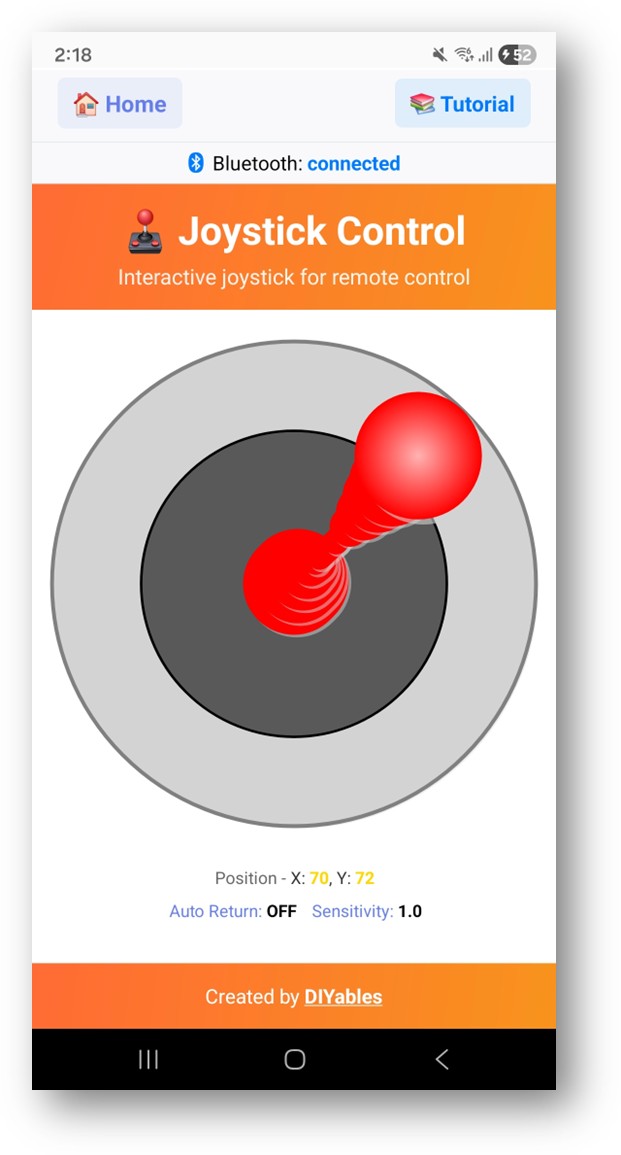
ESP32 UNO - DIYables Bluetooth App Joystick

Overview

Want to drive a robot car with your thumb? Put an ESP32 Uno Bluetooth joystick on your phone screen and the ESP32 Uno form board gets an X and a Y number for every finger move. The DIYables Bluetooth STEM app sends both values, from -100 to +100, as a BLE joystick for Android and iPhone or over Classic Bluetooth for Android.

By the end, you can:

  1. Add the DIYables Bluetooth library to Arduino IDE
  2. Flash a BLE or a Classic Bluetooth joystick sketch to the board
  3. Link the phone app and print X/Y positions in the Serial Monitor
  4. Mix the two axes into wheel speeds, servo angles or LED signals
  5. Smooth the control with a dead zone, speed ramping and angle math
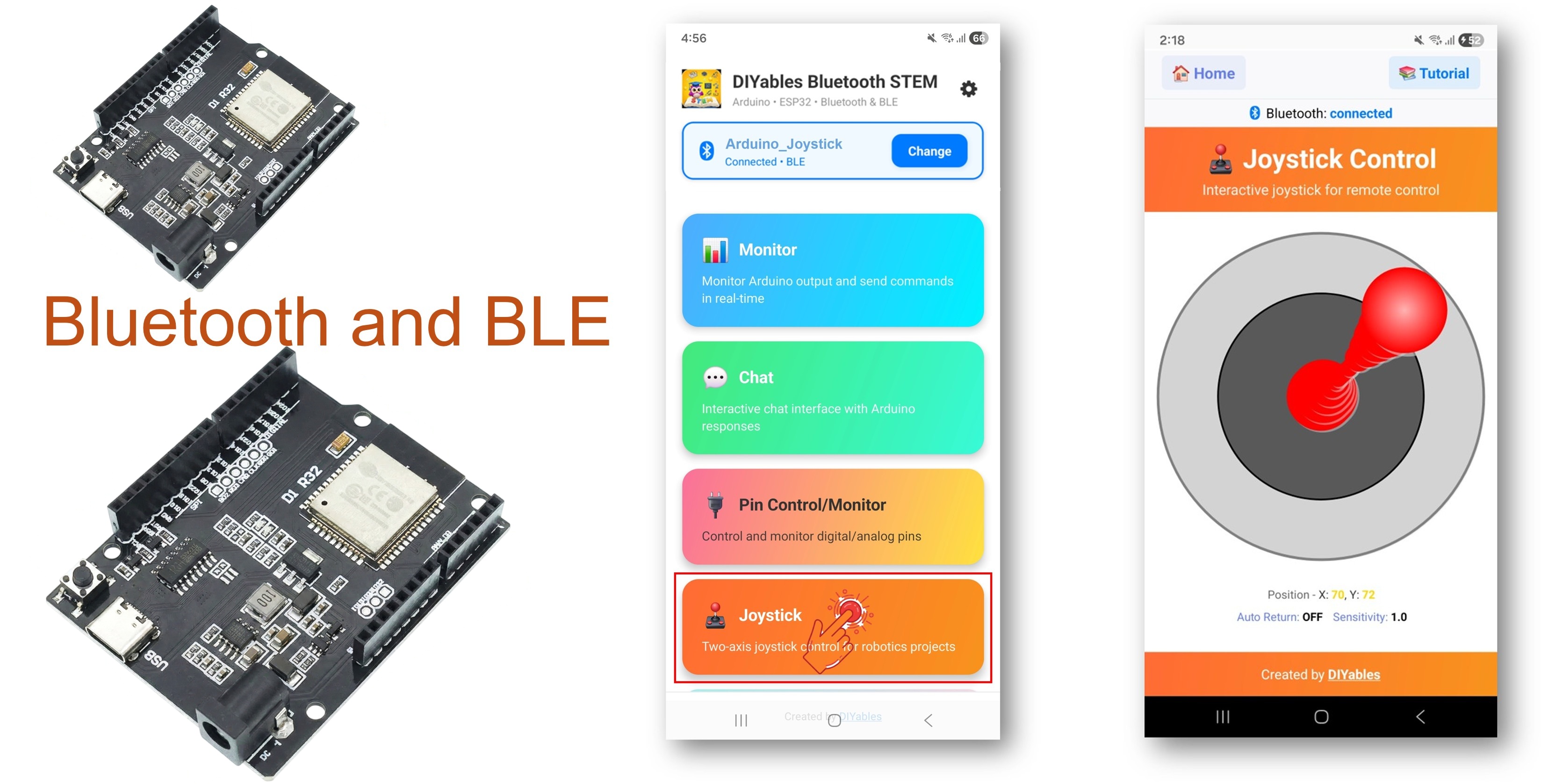
ESP32 Uno Bluetooth joystick

※ NOTE THAT:

The ESP32 Uno has two Bluetooth radios in one chip: BLE and Classic Bluetooth. Choose BLE when an iPhone must connect, or when you want to skip the pairing step. Choose Classic when every phone in the project is Android.

What the Joystick App Gives You

Use this table to see what the library already does for you.

Feature Details
Two axes X goes left to right, Y goes down to up, each from -100 to +100
Live stream New numbers arrive while your finger is still on the pad
Auto-center Optional, the stick snaps back to (0, 0) when released
Sensitivity A minimum move in percent, so tiny shakes send nothing
Two-way data The board can push a position or a text line back to the app
Radio modes BLE for Android and iOS, Classic Bluetooth for Android only
Power BLE draws less current than Classic Bluetooth

Components You Need

1×ESP32 Uno-form Board
1×USB Cable Type-A to Type-C (for USB-A PC)
1×USB Cable Type-C to Type-C (for USB-C PC)
1×Breadboard
1×Jumper Wires

Or you can buy the following kits:

1×DIYables Sensor Kit (18 sensors/displays)
Disclosure: Some of the links provided in this section are Amazon affiliate links. We may receive a commission for any purchases made through these links at no additional cost to you.
Additionally, some of these links are for products from our own brand, DIYables .

ESP32 Uno Pinout

Your sketch never uses the printed header names like D9 or D10. It uses the GPIO number behind each one, so look it up on this map before you hook up a motor driver or a servo.

ESP32 Uno pinout diagram

Good to know: the main joystick sketch needs no wires at all. The robot and servo examples further down use these header positions:

Example Signal ESP32 Uno Pin
Left motor speed (PWM) / pan servo D9 (GPIO13)
Right motor speed (PWM) / tilt servo D10 (GPIO5)
Left motor direction D7 (GPIO14)
Right motor direction D8 (GPIO12)
Extra outputs (LEDs, second direction pins, steppers) D2 (GPIO26), D3 (GPIO25), D4 (GPIO17), D5 (GPIO16)

WARNING

D8 (GPIO12) and D10 (GPIO5) are boot strapping pins. GPIO12 must be LOW while the board starts; if a motor driver pulls it HIGH, the flash gets the wrong voltage and the board will not boot. GPIO5 can also block a normal start. If uploads or resets fail, unplug the wires from D8 and D10, upload, then plug them back in. All ESP32 Uno pins run at 3.3V and are not 5V tolerant.

Upload and Test the ESP32 Uno Code

At the end of this part, the board waits for your phone and prints every joystick move. No wiring is needed yet, only the USB cable.

Step 1 — Prepare Arduino IDE

  1. First time with this board? Set it up with ESP32 Uno - Getting Started before you continue.
  2. Build the circuit by following the wiring table above. For this first test, leave all header pins empty.
  3. Plug in the USB Type-C cable between the ESP32 Uno and your computer.
  4. Select the board in Arduino IDE: pick ESP32 Dev Module and the COM port of the board (CH340).
  5. Give the sketch more flash: open Tools > Partition Scheme and select Huge APP (3MB No OTA/1MB SPIFFS). The normal layout has room for about 1.2 MB of program, and the Bluetooth stack is bigger.
  6. Open Library Manager: click the Libraries icon in the left bar.
  7. Type "DIYables Bluetooth" in the search box and find the library by DIYables.
  8. Press Install.
  • Search for DIYables Bluetooth created by DIYables and click the Install button.
∞
Newbiely | Arduino IDE 2.3.8
──
☐
✕
File
Edit
Sketch
Tools
Help
ESP32 Dev Module
Library Manager
Type:
All
Topic:
All
DIYables Bluetooth by DIYables
A comprehensive Bluetooth library that connects Arduino to the DIYables Bluetooth STEM mobile app (Android & iOS) via BLE and Classic Bluetooth. Features 11 built-in apps: Monitor, Chat, Digital Pin Control, Joystick, Sliders, Plotter, Analog Gauge, Rotator, Temperature, RTC, and Data Table. Clean architecture with platform abstraction. Works with Arduino Uno R4 WiFi, Arduino Nano 33 BLE, ESP32, and other BLE-capable boards. No mobile coding required. More info
1.0.1
INSTALL
Newbiely.ino
···
1 void setup() {
Output
Serial Monitor
Ln 1, Col 1
ESP32 Dev Module on COM15
1
  1. Add the helpers: a pop-up lists the libraries it depends on. Press Install All.

Now flash ONE of the two sketches. They show the same joystick; only the radio differs.

Step 2 — Option A: ESP32 Uno Classic Bluetooth Sketch (Android only)

Good to know: iOS has no Classic Bluetooth support. iPhone users go straight to Option B.

  1. Load the sketch: in Arduino IDE open File Examples DIYables Bluetooth Esp32Bluetooth_Joystick, or paste the code below into a blank sketch.
/* * This ESP32 Uno code was developed by newbiely.com * * This ESP32 Uno code is made available for public use without any restriction * * For comprehensive instructions and wiring diagrams, please visit: * https://newbiely.com/tutorials/esp32-uno/esp32-uno-diyables-bluetooth-app-joystick */ /* * DIYables Bluetooth Library - ESP32 Uno Classic Bluetooth Joystick Example * Pairs with the DIYables Bluetooth STEM app on Android * Note: iPhones have no Classic Bluetooth. For iOS, flash the BLE example instead. * * What this sketch shows (Bluetooth Joystick): * - A touch joystick in the phone app talks to the board over Bluetooth * - The board gets live X/Y numbers from -100 to +100 * - You can turn those numbers into motor, servo or LED actions * * Board: ESP32 Uno form board (Classic Bluetooth radio) * * Note: in Arduino IDE pick Tools > Partition Scheme > * "Huge APP (3MB No OTA/1MB SPIFFS)", the Bluetooth stack is big * * How to use: * 1. Upload this sketch to the ESP32 Uno * 2. Open the Serial Monitor at 115200 baud to follow the link status * 3. Pair the phone, connect with the DIYables Bluetooth App, open the joystick * * Tutorial: https://diyables.io/bluetooth-app * Author: DIYables */ #include <DIYables_BluetoothServer.h> #include <DIYables_BluetoothJoystick.h> #include <platforms/DIYables_Esp32Bluetooth.h> // Classic Bluetooth link (name shown on the phone) and the app server DIYables_Esp32Bluetooth bluetooth("ESP32_Joystick"); DIYables_BluetoothServer bluetoothServer(bluetooth); // joystick app: no auto-center, send only after a 5% move DIYables_BluetoothJoystick bluetoothJoystick(false, 5); // last position received from the phone int currentJoystickX = 0; int currentJoystickY = 0; void setup() { Serial.begin(115200); delay(1000); Serial.println("DIYables Bluetooth - ESP32 Joystick Example"); // set pinMode() for your motors, servos or LEDs here // start the Bluetooth server on the ESP32 Uno radio bluetoothServer.begin(); // register the joystick app with the server bluetoothServer.addApp(&bluetoothJoystick); // print a line when the phone links or drops bluetoothServer.setOnConnected([]() { Serial.println("Bluetooth connected!"); }); bluetoothServer.setOnDisconnected([]() { Serial.println("Bluetooth disconnected!"); }); // runs each time the stick moves in the app bluetoothJoystick.onJoystickValue([](int x, int y) { // keep the newest X/Y pair currentJoystickX = x; currentJoystickY = y; // show both axes (each one -100 to +100) Serial.print("Joystick - X: "); Serial.print(x); Serial.print(", Y: "); Serial.println(y); // put your own control code here, for example: // - drive a motor: if (x > 50) { /* turn right */ } // - aim a servo: servo.write(map(y, -100, 100, 0, 180)); // - dim an LED: ledcWrite(channel, map(abs(x), 0, 100, 0, 255)); // - forward the values over Serial, I2C or SPI }); // optional: the app asks for the position when its screen opens bluetoothJoystick.onGetConfig([]() { // reply with the last saved X/Y pair bluetoothJoystick.send(currentJoystickX, currentJoystickY); Serial.print("App requested values - Sent: X="); Serial.print(currentJoystickX); Serial.print(", Y="); Serial.println(currentJoystickY); }); // both settings can also change while the sketch runs: // bluetoothJoystick.setAutoReturn(false); // stick stays where you leave it // bluetoothJoystick.setSensitivity(10.0); // send only after a move above 10% Serial.println("Waiting for Bluetooth connection..."); } void loop() { // keep the Bluetooth link serviced bluetoothServer.loop(); // add the rest of your program here delay(10); }
  1. Upload: hit the Upload button.
  2. Open the Serial Monitor at 115200 baud. After a reset it prints:
∞
Newbiely | Arduino IDE 2.3.8
──
☐
✕
File
Edit
Sketch
Tools
Help
ESP32 Dev Module
Newbiely.ino
···
8 Serial.println("Hello World!");
Output
Serial Monitor
Message (Enter to send message to 'ESP32 Dev Module' on 'COM15')
New Line
9600 baud
DIYables Bluetooth - ESP32 Joystick Example Waiting for Bluetooth connection...
Ln 11, Col 1
ESP32 Dev Module on COM15
2

Step 2 — Option B: ESP32 Uno BLE Sketch (Android and iOS)

  1. Load the sketch: open File Examples DIYables Bluetooth Esp32BLE_Joystick, or paste the code below.
/* * This ESP32 Uno code was developed by newbiely.com * * This ESP32 Uno code is made available for public use without any restriction * * For comprehensive instructions and wiring diagrams, please visit: * https://newbiely.com/tutorials/esp32-uno/esp32-uno-diyables-bluetooth-app-joystick */ /* * DIYables Bluetooth Library - ESP32 Uno BLE Joystick Example * Pairs with the DIYables Bluetooth STEM app on Android and iOS * * What this sketch shows (Bluetooth Joystick): * - A touch joystick in the phone app talks to the board over BLE * - The board gets live X/Y numbers from -100 to +100 * - You can turn those numbers into motor, servo or LED actions * * Board: ESP32 Uno form board (BLE radio) * * Note: in Arduino IDE pick Tools > Partition Scheme > * "Huge APP (3MB No OTA/1MB SPIFFS)", the BLE stack is big * * How to use: * 1. Upload this sketch to the ESP32 Uno * 2. Open the Serial Monitor at 115200 baud to follow the link status * 3. Connect with the DIYables Bluetooth App and open the joystick * * Tutorial: https://diyables.io/bluetooth-app * Author: DIYables */ #include <DIYables_BluetoothServer.h> #include <DIYables_BluetoothJoystick.h> #include <platforms/DIYables_Esp32BLE.h> // BLE name and UUIDs the app looks for const char* DEVICE_NAME = "ESP32BLE_Joystick"; const char* SERVICE_UUID = "19B10000-E8F2-537E-4F6C-D104768A1214"; const char* TX_UUID = "19B10001-E8F2-537E-4F6C-D104768A1214"; const char* RX_UUID = "19B10002-E8F2-537E-4F6C-D104768A1214"; // BLE link object and the server that runs the apps DIYables_Esp32BLE bluetooth(DEVICE_NAME, SERVICE_UUID, TX_UUID, RX_UUID); DIYables_BluetoothServer bluetoothServer(bluetooth); // joystick app: no auto-center, send only after a 5% move DIYables_BluetoothJoystick bluetoothJoystick(false, 5); // last position received from the phone int currentJoystickX = 0; int currentJoystickY = 0; void setup() { Serial.begin(115200); delay(1000); Serial.println("DIYables Bluetooth - ESP32 BLE Joystick Example"); // start BLE advertising on the ESP32 Uno bluetoothServer.begin(); // register the joystick app with the server bluetoothServer.addApp(&bluetoothJoystick); // print a line when the phone links or drops bluetoothServer.setOnConnected([]() { Serial.println("Bluetooth connected!"); }); bluetoothServer.setOnDisconnected([]() { Serial.println("Bluetooth disconnected!"); }); // runs each time the stick moves in the app bluetoothJoystick.onJoystickValue([](int x, int y) { currentJoystickX = x; currentJoystickY = y; Serial.print("Joystick - X: "); Serial.print(x); Serial.print(", Y: "); Serial.println(y); // put your own control code for X/Y here }); // the app asks for the position when its screen opens bluetoothJoystick.onGetConfig([]() { bluetoothJoystick.send(currentJoystickX, currentJoystickY); Serial.print("App requested values - Sent: X="); Serial.print(currentJoystickX); Serial.print(", Y="); Serial.println(currentJoystickY); }); Serial.println("Waiting for Bluetooth connection..."); } void loop() { bluetoothServer.loop(); delay(10); }
  1. Upload it with the Upload button.
  2. Read the Serial Monitor at 115200 baud:
∞
Newbiely | Arduino IDE 2.3.8
──
☐
✕
File
Edit
Sketch
Tools
Help
ESP32 Dev Module
Newbiely.ino
···
8 Serial.println("Hello World!");
Output
Serial Monitor
Message (Enter to send message to 'ESP32 Dev Module' on 'COM15')
New Line
9600 baud
DIYables Bluetooth - ESP32 BLE Joystick Example Waiting for Bluetooth connection...
Ln 11, Col 1
ESP32 Dev Module on COM15
2
  1. Pro tip: give each board its own name if two ESP32 Uno robots run in the same room. Change DEVICE_NAME (BLE) or the text in bluetooth("ESP32_Joystick") (Classic), so you never steer the wrong car.

Step 3 — Connect the Phone App

When this step is done, your thumb moves the numbers on the board.

  1. Get the app: DIYables Bluetooth App for Android or iOS.
  2. Classic sketch only — pair first: on the Android phone go to Settings > Bluetooth, switch it on, tap "ESP32_Joystick", accept the request (no PIN), and wait until it says "Paired". The BLE sketch skips this step.
  3. Start the app and grant the access it asks for the first time:
    • Nearby Devices (Android 12 or newer) or Bluetooth (iOS) — lets the app find and link boards
    • Location (Android 11 or older) — old Android versions need it for a BLE scan
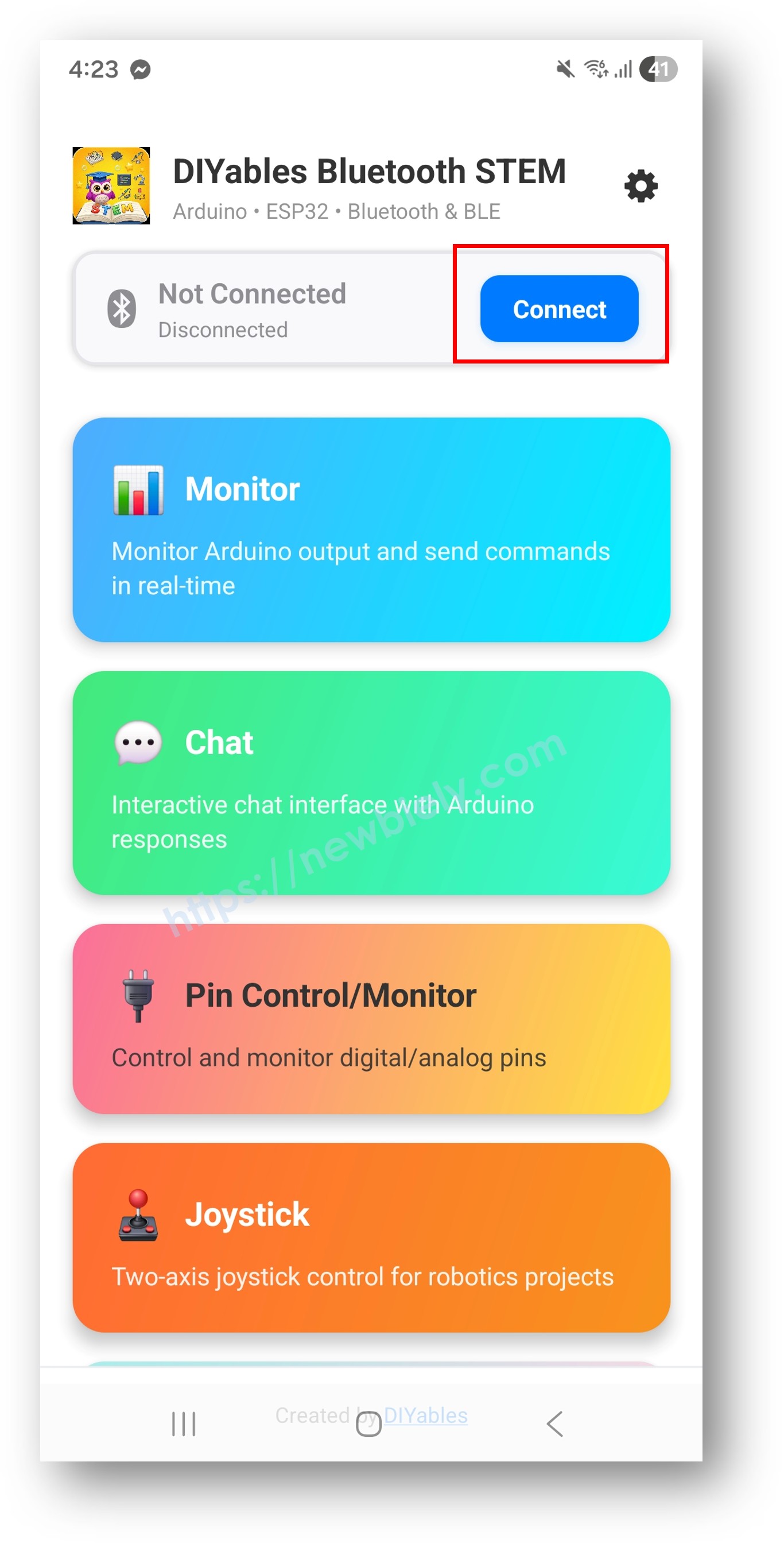
  • Check that phone Bluetooth is on.
  • Scan: tap Connect on the home screen. BLE and Classic devices both appear in the list.
  • DIYables Bluetooth App - Home Screen with Scan Button
    1. Pick your board: "ESP32_Joystick" for Classic, or "ESP32BLE_Joystick" for BLE. Once linked, the app jumps back to the home screen.
    2. Open the pad: choose Joystick in the app menu.
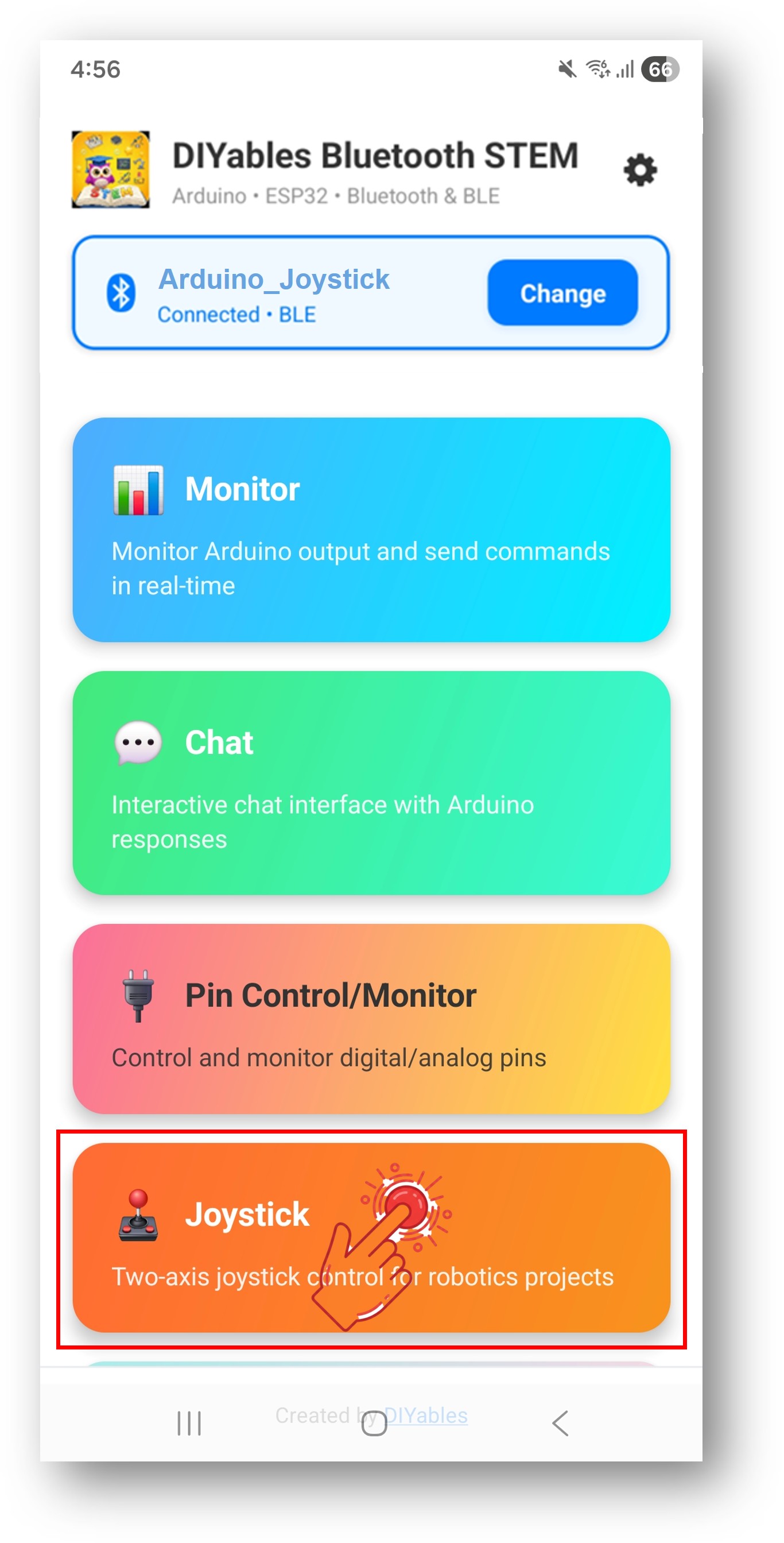
    DIYables Bluetooth App - Home Screen with Joystick App
    1. Drag the stick in any direction.
    DIYables Bluetooth App - Joystick Screen
    1. Pro tip: the gear icon on the home screen hides the apps you do not need. Every screen is covered in the DIYables Bluetooth App User Manual.

    The Serial Monitor now logs the link and each stick position:

    ∞
    Newbiely | Arduino IDE 2.3.8
    ──
    ☐
    ✕
    File
    Edit
    Sketch
    Tools
    Help
    ESP32 Dev Module
    Newbiely.ino
    ···
    8 Serial.println("Hello World!");
    Output
    Serial Monitor
    Message (Enter to send message to 'ESP32 Dev Module' on 'COM15')
    New Line
    9600 baud
    Bluetooth connected! App requested values - Sent: X=0, Y=0 Joystick - X: 38, Y: 0 Joystick - X: 82, Y: 27 Joystick - X: -14, Y: 91 Joystick - X: -66, Y: -52 Joystick - X: 0, Y: 0
    Ln 11, Col 1
    ESP32 Dev Module on COM15
    2

    How the Sketch Works

    Here is what each part of the ESP32 Uno sketch does.

    Code Part What It Does
    DIYables_Esp32BLE / DIYables_Esp32Bluetooth Picks the radio and the name the phone sees
    DIYables_BluetoothJoystick(false, 5) Makes the joystick app, auto-center off, 5% minimum move
    onJoystickValue() Runs on every move and stores X and Y in two global variables
    onGetConfig() Sends the stored X/Y back when the app opens the joystick screen
    bluetoothServer.loop() Handles all radio traffic, so keep loop() free of long delays

    The result: your control code only needs currentJoystickX and currentJoystickY, and the library handles the rest.

    Library Functions for Your Own Build

    These calls let you shape how the joystick feels and what the board sends back.

    Auto-Center and Sensitivity

    The first constructor value turns auto-center on or off. The second value is the smallest change, in percent, that triggers a new update. You can set both again at run time and read them back.

    // make the joystick app // arguments: autoReturn (true/false), sensitivity (smallest % move that sends an update) DIYables_BluetoothJoystick bluetoothJoystick(false, 5); // change them while the sketch runs: bluetoothJoystick.setAutoReturn(true); // stick goes back to the middle on release bluetoothJoystick.setSensitivity(10.0); // ignore moves below 10% // read the settings back: bool autoReturn = bluetoothJoystick.getAutoReturn(); float sensitivity = bluetoothJoystick.getSensitivity();

    React to Stick Moves

    Put all of your motor, servo or LED logic inside onJoystickValue(). It gets two integers on every move.

    bluetoothJoystick.onJoystickValue([](int x, int y) { // x: -100 is far left, +100 is far right // y: -100 is far down, +100 is far up Serial.print("X: "); Serial.print(x); Serial.print(", Y: "); Serial.println(y); // your control code goes here });

    Answer the App's Position Request

    Each time the joystick screen opens, the app asks the ESP32 Uno where the stick should be. Reply in onGetConfig() so the pad starts at the right spot.

    bluetoothJoystick.onGetConfig([]() { // the app wants the current joystick position // reply with the stored values so the pad draws them bluetoothJoystick.send(currentJoystickX, currentJoystickY); Serial.println("App requested config - sent current values"); });

    Push Data to the Phone

    The board can also talk first. Send a position, or a short status text.

    // move the pad in the app to these X/Y values bluetoothJoystick.send(currentJoystickX, currentJoystickY); // show a text line in the app bluetoothJoystick.send("Joystick calibrated");

    Link Up and Link Lost Events

    For anything that moves, the disconnect event is your safety stop. Use it to halt the motors when the phone goes out of range.

    // phone just linked to the ESP32 Uno bluetoothServer.setOnConnected([]() { Serial.println("Bluetooth connected!"); bluetoothJoystick.send(currentJoystickX, currentJoystickY); }); // phone left the ESP32 Uno bluetoothServer.setOnDisconnected([]() { Serial.println("Bluetooth disconnected!"); // safety: halt every motor right away stopAllMotors(); }); // test the link state from any place in your sketch if (bluetoothServer.isConnected()) { // only runs while a phone is linked }

    Reading the Joystick Pad

    This tells you how to turn the numbers into real movement.

    The app screen shows a round pad you touch and drag, plus the live X and Y numbers under it.

    Axis Lowest Middle Highest
    X -100 (far left) 0 +100 (far right)
    Y -100 (far down) 0 +100 (far up)

    With no finger on the pad (or auto-center on and the finger lifted), the position reads (0, 0).

    Project Code Examples

    Each snippet below plugs into the main sketch. Pins follow the Uno header positions, with the ESP32 Uno GPIO number written in the code.

    Minimal Handler

    The smallest useful callback: save the position and print it.

    void setup() { bluetoothJoystick.onJoystickValue([](int x, int y) { currentJoystickX = x; currentJoystickY = y; Serial.print("Joystick - X: "); Serial.print(x); Serial.print(", Y: "); Serial.println(y); }); }

    Two-Wheel Robot Control

    A two-wheel car steers by running the wheels at different speeds. X (turn) and Y (throttle) mix into a left and a right speed. Each motor uses one PWM pin and two direction pins, as on an L298N-type driver.

    Driver Input ESP32 Uno Pin
    Left PWM (ENA) D9 (GPIO13)
    Left IN1 D7 (GPIO14)
    Left IN2 D2 (GPIO26)
    Right PWM (ENB) D10 (GPIO5)
    Right IN3 D8 (GPIO12)
    Right IN4 D3 (GPIO25)
    const int MOTOR_LEFT_PWM = 13; // D9 (GPIO13) left wheel speed const int MOTOR_LEFT_DIR1 = 14; // D7 (GPIO14) left direction A const int MOTOR_LEFT_DIR2 = 26; // D2 (GPIO26) left direction B const int MOTOR_RIGHT_PWM = 5; // D10 (GPIO5) right wheel speed const int MOTOR_RIGHT_DIR1 = 12; // D8 (GPIO12) right direction A const int MOTOR_RIGHT_DIR2 = 25; // D3 (GPIO25) right direction B void setup() { // all six driver pins are outputs pinMode(MOTOR_LEFT_PWM, OUTPUT); pinMode(MOTOR_LEFT_DIR1, OUTPUT); pinMode(MOTOR_LEFT_DIR2, OUTPUT); pinMode(MOTOR_RIGHT_PWM, OUTPUT); pinMode(MOTOR_RIGHT_DIR1, OUTPUT); pinMode(MOTOR_RIGHT_DIR2, OUTPUT); bluetoothJoystick.onJoystickValue([](int x, int y) { // tank mix: Y is throttle, X is steering int leftSpeed = constrain(y + x, -100, 100); int rightSpeed = constrain(y - x, -100, 100); // left wheel: pick direction, then speed if (leftSpeed >= 0) { digitalWrite(MOTOR_LEFT_DIR1, HIGH); digitalWrite(MOTOR_LEFT_DIR2, LOW); } else { digitalWrite(MOTOR_LEFT_DIR1, LOW); digitalWrite(MOTOR_LEFT_DIR2, HIGH); } analogWrite(MOTOR_LEFT_PWM, map(abs(leftSpeed), 0, 100, 0, 255)); // right wheel: pick direction, then speed if (rightSpeed >= 0) { digitalWrite(MOTOR_RIGHT_DIR1, HIGH); digitalWrite(MOTOR_RIGHT_DIR2, LOW); } else { digitalWrite(MOTOR_RIGHT_DIR1, LOW); digitalWrite(MOTOR_RIGHT_DIR2, HIGH); } analogWrite(MOTOR_RIGHT_PWM, map(abs(rightSpeed), 0, 100, 0, 255)); Serial.print("Left: "); Serial.print(leftSpeed); Serial.print("%, Right: "); Serial.print(rightSpeed); Serial.println("%"); }); }

    WARNING

    D8 (GPIO12) and D10 (GPIO5) are boot strapping pins. Many motor driver boards have pull-up resistors on their inputs. If the ESP32 Uno will not start or upload with the driver attached, unplug the D8 and D10 wires during upload and reset. Power the motors from their own battery and join all GND wires.

    Pan-Tilt Servo Mount

    X turns the pan servo and Y tilts the second one. map() converts -100..+100 to 0..180 degrees. On the ESP32 Uno, include ESP32Servo.h (library "ESP32Servo" by Kevin Harrington) instead of Servo.h. Pan signal goes to D9 (GPIO13), tilt signal to D10 (GPIO5).

    #include <ESP32Servo.h> Servo panServo; // left-right axis (X) Servo tiltServo; // up-down axis (Y) const int PAN_PIN = 13; // D9 (GPIO13) pan servo signal const int TILT_PIN = 5; // D10 (GPIO5) tilt servo signal void setup() { panServo.attach(PAN_PIN); tiltServo.attach(TILT_PIN); panServo.write(90); // start both in the middle tiltServo.write(90); bluetoothJoystick.onJoystickValue([](int x, int y) { // turn -100..+100 into 0..180 degrees int panAngle = map(x, -100, 100, 0, 180); int tiltAngle = map(y, -100, 100, 0, 180); panServo.write(panAngle); tiltServo.write(tiltAngle); Serial.print("Pan: "); Serial.print(panAngle); Serial.print("°, Tilt: "); Serial.print(tiltAngle); Serial.println("°"); }); }

    Good to know: feed the servos from a separate 5V supply with a shared GND. The 3.3V signal from the ESP32 Uno is enough for most hobby servos. The tilt signal sits on D10 (GPIO5), a boot strapping pin, so unplug it if the board will not start.

    Four-LED Direction Indicator

    Four LEDs show where the stick points. Each one lights only after the value passes 30, so small moves near the middle do nothing. Wire each LED through a 220 ohm resistor.

    // one LED per direction const int LED_UP = 26; // D2 (GPIO26) const int LED_DOWN = 25; // D3 (GPIO25) const int LED_LEFT = 17; // D4 (GPIO17) const int LED_RIGHT = 16; // D5 (GPIO16) const int THRESHOLD = 30; // the stick must pass this value to light an LED void setup() { pinMode(LED_UP, OUTPUT); pinMode(LED_DOWN, OUTPUT); pinMode(LED_LEFT, OUTPUT); pinMode(LED_RIGHT, OUTPUT); bluetoothJoystick.onJoystickValue([](int x, int y) { // switch each LED from the matching axis digitalWrite(LED_UP, y > THRESHOLD ? HIGH : LOW); digitalWrite(LED_DOWN, y < -THRESHOLD ? HIGH : LOW); digitalWrite(LED_RIGHT, x > THRESHOLD ? HIGH : LOW); digitalWrite(LED_LEFT, x < -THRESHOLD ? HIGH : LOW); // build a direction word for the Serial Monitor String direction = ""; if (y > THRESHOLD) direction += "UP "; if (y < -THRESHOLD) direction += "DOWN "; if (x > THRESHOLD) direction += "RIGHT "; if (x < -THRESHOLD) direction += "LEFT "; if (direction == "") direction = "CENTER"; Serial.println("Direction: " + direction); }); }

    Smoother Control Tricks

    Raw values are fine on the desk. On a real machine, these three tricks make driving safer and less jumpy.

    Dead Zone Filter

    A thumb never rests at exactly zero. The dead zone turns any value near the middle into zero, so the wheels do not creep.

    const int DEAD_ZONE = 15; // values from -15 to +15 count as zero bluetoothJoystick.onJoystickValue([](int x, int y) { // zero out small values near the middle int filteredX = (abs(x) > DEAD_ZONE) ? x : 0; int filteredY = (abs(y) > DEAD_ZONE) ? y : 0; // drive with the cleaned values controlMotors(filteredX, filteredY); });

    Speed Ramping

    A jump from stop to full power can flip a small robot. Here the callback only saves a target, and loop() walks the real value toward it a few steps at a time.

    int targetX = 0, targetY = 0; int currentX = 0, currentY = 0; const int RAMP_RATE = 5; // biggest step per pass void setup() { bluetoothJoystick.onJoystickValue([](int x, int y) { targetX = x; targetY = y; }); } void loop() { bluetoothServer.loop(); // move a little closer to the target on each pass if (currentX < targetX) currentX = min(currentX + RAMP_RATE, targetX); else if (currentX > targetX) currentX = max(currentX - RAMP_RATE, targetX); if (currentY < targetY) currentY = min(currentY + RAMP_RATE, targetY); else if (currentY > targetY) currentY = max(currentY - RAMP_RATE, targetY); controlMotors(currentX, currentY); delay(20); }

    Magnitude and Angle

    A polar view is handy for tank turrets and omni robots. The distance from the middle gives a speed; atan2() gives a heading in degrees.

    bluetoothJoystick.onJoystickValue([](int x, int y) { // distance from the middle, capped at 100 float magnitude = sqrt(x * x + y * y); magnitude = constrain(magnitude, 0, 100); // heading in degrees (0 is right, 90 is up) float angle = atan2(y, x) * 180.0 / PI; Serial.print("Magnitude: "); Serial.print(magnitude, 1); Serial.print(", Angle: "); Serial.print(angle, 1); Serial.println("°"); // distance becomes a PWM speed, heading picks the direction int speed = map((int)magnitude, 0, 100, 0, 255); // send these to your motor driver });

    Bigger Builds

    Two larger starting points. Add your own driver code where the comments say so.

    Mecanum Wheel Robot

    Mecanum rollers let a car move sideways as well as forward. The code blends X and Y in a different way for each of the four wheels, and their PWM wires land on D2 (GPIO26), D3 (GPIO25), D4 (GPIO17) and D5 (GPIO16).

    // four wheels, one PWM pin each const int MOTOR_FL = 26; // front left - D2 (GPIO26) const int MOTOR_FR = 25; // front right - D3 (GPIO25) const int MOTOR_BL = 17; // rear left - D4 (GPIO17) const int MOTOR_BR = 16; // rear right - D5 (GPIO16) void setupMecanumRobot() { bluetoothJoystick.onJoystickValue([](int x, int y) { // per-wheel mix for mecanum rollers int fl = constrain(y + x, -100, 100); int fr = constrain(y - x, -100, 100); int bl = constrain(y - x, -100, 100); int br = constrain(y + x, -100, 100); setMotor(MOTOR_FL, fl); setMotor(MOTOR_FR, fr); setMotor(MOTOR_BL, bl); setMotor(MOTOR_BR, br); }); } void setMotor(int pin, int speed) { // size of -100..100 becomes a 0..255 duty analogWrite(pin, map(abs(speed), 0, 100, 0, 255)); }

    Stepper Motor Speed Control

    With the AccelStepper library, each axis sets the speed of one stepper. Wire the X-axis driver to D2 (GPIO26) for STEP and D3 (GPIO25) for DIR, and the Y-axis driver to D4 (GPIO17) for STEP and D5 (GPIO16) for DIR.

    #include <AccelStepper.h> AccelStepper stepperX(AccelStepper::DRIVER, 26, 25); // STEP D2 (GPIO26), DIR D3 (GPIO25) AccelStepper stepperY(AccelStepper::DRIVER, 17, 16); // STEP D4 (GPIO17), DIR D5 (GPIO16) void setup() { stepperX.setMaxSpeed(1000); stepperX.setAcceleration(500); stepperY.setMaxSpeed(1000); stepperY.setAcceleration(500); bluetoothJoystick.onJoystickValue([](int x, int y) { // stick position becomes -1000..+1000 steps per second int speedX = map(x, -100, 100, -1000, 1000); int speedY = map(y, -100, 100, -1000, 1000); stepperX.setSpeed(speedX); stepperY.setSpeed(speedY); }); } void loop() { bluetoothServer.loop(); stepperX.runSpeed(); stepperY.runSpeed(); }

    ESP32 Uno vs UNO R4 for This Project

    This shows what changes when you move the joystick project from the UNO R4 WiFi to the ESP32 Uno.

    Item Arduino UNO R4 ESP32 Uno
    Logic voltage 5V 3.3V
    Bluetooth BLE only BLE and Classic Bluetooth
    Library platform DIYables_ArduinoBLE.h DIYables_Esp32BLE.h or DIYables_Esp32Bluetooth.h
    Serial baud in the example 9600 115200
    Servo library Servo.h ESP32Servo.h
    Robot pins D9 / D10 / D7 / D8 9 / 10 / 7 / 8 GPIO13 / GPIO5 / GPIO14 / GPIO12
    Arduino IDE board Arduino UNO R4 WiFi ESP32 Dev Module plus Huge APP partition

    The same header positions work as-is. Watch D8 and D10, which are boot strapping pins on the ESP32 Uno, and never send a 5V signal back into any pin.

    BLE or Classic Bluetooth?

    Pick the radio that fits your phone and your power budget.

    Point BLE sketch (Esp32BLE_Joystick) Classic sketch (Esp32Bluetooth_Joystick)
    iOS support Yes No
    Android support Yes Yes
    Power use Low Higher
    Range About 30-100 m About 10-100 m
    Data rate Lower Higher
    Pairing Not needed, auto-connect Needed once in phone settings
    Best for Battery builds, mixed phones Android-only, more throughput

    Build Ideas

    A joystick fits anything that moves in two directions.

    Area Ideas
    Robots Differential drive car, mecanum or omni-wheel robot, robot arm joint, drone ground station
    Camera rigs Pan-tilt head, motorized slider, remote security camera
    Games Bluetooth game pad, maze game, LED matrix Snake or Pong
    Tutorial CNC jog pendant, motorized stage, small crane or winch

    Combine With Other Bluetooth Apps

    One Bluetooth server can host several apps side by side.

    Joystick Plus Slider

    The stick picks the direction and a slider caps the top speed.

    int maxSpeed = 100; bluetoothSlider.onSliderValue([](int slider1, int slider2) { maxSpeed = slider1; // slider 1 sets the speed limit }); bluetoothJoystick.onJoystickValue([](int x, int y) { // shrink the stick range to the slider limit int scaledX = map(x, -100, 100, -maxSpeed, maxSpeed); int scaledY = map(y, -100, 100, -maxSpeed, maxSpeed); controlRobot(scaledX, scaledY); });

    Joystick Plus Monitor

    The stick drives the motors while the monitor shows live data on the phone.

    bluetoothJoystick.onJoystickValue([](int x, int y) { controlMotors(x, y); // send a status line to the monitor app bluetoothMonitor.send("X=" + String(x) + " Y=" + String(y) + " Speed=" + String(sqrt(x*x + y*y), 0)); });

    Try These Next

    Once your joystick works, these ESP32 Uno pages make good next steps:

    1. ESP32 Uno - Bluetooth Slider — set an exact value, such as a speed limit
    2. ESP32 Uno - Bluetooth Digital Pins — switch lights and relays on and off
    3. ESP32 Uno - Bluetooth Monitor — read joystick and status text on the phone
    4. ESP32 Uno - Bluetooth Multiple Apps — run the joystick next to sliders and other controls
    5. ESP32 Uno - Joystick — use a real thumb-stick module instead of the phone

    For more help, check the library API reference, the DIYables tutorials and the Arduino community forums.

    Debug Helper

    Paste this function into your sketch and call it from the joystick callback. It prints the raw pair, the distance from the middle and the heading, so you see exactly what the app sends.

    void debugJoystickValues(int x, int y) { float magnitude = sqrt(x * x + y * y); float angle = atan2(y, x) * 180.0 / PI; Serial.println("=== Joystick Debug ==="); Serial.println("X: " + String(x) + ", Y: " + String(y)); Serial.println("Magnitude: " + String(magnitude, 1)); Serial.println("Angle: " + String(angle, 1) + "°"); Serial.println("======================"); }

    Troubleshooting

    Problem Possible Cause Solution
    No COM port in Arduino IDE CH340 driver not installed or a charge-only cable Install the CH340 driver and use a USB cable that carries data
    Upload stops at "Failed to connect" or "Waiting for download" Board did not enter download mode Hold the BOOT button while the upload starts, then let go
    "Sketch too big" when compiling Default partition is too small for Bluetooth Set Tools > Partition Scheme to Huge APP (3MB No OTA/1MB SPIFFS)
    Board does not boot or upload with the motor driver attached D8 (GPIO12) or D10 (GPIO5) strapping pin pulled the wrong way Unplug the module while uploading, or use another pin
    ESP32_Joystick missing on an iPhone iOS has no Classic Bluetooth Flash the Esp32BLE_Joystick sketch
    App scan finds nothing Sketch not running, phone Bluetooth off or a missing permission Check for "Waiting for Bluetooth connection..." in the Serial Monitor, allow Nearby Devices, and turn on Location on Android 11 or older
    Serial Monitor shows strange symbols Baud rate does not match Set the Serial Monitor to 115200
    Robot creeps when the stick is released Auto-center off or no dead zone Call setAutoReturn(true) and add a dead zone filter
    Motors keep running after the phone walks away No stop in the disconnect event Stop all motors inside setOnDisconnected()
    Board resets when the motors start Motors pull current from the board Use a separate motor battery and connect all GND wires together

    FAQ

    Which Bluetooth sketch should I flash on the ESP32 Uno, BLE or Classic?

    Flash Esp32BLE_Joystick if anyone will use an iPhone, or if you do not want a pairing step. Flash Esp32Bluetooth_Joystick if all phones are Android and you prefer Classic Bluetooth. Both give the same X/Y values to your code.

    What numbers does the phone joystick send?

    Two integers, X and Y, each from -100 to +100. The middle is (0, 0). Right and up are positive; left and down are negative.

    How do I stop the joystick from sending too many updates?

    Raise the sensitivity with setSensitivity(10.0) or higher. The app then sends a new value only after the stick moves more than that percent. A dead zone in your callback also helps.

    Can I make the stick spring back to the middle?

    Yes. Call setAutoReturn(true), or create the object with DIYables_BluetoothJoystick bluetoothJoystick(true, 5);. When you lift your finger, the app sends (0, 0), which is a safe stop for a robot.

    Can the ESP32 Uno drive a 5V motor driver like the L298N?

    Usually yes. The L298N inputs read the 3.3V output of the ESP32 Uno as HIGH. Power the motors from their own battery and share GND. Any 5V signal going into the board, such as an encoder output, needs a level shifter or a voltage divider first.

    Why does the servo example need ESP32Servo instead of Servo.h?

    The standard Servo.h library does not support the ESP32 Uno chip. Install "ESP32Servo" by Kevin Harrington; it keeps the same attach() and write() calls, so the rest of the code stays the same.

    Is the UNO R4 joystick sketch the same as the ESP32 Uno sketch?

    The callback code is the same. The setup differs: the UNO R4 WiFi uses DIYables_ArduinoBLE.h and 9600 baud, while the ESP32 Uno uses DIYables_Esp32BLE.h or DIYables_Esp32Bluetooth.h and 115200 baud. The ESP32 Uno also needs the Huge APP partition scheme.

    Why do D8 and D10 cause boot problems on the ESP32 Uno?

    D8 is GPIO12 and D10 is GPIO5. The chip reads both at power-on to pick its boot mode and flash voltage. If a motor driver or servo pulls them the wrong way, the board will not start or upload. Unplug those wires while you upload.

    Can I steer two ESP32 Uno robots from two phones at once?

    Yes. Give each board its own name in the sketch, such as "Robot_A" and "Robot_B". Each phone then connects to its own robot. Keep the same UUIDs; only the name has to differ.

    What if my project needs more pins than the Uno headers give on the ESP32 Uno?

    The ESP32 Uno has a few extra holes near the power header: GPIO32 and GPIO33 (I/O, PWM, analog on ADC1, so they also work while WiFi is on) and GPIO15 (I/O, PWM, analog on ADC2). Solder pin headers and write the GPIO number in code. For a robot, GPIO32 and GPIO33 are good spots for extra direction pins or a battery voltage sensor. Two warnings: GPIO15 and GPIO0 (the IO0 pin at the unused Uno NC position) are boot strapping pins, and a wrong connection can stop the board from booting or uploading, so use GPIO32/33 first. Never use the six holes under the digital header (SD0–SD3, CMD, CLK = GPIO6–GPIO11); they go to the flash chip, and using them crashes the board.

    Can I control the same robot from a web page instead of Bluetooth?

    Yes. The ESP32 Uno also has WiFi. The ESP32 Uno - Web Joystick page shows a browser joystick that sends the same kind of X/Y values.

    ※ OUR MESSAGES

    • As freelancers, We are AVAILABLE for HIRE. See how to outsource your project to us
    • Please feel free to share the link of this tutorial. However, Please do not use our content on any other websites. We invested a lot of effort and time to create the content, please respect our work!