
ESP32 UNO - Rotary Encoder
How do you read a spinning knob with the ESP32 Uno? Connect a rotary encoder to the ESP32 Uno form board, and a few lines of Arduino IDE code give you the turn direction, a click counter and the knob button press. You can read the encoder by polling or with an interrupt.
By the end, you can:
- Explain how an incremental rotary encoder makes its signals
- Tell a rotary encoder from a potentiometer
- Wire the CLK, DT and SW pins to the ESP32 Uno
- Read the encoder in a polling loop
- Read the encoder with an interrupt and IRAM_ATTR
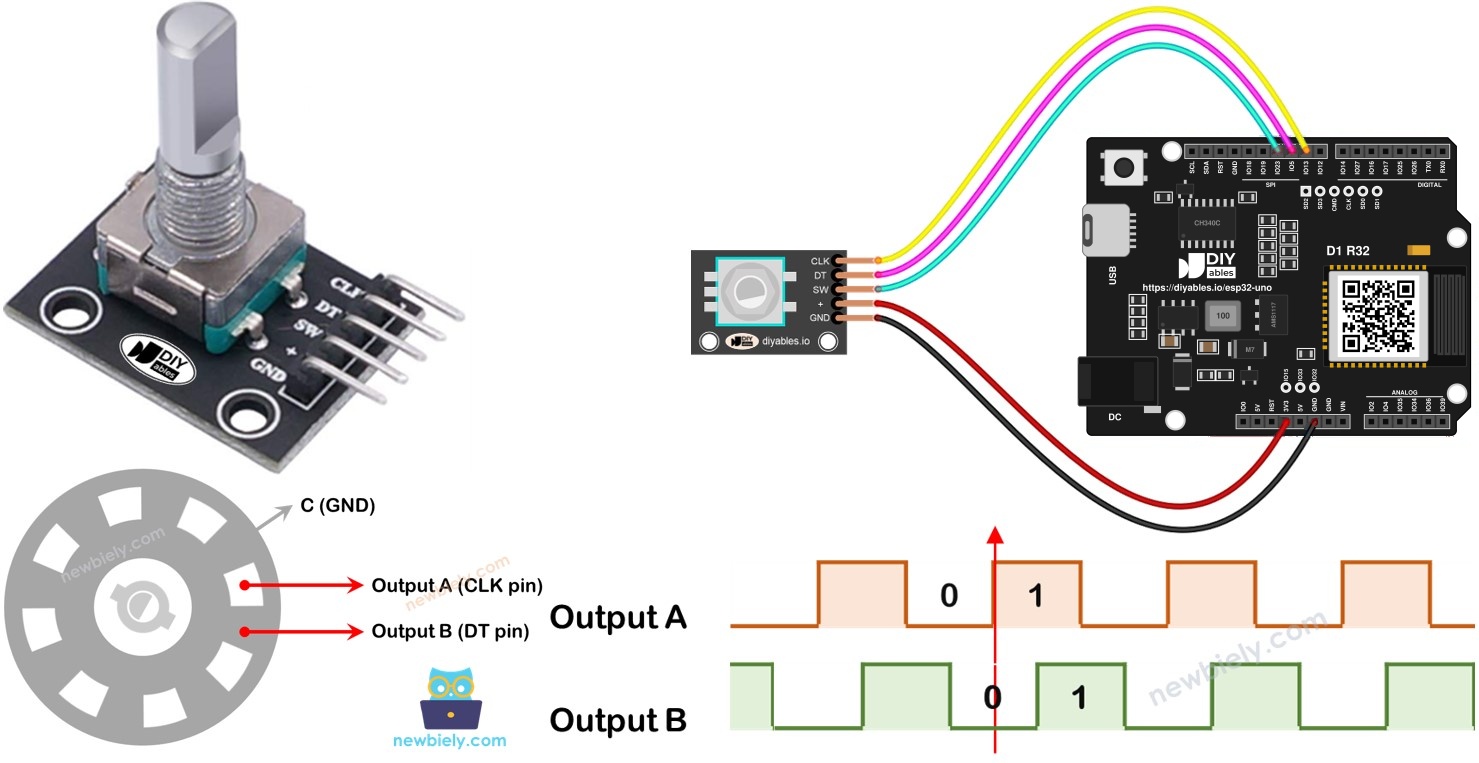
Components You Need
| 1 | × | ESP32 Uno-form Board | |
| 1 | × | USB Cable Type-A to Type-C (for USB-A PC) | |
| 1 | × | USB Cable Type-C to Type-C (for USB-C PC) | |
| 1 | × | Rotary Encoder | |
| 1 | × | Jumper Wires |
Or you can buy the following kits:
| 1 | × | DIYables Sensor Kit (18 sensors/displays) |
Additionally, some of these links are for products from our own brand, DIYables .
Overview of the Rotary Encoder
By the end of this part, you know what the encoder sends and how to read it.
A rotary encoder turns the movement of a knob into electrical pulses. Your code reads the pulses to learn how far and which way the knob moved. There are two types:
| Type | What It Gives | Best For |
|---|---|---|
| Incremental | A pulse for each small step | Counting knob clicks, menus, volume |
| Absolute | A unique code for each angle | Exact position, even after power loss |
This tutorial uses the incremental type. It is the cheap module most makers buy.
Rotary Encoder Module Pinout
Each pin has one job.
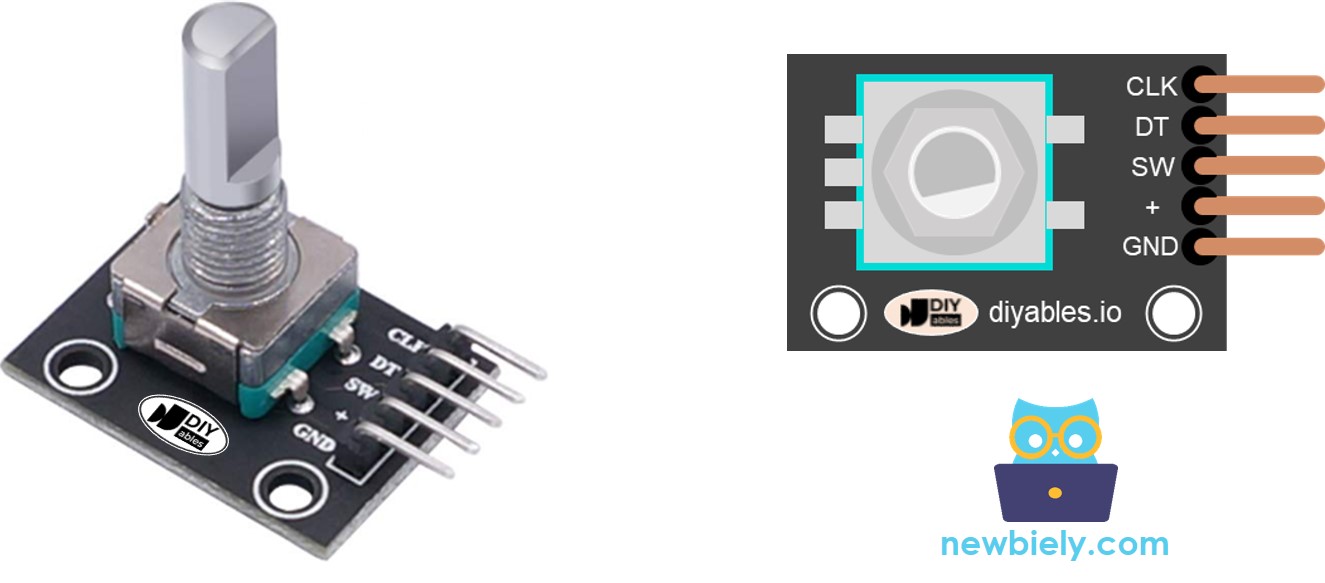
| Pin | Role |
|---|---|
| CLK (Output A) | Gives a full pulse (LOW, HIGH, LOW) for every click in either direction |
| DT (Output B) | Same pulse as CLK but 90 degrees later, so the code can find the direction |
| SW | Push button inside the knob. It is open by default and reads LOW when pressed (with a pull-up) |
| VCC (+) | Power, 3.3V to 5V. Use 3.3V with the ESP32 Uno |
| GND | Ground (0V) |
Good to know: the ESP32 Uno pins are 3.3V only. Power the module from 3.3V so its pulled-up signal pins never send 5V into the board.
Rotary Encoder vs Potentiometer
The two parts look alike, but they behave in different ways. See the potentiometer page for the other one.
| Feature | Rotary Encoder | Potentiometer |
|---|---|---|
| Turn range | Endless | About three quarters of a turn |
| Output | Digital pulses | Analog voltage |
| Tells you | How much the knob moved | Where the knob is |
How the Rotary Encoder Works
Inside, a slotted disc is joined to a common ground pin C. Two contact pins, A and B, touch the disc as it turns.
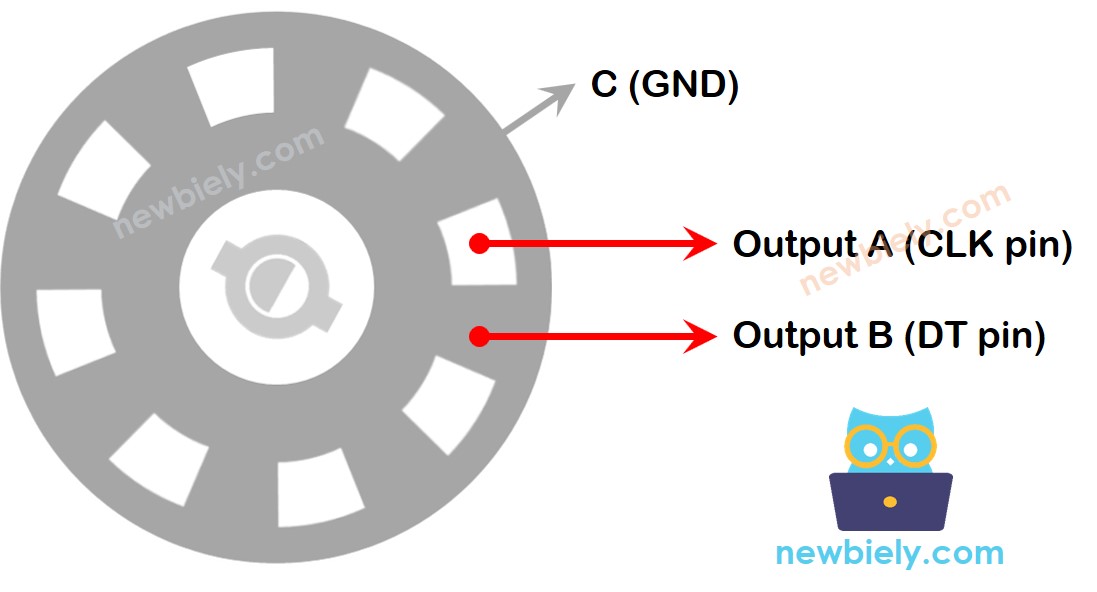
- A and B meet the common pin C in a set order, and the order depends on the turn direction
- One pin touches ground a little before the other, so the two signals are 90 degrees apart. Engineers name this scheme quadrature encoding
- Clockwise: A touches ground before B
- Counter-clockwise: B touches ground before A
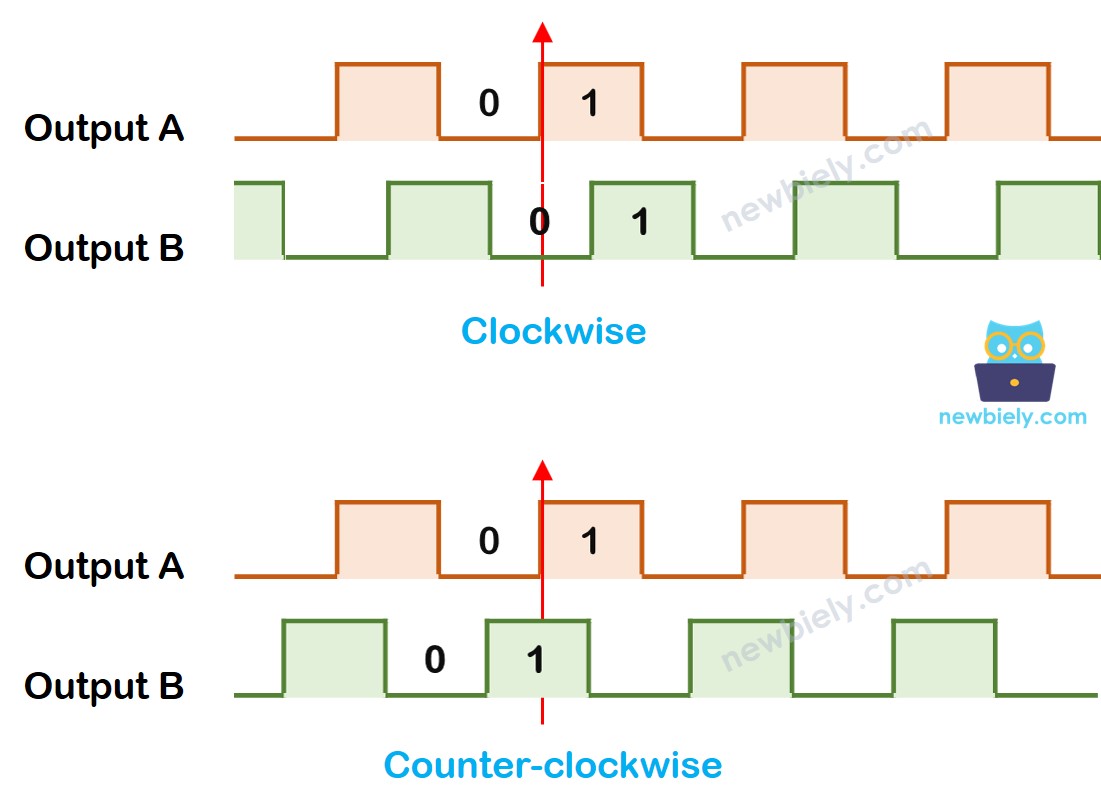
The rule your code uses, at the moment A rises from LOW to HIGH:
- B reads LOW: clockwise turn
- B reads HIGH: counter-clockwise turn
※ NOTE THAT:
A and B are the CLK and DT pins, but the order can differ between makers. The sketches here were tested with the DIYables rotary encoder.
The Program Logic
Only the rising edge of CLK matters.
- Watch the CLK pin
- When CLK goes from LOW to HIGH, read DT
- DT is HIGH: counter-clockwise, subtract 1
- DT is LOW: clockwise, add 1
ESP32 Uno Pinout
Each Uno header pin maps to one GPIO number, and your sketch uses the GPIO number. Match D2, D3 and D4 with their GPIOs in this diagram before you connect wires.

How to Connect
Three signal wires go to D2, D3 and D4. Power comes from the 3.3V pin.
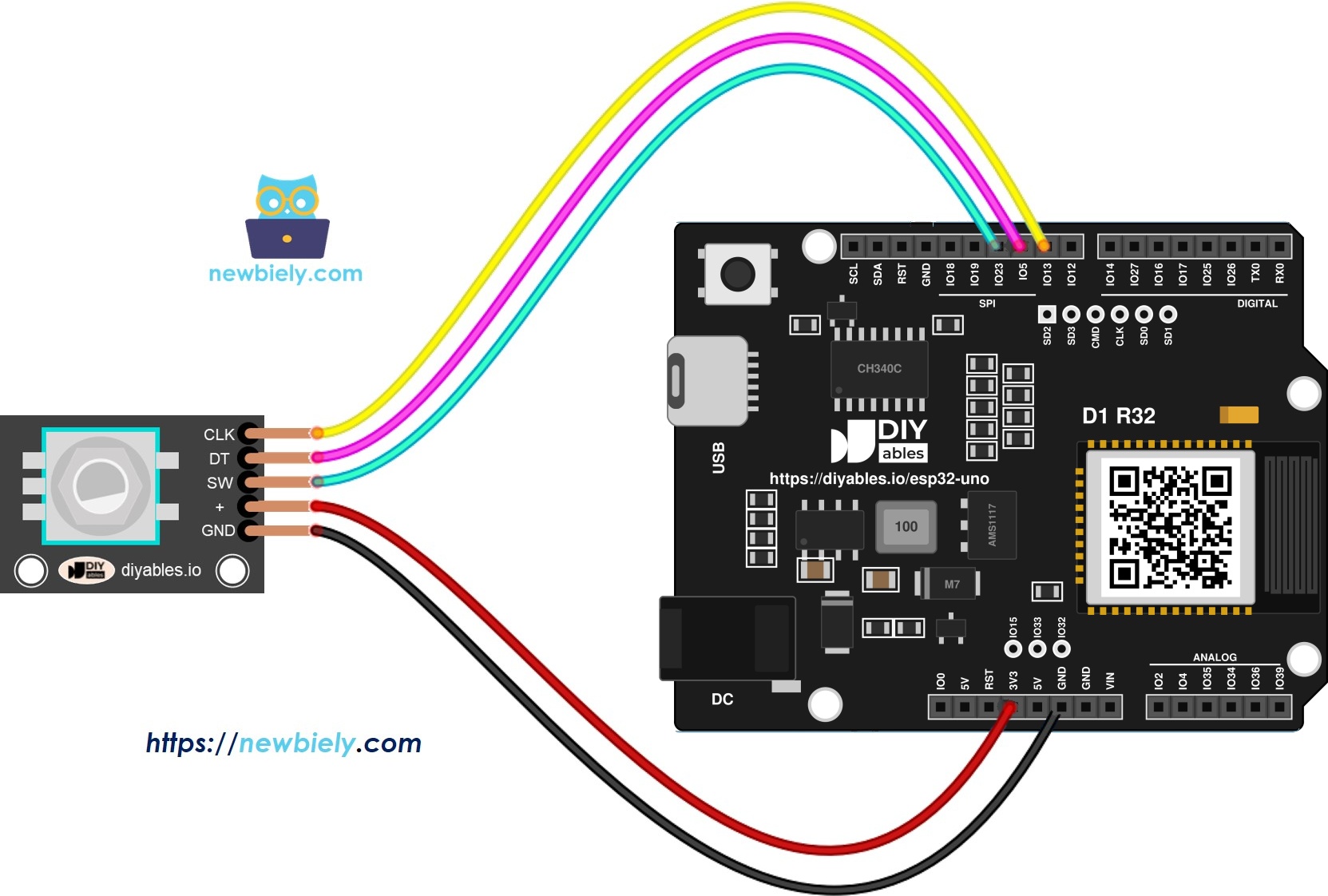
This image is created using Fritzing. Click to enlarge image
| Component Pin | ESP32 Uno Pin |
|---|---|
| CLK | D2 (GPIO26) |
| DT | D3 (GPIO25) |
| SW | D4 (GPIO17) |
| VCC (+) | 3.3V |
| GND | GND |
Good to know: all three pins are normal I/O pins with no boot restrictions, so they are safe for this project.
WARNING
If you power the module from 5V, its pull-up resistors lift CLK, DT and SW to 5V. ESP32 Uno pins are NOT 5V tolerant, so always use the 3.3V pin.
Sketch 1: Polling the Encoder
This sketch polls the CLK pin inside loop(). A click to the right adds 1, a click to the left subtracts 1, and a knob press prints a message.
| Code Part | What It Does |
|---|---|
| CLK_PIN 26, DT_PIN 25, SW_PIN 17 | GPIO numbers of D2, D3 and D4 |
| ezButton button | Reads the SW pin and removes bounce |
| CLK_state != prev_CLK_state | Spots a change on the CLK line |
| digitalRead(DT_PIN) | Decides the direction when CLK rises |
| counter++ / counter-- | Counts clicks up or down |
The Serial Monitor prints the direction and the counter after every click. The ezButton library keeps the button code short.
Upload and Test
- First time with this board? Set it up with ESP32 Uno - Getting Started before you continue.
- Build the circuit by following the wiring table above.
- Plug in the USB Type-C cable between the ESP32 Uno and your computer.
- Select the board in Arduino IDE: pick ESP32 Dev Module and the COM port of the board (CH340).
- Install the ezButton library with this guide: ezButton library.
- Copy the code above into Arduino IDE.
- Send it to the board with the Upload button.
- Open the Serial Monitor at 9600 baud.
- Turn the knob left, then right, then press it.
- Pro tip: turn the knob slowly at first. If a clockwise turn prints "Counter-clockwise", swap the CLK and DT wires.
Video Tutorial
See the ESP32 Uno build in action in the video below.
Sketch 2: Reading the Encoder by Interrupt
Polling wastes time on the ESP32 Uno and can lose clicks when other code in loop() runs for long. An interrupt calls a small function the moment CLK rises, so loop() stays free for other work.
- Copy the code above into Arduino IDE.
- Press Upload again.
- Turn and press the knob. The output looks like the first sketch.
| Code Part | What It Does |
|---|---|
| attachInterrupt(..., RISING) | Runs ISR_encoderChange() on each LOW to HIGH edge of CLK |
| IRAM_ATTR | Keeps the function in fast internal RAM, which the ESP32 Uno needs for interrupt functions |
| volatile variables | Tell the compiler that the interrupt can change them |
| millis() - last_time | Drops pulses closer than 50 ms (bounce) |
| prev_counter != counter | Prints only when the value changed |
※ NOTE THAT:
- Most GPIO pins on the ESP32 Uno can trigger an interrupt, so you are not limited to D2 and D3
- A single interrupt on the CLK pin does the job. A second one is not needed
- Any global variable changed inside the interrupt must be volatile
- Keep the interrupt routine tiny. Never call Serial.print() inside it
ESP32 Uno vs UNO R4 for This Project
Wiring stays the same on the header, but the sketch needs GPIO numbers and one new keyword.
| Item | Arduino UNO R4 | ESP32 Uno |
|---|---|---|
| Logic voltage | 5V | 3.3V |
| CLK pin | 2 | D2 (GPIO26) |
| DT pin | 3 | D3 (GPIO25) |
| SW pin | 4 | D4 (GPIO17) |
| Interrupt function | Plain function | Needs IRAM_ATTR |
| Interrupt pins | Only pins 2 and 3 | Most GPIO pins |
| Arduino IDE board | Arduino UNO R4 WiFi | ESP32 Dev Module |
The same header positions work as they are. Power the encoder from 3.3V instead of 5V.
Go Wireless: Show the Count on Your Phone
Send the counter over WiFi or Bluetooth, and you can watch the knob without a USB cable.
The ESP32 Uno has WiFi and Bluetooth, so the click counter can appear on a web page or in a phone app. Instead of Serial.println(counter), push the value to a monitor or a plotter. A plotter draws the rise and fall of the counter as you turn the knob.
Try These Next
- Reset the counter to 0 when the knob is pressed
- Limit the counter between 0 and 100 for a volume control
- Use two encoders on two sets of pins
- Move a servo or change LED brightness with the counter
Function References
Troubleshooting
| Problem | Possible Cause | Solution |
|---|---|---|
| No COM port in Arduino IDE | CH340 driver missing or charge-only cable | Install the CH340 driver and use a data USB cable |
| Upload fails with Failed to connect or Waiting for download | Board not in download mode | Hold the BOOT button while the upload starts |
| Serial Monitor stays empty while you turn | A wire is loose or the module has no power | Re-check 3.3V, GND, and the CLK (GPIO26) and DT (GPIO25) wires |
| Direction is reversed | CLK and DT swapped on your module | Swap the two wires or swap CLK_PIN and DT_PIN in the code |
| Counter jumps by more than 1 per click | Contact bounce or a missed edge | Use the interrupt sketch with its 50 ms filter |
| Knob press is not seen | SW wire loose or wrong pin | Check SW goes to D4 (GPIO17) and the code uses 17 |
| Compile error ezButton.h not found | Library missing | Install ezButton in the Library Manager |
| Interrupt sketch crashes the board | Interrupt function has no IRAM_ATTR | Add IRAM_ATTR before the function name |
| Garbled text in Serial Monitor | Wrong baud rate | Set the Serial Monitor to 9600 baud |
FAQ
Can I power the rotary encoder from 5V with the ESP32 Uno?
No. The module pulls CLK, DT and SW up to VCC, so 5V power puts 5V on the board pins. The logic level of this board is 3.3V. The 3.3V pin works well for this module.
What is the difference between polling and an interrupt for an encoder?
Polling reads the pin again and again in loop(). An interrupt runs a small function as soon as the pin changes. Interrupts miss fewer clicks when loop() has other slow work.
Why does the interrupt function need IRAM_ATTR on the ESP32 Uno?
The ESP32 Uno runs code from flash, which can be busy. IRAM_ATTR puts the function in internal RAM, so it runs at once when the interrupt fires.
Can I use any pin for the encoder interrupt?
Mostly yes. On the ESP32 Uno most GPIO pins can trigger interrupts, unlike the UNO R4, which allows only pins 2 and 3. Avoid D0 and D1 because they carry the USB serial, and avoid the boot strapping pins for this module.
Why does the counter skip or jump by two?
Contact bounce is the usual cause. The interrupt sketch ignores pulses closer than 50 ms. Keep loop() short if you use polling.
How do I reset the counter with the knob button?
Set counter = 0; inside the if (button.isPressed()) block. In the interrupt sketch, set prev_counter = 0; too, or the reset value will not show.
Can I use the UNO R4 sketch with pins 2, 3 and 4 without changes?
No. The sketch must use GPIO numbers 26, 25 and 17 instead of 2, 3 and 4. The wiring on the header stays the same.
Can I use pins A2 to A5 for the encoder?
They are input only with no internal pull-up, so an encoder needs external 10k pull-up resistors to 3.3V there. The D pins are simpler for this project.
Can I show the encoder count on a web page with the ESP32 Uno?
Yes. The ESP32 Uno has WiFi and Bluetooth, so you can send the counter to a web monitor or a phone app. See the Go Wireless section for links.
What if I run out of header pins for my project?
The ESP32 Uno has a few extra holes near the power header: GPIO32 and GPIO33 (I/O, PWM, analog on ADC1, so they also work while WiFi is on) and GPIO15 (I/O, PWM, analog on ADC2). Add pin headers by soldering, then use the plain GPIO number in your sketch. For a second encoder, GPIO32 and GPIO33 are good first choices. Two warnings: (1) GPIO15 and GPIO0 (the IO0 pin at the unused Uno NC position) are boot strapping pins, so a wrong connection can stop the board from booting or uploading code. Use GPIO32 and GPIO33 first. (2) Never use the six holes under the digital header (SD0 to SD3, CMD and CLK, which are GPIO6 to GPIO11). They are wired to the flash chip, and using them crashes the board.