
ESP32 UNO - MQTT
Want your board to talk to other devices through one shared server? Get ESP32 Uno MQTT working in about ten minutes with the Arduino IDE. The ESP32 Uno form board joins your WiFi, connects to a Mosquitto broker, and both publishes and subscribes to topics with small JSON messages. You test it twice: first with a free public broker, then with a broker running on your own Windows PC.
What you will do:
- Connect the ESP32 Uno to an online MQTT broker over WiFi
- Publish JSON data to an MQTT topic
- Subscribe to a topic and print each incoming message
- Install and start the Mosquitto broker on Windows
- Send messages from the PC to the board and back
Components You Need
| 1 | × | ESP32 Uno-form Board | |
| 1 | × | USB Cable Type-A to Type-C (for USB-A PC) | |
| 1 | × | USB Cable Type-C to Type-C (for USB-C PC) |
Or you can buy the following kits:
| 1 | × | DIYables Sensor Kit (18 sensors/displays) |
Additionally, some of these links are for products from our own brand, DIYables .
How MQTT Works on the ESP32 Uno
By the end of this part, you know the four words you need for the rest of the page.
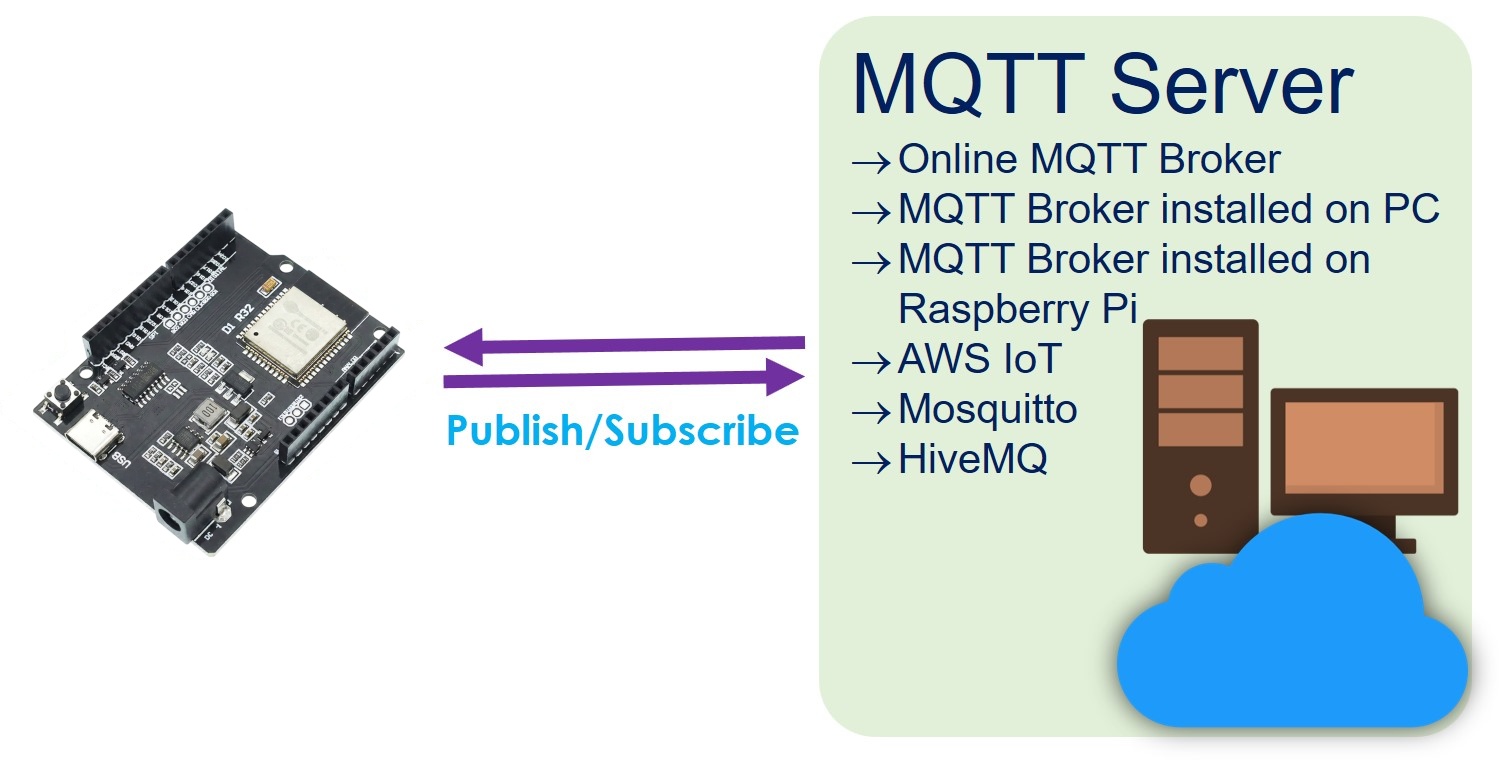
MQTT is a publish/subscribe protocol. Devices never talk to each other directly. They all talk to one server, the broker, and the broker hands each message to whoever asked for it.
| Term | Meaning | Example in This Project |
|---|---|---|
| Broker | The server that receives and forwards every message | test.mosquitto.org, or Mosquitto on your PC |
| Client | Any device that connects to the broker | The ESP32 Uno, or a Command Prompt window |
| Topic | A text label that names a message channel | esp32-uno-001/send |
| Publish | Send a message to a topic | The board sends a JSON reading every 5 seconds |
| Subscribe | Tell the broker to forward a topic to you | The board listens on esp32-uno-001/receive |
The broker can live almost anywhere:
| Broker Location | Typical Software |
|---|---|
| Internet service | Mosquitto test server, AWS IoT |
| Your own computer | Mosquitto, HiveMQ |
| Raspberry Pi on your network | Mosquitto |
| Cloud virtual machine | Mosquitto or HiveMQ on AWS EC2 |
Good to know: the ESP32 Uno has 2.4 GHz WiFi on board, so it is a full MQTT client with no shield and no extra parts.
The page runs in two rounds. Round one checks the board against the public Mosquitto server. Round two moves the broker onto your PC, so you can watch both sides of the traffic.
ESP32 Uno Pinout
This project uses only the built-in WiFi, so no wire goes to any header. The sketch does read A2, which is GPIO35, as sample data, and the map below helps you find it when you swap in a real sensor.

※ NOTE THAT:
The wiring diagram may not show the correct pin. On the ESP32 Uno, the example reads A2 (GPIO35), not A0. We will update the diagram soon. Until then, follow the text on this page, not the picture.
Sample input: the example reads A2 (GPIO35) with analogRead(35). No wire is needed to run it.
Round 1: ESP32 Uno with an Online MQTT Broker
By the end of this part, the board sends a message to a public broker and gets the same message back.
You use test.mosquitto.org, a free broker run by the Mosquitto project. Anyone can connect, and nothing is private, so keep it for tests only.
ESP32 Uno Code for the Online Broker
This sketch joins WiFi, connects to the broker, subscribes to a loopback topic, and publishes a JSON message to that same topic every 5 seconds.
Good to know: analogSetAttenuation(ADC_11db) in setup() lets an ESP32 Uno analog pin read the full span from 0V up to about 3.3V. With a narrow range, readings would hit 4095 too early and sensor values would look wrong.
Upload and Test
- First time with this board? Set it up with ESP32 Uno - Getting Started before you continue.
- Skip the circuit — this project has no external parts.
- Plug in the USB Type-C cable between the ESP32 Uno and your computer.
- Select the board in Arduino IDE: pick ESP32 Dev Module and the COM port of the board (CH340).
- Open Library Manager with the Library Manager icon in the left bar.
- Search for the MQTT library: type MQTT and find the one by Joel Gaehwiler.
- Install it with the Install button.
- Search for MQTT created by Joel Gaehwiler
- Search for ArduinoJson: type ArduinoJson and find the one by Benoit Blanchon, then press Install.
- Search for ArduinoJson created by Benoit Blanchon
and click the Install button.
- Paste the code into a new sketch.
- Type your network details into YOUR_WIFI_SSID and YOUR_WIFI_PASSWORD.
- Make the IDs your own: YOUR-NAME shows up three times (client ID and both topics). Swap it for a short word of letters only, such as linabench. On a shared public broker, two people with the same client ID kick each other off.
- Upload with the Upload button.
- Open the Serial Monitor at 9600 baud.
- Pro tip: the public broker shows its traffic to everyone, so never put a password, address or other private text in a test payload.
The Serial Monitor prints the connect steps, then one sent and one received block every 5 seconds:
Each message comes straight back because the publish topic and the subscribe topic are the same string. Give them two different names and the echo stops.
Good to know: "data" is a 12-bit number from 0 to 4095. It comes from A2 (GPIO35) on ADC1, so it still reads while WiFi is on. Your numbers will differ. Put your own sensor value into message["data"] when you build a project.
Round 2: ESP32 Uno with Mosquitto on Your PC
By the end of this part, your PC runs its own broker and swaps messages with the ESP32 Uno in both directions.
A local broker works without the internet, keeps your data on your network, and lets you watch every message in a terminal.
Step 1 — Install Mosquitto
- Get the installer from the Mosquitto MQTT Broker download page.
- Pick a folder on the D: drive, not on C:. Folders under C: often hit write-permission errors.
Step 2 — Start the broker
- Open the Mosquitto install folder, for example D:\Draft\mosquitto.
- Create a file there named test.conf with these two lines, then save it:
The first line opens port 1883 to other devices on the network. The second line lets clients join without a username.
- Start a Command Prompt with "Run as administrator". This is the Broker Window. Leave it open for the whole page.
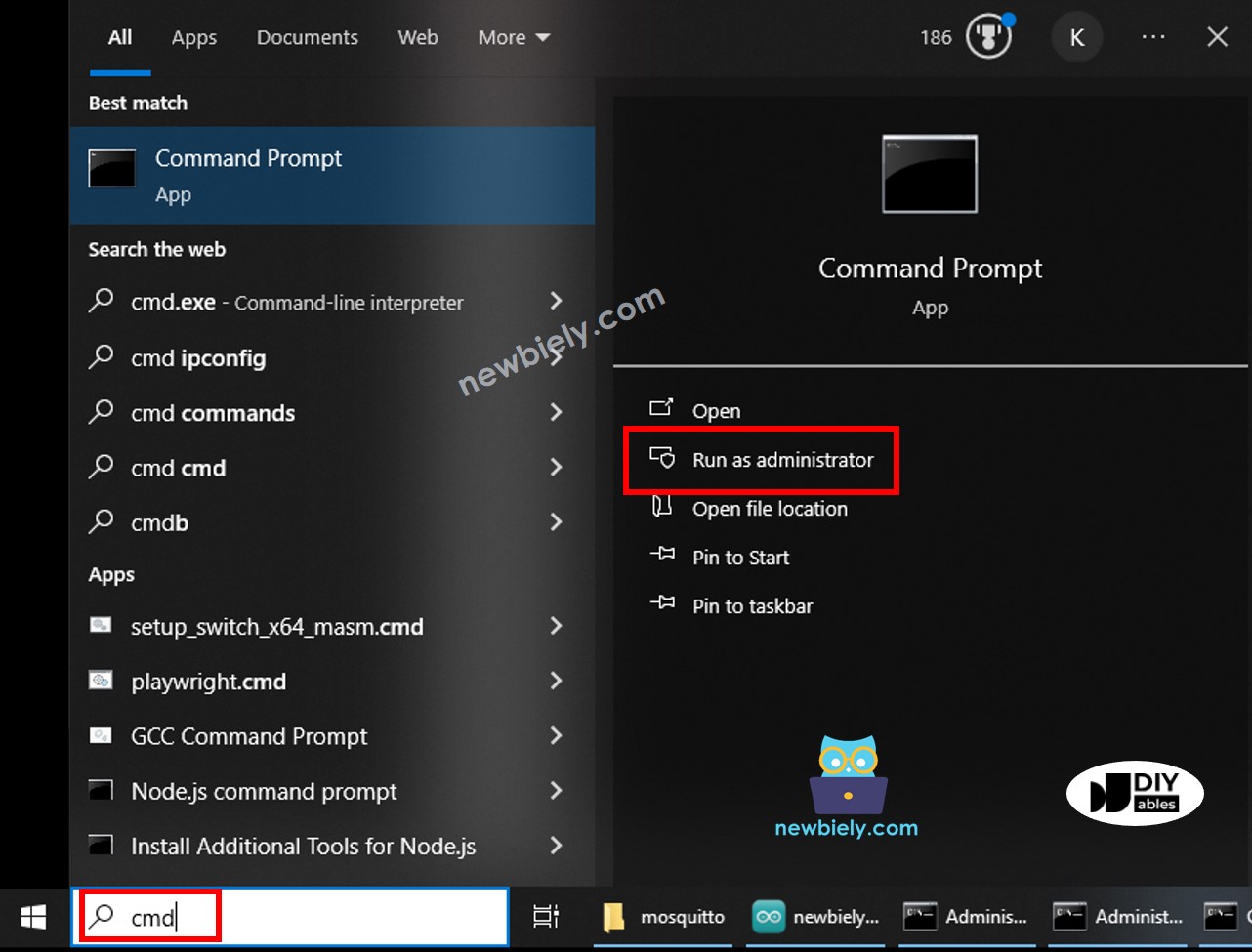
- Type these two commands:
- Check that the broker reports it is running:
- Start a second administrator Command Prompt and look up the PC address:
- Note the IPv4 Address line. On this PC it reads 192.168.1.42; yours will differ.
Step 3 — Check the broker from the PC
- Start one more administrator Command Prompt. This is the Subscriber Window.
- Listen on a topic (put in your own IP):
- Start a fourth administrator Command Prompt. This is the Publisher Window.
- Send a test line to that topic (put in your own IP):
- The Publisher Window returns to the prompt with no error:
- The line shows up in the Subscriber Window:
If "Hello, MQTT!" shows up, the broker works. Do not close any of those three terminals — Round 2 still needs them.
ESP32 Uno Code for the Local Broker
This sketch connects to the broker on your PC, listens on esp32-uno-001/receive, and publishes JSON to esp32-uno-001/send every 5 seconds. Two topics mean no echo, so traffic flows both ways cleanly.
Good to know: the same analogSetAttenuation(ADC_11db) line is here, so a sensor on an ADC1 pin would read 0V to about 3.3V as 0 to 4095.
Upload and Test
- Paste the code into a new sketch.
- Enter the same WiFi name and password you used in Round 1.
- Point it at your PC: set MQTT_BROKER_ADRRESS to the IPv4 address from ipconfig (a domain name also works).
- Upload with the Upload button.
- Pro tip: the first time Mosquitto starts, Windows Firewall may pop up a prompt. Allow "Private networks", or the ESP32 Uno never reaches port 1883.
Board to PC: Watch Data Arrive
The board publishes to esp32-uno-001/send, and the Subscriber Window already listens there.
- Open the Serial Monitor. A new block appears every 5 seconds:
- Look at the second terminal (Subscriber). The same JSON lines appear under the earlier test text:
PC to Board: Send a Command
The board listens on esp32-uno-001/receive, so anything you publish there lands in the sketch.
- Type this line into the Publisher Window:
- The Serial Monitor prints it right away:
Video Tutorial
See the ESP32 Uno build in action in the video below.
Code Explanation
By the end of this part, you know which lines to edit when you reuse the sketch.
| Code Part | What It Does |
|---|---|
| WiFi.begin() and the while loop | Join your 2.4 GHz network and print a dot every 500 ms until it connects |
| mqtt.begin() and mqtt.connect() | Open a TCP link to the broker on port 1883 and log in with the client ID |
| mqtt.subscribe(SUBSCRIBE_TOPIC) | Ask the broker to forward one topic to messageHandler() |
| sendToMQTT() | Build a JSON object with millis() and a value, then publish it |
| mqtt.loop() | Keep the link alive and hand new messages to messageHandler() |
| messageHandler() | Print the topic and payload of each message that arrives |
The result is a two-way pipe: change what goes into message["data"] to send real data, and add code to messageHandler() to act on commands.
Good to know: mqtt.loop() must run often. A long delay() in loop() makes the broker think the board is gone, and it drops the connection.
ESP32 Uno vs UNO R4 for This Project
Moving this MQTT project from the UNO R4 WiFi to the ESP32 Uno changes the WiFi library and the sample analog read, nothing else.
| Item | Arduino UNO R4 | ESP32 Uno |
|---|---|---|
| Logic voltage | 5V | 3.3V |
| WiFi library | WiFiS3.h | WiFi.h |
| Sample data pin | A0 with analogRead(0) | A2 (GPIO35) with analogRead(35) |
| ADC range | 0 to 1023 (10-bit) | 0 to 4095 (12-bit) |
| Extra setup line | None | analogSetAttenuation(ADC_11db) |
| Analog read with WiFi on | Works on A0 | Works on A2 to A5 (ADC1), not on ADC2 pins |
| Arduino IDE board | Arduino UNO R4 WiFi | ESP32 Dev Module |
No wiring is involved, so the move is code only. The MQTT and ArduinoJson libraries stay the same. Watch the analog pin choice once WiFi is on.
Try These Next
- Faster updates: set PUBLISH_INTERVAL to 1000 and see one message per second in the Subscriber Window.
- Real reading: connect a potentiometer signal to A3 (GPIO34), call analogRead(34) instead of analogRead(35), and watch real values from 0 to 4095 appear.
- Command parser: in messageHandler(), compare payload to "on" and "off" and switch an LED on D7 (GPIO14).
- Status topic: publish "online" to esp32-uno-001/status once right after the board connects.
- Last will: use mqtt.setWill() so the broker posts "offline" when the board loses power.
Troubleshooting
| Problem | Possible Cause | Solution |
|---|---|---|
| No COM port appears in Arduino IDE | CH340 driver missing or a charge-only cable | Install the CH340 driver and use a USB Type-C data cable |
| Upload ends with Failed to connect or Waiting for download | Board did not enter flash mode | Hold the BOOT button while the upload starts, release it when writing begins |
| Board resets over and over or never prints | Weak USB port or loose cable | Plug straight into the computer, not a hub, and reseat the cable |
| Endless dots after Connecting to Wi-Fi | Wrong SSID or password, or a 5 GHz only router | Check the spelling and join a 2.4 GHz network |
| Endless dots after Connecting to MQTT broker | Wrong broker address, or port 1883 blocked | Check MQTT_BROKER_ADRRESS and allow port 1883 in the PC firewall |
| Board connects then drops every few seconds | Another client uses the same client ID | Give every board and test tool its own client ID |
| Strange messages arrive on the loopback topic | Someone else uses the same public topic | Replace YOUR-NAME with a less common word |
| Compile stops at MQTTClient.h or ArduinoJson.h | A library is missing | Add both from Library Manager, then compile again |
FAQ
What is an MQTT broker, and do I need my own?
A broker is the server in the middle that receives every message and passes it to the clients that subscribed. For a first try, the free public server at test.mosquitto.org is enough. For anything real, run your own, for example Mosquitto on a PC or a Raspberry Pi.
Does the ESP32 Uno need a WiFi shield for MQTT?
No. The radio is built into the ESP32 Uno form board. The board and a USB Type-C cable are all the hardware this page uses.
Which Arduino libraries does this MQTT code use?
WiFi.h comes with the esp32 by Espressif Systems core. You install two more from Library Manager: MQTT by Joel Gaehwiler and ArduinoJson by Benoit Blanchon.
Can PubSubClient replace the Joel Gaehwiler MQTT library?
Yes. PubSubClient also runs on the ESP32 Uno with WiFiClient. The function names and the callback format differ, so you rewrite the connect, publish and callback parts. Your Mosquitto setup needs no change.
Which pin gives the "data" value in the payload?
The sketch reads A2, which is GPIO35 on the ESP32 Uno. GPIO35 is on ADC1, so it still reads while WiFi runs. With nothing connected, the number may float, so it can be any value from 0 to 4095. To use your own sensor, wire it to A2 to A5 (GPIO35, 34, 36, 39) or to GPIO32/GPIO33, and change the number inside analogRead().
What is the analogSetAttenuation(ADC_11db) line in setup() for?
This line widens the ESP32 Uno ADC window to roughly 0 to 3.3V, so a signal across that whole span turns into 0 to 4095. With a smaller range, readings saturate early. The UNO R4 does not need this line, because only boards on the esp32 core need it. Keep the sensor output at 3.3V or less.
Why is it analogRead(35) and not analogRead(2)?
On the ESP32 Uno, the number you pass is the GPIO number. The A2 header is wired to GPIO35, so the code says 35. On this core, A0 and 0 would point to other pins.
What changes in the sketch if I used the UNO R4 WiFi before?
Swap WiFiS3.h for WiFi.h, use a simple WiFi.begin() loop, and pick an analog pin on ADC1. Everything about MQTT, topics and JSON stays the same.
Do I need the CH340 driver for the ESP32 Uno?
The board talks to your computer through a CH340 USB chip. Windows 10 and 11 usually install the driver by themselves. If no COM port shows up, install the CH340 driver by hand.
How do I run two or three ESP32 Uno boards on the same broker?
Yes. Give each board a different client ID, for example ESP32-UNO-001 and ESP32-UNO-002. They can publish to their own topics and subscribe to each other.
My MQTT node needs more inputs than the Uno headers offer. What can I use?
The ESP32 Uno has a few extra holes near the power header: GPIO32 and GPIO33 (I/O, PWM, analog on ADC1, so they still read while WiFi is on) and GPIO15 (I/O, PWM, analog on ADC2). Add pin headers with a soldering iron, then put the bare GPIO number in your sketch. For an MQTT sensor node, GPIO32 and GPIO33 are the best picks for analog inputs. Two warnings: GPIO15 and GPIO0 (the IO0 pin at the unused Uno NC position) are boot strapping pins, and a wrong connection can stop the board from booting or uploading code, so use GPIO32/33 first. Never use the six holes under the digital header (SD0 to SD3, CMD, CLK, which are GPIO6 to GPIO11), because they are wired to the flash chip and using them crashes the board.