
ESP32 UNO - Smart Weather Station

Want a desk gadget that shows today's weather without a single sensor? Combine the ESP32 Uno form board with a 1.28 inch round GC9A01 TFT. The board asks the free Open-Meteo weather API for your city over WiFi, then draws temperature, wind, rain chance and a 3-day forecast on a live WiFi weather display.

By the end, you can:

  1. Connect a round TFT screen and one push button to the ESP32 Uno
  2. Fetch live weather from a web API over HTTPS
  3. Parse the JSON reply with ArduinoJson
  4. Keep a real-time clock with NTP
  5. Switch between eight screens with a single button
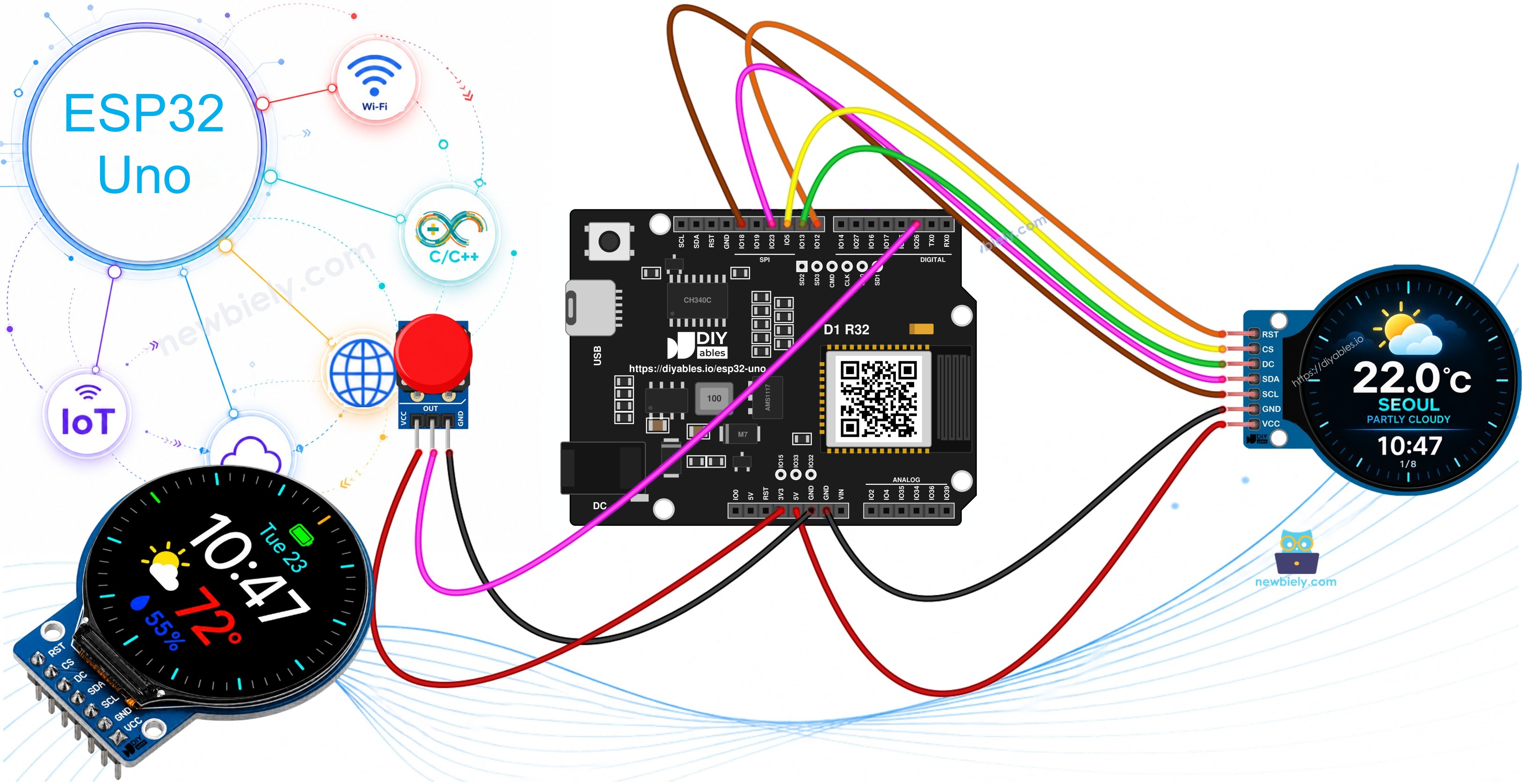
ESP32 Uno smart weather station

Components You Need

1×ESP32 Uno-form Board
1×USB Cable Type-A to Type-C (for USB-A PC)
1×USB Cable Type-C to Type-C (for USB-C PC)
1×1.28 Inch Round Circular TFT LCD Display Module
1×Push Button
1×Button Module Alternatively,
1×Breadboard
1×Jumper Wires

Pick one button part, not both. Each wiring option is shown below.

Or you can buy the following kits:

1×DIYables Sensor Kit (18 sensors/displays)
Disclosure: Some of the links provided in this section are Amazon affiliate links. We may receive a commission for any purchases made through these links at no additional cost to you.
Additionally, some of these links are for products from our own brand, DIYables .

What the Eight Screens Show

By the end of this part, you know what to expect on the display after the upload. One button steps through the pages in a loop.

Page Content
HOME Sky icon, temperature, short sky text, and the NTP clock
TEMP Air temperature and the "feels like" value on an arc gauge
HUMIDITY A ring that fills with the humidity, plus the percent
WIND Wind speed and an arrow on a small compass
RAIN Rain chance and falling drops when rain is likely
NEXT HOURS Five rows with time, sky, temperature and rain chance
FORECAST Lowest and highest temperature for 3 days
SYSTEM Link state, RSSI, API state, city name and data status

New data arrives every 10 minutes. In between, the clock keeps counting, because the ESP32 Uno holds its own time after one NTP sync.

Good to know: the weather is for your city, not for the room. For indoor values you can add a sensor later.

The Open-Meteo Weather Service

By the end of this part, you know why this API fits a small board. Open-Meteo is a free web service, described at open-meteo.com.

Item Detail
Account none, no sign-up
API key not needed
Price free for personal projects
Answer plain JSON text
Location latitude and longitude
Connection HTTPS, port 443

A single request returns the current values, a list of hourly values and a short daily summary. Add a timezone value and the times arrive in local time instead of UTC.

ESP32 Uno Pinout

Every Uno header pin on the ESP32 Uno form board is tied to one GPIO number, and the sketch uses that number. Look at this map once before you push in any wire.

ESP32 Uno pinout diagram

※ NOTE THAT:

The wiring diagram may not show the correct pin. On the ESP32 Uno, the display RST wire goes to D4 (GPIO17), not D8 as the picture may show. We will update the diagram soon. Until then, follow the wiring table and the code on this page, not the picture.

How to Connect

By the end of this part, the round display and the button are wired and ready. The display uses the hardware SPI bus, so D13 and D11 stay where they are.

TFT LCD Pin ESP32 Uno Pin Role
VCC 3.3V Power
GND GND Ground
SCL D13 (GPIO18) Clock line of SPI (cannot move)
SDA D11 (GPIO23) Data line of SPI (cannot move)
DC D9 (GPIO13) Data or command
CS D10 (GPIO5) Selects the display
RST D4 (GPIO17) Reset

WARNING

The CS wire uses D10 (GPIO5), which is a boot strapping pin. The chip reads this pin at power-up. The display normally does not pull CS the wrong way, so the board boots fine. If the board will not boot or upload with the display plugged in, unplug the CS wire, upload, and plug it in again.

Good to know: the display only receives signals from the board, so no 5V signal goes into an ESP32 Uno pin. Power it from 3.3V to match the board logic.

Wire the button to header D2 (GPIO26). A bare push button or a ready-made button module both work, as long as the code line matches your part.

Option 1 - Plain Push Button

A push button has no resistor. Wire one leg to D2 and the other to GND. The internal pull-up of the ESP32 Uno keeps the pin HIGH at rest, and it drops to LOW while you press.
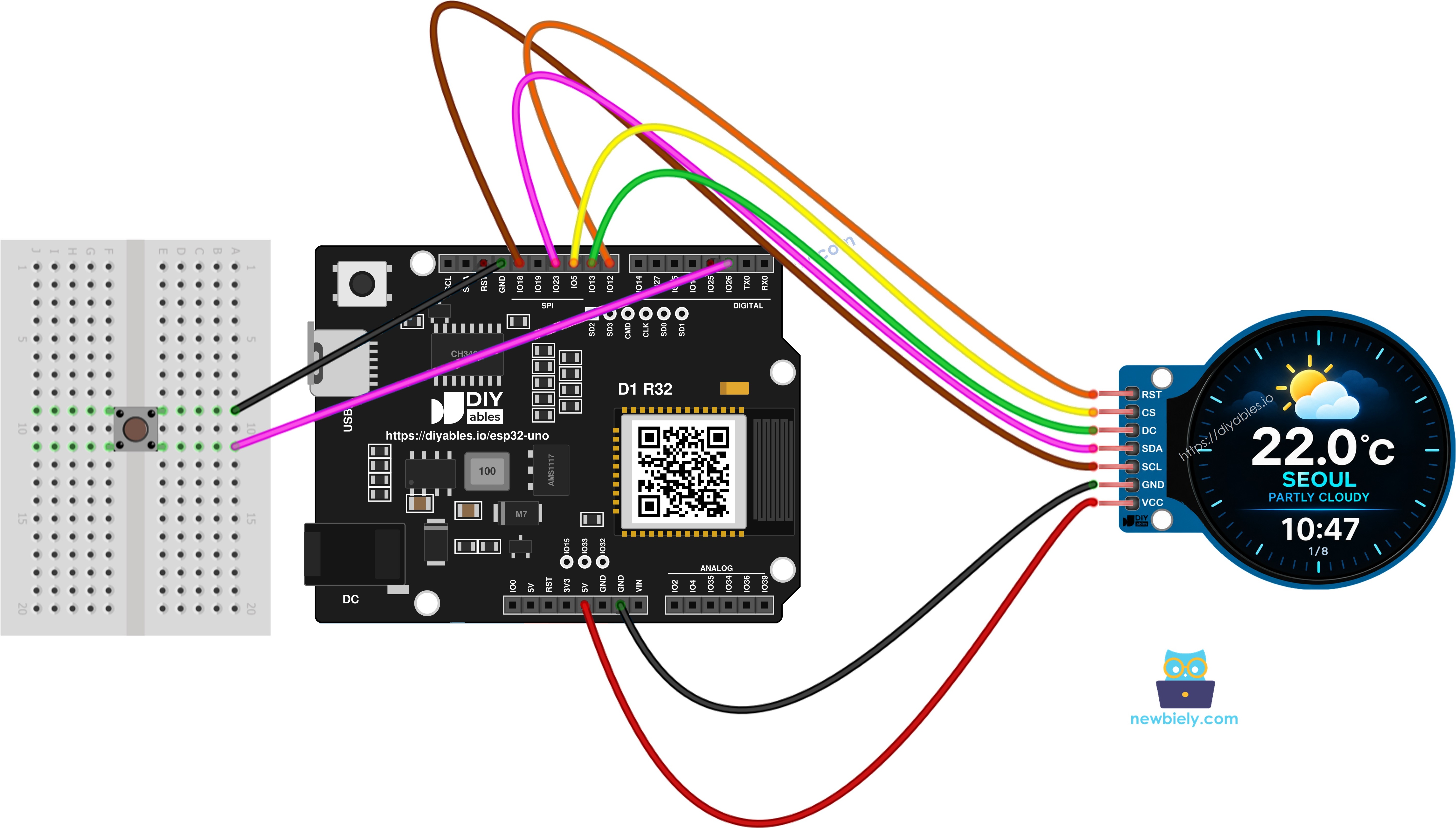
The wiring diagram between ESP32 Uno smart weather station  with push button

This image is created using Fritzing. Click to enlarge image

Button Pin ESP32 Uno Pin Role
Pin 1 D2 (GPIO26) Input with internal pull-up
Pin 2 GND Ground

The default sketch matches this wiring, with this line:

ezButton button(PIN_BUTTON);

Option 2 - Button Module

A button module has a pull-down resistor on its board and needs power. Its OUT pin rests at LOW and goes HIGH on a press, the opposite of the bare button.
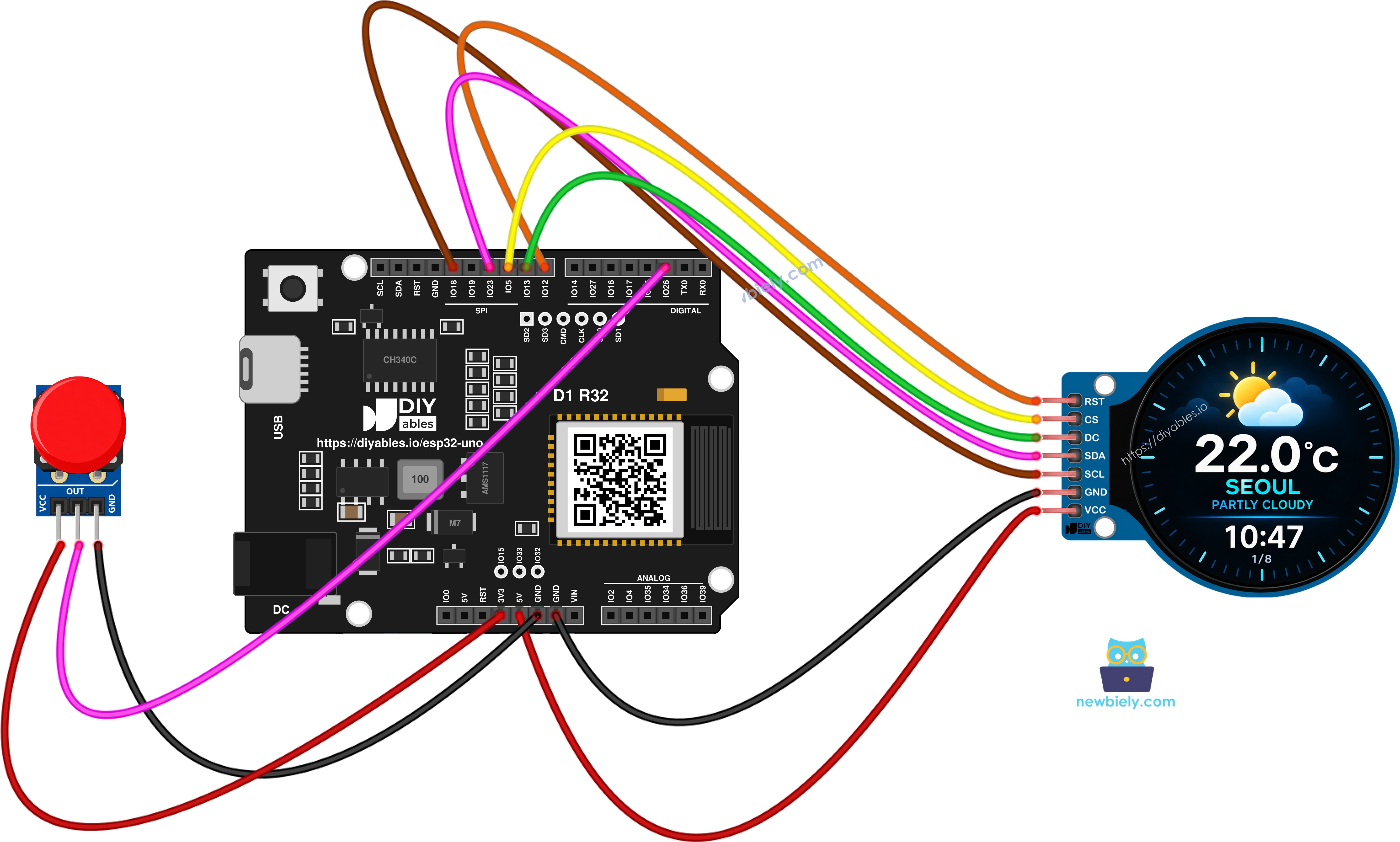
The wiring diagram between ESP32 Uno smart weather station  with button module

This image is created using Fritzing. Click to enlarge image

Button Module Pin ESP32 Uno Pin Role
VCC 3.3V Power
GND GND Ground
OUT D2 (GPIO26) LOW at rest, HIGH when pressed

WARNING

Give the button module 3.3V only. OUT swings up to the VCC level, and the pins of this board do NOT tolerate 5V. Five volts on D2 may burn out GPIO26.

The resistor is already on the module, so leave the internal pull-up off. Change one line:

ezButton button(PIN_BUTTON, EXTERNAL_PULLDOWN);

Code Building Blocks

By the end of this part, you can read the main pieces of the sketch before you open the full listing.

Step 1 - Libraries

Four headers are built into the board package: WiFi.h, WiFiClientSecure.h, HTTPClient.h and time.h. You add just ArduinoJson, DIYables_TFT_Round and ezButton from the Library Manager.

#include <WiFi.h> #include <WiFiClientSecure.h> #include <HTTPClient.h> #include <ArduinoJson.h> #include <time.h> #include <DIYables_TFT_Round.h> #include <ezButton.h>

Step 2 - Display object

The constructor wants reset, data/command and chip select, in that order. This board maps them to D4 as GPIO17, D9 as GPIO13 and D10 as GPIO5.

DIYables_TFT_GC9A01_Round tft(17, 13, 5);

Step 3 - WiFi name and city

#define WIFI_SSID "YOUR_WIFI_SSID" #define WIFI_PASSWORD "YOUR_WIFI_PASSWORD" #define LATITUDE 37.5665 #define LONGITUDE 126.9780

Step 4 - Join WiFi

WiFi.mode(WIFI_STA); WiFi.begin(WIFI_SSID, WIFI_PASSWORD);

Step 5 - Set the clock over NTP

GMT_OFFSET_SEC is the distance from UTC in seconds.

configTime(GMT_OFFSET_SEC, DST_OFFSET_SEC, "pool.ntp.org", "time.nist.gov"); struct tm timeinfo; getLocalTime(&timeinfo, 10000);

Step 6 - Send the HTTPS request

setInsecure() turns off the certificate check. That keeps the sketch short and is fine for a hobby build.

WiFiClientSecure client; client.setInsecure(); HTTPClient http; http.begin(client, url); int httpCode = http.GET(); String payload = http.getString();

Step 7 - Pick a value from the JSON

JsonDocument doc; deserializeJson(doc, payload); float temperature = doc["current"]["temperature_2m"] | 0.0;

Step 8 - Draw on the round screen

tft.setTextSize(3); tft.setTextColor(DIYables_TFT::colorRGB(255, 255, 255)); tft.setCursor(80, 100); tft.print(temperature, 1);

ESP32 Uno Smart Weather Station Sketch

The full sketch joins WiFi, sets the clock, loads the weather every 10 minutes and paints the eight pages. The button picks the page.

/* * This ESP32 Uno code was developed by newbiely.com * * This ESP32 Uno code is made available for public use without any restriction * * For comprehensive instructions and wiring diagrams, please visit: * https://newbiely.com/tutorials/esp32-uno/esp32-uno-smart-weather-station */ /* ============================================================ SMART WEATHER STATION ESP32 Uno + GC9A01 round TFT + one push button Place: Seoul, South Korea (edit the settings block to change it) Weather data: Open-Meteo API (free, no API key) ------------------------------------------------------------ Wiring: round TFT -> ESP32 Uno header VCC -> 3.3V GND -> GND SCL -> D13 (GPIO18), SPI clock, fixed SDA -> D11 (GPIO23), SPI MOSI, fixed RST -> D4 (GPIO17) DC -> D9 (GPIO13) CS -> D10 (GPIO5) Wiring: button D2 (GPIO26) -> BUTTON -> GND ------------------------------------------------------------ Button actions Tap -> go to the next page Hold 0.6 s -> load fresh weather Hold over 2 s -> return to the home page ============================================================ */ #include <WiFi.h> #include <WiFiClientSecure.h> #include <HTTPClient.h> #include <ArduinoJson.h> #include <time.h> #include <DIYables_TFT_Round.h> #include <ezButton.h> // ---- settings you edit ---- #define WIFI_SSID "YOUR_WIFI_SSID" #define WIFI_PASSWORD "YOUR_WIFI_PASSWORD" #define LATITUDE 37.5665 #define LONGITUDE 126.9780 #define LOCATION_NAME "SEOUL" // Time zone name sent to the API, in URL form. // Write every "/" as "%2F". #define TIMEZONE "Asia%2FSeoul" // Distance from UTC in seconds, for the NTP clock. // Seoul is UTC+9, which is 9 * 3600. #define GMT_OFFSET_SEC (9 * 3600) // Add 3600 here if your city uses summer time. #define DST_OFFSET_SEC 0 // ---- pins ---- // The clock (D13, GPIO18) and data (D11, GPIO23) wires use the // default SPI pins of the ESP32 Uno. The library picks them by // itself, so only the other pins are defined below. #define PIN_BUTTON 26 #define PIN_RST 17 #define PIN_DC 13 #define PIN_CS 5 // ---- timing ---- const unsigned long API_UPDATE_INTERVAL = 10UL * 60UL * 1000UL; const unsigned long WIFI_RETRY_INTERVAL = 10UL * 1000UL; const unsigned long WIFI_CONNECT_TIMEOUT = 15UL * 1000UL; const unsigned long BUTTON_DEBOUNCE = 40; const unsigned long LONG_PRESS_TIME = 600; const unsigned long VERY_LONG_PRESS_TIME = 2000; const unsigned long RAIN_ANIMATION_INTERVAL = 90; const unsigned long CLOCK_UPDATE_INTERVAL = 1000; // ---- display object ---- DIYables_TFT_GC9A01_Round tft(PIN_RST, PIN_DC, PIN_CS); // ---- screen size ---- const int SCREEN_W = 240; const int SCREEN_H = 240; const int CENTER_X = 120; const int CENTER_Y = 120; // ---- color list ---- #define BLACK DIYables_TFT::colorRGB(0, 0, 0) #define WHITE DIYables_TFT::colorRGB(255, 255, 255) #define CYAN DIYables_TFT::colorRGB(0, 220, 255) #define BLUE DIYables_TFT::colorRGB(40, 120, 255) #define LIGHT_BLUE DIYables_TFT::colorRGB(90, 190, 255) #define GREEN DIYables_TFT::colorRGB(60, 230, 130) #define YELLOW DIYables_TFT::colorRGB(255, 210, 60) #define ORANGE DIYables_TFT::colorRGB(255, 150, 40) #define RED DIYables_TFT::colorRGB(255, 70, 70) #define PURPLE DIYables_TFT::colorRGB(180, 100, 255) #define GRAY DIYables_TFT::colorRGB(125, 125, 135) #define DARK_GRAY DIYables_TFT::colorRGB(42, 42, 52) #define DARK_BLUE DIYables_TFT::colorRGB(12, 18, 48) // ---- page list ---- enum Page { PAGE_HOME = 0, PAGE_TEMP, PAGE_HUMIDITY, PAGE_WIND, PAGE_RAIN, PAGE_HOURLY, PAGE_FORECAST, PAGE_SYSTEM, PAGE_COUNT }; Page currentPage = PAGE_HOME; // ---- weather values ---- struct WeatherData { bool valid = false; float temperature = 0; float humidity = 0; float feelsLike = 0; float windSpeed = 0; float windDirection = 0; float pressure = 0; int weatherCode = 0; bool isDay = true; int currentRainChance = 0; float uvIndex = 0; String sunrise; String sunset; // Hour-by-hour values float hourlyTemp[12]; int hourlyRainChance[12]; int hourlyWeatherCode[12]; String hourlyTime[12]; // Values per day String dailyDate[3]; float dailyTempMax[3]; float dailyTempMin[3]; int dailyRainChance[3]; int dailyWeatherCode[3]; float dailyUV[3]; }; WeatherData weather; // ---- run-time flags ---- bool apiOnline = false; bool wifiOnline = false; bool screenDirty = true; bool isFetching = false; bool pendingRefresh = false; unsigned long lastApiUpdate = 0; unsigned long lastWifiRetry = 0; unsigned long wifiConnectStart = 0; unsigned long lastRainAnimation = 0; unsigned long lastClockUpdate = 0; bool wifiConnecting = false; // ---- button ---- // The ezButton library removes the contact bounce, so the sketch // only needs to time how long the button stays down. // // Use the next line for a plain push button between D2 and GND. // The internal pull-up is on, so the pin reads LOW // while you hold the button. ezButton button(PIN_BUTTON); // A button module has its own resistor on the board, so the // internal one must stay off. In that case, comment out the // line above and enable this one: // ezButton button(PIN_BUTTON, EXTERNAL_PULLDOWN); unsigned long buttonPressStart = 0; // ---- rain drops ---- const int RAIN_DROP_COUNT = 16; int rainX[RAIN_DROP_COUNT]; int rainY[RAIN_DROP_COUNT]; bool rainInitialized = false; const int RAIN_AREA_X = 30; const int RAIN_AREA_Y = 125; const int RAIN_AREA_W = 180; const int RAIN_AREA_H = 78; // ---- sky text ---- String weatherDescription(int code) { switch (code) { case 0: return "CLEAR"; case 1: return "MAINLY CLEAR"; case 2: return "PARTLY CLOUDY"; case 3: return "OVERCAST"; case 45: case 48: return "FOG"; case 51: case 53: case 55: return "DRIZZLE"; case 56: case 57: return "FREEZING DRIZZLE"; case 61: case 63: case 65: return "RAIN"; case 66: case 67: return "FREEZING RAIN"; case 71: case 73: case 75: return "SNOW"; case 77: return "SNOW GRAINS"; case 80: case 81: case 82: return "SHOWERS"; case 85: case 86: return "SNOW SHOWERS"; case 95: return "THUNDERSTORM"; case 96: case 99: return "STORM"; default: return "UNKNOWN"; } } // ---- sky color ---- uint16_t weatherColor(int code) { if (code == 0) return YELLOW; if (code == 1 || code == 2) return CYAN; if (code == 3) return GRAY; if (code >= 51 && code <= 67) return BLUE; if (code >= 80 && code <= 82) return LIGHT_BLUE; if (code >= 95) return RED; return WHITE; } // ---- wind letters ---- String windDirectionText(float degrees) { const char* directions[] = { "N", "NE", "E", "SE", "S", "SW", "W", "NW" }; int index = (int)((degrees + 22.5) / 45.0); index %= 8; return directions[index]; } // ---- centered text ---- void drawCenteredText(String text, int y, int size, uint16_t color) { tft.setTextSize(size); tft.setTextColor(color); int width = text.length() * 6 * size; int x = CENTER_X - width / 2; if (x < 0) x = 0; tft.setCursor(x, y); tft.print(text); } // ---- page title ---- void drawHeader(String title, uint16_t color) { // Keep text inside this radius from the screen center (a bit // under the real 120 px radius, so a small gap is left // next to the round frame). const float SAFE_RADIUS = 116.0; int size = 2; int width = title.length() * 6 * size; int half = width / 2; int y; if (half >= SAFE_RADIUS) { // If the title is too wide even at the lowest allowed row, // shrink the font so nothing is cut off. size = 1; width = title.length() * 6 * size; half = width / 2; y = 14; } else { // Find the smallest y where both top corners of the text // still sit inside the round visible area. float insideSpan = sqrt((SAFE_RADIUS * SAFE_RADIUS) - ((float)half * (float)half)); int minY = (int)(120.0 - insideSpan); y = (minY > 14) ? minY : 14; } drawCenteredText(title, y, size, color); int lineY = y + (size == 2 ? 16 : 8) + 6; tft.drawLine(45, lineY, 195, lineY, DARK_GRAY); } // ---- page number ---- void drawFooter() { tft.drawLine(55, 214, 185, 214, DARK_GRAY); drawCenteredText(String(currentPage + 1) + "/" + String(PAGE_COUNT), 220, 1, GRAY); } // ---- sun drawing ---- void drawSun(int x, int y, int radius) { tft.fillCircle(x, y, radius, YELLOW); for (int i = 0; i < 8; i++) { float angle = i * PI / 4.0; int x1 = x + cos(angle) * (radius + 7); int y1 = y + sin(angle) * (radius + 7); int x2 = x + cos(angle) * (radius + 14); int y2 = y + sin(angle) * (radius + 14); tft.drawLine(x1, y1, x2, y2, YELLOW); } } // ---- cloud drawing ---- void drawCloud(int x, int y) { tft.fillCircle(x - 20, y, 15, LIGHT_BLUE); tft.fillCircle(x, y - 8, 20, LIGHT_BLUE); tft.fillCircle(x + 20, y, 15, LIGHT_BLUE); tft.fillRoundRect(x - 35, y, 70, 20, 10, LIGHT_BLUE); } // ---- rain icon ---- void drawRainIcon(int x, int y) { drawCloud(x, y); for (int i = 0; i < 5; i++) { int dx = -24 + i * 12; int dy = 28; tft.drawLine(x + dx, y + dy, x + dx - 4, y + dy + 10, BLUE); } } // ---- icon picker ---- void drawWeatherIcon(int code, int x, int y) { if (code == 0) { drawSun(x, y, 18); } else if (code <= 2) { drawSun(x - 12, y - 7, 13); drawCloud(x + 10, y + 10); } else if (code == 3) { drawCloud(x, y); } else if ((code >= 51 && code <= 67) || (code >= 80 && code <= 82)) { drawRainIcon(x, y); } else if (code >= 95) { drawCloud(x, y); tft.drawLine(x - 5, y + 28, x - 12, y + 43, YELLOW); tft.drawLine(x + 10, y + 28, x + 3, y + 43, YELLOW); } else { drawCloud(x, y); } } void drawWifiIcon(int cx, int cy, int level) { const int radii[3] = { 14, 27, 40 }; for (int arc = 0; arc < 3; arc++) { uint16_t color = (arc < level) ? CYAN : DARK_GRAY; for (int deg = -150; deg <= -30; deg += 5) { float angle = deg * PI / 180.0; int x = cx + (int)(cos(angle) * radii[arc]); int y = cy + (int)(sin(angle) * radii[arc]); tft.fillCircle(x, y, 2, color); } } // Center dot that stands for the board tft.fillCircle(cx, cy, 5, CYAN); } // ---- page 1: home ---- void drawHome() { uint16_t bg = weather.isDay ? BLACK : DARK_BLUE; tft.fillScreen(bg); if (!weather.valid) { drawCenteredText("NO DATA", 90, 3, RED); drawCenteredText("CHECK CONNECTION", 135, 1, WHITE); drawFooter(); return; } // Icon for the sky drawWeatherIcon(weather.weatherCode, CENTER_X, 65); // Temperature text drawCenteredText(String(weather.temperature, 1) + " C", 112, 3, WHITE); // City name drawCenteredText(LOCATION_NAME, 153, 2, CYAN); // Sky description drawCenteredText(weatherDescription(weather.weatherCode), 178, 1, weatherColor(weather.weatherCode)); // Clock at the bottom drawHomeClock(); drawFooter(); } // ---- home clock ---- void drawHomeClock() { uint16_t bg = weather.isDay ? BLACK : DARK_BLUE; // Wipe just this small box, // so the whole screen does not flicker. tft.fillRect(82, 196, 76, 12, bg); drawCenteredText(getTimeString(), 197, 1, GRAY); } // ---- page 2: temperature ---- void drawTemperature() { tft.fillScreen(BLACK); drawHeader("TEMPERATURE", ORANGE); int cx = 120; int cy = 125; int radius = 68; int value = constrain((int)weather.temperature, 0, 40); int filled = map(value, 0, 40, 0, 240); // Arc gauge for the temperature for (int i = 0; i < 240; i += 4) { float angle = (-135.0 + i) * PI / 180.0; int x = cx + cos(angle) * radius; int y = cy + sin(angle) * radius; uint16_t color = (i < filled) ? ORANGE : DARK_GRAY; tft.fillCircle(x, y, 2, color); } // Big number drawCenteredText(String(weather.temperature, 1), 101, 3, WHITE); drawCenteredText("C", 138, 2, ORANGE); drawCenteredText("FEELS " + String(weather.feelsLike, 1) + " C", 168, 1, CYAN); drawFooter(); } // ---- page 3: humidity ---- void drawHumidity() { tft.fillScreen(BLACK); drawHeader("HUMIDITY", BLUE); int cx = 120; int cy = 125; int radius = 68; int progress = constrain((int)weather.humidity, 0, 100); int filled = map(progress, 0, 100, 0, 270); for (int i = 0; i < 270; i += 3) { float angle = (-135.0 + i) * PI / 180.0; int x = cx + cos(angle) * radius; int y = cy + sin(angle) * radius; uint16_t color = (i < filled) ? BLUE : DARK_GRAY; tft.fillCircle(x, y, 3, color); } drawCenteredText(String((int)weather.humidity) + "%", 105, 3, WHITE); String comfort; if (weather.humidity < 40) comfort = "DRY"; else if (weather.humidity < 70) comfort = "COMFORTABLE"; else if (weather.humidity < 85) comfort = "HUMID"; else comfort = "VERY HUMID"; drawCenteredText(comfort, 153, 1, CYAN); drawFooter(); } // ---- page 4: wind ---- void drawWind() { tft.fillScreen(BLACK); drawHeader("WIND", GREEN); int cx = 120; int cy = 104; int radius = 49; // Compass ring and letters tft.drawCircle(cx, cy, radius, DARK_GRAY); drawCenteredText("N", 43, 1, WHITE); drawCenteredText("S", 157, 1, WHITE); tft.setCursor(62, 101); tft.setTextSize(1); tft.setTextColor(WHITE); tft.print("W"); tft.setCursor(172, 101); tft.print("E"); // Arrow for the wind direction float angle = weather.windDirection * PI / 180.0; int x2 = cx + sin(angle) * 38; int y2 = cy - cos(angle) * 38; tft.drawLine(cx, cy, x2, y2, GREEN); tft.fillCircle(cx, cy, 5, GREEN); // Speed text drawCenteredText(String(weather.windSpeed, 1) + " km/h", 174, 2, WHITE); drawCenteredText(windDirectionText(weather.windDirection), 198, 1, CYAN); drawFooter(); } // ---- page 5: rain ---- void drawRain() { tft.fillScreen(BLACK); drawHeader("RAIN", LIGHT_BLUE); int rain = weather.currentRainChance; // Fixed icon if (rain >= 60) { drawRainIcon(CENTER_X, 68); } else { drawCloud(CENTER_X, 73); } // Chance in percent drawCenteredText(String(rain) + "%", 105, 3, WHITE); drawCenteredText("RAIN CHANCE", 140, 1, LIGHT_BLUE); // Level text if (rain >= 60) { drawCenteredText("HIGH", 158, 1, RED); } else if (rain >= 30) { drawCenteredText("MODERATE", 158, 1, YELLOW); } else { drawCenteredText("LOW", 158, 1, GREEN); } // Start the falling drops if (rain >= 20) { initializeRainAnimation(); } drawFooter(); } // ---- start rain drops ---- void initializeRainAnimation() { for (int i = 0; i < RAIN_DROP_COUNT; i++) { rainX[i] = RAIN_AREA_X + random(RAIN_AREA_W); rainY[i] = RAIN_AREA_Y + random(RAIN_AREA_H); } rainInitialized = true; } // ---- move rain drops ---- void updateRainAnimation() { if (currentPage != PAGE_RAIN) return; if (weather.currentRainChance < 20) return; if (millis() - lastRainAnimation < RAIN_ANIMATION_INTERVAL) { return; } lastRainAnimation = millis(); uint16_t bg = BLACK; // Clear the old drop lines for (int i = 0; i < RAIN_DROP_COUNT; i++) { tft.drawLine(rainX[i], rainY[i], rainX[i] - 3, rainY[i] + 7, bg); } // Move every drop down for (int i = 0; i < RAIN_DROP_COUNT; i++) { rainY[i] += 5; if (rainY[i] > RAIN_AREA_Y + RAIN_AREA_H) { rainX[i] = RAIN_AREA_X + random(RAIN_AREA_W); rainY[i] = RAIN_AREA_Y; } tft.drawLine(rainX[i], rainY[i], rainX[i] - 3, rainY[i] + 7, BLUE); } } // ---- page 6: next hours ---- void drawHourly() { tft.fillScreen(BLACK); drawHeader("NEXT HOURS", PURPLE); for (int i = 0; i < 5; i++) { int y = 52 + i * 31; // Line between rows if (i > 0) { tft.drawLine(25, y - 8, 215, y - 8, DARK_GRAY); } // Hour label tft.setCursor(25, y); tft.setTextSize(1); tft.setTextColor(WHITE); tft.print(weather.hourlyTime[i]); // Sky label int code = weather.hourlyWeatherCode[i]; String condition; if (code == 0) condition = "SUN"; else if (code <= 3) condition = "CLOUD"; else if (code >= 95) condition = "STORM"; else condition = "RAIN"; tft.setCursor(75, y); tft.setTextColor(weatherColor(code)); tft.print(condition); // Temperature text tft.setCursor(142, y); tft.setTextColor(WHITE); tft.print(weather.hourlyTemp[i], 0); tft.print("C"); // Rain chance label tft.setCursor(180, y); tft.setTextColor(LIGHT_BLUE); tft.print(weather.hourlyRainChance[i]); tft.print("%"); } drawFooter(); } // ---- page 7: forecast ---- // LAYOUT NOTE: // An earlier card border (drawRoundRect) ran from x=15 to 225 // (210 wide). On the top row, its corners landed outside // the round viewing area and got cut off. The card is now // 190 px wide (x=25 to 215), which keeps all corners visible // on every row. The text start was moved in a little // to follow the new card padding. // void drawForecast() { tft.fillScreen(BLACK); drawHeader("3-DAY FORECAST", CYAN); const char* labels[] = { "TODAY", "TOMORROW", "DAY 3" }; // Card size (narrow enough to stay clear of // the round frame, even on the top row). const int CARD_X = 25; const int CARD_W = 190; for (int i = 0; i < 3; i++) { int y = 62 + i * 48; // Card outline tft.drawRoundRect(CARD_X, y - 5, CARD_W, 40, 8, DARK_GRAY); // Day label tft.setCursor(CARD_X + 8, y + 4); tft.setTextSize(1); tft.setTextColor(WHITE); tft.print(labels[i]); // Temperature text tft.setCursor(CARD_X + 65, y + 4); tft.print(weather.dailyTempMin[i], 0); tft.print("/"); tft.print(weather.dailyTempMax[i], 0); tft.print("C"); // Rain chance label tft.setCursor(CARD_X + 120, y + 4); tft.setTextColor(LIGHT_BLUE); tft.print(weather.dailyRainChance[i]); tft.print("%"); // Sky label tft.setCursor(CARD_X + 155, y + 4); tft.setTextColor(weatherColor(weather.dailyWeatherCode[i])); int code = weather.dailyWeatherCode[i]; if (code == 0) tft.print("SUN"); else if (code <= 3) tft.print("CLD"); else if (code >= 95) tft.print("STM"); else tft.print("RAIN"); } drawFooter(); } // ---- page 8: system ---- void drawSystem() { tft.fillScreen(BLACK); drawHeader("SYSTEM", CYAN); // Wi-Fi state tft.setCursor(25, 57); tft.setTextSize(1); tft.setTextColor(WHITE); tft.print("WIFI"); tft.setCursor(125, 57); if (WiFi.status() == WL_CONNECTED) { tft.setTextColor(GREEN); tft.print("ONLINE"); } else { tft.setTextColor(RED); tft.print("OFFLINE"); } // Signal strength tft.setCursor(25, 82); tft.setTextColor(WHITE); tft.print("RSSI"); tft.setCursor(125, 82); if (WiFi.status() == WL_CONNECTED) { tft.setTextColor(CYAN); tft.print(WiFi.RSSI()); tft.print(" dBm"); } else { tft.print("--"); } // Weather service state tft.setCursor(25, 107); tft.setTextColor(WHITE); tft.print("API"); tft.setCursor(125, 107); if (apiOnline) { tft.setTextColor(GREEN); tft.print("ONLINE"); } else { tft.setTextColor(RED); tft.print("OFFLINE"); } // City tft.setCursor(25, 132); tft.setTextColor(WHITE); tft.print("LOCATION"); tft.setCursor(125, 132); tft.setTextColor(CYAN); tft.print(LOCATION_NAME); // Temperature now tft.setCursor(25, 157); tft.setTextColor(WHITE); tft.print("TEMP"); tft.setCursor(125, 157); tft.print(weather.temperature, 1); tft.print(" C"); // Data state tft.setCursor(25, 182); tft.setTextColor(WHITE); tft.print("STATUS"); tft.setCursor(125, 182); if (weather.valid) { tft.setTextColor(GREEN); tft.print("READY"); } else { tft.setTextColor(RED); tft.print("NO DATA"); } drawFooter(); } // ---- draw current page ---- void renderPage() { // Reset the rain drops // each time a page is drawn. rainInitialized = false; switch (currentPage) { case PAGE_HOME: drawHome(); break; case PAGE_TEMP: drawTemperature(); break; case PAGE_HUMIDITY: drawHumidity(); break; case PAGE_WIND: drawWind(); break; case PAGE_RAIN: drawRain(); break; case PAGE_HOURLY: drawHourly(); break; case PAGE_FORECAST: drawForecast(); break; case PAGE_SYSTEM: drawSystem(); break; } } // ---- request address ---- String getWeatherURL() { String url = "https://api.open-meteo.com/v1/forecast"; url += "?latitude=" + String(LATITUDE, 4); url += "&longitude=" + String(LONGITUDE, 4); url += "&current=" "temperature_2m," "relative_humidity_2m," "apparent_temperature," "weather_code," "wind_speed_10m," "wind_direction_10m," "pressure_msl," "is_day"; url += "&hourly=" "temperature_2m," "precipitation_probability," "weather_code"; url += "&daily=" "temperature_2m_max," "temperature_2m_min," "precipitation_probability_max," "weather_code," "sunrise," "sunset," "uv_index_max"; url += "&timezone=" TIMEZONE; url += "&forecast_days=3"; url += "&temperature_unit=celsius"; url += "&wind_speed_unit=kmh"; return url; } // ---- read the JSON ---- bool parseWeather(String payload) { JsonDocument doc; DeserializationError error = deserializeJson(doc, payload); if (error) { Serial.print("JSON ERROR: "); Serial.println(error.c_str()); return false; } // Values for now JsonObject current = doc["current"]; if (current.isNull()) { Serial.println("CURRENT DATA MISSING"); return false; } weather.temperature = current["temperature_2m"] | 0.0; weather.humidity = current["relative_humidity_2m"] | 0.0; weather.feelsLike = current["apparent_temperature"] | 0.0; weather.weatherCode = current["weather_code"] | 0; weather.windSpeed = current["wind_speed_10m"] | 0.0; weather.windDirection = current["wind_direction_10m"] | 0.0; weather.pressure = current["pressure_msl"] | 0.0; int isDay = current["is_day"] | 1; weather.isDay = (isDay == 1); // Values per hour JsonArray hourlyTime = doc["hourly"]["time"]; JsonArray hourlyTemp = doc["hourly"]["temperature_2m"]; JsonArray hourlyRain = doc["hourly"]["precipitation_probability"]; JsonArray hourlyCode = doc["hourly"]["weather_code"]; struct tm timeinfo; int currentHour = 0; if (getLocalTime(&timeinfo, 1000)) { currentHour = timeinfo.tm_hour; } for (int i = 0; i < 12; i++) { int index = currentHour + i; // Stay inside the array if (index >= hourlyTemp.size()) { weather.hourlyTemp[i] = weather.temperature; weather.hourlyRainChance[i] = 0; weather.hourlyWeatherCode[i] = weather.weatherCode; weather.hourlyTime[i] = "--:--"; continue; } weather.hourlyTemp[i] = hourlyTemp[index] | weather.temperature; weather.hourlyRainChance[i] = hourlyRain[index] | 0; weather.hourlyWeatherCode[i] = hourlyCode[index] | weather.weatherCode; // Cut out the HH:MM part // Sample text: // 2026-09-11T14:00 // // We keep: // 14:00 String fullTime = hourlyTime[index] | ""; if (fullTime.length() >= 16) { weather.hourlyTime[i] = fullTime.substring(11, 16); } else { weather.hourlyTime[i] = "--:--"; } } weather.currentRainChance = weather.hourlyRainChance[0]; // Values per day JsonArray dailyMax = doc["daily"]["temperature_2m_max"]; JsonArray dailyMin = doc["daily"]["temperature_2m_min"]; JsonArray dailyRain = doc["daily"]["precipitation_probability_max"]; JsonArray dailyCode = doc["daily"]["weather_code"]; JsonArray dailyDate = doc["daily"]["time"]; JsonArray dailySunrise = doc["daily"]["sunrise"]; JsonArray dailySunset = doc["daily"]["sunset"]; JsonArray dailyUV = doc["daily"]["uv_index_max"]; for (int i = 0; i < 3; i++) { weather.dailyTempMax[i] = dailyMax[i] | 0.0; weather.dailyTempMin[i] = dailyMin[i] | 0.0; weather.dailyRainChance[i] = dailyRain[i] | 0; weather.dailyWeatherCode[i] = dailyCode[i] | 0; weather.dailyDate[i] = dailyDate[i] | ""; weather.dailyUV[i] = dailyUV[i] | 0.0; } if (dailySunrise.size() > 0) { weather.sunrise = dailySunrise[0] | ""; } if (dailySunset.size() > 0) { weather.sunset = dailySunset[0] | ""; } if (dailyUV.size() > 0) { weather.uvIndex = dailyUV[0] | 0.0; } weather.valid = true; return true; } // ---- download weather ---- bool fetchWeather() { if (WiFi.status() != WL_CONNECTED) { Serial.println("WIFI NOT CONNECTED"); apiOnline = false; screenDirty = true; return false; } Serial.println(); Serial.println("================================"); Serial.println("FETCHING WEATHER"); Serial.println("================================"); isFetching = true; // Draw the loading screen one time. drawLoadingScreen("FETCHING WEATHER..."); WiFiClientSecure client; // Quick test mode: skip the certificate check. client.setInsecure(); HTTPClient http; String url = getWeatherURL(); Serial.println(url); if (!http.begin(client, url)) { Serial.println("HTTP BEGIN FAILED"); isFetching = false; apiOnline = false; screenDirty = true; return false; } http.setTimeout(15000); int httpCode = http.GET(); Serial.print("HTTP CODE: "); Serial.println(httpCode); if (httpCode <= 0) { Serial.print("HTTP ERROR: "); Serial.println(http.errorToString(httpCode)); http.end(); isFetching = false; apiOnline = false; screenDirty = true; return false; } if (httpCode != HTTP_CODE_OK) { Serial.println("API ERROR"); http.end(); isFetching = false; apiOnline = false; screenDirty = true; return false; } String payload = http.getString(); Serial.print("PAYLOAD SIZE: "); Serial.println(payload.length()); bool result = parseWeather(payload); http.end(); isFetching = false; if (result) { apiOnline = true; lastApiUpdate = millis(); Serial.println("WEATHER UPDATED"); Serial.print("Temperature: "); Serial.println(weather.temperature); Serial.print("Humidity: "); Serial.println(weather.humidity); Serial.print("Weather: "); Serial.println(weatherDescription(weather.weatherCode)); Serial.print("Wind: "); Serial.println(weather.windSpeed); Serial.print("Rain Chance: "); Serial.println(weather.currentRainChance); screenDirty = true; return true; } apiOnline = false; screenDirty = true; return false; } // ---- loading page ---- void drawLoadingScreen(String message) { tft.fillScreen(BLACK); drawCenteredText("SMART WEATHER", 48, 2, CYAN); drawCenteredText("STATION", 73, 2, WHITE); // Ring of dots for (int i = 0; i < 12; i++) { float angle = i * 2.0 * PI / 12.0; int x = CENTER_X + cos(angle) * 42; int y = CENTER_Y + sin(angle) * 42; uint16_t color = (i == 0) ? CYAN : DARK_GRAY; tft.fillCircle(x, y, 4, color); } drawCenteredText(message, 182, 1, WHITE); } // ---- first Wi-Fi connect ---- bool connectWiFi() { Serial.println(); Serial.println("CONNECTING TO WIFI..."); tft.fillScreen(BLACK); drawCenteredText("CONNECTING", 26, 2, CYAN); drawWifiIcon(CENTER_X, 95, 0); drawCenteredText("WI-FI", 145, 2, WHITE); drawCenteredText(WIFI_SSID, 178, 1, GRAY); WiFi.mode(WIFI_STA); WiFi.begin(WIFI_SSID, WIFI_PASSWORD); unsigned long start = millis(); int iconFrame = 0; while (WiFi.status() != WL_CONNECTED && millis() - start < 15000) { drawWifiIcon(CENTER_X, 95, iconFrame % 4); iconFrame++; delay(250); Serial.print("."); } Serial.println(); if (WiFi.status() == WL_CONNECTED) { wifiOnline = true; wifiConnecting = false; drawWifiIcon(CENTER_X, 95, 3); Serial.println("WIFI CONNECTED"); Serial.print("IP: "); Serial.println(WiFi.localIP()); Serial.print("RSSI: "); Serial.print(WiFi.RSSI()); Serial.println(" dBm"); return true; } wifiOnline = false; Serial.println("WIFI CONNECTION FAILED"); return false; } // ---- begin Wi-Fi retry ---- void startWiFiReconnect() { Serial.println("START WIFI RECONNECT"); WiFi.mode(WIFI_STA); WiFi.begin(WIFI_SSID, WIFI_PASSWORD); wifiConnecting = true; wifiConnectStart = millis(); } // ---- watch Wi-Fi ---- void handleWiFi() { wl_status_t status = WiFi.status(); // Link is up if (status == WL_CONNECTED) { if (!wifiOnline) { Serial.println("WIFI CONNECTED"); screenDirty = true; } wifiOnline = true; wifiConnecting = false; return; } wifiOnline = false; // A connect attempt is running if (wifiConnecting) { if (millis() - wifiConnectStart > WIFI_CONNECT_TIMEOUT) { Serial.println("WIFI CONNECT TIMEOUT"); WiFi.disconnect(true); wifiConnecting = false; lastWifiRetry = millis(); } return; } // Try to connect again if (millis() - lastWifiRetry >= WIFI_RETRY_INTERVAL) { lastWifiRetry = millis(); startWiFiReconnect(); } } // ---- network time ---- void setupTime() { // Both offsets come from the settings block at the top. configTime( GMT_OFFSET_SEC, DST_OFFSET_SEC, "pool.ntp.org", "time.nist.gov", "time.google.com" ); Serial.println("SYNCING TIME..."); struct tm timeinfo; if (getLocalTime(&timeinfo, 10000)) { Serial.println("TIME SYNCED"); Serial.println(&timeinfo, "%Y-%m-%d %H:%M:%S"); } else { Serial.println("TIME SYNC FAILED"); } } // ---- button logic ---- void handleButton() { button.loop(); // MUST call the loop() function first // When the button goes down, store the time. if (button.isPressed()) buttonPressStart = millis(); // The action is picked when you let go. if (button.isReleased()) { unsigned long duration = millis() - buttonPressStart; if (duration >= VERY_LONG_PRESS_TIME) { // Hold over 2 s: show the home page currentPage = PAGE_HOME; screenDirty = true; Serial.println("VERY LONG PRESS -> HOME"); } else if (duration >= LONG_PRESS_TIME) { // Hold 0.6 s to 2 s: request new weather data pendingRefresh = true; Serial.println("LONG PRESS -> REFRESH"); } else { // Quick tap: show the next page currentPage = (Page)((currentPage + 1) % PAGE_COUNT); screenDirty = true; Serial.print("SHORT PRESS -> PAGE "); Serial.println(currentPage + 1); } } } // ---- manual refresh ---- void handleManualRefresh() { if (!pendingRefresh) return; pendingRefresh = false; fetchWeather(); } // ---- timed refresh ---- void handleApiUpdate() { if (!weather.valid) { return; } if (millis() - lastApiUpdate >= API_UPDATE_INTERVAL) { fetchWeather(); } } // ---- time text ---- String getTimeString() { struct tm timeinfo; if (!getLocalTime(&timeinfo, 10)) { return "--:--"; } char buffer[10]; strftime(buffer, sizeof(buffer), "%H:%M", &timeinfo); return String(buffer); } // ---- clock tick ---- void handleClock() { if (currentPage != PAGE_HOME) { return; } if (millis() - lastClockUpdate < CLOCK_UPDATE_INTERVAL) { return; } lastClockUpdate = millis(); if (weather.valid && !isFetching) { drawHomeClock(); } } // ---- setup ---- void setup() { Serial.begin(115200); delay(500); Serial.println(); Serial.println("================================"); Serial.println("SMART WEATHER STATION"); Serial.println(LOCATION_NAME); Serial.println("================================"); // Button // The ezButton constructor already set INPUT_PULLUP on the pin. button.setDebounceTime(BUTTON_DEBOUNCE); // Display tft.begin(); tft.setRotation(2); tft.fillScreen(BLACK); // Splash screen drawCenteredText("SMART WEATHER", 65, 2, CYAN); drawCenteredText("STATION", 92, 2, WHITE); drawCenteredText(LOCATION_NAME, 135, 2, YELLOW); delay(1500); // Wi-Fi state if (connectWiFi()) { setupTime(); delay(500); fetchWeather(); } else { tft.fillScreen(BLACK); drawCenteredText("WIFI ERROR", 82, 2, RED); drawCenteredText("CHECK SETTINGS", 120, 1, WHITE); drawCenteredText("RETRYING...", 150, 1, GRAY); delay(1500); } screenDirty = true; } // ---- loop ---- void loop() { // Read the button handleButton(); // Wi-Fi handleWiFi(); // Refresh on request handleManualRefresh(); // Timed refresh handleApiUpdate(); // Update the clock handleClock(); // Draw the page when needed if (screenDirty && !isFetching) { renderPage(); screenDirty = false; } // Animate the rain updateRainAnimation(); }

Upload and Test

  1. First time with this board? Set it up with ESP32 Uno - Getting Started before you continue.
  2. Build the circuit by following the wiring tables above.
  3. Plug in the USB Type-C cable between the ESP32 Uno and your computer.
  4. Select the board in Arduino IDE: pick ESP32 Dev Module and the COM port of the board (CH340).
  5. Go to the libraries. Click the Libraries icon in the IDE side bar.
  6. Add the display driver. Type “DIYables TFT Round” in the search field, choose the entry from DIYables, then press Install.
  • Search for DIYables TFT Round created by DIYables.io and click the Install button.
∞
Newbiely | Arduino IDE 2.3.8
──
☐
✕
File
Edit
Sketch
Tools
Help
ESP32 Dev Module
Library Manager
Type:
All
Topic:
All
DIYables TFT Round by DIYables.io
This library is designed for the DIYables 1.28-inch Round Circular TFT LCD Display Module and is compatible with a wide range of hardware platforms, including Uno R3, Uno R4 WiFi/Minima, Mega, Giga, Due, ESP32, ESP8266, and more. More info
1.1.0
INSTALL
Newbiely.ino
···
1 void setup() {
Output
Serial Monitor
Ln 1, Col 1
ESP32 Dev Module on COM15
1
  1. Take the extra packages. If a dialog offers dependencies, press Install All.
  2. Add the JSON reader. Look for “ArduinoJson” from Benoit Blanchon and press Install.
  3. Add the button helper. Look for “ezButton” from ArduinoGetStarted and press Install.
  4. Paste the sketch from the listing above into a new IDE window.
  5. Type your network. Put your router name in WIFI_SSID and its key in WIFI_PASSWORD.
  6. Choose the place. Five constants name your town: LATITUDE, LONGITUDE, LOCATION_NAME, TIMEZONE and GMT_OFFSET_SEC. The city section explains each one.
  7. Send it to the board using the Upload arrow.
  8. Open the Serial Monitor at 115200 baud.
  9. Watch the display. You see the splash screen, the WiFi screen, then the HOME page.
  10. Tap the button to move through the pages.
  11. Pro tip: if the upload ends with "sketch too big", open Tools > Partition Scheme and choose Huge APP.
∞
Newbiely | Arduino IDE 2.3.8
──
☐
✕
File
Edit
Sketch
Tools
Help
ESP32 Dev Module
Newbiely.ino
···
8 Serial.println("Hello World!");
Output
Serial Monitor
Message (Enter to send message to 'ESP32 Dev Module' on 'COM15')
New Line
9600 baud
================================ SMART WEATHER STATION SEOUL ================================ CONNECTING TO WIFI... ... WIFI CONNECTED IP: 192.168.0.57 RSSI: -61 dBm SYNCING TIME... TIME SYNCED 2026-10-21 18:42:07 ================================ FETCHING WEATHER ================================ https://api.open-meteo.com/v1/forecast?latitude=37.5665&longitude=126.9780¤t=... HTTP CODE: 200 PAYLOAD SIZE: 5164 WEATHER UPDATED Temperature: 17.40 Humidity: 72.00 Weather: PARTLY CLOUDY Wind: 8.20 Rain Chance: 14 SHORT PRESS -> PAGE 2 SHORT PRESS -> PAGE 3 LONG PRESS -> REFRESH VERY LONG PRESS -> HOME
Ln 11, Col 1
ESP32 Dev Module on COM15
2

Video Tutorial

See the ESP32 Uno build in action in the video below.

Code Explanation

By the end of this part, you know how the sketch is organized. Each line also has a comment in the code above.

Code Part What It Does
Settings block Holds WiFi, city, time zone and clock offset values
connectWiFi() Joins the network and shows an animated signal icon
setupTime() Sets the clock from the NTP servers
fetchWeather() Sends the HTTPS request and passes the answer to the parser
parseWeather() Copies current, hourly and daily values into one struct
renderPage() Draws the selected page when the screen needs a refresh
handleButton() Times each press and picks the action

The loop calls these small functions again and again, so the display, the clock and the button never wait for each other.

ESP32 Uno vs UNO R4 for This Project

By the end of this part, you know what changes when you move this station from the UNO R4 WiFi to the ESP32 Uno.

Item Arduino UNO R4 ESP32 Uno
Logic voltage 5V 3.3V
WiFi library WiFiS3.h WiFi.h
HTTPS client WiFiSSLClient with ArduinoHttpClient WiFiClientSecure with HTTPClient
Clock Time taken from the API answer NTP over WiFi
Button D2 D2 (GPIO26)
Display RST, DC, CS D8, D9, D10 D4 (GPIO17), D9 (GPIO13), D10 (GPIO5)
Arduino IDE board Arduino UNO R4 WiFi ESP32 Dev Module

Display RST goes to D4 (GPIO17) here, not D8 as the UNO R4 picture shows, because GPIO12 on D8 is a boot strapping pin. Watch the boot strapping pin D10, and keep every module signal at 3.3V.

One Button, Three Actions

By the end of this part, you can control the whole station with one button. The sketch times how long you hold it.

Hold Time Action
Under 0.6 s Next page, then back to HOME after the last one
0.6 s to 2 s Load fresh weather now
Over 2 s Jump to the HOME page

The ezButton library removes the contact bounce, so one press never counts twice. It also sets INPUT_PULLUP for you when the object is created.

ezButton button(PIN_BUTTON);

Give the debounce time one time inside setup().

button.setDebounceTime(40);

Inside the loop, run button.loop() before anything else. Next, check the press and release events. The time between the two is how long you held the button.

button.loop(); // MUST call the loop() function first if (button.isPressed()) buttonPressStart = millis(); if (button.isReleased()) { unsigned long duration = millis() - buttonPressStart; // duration decides the action }

For the basics of a button input, see ESP32 Uno - Button.

Show Your Own City

By the end of this part, the display shows your hometown. Five lines at the top of the sketch control this.

#define LATITUDE 37.5665 #define LONGITUDE 126.9780 #define LOCATION_NAME "SEOUL" #define TIMEZONE "Asia%2FSeoul" #define GMT_OFFSET_SEC (9 * 3600)
Setting How to Fill It
LATITUDE, LONGITUDE Copy the numbers for your city from any map website
LOCATION_NAME A short label so it fits the round screen
TIMEZONE The zone name with each "/" written as %2F, like Europe%2FBerlin
GMT_OFFSET_SEC Hours from UTC times 3600, like (1 * 3600) for Berlin in winter
DST_OFFSET_SEC 3600 where summer time applies, otherwise 0

※ NOTE THAT:

The API sends Celsius and km/h. Want imperial units? Find temperature_unit and wind_speed_unit in getWeatherURL() and set them to fahrenheit and mph.

Troubleshooting

Problem Possible Cause Solution
No COM port appears or the upload does not start The CH340 driver is missing, or the USB cable is charge-only Install the CH340 driver and use a data USB cable. If you see "Failed to connect" or "Waiting for download", hold the BOOT button while the upload starts
Display is dark The clock or data wire sits on the wrong header, or VCC/GND is loose Move SCL to D13 (GPIO18) and SDA to D11 (GPIO23), then re-seat the power jumpers
Board will not boot or upload with the display connected CS on D10 (GPIO5) is a boot strapping pin pulled the wrong way Unplug the CS wire while you upload, then plug it in again, or use another pin
WiFi screen never finishes Typo in the credentials, or the router is 5 GHz only Re-type WIFI_SSID and WIFI_PASSWORD, and switch the router to 2.4 GHz
HTTP CODE is negative The secure connection failed Check that your WiFi has Internet access and is not a captive portal
Clock shows ---- The NTP sync did not finish Some networks block UDP port 123, so try another network and restart the board
Pages jump by themselves or the button does nothing The code does not match the button type Use EXTERNAL_PULLDOWN only with a button module, and power that module from 3.3V
Upload ends with "sketch too big" The default partition is too small Choose Tools > Partition Scheme > Huge APP
Colors or text look wrong on the round screen Wrong rotation or loose data wire Check the SDA wire and keep tft.setRotation(2) in setup()

FAQ

Does this weather station need a temperature or humidity sensor?

No. The ESP32 Uno reads all values from the Open-Meteo API over WiFi. They describe the weather in your city, not the air in your room. You can add a sensor later for indoor readings.

Do I need an API key for Open-Meteo?

No. Open-Meteo is free for personal use and works without sign-up. The only inputs are your coordinates and time zone.

How often does the ESP32 Uno update the weather?

Every 10 minutes by default. Hold the button for 0.6 to 2 seconds to load new data right away. Change API_UPDATE_INTERVAL in the code for another period.

Why does the sketch use setInsecure() for HTTPS?

It skips the certificate check, so you do not paste a root certificate into the code. This is fine for a hobby display. For a product, load the real certificate with client.setCACert().

Can I move the button or the display control wires to other pins?

Yes. The button, DC, CS and RST wires can go to other free pins if you change PIN_BUTTON, PIN_DC, PIN_CS and PIN_RST. SCL and SDA are fixed to D13 (GPIO18) and D11 (GPIO23), since the library uses the default SPI pins.

Is it safe to feed the button module 5V here, as on the UNO R4?

No. This board works at 3.3V, and its pins are NOT 5V tolerant. A module powered from 5V would put 5V on D2 when you press it. Use the 3.3V pin.

Does the UNO R4 code run on the ESP32 Uno without changes?

Not quite. WiFiS3.h becomes WiFi.h, the HTTPS client changes to WiFiClientSecure with HTTPClient, and the pins become GPIO numbers. The sketch on this page already has these changes.

Why is D10 marked as a warning pin here?

D10 is GPIO5, which is a boot strapping pin. The chip reads it at power-up. A device that pulls it the wrong way can stop the board from starting or uploading. If that happens, unplug the wire during upload.

My build needs extra pins beyond the Uno headers. What are my options?

The ESP32 Uno has a few extra holes near the power header: GPIO32 and GPIO33 (I/O, PWM, analog on ADC1, so they also work while WiFi is on) and GPIO15 (I/O, PWM, analog on ADC2). Add pin headers by soldering, then type the GPIO number in your sketch. A second button or a buzzer for alerts would suit GPIO32 or GPIO33 here. Two warnings: (1) GPIO15 and GPIO0 (the IO0 pin at the unused Uno NC position) are boot strapping pins, and a wrong connection can stop the board from booting or uploading code, so use GPIO32 and GPIO33 first; (2) never use the six holes under the digital header (SD0 to SD3, CMD, CLK = GPIO6 to GPIO11), because they are wired to the flash chip and using them crashes the board.

Why is the clock wrong when the weather looks right?

Time is read from NTP servers, and the weather answer plays no part in it. Compare GMT_OFFSET_SEC and DST_OFFSET_SEC with your city, and let TIMEZONE name the same place.

Can I see the same weather on my phone with the ESP32 Uno?

Yes. The board already has WiFi, so you can serve the values on a web page with a DIYables web app. Start with ESP32 Uno - Web Monitor and send the temperature and humidity text to it.

※ OUR MESSAGES

  • As freelancers, We are AVAILABLE for HIRE. See how to outsource your project to us
  • Please feel free to share the link of this tutorial. However, Please do not use our content on any other websites. We invested a lot of effort and time to create the content, please respect our work!