
ESP32 UNO - MOSFET Module
Need to run a 12V LED strip or fan from one ESP32 Uno pin? A MOSFET module does the heavy lifting, and the ESP32 Uno form board only sends it a 3.3V control signal. Pick an AOD4184, LR7843 or FR120N board, add a 12V adapter, and you get a silent DC load switch that can also dim or slow down your device with PWM.
What you will do:
- Compare the AOD4184, LR7843 and FR120N boards and choose the right one for your load
- Connect a MOSFET module, a 12V adapter and a 12V LED strip to the ESP32 Uno
- Switch a 12V load fully on and fully off from Arduino code
- Set the load power in 10% steps with analogWrite() PWM
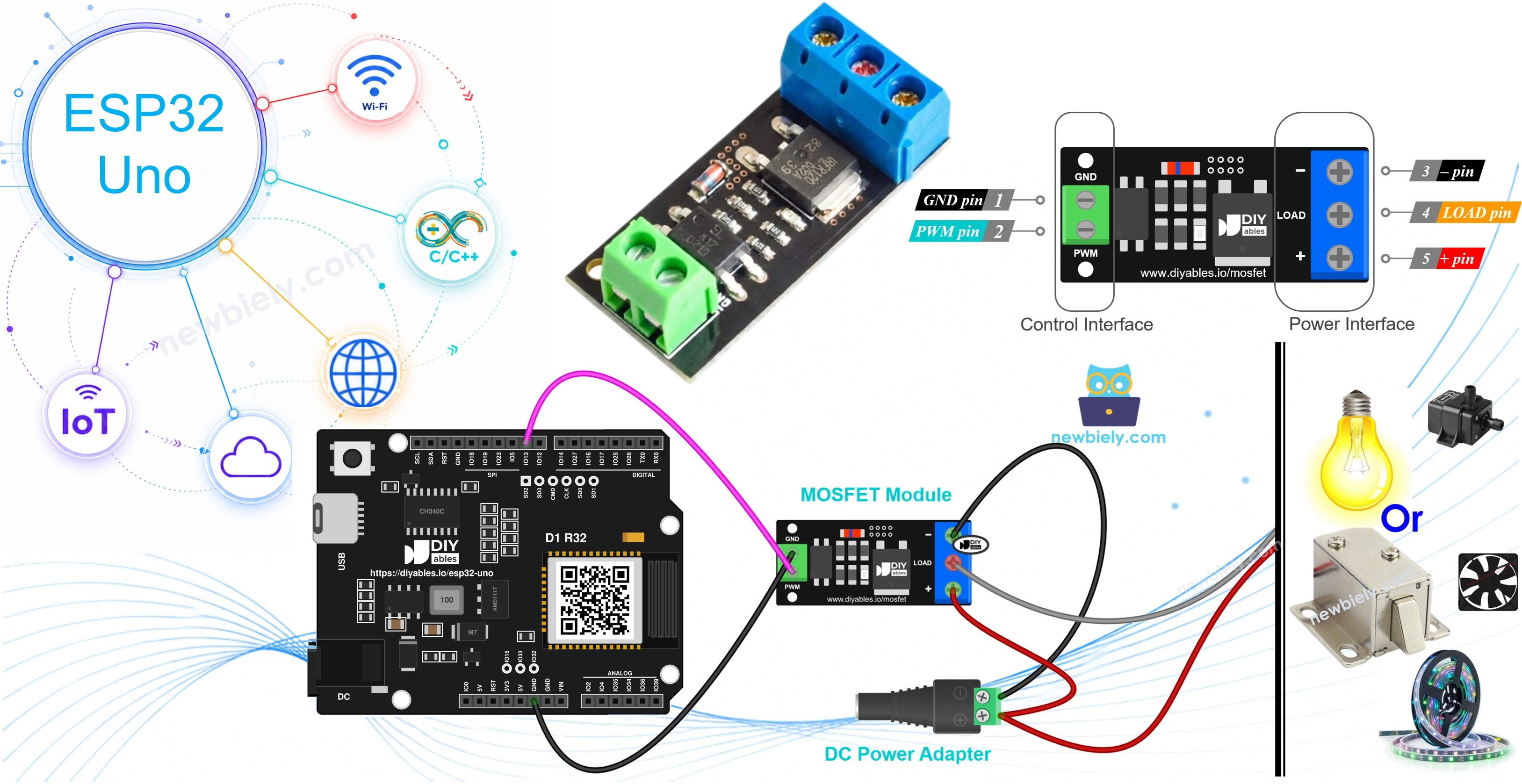
Components You Need
Or you can buy the following kits:
| 1 | × | DIYables Sensor Kit (18 sensors/displays) |
Additionally, some of these links are for products from our own brand, DIYables .
The MOSFET Module at a Glance
After this part, you know what the board does and which version suits your load.
A GPIO pin on the ESP32 Uno gives 3.3V and only a few milliamps. That powers an indicator LED, not a 12V strip, fan or pump. The MOSFET module acts as a bridge: a small logic signal goes in, and the module connects or breaks a heavy 12V current path for the device.
Three versions are common in shops: AOD4184 (also printed as D4184), LR7843 and FR120N. The PCB, the pin layout, the wiring and the sketch are identical for all three. Only the power transistor soldered on top is different.
MOSFET Module or Relay?
| Feature | MOSFET Module | Relay Module |
|---|---|---|
| Sound | silent | clicks on every switch |
| Switching speed | very fast, PWM is possible | slow, ON or OFF only |
| Dimming and speed control | yes | no |
| Wear | no moving contacts | contacts wear over time |
| Load type | DC only | DC or AC |
Do not connect this module to AC mains. For AC devices, use the ESP32 Uno - Relay guide.
Specifications
| AOD4184 | LR7843 | FR120N | |
|---|---|---|---|
| MOSFET chip | AOD4184A (N-channel) | IRLR7843 (N-channel) | IRFR120N (N-channel) |
| Max load voltage (chip rating) | 40V DC | 30V DC | 100V DC |
| Max current (chip rating) | 50A | 161A | 9.4A |
| On-resistance RDS(on) | about 7 mΩ | about 3.3 mΩ | about 210 mΩ |
| Real current without heatsink | about 10–15A | about 15A | about 2A |
| Control signal | 3.3V / 5V, active HIGH | 3.3V / 5V, active HIGH | 3.3V / 5V, active HIGH |
| Isolation | PC817 optocoupler | PC817 optocoupler | PC817 optocoupler |
| PWM | yes, up to about 1 kHz | yes, up to about 1 kHz | yes, up to about 1 kHz |
| Load type | DC only | DC only | DC only |
Choosing a Version
| Version | Strong Point | Best For |
|---|---|---|
| LR7843 | lowest RDS(on), runs coolest at high current (30V max) | long 12V or 24V LED strips, large motors |
| AOD4184 | balanced, 40V and high current | most 12V, 24V and 36V projects |
| FR120N | highest voltage rating (100V), but high resistance | small 24V or 48V loads, about 2A without a heatsink |
※ NOTE THAT:
Ratings such as 50A or 161A describe the bare transistor. The small module board cannot carry that, because it overheats long before. Run your load for a few minutes, then carefully touch the MOSFET. Too hot to hold means less current or a heatsink.
Inside the Module: How It Switches
After this part, you know what each pin state does to the 12V load.
The ESP32 Uno never drives the MOSFET gate by itself. The control signal first passes a PC817 optocoupler: D9 (GPIO13) → PWM pin → small resistor → LED inside the PC817 → light → phototransistor inside the PC817 → MOSFET gate. The MOSFET is an N-channel part between the LOAD and − terminals, so it is a low-side switch. The device itself is wired between + and LOAD.
State 1 — D9 at 0V: Load Off
- The optocoupler LED gets no current and stays dark.
- The phototransistor is off, and a gate resistor pulls the MOSFET gate down to 0V.
- The MOSFET is OFF, like an open switch between LOAD and −.
- The device − wire cannot reach ground, so no current flows and the device sees 0V.
Code for this state: digitalWrite(MOSFET_PIN, LOW) or analogWrite(MOSFET_PIN, 0).
State 2 — D9 at 3.3V: Full Power
- A few mA enter the optocoupler LED and it turns on (hidden inside the chip).
- The phototransistor conducts. The MOSFET gate now gets roughly half of the load supply, about 6V with a 12V adapter.
- The MOSFET is fully ON. Its resistance is tiny: a few mΩ on the AOD4184 or LR7843, about 0.2Ω on the FR120N.
- Current runs in one loop: adapter + → + terminal → device → LOAD terminal → MOSFET → − terminal → adapter −.
- The device receives nearly the whole 12V.
Code for this state: digitalWrite(MOSFET_PIN, HIGH) or analogWrite(MOSFET_PIN, 255).
Good to know: a 3.3V ESP32 Uno HIGH level is enough here, because the optocoupler LED needs only a small current, and the gate voltage comes from the 12V side.
State 3 — D9 Sends PWM: Partial Power
- D9 (GPIO13) toggles between LOW and HIGH about 1000 times per second (1 kHz).
- The MOSFET follows every toggle: ON while HIGH, OFF while LOW.
- The load receives brief 12V bursts. The duty cycle is the share of time the signal stays HIGH. Average voltage and average power = duty cycle × full value.
analogWrite(MOSFET_PIN, value) takes 0 to 255, so the duty cycle is value / 255. With a 12V adapter:
| Percent in Code | analogWrite Value | Average Voltage | What You Notice |
|---|---|---|---|
| 0% | 0 | 0V | load is off |
| 20% | 51 | about 2.4V | strip is faint, many fans do not start |
| 40% | 102 | about 4.8V | strip at low glow, fan turns slowly |
| 70% | 178 | about 8.4V | bright strip, fan clearly faster |
| 100% | 255 | 12V | full power |
An LED strip looks dimmer because it flickers faster than your eyes can follow. A fan, pump or motor runs slower, because its rotor smooths out the pulses.
Frequency matters. The PC817 is slow, so a very fast PWM keeps the MOSFET half-on, the pulses get messy and the transistor heats up. On the ESP32 Uno, analogWrite() uses about 1 kHz and 8-bit resolution by default, which fits the module. Leave it as it is.
Extra Facts
| Topic | Fact |
|---|---|
| Isolation | the optocoupler separates the ESP32 Uno side from the 12V side, the two GND lines are not joined on the module |
| Minimum load supply | about 6V, because the gate voltage comes from the load supply; use 9V or more for loads above a few amps |
| Flyback diode | not on the board; add a 1N5819 or 1N4007 across coil loads (motor, pump, solenoid, relay coil), cathode stripe to load +, anode to load − |
Module Pins
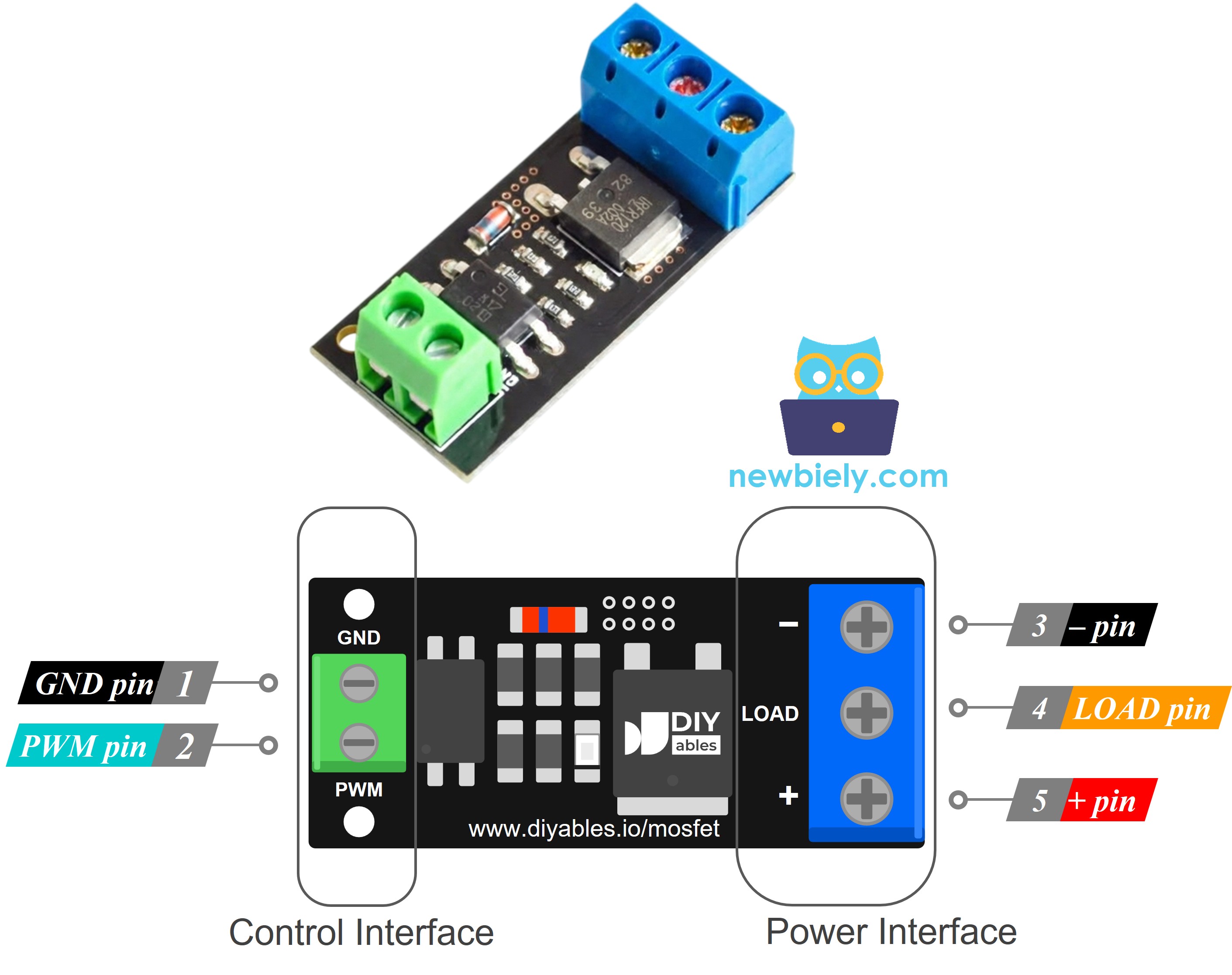
The module has a small 2-pin header (2.54mm pitch) for the control signal and three screw terminals for power.
| Pin | Side | Connect To |
|---|---|---|
| PWM | control header | an ESP32 Uno PWM pin (here D9, GPIO13), receives ON/OFF or PWM |
| GND | control header | GND of the ESP32 Uno |
| + | screw terminal | positive wire of the load supply (e.g. 12V) AND positive wire of the load, both in this one terminal |
| LOAD | screw terminal | negative wire of the load, this is the switched side |
| − | screw terminal | negative wire (ground) of the load supply |
Printed labels can change a little between production batches. Trust the text on your own board.
ESP32 Uno Pinout
On the ESP32 Uno form board, every Uno header label belongs to one GPIO number, and the sketch must use that number. Look at the diagram to find D9 and GND before you start wiring.

How to Connect
At the end of this part, the module, the adapter and the LED strip are in place.
The ESP32 Uno handles only the two control wires. The 12V adapter powers the load through the screw terminals.
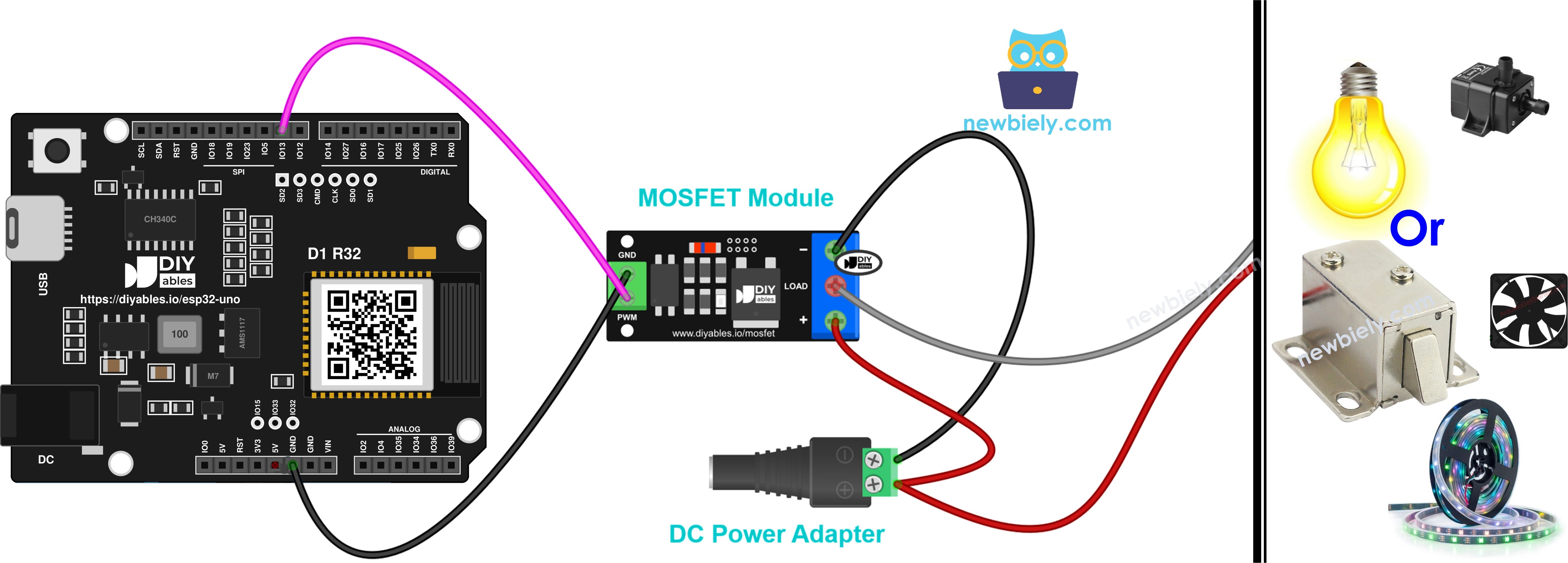
This image is created using Fritzing. Click to enlarge image
| From | To |
|---|---|
| ESP32 Uno D9 (GPIO13) | MOSFET module PWM |
| ESP32 Uno GND | MOSFET module GND |
| 12V adapter + (through DC power jack) | MOSFET module + |
| 12V adapter − (through DC power jack) | MOSFET module − |
| LED strip + | MOSFET module + |
| LED strip − | MOSFET module LOAD |
Good to know: D9 (GPIO13) is a normal I/O pin with PWM on the ESP32 Uno. It is not a boot strapping pin, so the module does not disturb uploads.
You do not need an extra transistor or resistor, because the optocoupler is already on the board. Keep every 12V wire away from the ESP32 Uno headers. ESP32 Uno pins are NOT 5V tolerant, and 12V would destroy them at once.
Other 12V Devices on the Same Module
Swap the LED strip for a fan, pump, motor or lock and keep the same sketch.
D9 (GPIO13) and GND stay where they are. Only the screw terminal side changes, and these rules apply to every device:
| Rule | What to Do |
|---|---|
| Adapter | adapter + to the + terminal, adapter − to the − terminal |
| Device | device + also to the + terminal (shared with adapter +), device − to LOAD |
| Voltage | match adapter and device (12V with 12V), never below 6V |
| Current | FR120N for small loads only (about 2A without a heatsink), AOD4184 or LR7843 for bigger ones |
| Diode | any coil device (fan, motor, pump, solenoid) needs a 1N5819 or 1N4007, stripe to device +, other end to device − |
The same sketch drives all of them. Solenoids are the one exception: use only 100% or 0%, never the fade steps.
Example — 12V Cooling Fan
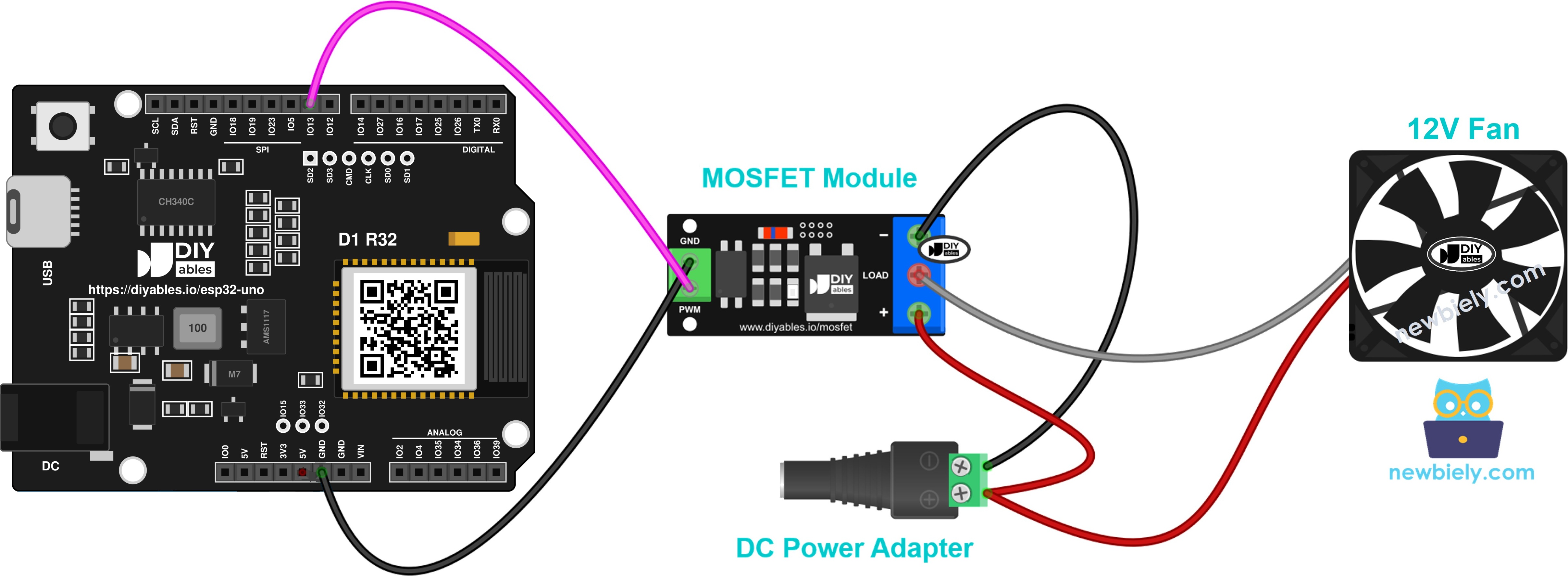
This image is created using Fritzing. Click to enlarge image
- Red wire to +, black wire to LOAD.
- A yellow third wire is the tachometer (speed) output. Leave it unconnected.
- Fit the flyback diode. It is cheap protection.
- PWM sets the speed. Most fans need more than about 30% to start turning.
Example — 12V LED Strip
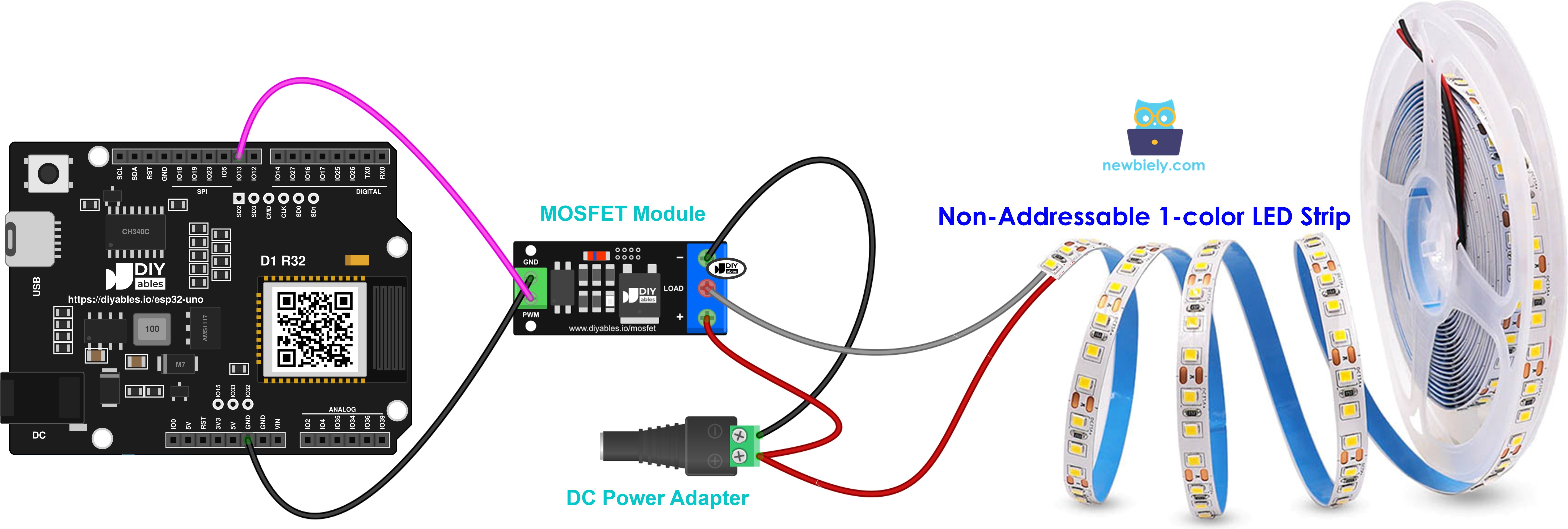
This image is created using Fritzing. Click to enlarge image
- Strip + (often marked 12V) to +, strip − to LOAD.
- No diode needed, because a strip has no coil.
- PWM sets the brightness.
- Longer strips draw more current. Check the amps of your strip before you choose a module version.
- Pick a strip with one color only. RGB and addressable strips are wired in a different way.
Example — 12V Water Pump
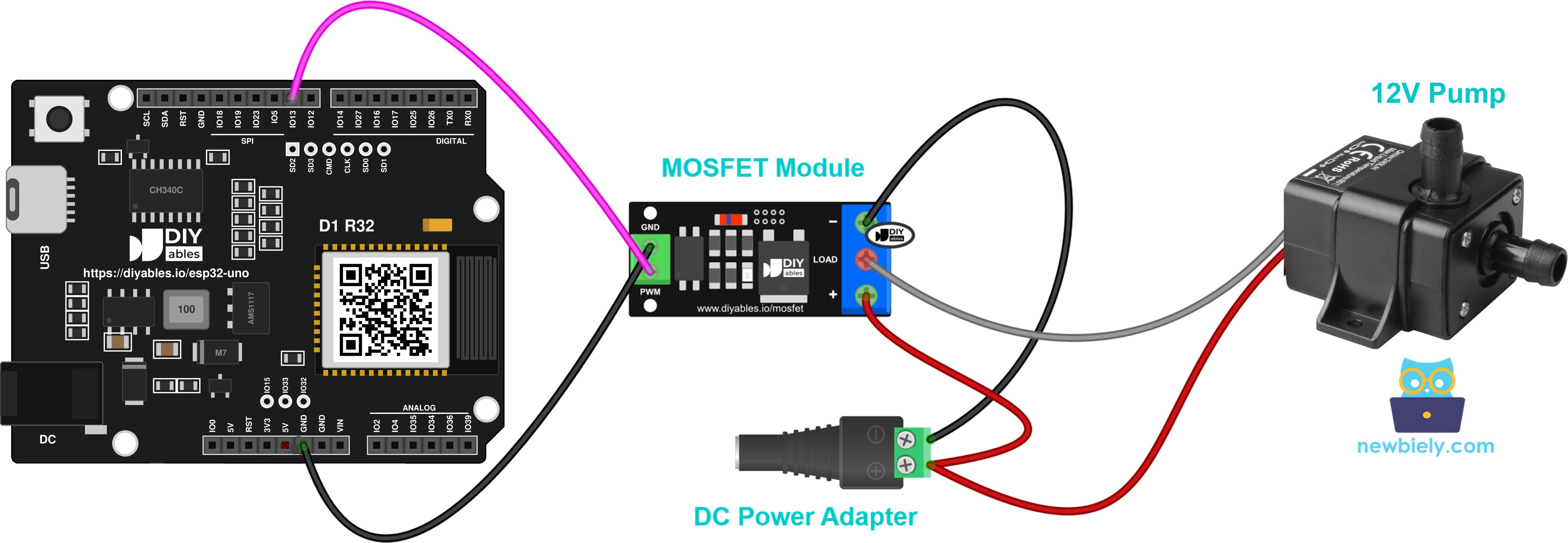
This image is created using Fritzing. Click to enlarge image
- Pump + to +, pump − to LOAD.
- Add the diode across the pump terminals.
- PWM sets the flow.
- Keep the pump inlet under water. Dry running damages it.
Example — 12V DC Motor
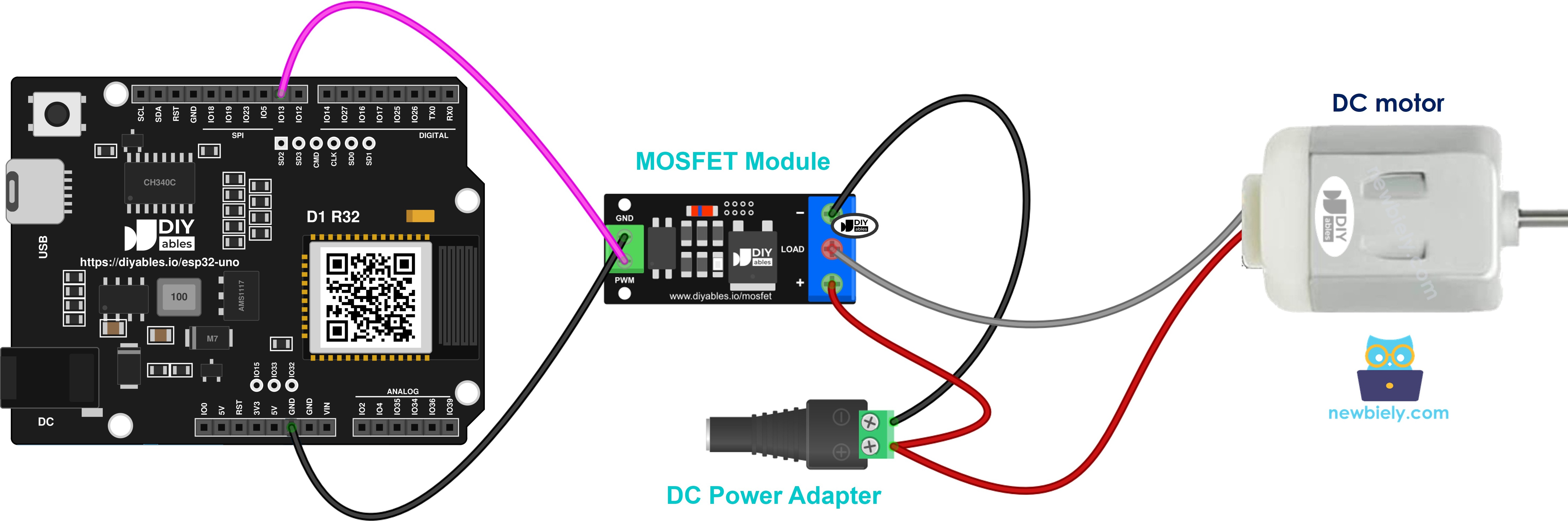
This image is created using Fritzing. Click to enlarge image
- Motor + to +, motor − to LOAD.
- Add the diode across the motor, stripe on the motor + side.
- PWM sets the speed.
- This setup spins the motor in one direction only. For forward and reverse, use an L298N driver as in ESP32 Uno - DC Motor.
Example — 12V Solenoid Lock
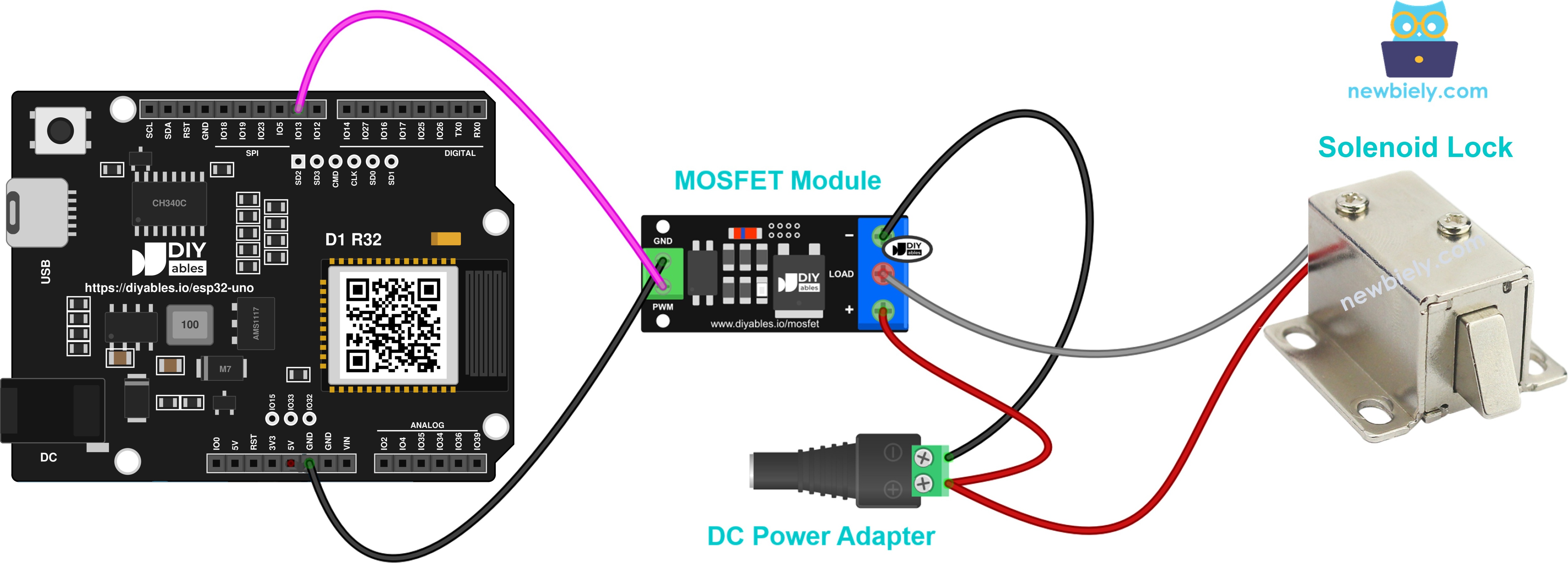
This image is created using Fritzing. Click to enlarge image
- Lock + to +, lock − to LOAD.
- The diode is required.
- Use full ON or OFF, no PWM.
- A lock coil heats up when held on. Send a short ON pulse to open it, then switch it off.
Example — 12V Solenoid Valve
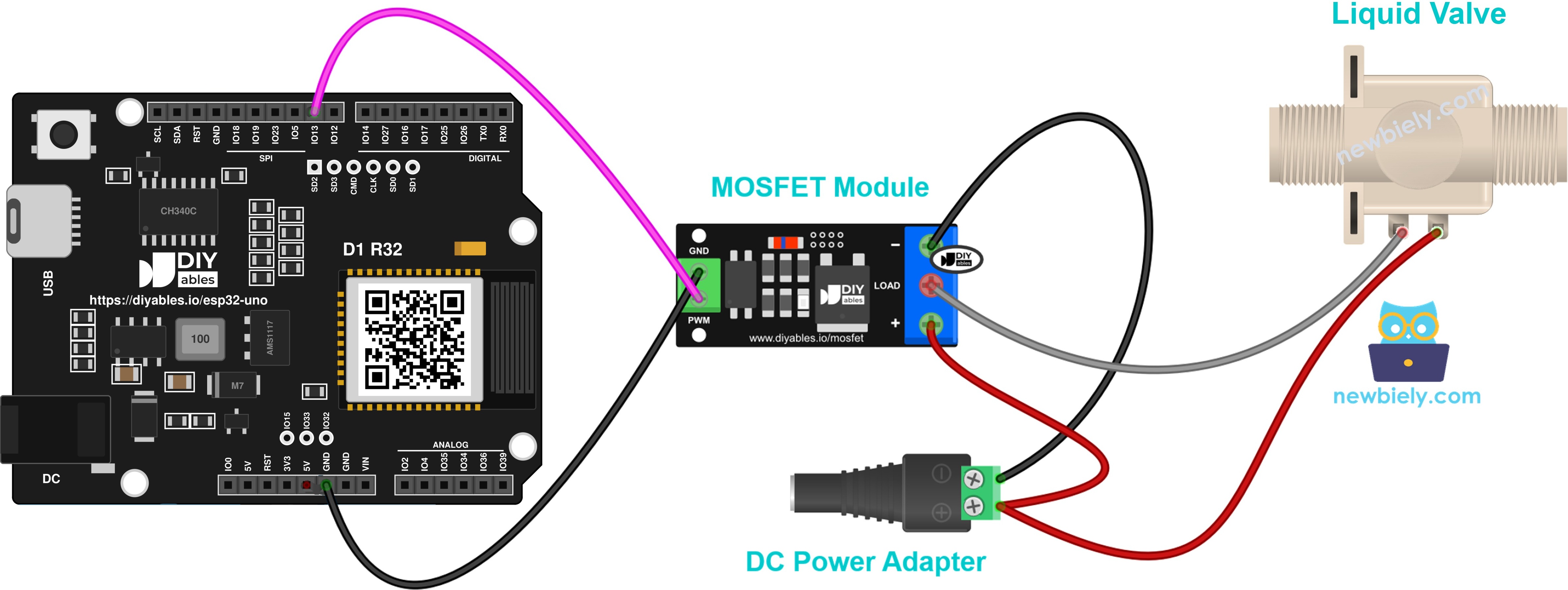
This image is created using Fritzing. Click to enlarge image
- Valve + to +, valve − to LOAD.
- The diode is required here as well.
- A normally closed valve opens when the module is ON and closes when it is OFF.
- Drive it fully ON or fully OFF. Skip PWM.
Programming the MOSFET Module
At the end of this part, you know the four lines that control any load.
No library is needed. Everything comes from built-in functions of the esp32 by Espressif Systems core.
| Task | Code |
|---|---|
| Pick the pin (D9 = GPIO13) | const int MOSFET_PIN = 13; |
| Make it an output | pinMode(MOSFET_PIN, OUTPUT); |
| Full power | analogWrite(MOSFET_PIN, 255); |
| Off | analogWrite(MOSFET_PIN, 0); |
To set a power level in percent, scale 0–100 to the 0–255 PWM range first:
For pure ON/OFF control, digitalWrite(MOSFET_PIN, HIGH) and digitalWrite(MOSFET_PIN, LOW) do the same job.
ESP32 Uno Code - MOSFET Module
This sketch loops through one power test: 2 seconds at 100%, 2 seconds off, a ramp up from 10% to 100% in 0.5-second steps, a ramp down from 90% to 0%, then a 1-second pause.
Upload and Test
- First time with this board? Set it up with ESP32 Uno - Getting Started before you continue.
- Build the circuit by following the wiring table above. Do not plug in the 12V adapter yet.
- Plug in the USB Type-C cable between the ESP32 Uno and your computer.
- Select the board in Arduino IDE: pick ESP32 Dev Module and the COM port of the board (CH340).
- Paste the sketch into a new Arduino IDE window.
- Upload it with the Upload button.
- Power the load side by plugging in the 12V adapter.
- Open the Serial Monitor at 9600 baud.
- Check the strip: full brightness for 2 seconds, dark for 2 seconds, then a slow climb to full brightness and a slow fall to dark. A fan audibly speeds up and slows down.
- Pro tip: label the 12V wires with red and black tape before you power up. A swapped + and − on the screw terminals is the most common reason a strip stays dark.
No light at all? Measure the 12V adapter first, then confirm the PWM wire sits on D9 (GPIO13) and the GND wire on an ESP32 Uno GND pin.
For more on PWM brightness control, read ESP32 Uno - Fade LED.
Video Tutorial
See the ESP32 Uno build in action in the video below.
Code Explanation
Each part of the sketch has one clear job.
| Code Part | What It Does |
|---|---|
| const int MOSFET_PIN = 13 | D9 (GPIO13) sends the control signal to the PWM pin of the module |
| analogWrite(MOSFET_PIN, 0) in setup() | keeps the load off right after power-on or a reset |
| setLoad(percent) | maps 0–100% to 0–255, writes the PWM duty and prints the level |
| first two blocks in loop() | full power for 2 seconds, then off for 2 seconds |
| two for loops | raise the power in 10% steps, then lower it again, 0.5 seconds per step |
The result is a repeating on, off and ramp pattern that you can see on the strip and read in the Serial Monitor.
ESP32 Uno vs UNO R4 for This Project
This table shows what changes when you move the MOSFET project from the UNO R4 to the ESP32 Uno.
| Item | Arduino UNO R4 | ESP32 Uno |
|---|---|---|
| Logic voltage | 5V | 3.3V |
| Control pin | D9 (pin 9 in code) | D9 (GPIO13 in code) |
| PWM default | under 1 kHz, 8-bit | about 1 kHz, 8-bit |
| Libraries needed | none | none |
| WiFi and Bluetooth | WiFi on the R4 WiFi only | WiFi plus Bluetooth Classic and BLE |
| Arduino IDE board | Arduino UNO R4 WiFi or Minima | ESP32 Dev Module |
The wiring is the same, wire for wire. The 3.3V HIGH level drives the optocoupler without any extra parts, and both PWM frequencies are slow enough for the PC817.
Go Wireless: Dim the Strip from Your Phone
At the end of this part, you have an idea for remote power control.
The ESP32 Uno has WiFi and Bluetooth built in. Put a phone slider in front of setLoad() and you can dim an LED strip or set a fan speed from the sofa. A simple ON/OFF button page also works for a pump or a valve. Keep the same pin, D9 (GPIO13), and pass the slider value (0–100) straight into setLoad().
Troubleshooting
| Problem | Possible Cause | Solution |
|---|---|---|
| No COM port appears in Arduino IDE | CH340 driver not installed or charge-only USB cable | Install the CH340 driver and use a USB Type-C data cable |
| Upload stops at Failed to connect or Waiting for download | board did not enter download mode | Hold the BOOT button while the upload starts, release it when writing begins |
| Strip stays dark even at 100% | adapter unplugged or + and − swapped on the screw terminals | Check the adapter output, then the + and − terminals and the strip − on LOAD |
| Strip is always lit and never dims | strip − wire sits on the − terminal instead of LOAD | Move the strip − wire to the LOAD terminal |
| Light flickers visibly or MOSFET runs hot | load supply under 6V or PWM frequency raised too high | Use a 9V to 12V supply and keep the default analogWrite() frequency |
| Module gets hot at full power | current too high for the version, often an FR120N | Add a heatsink or change to an LR7843 or AOD4184 module |
| Fan hums but does not turn at 10% to 20% | duty cycle too low to start the rotor | Begin the fan at 30% or higher |
| MOSFET dies after a few motor or solenoid runs | missing flyback diode | Fit a 1N5819 or 1N4007 across the coil, stripe to load + |
| Serial Monitor prints garbage | baud rate not set to 9600 | Select 9600 baud in the Serial Monitor |
FAQ
Is a 3.3V signal from the ESP32 Uno strong enough for the MOSFET module?
Yes. The PWM input only lights the LED inside the PC817 optocoupler, which needs a few milliamps. The MOSFET gate gets its voltage from the 12V side, not from the ESP32 Uno.
Why is MOSFET_PIN set to 13 and not 9?
The header label D9 on the ESP32 Uno is wired to GPIO13. Arduino code for this board always uses the GPIO number, so 13 means the wire goes into the D9 hole.
Can the module dim a 24V LED strip?
Yes, with the AOD4184 (40V max) or LR7843 (30V max), or the FR120N for small currents. Use a 24V adapter on the + and − terminals. The control side and the code stay the same.
Does the MOSFET module work with AC lamps or mains devices?
No. It switches DC only. For a 230V or 110V device, use a relay module and follow electrical safety rules.
How do I run two separate 12V loads?
Use two modules and two PWM pins, for example D9 (GPIO13) and D6 (GPIO27). Call analogWrite() on each pin with its own value. Both modules can share one 12V adapter if it gives enough current.
Can the 12V adapter also power the ESP32 Uno?
Yes, through the VIN pin, which accepts 5–12V. The ESP32 Uno GND and the load GND then become shared, so the optocoupler isolation is lost, but the circuit still works.
Which other ESP32 Uno pins can drive the module?
Any header pin with PWM output works, such as D3 (GPIO25), D5 (GPIO16) or D7 (GPIO14). Avoid A2 to A5 (GPIO35, 34, 36, 39), because they are input only, and avoid D8 (GPIO12) and D10 (GPIO5), which are boot strapping pins.
Can I set a different PWM frequency on the ESP32 Uno?
Yes, with analogWriteFrequency() on recent esp32 cores. Keep it at 1 kHz or lower for this module, because the PC817 cannot follow fast edges and the MOSFET would heat up.
What if my project needs more pins than the Uno headers give?
The ESP32 Uno has a few extra holes near the power header: GPIO32 and GPIO33 (I/O, PWM, analog on ADC1, so they also work while WiFi is on) and GPIO15 (I/O, PWM, analog on ADC2). Solder pin headers into them and write the GPIO number in code. For extra MOSFET modules, GPIO32 and GPIO33 are the best picks. Two warnings: GPIO15 and GPIO0 (the IO0 pin at the unused Uno NC position) are boot strapping pins, so a wrong connection can stop the board from booting or uploading code; use GPIO32/33 first. Never use the six holes under the digital header (SD0 to SD3, CMD, CLK = GPIO6 to GPIO11), because they are wired to the flash chip and using them crashes the board.
Can I use UNO shields together with the MOSFET module?
Often yes, since the ESP32 Uno has the Uno header shape. Check that the shield works at 3.3V logic and does not also use D9.
Can I switch the load from a web page?
Yes. The ESP32 Uno has WiFi and Bluetooth, so a phone slider or button can call setLoad(). See the Go Wireless section above.