
ESP32 UNO - Keypad 4x4
Need 16 buttons but only have a handful of free pins? An ESP32 Uno keypad 4x4 setup gives you all 16 keys from just 8 wires. Hook the membrane matrix keypad to the ESP32 Uno form board, and every key you press shows up as a character in the Serial Monitor. After that, the same keypad becomes a small password entry pad.
By the end, you can:
- Connect a 4x4 matrix keypad to eight Uno header pins
- Install the DIYables_Keypad library from the Arduino IDE Library Manager
- Print each pressed key with a short Arduino sketch
- Check a typed code against a saved password
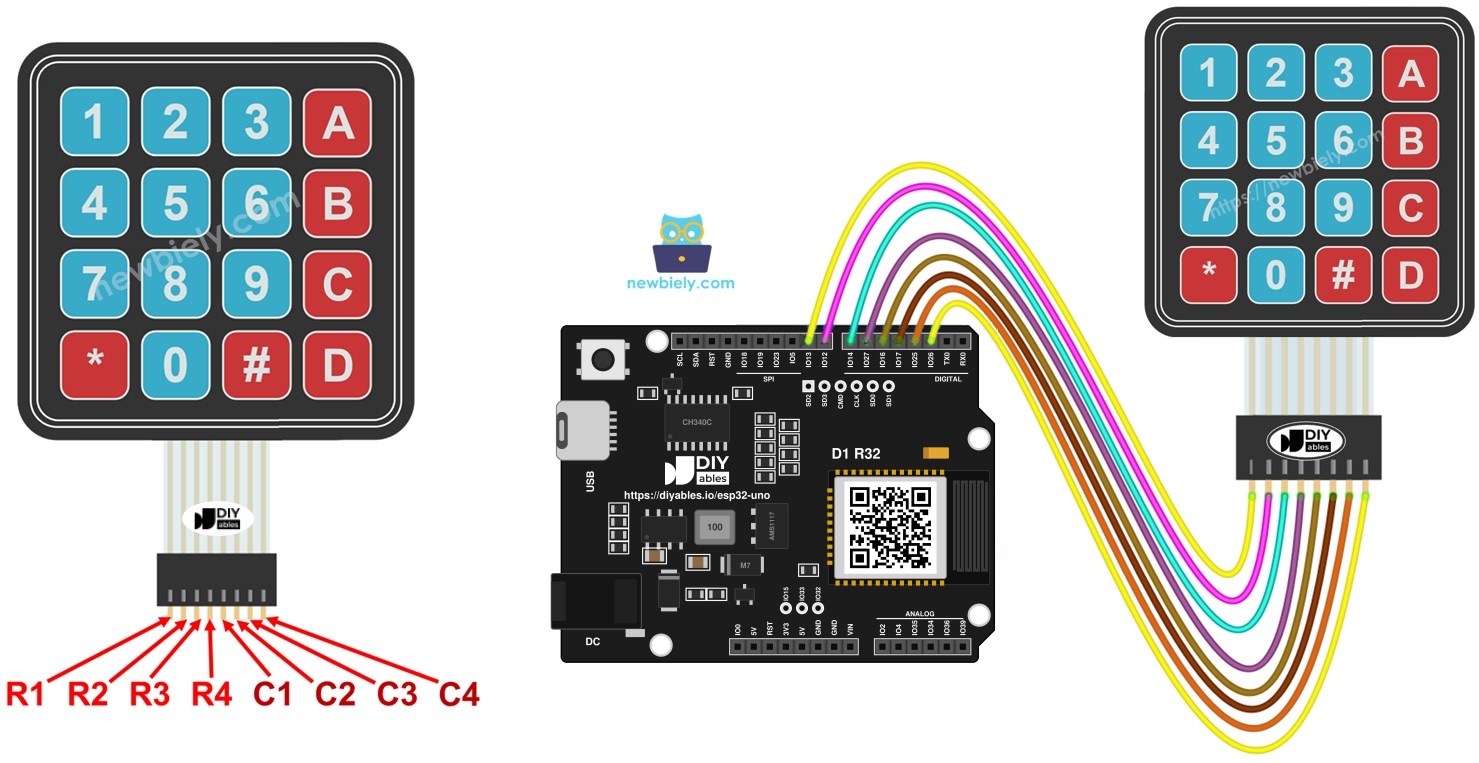
Components You Need
| 1 | × | ESP32 Uno-form Board | |
| 1 | × | USB Cable Type-A to Type-C (for USB-A PC) | |
| 1 | × | USB Cable Type-C to Type-C (for USB-C PC) | |
| 1 | × | Keypad 4x4 | |
| 1 | × | Jumper Wires |
Or you can buy the following kits:
| 1 | × | DIYables Sensor Kit (18 sensors/displays) |
Additionally, some of these links are for products from our own brand, DIYables .
Inside the 4x4 Keypad
After this part, you know how 16 keys share only 8 pins.
The pad holds 16 thin membrane switches placed in a grid. Engineers call this grid a matrix. Every switch in the grid counts as one key.
| Feature | Details |
|---|---|
| Number of keys | 16 (digits 0-9, letters A-D, * and #) |
| Layout | 4 rows by 4 columns |
| Connector | 8 pins in one strip |
| Power pin | none (passive switches only) |
| Typical use | code entry, menus, number input |
Pinout
The 8 pins form two groups of four.
| Pin Group | Labels | Job |
|---|---|---|
| Rows | R1, R2, R3, R4 | one pin for each horizontal line of keys |
| Columns | C1, C2, C3, C4 | one pin for each vertical line of keys |
A key press shorts exactly one row pin to one column pin. The library drives the lines in turn and watches which pair connects, so it knows the exact key.
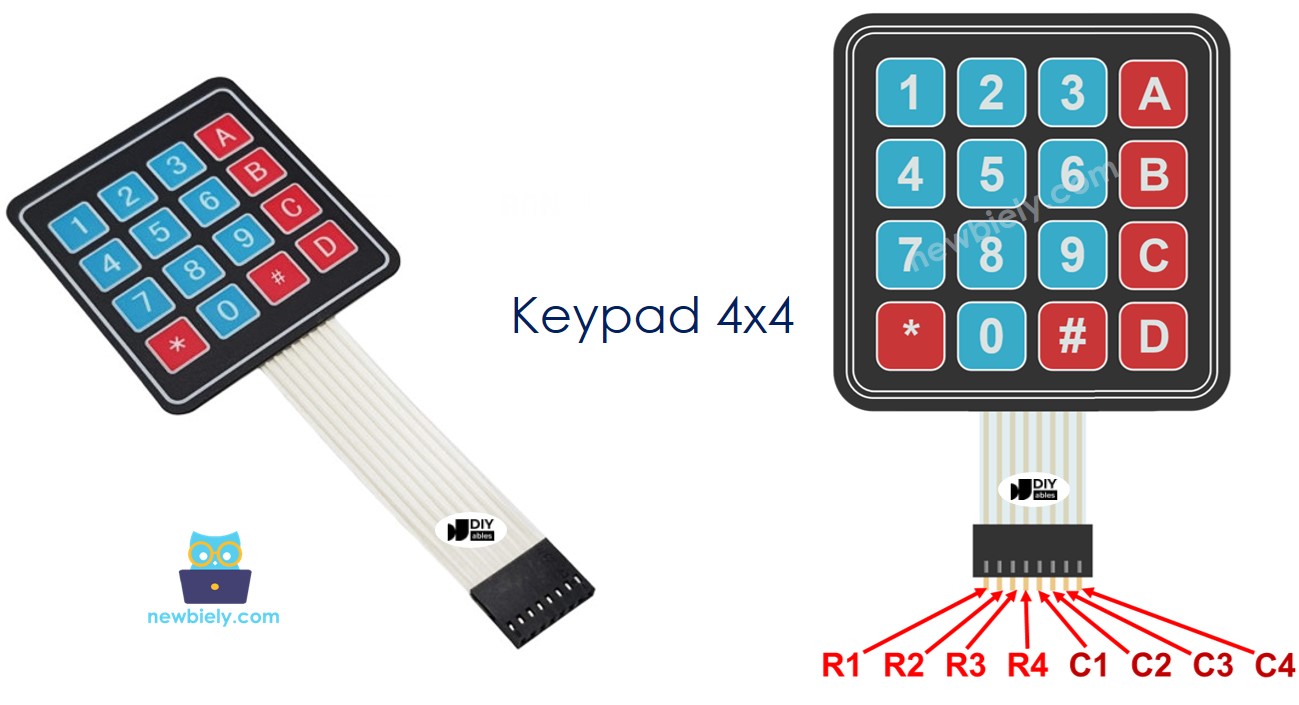
ESP32 Uno Pinout
The board shows Uno names like D2 or D9 on its headers, but your sketch needs the GPIO number behind each one. Look up the eight keypad pins in this diagram before wiring.

How to Connect
When this step is done, all eight keypad lines sit on D2 to D9.
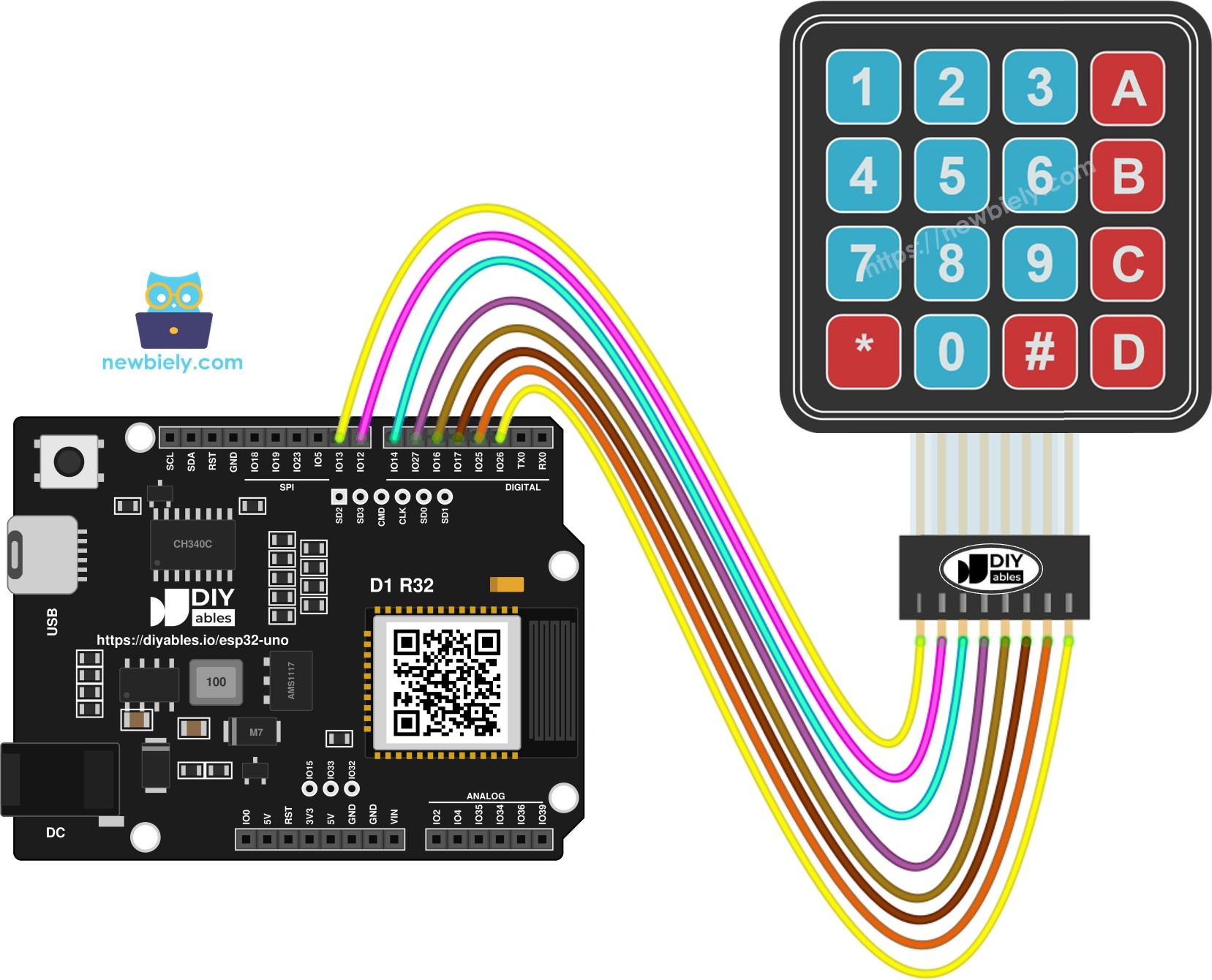
This image is created using Fritzing. Click to enlarge image
| Keypad Pin | ESP32 Uno Pin |
|---|---|
| R1 | D9 (GPIO13) |
| R2 | D8 (GPIO12) |
| R3 | D7 (GPIO14) |
| R4 | D6 (GPIO27) |
| C1 | D5 (GPIO16) |
| C2 | D4 (GPIO17) |
| C3 | D3 (GPIO25) |
| C4 | D2 (GPIO26) |
WARNING
Row R2 lands on D8 (GPIO12), a boot strapping pin of the ESP32 Uno. At start-up the chip checks this pin to set its flash voltage, and it must be LOW then. The keypad only has switches, so it is fine in most cases. Keep your fingers off the keys while you reset, power on or upload. If the board refuses to start or the upload stops, pull the R2 wire out of D8, upload, and put it back.
Good to know: The keypad has no supply pin, and the ESP32 Uno drives its lines at 3.3V, so no level shifter or resistor is needed.
ESP32 Uno Code
The sketch scans the pad all the time and prints a key the moment you press it.
Upload and Test
- First time with this board? Set it up with ESP32 Uno - Getting Started before you continue.
- Build the circuit by following the wiring table above.
- Plug in the USB Type-C cable between the ESP32 Uno and your computer.
- Select the board in Arduino IDE: pick ESP32 Dev Module and the COM port of the board (CH340).
- Open the Library Manager with the Libraries icon in the left bar of the Arduino IDE.
- Find the library: enter DIYables_Keypad in the search field and locate the entry made by DIYables.io.
- Add it to the IDE by pressing Install.
- Search for DIYables_Keypad created by DIYables.io and click the Install button.
- Paste the sketch above into a new Arduino IDE window.
- Send it to the board by pressing Upload.
- Start the Serial Monitor and choose 9600 baud.
- Tap a few keys and read them in the Serial Monitor.
- Pro tip: press all 16 keys once, in order, right after the first upload. A missing character points straight to the one wire that is off.
Video Tutorial
See the ESP32 Uno build in action in the video below.
Code Explanation
This part maps each block of the first sketch to its job.
| Code Part | What It Does |
|---|---|
| keys[ROW_NUM][COLUMN_NUM] | the character printed on each key, row by row |
| pin_rows[] = {13, 12, 14, 27} | GPIOs behind D9, D8, D7 and D6 (rows R1 to R4) |
| pin_column[] = {16, 17, 25, 26} | GPIOs behind D5, D4, D3 and D2 (columns C1 to C4) |
| DIYables_Keypad keypad(...) | links the key map with the two pin lists |
| keypad.getKey() | returns the pressed key, or 0 when nothing is pressed |
The loop prints a character only when getKey() returns one, so holding a key gives a single line, not a flood.
Good to know: The two pin arrays hold GPIO numbers, not D labels. To move the keypad, edit only these two lines.
Keypad as a Password Pad
After this part, the keypad works like the code panel of a door lock.
Two keys get a special role, and the rest build the code.
| Key | Role |
|---|---|
| * | clears the typed code and starts over |
| # | ends the code and checks it |
| 0-9 and A-D | added one by one to the typed code |
For each key press, the sketch picks one action:
- On "*", it empties the typed code.
- On "#", it compares the typed code with the saved one, prints the result, then empties the typed code.
- On any other key, it appends that key to the typed code.
Password Sketch
The saved code here is "1234A". Swap it for your own on the line const String password.
- Upload this second sketch to the ESP32 Uno.
- Reopen the Serial Monitor and keep it on 9600 baud.
- Enter a wrong code: type "1234BC" and finish with "#".
- Enter the right code: type "1234A" and finish with "#".
- Read the replies in the Serial Monitor.
- Pro tip: before a real lock project, add a counter that blocks input for 30 seconds after three wrong codes in a row.
ESP32 Uno vs UNO R4 for This Project
This table lists what changes when this keypad build moves from the UNO R4 to the ESP32 Uno.
| Item | Arduino UNO R4 | ESP32 Uno |
|---|---|---|
| Logic voltage | 5V | 3.3V |
| Row pins in code | 9, 8, 7, 6 | 13, 12, 14, 27 |
| Column pins in code | 5, 4, 3, 2 | 16, 17, 25, 26 |
| Keypad library | DIYables_Keypad | DIYables_Keypad (no change) |
| Boot strapping pin in the wiring | none | D8 (GPIO12) |
| WiFi and Bluetooth | WiFi on the R4 WiFi only | WiFi plus Bluetooth Classic and BLE |
| Arduino IDE board | Arduino UNO R4 WiFi | ESP32 Dev Module |
The wiring stays exactly the same, on D2 to D9. Only the numbers in the two pin arrays change, plus the care around D8 at boot.
Additional Knowledge
Two common upgrades for keypad builds:
Go Wireless: Keypad Log on Your Phone
Here you get an idea to see every key press away from the computer.
The ESP32 Uno has WiFi and Bluetooth built in. Instead of the Serial Monitor, send each key to a monitor page in your phone browser or to a Bluetooth app. That way you can watch who types a code on a lock panel, or log wrong attempts from across the room.
Troubleshooting
| Problem | Possible Cause | Solution |
|---|---|---|
| The board has no COM port in Arduino IDE | CH340 driver missing or a charge-only USB cable | Install the CH340 driver and swap to a USB data cable |
| Upload ends with Failed to connect or Waiting for download | The chip did not enter download mode | Hold the BOOT button while the upload starts and let go when the percentage appears |
| Board does not boot or upload with the keypad plugged in | D8 (GPIO12) is a boot strapping pin pulled the wrong way | Unplug the R2 wire from D8 while uploading, then plug it back in |
| The Serial Monitor stays empty | Baud rate is not 9600 or the connector is loose | Pick 9600 baud and seat every jumper wire firmly |
| Four keys in one line never print | One row or column wire is off or loose | Find the line those keys share and check that wire |
| Keys print the wrong character | Rows and columns are swapped or reversed | Wire R1 to D9 and C4 to D2 exactly as in the table |
| Compile error saying DIYables_Keypad.h is missing | Library not installed | Install DIYables_Keypad from the Library Manager |
| The correct code is rejected | Stray keys were typed first | Press * to clear, type the code, then press # |
FAQ
How does a 16-key matrix keypad know which key I pressed?
Each key sits where one row line crosses one column line. The library drives the lines one at a time and checks which row and column are connected. That crossing tells it the key, so 8 pins are enough for 16 keys.
Is it safe to wire this keypad straight to 3.3V pins?
Yes. The keypad is only switches and has no power input. The ESP32 Uno sends and reads 3.3V on the lines, so nothing on the pad can harm the board.
Do I need pull-up resistors for the keypad rows?
No. The DIYables_Keypad library turns on the internal pull-ups of the GPIOs it uses. D2 to D9 on the ESP32 Uno all have internal pull-ups, so you only need the eight jumper wires.
Why are the pin numbers in the code not 9, 8, 7, 6?
On the ESP32 Uno, the printed Uno label and the GPIO number differ. D9 maps to GPIO13, and D6 maps to GPIO27. The code always takes the GPIO number from the pinout diagram.
Can I plug the keypad into A2 to A5 instead?
Not for this keypad. A2 to A5 (GPIO35, 34, 36, 39) are input only and have no internal pull-up. The library must drive some lines as outputs and pull others up, so it needs full I/O pins like D2 to D13.
Why does the board sometimes not start when the keypad is connected?
R2 is on D8 (GPIO12), which the ESP32 Uno reads at boot to set its flash voltage. It must be LOW then. Do not hold a key during reset, and unplug that wire if uploads fail.
What is different from the UNO R4 code?
Only the numbers in pin_rows and pin_column. The library, the key map and the logic are the same. In Arduino IDE you also pick ESP32 Dev Module as the board.
Does the ESP32 Uno need a special USB driver?
Yes, it uses a CH340 USB-to-serial chip. Windows often installs it by itself, but if no COM port shows up, install the CH340 driver by hand.
My keypad build needs more pins than the Uno headers offer. What can I use?
The ESP32 Uno has a few extra holes near the power header: GPIO32 and GPIO33 (I/O, PWM, analog on ADC1, so they also work while WiFi is on) and GPIO15 (I/O, PWM, analog on ADC2). Add pin headers with a soldering iron, then use the plain GPIO number in your sketch. For a keypad lock, GPIO32/33 are good for a relay and a buzzer, or to take row R2 off D8. Two warnings: (1) GPIO15 and GPIO0 (the IO0 pin at the unused Uno NC position) are boot strapping pins, and a wrong connection can stop the board from booting or uploading code, so use GPIO32/33 first. (2) Never use the six holes under the digital header (SD0 to SD3, CMD, CLK = GPIO6 to GPIO11). They are wired to the flash chip, and using them crashes the board.
How long can the password be, and which keys can it use?
The sketch reserves room for 32 keys, and you can raise that number. Use any of 0 to 9 and A to D. Leave out * and #, because they clear and submit the code.
Can I open a lock with this keypad and the ESP32 Uno?
Yes. Put a relay or a servo action where the comment in the password sketch marks the unlock spot. Because the ESP32 Uno has WiFi, you can also send an alert to your phone when a wrong code is typed.