
ESP32 UNO - RGB LED
Want to light an RGB LED in any color with the ESP32 Uno? Connect the three color legs to the ESP32 Uno form board and send PWM values from Arduino code. A bare color LED or a ready-made RGB LED module both work, and you can pick a color from a hex code.
By the end, you can:
- Wire an RGB LED or an RGB LED module to the ESP32 Uno
- Convert a hex color like #00979D to three PWM numbers
- Set the LED color with analogWrite() in Arduino IDE
- Shorten your sketch with a setColor() function
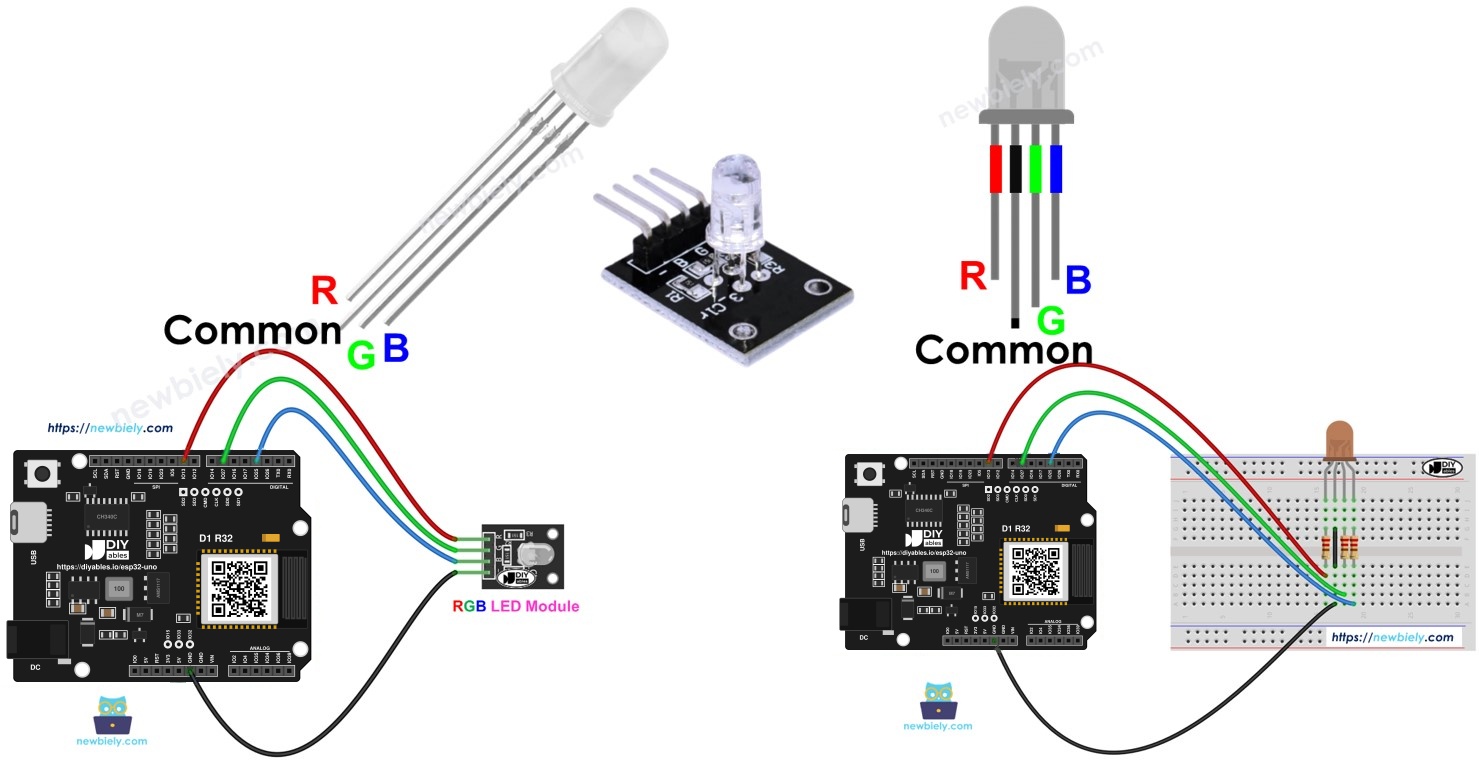
Components You Need
| 1 | × | ESP32 Uno-form Board | |
| 1 | × | USB Cable Type-A to Type-C (for USB-A PC) | |
| 1 | × | USB Cable Type-C to Type-C (for USB-C PC) | |
| 1 | × | RGB LED Module | |
| 1 | × | Alternatively, RGB LED | |
| 1 | × | Breadboard | |
| 1 | × | Jumper Wires |
Or you can buy the following kits:
| 1 | × | DIYables Sensor Kit (18 sensors/displays) |
Additionally, some of these links are for products from our own brand, DIYables .
Overview of the RGB LED
By the end of this part, you know what is inside an RGB LED and how it makes colors.
One RGB LED holds three tiny LEDs in a single case: red, green and blue. Each one can be dimmed on its own. The three lights mix, so one part can show nearly any color.
| Part | What It Does |
|---|---|
| Red LED | Adds red light |
| Green LED | Adds green light |
| Blue LED | Adds blue light |
| Common pin | Shared leg of all three LEDs |
Pinout
Our common cathode LED has four legs.
| RGB LED Pin | Role |
|---|---|
| Common (Cathode -) | Goes to GND (0V) |
| R | Controls the red light |
| G | Controls the green light |
| B | Controls the blue light |
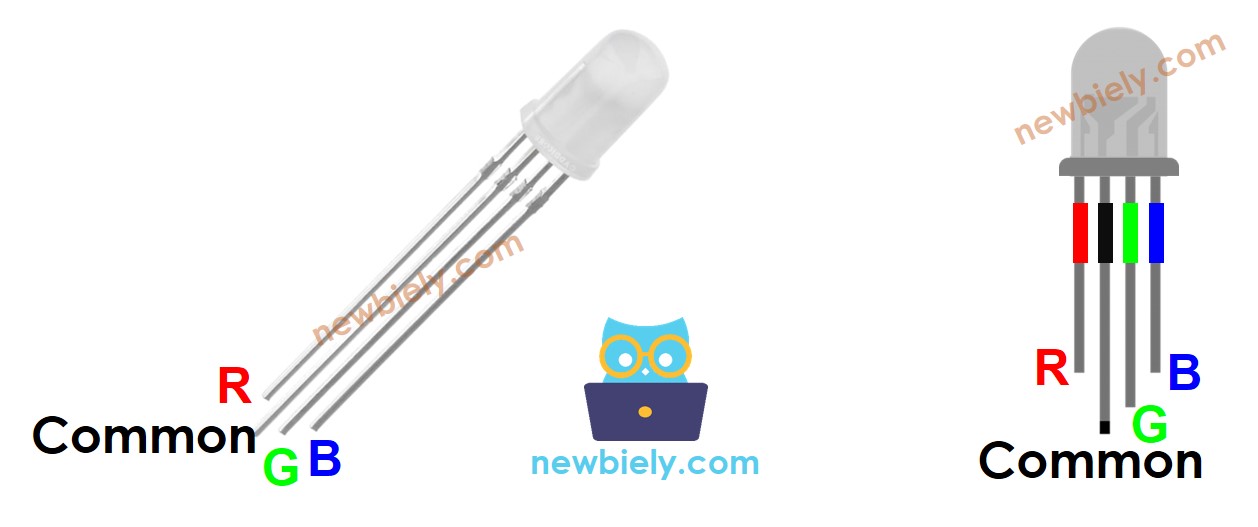
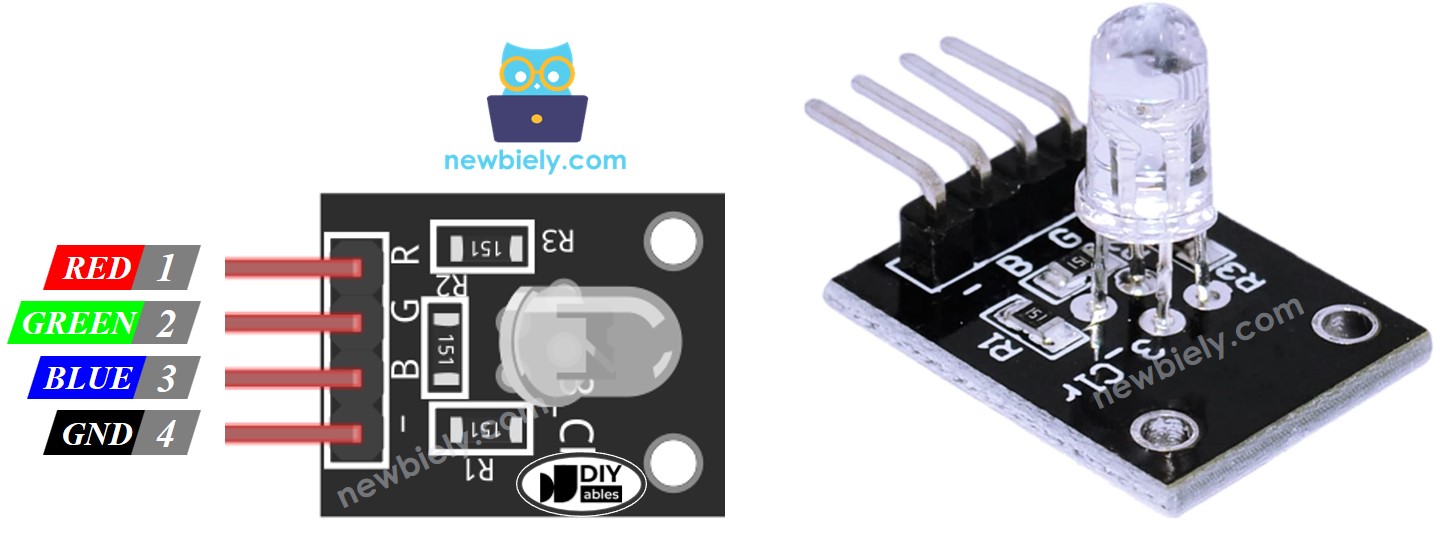
A bare RGB LED needs a current-limiting resistor on every color leg, so the breadboard gets crowded. An RGB LED module has the resistors already on its board, so wiring is simpler.
The module has the same four pins: Common (Cathode -), R, G and B.
※ NOTE THAT:
This guide uses a common cathode LED, where the shared leg is the negative side. Some RGB LEDs are common anode, where the shared leg is the positive side. Check which type you have before you wire it.
How It Works
Any screen color is a mix of three numbers: Red, Green and Blue. Each number runs from 0 to 255, which gives 256 x 256 x 256 colors.
The ESP32 Uno makes a PWM signal on each color pin. A value of 0 keeps the color off. A value of 255 gives full brightness. Write the R, G and B numbers of a color to the three pins, and the LED shows that color.
Good to know: ESP32 Uno pins output 3.3V, not 5V. The LED can look a little dimmer than on a 5V board. A smaller resistor, such as 150 to 220 ohms, brings back some brightness.
ESP32 Uno Pinout
Every Uno header pin on the ESP32 Uno form board matches one GPIO number, and your sketch uses that number. Look at the diagram below and match the labels before you place any wire.

How to Connect
By the end of this part, the LED is wired to three PWM pins. Both builds use the same pins.
Bare RGB LED
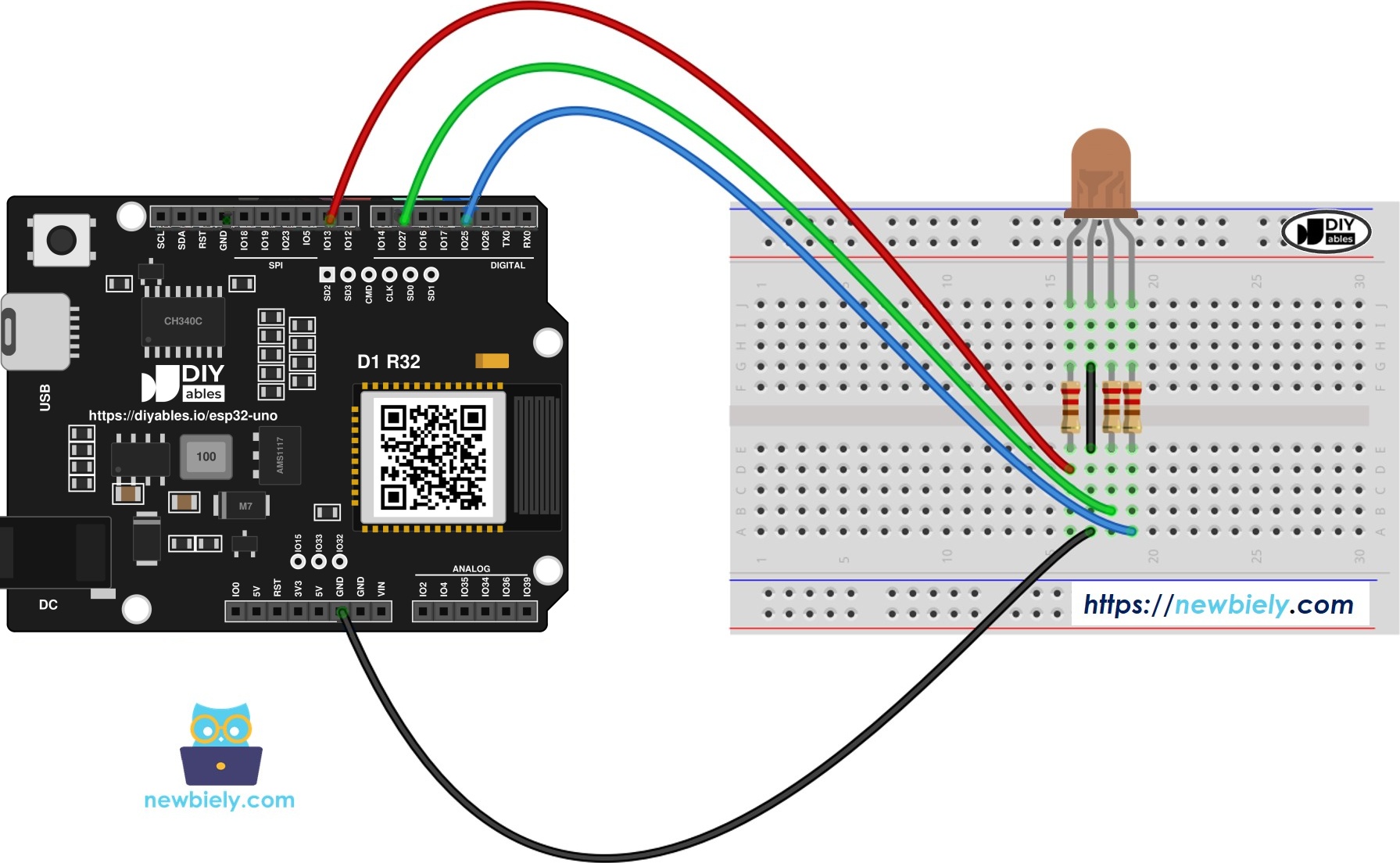
This image is created using Fritzing. Click to enlarge image
| LED Leg | Connect To |
|---|---|
| R leg, with resistor | D9 (GPIO13) |
| G leg, with resistor | D6 (GPIO27) |
| B leg, with resistor | D3 (GPIO25) |
| Common (Cathode -) | GND |
Use one resistor for each of the R, G and B legs, as the diagram shows. Do not share one resistor on the common leg. The three LEDs in the case are not identical, so they take different current. The result is uneven brightness, and one LED can be damaged.
RGB LED module
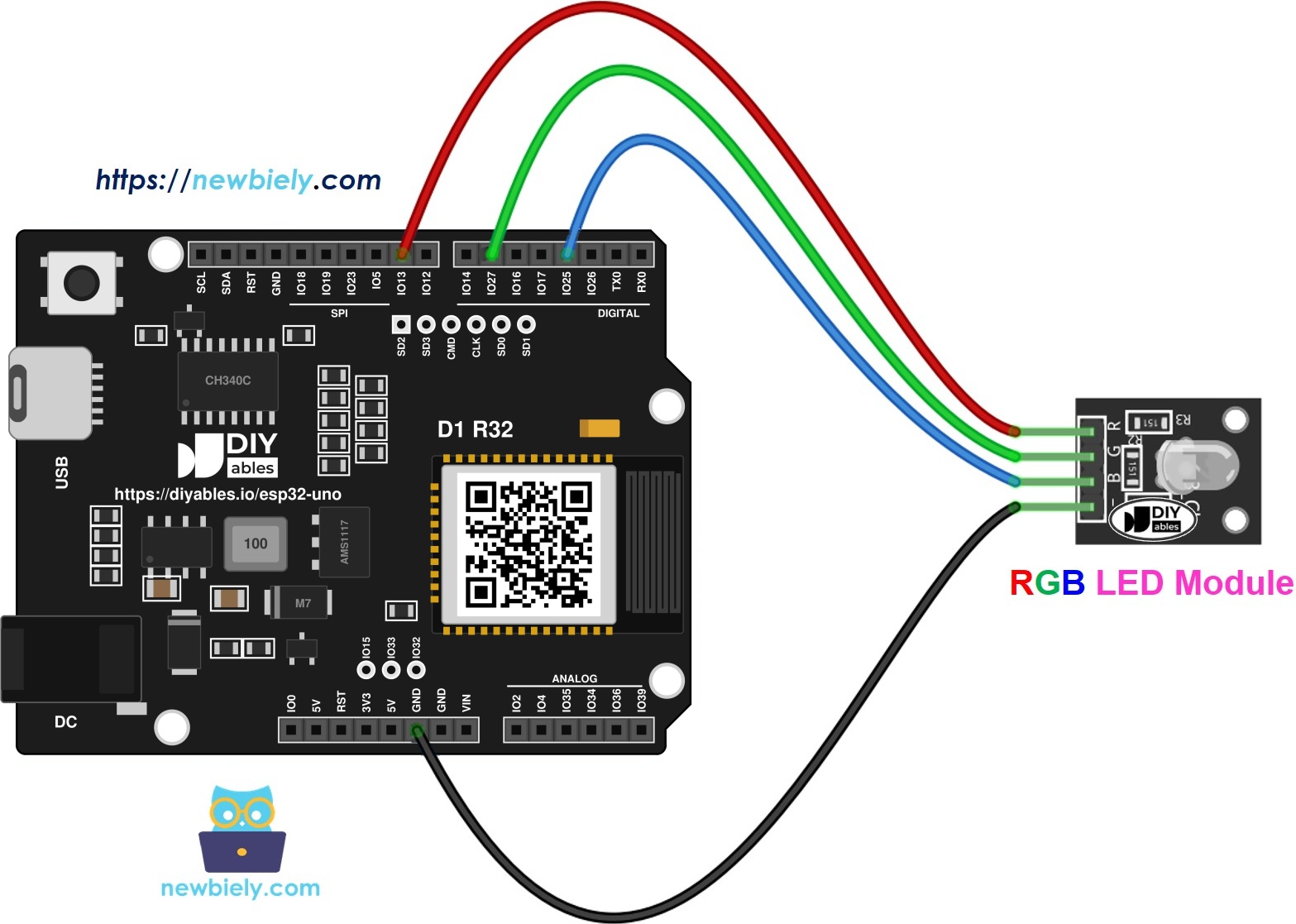
This image is created using Fritzing. Click to enlarge image
| Module Pin | Connect To |
|---|---|
| R | D9 (GPIO13) |
| G | D6 (GPIO27) |
| B | D3 (GPIO25) |
| Common (Cathode -) | GND |
Good to know: these three pins are normal PWM output pins. They are not boot strapping pins and not input only, so no special care is needed.
Set a Color Step by Step
By the end of this part, you can show the color #00979D on the LED.
Step 1 — Find the color code
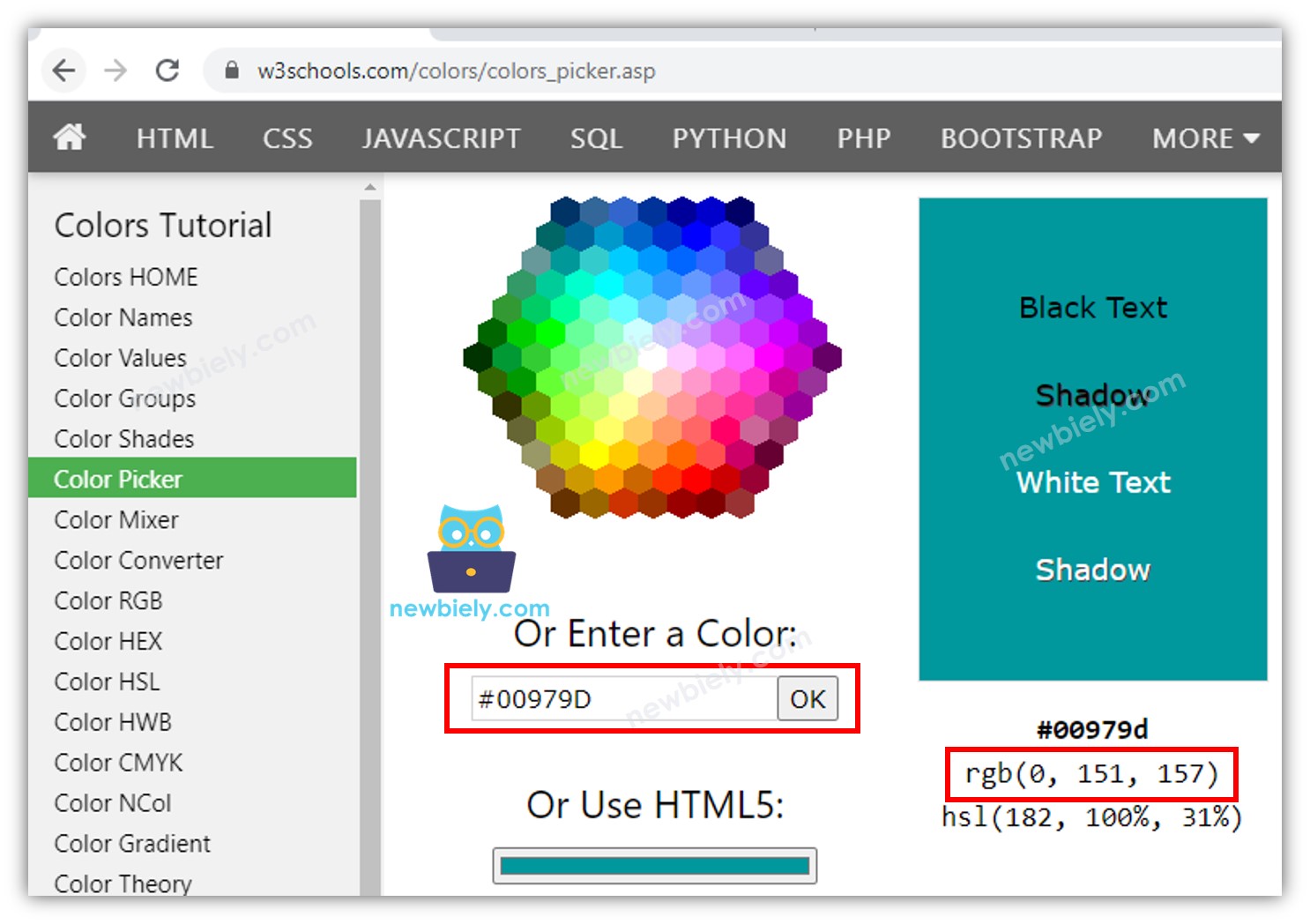
Pick a color with this color picker. To take a color from a photo, try the Colors From Image tool.
Step 2 — Convert it to R, G and B
Use this converter. For #00979D the numbers are R = 0, G = 151, B = 157.
Step 3 — Name the pins
In ESP32 Uno code you write the GPIO number, not the Uno label:
Step 4 — Make them outputs
Step 5 — Write the PWM values
Example Sketch: Three Colors in a Loop
This sketch shows three colors, one after another, each for one second.
- Teal #00C9CC, values 0, 201, 204
- Pink #F7788A, values 247, 120, 138
- Green #34A853, values 52, 168, 83
Upload and Test
- First time with this board? Set it up with ESP32 Uno - Getting Started before you continue.
- Build the circuit by following the wiring table above.
- Plug in the USB Type-C cable between the ESP32 Uno and your computer.
- Select the board in Arduino IDE: pick ESP32 Dev Module and the COM port of the board (CH340).
- Copy the code above into a new sketch.
- Click Upload and wait for the upload to finish.
- Watch the LED. It shows teal, then pink, then green, and repeats.
- Pro tip: put a sheet of white paper over the LED. The colors blend better and you can judge the real shade.
Same result with a setColor() helper
With many colors, three analogWrite() lines per color make the loop long. Put them in a setColor() function and call it once per color.
| Code Part | What It Does |
|---|---|
| setColor(R, G, B) | Writes the three PWM values to the three pins |
| loop() | Calls setColor() with one color, then waits |
| delay(1000) | Keeps each color on for one second |
The LED output is the same as before, but the sketch is shorter.
ESP32 Uno vs UNO R4 for This Project
By the end of this part, you know what changes when you move this RGB LED project from the UNO R4 to the ESP32 Uno.
| Item | Arduino UNO R4 | ESP32 Uno |
|---|---|---|
| Logic voltage | 5V | 3.3V |
| Red pin | D9 | D9 (GPIO13) |
| Green pin | D6 | D6 (GPIO27) |
| Blue pin | D3 | D3 (GPIO25) |
| PWM function | analogWrite() 0 to 255 | analogWrite() 0 to 255 |
| Arduino IDE board | Arduino UNO R4 WiFi | ESP32 Dev Module |
The wiring stays the same, because every wire stays on the same Uno header position. Only the numbers in the code change to GPIO numbers. Expect the LED to be a bit dimmer at 3.3V.
Addtional Knowledge
Common anode RGB LED
Tie the common leg to the 3V3 pin. Then invert each value: write 255 - R, 255 - G and 255 - B in analogWrite(). Now a low signal turns a color on.
RGB LED strips
Many RGB LEDs in a row make an RGB LED strip. There are two kinds: addressable and non-addressable. Each kind has its own tutorial.
Go Wireless: Pick Colors From Your Phone
By the end of this part, you know how to change the LED color without touching the code.
The ESP32 Uno has WiFi and Bluetooth. Add three sliders on a web page or in a phone app, one for each color, and send the slider values to the three PWM pins. You choose any color live and see it on the LED at once.
Try These Next
- Fade slowly from one color to the next with a for loop
- Pick a random color each second with random(256)
- Make a "traffic light" that shows red, yellow and green
Troubleshooting
| Problem | Possible Cause | Solution |
|---|---|---|
| No COM port in Arduino IDE | CH340 driver missing or charge-only cable | Install the CH340 driver and use a USB cable that carries data |
| Upload fails with Failed to connect or Waiting for download | Board did not enter upload mode | Hold the BOOT button when the upload starts |
| LED stays dark | Common pin is not on GND or a wire is loose | Check the GND wire and press every wire in firmly |
| Only one or two colors work | A color wire is loose or on the wrong pin | Check R on D9, G on D6 and B on D3 |
| Colors look inverted | The LED is common anode | Connect the common pin to 3.3V and use 255 minus each value |
| LED is very dim | Resistor value is too high for 3.3V | Use a 150 to 220 ohm resistor on each color leg |
| One color is much brighter | One resistor sits on the common pin | Use one resistor on each color leg |
| analogWrite() gives a compile error | Old board core | Update esp32 by Espressif Systems in Boards Manager |
| Wrong color shown | Wrong hex to RGB conversion | Convert the code again and check the three numbers |
FAQ
How does an RGB LED make so many colors with the ESP32 Uno?
It holds a red, a green and a blue LED. The ESP32 Uno sends a PWM value from 0 to 255 to each one. The three lights mix, so you get about 16.7 million colors.
Do I need a resistor with an RGB LED on the ESP32 Uno?
Yes, for a bare RGB LED. Give every color leg its own resistor. An RGB LED module already has the resistors, so you can connect it directly.
Why must I not put a single resistor on the common pin?
The three LEDs inside are not exactly alike, so they do not share current equally. One color gets too much current. The colors look uneven and an LED can fail.
Why do I write 13, 27 and 25 in the code and not 9, 6 and 3?
D9, D6 and D3 are only labels on the Uno header. The code needs the GPIO numbers behind them. The map is D9 = GPIO13, D6 = GPIO27, D3 = GPIO25.
Can I use analogWrite() for PWM here?
Yes. The esp32 by Espressif Systems core supports analogWrite() with 0 to 255, the same range as the UNO R4. It uses the LEDC PWM hardware of the chip. Update the core if the function is missing.
Is the LED dimmer than on a 5V board?
A little, because the pins give 3.3V. The same resistor passes less current. Use 150 to 220 ohms for a brighter light.
How do I use a common anode RGB LED?
Wire the common pin to 3.3V and send 255 minus every color value. Then 0 means full brightness and 255 means off.
Will an old UNO R4 RGB shield fit this board?
Often yes, if it uses only the Uno headers and works at 3.3V. Do not feed 5V into the pins of this board. Check the shield pins against the ESP32 Uno pinout first.
Can I control the RGB LED from my phone with the ESP32 Uno?
Yes. The ESP32 Uno has WiFi and Bluetooth. Use the web slider or the Bluetooth slider tutorial linked above to set R, G and B from a phone.
What if my project needs more pins than the Uno headers give?
The ESP32 Uno has a few extra holes near the power header: GPIO32 and GPIO33 (I/O, PWM, analog on ADC1, so they also work while WiFi is on) and GPIO15 (I/O, PWM, analog on ADC2). Solder headers onto the holes, then use the GPIO number in your sketch. For a second RGB LED, GPIO32 and GPIO33 are good PWM outputs. Two warnings: (1) GPIO15 and GPIO0 (the IO0 pin at the unused Uno NC position) are boot strapping pins, and a wrong connection can stop the board from booting or uploading code, so use GPIO32 and GPIO33 first. (2) Never use the six holes under the digital header (SD0 to SD3, CMD, CLK = GPIO6 to GPIO11). They are wired to the flash chip, and using them crashes the board.