
ESP32 UNO - Blink LED
Ready for your first ESP32 Uno LED blink? One LED, one resistor and about ten lines of Arduino code are all it takes on the ESP32 Uno form board. You switch the light on, switch it off, then let the sketch flash it on its own. The same on/off control later drives buzzers, relays and other simple outputs.
What you will do:
- Identify the anode and cathode legs of an LED
- Wire the LED and a current-limiting resistor to header pin D9
- Configure an output pin with pinMode()
- Switch the light between HIGH and LOW with digitalWrite()
- Blink an LED with delay() from the Arduino IDE
Components You Need
Or you can buy the following kits:
| 1 | × | DIYables Sensor Kit (18 sensors/displays) |
Additionally, some of these links are for products from our own brand, DIYables .
Buy Note: Use the LED Module for easier wiring. It includes an integrated resistor.
LED Basics
After this part, you can tell the two legs apart and know what makes the light turn on.
Pinout
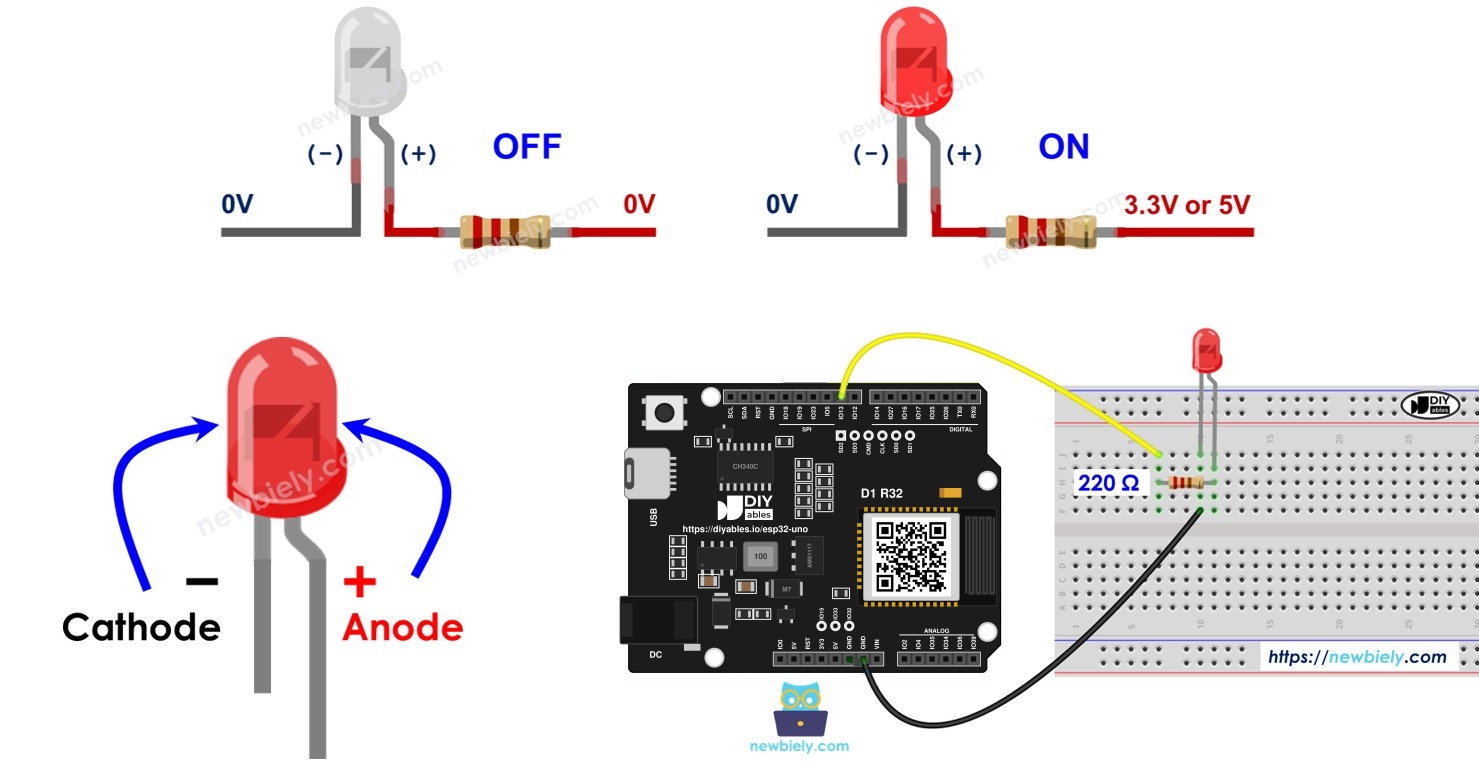
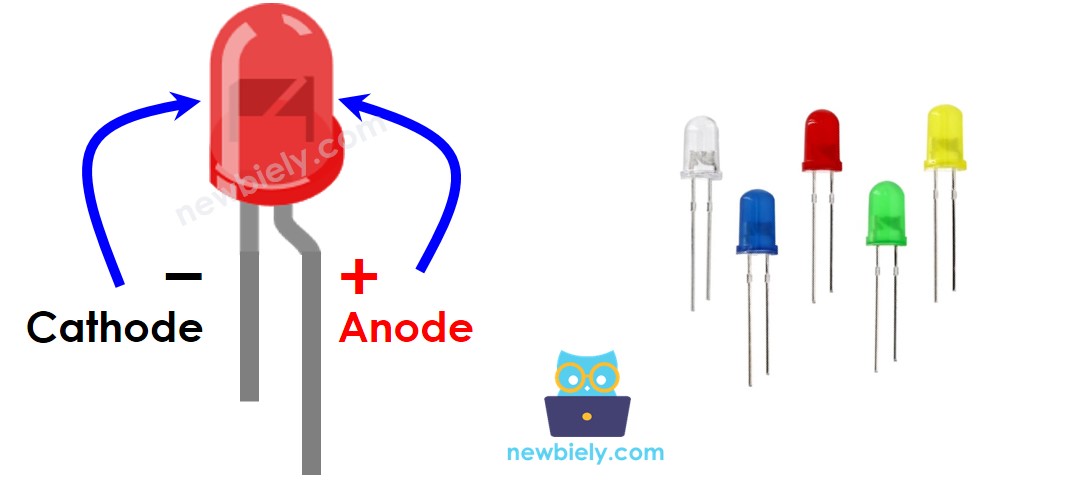
A standard LED has two legs, and current passes through it in a single direction only.
| Leg | Polarity | Connect To |
|---|---|---|
| Cathode (shorter leg, flat edge on the case) | Negative (-) | GND (0V) |
| Anode (longer leg) | Positive (+) | The control pin, through a resistor |
How It Works
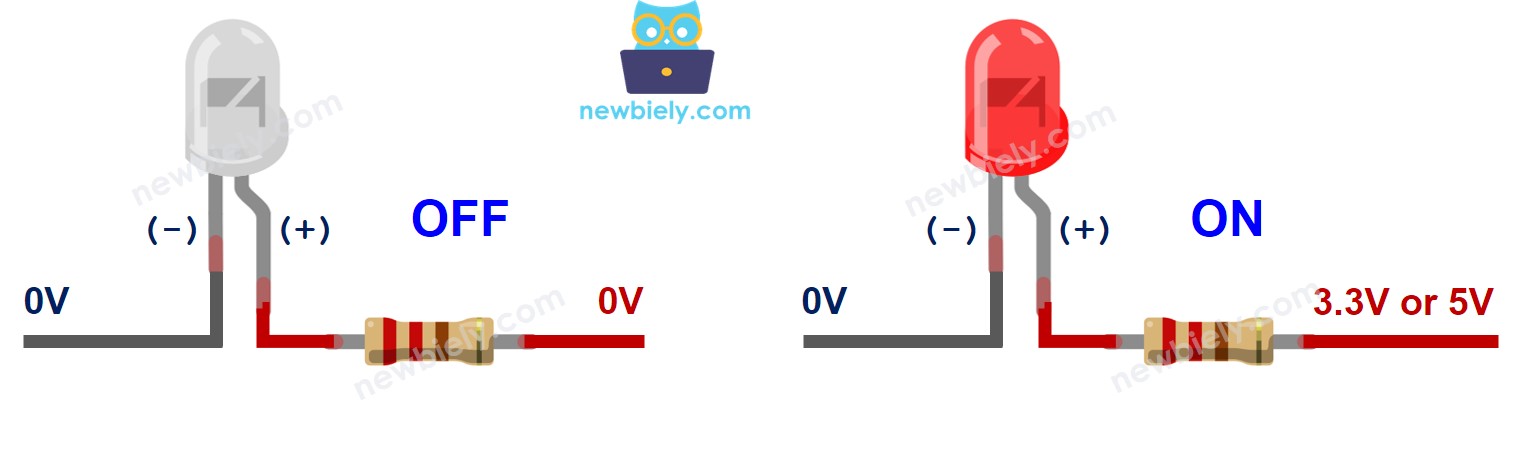
Tie the cathode to GND. From then on, the voltage at the anode alone decides the state.
| Voltage on the Anode | Current | LED State |
|---|---|---|
| 0V (GND) | None | Dark |
| Supply voltage (VCC) | Flows | Lit |
| PWM signal | Pulses | Dimmed, brightness set by the duty cycle |
Brightness control with PWM has its own page: ESP32 Uno - LED - Fade.
※ NOTE THAT:
Place a resistor in series with almost every LED, or the current climbs too high. It may sit between the anode and the supply, or between the cathode and GND. Its value comes from the LED's datasheet. A few LEDs have a resistor built in and can skip the extra part.
Driving an LED from the ESP32 Uno
Any ESP32 Uno digital output can switch between 0V (LOW) and 3.3V (HIGH) under program control. Run a wire from that pin, through the resistor, to the LED anode, and your sketch decides when the light is on.
Good to know: the ESP32 Uno outputs 3.3V, not 5V. With a 220 ohm resistor, a red, green or yellow LED draws only a few milliamps and still glows clearly.
ESP32 Uno Pinout
The text printed next to each header hole (such as D9) is not the number your sketch needs. Look up that label in the diagram below to get its GPIO number.

How to Connect the LED
By the end of this part, the LED sits on pin D9 and is ready for code.
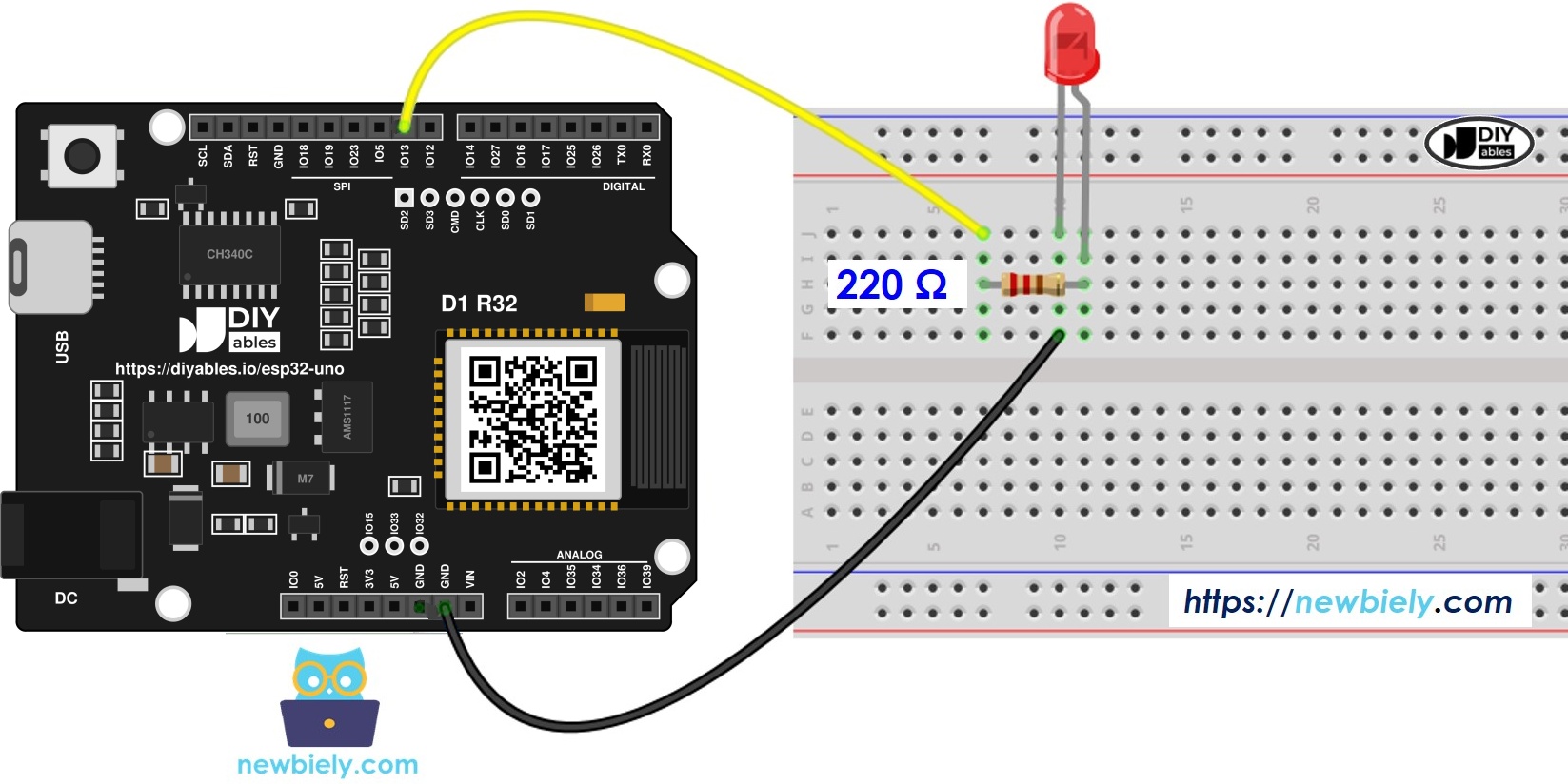
This image is created using Fritzing. Click to enlarge image
| Component Pin | ESP32 Uno Pin |
|---|---|
| LED anode (+), through the 220 ohm resistor | D9 (GPIO13) |
| LED cathode (-) | GND |
Good to know: D9 maps to GPIO13, a plain I/O pin with no boot role, so the LED can stay connected while you upload.
Controlling the Pin in Code
Two built-in functions handle every LED job. Call one in setup(), and the other each time the state should change.
Step 1 — Make the pin an output
Tell the ESP32 Uno that D9 (GPIO13) will send a signal out:
Step 2 — Switch the LED off
Pull GPIO13 down to 0V:
Step 3 — Switch the LED on
Raise GPIO13 to 3.3V:
ESP32 Uno Code
This sketch flashes the LED on D9 (GPIO13): 500 ms lit, 500 ms dark, over and over.
Upload and Test
- First time with this board? Set it up with ESP32 Uno - Getting Started before you continue.
- Build the circuit by following the wiring table above.
- Plug in the USB Type-C cable between the ESP32 Uno and your computer.
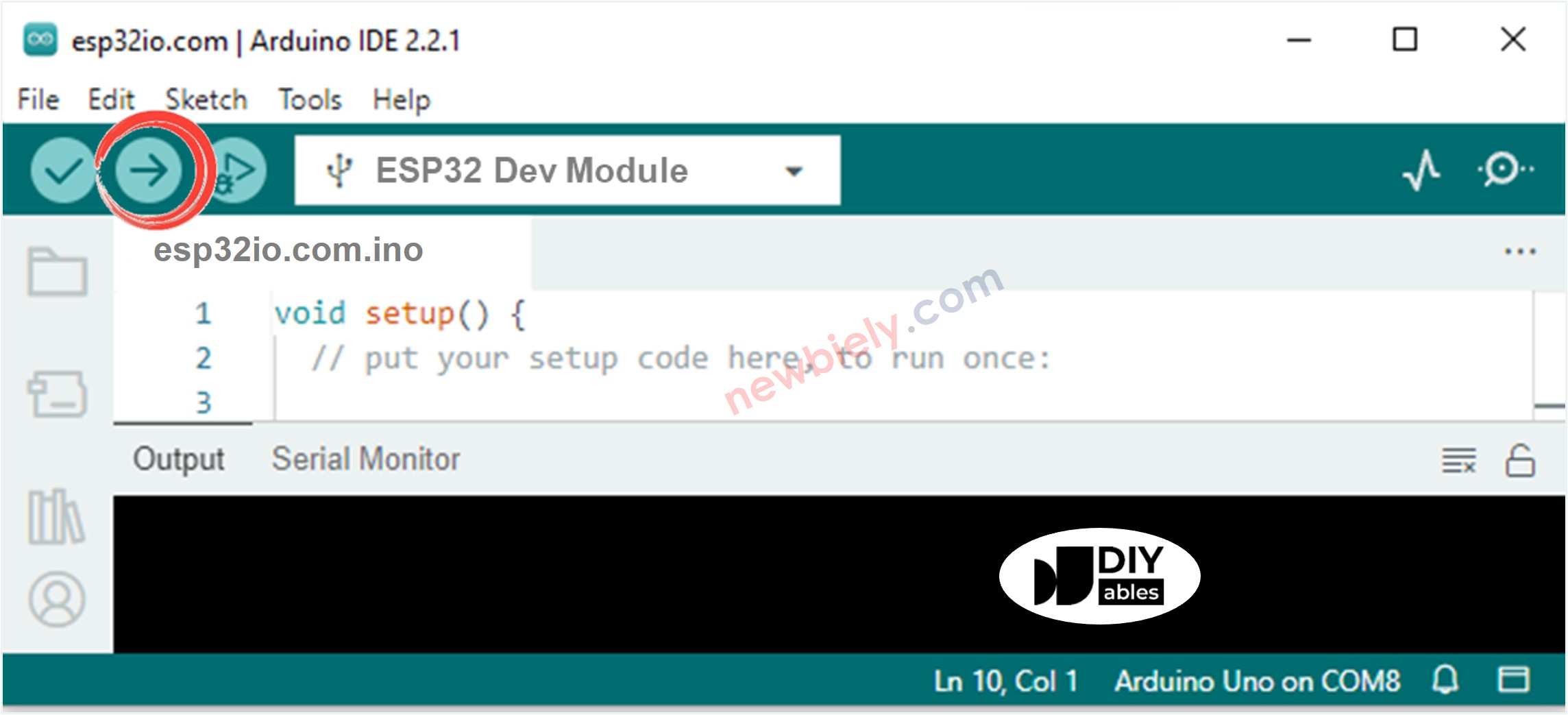
- Select the board in Arduino IDE: pick ESP32 Dev Module and the COM port of the board (CH340).
- Paste the sketch into a new Arduino IDE window.
- Press Upload and wait until the status bar reports "Done uploading".
- Watch the breadboard: the LED flashes twice every second.
- Pro tip: set the first delay() to 50 and the second to 950. You get a short heartbeat flash once per second, a handy "the board is alive" signal for later projects.
Video Tutorial
See the ESP32 Uno build in action in the video below.
Code Explanation
This part maps each line of the sketch to its job.
| Code Part | What It Does |
|---|---|
| #define LED_PIN 13 | Names GPIO13 (header D9) once, so a pin change needs only one edit |
| pinMode(LED_PIN, OUTPUT) | Sets GPIO13 as an output, one time at startup |
| digitalWrite(LED_PIN, HIGH) | Puts 3.3V on the pin and the LED lights |
| digitalWrite(LED_PIN, LOW) | Puts 0V on the pin and the LED goes dark |
| delay(500) | Pauses the sketch for 500 ms before the next line runs |
The result is a steady 1 Hz cycle, with the LED lit for half of each second.
※ NOTE THAT:
- delay() blocks the ESP32 Uno: during the wait, no other code in loop() runs. When the project must handle buttons, sensors or WiFi while the LED blinks, switch to the ESP32 Uno - Blink LED Without Delay method.
- For shorter LED code (blink, fade, toggle in one call), try the ezLED library.
ESP32 Uno vs UNO R4 for This Project
Moving this blink project from the UNO R4 to the ESP32 Uno changes the pin number in code and the output voltage, nothing else.
| Item | Arduino UNO R4 | ESP32 Uno |
|---|---|---|
| Logic voltage | 5V | 3.3V |
| LED pin in code | 9 (D9) | 13 (D9) |
| LED current with 220 ohm (red LED) | About 14 mA | About 6 mA |
| pinMode() and digitalWrite() | Same functions | Same functions |
| Built-in LED for tests | Yes (D13) | None, use an external LED |
| Arduino IDE board | Arduino UNO R4 WiFi or Minima | ESP32 Dev Module |
The LED and resistor go into the same holes, so the breadboard stays untouched. Expect the LED to look a bit dimmer because of the lower voltage.
Picking a Pin for an LED
This part helps you move the LED to another header pin without surprises.
| ESP32 Uno Header Pins | Good for an LED? | Reason |
|---|---|---|
| D2 to D7, D9, D11 to D13 | Yes | Normal I/O pins |
| SDA (GPIO21), SCL (GPIO22) | Yes, if I2C is not used | Normal I/O pins |
| D8 (GPIO12), D10 (GPIO5), A0 (GPIO2) | Use with care | Boot strapping pins read at startup |
| A1 (GPIO4) | Yes | Output works, it is only limited for analog reads with WiFi on |
| A2 to A5 (GPIO35, 34, 36, 39) | No | Input only, they cannot output a signal |
| D0, D1 (GPIO3, GPIO1) | No | USB serial for upload and Serial Monitor |
※ NOTE THAT:
Give each pin one task. A pin that already reads a button or drives PWM for a motor should not also drive the LED. Keep D0 and D1 free whenever the sketch uses Serial, since the USB link runs on them.
Go Wireless: Switch the LED from Your Phone
This part shows where the blink project can go next.
The ESP32 Uno has WiFi and Bluetooth (Classic and BLE) on board. Instead of a fixed blink, let a phone decide when GPIO13 goes HIGH: tap a button on a web page or in a Bluetooth app, and the LED follows. The same setup later switches a relay or a buzzer.
Function References
Troubleshooting
| Problem | Possible Cause | Solution |
|---|---|---|
| Arduino IDE lists no port for the board | CH340 driver not installed or a charge-only cable | Install the CH340 driver and use a USB cable that carries data |
| Upload stops at "Failed to connect" or "Waiting for download" | Board did not enter download mode | Hold the BOOT button as the upload begins, then release it |
| LED stays dark the whole time | LED inserted backwards | Turn it so the longer leg faces the resistor and D9 |
| LED stays dark, wiring looks right | Sketch still uses pin 9 | Write 13 in the code, because D9 is GPIO13 |
| LED stays dark on a new pin | LED moved to A2 to A5 | Use a digital header pin, those four are input only |
| Light is weak | Resistor too large, or a blue or white LED at 3.3V | Use 220 ohm or a bit less (not under 100 ohm) |
| LED flickers or works only sometimes | Loose jumper or GND not shared | Press every wire firmly into the breadboard and check the GND line |
| Board will not boot after moving the LED | LED now on D8 (GPIO12), D10 (GPIO5) or A0 (GPIO2) strapping pin | Move it back to D9, or unplug it while the board starts |
FAQ
Why does the sketch say 13 when the LED is on D9?
The header labels follow the Uno layout, but the chip only knows GPIO numbers. On the ESP32 Uno, D9 is wired to GPIO13, so the code uses 13. Look at the pinout diagram whenever you move a wire.
Does the ESP32 Uno have an on-board LED I can blink?
This tutorial does not rely on one. Wire an external LED to a header pin such as D9 here, or D13 (GPIO18). You then know exactly which GPIO your code controls.
Which resistor value should I pick for a 3.3V output?
220 ohm is a safe default. A red LED drops about 2V, so roughly 1.3V is left across the resistor, which gives around 6 mA. That is bright enough and well inside the pin limit.
Can a blue or white LED work at 3.3V?
Yes, but with less brightness. These LEDs need about 2.8 to 3.2V, so only a small voltage is left for the resistor. Try 100 ohm if the light is too weak.
How do I flash the LED at a different speed?
Edit the numbers inside delay(). They are in milliseconds, so delay(250) gives four state changes per second. On and off times do not have to be equal.
Will my UNO R4 blink sketch run on the ESP32 Uno unchanged?
It compiles, but the LED stays dark. The UNO R4 code writes to pin 9, which is a different chip pin on this board. Change it to 13 and pick ESP32 Dev Module as the board.
Can the analog pins A2 to A5 drive an LED?
No. On the ESP32 Uno, A2 to A5 (GPIO35, 34, 36, 39) are input only. Keep the LED on a digital pin, or use A0 or A1, which do support output.
How many LEDs can one ESP32 Uno drive?
Each output pin handles one LED with its own resistor without trouble. Keep the total current low, since the pins supply only small currents. For LED strips or power LEDs, use a transistor or a driver module.
What if my LED project needs more pins than the Uno headers give?
The ESP32 Uno has a few extra holes near the power header: GPIO32 and GPIO33 (I/O, PWM, analog on ADC1, so they also work while WiFi is on) and GPIO15 (I/O, PWM, analog on ADC2). Add pin headers with a soldering iron, then use the bare GPIO number in your sketch. For extra LEDs, GPIO32 and GPIO33 are the best choice. Two warnings: GPIO15 and GPIO0 (the IO0 pin at the unused Uno NC position) are boot strapping pins, so a wrong connection can stop the board from booting or uploading code; use GPIO32/33 first. Never use the six holes under the digital header (SD0 to SD3, CMD, CLK = GPIO6 to GPIO11); they are wired to the flash chip and using them crashes the board.
Can I turn this LED on from a web page?
Yes. The ESP32 Uno has WiFi and Bluetooth, so a phone or browser can set GPIO13 HIGH or LOW. The Web Digital Pins tutorial linked above shows how.