
ESP32 UNO - DHT11
How warm and how humid is the air on your desk right now? An ESP32 Uno DHT11 setup answers that with one data wire and a short Arduino sketch. The DHT11 temperature humidity sensor sends relative humidity plus °C and °F to the ESP32 Uno form board, and you read the numbers on the Serial Monitor every 3 seconds. The bare 4-pin sensor and the 3-pin DHT11 module both work.
What you will do:
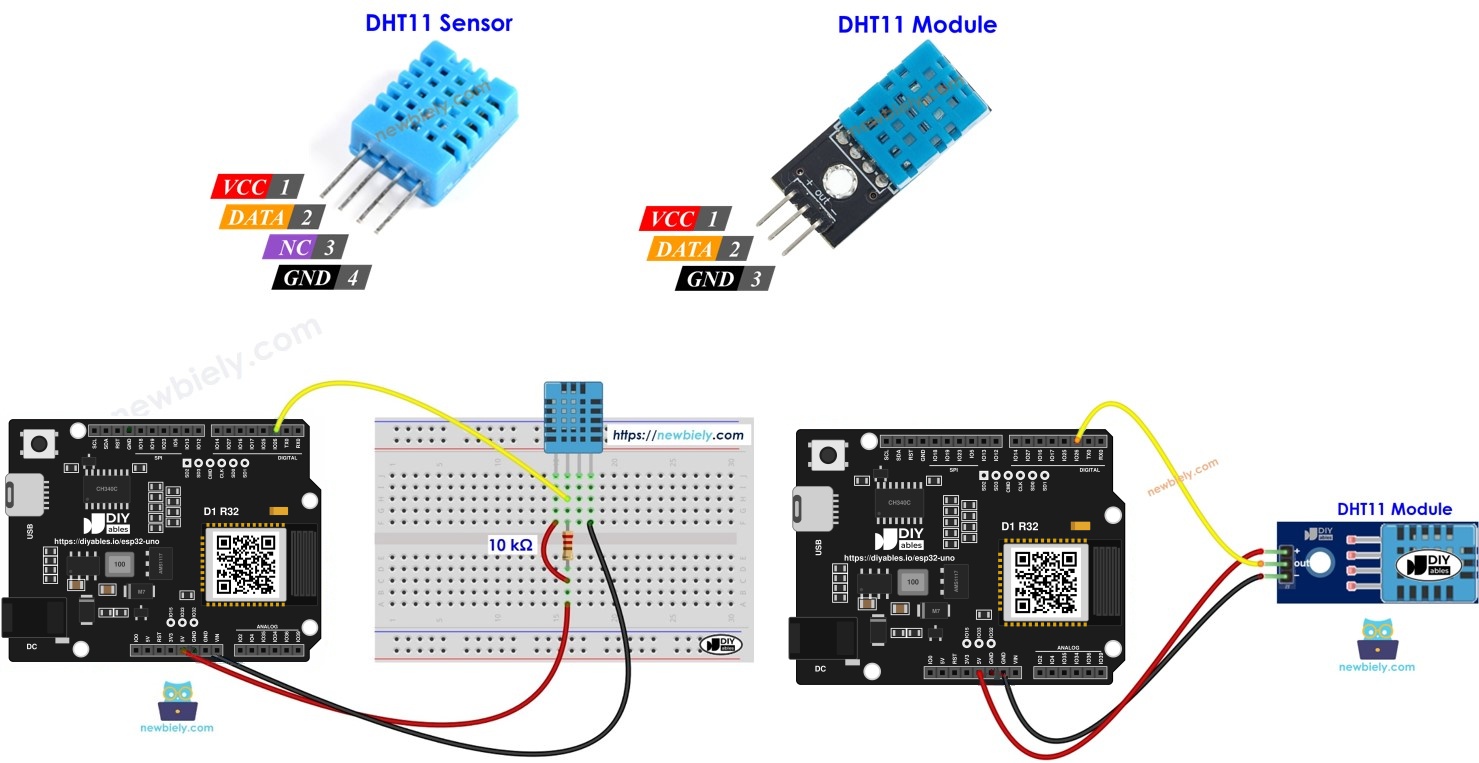
- Spot the difference between the bare DHT11 and the DHT11 module
- Wire the DHT11 module or sensor to the ESP32 Uno with a 3.3V supply
- Install the Adafruit DHT sensor library in Arduino IDE
- Get humidity and temperature values with readHumidity() and readTemperature()
Components You Need
Or you can buy the following kits:
| 1 | × | DIYables Sensor Kit (18 sensors/displays) |
Additionally, some of these links are for products from our own brand, DIYables .
DHT11 Sensor at a Glance
After this part, you know what the DHT11 can measure and how fast.
| Spec | DHT11 Value |
|---|---|
| Supply voltage | 3 to 5V |
| Temperature span | 0°C to 50°C |
| Temperature error | ± 2°C |
| Humidity span | 20% to 80% |
| Humidity error | 5% |
| New reading | about 1 per second (1Hz) |
Both values travel on one shared data line, so the sensor takes only one GPIO. It is a low-cost part made for room checks, not for lab work.
DHT11 Pins
Here you match each pin of the sensor or the module to its job.
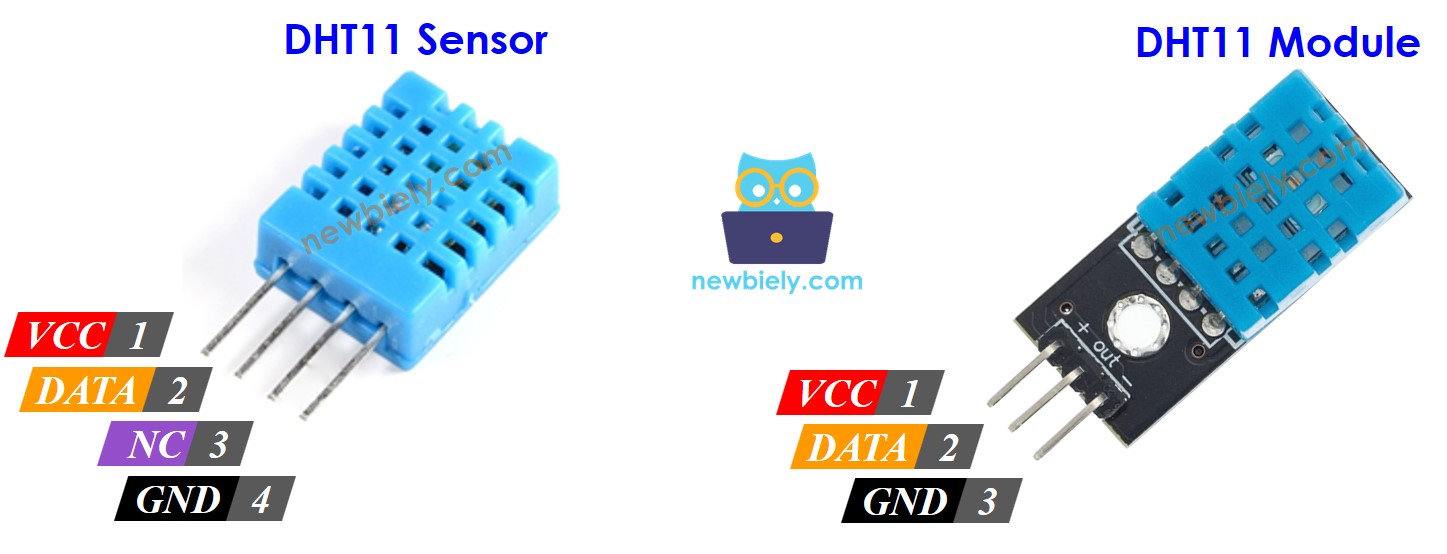
| Pin | Bare Sensor (4 pins) | Module (3 pins) | Connect To |
|---|---|---|---|
| GND | yes | yes (may say -) | GND on the board |
| VCC | yes | yes (may say +) | 3.3V on the ESP32 Uno |
| DATA | yes | yes (may say OUT) | a digital pin, D2 in this project |
| NC | yes | no | nothing, leave it free |
Good to know: the module is just the bare sensor on a tiny PCB, often with the pull-up resistor already soldered on.
ESP32 Uno Pinout
Every header label (D2, A0, SDA and so on) on the ESP32 Uno form board belongs to a GPIO number, and the sketch needs that number, not the label. Look up D2 on the picture below before the first jumper goes in.

How to Connect
By the end of this part, the DHT11 DATA line sits on D2 (GPIO26) and is pulled up to 3.3V.
The DATA line must rest at a high level when idle. A resistor of 5K to 10K Ohms between VCC and DATA does that job. Without it, the board and the sensor cannot talk reliably.
Option A — Bare DHT11 Sensor
With the 4-pin sensor, place the 10 kΩ resistor yourself between VCC and DATA.
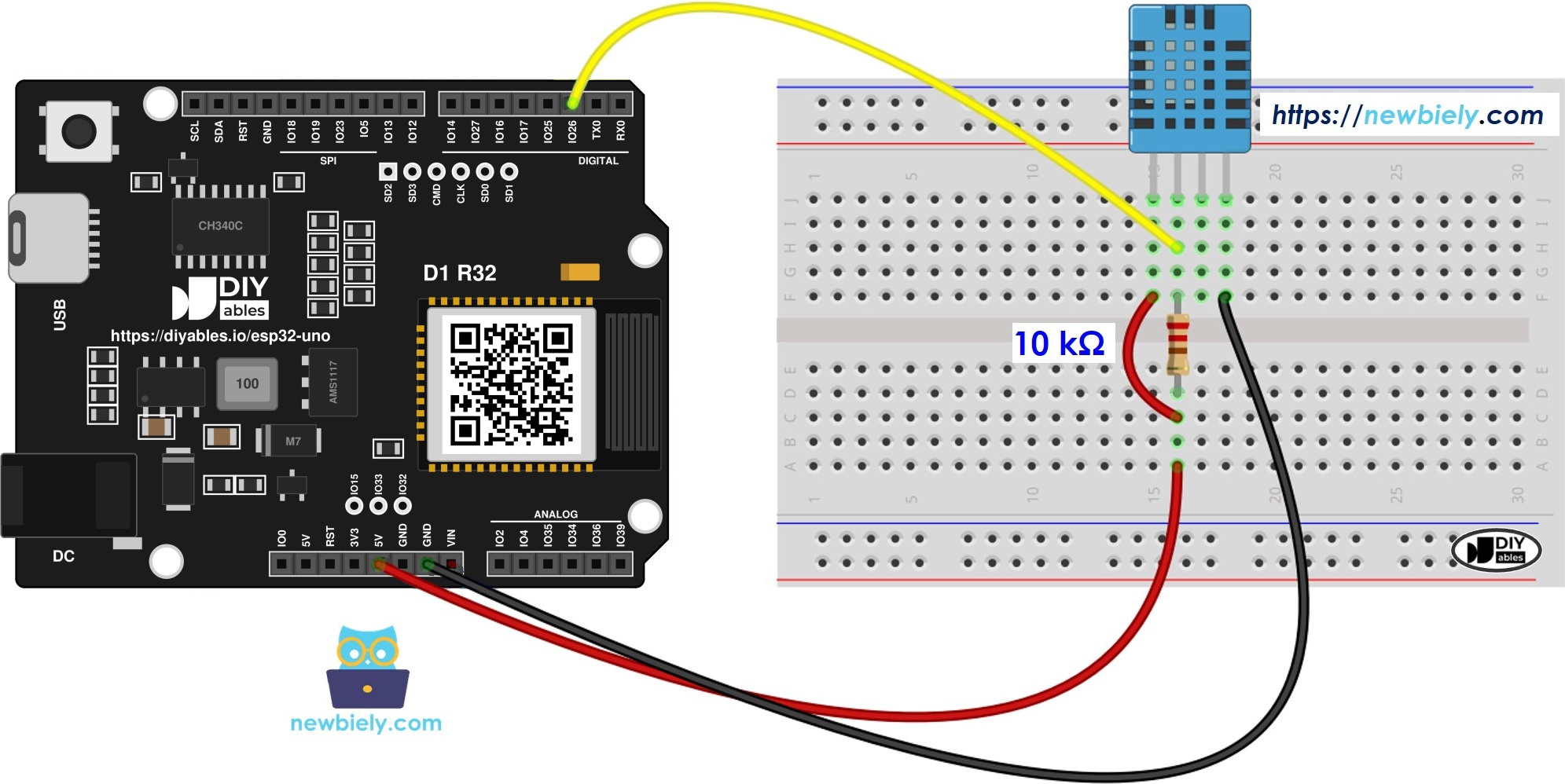
This image is created using Fritzing. Click to enlarge image
| DHT11 Sensor Pin | ESP32 Uno Pin |
|---|---|
| VCC | 3.3V |
| DATA | D2 (GPIO26) and 10 kΩ resistor up to 3.3V |
| NC | leave free |
| GND | GND |
Option B — DHT11 Module
The module usually carries its own pull-up, so three jumpers are all you need.
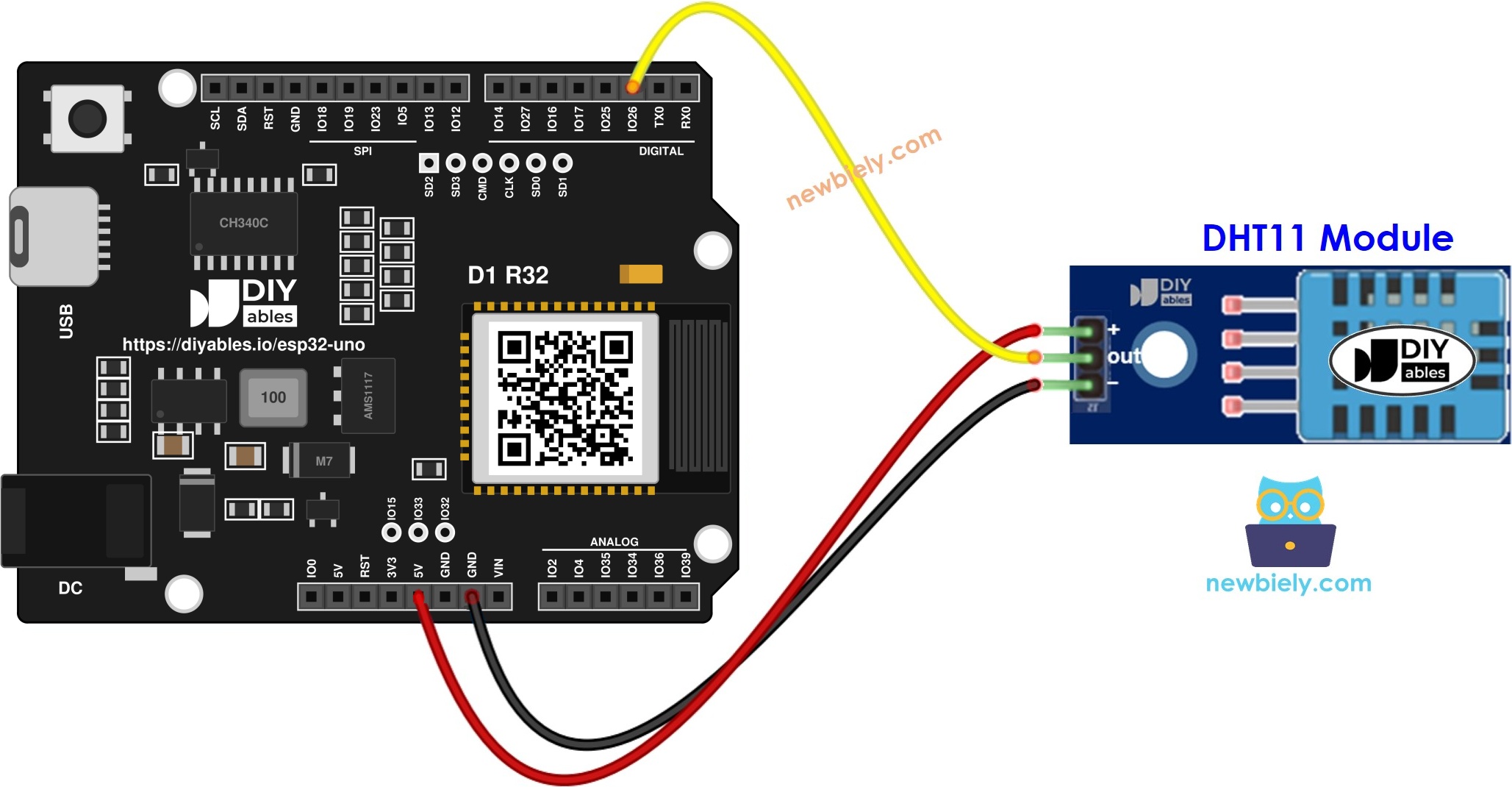
This image is created using Fritzing. Click to enlarge image
| DHT11 Module Pin | ESP32 Uno Pin |
|---|---|
| VCC (+) | 3.3V |
| DATA (OUT) | D2 (GPIO26) |
| GND (-) | GND |
Good to know: D2 (GPIO26) is a normal I/O pin. It is not a boot strapping pin, so the sensor can stay plugged in while you upload.
WARNING
ESP32 Uno pins run at 3.3V logic and are NOT 5V tolerant. Feed the DHT11 from the 3.3V pin. On 5V, the pull-up lifts DATA to 5V, and that level can harm GPIO26 over time.
DHT11 Code Building Blocks
After this part, you know the seven lines that do the real work. The sensor and the module use the same code.
| Step | Line | Purpose |
|---|---|---|
| 1 | #include | Loads the Adafruit DHT library |
| 2 | #define DHT11_PIN 26 | Points the library at GPIO26, the D2 header spot |
| 3 | DHT dht11(DHT11_PIN, DHT11); | Makes a sensor object for a DHT11 on that pin |
| 4 | dht11.begin(); | Starts the sensor in setup() |
| 5 | dht11.readHumidity(); | Returns relative humidity in % |
| 6 | dht11.readTemperature(); | Returns temperature in °C |
| 7 | dht11.readTemperature(true); | Returns temperature in °F |
Here is the same set as a code view:
ESP32 Uno Code - DHT11
This sketch takes a reading every 3 seconds and prints humidity, °C and °F on one Serial Monitor line, or an error line when the sensor gives no valid data.
Upload and Test
- First time with this board? Set it up with ESP32 Uno - Getting Started before you continue.
- Build the circuit by following the wiring table above.
- Plug in the USB Type-C cable between the ESP32 Uno and your computer.
- Select the board in Arduino IDE: pick ESP32 Dev Module and the COM port of the board (CH340).
- Open the Library Manager with the Libraries icon in the left bar.
- Add the DHT library: type "DHT", choose DHT sensor library by Adafruit, and press Install.
- Search for DHT sensor library created by Adafruit and click the Install button.
- Add its helpers: the IDE asks for more libraries it depends on. Press Install All.
- Search for Adafruit Unified Sensor created by Adafruit
- Paste the sketch above into a fresh Arduino IDE window.
- Press Upload and wait until the IDE says the upload is done.
- Open the Serial Monitor at 9600 baud.
- Warm it up: pinch the sensor between two fingers for half a minute, then let go and watch it cool down.
- Pro tip: the first line after a reset can show the error message. That is normal while the sensor wakes up. Worry only if every line fails.
Video Tutorial
See the ESP32 Uno build in action in the video below.
Code Explanation
By the end of this part, you can read each block of the sketch and change it.
| Code Part | What It Does |
|---|---|
| DHT dht11(DHT11_PIN, DHT11) | Links the library to GPIO26 and the DHT11 type |
| delay(3000) in loop() | Waits 3 seconds, so each read gets fresh data |
| readHumidity() and readTemperature() | Give float values in %, °C and, with true, °F |
| isnan(...) check | Catches a failed read and prints the error line |
| Serial.print chain | Builds the one-line "DHT11# Humidity ... Temperature ..." text |
The result is one clean line of climate data every 3 seconds.
ESP32 Uno vs UNO R4 for This Project
This table shows what changes when you move this sensor build from the UNO R4 to the ESP32 Uno.
| Item | Arduino UNO R4 | ESP32 Uno |
|---|---|---|
| Logic voltage | 5V | 3.3V |
| DHT11 DATA pin in code | 2 (D2) | 26 (same D2 header spot) |
| DHT11 supply | 3.3V or 5V | 3.3V only for a safe DATA level |
| Library | Adafruit DHT sensor library | Same library, no change |
| WiFi and Bluetooth | WiFi on the R4 WiFi only | WiFi plus Bluetooth Classic and BLE |
| Arduino IDE board | Arduino UNO R4 WiFi or Minima | ESP32 Dev Module |
The wiring positions stay the same. Change the pin number to 26 and power the sensor from 3.3V, and the project runs.
Go Wireless: A Phone Climate Monitor
After this part, you have an idea to see the readings without a USB cable.
The ESP32 Uno has WiFi and Bluetooth on board. Send the same humidity and temperature values to a web page or a phone app, and check your room from the sofa. A live chart also makes it easy to spot when a shower or cooking pushes humidity up.
Troubleshooting
| Problem | Possible Cause | Solution |
|---|---|---|
| Board missing from the port list | No CH340 driver, or a power-only USB cable | Install the CH340 driver and swap to a cable that carries data |
| Upload hangs at "Failed to connect" or "Waiting for download" | Board not in download mode | Hold BOOT as the upload begins, then release it |
| Every line says the read failed | DATA jumper not on D2, or no 3.3V or GND | Recheck the three wires and keep DHT11_PIN set to 26 |
| Bare sensor fails, module works | Pull-up resistor missing | Put a 10 kΩ resistor from DATA to 3.3V |
| Compile error, DHT.h not found | Library not installed | Install DHT sensor library by Adafruit plus Adafruit Unified Sensor |
| Garbage text on the Serial Monitor | Baud rate not 9600 | Pick 9600 in the Serial Monitor menu |
| Temperature reads a few degrees high | Heat from the board or your hand | Place the sensor a few centimeters away from the ESP32 Uno |
| Values never change | Sensor read too often or a damaged sensor | Keep the 3 second delay and try another DHT11 |
FAQ
What does a DHT11 actually measure?
It measures air temperature and relative humidity. A small thermistor senses heat, and a moisture-sensitive layer senses humidity. A chip inside turns both into digital data on one wire.
How precise are DHT11 readings for a room?
Temperature is within about ±2°C, and humidity within about 5%. Values change in whole steps, like 24°C to 25°C. That is fine for a room check, but not for exact science.
Is 3.3V enough to run a DHT11 with the ESP32 Uno?
Yes. Any supply from 3V up to 5V suits this sensor. On 3.3V the DATA line never goes above the safe level for the ESP32 Uno pins, which are not 5V tolerant.
Do I need the 10 kΩ resistor with the DHT11 module?
Usually not. Most modules already have a pull-up resistor on the board. The bare 4-pin sensor needs one between DATA and VCC.
Can I use a different ESP32 Uno pin for DATA?
Yes, most digital header pins work, like D3 (GPIO25) or D7 (GPIO14). Put the GPIO number into DHT11_PIN, not the D label. Avoid D8 (GPIO12), D10 (GPIO5) and A0 (GPIO2), because they are boot strapping pins. A2 to A5 have no internal pull-up, so a bare sensor there needs the external resistor.
What changes in the code compared with the UNO R4 sketch?
Only the pin number. The UNO R4 sketch uses 2, and the ESP32 Uno sketch uses 26 for the same D2 header position. The Adafruit DHT library runs on both boards.
Why can't Arduino IDE find my ESP32 Uno port?
The board talks to your computer through a CH340 USB-to-serial chip. Some computers need the CH340 driver first. Also check that your USB Type-C cable carries data, not only power.
How do I read two DHT11 sensors at once?
Wire the second DATA line to another free pin. Create a second DHT object, like DHT dht11b(25, DHT11); for D3 (GPIO25), and call begin() on it too. Then read and print both objects in loop().
Can I send the DHT11 values to a web page with the ESP32 Uno?
Yes. The board has WiFi and Bluetooth built in. The Web Temperature and Web Plotter tutorials linked above show how to display the values on a phone or a browser.
What if my project needs more pins than the Uno headers give?
The ESP32 Uno has a few extra holes near the power header. GPIO32 and GPIO33 give I/O, PWM and analog on ADC1, so they still read analog values while WiFi is on. GPIO15 gives I/O, PWM and analog on ADC2. Solder pin headers there and write the GPIO number in code. A second DHT11 or a light sensor fits well on GPIO32 or GPIO33. Two warnings: GPIO15 and GPIO0 (the IO0 pin at the unused Uno NC spot) are boot strapping pins, and a wrong connection can stop the board from booting or uploading code, so try GPIO32/33 first. Never use the six holes under the digital header (SD0 to SD3, CMD, CLK = GPIO6 to GPIO11), because they are wired to the flash chip and using them crashes the board.