
ESP32 UNO - LCD 20x4
Need room for four lines of text? Hook an LCD 20x4 to the ESP32 Uno form board and you get 80 character cells with only two signal wires. The I2C backpack on the LCD 2004 keeps your other pins free, and a short Arduino IDE sketch puts your words on every row.
By the end, you can:
- Connect a 20x4 LCD I2C module to the SDA and SCL header pins
- Add the DIYables_LCD_I2C library to Arduino IDE
- Jump to any cell with setCursor() and print text there
- Upload code that writes a different message on each row of the ESP32 Uno LCD 20x4
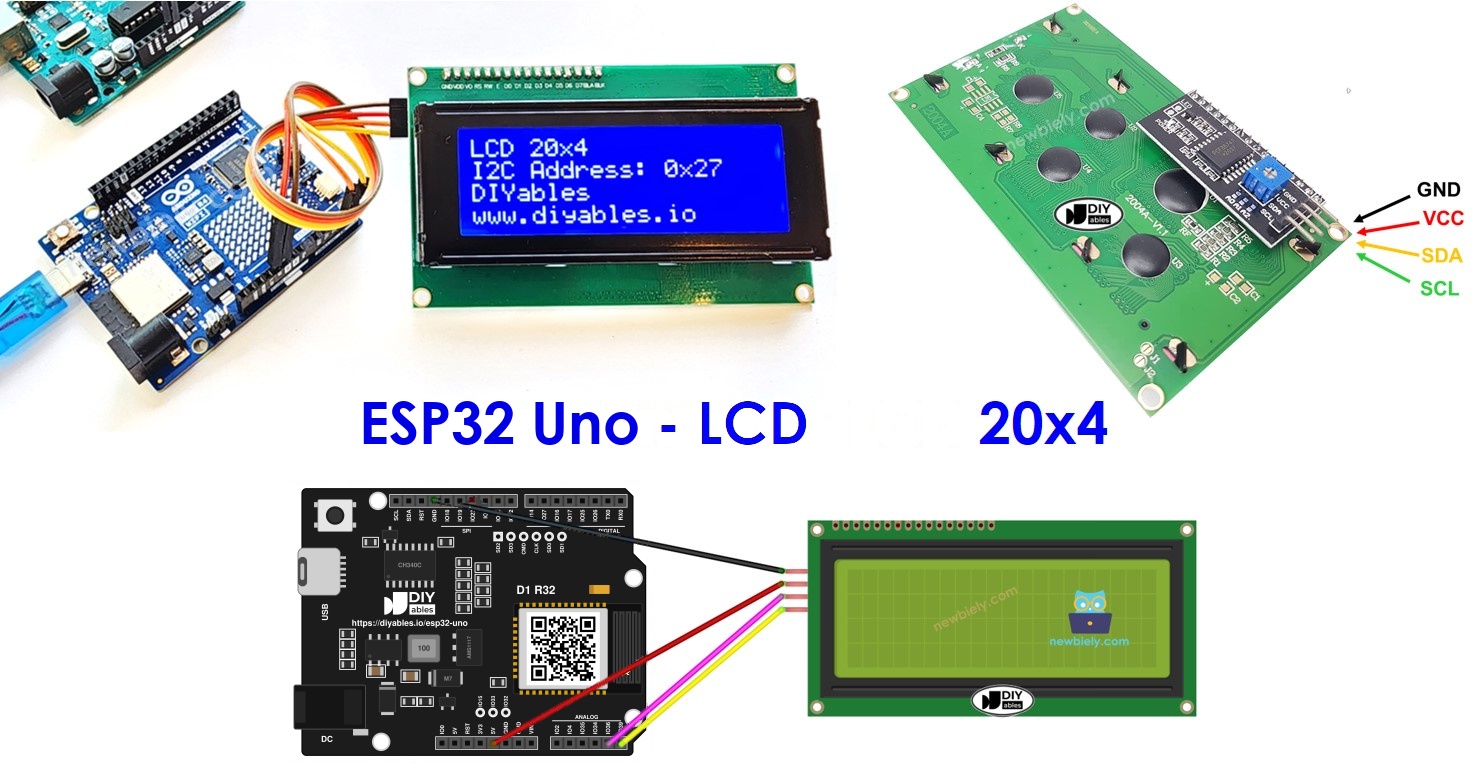
Components You Need
| 1 | × | ESP32 Uno-form Board | |
| 1 | × | USB Cable Type-A to Type-C (for USB-A PC) | |
| 1 | × | USB Cable Type-C to Type-C (for USB-C PC) | |
| 1 | × | LCD 20x4 | |
| 1 | × | Jumper Wires | |
| 1 | × | 5V to 3.3V Level Converter (optional, for SDA and SCL) |
Or you can buy the following kits:
| 1 | × | DIYables Sensor Kit (18 sensors/displays) |
Additionally, some of these links are for products from our own brand, DIYables .
Buy Note: Alternatively, you can assemble the LCD I2C display using LCD 2004 Display and PCF8574 I2C Adapter Module.
LCD 20x4 I2C Module Basics
After this part, you know which pin does what and how the screen counts its cells.
| Spec | Value |
|---|---|
| Characters | 20 per row |
| Rows | 4 |
| Interface | I2C (two signal wires) |
| Default address (DIYables) | 0x27 |
| Supply voltage | 5V |
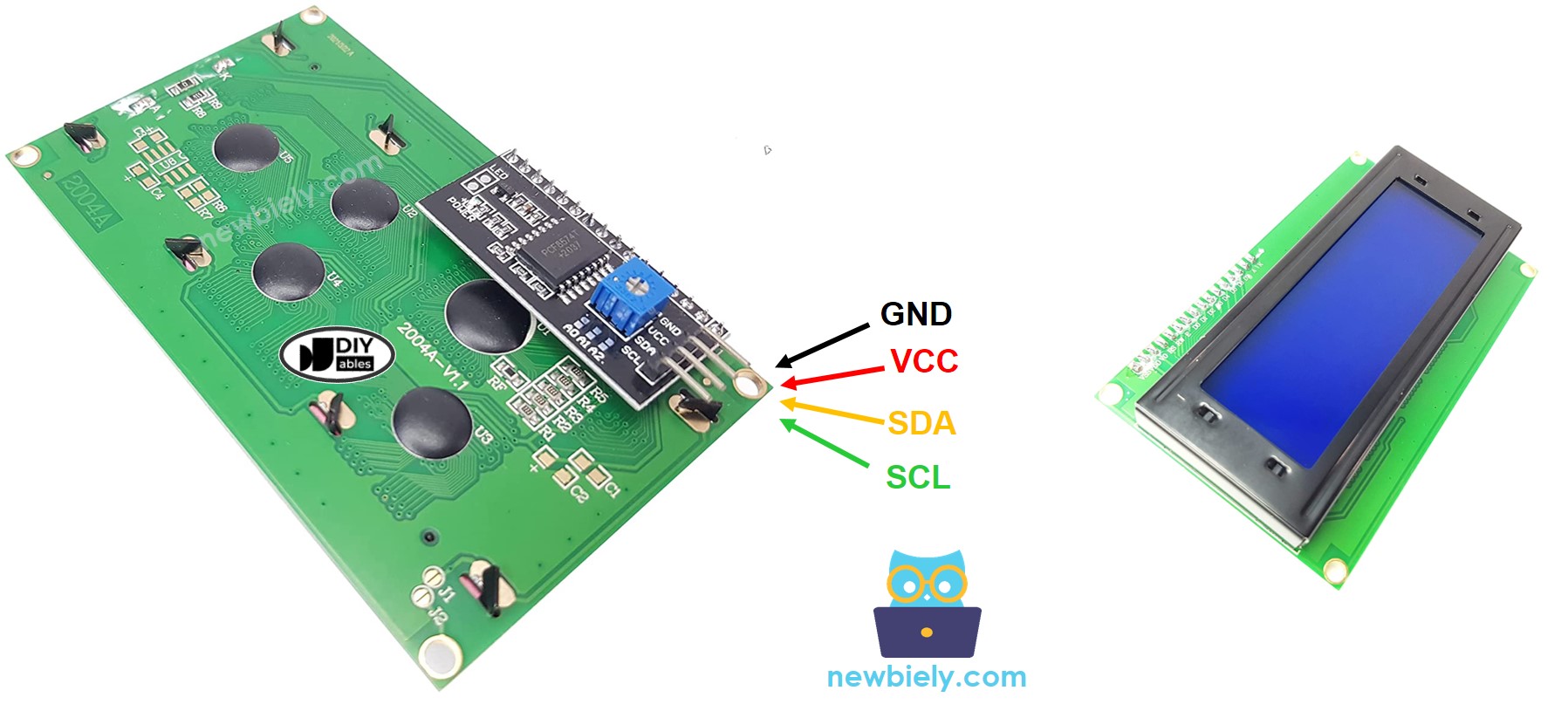
Pinout
| Module Pin | Role |
|---|---|
| GND | Ground, 0V |
| VCC | 5V supply for the logic and backlight |
| SDA | I2C data line |
| SCL | I2C clock line |
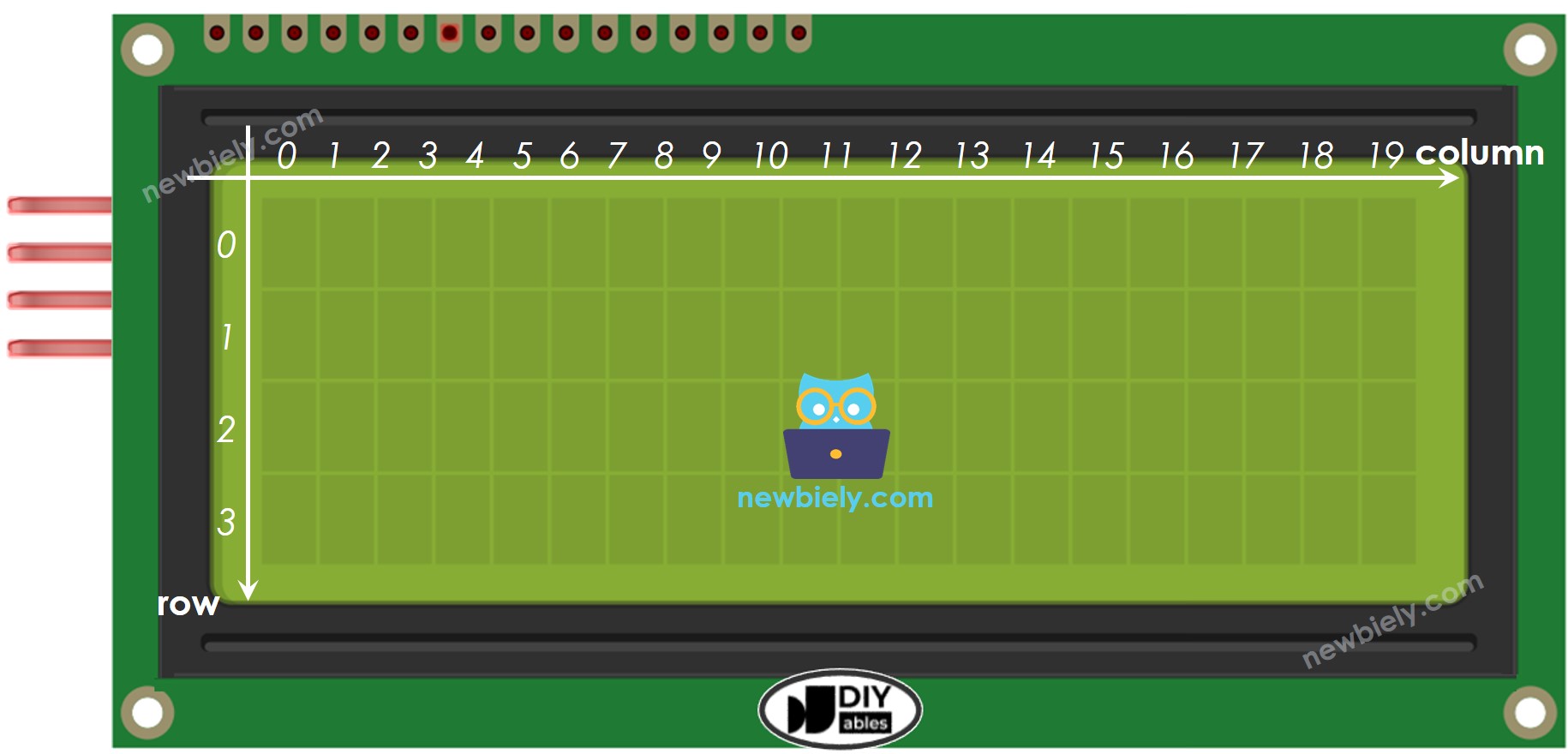
LCD Coordinate
Every cell has an address made of a column number (0 to 19) and a row number (0 to 3). Counting starts at zero, so the first cell is column 0, row 0, and the last cell is column 19, row 3.
ESP32 Uno Pinout
On the ESP32 Uno form board, each Uno-style header pin is tied to a GPIO number, and the sketch refers to that number. Find the SDA and SCL pins in this picture first; you need them for the LCD.

How to Connect
When this step is done, the LCD gets power and talks to the board over I2C.
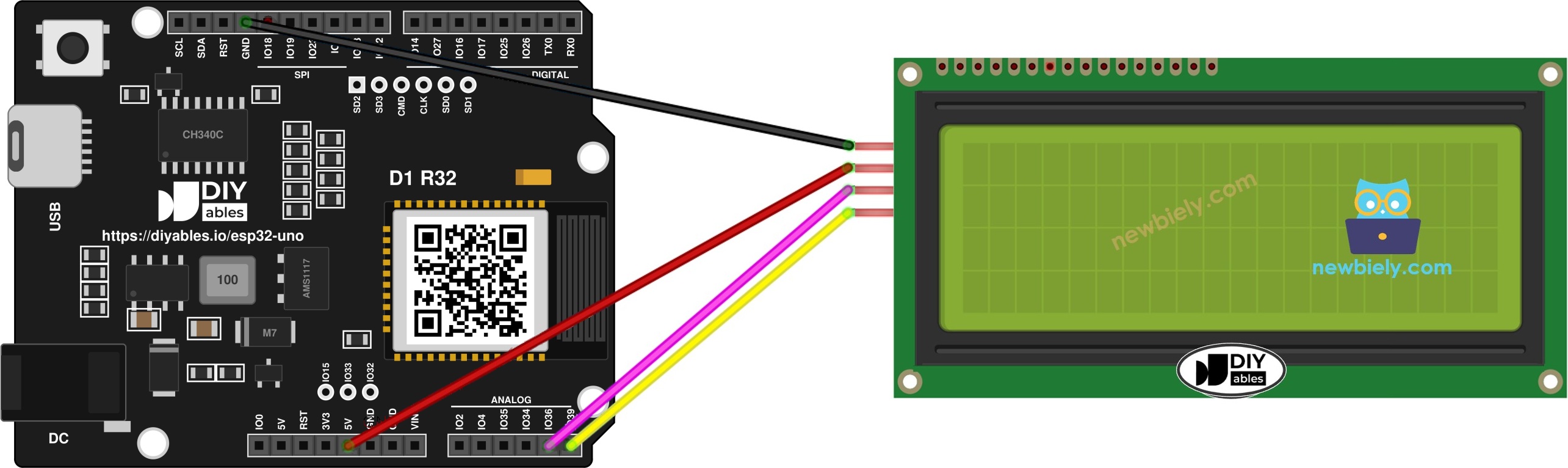
This image is created using Fritzing. Click to enlarge image
※ NOTE THAT:
The wiring diagram may not show the correct pin. In the RFID door lock demo, the buzzer goes to D7 (GPIO14), not D8 as the picture may show. The picture may also show the LCD wired straight to SDA and SCL. On the ESP32 Uno, we suggest a 4-channel level converter between the LCD and the board. We will update the diagram soon. Until then, follow the wiring table and the code on this page, not the picture.
| LCD I2C Pin | ESP32 Uno Pin |
|---|---|
| VCC | 5V |
| GND | GND |
| SDA | SDA (GPIO21) |
| SCL | SCL (GPIO22) |
Good to know: A4 and A5 on the ESP32 Uno are input-only analog pins (GPIO36 and GPIO39), not I2C. Always use the separate SDA and SCL header pins.
WARNING
ESP32 Uno pins work at 3.3V and are NOT 5V tolerant. The LCD runs from 5V, and its backpack often has pull-up resistors to 5V on SDA and SCL. Put a 5V to 3.3V level converter between the module and the board to protect GPIO21 and GPIO22.
Library Functions for the LCD
After this part, you know the five lines that drive the screen.
| Code Line | What It Does |
|---|---|
| #include | Loads the LCD library |
| DIYables_LCD_I2C lcd(0x27, 20, 4); | Makes an LCD object with address 0x27, 20 columns and 4 rows |
| lcd.init(); | Starts I2C and prepares the display |
| lcd.backlight(); | Switches the backlight on |
| lcd.setCursor(col, row); | Moves the write position to one cell |
| lcd.print("text"); | Writes text from the current cell |
Here is how they look in a sketch:
※ NOTE THAT:
LCD makers do not all ship the same I2C address. This page uses 0x27, which is the address of the DIYables module. A blank screen with the backlight on usually means a different address, such as 0x3F.
ESP32 Uno Code
This sketch fills each of the four rows with one line of text, one time, inside setup().
Good to know: You do not pass any pin numbers. The Wire library on the ESP32 Uno picks GPIO21 for SDA and GPIO22 for SCL by default.
Upload and Test
- First time with this board? Set it up with ESP32 Uno - Getting Started before you continue.
- Build the circuit by following the wiring table above.
- Plug in the USB Type-C cable between the ESP32 Uno and your computer.
- Select the board in Arduino IDE: pick ESP32 Dev Module and the COM port of the board (CH340).
- Go to the library tab: the Libraries button sits in the left sidebar of the IDE.
- Search for "DIYables LCD I2C" and locate DIYables_LCD_I2C by DIYables.
- Click Install.
- Search for DIYables LCD I2C created by DIYables.io and click the Install button.
- Paste the sketch from above into a new Arduino IDE window.
- Click Upload and wait for "Done uploading".
- Look at the screen: rows 0 to 3 should show the four messages.
- Pro tip: Print a line of exactly 20 characters, such as "12345678901234567890", to mark the edge of a row. It helps you plan a layout before you write the real text.
A weak USB port may not run the backlight well. When the text looks faint or missing, feed the LCD from a separate 5V supply and join the grounds. A power splitter set does this neatly:
Video Tutorial
See the ESP32 Uno build in action in the video below.
The clip shows a bigger project: an RFID door lock. The 20x4 LCD shows the lock state, a servo opens the door for the admin card, and a buzzer gives feedback. Three wrong cards block the reader for a few seconds. The code for it is below; install the MFRC522 and ESP32Servo libraries first.
| Demo Part | ESP32 Uno Pin |
|---|---|
| RFID SS | D10 (GPIO5) |
| RFID RST | D9 (GPIO13) |
| RFID MOSI / MISO / SCK | D11 (GPIO23) / D12 (GPIO19) / D13 (GPIO18) |
| Servo signal | D6 (GPIO27) |
| Buzzer | D7 (GPIO14) |
| LCD SDA / SCL | SDA (GPIO21) / SCL (GPIO22) |
WARNING
D10 (GPIO5) is a boot strapping pin. If the board does not boot or upload with the RFID module connected, unplug it, upload, and plug it back in.
ESP32 Uno vs UNO R4 for This Project
This table lists what changes when you move the LCD 20x4 from an UNO R4 to the ESP32 Uno. In the RFID door lock demo, the buzzer uses D7 (GPIO14) instead of D8, because D8 (GPIO12) must stay LOW when the board starts.
| Item | Arduino UNO R4 | ESP32 Uno |
|---|---|---|
| Logic voltage | 5V | 3.3V |
| LCD SDA pin | A4 | SDA header (GPIO21) |
| LCD SCL pin | A5 | SCL header (GPIO22) |
| LCD library | DIYables_LCD_I2C | DIYables_LCD_I2C (no change) |
| Servo library in the demo | Servo.h | ESP32Servo.h |
| Arduino IDE board | Arduino UNO R4 WiFi | ESP32 Dev Module |
| WiFi and Bluetooth | WiFi only (R4 WiFi) | WiFi plus Bluetooth Classic and BLE |
The main sketch runs without any edits. Only the two I2C wires move, and a level converter is a smart extra because the LCD backpack pulls its lines to 5V.
Go Wireless: Send Messages to the LCD from Your Phone
Turn the 20x4 screen into a message board you can update without a cable.
The ESP32 Uno has built-in WiFi and Bluetooth. Type a line in a chat app on your phone, and the board prints it on the LCD. You can also mirror the LCD text in a web monitor page, so you see it from anywhere on your network.
Troubleshooting
| Problem | Possible Cause | Solution |
|---|---|---|
| Arduino IDE shows no COM port | CH340 driver missing or a charge-only cable | Install the CH340 driver and try a USB cable that carries data |
| Upload stops at "Waiting for download" | The board did not enter upload mode | Hold the BOOT button when the upload starts, release it once writing begins |
| Backlight on, screen empty | The sketch address does not match the module | Scan the I2C bus and put the found address (0x27 or 0x3F) in the code |
| Top and third rows show solid blocks | Contrast trimmer is off | Use a small screwdriver on the blue trimmer at the back until letters appear |
| LCD stays dark | VCC or GND is loose | Check that VCC sits on 5V and GND on GND, then reseat the jumpers |
| No reaction from the display | SDA and SCL plugged into A4 and A5 | Move them to the SDA (GPIO21) and SCL (GPIO22) header pins |
| Fails to compile with DIYables_LCD_I2C.h missing | The library is not installed | Add DIYables_LCD_I2C from Library Manager |
| Letters flicker or fade | USB current is too low for the backlight | Feed the LCD from an external 5V supply with a common ground |
| Words spill to the wrong row | The text is longer than 20 characters | Split long text and call setCursor() for every row |
FAQ
Where do the SDA and SCL wires of the LCD 2004 go on the ESP32 Uno?
They go to the header pins marked SDA and SCL, which are GPIO21 and GPIO22. These are the default I2C pins of the Wire library, so lcd.init() finds the screen without extra settings.
Why are A4 and A5 not used for I2C like on other Uno boards?
Those two header spots connect to GPIO36 and GPIO39 here. Both are input only and have no I2C hardware. The board brings I2C out on its own SDA and SCL pins instead.
Will the LCD 20x4 work if I power it from 3.3V?
It usually lights up, but the characters are very faint or do not show at all. The module is designed for 5V. Keep VCC on 5V and protect the data lines with a level converter.
Do I need a level converter between the LCD and the ESP32 Uno?
It is the safe choice. Most backpacks pull SDA and SCL up to 5V, while ESP32 Uno pins accept only 3.3V. Many people run the module without one, but a 4-channel converter removes the risk for a small price.
How do I clear the screen or erase one row?
Call lcd.clear() to wipe all 80 cells and move the cursor home. To erase one row, set the cursor to the start of that row and print 20 spaces.
Can I put two 20x4 LCDs on the same ESP32 Uno?
Yes, if they have different I2C addresses. Change the address on one backpack with its A0 to A2 solder pads, then create two objects, for example lcd1(0x27, 20, 4) and lcd2(0x26, 20, 4).
Can I show sensor values that change every second?
Yes. Move the print code into loop(), set the cursor to the value's cell, and print the new number. Print a few spaces after it so old digits do not stay on the screen.
Do I need a CH340 driver for the ESP32 Uno?
The ESP32 Uno uses a CH340 USB-to-serial chip. Windows 10 and 11 often install the driver by themselves. If no COM port appears, download and install the CH340 driver.
Can I reuse my UNO R4 LCD sketch on the ESP32 Uno?
Yes. DIYables_LCD_I2C works on both boards, so the code stays the same. Only the wiring changes: SDA and SCL go to GPIO21 and GPIO22 instead of A4 and A5.
What if my project needs more pins than the Uno headers give?
The ESP32 Uno has extra holes near the power header: GPIO32 and GPIO33 (I/O, PWM, analog on ADC1, so they also work while WiFi is on) and GPIO15 (I/O, PWM, analog on ADC2). Solder pin headers there and use the GPIO number in code. For an LCD project that also reads a sensor over WiFi, GPIO32 and GPIO33 are the best choice. Two warnings: GPIO15 and GPIO0 (the IO0 pin at the unused Uno NC position) are boot strapping pins, and a wrong connection can stop the board from booting or uploading, so use GPIO32 and GPIO33 first. Also, never use the six holes under the digital header (SD0 to SD3, CMD, CLK = GPIO6 to GPIO11), because they are wired to the flash chip and using them crashes the board.
Can I update the LCD text from a web page?
Yes. The ESP32 Uno has WiFi, so a small web app can send text to the board, and the sketch prints it on the LCD. See the Go Wireless links above for ready-made examples.