
ESP32 UNO RS485
Need serial data to travel far with the ESP32 Uno? Add a TTL to RS485 module to the ESP32 Uno form board and your UART signal can run over a cable up to about 1200 meters. The code is a simple echo: every byte that arrives on the RS485 bus is sent straight back.
By the end, you can:
- Connect a TTL to RS485 converter board to the ESP32 Uno
- Receive bytes from an RS-485 device with a hardware UART
- Send bytes back with print() and write()
- Replace SoftwareSerial with Serial2 on other pins
- Check the echo from your computer with a USB to RS485 adapter
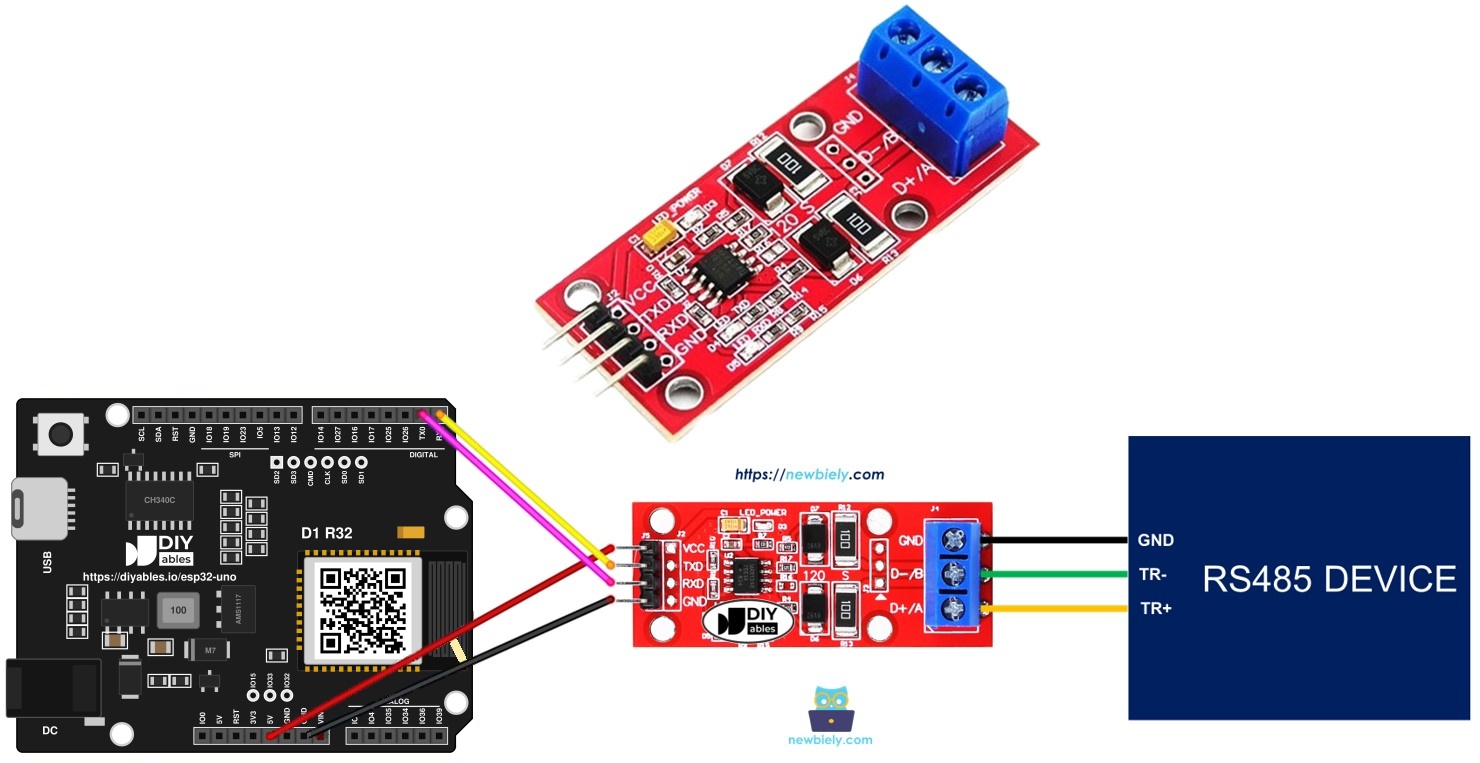
Components You Need
Or you can buy the following kits:
| 1 | × | DIYables Sensor Kit (18 sensors/displays) |
Additionally, some of these links are for products from our own brand, DIYables .
Overview of the TTL to RS485 Module
By the end of this part, you know why a converter module is needed and what each pin does.
A serial port on the ESP32 Uno sends plain TTL signals. They are fine on a short wire, but they fade and pick up noise on a long cable. RS485 sends each bit as the voltage difference between two wires, so noise hits both wires the same and cancels out. The module converts between TTL and RS485 in both directions, so your sketch keeps using normal serial calls.
Good to know: The ESP32 Uno works at 3.3V logic. Check which chip your module uses before you power it (see the warning in the wiring part).
Pinout
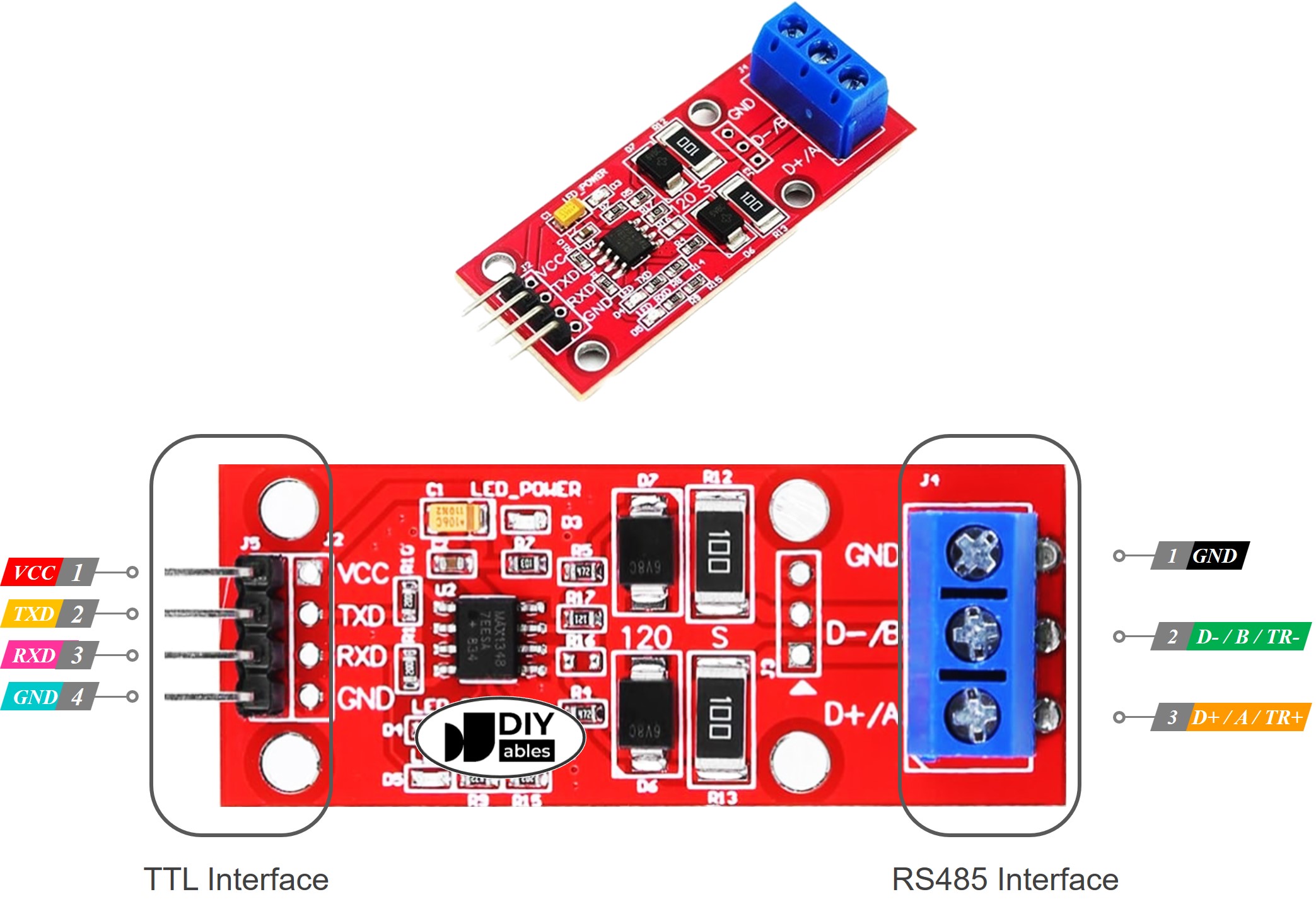
Pins are grouped in two blocks. One block faces the ESP32 Uno, the other faces the long RS485 cable.
TTL side (to the ESP32 Uno)
| Pin | What It Does |
|---|---|
| VCC | Power input, 5V or 3.3V depending on the module |
| GND | Ground (0V) |
| RXD | Receives bytes from the board. Join it to the board TX line |
| TXD | Puts bytes out to the board. Join it to the board RX line |
RS485 side (to the bus)
| Pin | What It Does |
|---|---|
| D+ (A or TR+) | Positive wire of the differential pair |
| D- (B or TR-) | Negative wire of the differential pair |
| GND | Optional, but it gives both ends the same reference and lowers noise |
ESP32 Uno Pinout
Every Uno header pin on the ESP32 Uno form board has a GPIO number, and the sketch uses that number. Look at the diagram first so you wire the right pin.

How to Connect
By the end of this part, the module is wired in one of two ways. Choose the one that matches the sketch you will upload.
Wiring A - D0 and D1 (Serial1 sketch)
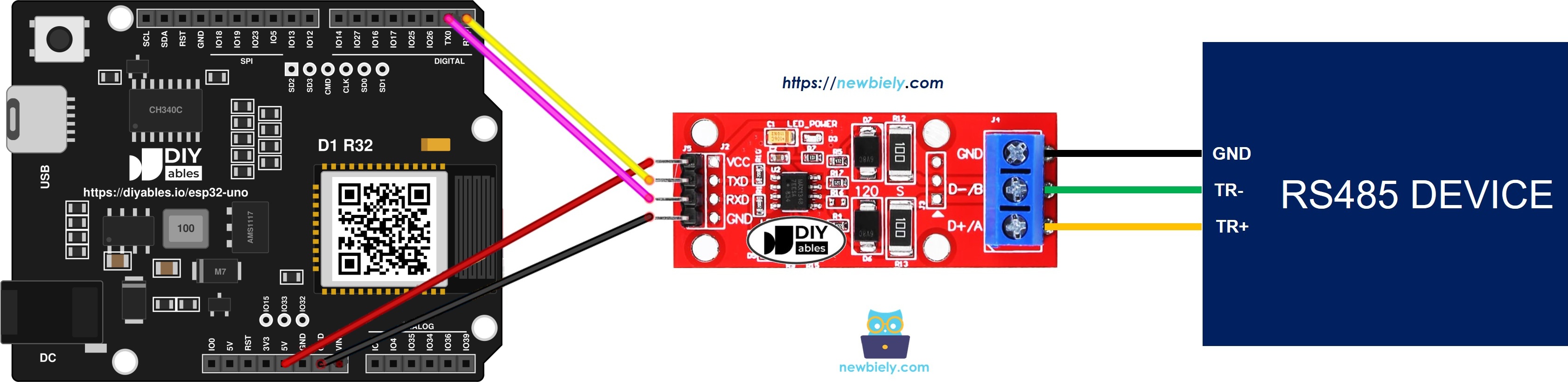
This image is created using Fritzing. Click to enlarge image
※ NOTE THAT:
The wiring diagram may not show the correct wiring for the ESP32 Uno. The first picture shows the module on D0 and D1 (Option 1). On the ESP32 Uno these pins are the USB serial pins, and they can block the upload. We suggest Option 2, with Serial2 on D6 and D7. We will update the diagram soon. Until then, follow the wiring table and the text on this page, not the picture.
| Component Pin | ESP32 Uno Pin |
|---|---|
| VCC | 5V |
| GND | GND |
| RXD | D1 (GPIO1) |
| TXD | D0 (GPIO3) |
WARNING
D0 (GPIO3) and D1 (GPIO1) are the USB serial pins of the ESP32 Uno. The CH340 chip uses them for uploading, and the board prints boot text on D1 at every reset. Unplug the TXD and RXD wires before you upload, and plug them back in afterward. Expect a few odd bytes on the RS485 bus at power-up. If that is a problem, use wiring B.
Wiring B - D6 and D7 (Serial2 sketch)
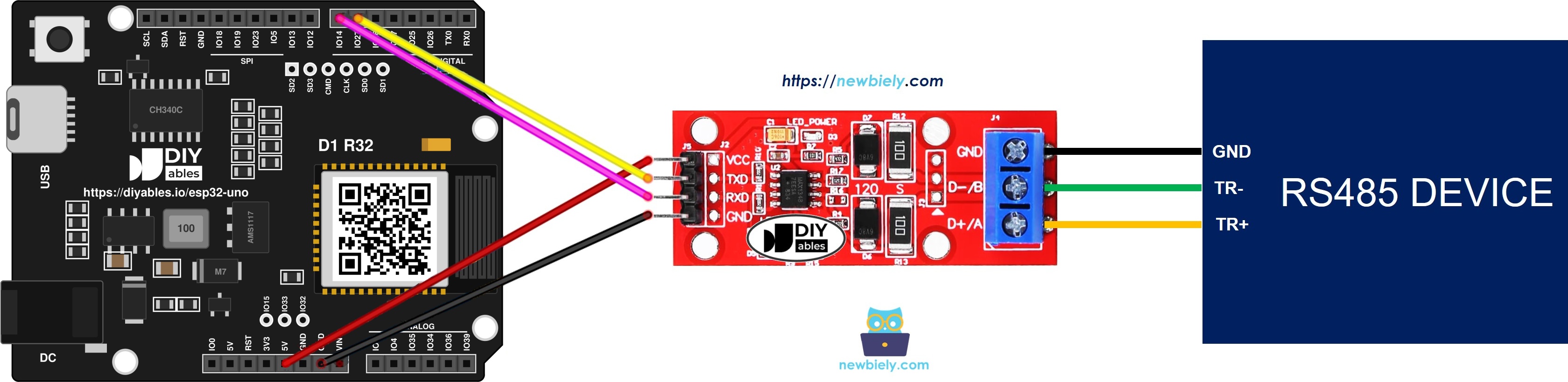
This image is created using Fritzing. Click to enlarge image
| Component Pin | ESP32 Uno Pin |
|---|---|
| VCC | 5V |
| GND | GND |
| RXD | D7 (GPIO14) |
| TXD | D6 (GPIO27) |
Good to know: D6 (GPIO27) and D7 (GPIO14) are normal I/O pins, so this option does not touch the USB serial link. It is the cleaner choice.
WARNING
The pins of the ESP32 Uno cannot take 5V. If the module runs from 5V, its TXD pin sends 5V into the RX pin (D0 or D6). Fix it by running the module at 3.3V (MAX3485 boards allow this) or by adding a level shifter on the TXD wire. The RXD line is safe, because a 3.3V HIGH from the board is read as HIGH by a 5V module.
How to Program the ESP32 Uno for RS485
By the end of this part, you know which serial port to open and which functions to call.
After conversion the signal is plain UART, which means the sketch is normal serial code. Serial already serves your computer through USB, so give the module a separate port: Serial1 or Serial2. These ports can be mapped to almost any GPIO.
Step 1 — Open the port
For the D0/D1 wiring, start Serial1 with the RX and TX GPIO numbers:
Step 2 — Replace SoftwareSerial
The SoftwareSerial library does not exist on the ESP32 Uno. You do not need it, because the chip has spare hardware UARTs. Start Serial2 on the D6 and D7 positions:
Step 3 — Read from the bus
Both Serial1 and Serial2 accept these calls:
Step 4 — Write to the bus
More functions are in the Serial reference.
Code for wiring A (Serial1 on D0 and D1)
Here Serial1 runs at 9600 baud, with GPIO3 as RX and GPIO1 as TX. It echoes each received character back to the sender.
| Code Part | What It Does |
|---|---|
| RS485_RX_PIN / RS485_TX_PIN | Set the GPIO numbers of D0 and D1 |
| Serial1.begin(9600, SERIAL_8N1, ...) | Starts the UART with the chosen pins |
| Serial1.available() | Checks if a byte is waiting in the buffer |
| Serial1.read() | Takes one character from the buffer |
| Serial1.print(data) | Sends the character back to the bus |
The result is a simple echo test for your RS485 link.
Code for wiring B (Serial2 on D6 and D7)
This sketch replaces SoftwareSerial with the hardware port Serial2 on GPIO27 (RX) and GPIO14 (TX). The loop works like the first sketch. A hardware UART is also more reliable than a software one, because the chip handles the bit timing.
Upload and Test
By the end of this part, the sketch runs and you see your own typing come back.
Upload the code
- First time with this board? Set it up with ESP32 Uno - Getting Started before you continue.
- Build the circuit by following the wiring table above.
- Plug in the USB Type-C cable between the ESP32 Uno and your computer.
- Select the board in Arduino IDE: pick ESP32 Dev Module and the COM port of the board (CH340).
- Copy the code into the Arduino IDE.
- Hit Upload. For wiring A, pull out the TXD and RXD wires before the upload and push them back after it.
Test with your PC
- Link the RS485 side to your computer using a USB to RS485 cable, like this:
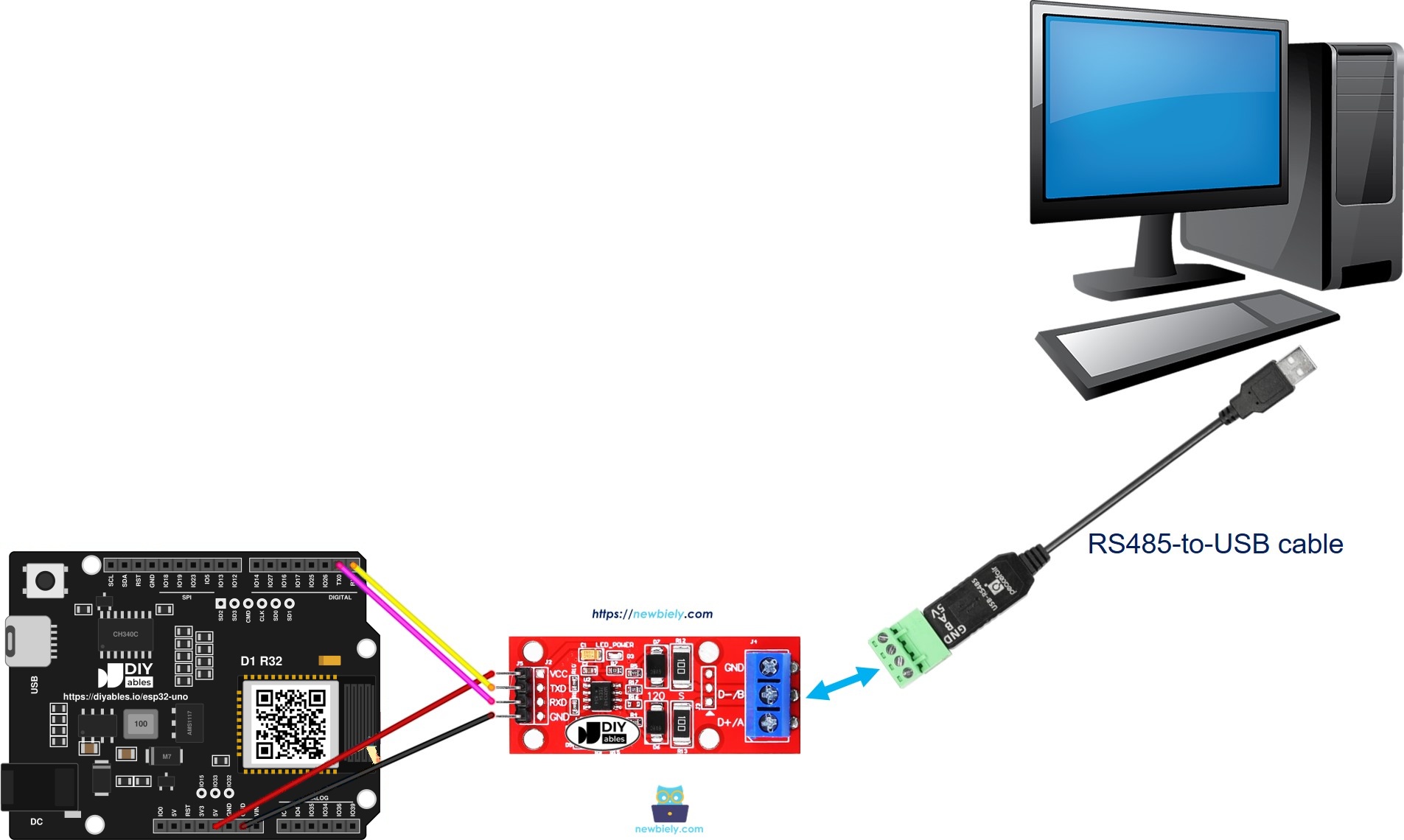
- Open the terminal on the cable COM port and set 9600 baud with 8N1 framing.
- Type a few characters. The ESP32 Uno receives them over RS485.
- Watch the echo. Each character you type shows up again in the terminal.
- Pro tip: Type slowly at first. If nothing comes back, swap D+ and D-, then check that TXD goes to the board RX pin.
Video Tutorial
See the ESP32 Uno build in action in the video below.
ESP32 Uno vs UNO R4 for This Project
By the end of this part, you know what changes when you move the RS485 sketch from the UNO R4 to the ESP32 Uno.
| Item | Arduino UNO R4 | ESP32 Uno |
|---|---|---|
| Logic voltage | 5V | 3.3V |
| Hardware serial pins | D0 and D1 with Serial | D0 (GPIO3) and D1 (GPIO1) with Serial1 |
| Second serial option | SoftwareSerial on D6 and D7 | Serial2 on D6 (GPIO27) and D7 (GPIO14) |
| Library | SoftwareSerial.h | none, the UARTs are built in |
| Serial open call | begin(9600) | begin(9600, SERIAL_8N1, RX, TX) |
| Arduino IDE board | Arduino UNO R4 WiFi | ESP32 Dev Module |
The wiring positions stay the same, so the same diagrams work. Watch the TXD signal: a 5V module needs a level converter or 3.3V power for the ESP32 Uno.
Go Wireless: RS485 Data on Your Phone
By the end of this part, you have an idea for showing RS485 data without a PC.
The ESP32 Uno has WiFi and Bluetooth. You can read the bytes that arrive from the RS485 bus and push them to a web page or a phone app, or type a command on your phone and send it down the bus. No USB to RS485 converter is needed on the PC side.
Troubleshooting
| Problem | Possible Cause | Solution |
|---|---|---|
| No COM port in Arduino IDE | CH340 driver missing or charge-only cable | Install the CH340 driver and use a USB cable that carries data |
| Upload fails or says Waiting for download | Module wires on D0 and D1 block the USB serial link | Unplug TXD and RXD during upload, or hold the BOOT button when the upload starts |
| No echo in the terminal | D+ and D- swapped, or TXD and RXD swapped | Swap D+ and D-, and wire TXD to the board RX pin and RXD to the TX pin |
| Garbage characters | Baud rate or frame format differs | Match the terminal to 9600 baud and 8N1 |
| Odd bytes after each reset | Boot text leaves on D1 (GPIO1) | Use wiring B with Serial2, or ignore the first bytes |
| Module LED is off | No power or missing GND wire | Check VCC and GND and the voltage your module needs |
| Board runs hot or acts odd | The module sends 5V on TXD into a 3.3V input | Place a level shifter on TXD, or run the module from 3.3V |
| Sketch does not compile | Old SoftwareSerial code left in the sketch | Remove SoftwareSerial and use Serial2.begin with RX and TX GPIO numbers |
| No data over a long cable | No ground link or no terminator | Connect GND between devices and add a 120 ohm resistor at each end |
FAQ
Does the ESP32 Uno support SoftwareSerial for RS485?
No. The ESP32 Uno needs no such library. The chip has extra hardware UARTs, so you open Serial2 with begin(baud, SERIAL_8N1, RX, TX) and choose the GPIO numbers.
Why does the sketch use Serial1 and not Serial?
Serial is wired to the USB chip for uploads and the Serial Monitor. Serial1 is a separate UART that the sketch maps to GPIO3 and GPIO1, so the RS485 module has its own port.
Is it safe to power the RS485 module from 5V?
Only with care. A 5V module puts 5V on its TXD pin, and ESP32 Uno pins are not 5V tolerant. Use a level converter on TXD or choose a module that runs at 3.3V, such as one with a MAX3485 chip.
How long can an RS485 cable be?
Roughly 1200 meters when the baud rate is low, for example 9600. Use twisted pair for D+ and D-, link the grounds, and add a 120 ohm terminator at each end of a long line.
Can I put several devices on one RS485 bus?
Yes, a standard bus carries up to 32 devices. Because this module has no direction control pin, it works best for a link between two devices. For many devices, use a protocol such as Modbus where only one device talks at a time.
Why do D0 and D1 cause upload problems?
They connect to the CH340 USB chip. A module on these pins can fight the chip during upload. Unplug the wires first, or use D6 and D7.
What if I run out of header pins for my project?
The ESP32 Uno has extra holes near the power header: GPIO32 and GPIO33 (I/O, PWM, analog on ADC1, so they also work while WiFi is on) and GPIO15 (I/O, PWM, analog on ADC2). Solder pin headers there, then use the plain GPIO number in your sketch. A second RS485 port could use GPIO32 and GPIO33, since a UART may be mapped to any free pin. Two warnings: first, GPIO15 and GPIO0 (the IO0 pin at the unused Uno NC position) are boot strapping pins, and a wrong connection can stop the board from booting or uploading code, so use GPIO32 and GPIO33 first. Second, never use the six holes under the digital header (SD0 to SD3, CMD, CLK = GPIO6 to GPIO11), because they are wired to the flash chip and using them crashes the board.
Can I use an UNO shield with the ESP32 Uno?
The header layout matches, so many shields fit. Check the shield logic level first: it must work at 3.3V, and A4 and A5 are not I2C on this board.
How do I change the baud rate?
Change the number in begin(). Set the same baud rate in your PC terminal and on the other RS485 device.
Can I send the RS485 data over WiFi?
Yes. The ESP32 Uno has WiFi and Bluetooth, so you can show the bytes on a web page or send commands from your phone. See the Go Wireless part above.