
ESP32 UNO - Getting Started
New ESP32 Uno on your desk and no idea where to start? Follow this page once, and the ESP32 Uno form board goes from the box to running your own code in about 20 minutes. You install the Arduino IDE and the board core, fix the USB driver, flash a test LED, then open a tiny web page served by the board over WiFi.
What you will do:
- Install the Arduino IDE and add the "esp32 by Espressif Systems" core
- Install the CH340 USB driver and find the COM port
- Upload a first sketch that flashes an LED on D13 and prints to the Serial Monitor
- Use the BOOT button when an upload will not start
- Run a simple WiFi web server and open it in a browser
Components You Need
Or you can buy the following kits:
| 1 | × | DIYables Sensor Kit (18 sensors/displays) |
Additionally, some of these links are for products from our own brand, DIYables .
Buy Note: Use the LED Module for easier wiring. It includes an integrated resistor.
Good to know: the LED, resistor and breadboard are only for the first test. The board has no built-in LED you can control from code, so an external one shows that your upload works.
Board Facts at a Glance
Read this table once, and the rest of the guide makes sense.
| Item | ESP32 Uno |
|---|---|
| Chip / module | WROOM-32, dual-core, up to 240 MHz |
| Flash memory | 4 MB |
| Wireless | WiFi 2.4 GHz, Bluetooth Classic and BLE |
| USB chip | CH340 (USB-to-serial) |
| USB connector | Type-C |
| I/O voltage | 3.3V only, a 5V signal can damage a pin |
| Analog input | 12-bit, values 0 to 4095 |
| Board name in Arduino IDE | ESP32 Dev Module |
| Buttons | BOOT (GPIO0) and RESET (EN) |
Good to know: the ESP32 Uno has the Uno shape, but the pins work at 3.3V. Never feed a 5V signal straight into a header pin. Use a level shifter or a voltage divider for 5V modules.
Set Up the IDE and the esp32 Core
By the end of this part, the Arduino IDE knows how to build code for the ESP32 Uno.
Step 1 — Get the Arduino IDE 2
- Download the free Arduino IDE 2 from arduino.cc/en/software. Versions exist for Windows, Linux and Mac.
- Install and start it. An empty sketch with setup() and loop() opens.
Step 2 — Add the esp32 core
The IDE ships with the classic Arduino boards only. The ESP32 Uno needs the core from Espressif, which brings the compiler, the upload tool and libraries like WiFi.h.
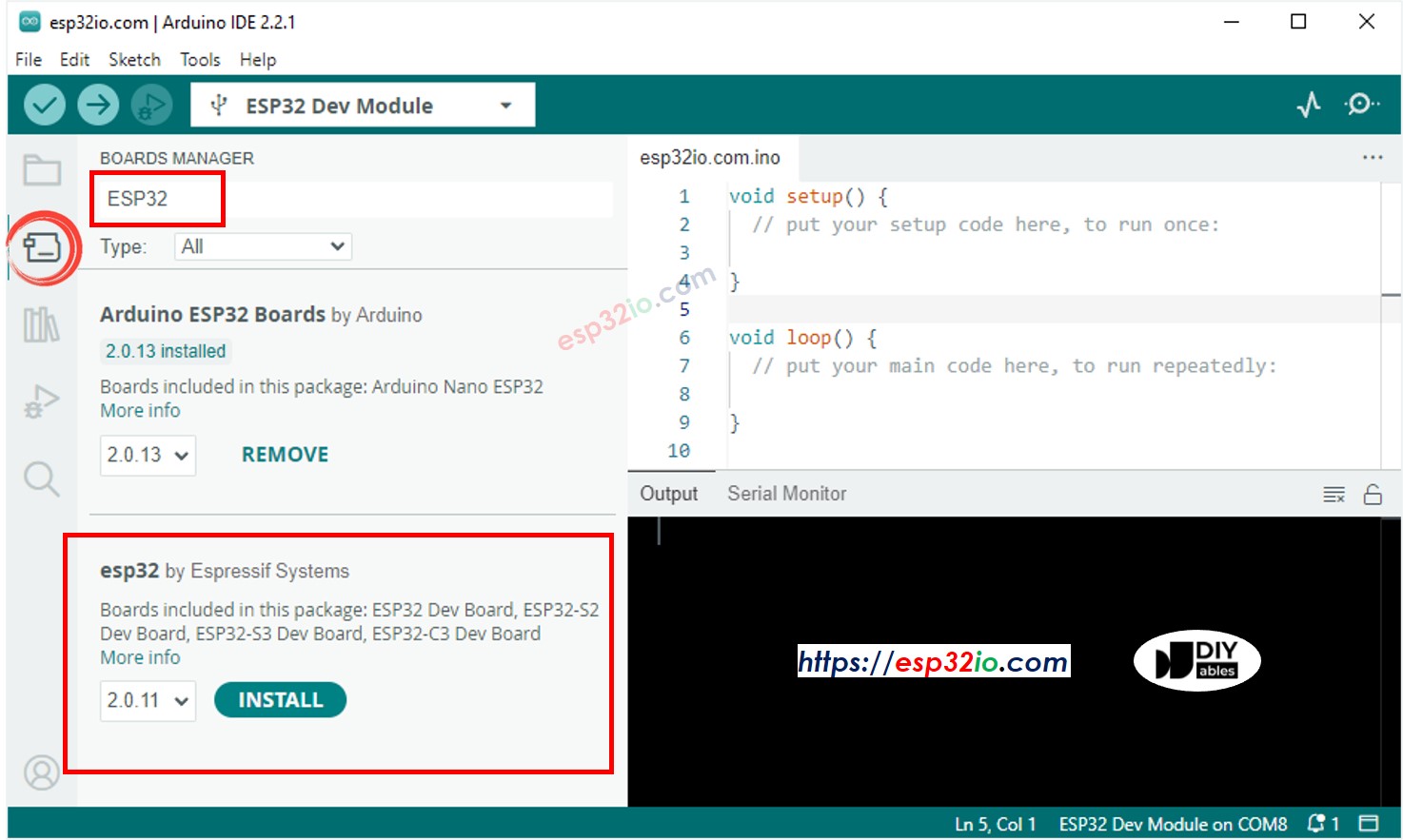
- Open the board list with the Boards Manager button (the second icon on the left).
- Search for “esp32”.
- Install the entry “esp32 by Espressif Systems”. It is a big download (several hundred MB), so give it a few minutes.
※ NOTE THAT:
No "esp32 by Espressif Systems" result? Add the Espressif index by hand: in File Preferences, paste this link into Additional boards manager URLs, press OK, then search again. Use a comma between links if the box is not empty.
Good to know: pick the core named "esp32 by Espressif Systems". A core called "Arduino ESP32 Boards" also exists, but it is made for Arduino-brand boards and does not list ESP32 Dev Module.
Install the CH340 USB Driver
By the end of this part, your computer sees the ESP32 Uno as a COM port.
The ESP32 Uno talks to your computer through a CH340 chip. Windows 10/11 and recent macOS and Linux often have the driver built in. If no new port shows up when you plug the board in, install the driver by hand.
Step 1 — Check first
- Plug the board in with a USB Type-C cable that carries data. Many cheap cables only charge.
- Open Device Manager on Windows (press Windows + X, then pick Device Manager).
- Look under Ports (COM & LPT). A line like "USB-SERIAL CH340 (COM5)" means the driver is already fine. Skip to the next section.
Step 2 — Install the driver if needed
- Download the CH340 driver from the chip maker WCH: Windows driver (CH341SER) or macOS driver.
- Run the installer and press INSTALL. On macOS, allow the driver in System Settings > Privacy & Security.
- Unplug the board and plug it back in. The CH340 port now shows up.
Linux: the CH340 driver is part of the kernel. The port appears as /dev/ttyUSB0. Give your user access to it, then log out and back in:
WARNING
On Ubuntu 22.04 and newer, the "brltty" package can grab the CH340 port and the board disappears a second after you plug it in. Remove it with sudo apt remove brltty if this happens.
Pick the Board and the Port
By the end of this part, the IDE sends code to the right board on the right port.
- Board: open Tools Board esp32 then select ESP32 Dev Module from the long list.
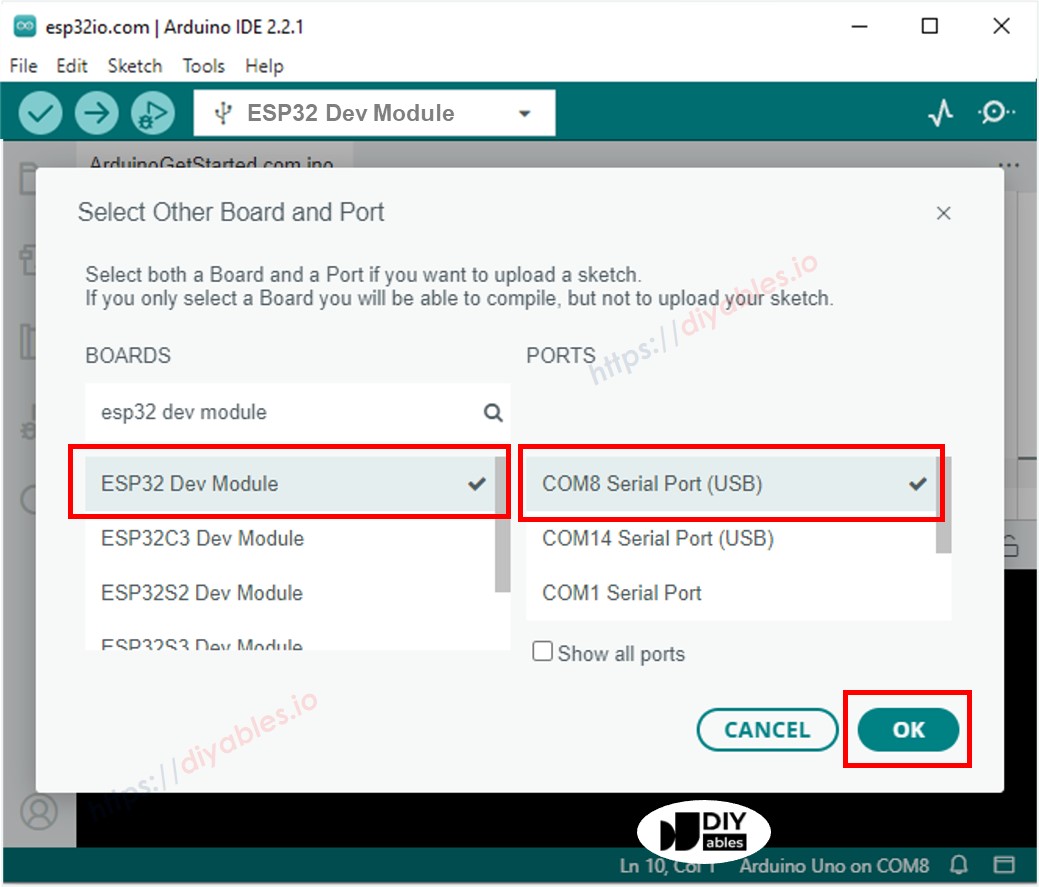
- Port: in Tools Port, tick the CH340 entry (COM5 on Windows, /dev/cu.wchusbserial... on macOS, /dev/ttyUSB0 on Linux).
- Leave the other Tools options as they are. The defaults (4MB flash, 240 MHz) match this board.
| Tools Menu Item | Value for ESP32 Uno |
|---|---|
| Board | ESP32 Dev Module |
| Port | The CH340 port |
| Upload Speed | 921600 (drop to 115200 if uploads fail) |
| Flash Size | 4MB (32Mb) |
| Partition Scheme | Default 4MB with spiffs |
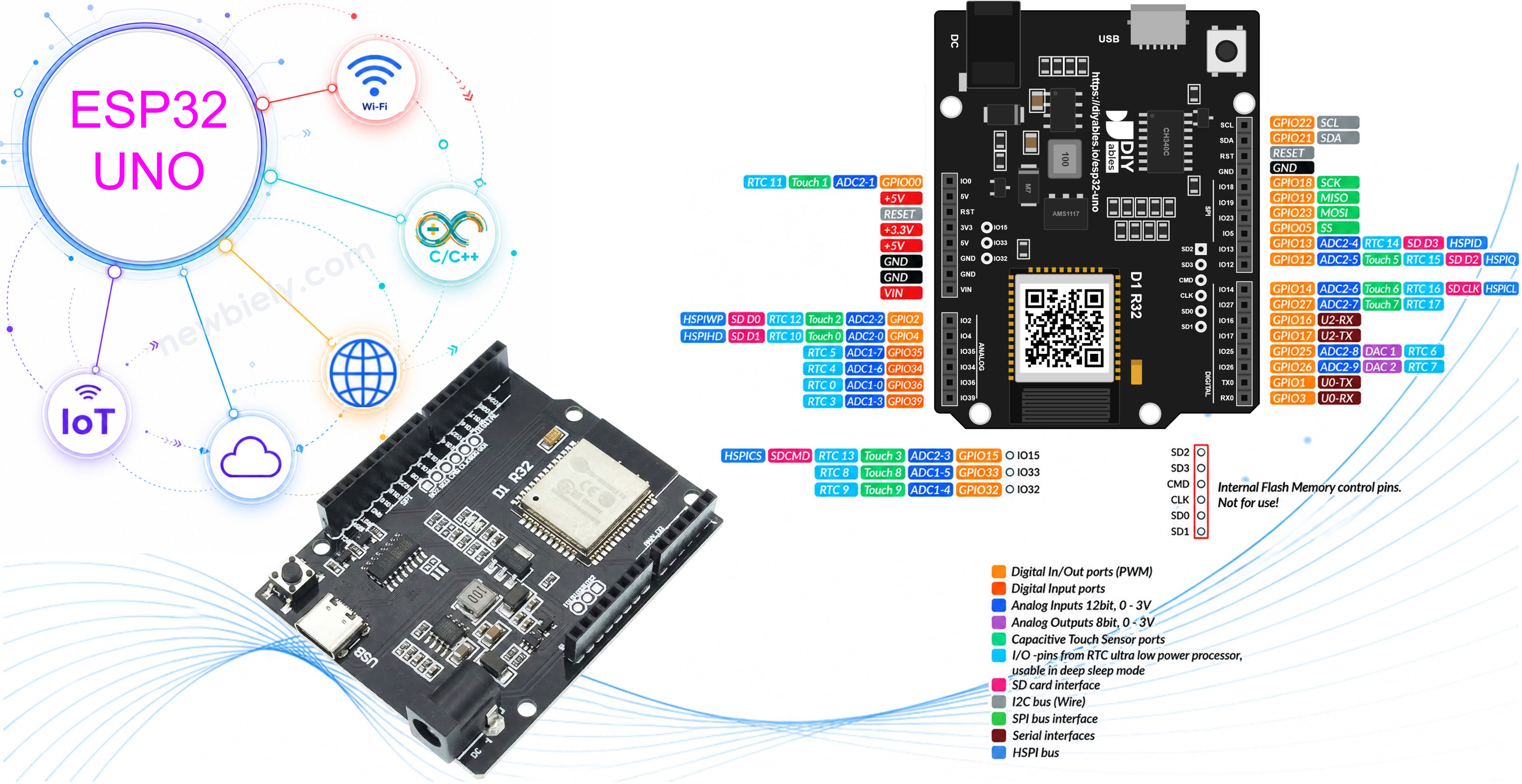
ESP32 Uno Pinout
Your sketch uses GPIO numbers, not the D or A labels printed on the board. The diagram below shows which GPIO sits behind each Uno header pin.

How to Connect the Test LED
By the end of this part, an LED on D13 is ready to show that uploads work.
| Component Pin | ESP32 Uno Pin |
|---|---|
| LED anode (+, long leg), through the 220 ohm resistor | D13 (GPIO18) |
| LED cathode (-, short leg) | GND |
Good to know: D13 maps to GPIO18. It has no boot role, so the LED can stay connected while you upload.
Upload Your First Sketch
This sketch flashes the LED on D13 (GPIO18) once per second and prints "Hello World!" to the Serial Monitor at the same time.
| Code Part | What It Does |
|---|---|
| #define LED_PIN 18 | Names GPIO18 (header D13) once |
| Serial.begin(9600) | Starts the USB serial link to the Serial Monitor |
| pinMode(LED_PIN, OUTPUT) | Turns GPIO18 into an output |
| Serial.println("Hello World!") | Sends one text line to the PC |
| digitalWrite + delay(500) | LED on for 0.5 s, then off for 0.5 s |
The result is one blink and one text line every second.
Upload and Test
- Build the circuit from the table above.
- Plug in the USB Type-C cable between the ESP32 Uno and your computer.
- Select the board in Arduino IDE: pick ESP32 Dev Module and the COM port of the board (CH340).
- Paste the code into a new sketch window.
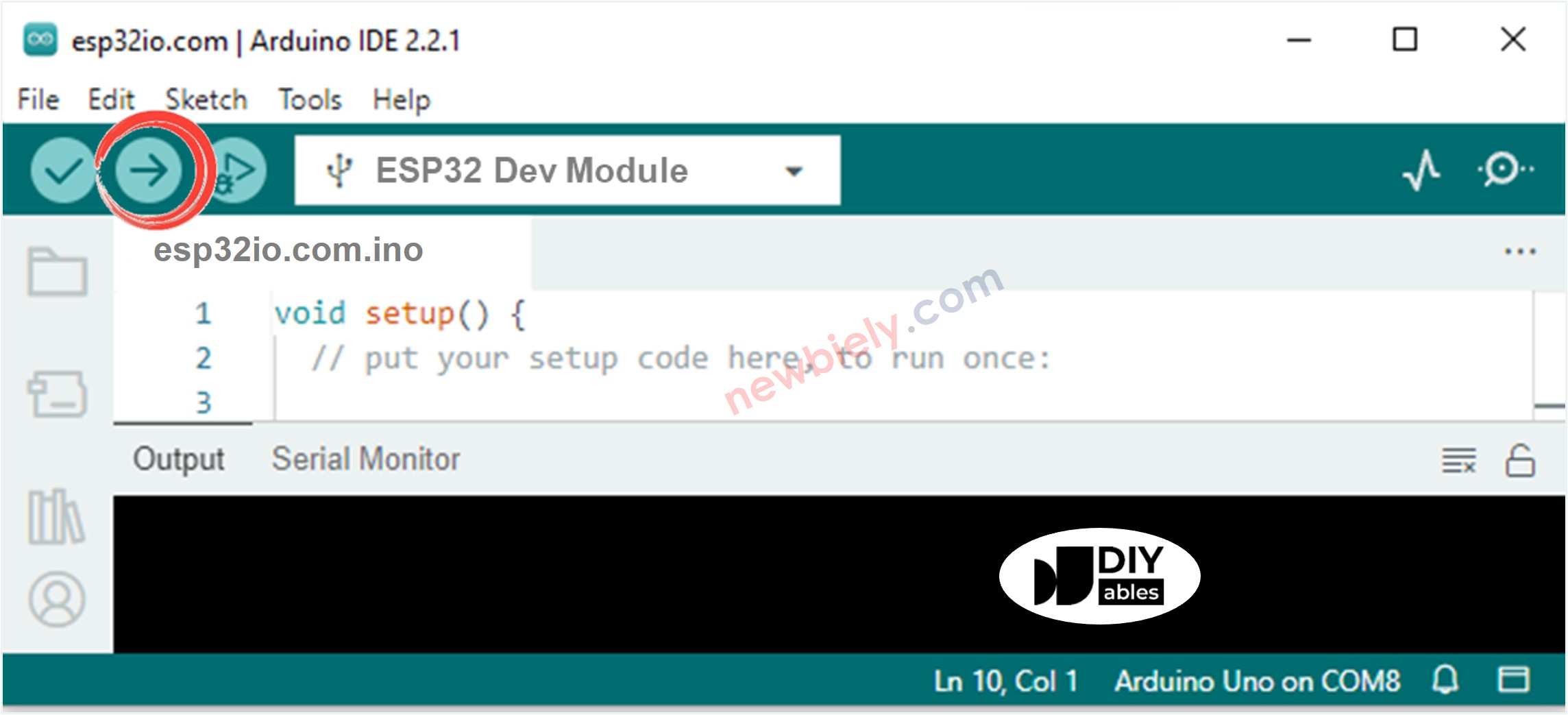
- Press Upload. The IDE builds the code, then shows "Connecting..." and a percentage while it writes the flash. Wait for "Hard resetting via RTS pin...".
- Check the LED. It turns on and off once per second.
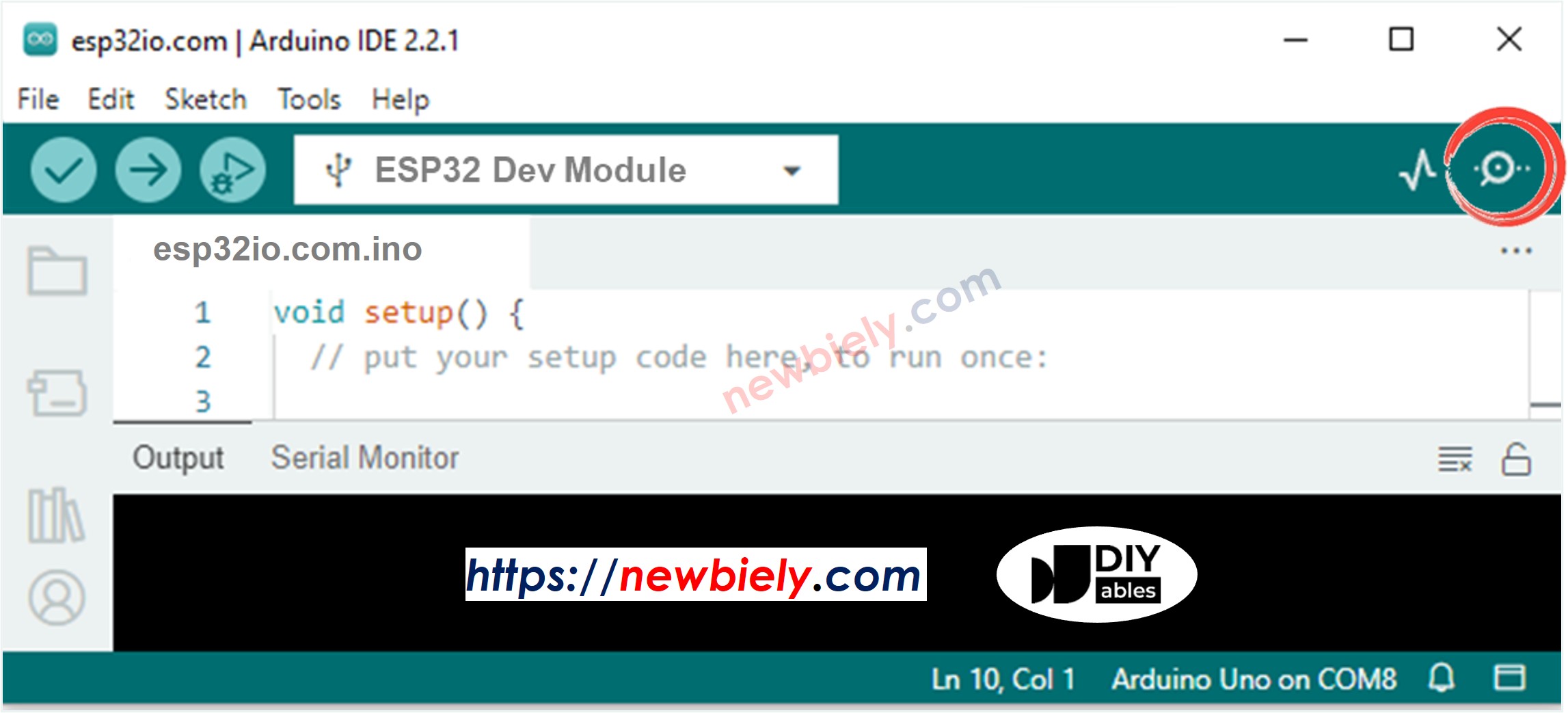
- Open the Serial Monitor with the icon at the top right of the IDE, and set it to 9600 baud.
- Pro tip: a few strange characters may show before the first "Hello World!". The chip prints its boot log at 115200 baud, and the Serial Monitor reads it at 9600. This is normal and not a fault.
If the Upload Stops at "Connecting..."
Most ESP32 Uno boards start upload mode on their own. If you see "Failed to connect" with "Wrong boot mode detected", or a long row of dots, do this:
- Start the upload one more time.
- When "Connecting..." appears, press and hold the BOOT button on the board.
- Release it as soon as the percentage starts to count up.
- Press RESET after "Done uploading" if the sketch does not start by itself.
Good to know: the BOOT button pulls GPIO0 LOW. At reset, a LOW GPIO0 tells the chip to wait for new code instead of running the old one.
Run a Simple Web Server over WiFi
By the end of this part, the ESP32 Uno serves a small web page that any phone or PC on your WiFi can open.
| Code Part | What It Does |
|---|---|
| #include | Loads the WiFi library that comes with the esp32 core |
| WiFi.begin(ssid, pass) | Joins your 2.4 GHz WiFi network |
| WiFiServer server(80) | Listens for browsers on the normal web port |
| server.available() | Returns a client when a browser sends a request |
| client.println(...) | Sends the HTTP header and the HTML page back |
The board prints its IP address once, then answers every browser that opens that address.
Upload and Test
- Paste the code into a new sketch.
- Type your WiFi name and password into ssid and pass. Use a 2.4 GHz network; the ESP32 Uno cannot join 5 GHz.
- Upload the sketch with the same board and port as before.
- Open the Serial Monitor at 9600 baud and note the IP address.
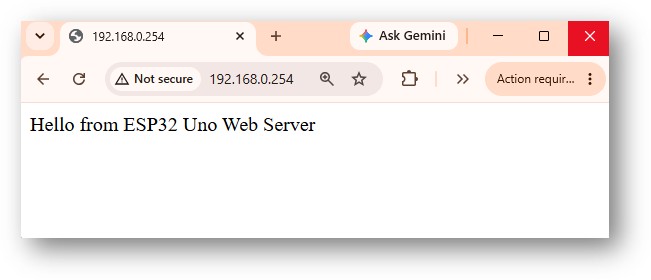
- Type that IP address into the address bar of a browser on the same network. The page shows "Hello from ESP32 Uno Web Server".
- Watch the Serial Monitor. Each visit prints the browser request:
- Pro tip: the router may give the board a new IP address after a restart. Reserve one fixed address for the board in your router's DHCP settings, and your bookmark keeps working.
Good to know: while WiFi is on, analogRead() does not work on A0 (GPIO2) and A1 (GPIO4). They use the ADC2 unit, which the WiFi radio takes over. Use A2 to A5 for analog sensors in WiFi projects.
Video Tutorial
See the ESP32 Uno build in action in the video below.
ESP32 Uno vs UNO R4 for This Project
Setting up the ESP32 Uno is close to the UNO R4 routine, but the core, the driver and a few board habits change.
| Item | Arduino UNO R4 | ESP32 Uno |
|---|---|---|
| Logic voltage | 5V | 3.3V |
| Board core | Arduino UNO R4 Boards | esp32 by Espressif Systems |
| Board name in Arduino IDE | Arduino UNO R4 WiFi or Minima | ESP32 Dev Module |
| USB driver | None needed (native USB) | CH340 driver |
| LED for the first test | Built-in LED on D13 | External LED on D13 (GPIO18) |
| WiFi library | WiFiS3.h | WiFi.h |
| Upload help | Double-tap RESET | Hold BOOT while "Connecting..." shows |
Shields and wiring keep the same Uno header holes. Check every module for 5V signals before you plug it in, because the ESP32 Uno pins only accept 3.3V.
Where to Go Next
By the end of this list, you know which tutorial to open after this setup.
- ESP32 Uno - Blink LED: the first LED project in more detail.
- ESP32 Uno - Button: read a push button as an input.
- ESP32 Uno - Potentiometer: read a knob with the 12-bit ADC.
- ESP32 Uno - Servo Motor: turn a servo with the ESP32Servo library.
- How to Power ESP32 Uno: run the board from VIN, 5V or a battery.
Go Wireless: Control the Test LED from Your Phone
By the end of this part, you know which pages turn the LED test into a phone-controlled light.
The ESP32 Uno has WiFi plus Bluetooth Classic and BLE on the board, so no extra module is needed. Keep the LED on D13 (GPIO18) and swap the blink sketch for a web app or a Bluetooth app. A button on your phone then switches the LED on and off.
- ESP32 Uno - Web Digital Pins: switch pins from a browser over WiFi
- ESP32 Uno - Bluetooth Digital Pins: do the same from the DIYables Bluetooth App
- ESP32 Uno - DIYables Web Apps: all ready-made web apps in one place
- ESP32 Uno - Bluetooth and BLE: the two Bluetooth types and when to use each
Troubleshooting
| Problem | Possible Cause | Solution |
|---|---|---|
| No new COM port when the board is plugged in | CH340 driver missing or a charge-only cable | Install the WCH CH340 driver and try a USB Type-C cable that carries data |
| Port appears and vanishes after one second on Linux | The brltty package takes the CH340 port | Run sudo apt remove brltty and plug the board in again |
| "Failed to connect" or endless dots while uploading | The chip did not enter upload mode | Hold BOOT when "Connecting..." shows and let go when the percentage starts |
| Upload breaks at a random percentage | Upload speed too high for the cable or USB port | Set Tools > Upload Speed to 115200 and use a port on the back of the PC |
| ESP32 Dev Module is missing from the board list | The esp32 core is not installed | Install "esp32 by Espressif Systems" in Boards Manager |
| Board resets in a loop or will not boot after wiring a module | A module holds D8 (GPIO12), D10 (GPIO5), A0 (GPIO2) or GPIO0 the wrong way at power-on | Unplug the module, upload, then reconnect it, or move it to another pin |
| Serial Monitor shows only garbage | Monitor baud rate does not match Serial.begin() | Set the Serial Monitor to 9600 for the sketches on this page |
| LED stays dark but the upload worked | LED is reversed or wired to the wrong pin | Put the long leg toward D13 through the resistor and the short leg to GND |
| Web server never prints an IP address | Wrong WiFi name, wrong password or a 5 GHz network | Check ssid and pass and use a 2.4 GHz network |
FAQ
Which board do I pick in the Arduino IDE for the ESP32 Uno?
Use ESP32 Dev Module. The entry appears after you install the "esp32 by Espressif Systems" core. The default settings of that entry fit the 4 MB flash on the ESP32 Uno.
Why does the ESP32 Uno need a CH340 driver?
The chip on the ESP32 Uno has no USB port of its own. A CH340 chip turns the USB signal into serial data for it. Your computer needs the CH340 driver to show this chip as a COM port. Many recent systems already include it.
Where is the built-in LED on the ESP32 Uno?
There is no LED you can control from code on the Uno headers. The light on the board is the power LED. For a quick test, put an external LED with a 220 ohm resistor on D13 and use GPIO18 in your code.
Do I have to press BOOT every time I upload?
No. The CH340 chip normally puts the board into upload mode by itself. You only need BOOT when the upload hangs at "Connecting...". Some PCs and cables need it more often than others.
Can I connect 5V sensors to the ESP32 Uno?
You can power a 5V module from the 5V pin. But its signal wire must not send 5V into an ESP32 Uno pin, because the pins work at 3.3V and are not 5V tolerant. Use a level shifter or a voltage divider on that signal line.
Why do I need GPIO numbers instead of D13 or A0 in my code?
The ESP32 Uno core does not know the Uno labels. It only knows GPIO numbers. D13 is GPIO18, D7 is GPIO14 and A0 is GPIO2. Check the pinout diagram whenever you move a wire.
Is my old UNO R4 code going to work on the ESP32 Uno?
Simple sketches often work after you change the pin numbers to GPIO numbers. Some things need edits: WiFiS3.h becomes WiFi.h, Servo.h becomes ESP32Servo.h, SoftwareSerial becomes Serial2, and analogRead() returns 0 to 4095 instead of 0 to 1023.
Do Uno shields fit the ESP32 Uno?
Most shields fit the headers. A shield works if it runs at 3.3V logic and does not need I2C on A4/A5, because I2C on this board uses the separate SDA (GPIO21) and SCL (GPIO22) pins. Shields that send 5V signals need extra care.
Can the ESP32 Uno use WiFi and analog inputs at the same time?
Yes, on the right pins. A2 to A5 (GPIO35, 34, 36, 39) use ADC1 and keep working with WiFi on. A0 and A1 use ADC2, and analogRead() on them fails while WiFi runs.
What if my build needs more pins than the Uno headers give?
The ESP32 Uno has a few extra holes near the power header. GPIO32 and GPIO33 do I/O, PWM and analog on ADC1, so they also read sensors while WiFi is on. GPIO15 does I/O, PWM and analog on ADC2. Solder pin headers to them and write the GPIO number in code. Try GPIO32 and GPIO33 first. Take care with GPIO15 and GPIO0 (the IO0 pin at the unused Uno NC position): the chip reads them at startup, so a part that pulls them the wrong way may block booting or code uploads. Never use the six holes under the digital header (SD0 to SD3, CMD, CLK = GPIO6 to GPIO11), because they are wired to the flash chip and using them crashes the board.
Can I program the ESP32 Uno without a USB cable later?
Yes. After the first USB upload, you can add over-the-air (OTA) updates with the ArduinoOTA library from the esp32 core. The board then shows up as a network port in the IDE, and new code goes over WiFi.