
ESP32 UNO - Motion Sensor
Need to know when someone walks into a room? An ESP32 Uno motion sensor build does exactly that with a cheap HC-SR501 PIR module and one digital pin. The passive infrared sensor reacts to warm, moving bodies, and your sketch on the ESP32 Uno form board prints one line when movement begins and one line when it ends.
By the end, you can:
- Explain what makes a PIR sensor switch its output HIGH
- Connect the HC-SR501 to the 5V, GND and D2 header pins
- Catch motion start and motion end with digitalRead() in Arduino IDE
- Set the detection range, hold time and trigger mode with the onboard parts
Components You Need
| 1 | × | ESP32 Uno-form Board | |
| 1 | × | USB Cable Type-A to Type-C (for USB-A PC) | |
| 1 | × | USB Cable Type-C to Type-C (for USB-C PC) | |
| 1 | × | HC-SR501 Motion Sensor | |
| 1 | × | Alternatively, AM312 Mini Motion Sensor | |
| 1 | × | Jumper Wires |
Or you can buy the following kits:
| 1 | × | DIYables Sensor Kit (18 sensors/displays) |
Additionally, some of these links are for products from our own brand, DIYables .
Meet the HC-SR501 PIR Module
After this part, you know what the module is for and where it shows up in daily life.
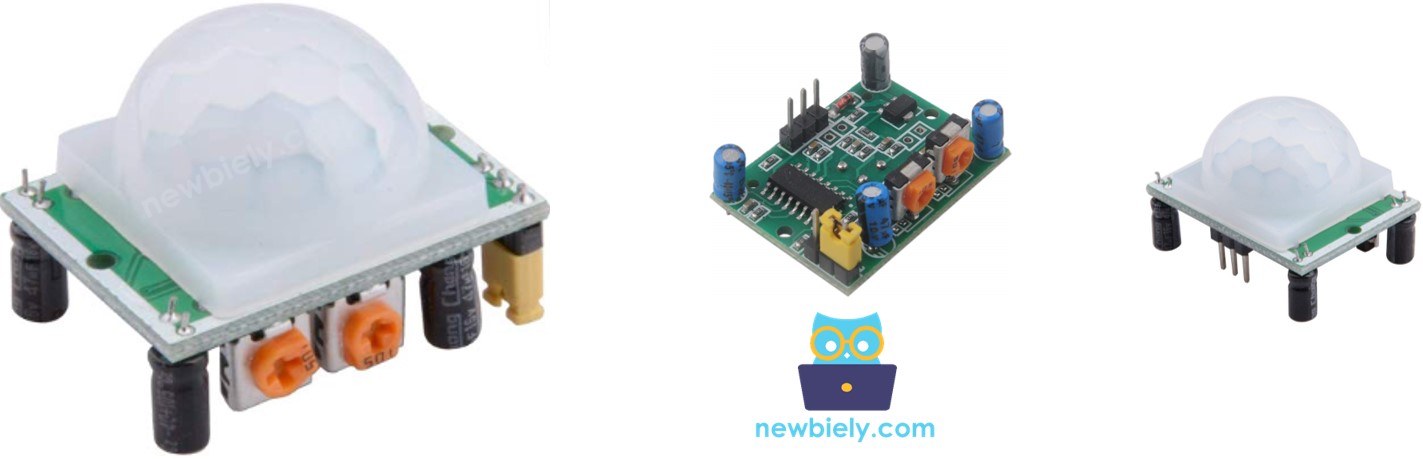
| Property | Value |
|---|---|
| Sensor type | Passive infrared (PIR) |
| Reacts to | People and animals in motion |
| Supply voltage | 4.5V to 20V (5V is typical) |
| Output signal | Digital, about 3.3V when HIGH |
| Detection distance | About 3 m to 7 m (adjustable) |
| Hold time | About 3 s to 5 min (adjustable) |
Typical uses are hallway lights that switch on by themselves, shop doors that slide open, escalators that wake up as you step near, and burglar alarms. Build one small version here, and you can reuse the same idea in all of those projects.
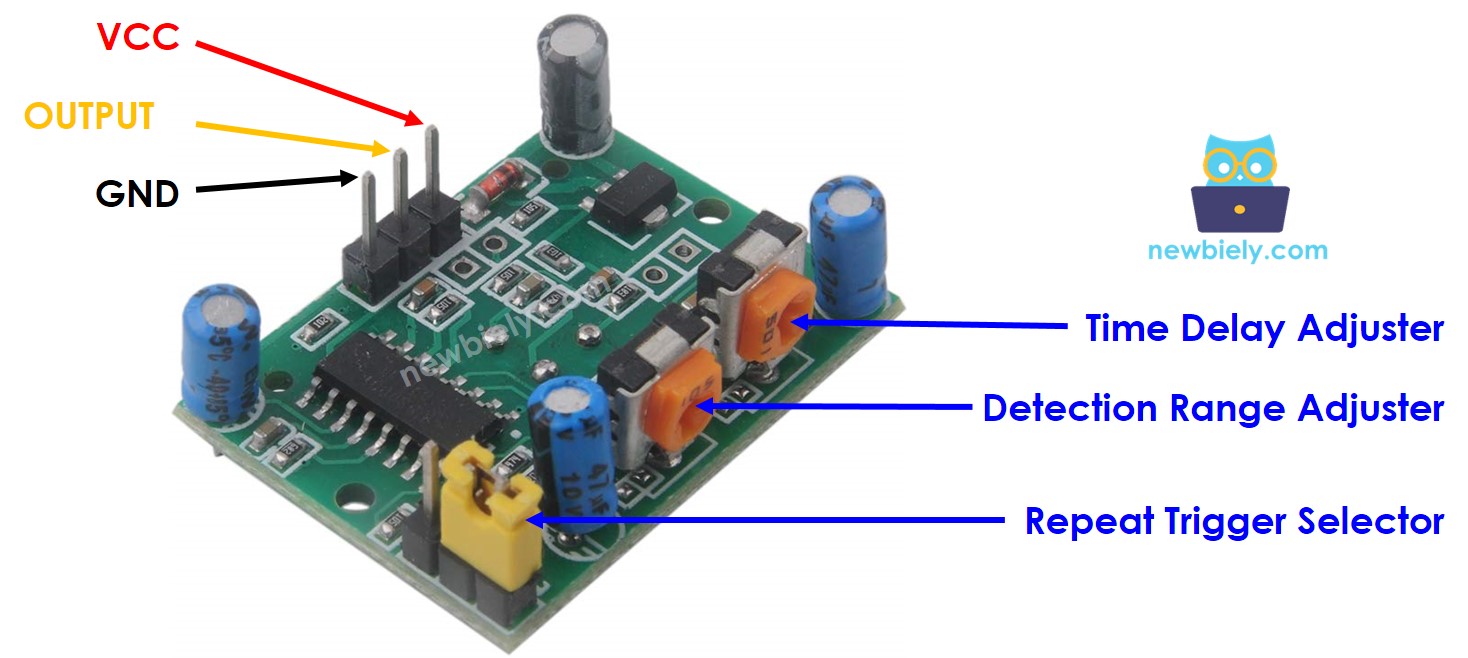
Pinout
The goal here: know what each of the three pins does before you touch a wire.
| Pin | Role | Connect To |
|---|---|---|
| GND | Ground (0V) | GND on the ESP32 Uno |
| VCC | Power input | 5V on the ESP32 Uno |
| OUTPUT | LOW = no motion, HIGH = motion | A digital input pin on the ESP32 Uno |
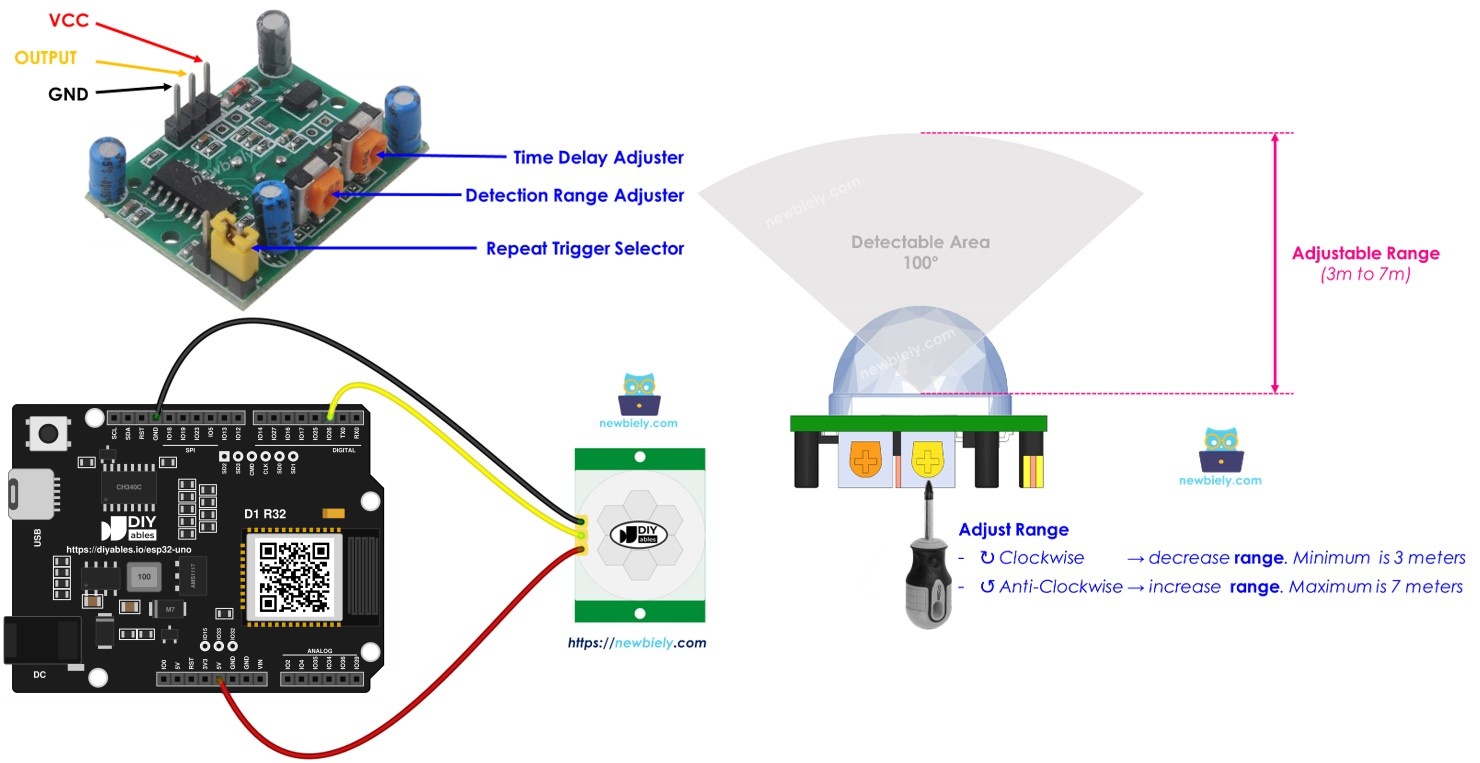
The module also carries one jumper and two small trimmer knobs. They change its behavior. Keep the factory setting for your first test. The Advanced Uses part covers each of them.
How It Works
In short: the module watches for a change in heat, not for an object.
The lens splits the room into small zones. When a warm body crosses from one zone to the next, the infrared level the sensor sees changes, and the module flips its output. Two things must be true at once for a trigger:
- The object moves.
- The object gives off infrared energy (body heat).
So a cold toy car rolling past does not trigger it. A person who stands frozen in place does not trigger it either. People and pets always radiate heat, which is why the module reacts as soon as they move.
| Situation | OUTPUT Pin |
|---|---|
| Nobody moves in range | Stays LOW |
| A person or pet starts moving in range | Goes from LOW to HIGH (motion detected) |
| The person or pet leaves the range | Goes from HIGH to LOW (motion ended) |
The clip gives the basic picture. On a real module, the exact timing also depends on the knob and jumper settings from the Advanced Uses part.
Reading the Sensor with the ESP32 Uno
What you get here: the plan for the code in two sentences.
Set one ESP32 Uno pin as a digital input, and it reports LOW or HIGH. Wire that pin to the OUTPUT pin of the HC-SR501, read it again and again, and treat each change of state as a motion event.
Good to know: ESP32 Uno pins run at 3.3V logic. The HC-SR501 output is about 3.3V even with a 5V supply, so it is safe to connect directly.
ESP32 Uno Pinout
Every header label on the ESP32 Uno form board, such as D2, belongs to one GPIO number, and the sketch needs that number. Find D2, 5V and GND on the picture first.

How to Connect
When this part is done, the HC-SR501 has power and its signal goes to D2 (GPIO26).
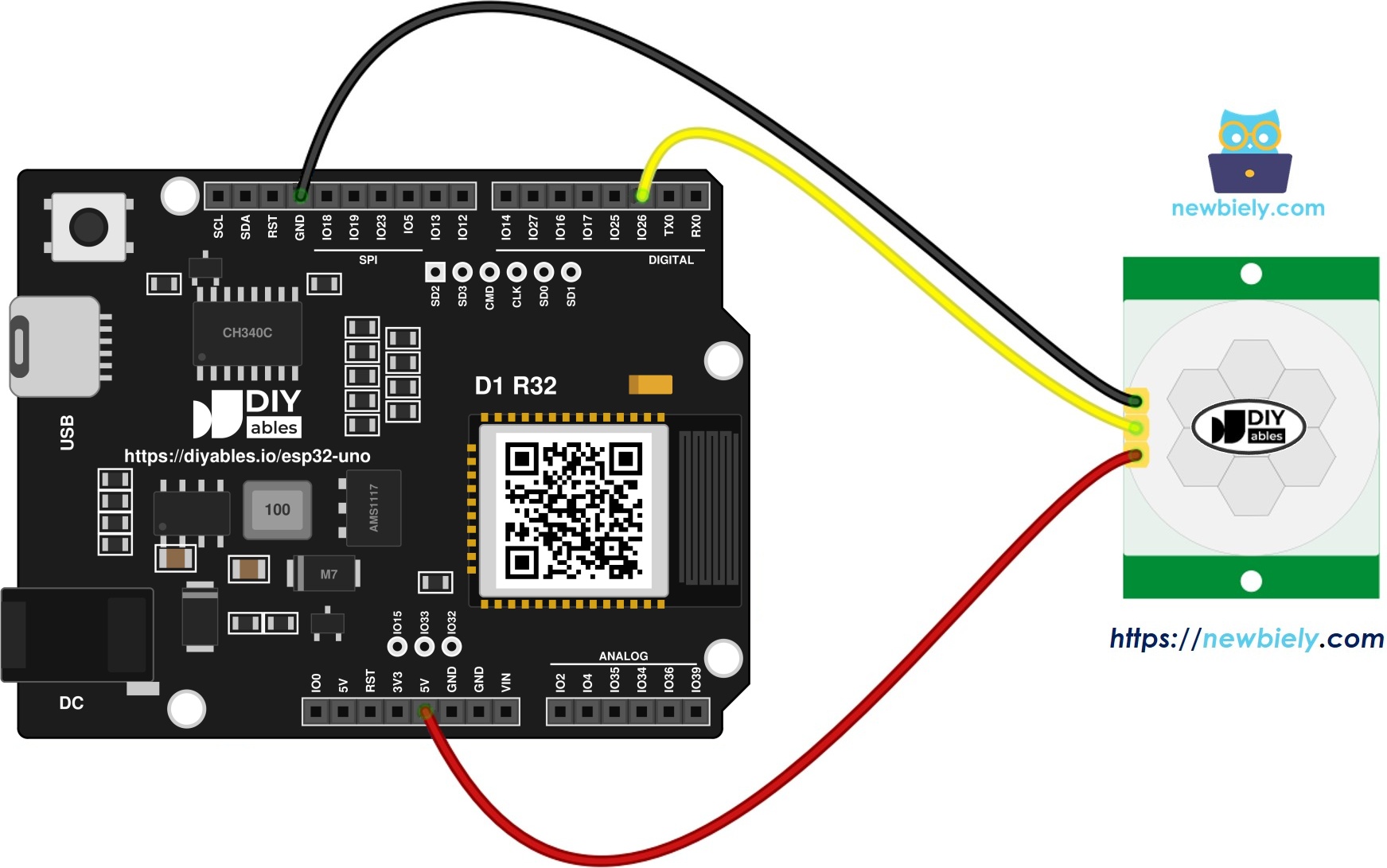
This image is created using Fritzing. Click to enlarge image
| HC-SR501 Pin | ESP32 Uno Pin |
|---|---|
| VCC | 5V |
| GND | GND |
| OUTPUT | D2 (GPIO26) |
Good to know: D2 is GPIO26, a normal I/O pin with no boot role, so it is a safe pick for a sensor input.
WARNING
ESP32 Uno pins are NOT 5V tolerant. The HC-SR501 is fine because its output tops out near 3.3V. If you swap in a different PIR board, measure its output with a multimeter first. If it gives 5V, add a voltage divider (for example 10kΩ and 20kΩ) between the sensor and D2.
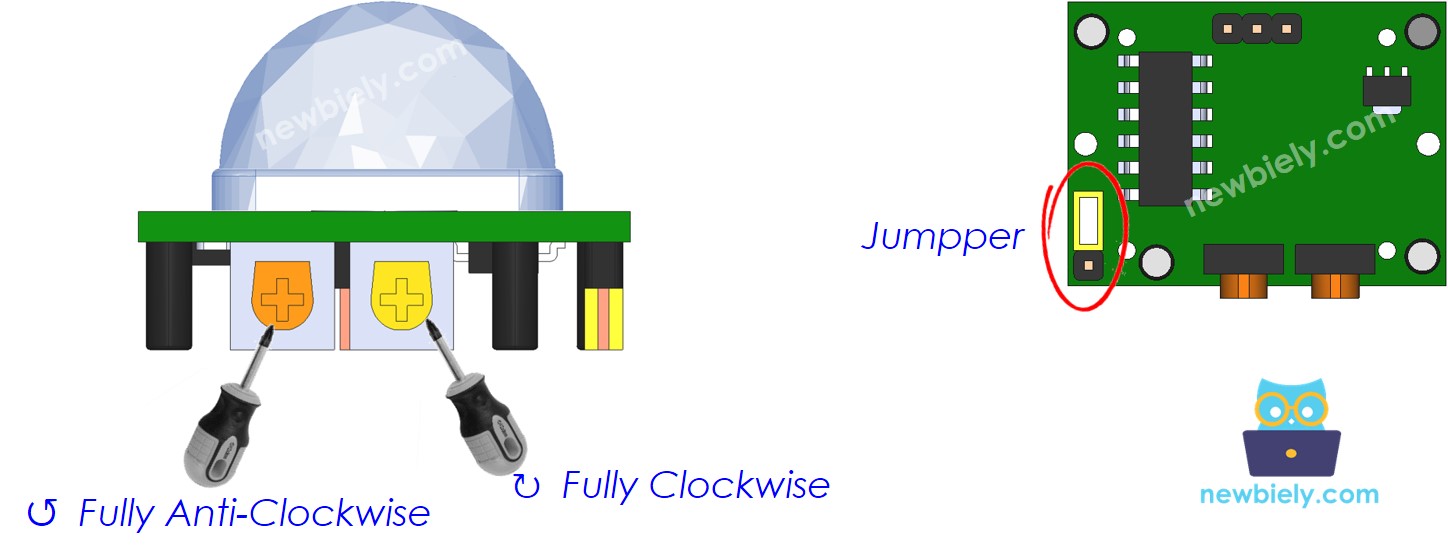
Starting Position of the Knobs
Set these three parts first, so your first test gives the same result as this page.
| Time Delay Adjuster | Rotate it all the way anti-clockwise. |
| Detection Range Adjuster | Rotate it all the way clockwise. |
| Repeat Trigger Selector | Set the jumper as in the picture. |
Programming the Motion Sensor
The goal here: four small code pieces that turn the raw pin level into "start" and "stop" events.
Step 1 — Make the pin an input
Use pinMode() on the sensor pin.
Step 2 — Read the OUTPUT pin
Use digitalRead() to get LOW or HIGH.
Step 3 — Catch the start of motion
A change from LOW to HIGH means someone started moving.
Step 4 — Catch the end of motion
A change from HIGH to LOW means the area is quiet again.
ESP32 Uno Code
This sketch watches D2 (GPIO26) and prints a single line each time motion starts or stops.
Upload and Test
Follow these steps, and the Serial Monitor shows motion events within a minute.
- First time with this board? Set it up with ESP32 Uno - Getting Started before you continue.
- Build the circuit by following the wiring table above.
- Plug in the USB Type-C cable between the ESP32 Uno and your computer.
- Select the board in Arduino IDE: pick ESP32 Dev Module and the COM port of the board (CH340).
- Paste the sketch into a new Arduino IDE window.
- Click Upload (Upload) and wait for "Done uploading".
- Open the Serial Monitor and choose 9600 baud.
- Walk past the sensor or wave your arm about one meter in front of the dome.
- Watch the messages appear.
- Pro tip: Put a small paper tube around the white dome to narrow its view. Then it only reacts to movement straight ahead, which helps a lot near a busy door.
Video Tutorial
See the ESP32 Uno build in action in the video below.
Near the end, the video turns the sensor into an automatic door with a servo motor and a buzzer. The ESP32 Uno sketch for that door is below.
| Part | ESP32 Uno Pin |
|---|---|
| HC-SR501 OUTPUT | D2 (GPIO26) |
| Servo signal | D5 (GPIO16) |
| Buzzer | D6 (GPIO27) |
Good to know: the door sketch needs the "ESP32Servo" library by Kevin Harrington. Install it from the Library Manager, because the standard Servo library does not run on the ESP32 Uno.
Code Explanation
This table sums up the main sketch in a few rows.
| Code Part | What It Does |
|---|---|
| #define SENSOR_PIN 26 | Names GPIO26, which sits at header D2 |
| pinMode(SENSOR_PIN, INPUT) | Makes D2 a digital input |
| digitalRead(SENSOR_PIN) | Returns LOW or HIGH from the sensor |
| prev_motion_state | Holds the reading from the previous loop |
| LOW then HIGH check | Prints "Motion detected!" once |
| HIGH then LOW check | Prints "Motion stopped!" once |
Because the sketch compares two readings, it reacts only to changes, so you get one message per event instead of a flood of lines.
ESP32 Uno vs UNO R4 for This Project
This shows what changes when you move this PIR project from the UNO R4 to the ESP32 Uno.
| Item | Arduino UNO R4 | ESP32 Uno |
|---|---|---|
| Logic voltage | 5V | 3.3V |
| Sensor pin in code | 2 | 26 (header D2) |
| Door servo pin | 5 | 16 (header D5) |
| Door buzzer pin | 6 | 27 (header D6) |
| Servo library | Servo.h | ESP32Servo.h |
| Arduino IDE board | Arduino UNO R4 WiFi | ESP32 Dev Module |
| WiFi and Bluetooth | WiFi only (on the WiFi model) | WiFi plus Bluetooth Classic and BLE |
The wiring stays exactly the same, since the header positions match. Only the pin numbers in code change, and the HC-SR501 output is already 3.3V, so no level shifter is needed.
Advanced Uses
After this part, you can make the module see farther or nearer, hold its output longer or shorter, and pick how it handles repeated movement.
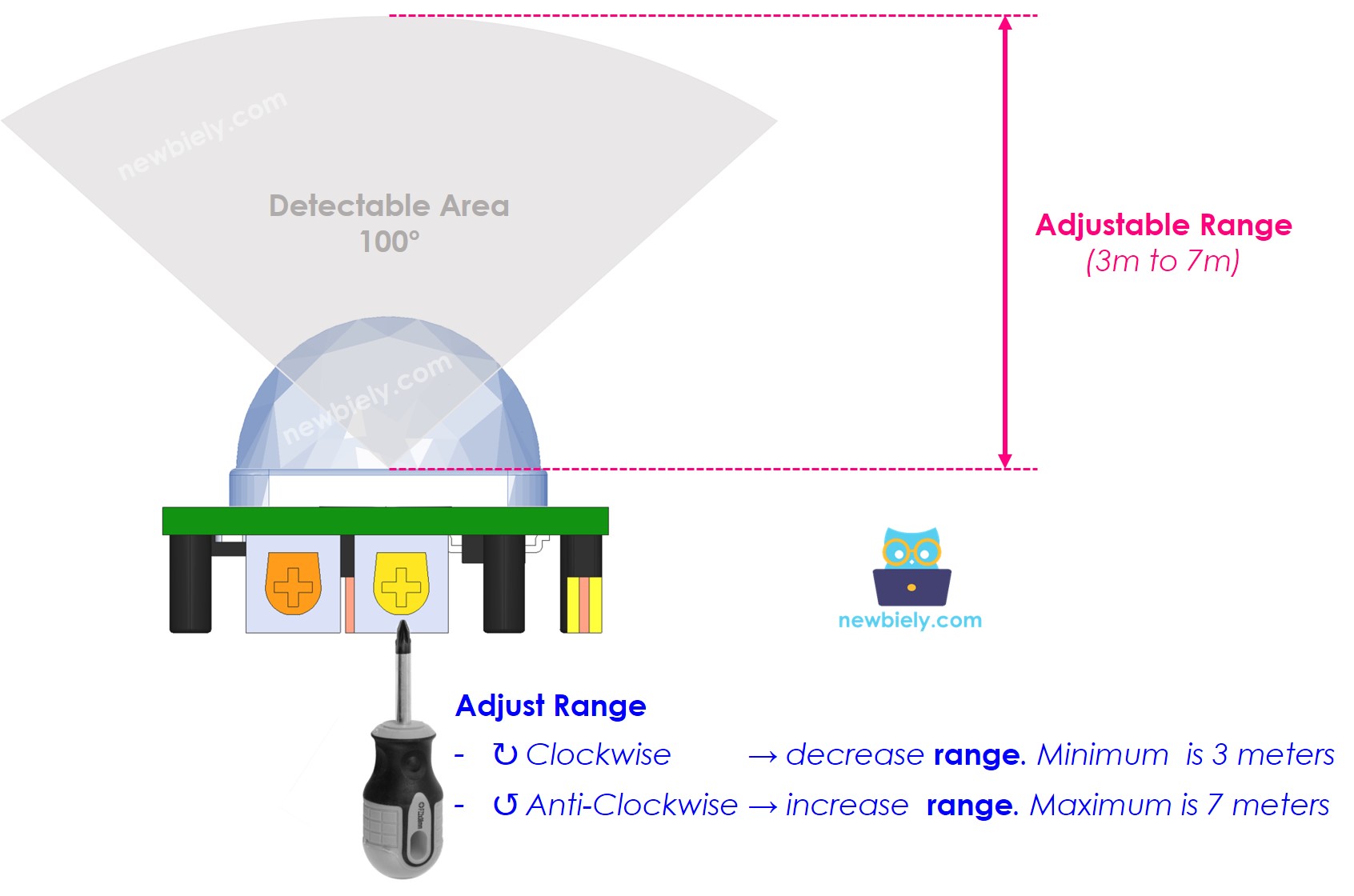
Detection Range Adjuster
This knob sets the reach of the sensor.
| Knob Position | Detection Distance |
|---|---|
| Fully clockwise | About 3 m |
| Fully anti-clockwise | About 7 m |
| Anywhere between | Between 3 m and 7 m |
Time Delay Adjuster
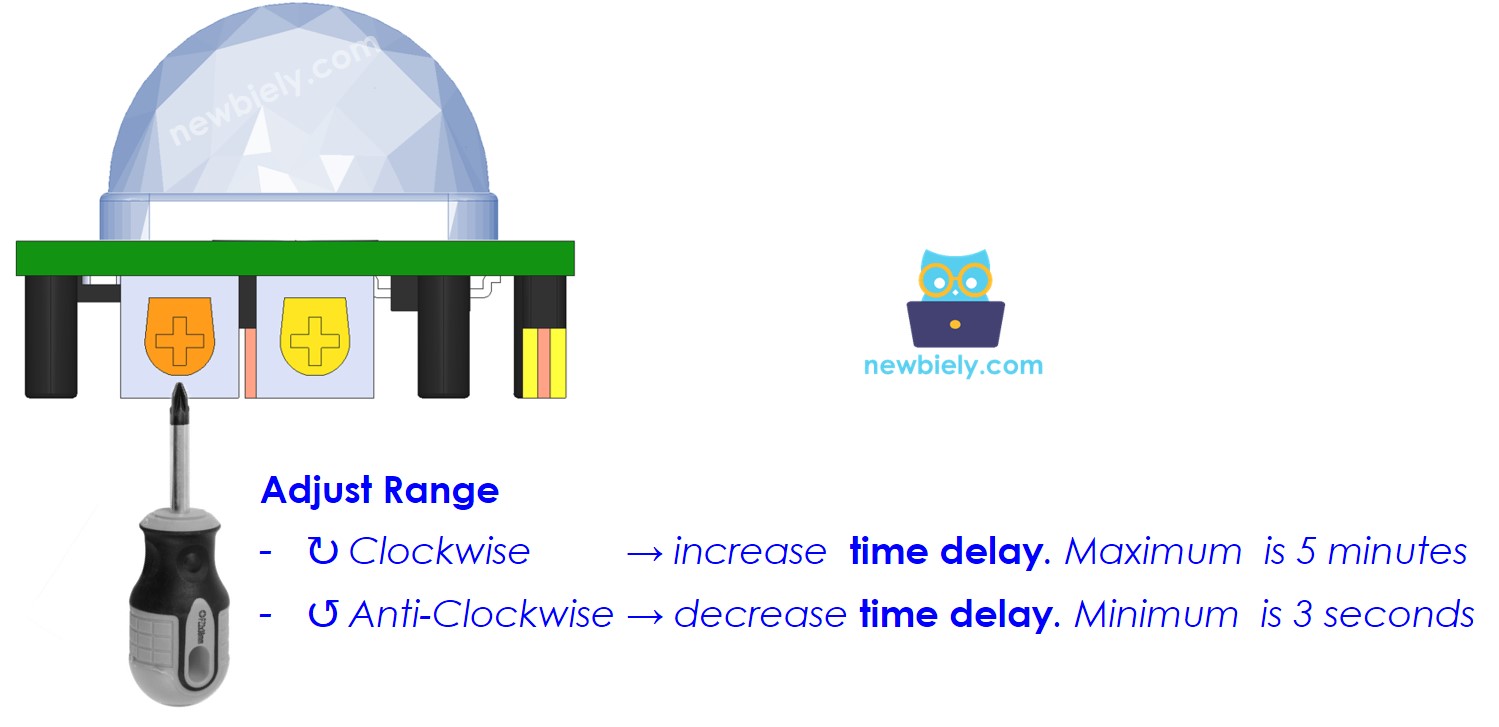
This knob sets how long OUTPUT stays HIGH after a trigger.
| Knob Position | Hold Time |
|---|---|
| Fully clockwise | About 5 minutes |
| Fully anti-clockwise | About 3 seconds |
The next part explains how this hold time works together with the trigger jumper.
Repeat Trigger Selector
The jumper chooses between single trigger and repeatable trigger.
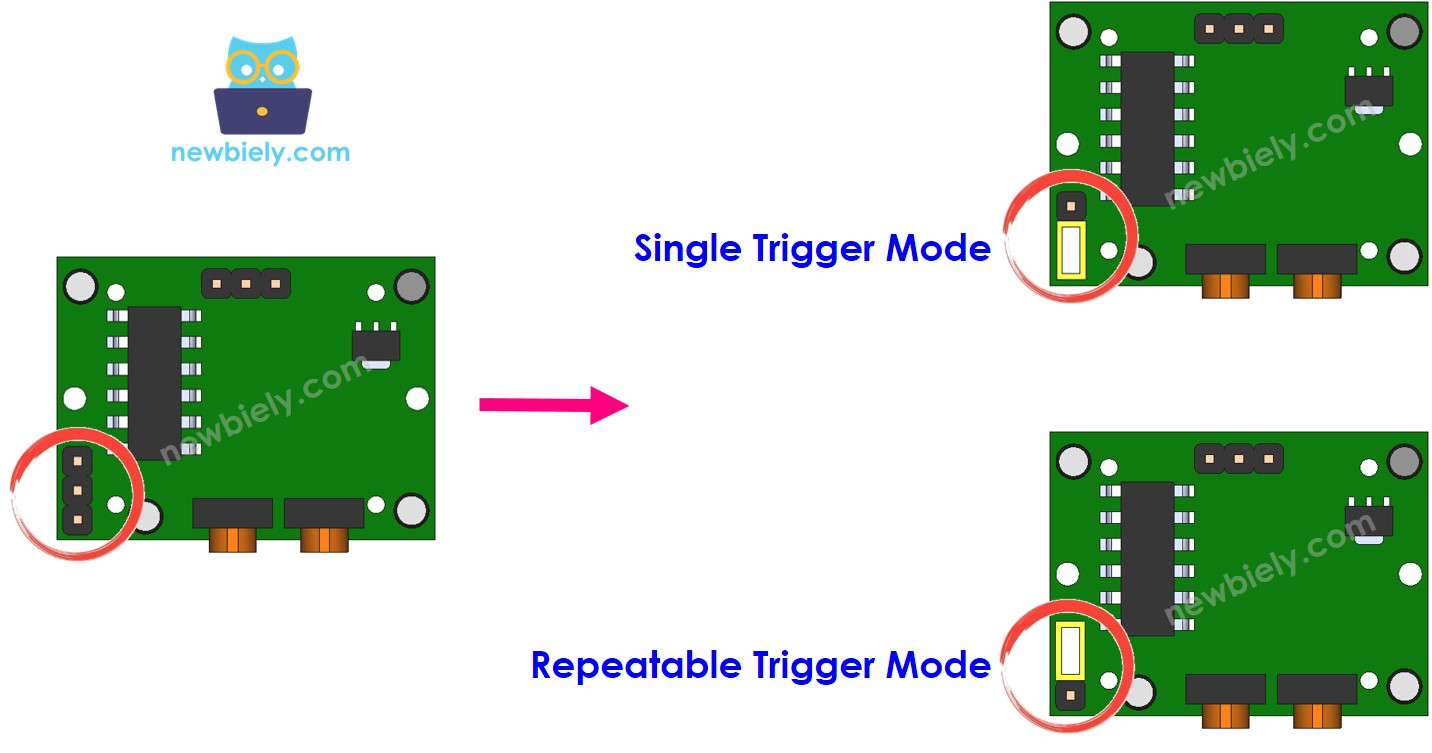
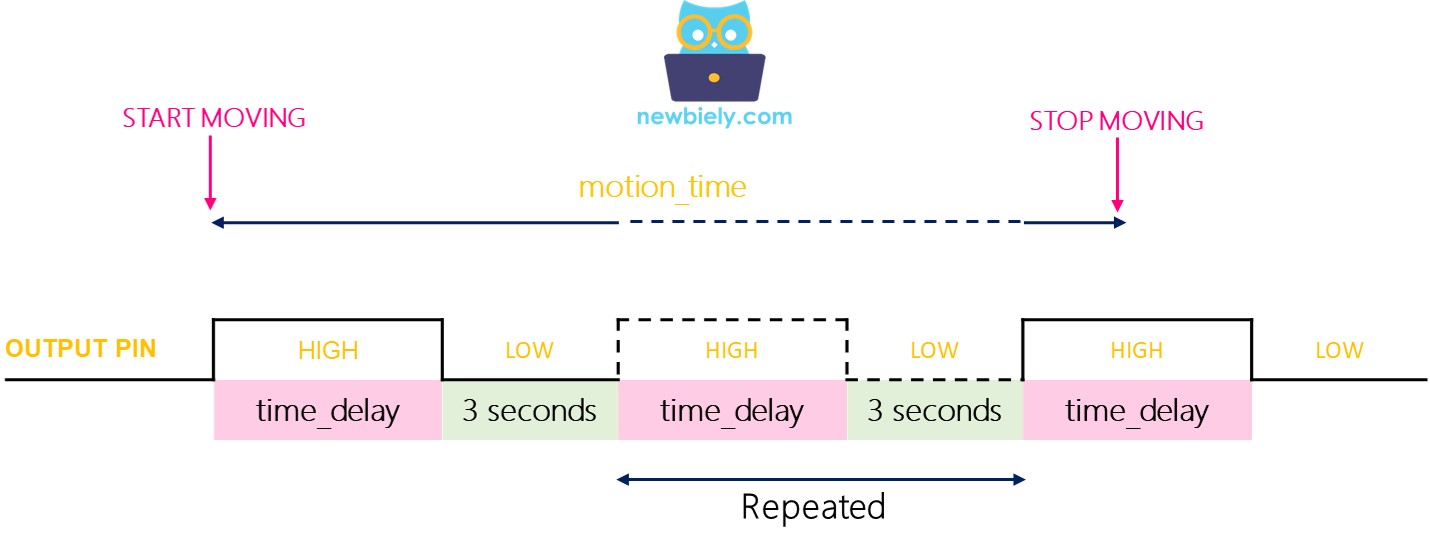
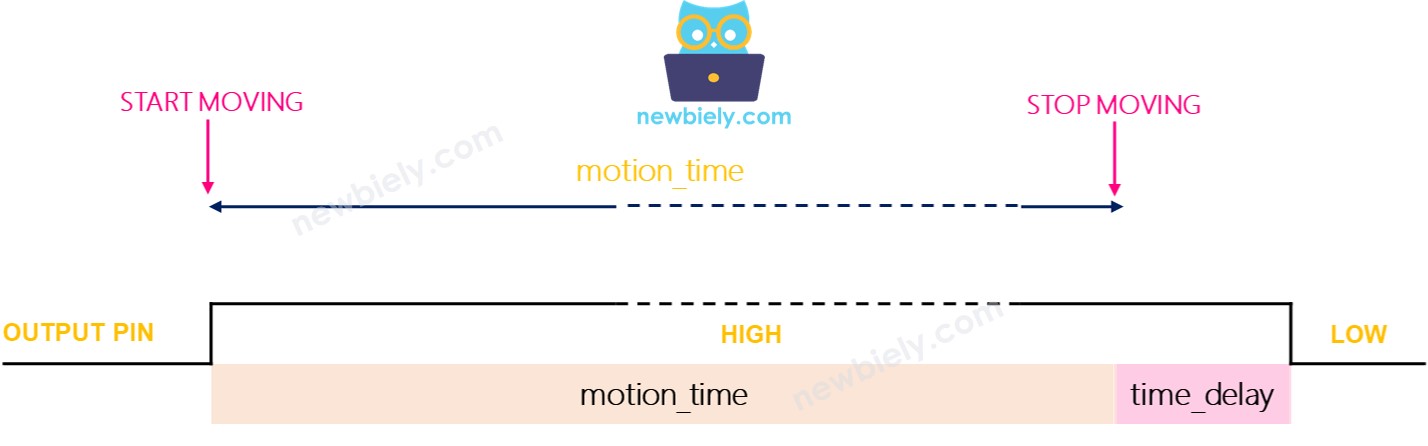
Call the hold time you set with the delay knob time_delay. Now picture someone moving in the sensor's view for a long stretch, named motion_time, far longer than time_delay.
| Mode | OUTPUT Behavior During Long Movement |
|---|---|
| Single trigger | HIGH for "time_delay", then LOW for a fixed 3 s, then HIGH again, over and over |
| Repeatable trigger | HIGH for the full motion_time plus time_delay, without a break |
Testing
Use the same sketch to see both modes. Rotate the Time Delay Adjuster fully anti-clockwise first, so the hold time is about 3 seconds.
Step 1 — Single trigger mode
- Put the jumper on the single trigger side.
- Keep your hand moving in front of the dome for 10 seconds.
- Take your hand out of view.
- Wait 3 seconds, then read the Serial Monitor.
Step 2 — Repeatable trigger mode
- Put the jumper on the repeatable trigger side.
- Keep your hand moving in front of the dome for about 10 seconds.
- Take your hand out of view.
- Wait 3 seconds, then read the Serial Monitor.
Single trigger mode reports the same long movement two or three times. Repeatable trigger mode reports it once.
※ NOTE THAT:
During each fixed 3-second LOW gap, the module cannot sense anything. For most builds this short blind spot does not matter.
Pick repeatable trigger mode for nearly every project.
It copies how real automatic devices act:
- They switch on as soon as someone comes near.
- They switch off some time after the person walks away, not right away.
Go Wireless: Motion Alert on Your Phone
With this idea, your phone tells you when the sensor sees someone.
The ESP32 Uno has WiFi and Bluetooth built in, so the motion events do not have to stay on the Serial Monitor. Send "Motion detected!" to a web page or a phone app instead, and check a garage or a back door from anywhere in the house. You can also show the live state of D2 as an ON/OFF light on your phone.
Function References
Troubleshooting
| Problem | Possible Cause | Solution |
|---|---|---|
| Arduino IDE lists no COM port | CH340 driver not installed or charge-only cable | Install the CH340 driver and try a USB cable that carries data |
| Upload stops at "Failed to connect" or "Waiting for download" | Board did not enter download mode | Hold the BOOT button while the upload starts, then let go |
| Serial Monitor shows strange symbols | Baud rate does not match the sketch | Choose 9600 baud in the Serial Monitor |
| No message ever appears | Sensor has no power or OUT is on the wrong pin | Check VCC on 5V, GND on GND, and OUTPUT on D2 with 26 in the code |
| Messages appear for about a minute after power-up | PIR element is still warming up | Wait 30 to 60 seconds after power-on before you test |
| Triggers happen with nobody around | Warm air, a fan or sunlight in view | Turn the sensor away from heaters, vents and windows |
| OUTPUT stays HIGH far too long | Hold time knob turned clockwise | Rotate the Time Delay Adjuster anti-clockwise |
| Servo jitters or board resets in the door sketch | Servo draws too much current from USB | Power the servo from a separate 5V supply and join the grounds |
FAQ
How far away can the HC-SR501 sense a person?
It reaches about 3 to 7 meters, set by the Detection Range Adjuster. The viewing angle is roughly 110 degrees. Real range is shorter in a warm room, because a body stands out less against warm walls.
Does the PIR sensor send out any signal or light?
No. "Passive" means it only receives infrared heat from the room. It sends nothing out, so it uses very little power and does not bother other sensors.
Should the HC-SR501 get 3.3V or 5V from the ESP32 Uno?
Use the 5V pin. The module is rated for 4.5V to 20V, and its onboard regulator may not run well from 3.3V. Its output still stays near 3.3V, so the ESP32 Uno input is safe.
Do I need a resistor between OUTPUT and the ESP32 Uno pin?
Not for the HC-SR501. Its output drives a clean 3.3V HIGH and 0V LOW. Add a voltage divider only if you use another PIR board that outputs 5V.
How do I connect two motion sensors to one ESP32 Uno?
Give each sensor its own input pin, for example D2 (GPIO26) and D3 (GPIO25). Copy the variables and the two state checks for the second pin. Both sensors can share the 5V and GND pins.
Can I use an A2 to A5 header pin for the sensor OUTPUT?
Yes. A2 to A5 (GPIO35, 34, 36 and 39) are input only, which is fine for reading a sensor. The HC-SR501 drives its output actively, so the missing internal pull-up on these pins does not matter here.
Why is the sensor pin 26 in the code and not 2?
The ESP32 Uno code uses GPIO numbers, not the printed header labels. Header D2 is wired to GPIO26 on this board. Writing 2 would read GPIO2, which sits at the A0 position.
Do I need a driver to upload code to the ESP32 Uno?
The board talks to your computer through a CH340 USB-to-serial chip. Windows and macOS often need the CH340 driver once. After that, the board shows up as a COM port in Arduino IDE.
Can I reuse my UNO R4 PIR sketch on the ESP32 Uno?
Almost as-is. Change the pin number from 2 to 26 and pick ESP32 Dev Module as the board. For the door sketch, also change Servo.h to ESP32Servo.h and the servo and buzzer pins to 16 and 27.
What if my project needs more pins than the Uno headers give?
The ESP32 Uno has a few extra holes near the power header. GPIO32 and GPIO33 offer I/O, PWM and analog on ADC1, so they also work while WiFi is on. GPIO15 offers I/O, PWM and analog on ADC2. Solder pin headers to them and write the GPIO number in code. For extra PIR sensors, GPIO32 and GPIO33 are the best choice. Two warnings: GPIO15 and GPIO0 (the IO0 pin at the unused Uno NC position) are boot strapping pins, and a wrong connection can stop the board from booting or uploading code, so use GPIO32/33 first. Also, never use the six holes under the digital header (SD0 to SD3, CMD, CLK = GPIO6 to GPIO11). They are wired to the flash chip, and using them crashes the board.
Can the ESP32 Uno send me a message when motion is detected?
Yes. The board has WiFi and Bluetooth, so you can push each motion event to a web page, a phone app, or a chat service. The Go Wireless part above links to ready-made examples.