
ESP32 UNO - Keypad 3x4
Want number input for a door lock, a menu or a code box? An ESP32 Uno keypad 3x4 setup gives you 12 keys on just seven wires. Plug the matrix keypad into the ESP32 Uno form board, add one library, and every press shows up as a character on your screen. After that, the same membrane keypad becomes a small PIN check that says "correct" or "incorrect".
What you will do:
- Connect a 3x4 matrix keypad to seven digital pins
- Install the DIYables_Keypad library in Arduino IDE
- Print each pressed key on the Serial Monitor
- Build a keypad password check with the * and # keys
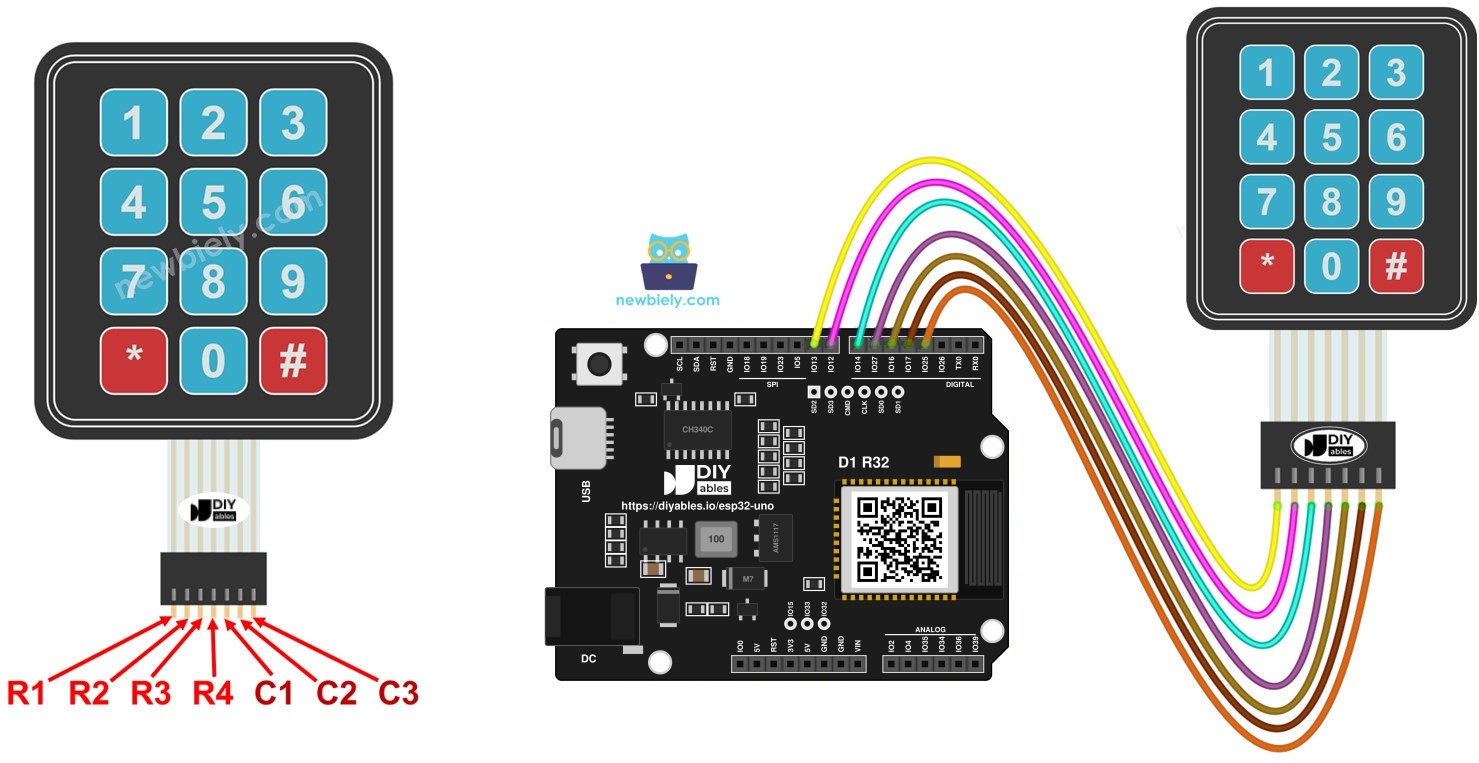
Components You Need
| 1 | × | ESP32 Uno-form Board | |
| 1 | × | USB Cable Type-A to Type-C (for USB-A PC) | |
| 1 | × | USB Cable Type-C to Type-C (for USB-C PC) | |
| 1 | × | Keypad 3x4 | |
| 1 | × | Jumper Wires |
Or you can buy the following kits:
| 1 | × | DIYables Sensor Kit (18 sensors/displays) |
Additionally, some of these links are for products from our own brand, DIYables .
Inside the 3x4 Keypad
After this part, you know what the seven wires on the keypad really do.
The pad holds 12 flat membrane switches laid out as a grid of 4 rows and 3 columns. Engineers call this layout a matrix. A key press shorts exactly one row line to one column line. The sketch drives the rows one by one and listens on the columns, so it can tell which crossing closed.
| Property | Value |
|---|---|
| Number of keys | 12 (0-9, * and #) |
| Layout | 4 rows x 3 columns |
| Connector | 7 pins (no power pin) |
| Parts inside | Switches only, no chip |
| Logic level | Follows the board, so 3.3V here |
Good to know: the keypad has no electronics of its own, so it is safe on the 3.3V pins of the ESP32 Uno with no resistor or level shifter.
Pinout
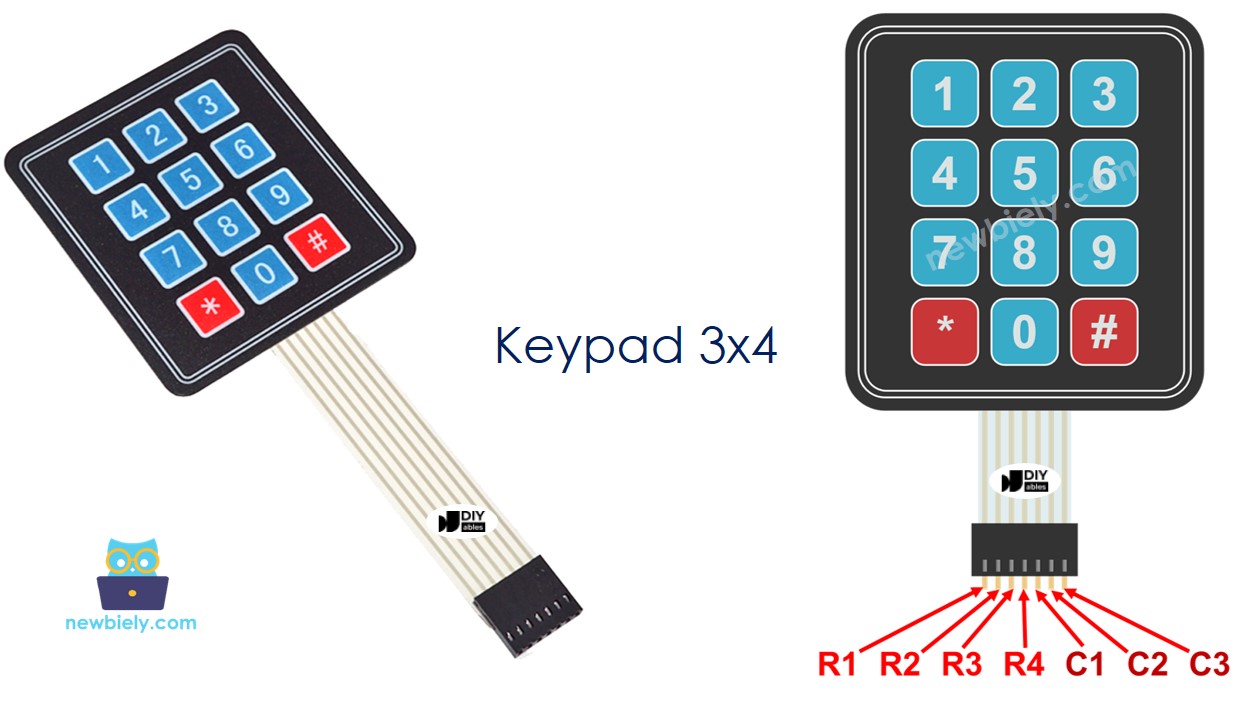
The seven pins sit side by side on one ribbon. Read them from left to right.
| Pin Group | Pins | Count |
|---|---|---|
| Rows | R1, R2, R3, R4 | 4 |
| Columns | C1, C2, C3 | 3 |
ESP32 Uno Pinout
On the ESP32 Uno form board, a label like D9 is only a position, and your sketch talks to the GPIO number behind it. Look up D3 to D9 in this diagram before you plug in the ribbon.

How to Connect the Keypad
When this part is done, the seven keypad wires run to D9 down to D3 in order.
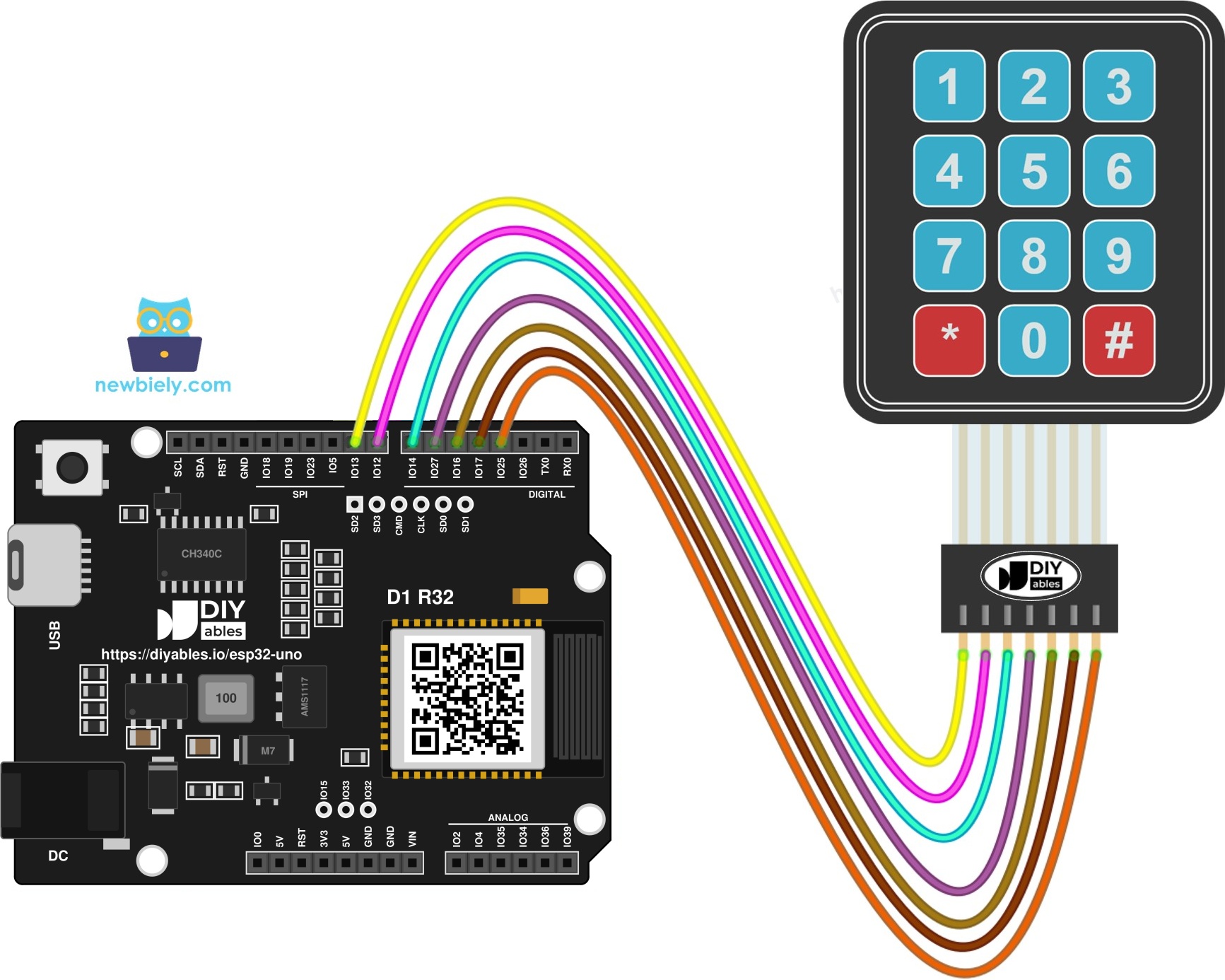
This image is created using Fritzing. Click to enlarge image
| Keypad Pin | ESP32 Uno Pin |
|---|---|
| R1 | D9 (GPIO13) |
| R2 | D8 (GPIO12) |
| R3 | D7 (GPIO14) |
| R4 | D6 (GPIO27) |
| C1 | D5 (GPIO16) |
| C2 | D4 (GPIO17) |
| C3 | D3 (GPIO25) |
WARNING
Row R2 goes to D8 (GPIO12), a boot strapping pin. At power-up the chip reads GPIO12 to set the flash voltage, and it must be LOW at that moment. If it is pulled HIGH, the ESP32 Uno will not start. A keypad is just switches, so this is safe as long as no key is held during power-on, reset or upload. If the board ever refuses to boot or upload, unplug the keypad ribbon, upload, and then plug it back in.
Good to know: the column pins D5, D4 and D3 use the internal pull-up resistors, which the library turns on for you. No external resistor is needed.
ESP32 Uno Code
This sketch scans the 12 keys without stop and prints the one you press.
| Code Part | What It Does |
|---|---|
| keys[ROW_NUM][COLUMN_NUM] | Maps each grid crossing to the printed character |
| pin_rows / pin_column | GPIO numbers 13, 12, 14, 27 and 16, 17, 25 that match the wiring table |
| DIYables_Keypad keypad(...) | Builds the keypad object from the map and the pins |
| keypad.getKey() | Returns the pressed key, or 0 when nothing is pressed |
| if (key) | Prints only when a real key comes back |
The result is one line on the Serial Monitor for each key you tap.
Upload and Test
- First time with this board? Set it up with ESP32 Uno - Getting Started before you continue.
- Build the circuit by following the wiring table above.
- Plug in the USB Type-C cable between the ESP32 Uno and your computer.
- Select the board in Arduino IDE: pick ESP32 Dev Module and the COM port of the board (CH340).
- Open the Libraries panel with the Libraries icon on the left edge of Arduino IDE.
- Search for DIYables_Keypad and find the entry made by DIYables.io.
- Click Install.
- Search for DIYables_Keypad created by DIYables.io and click the Install button.
- Paste the sketch into a new Arduino IDE window.
- Press Upload and wait for "Done uploading".
- Open the Serial Monitor and choose 9600 baud.
- Tap a few keys and watch each one appear.
- Pro tip: press every key once in order, 1 to #. If a whole row prints nothing, that row wire is the problem, so you find a bad jumper in seconds.
Keypad as a Password Lock
By the end of this part, the keypad accepts a secret code and tells you if it is right.
Two keys get a fixed job. All the other keys are digits of the code.
| Key | Job |
|---|---|
| '*' | Throws away what you typed and starts fresh |
| '#' | Ends the entry and compares it with the saved code |
| 0-9 | Added to the end of the typed code |
The check runs like this:
- A digit key is appended to the typed code.
- The # key compares the typed code with the stored one, prints the result and empties the typed code.
- The * key empties the typed code at once.
Password Sketch
The stored code is "1234". Edit the password line to pick your own, and put your action (relay, servo, LED) at the comment inside the "password is correct" branch.
- Upload the password sketch to the ESP32 Uno.
- Start the Serial Monitor and keep it on 9600 baud.
- Try a wrong code: press 9, 8, 7, then #.
- Now enter the stored code: tap 1 2 3 4 and finish with #.
- Compare the two messages.
Video Tutorial
See the ESP32 Uno build in action in the video below.
ESP32 Uno vs UNO R4 for This Project
This table lists what changes when you move the keypad build from the UNO R4 to the ESP32 Uno.
| Item | Arduino UNO R4 | ESP32 Uno |
|---|---|---|
| Logic voltage | 5V | 3.3V |
| Row pins in code | 9, 8, 7, 6 | 13, 12, 14, 27 |
| Column pins in code | 5, 4, 3 | 16, 17, 25 |
| Library | DIYables_Keypad | DIYables_Keypad (same) |
| Strapping pin in wiring | None | D8 (GPIO12) on row R2 |
| Wireless | WiFi only on the WiFi model | WiFi and Bluetooth built in |
| Arduino IDE board | Arduino UNO R4 WiFi or Minima | ESP32 Dev Module |
The same wiring works as it is. Only the pin numbers in the code change, and you must keep your hands off the keys while the board resets.
Go Wireless: Send Key Presses to Your Phone
After this part, you have an idea for using the keypad with no USB cable.
The ESP32 Uno has WiFi and Bluetooth on board. Instead of the Serial Monitor, you can push each pressed key, or a "code accepted" message, to a page in your phone browser or to a Bluetooth app. That turns the keypad into a remote entry panel, and your phone shows who typed what.
Try These Next
Take the keypad project further with these guides:
Troubleshooting
| Problem | Possible Cause | Solution |
|---|---|---|
| Board has no COM port in Arduino IDE | CH340 driver not installed or a charge-only cable | Install the CH340 driver and swap to a USB cable that carries data |
| Upload stops at Failed to connect or Waiting for download | Board did not enter download mode | Hold the BOOT button while the upload starts, then let go |
| Board does not boot or upload with the keypad connected | D8 (GPIO12) is a boot strapping pin and a held key pulled it the wrong way | Do not touch the keypad during reset, or unplug the ribbon while uploading |
| Keys print the wrong characters | Ribbon plugged in reversed or rows and columns swapped | Match R1 to D9 and C3 to D3 exactly as in the wiring table |
| A full row or column stays silent | One jumper is loose or broken | Reseat or replace the wire for that row or column |
| Garbled text on the Serial Monitor | Baud rate mismatch | Pick 9600 baud in the Serial Monitor |
| DIYables_Keypad.h no such file | Library missing | Install DIYables_Keypad from the Library Manager |
| Right code is rejected | Leftover digits from an earlier try | Press * first, then the code, then # |
FAQ
Do I need resistors between the keypad and the ESP32 Uno?
No. The column pins use the internal pull-up resistors, and the library sets them up for you. The keypad has no chip, so nothing in it can push 5V into the 3.3V pins.
How does the library know which key I pressed?
It pulls one row LOW at a time and reads the three columns. The column that goes LOW, together with the active row, points to one key in the keys array. The whole scan takes a few microseconds, so it feels instant.
Why does the code say 13, 12, 14, 27 instead of D9, D8, D7, D6?
Your sketch must use GPIO numbers on the ESP32 Uno. The D labels are only Uno header positions. D9 is GPIO13, D8 is GPIO12, D7 is GPIO14 and D6 is GPIO27, so those numbers go into pin_rows.
Can I move the keypad to A2 to A5 on the ESP32 Uno?
Only partly. A2 to A5 (GPIO35, 34, 36, 39) are input only and have no internal pull-up. The row lines must drive LOW, so they cannot sit there, and columns there would need external 10k pull-ups to 3.3V. Keep the keypad on the digital header.
Is D8 a safe pin for a keypad row?
It works, but D8 is GPIO12, a boot strapping pin that must be LOW at power-up. A keypad row is only touched when you press a key, so normal use is fine. Just keep your fingers off the keys while the board resets or uploads.
What is different from the UNO R4 code?
Nothing changes in the key-scan logic or the DIYables_Keypad library. Only the pin numbers change to GPIO numbers, and you pick ESP32 Dev Module in Arduino IDE. The ESP32 Uno also runs at 3.3V instead of 5V, which does not matter for a passive keypad.
How do I set a longer or different PIN code?
Change const String password = "1234"; to your digits and upload again. Leave out * and #, because they start and end the entry. For codes longer than 32 keys, raise the number in input_password.reserve(32).
Can I use the 4x4 keypad with the same code?
Yes, with small edits. Set COLUMN_NUM to 4, add the A, B, C, D column to the keys array, and add one more GPIO to pin_column. That needs one more free pin.
What if my project needs more pins than the Uno headers give?
The ESP32 Uno has a few extra holes near the power header. GPIO32 and GPIO33 are I/O with PWM and analog on ADC1, so they also work while WiFi is on. GPIO15 is I/O with PWM and analog on ADC2. Add pin headers to these holes with a soldering iron, then put the GPIO number in your sketch. For a keypad plus a relay or buzzer, GPIO32 and GPIO33 are the best picks. Two warnings: GPIO15 and GPIO0 (the IO0 pin at the unused Uno NC position) are boot strapping pins, and a wrong connection can stop the board from booting or uploading code, so use GPIO32 and GPIO33 first. Also, never use the six holes under the digital header (SD0 to SD3, CMD, CLK, which are GPIO6 to GPIO11), because they connect to the flash chip and using them crashes the board.
Can I open a lock from the keypad and also see the result on my phone?
Yes. Drive a relay from a free pin in the "password is correct" branch, and send the same message over WiFi or Bluetooth. The ESP32 Uno handles both at once, so the keypad keeps working while the phone shows each try.