
ESP32 UNO - LED Module
Tired of hunting for the long leg and the right resistor every time you want a light? The 10mm LED module skips both. Three labeled pins, three jumper wires, and the ESP32 Uno form board can flash it as a status light or let it glow up and down like a sleeping laptop. A loose LED is fine on a breadboard, but this module is the faster choice when you just need a clear, bright signal.
What you will do:
- Learn what the GND, VCC and IN pins of the LED module do
- Wire the module to header pin D9 with three jumper wires, no breadboard
- Flash the 10mm LED once per second and log each change on the Serial Monitor
- Make the LED breathe with PWM from analogWrite()
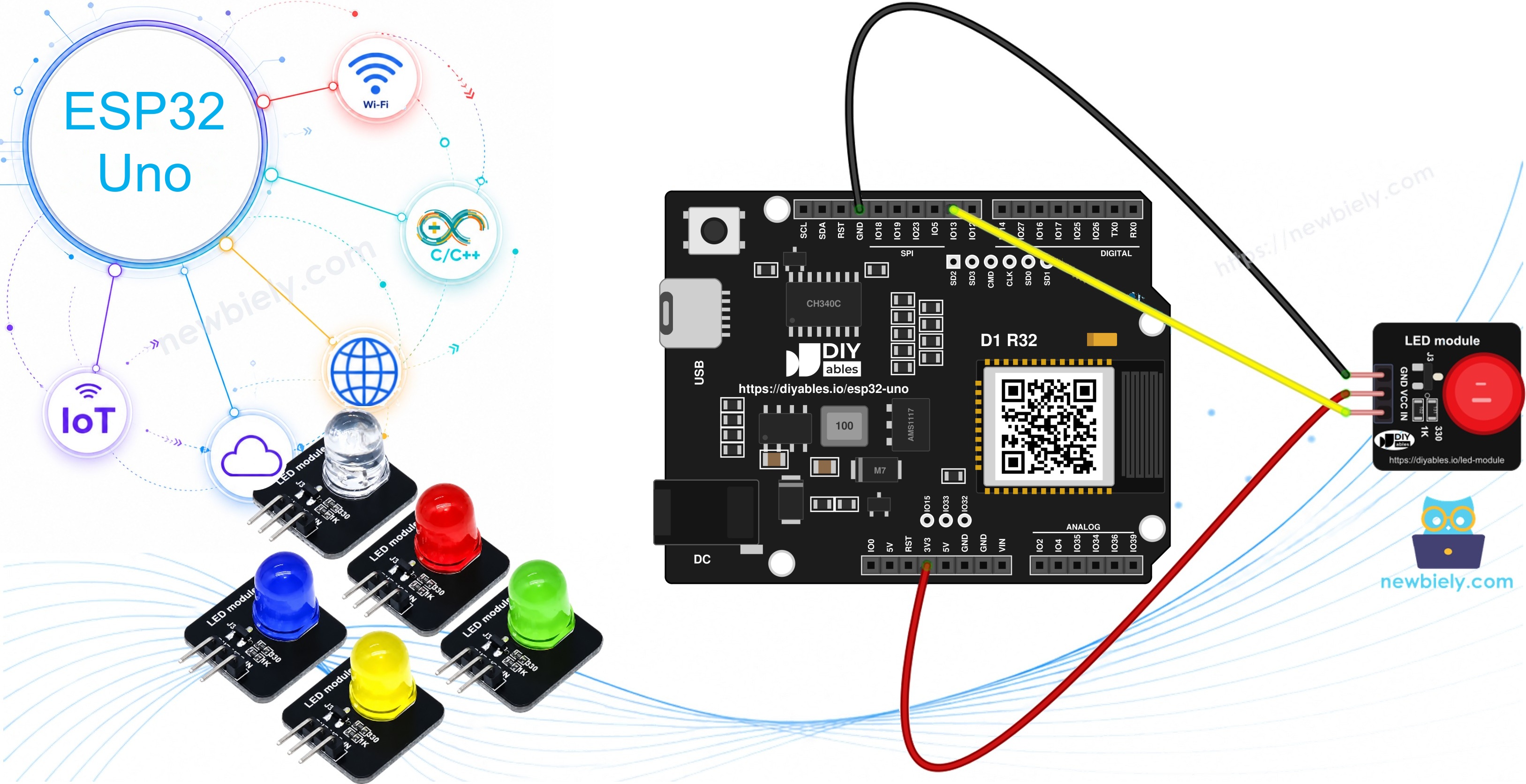
Components You Need
| 1 | × | ESP32 Uno-form Board | |
| 1 | × | USB Cable Type-A to Type-C (for USB-A PC) | |
| 1 | × | USB Cable Type-C to Type-C (for USB-C PC) | |
| 1 | × | LED Module | |
| 1 | × | Jumper Wires |
Or you can buy the following kits:
| 1 | × | DIYables Sensor Kit (18 sensors/displays) |
Additionally, some of these links are for products from our own brand, DIYables .
Buy Note: Use the LED Module for easier wiring. It includes an integrated resistor.
Meet the 10mm LED Module
After this part, you know why this board needs no resistor and where each wire goes.
Think of the module as "an LED with its helpers already soldered on". A 10mm diffused round LED sits on a small 20mm x 20mm black PCB. Next to it are a 330Ω resistor that limits the LED current, a 1KΩ resistor on the IN line, and a tiny transistor that works as a switch. The LED takes its power from VCC. The IN pin only tells the transistor when to let that power through. The DIYables pack comes in five colors: red, yellow, blue, green and white.
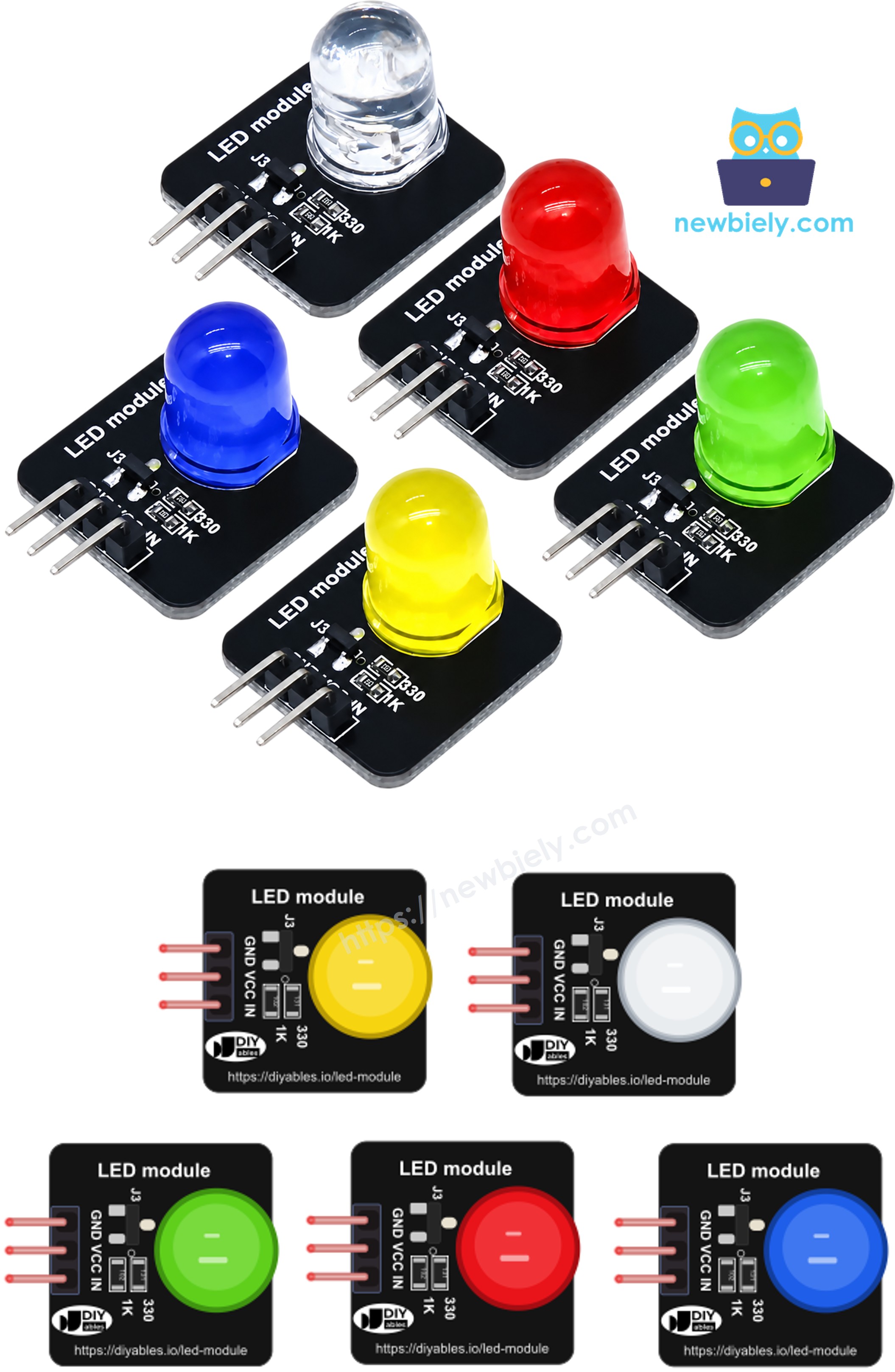
The 3-pin right-angle header comes presoldered, and the labels on the PCB read GND, VCC, IN:
| Module Pin | Job | Goes To on the ESP32 Uno |
|---|---|---|
| GND | Ground return | Any GND pin |
| VCC | Power for the LED, 3.3V to 5V DC | 5V (or 3.3V) |
| IN | Control signal from the board | D9 (GPIO13), a PWM pin |
What the IN signal does:
| Signal on IN | LED |
|---|---|
| HIGH (3.3V) | On |
| LOW (0V) | Off |
| PWM | Partly on, brightness follows the duty cycle |
Good to know: the IN pin only feeds a transistor through 1KΩ, so the ESP32 Uno pin gives a tiny current. The brightness comes from VCC, not from the GPIO. That is why a 3.3V board can still drive the LED at full brightness.
ESP32 Uno Pinout
The labels on the headers (D9, D10 and so on) follow the Uno layout, but your sketch needs GPIO numbers. Use this diagram to find the GPIO behind each label.

How to Connect
By the end of this part, the module is powered and its IN pin listens to D9.
Plug three female-to-male jumper wires onto the module header and run them straight to the board. No breadboard is needed.
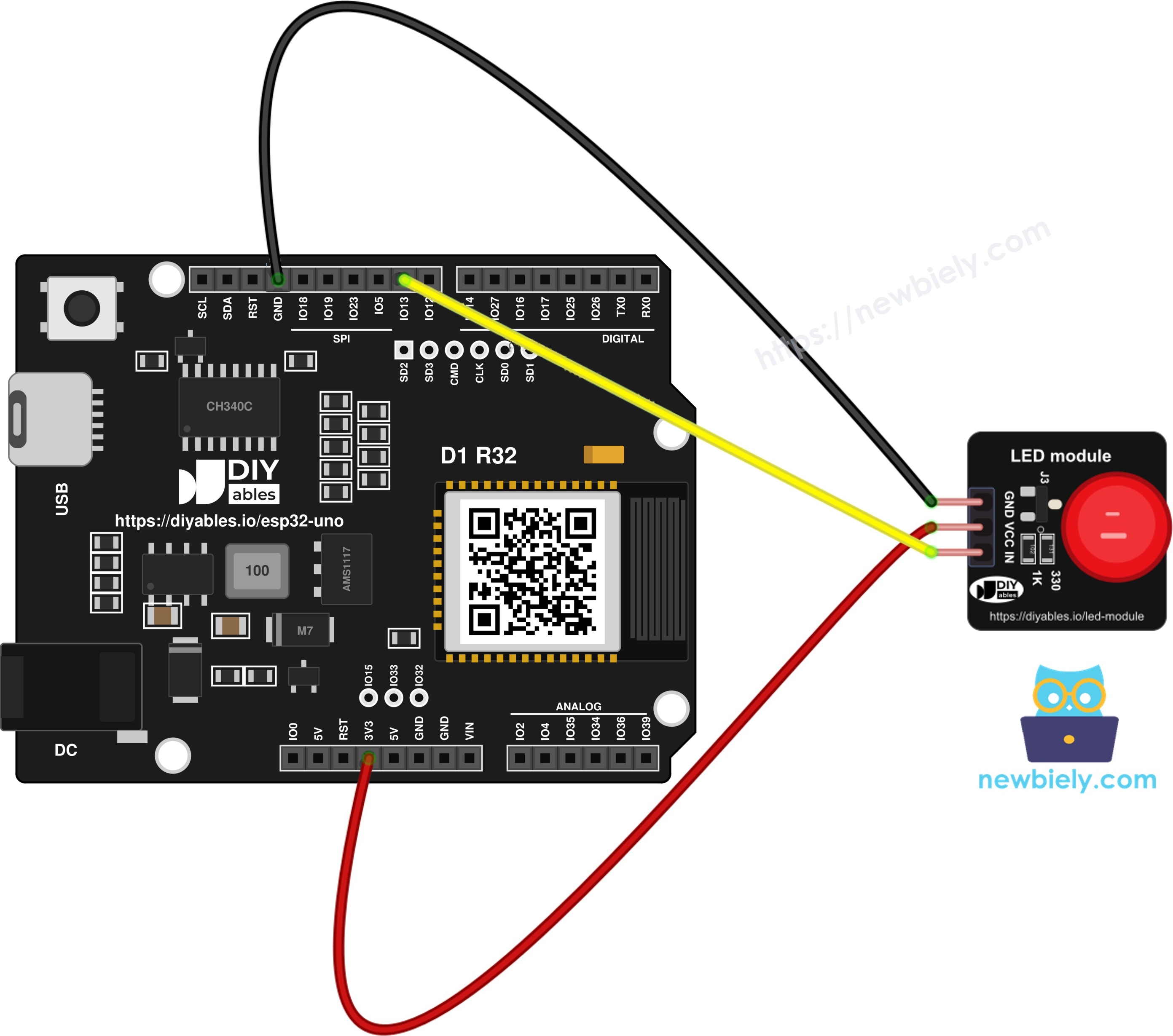
This image is created using Fritzing. Click to enlarge image
| LED Module Pin | ESP32 Uno Pin |
|---|---|
| GND | GND |
| VCC | 5V |
| IN | D9 (GPIO13) |
Why 5V on VCC is safe here: the 5V supply only reaches the LED and the transistor. The IN pin never puts 5V back on D9, so GPIO13 stays inside its 3.3V limit. You can also use the 3.3V pin for VCC. Red, yellow and green still look bright, but blue and white get a bit dimmer.
Good to know: D9 (GPIO13) has PWM and no boot role. You can keep the module plugged in while you upload.
ESP32 Uno Code - Blink the LED Module
This sketch turns the LED on for 1 second, off for 1 second, and prints each state to the Serial Monitor.
Upload and Test
- First time with this board? Set it up with ESP32 Uno - Getting Started before you continue.
- Connect the three wires as shown in the table above: GND, 5V and D9.
- Plug in the USB Type-C cable between the ESP32 Uno and your computer.
- Select the board in Arduino IDE: pick ESP32 Dev Module and the COM port of the board (CH340).
- Paste the sketch into a new Arduino IDE window.
- Press Upload and wait for "Done uploading".
- Open the Serial Monitor at 9600 baud.
- Look at the module: the 10mm LED is lit for one second, then dark for one second. The Serial Monitor shows the same rhythm:
- Pro tip: change the ON time to delay(80) and the OFF time to delay(2920). You get a short wink every 3 seconds, like the standby light on a TV.
ESP32 Uno Code - Dim the LED Module with PWM
The same three wires work here. This sketch raises the PWM level from 0 to 255 in about one second, lowers it back, waits 0.3 seconds, and starts again.
Upload and Test
- Keep the wiring from the blink test. IN must stay on D9 (GPIO13), a PWM-capable pin.
- Paste the new sketch into Arduino IDE and press Upload.
- Watch the LED: it glows up, glows down, rests for a moment, and repeats. The Serial Monitor prints one line at each turn:
- Pro tip: for a slower, calmer breath, change delay(20) to delay(40) in both loops. Each half of the cycle then takes about 2 seconds.
Video Tutorial
See the ESP32 Uno build in action in the video below.
Code Explanation
This table shows what each part of the two sketches does.
| Code Part | What It Does |
|---|---|
| #define LED_MODULE_PIN 13 | Names GPIO13 (header D9), the pin wired to IN |
| Serial.begin(9600) | Opens the Serial Monitor link at 9600 baud |
| pinMode(LED_MODULE_PIN, OUTPUT) | Makes GPIO13 an output, one time in setup() |
| digitalWrite(LED_MODULE_PIN, HIGH) | Puts 3.3V on IN, the transistor turns the LED on |
| digitalWrite(LED_MODULE_PIN, LOW) | Puts 0V on IN, the LED turns off |
| analogWrite(LED_MODULE_PIN, level) | Sends PWM, 0 is dark and 255 is full brightness |
| for (... level += 5) | Walks the level up or down in steps of 5 |
| delay(20) | Holds each PWM step for 20 ms |
The module is active HIGH, so the code reads the same as for a plain LED. HIGH means on, LOW means off.
LED Module vs Bare LED on the ESP32 Uno
This part helps you choose between the module and a loose LED for your next build.
| Item | Bare 5mm LED | 10mm LED Module |
|---|---|---|
| Resistor | You add one (about 220Ω) | 330Ω already on the board |
| Polarity | Find the long leg (anode) and the flat side (cathode) | Just follow the GND, VCC, IN labels |
| Breadboard | Usually needed | Not needed, wires go straight to the header |
| Current from the GPIO | All the LED current | Only a tiny base current |
| Brightness at 3.3V logic | Limited by the 3.3V pin | Set by VCC, can use 5V |
| Wires | 2 | 3 (GND, VCC, IN) |
| Code | pinMode, digitalWrite, analogWrite | Same functions, no library |
For learning how an LED works, the ESP32 Uno - Blink LED and ESP32 Uno - Fade LED pages use a bare LED. For a panel light or a quick status signal, the module is faster to wire.
Moving from the UNO R4? Keep the same three header spots. Only the pin number in code changes, from 9 to 13, because D9 is GPIO13 on the ESP32 Uno.
Go Wireless: Switch the LED Module from Your Phone
This part shows how to control the module without a USB cable.
The ESP32 Uno has WiFi and Bluetooth on board. Put an on/off button or a brightness slider on your phone, and send its value to digitalWrite(13, ...) or analogWrite(13, ...). A good use: a "busy" light outside your room that you switch from the sofa.
Try These Next
- Use the red, yellow and green modules from the pack to build a traffic light with no resistors at all.
- Flash the red module fast when a sensor value passes a limit, as a fault light.
- Give the white module a slow heartbeat blink so you can see that the sketch is still running.
Troubleshooting
| Problem | Possible Cause | Solution | |
|---|---|---|---|
| No COM port in Arduino IDE | CH340 driver missing or a charge-only cable | Install the CH340 driver and use a USB cable that carries data | |
| Upload stops at "Waiting for download" | Board did not enter download mode | Hold the BOOT button as the upload starts, then release it | |
| LED never lights | VCC or GND wire loose, or VCC and GND swapped | Check the labels on the module | GND to GND, VCC to 5V |
| LED never lights, wires look right | Sketch writes to pin 9 | Use 13 in the code, since D9 is GPIO13 | |
| LED is always on, even with IN at LOW | IN wire touches VCC, or IN is on the wrong pin | Move IN back to D9 and check for a bridged wire | |
| LED blinks but does not fade | IN moved to an input-only pin, or old esp32 core | Keep IN on D9; update esp32 by Espressif Systems to 2.0.11 or newer | |
| Blue or white LED looks weak | VCC on 3.3V | Move the VCC wire to 5V | |
| Serial Monitor shows odd symbols | Baud rate mismatch | Select 9600 baud |
FAQ
Do I need a resistor with the LED module?
No. The module already has a 330Ω resistor for the LED and a 1KΩ resistor on the IN line. Connect GND, VCC and IN directly.
Is the LED module active HIGH or active LOW?
Active HIGH. digitalWrite(13, HIGH) turns the LED on and digitalWrite(13, LOW) turns it off.
Should VCC go to 5V or 3.3V on the ESP32 Uno?
Both work, since the module runs from 3.3V to 5V. Use 5V for the brightest light, especially with blue or white. The IN pin does not send 5V back to the board, so this is safe.
Why does the code say 13 when IN is on D9?
The header labels copy the Uno layout, but the sketch uses the chip GPIO number. D9 is GPIO13 on the ESP32 Uno.
Can I use other pins for the IN wire?
Yes, most digital header pins work, such as D3, D5, D6 or D7. Avoid A2 to A5 (GPIO35, 34, 36, 39), which are input only. Also avoid D8 (GPIO12), D10 (GPIO5) and A0 (GPIO2), which are boot strapping pins.
How many LED modules can one ESP32 Uno drive?
Many. Each module needs one IN pin, and each IN pin gives only a tiny current. The LED current comes from the 5V or 3.3V supply. Five modules together draw about 50 mA from VCC, which the USB supply handles easily.
Does the module need a library?
No. pinMode(), digitalWrite() and analogWrite() are built into the esp32 core for Arduino IDE.
Can I change the PWM frequency for the fade?
Yes. analogWrite() uses about 1 kHz and 8-bit resolution by default. Call analogWriteFrequency() or analogWriteResolution() in setup() if you need other values.
What if my project needs more pins than the Uno headers give?
The ESP32 Uno has a few extra holes near the power header: GPIO32 and GPIO33 (I/O, PWM, analog on ADC1, so they also work while WiFi is on) and GPIO15 (I/O, PWM, analog on ADC2). Solder pin headers on them and write the GPIO number in code. For extra LED modules, GPIO32 and GPIO33 are the best choice. Two warnings: GPIO15 and GPIO0 (the IO0 pin at the unused Uno NC position) are boot strapping pins, so a wrong connection can stop the board from booting or uploading code; use GPIO32/33 first. Never use the six holes under the digital header (SD0 to SD3, CMD, CLK = GPIO6 to GPIO11); they are wired to the flash chip and using them crashes the board.
Can I control the LED module from a web page?
Yes. The ESP32 Uno has WiFi and Bluetooth, so a browser or phone app can switch or dim it. See the Go Wireless section above.