
ESP32 UNO - TM1637 4-Digit 7-Segment Display
Want a bright number display for your ESP32 Uno? Connect a TM1637 4-digit 7-segment display to the ESP32 Uno form board and print numbers, words and a clock with two wires. The module is a cheap LED display and the DIYables library does the hard work.
By the end, you can:
- Wire a TM1637 module to the ESP32 Uno with only CLK and DIO.
- Install the DIYables_4Digit7Segment_TM1637 library in Arduino IDE.
- Print integers, short text and temperatures with a degree sign.
- Show HH:MM time with a blinking colon.
- Set single digits and change the brightness.
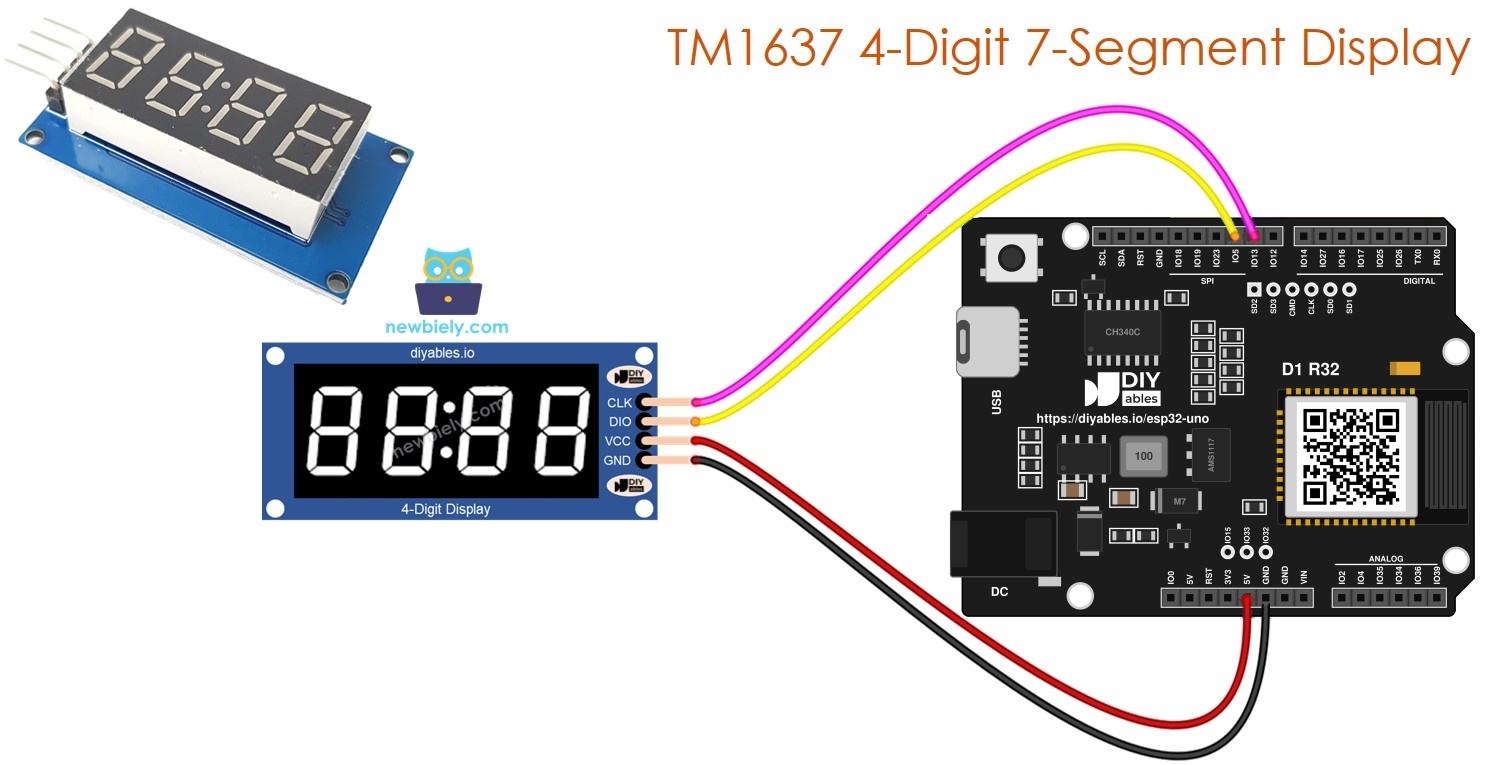
Components You Need
| 1 | × | ESP32 Uno-form Board | |
| 1 | × | USB Cable Type-A to Type-C (for USB-A PC) | |
| 1 | × | USB Cable Type-C to Type-C (for USB-C PC) | |
| 1 | × | TM1637 4-digit 7-segment Display (colon-separated) | |
| 1 | × | Jumper Wires |
Or you can buy the following kits:
| 1 | × | DIYables Sensor Kit (18 sensors/displays) |
Additionally, some of these links are for products from our own brand, DIYables .
How the TM1637 Display Works
By the end of this part, you know what the module does and what each pin is for.
The TM1637 chip on the module switches the four digits on and off very fast, so your board does not have to. It keeps the data in its own memory. The digits stay lit while your sketch does other work.
| Feature | Value |
|---|---|
| Digits | 4, each with 7 segments and a dot |
| Colon | 1 LED between digit 2 and digit 3 |
| Brightness | 8 levels (0 to 7) |
| Interface | 2 wires (CLK and DIO) |
| Logic and supply | 3.3V or 5V |
| Module Pin | What It Does |
|---|---|
| CLK | Clock signal from the board |
| DIO | Data line, both directions |
| VCC | Power (3.3V or 5V) |
| GND | Ground |
Good to know: any two free GPIO pins can be CLK and DIO. This page uses D9 and D10, the same Uno header positions as the wiring diagram.
ESP32 Uno Pinout
Each Uno header label on the ESP32 Uno form board is tied to one GPIO number, and the sketch uses that number. Look at the picture to see where D9 and D10 sit.

How to Connect
By the end of this part, the display is wired and ready for power.
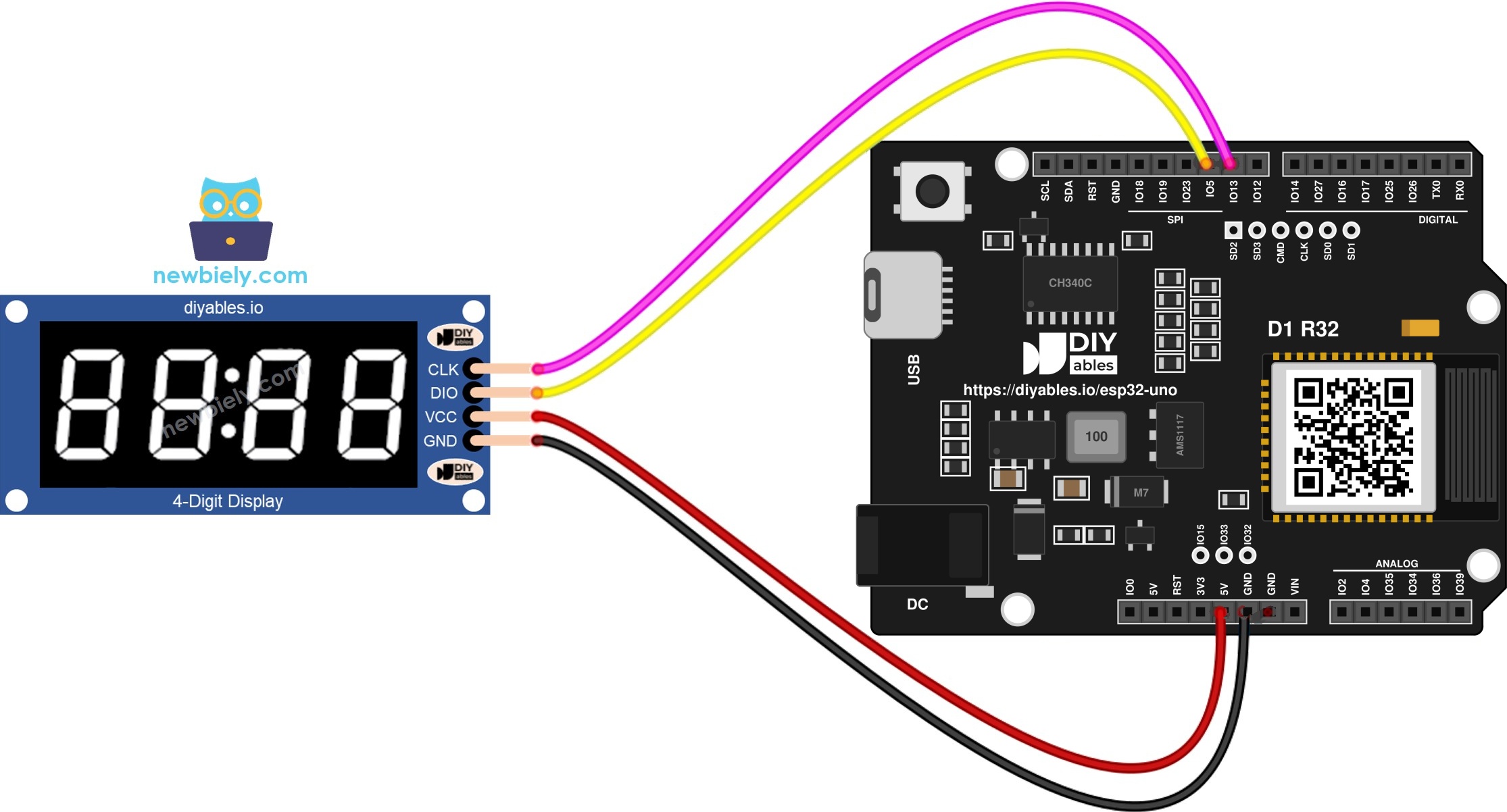
This image is created using Fritzing. Click to enlarge image
| Component Pin | ESP32 Uno Pin |
|---|---|
| CLK | D9 (GPIO13) |
| DIO | D10 (GPIO5) |
| VCC | 3.3V |
| GND | GND |
WARNING
D10 (GPIO5) is a boot strapping pin. The chip reads it during start-up. The TM1637 normally does not disturb it, but if the board fails to boot or upload with the display connected, pull the DIO wire out, upload, and plug it back in.
Good to know: the ESP32 Uno logic is 3.3V, so power the module from 3.3V. The TM1637 works fine at that level and its signal pins are never above 3.3V.
Install the Library and Prepare the Board
By the end of this part, Arduino IDE knows your board and has the display library.
- First time with this board? Set it up with ESP32 Uno - Getting Started before you continue.
- Build the circuit by following the wiring table above.
- Plug in the USB Type-C cable between the ESP32 Uno and your computer.
- Select the board in Arduino IDE: pick ESP32 Dev Module and the COM port of the board (CH340).
- Open the Library Manager with the Libraries icon in the left bar.
- Search for "DIYables_4Digit7Segment_TM1637" and find the entry from DIYables.
- Click Install.
- Pro tip: after each example below, press the reset button to restart the demo from its first step.
- Search for DIYables_4Digit7Segment_TM1637 created by DIYables.io and click the Install button.
Nothing else needs to be installed.
Smallest Working Sketch
By the end of this part, you can read the skeleton that every example on this page shares.
| Code Part | What It Does |
|---|---|
| #define CLK_PIN 13 | Names the GPIO for the clock line |
| #define DIO_PIN 5 | Names the GPIO for the data line |
| display(CLK_PIN, DIO_PIN) | Creates the display object on those pins |
| display.begin() | Prepares the pins once |
| display.print(1234) | Writes the number to the digits |
Create the object with two GPIO numbers, call begin() once, and then write to the display.
Example 1 - Integer Values
By the end of this part, your display counts through several integers and a zero-padded number.
Step 1 — Upload and watch
- Make sure the module is wired as in the table above.
- Upload the sketch with Upload and open the Serial Monitor at 9600 baud.
- Every two seconds the display moves to the next value.
The display range is -999 to 9999, so the loop covers both ends.
Methods used
| Method | What It Does | Usage |
|---|---|---|
| print(int) | Shows an integer from -999 to 9999 | display.print(1234) |
| print(int, true) | Same, with leading zeros | display.print(42, true) |
| clear() | Turns all segments off | display.clear() |
Example 2 - Text and Temperature
By the end of this part, you can print words and temperatures with the degree sign.
After the upload, four words appear in turn (HELP, Hi, COOL, done), followed by 25°C and 72°F.
| Method | What It Does | Usage | ||
|---|---|---|---|---|
| print(const char*) | Shows text of up to 4 characters | display.print("HELP") | ||
| printTemperature(int, char) | Shows a value, degree sign and unit | display.printTemperature(25, 'C') | ||
| DEGREE | Special character for the degree sign | DIYables_4Digit7Segment_TM1637 | DEGREE |
Example 3 - Clock with Blinking Colon
By the end of this part, the display shows a clock face with a colon that flashes.
After the upload, the display reads 12:30 and the colon flips every 500 ms.
| Method | What It Does | Usage | |
|---|---|---|---|
| printTime(int, int) | Shows HH | MM with the colon on | display.printTime(12, 30) |
| printTime(int, int, bool) | Shows HH | MM and sets the colon | display.printTime(12, 30, false) |
Example 4 - Blink the Whole Display
By the end of this part, you can flash the digits while the content stays in memory.
After the upload, 1234 flashes five times, then HELP flashes five times.
| Method | What It Does | Usage |
|---|---|---|
| off() | Hides the digits, data stays | display.off() |
| on() | Shows the stored data again | display.on() |
| setBrightness(int) | Sets the level from 0 to 7 | display.setBrightness(4) |
Example 5 - Control Single Digits
By the end of this part, you can place a number, a letter or the colon on any position.
After the upload, the display steps through 1234, 12:34, HELP, A3:b7 and a flashing 12:30.
| Method | What It Does | Usage |
|---|---|---|
| setNumber(int, int) | Puts a digit 0 to 9 at a position | display.setNumber(0, 1) |
| setChar(int, char) | Puts a character at a position | display.setChar(0, 'H') |
| setColon(bool) | Switches the colon on or off | display.setColon(true) |
| setSegments(int, uint8_t) | Writes raw segment bits | display.setSegments(0, 0x76) |
Library Compatibility
The library uses only standard Arduino calls (pinMode, digitalWrite, digitalRead, delayMicroseconds), so it builds for the ESP32 Uno without changes.
ESP32 Uno vs UNO R4 for This Project
By the end of this part, you know what changes when you move the display from the UNO R4 to the ESP32 Uno.
| Item | Arduino UNO R4 | ESP32 Uno |
|---|---|---|
| Logic voltage | 5V | 3.3V |
| CLK pin in code | 9 | 13 (D9 is GPIO13) |
| DIO pin in code | 10 | 5 (D10 is GPIO5) |
| Module power | 5V | 3.3V |
| Arduino IDE board | Arduino UNO R4 WiFi | ESP32 Dev Module |
| USB driver | none needed | CH340 driver |
The wires stay on D9 and D10, so the wiring picture does not change. Only the two numbers in the sketch and the supply wire change.
Go Wireless: Show Messages from Your Phone
By the end of this part, you have an idea to send text to the display from a phone.
The ESP32 Uno has WiFi and Bluetooth built in. Read a number or short word from a web page or a phone app, then pass it to display.print(). Your display becomes a remote message board or a number counter.
Try These Next
- Count from 0 to 9999 with a counter that grows once per second.
- Lower the brightness at night with setBrightness().
- Show a push-button press count on the display.
- Build a timer that counts down from 10:00 with the colon on.
Troubleshooting
| Problem | Possible Cause | Solution |
|---|---|---|
| No COM port appears | CH340 driver missing or charge-only cable | Install the CH340 driver and use a data USB cable |
| Upload fails with Failed to connect | Board is not in download mode | Hold the BOOT button when the upload starts, release it after Connecting |
| Board does not boot or upload with the display connected | D10 (GPIO5) is a boot strapping pin and the module pulls it the wrong way | Unplug the DIO wire while uploading, then plug it back in |
| Display stays dark | VCC or GND wire loose | Check the 3.3V and GND wires and push the jumpers in fully |
| Display stays dark but wiring looks right | CLK_PIN or DIO_PIN in code differ from the wires | Use 13 for CLK (D9) and 5 for DIO (D10) |
| Strange symbols on the digits | CLK and DIO swapped | Swap the two signal wires |
| Display is too dim | Default brightness is low | Call display.setBrightness(7) |
| Compile error about the TM1637 header | Library not installed | Install DIYables_4Digit7Segment_TM1637 in Library Manager |
| Colon does not show | Module has no colon wiring or the colon flag is false | Use printTime() with true or setColon(true) |
FAQ
What is the TM1637 chip on this display?
It is an LED driver and key-scan chip. It scans the four digits for you and stores what you send. You only need to send new data when the value changes.
Can I power the TM1637 from 5V on the ESP32 Uno?
You can, but 3.3V is the safer choice. At 5V the module could drive its DIO line above 3.3V, which can hurt an ESP32 Uno pin. The module works fine at 3.3V.
Which library should I use for the ESP32 Uno?
Use DIYables_4Digit7Segment_TM1637 from the Library Manager. It builds for the ESP32 Uno without any change and gives you print, printTime and printTemperature.
Can I use different pins for CLK and DIO?
Yes. Any two free output-capable GPIO pins work. Avoid GPIO36 and GPIO39 (A4 and A5 positions), which are input only, because DIO sends data too.
Why does the sketch use 13 and 5 instead of D9 and D10?
The Arduino IDE on the ESP32 Uno needs GPIO numbers. The labels D9 and D10 only help you place wires. In code, D9 maps to 13 and D10 maps to 5.
Do I need the analogSetAttenuation line for this display?
No. The display is digital and uses no analog input, so that line is not in these sketches.
What if my project needs more pins than the Uno headers give?
The ESP32 Uno has extra holes near the power header: GPIO32 and GPIO33 (I/O, PWM, analog on ADC1, so they also work while WiFi is on) and GPIO15 (I/O, PWM, analog on ADC2). Solder pin headers to use them and write the GPIO number in code. For a second TM1637 module, GPIO32 and GPIO33 are the best fit. Two warnings. First, GPIO15 and GPIO0 (the IO0 pin at the unused Uno NC position) are boot strapping pins, and a wrong connection can stop the board from booting or uploading code, so use GPIO32 and GPIO33 first. Second, never use the six holes under the digital header (SD0 to SD3, CMD, CLK = GPIO6 to GPIO11). They are wired to the flash chip and using them crashes the board.
Is it possible to run two TM1637 modules on one board?
Yes. Give each display its own CLK and DIO pair and create two objects. They can also share one CLK line with separate DIO pins.
Do I need a resistor between the board and the module?
No. The module has its own parts on board, so direct jumper wires are fine.
How is this different from the UNO R4 sketch?
Only the pin numbers change, from 9 and 10 to 13 and 5. The library calls are the same.
Can I make a real clock with the ESP32 Uno?
Yes. Get the time from an RTC module or from the internet over WiFi, then pass the hours and minutes to printTime(). The ESP32 Uno can get the time from the network with no extra hardware.
Can I show the display value on a web page too?
Yes. The ESP32 Uno has WiFi, so you can send the same number to a web page, or accept a number from a phone and show it on the display.