
ESP32 UNO - DIYables Bluetooth App Table
Overview
Too many numbers scrolling past in the Serial Monitor? Put them in an ESP32 Uno Bluetooth table instead, where every reading keeps its own line. The ESP32 Uno form board sends a label and a value for each row, and the free DIYables Bluetooth STEM app shows them as a neat two-column list that refreshes live. Use it as a wireless sensor dashboard, a key-value status panel or a quick debug screen.
By the end, you can:
- Install the DIYables Bluetooth library in Arduino IDE
- Flash either the BLE or the Classic Bluetooth table sketch
- Link your phone and watch seven or eight rows change every second
- Add, rename, clear and refill rows from your own code
- Fill the rows with real data from a DHT11, analog sensors or input pins
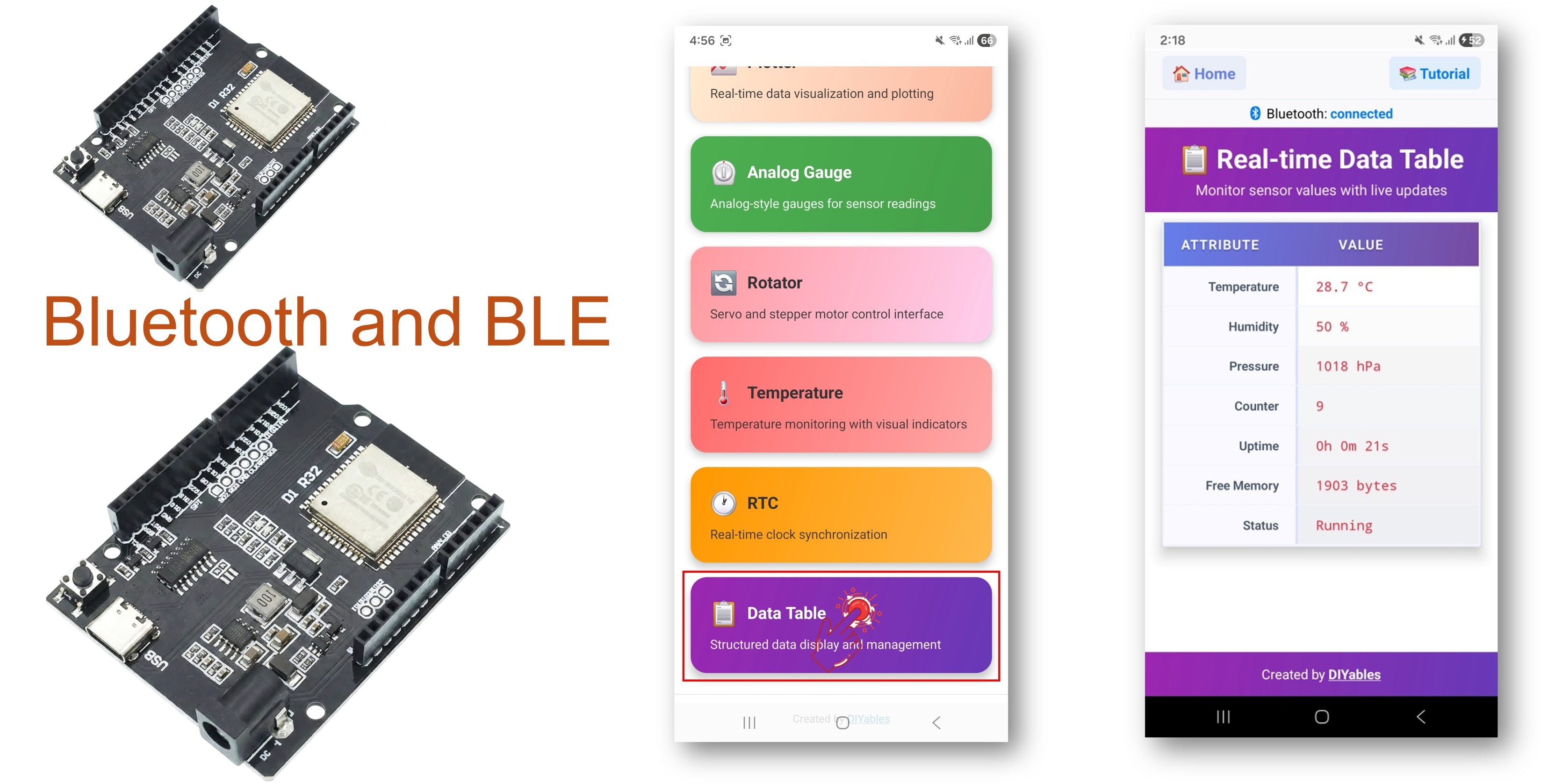
※ NOTE THAT:
The ESP32 Uno chip carries two Bluetooth radios: BLE and Classic. The BLE sketch connects to Android phones and iPhones with no pairing step. The Classic sketch connects to Android only, because iOS does not allow Classic Bluetooth for apps like this one.
What the Table Screen Offers
This list tells you what the library already handles, so you only write the data part.
| Feature | Details |
|---|---|
| Row limit | Up to 20 rows, each with its own label |
| Single-row refresh | You push one value, and only that cell changes |
| Label and value | The left cell is the name, the right cell is any text you send |
| Layout sync | On connect, the app asks the board for the row names |
| Radio choice | BLE for Android and iOS, Classic Bluetooth for Android only |
| Power | BLE draws less current than Classic Bluetooth |
Components You Need
Or you can buy the following kits:
| 1 | × | DIYables Sensor Kit (18 sensors/displays) |
Additionally, some of these links are for products from our own brand, DIYables .
ESP32 Uno Pinout
Your sketch never uses the printed Uno label, only the GPIO number behind it. Look up D3 and D13 on this map before you plug in the optional demo parts.

How to Connect (Video Demo Only)
After this part, the optional DHT11 and LED sit on the right pins. The two main example sketches send test values, so for them you only need the board and a USB cable.
| Component Pin | ESP32 Uno Pin |
|---|---|
| DHT11 VCC | 3.3V |
| DHT11 GND | GND |
| DHT11 DATA | D3 (GPIO25) |
| LED Anode (+) through 220 ohm resistor | D13 (GPIO18) |
| LED Cathode (-) | GND |
Good to know: this board has no built-in LED for the demo, so the demo drives an external LED on D13 (GPIO18). Power the DHT11 from 3.3V, because ESP32 Uno pins are not 5V tolerant.
Upload and Test the ESP32 Uno Code
When you finish this part, the board advertises itself over Bluetooth and fills the table with test values.
Step 1 — Prepare Arduino IDE
- First time with this board? Set it up with ESP32 Uno - Getting Started before you continue.
- Build the circuit by following the wiring table above. Skip it if you only run the main sketches.
- Plug in the USB Type-C cable between the ESP32 Uno and your computer.
- Select the board in Arduino IDE: pick ESP32 Dev Module and the COM port of the board (CH340).
- Give Bluetooth enough flash: open Tools > Partition Scheme and select Huge APP (3MB No OTA/1MB SPIFFS). The default layout keeps only about 1.2 MB for your program.
- Open Library Manager: click the Libraries icon on the left side of the IDE.
- Search "DIYables Bluetooth" and find the library published by DIYables.
- Click Install.
- Search for DIYables Bluetooth created by DIYables and click the Install button.
- Add the helpers: a window lists extra libraries the package needs. Click Install All.
Next, flash ONE of the two sketches. Both build the same table; they differ only in the radio.
Step 2 — Option A: ESP32 Uno Classic Bluetooth Sketch (Android only)
Good to know: an iPhone will never list this sketch. For iOS, go to Option B.
- Load the sketch: in Arduino IDE choose File Examples DIYables Bluetooth Esp32Bluetooth_Table, or paste the code below into an empty sketch.
- Upload: press the Upload button.
- Open the Serial Monitor at 115200 baud. After a reset it prints:
Step 2 — Option B: ESP32 Uno BLE Sketch (Android and iOS)
- Load the sketch: choose File Examples DIYables Bluetooth Esp32BLE_Table, or paste the code below.
- Upload it with the Upload button.
- Read the Serial Monitor at 115200 baud:
- Pro tip: rename DEVICE_NAME (for example to "Garage_Table") when two boards run the same sketch in one room. Then you always tap the right board in the scan list.
Step 3 — Link the Phone App
At the end of this step, the rows appear on your phone and keep changing.
- Classic sketch only — pair first: on the Android phone open Settings > Bluetooth, switch Bluetooth on, tap "ESP32_Table", accept the request (no PIN), and wait until it says "Paired". With the BLE sketch, skip this step.
- Launch the app and grant the access it asks for on first start:
- Nearby Devices (Android 12 or newer) or Bluetooth (iOS) — lets the app find and link devices
- Location (Android 11 or older) — older Android needs it for BLE scans
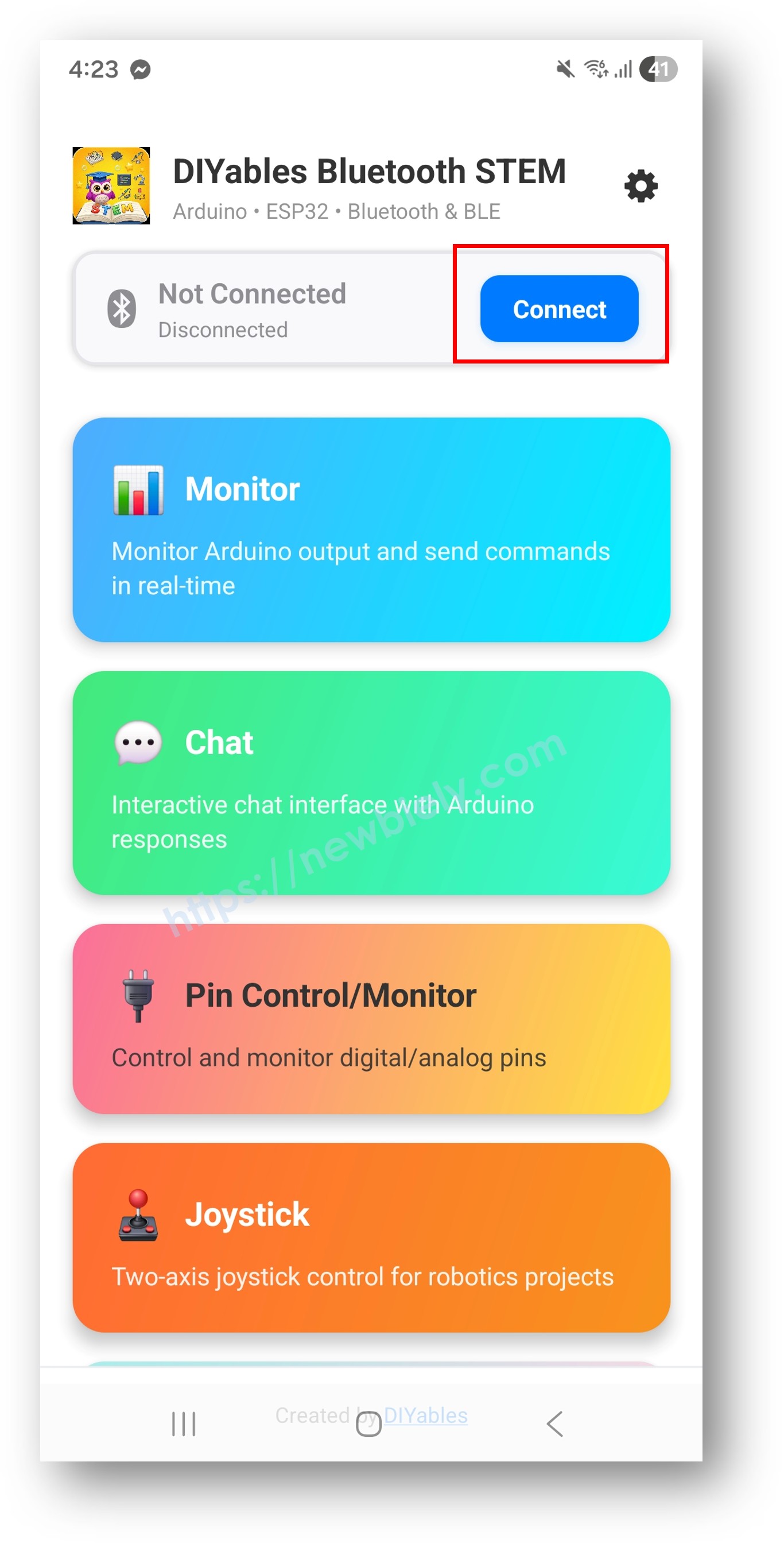
- Pick your board: "ESP32_Table" for Classic, or "ESP32BLE_Table" for BLE. Once linked, the app jumps back to the home screen.
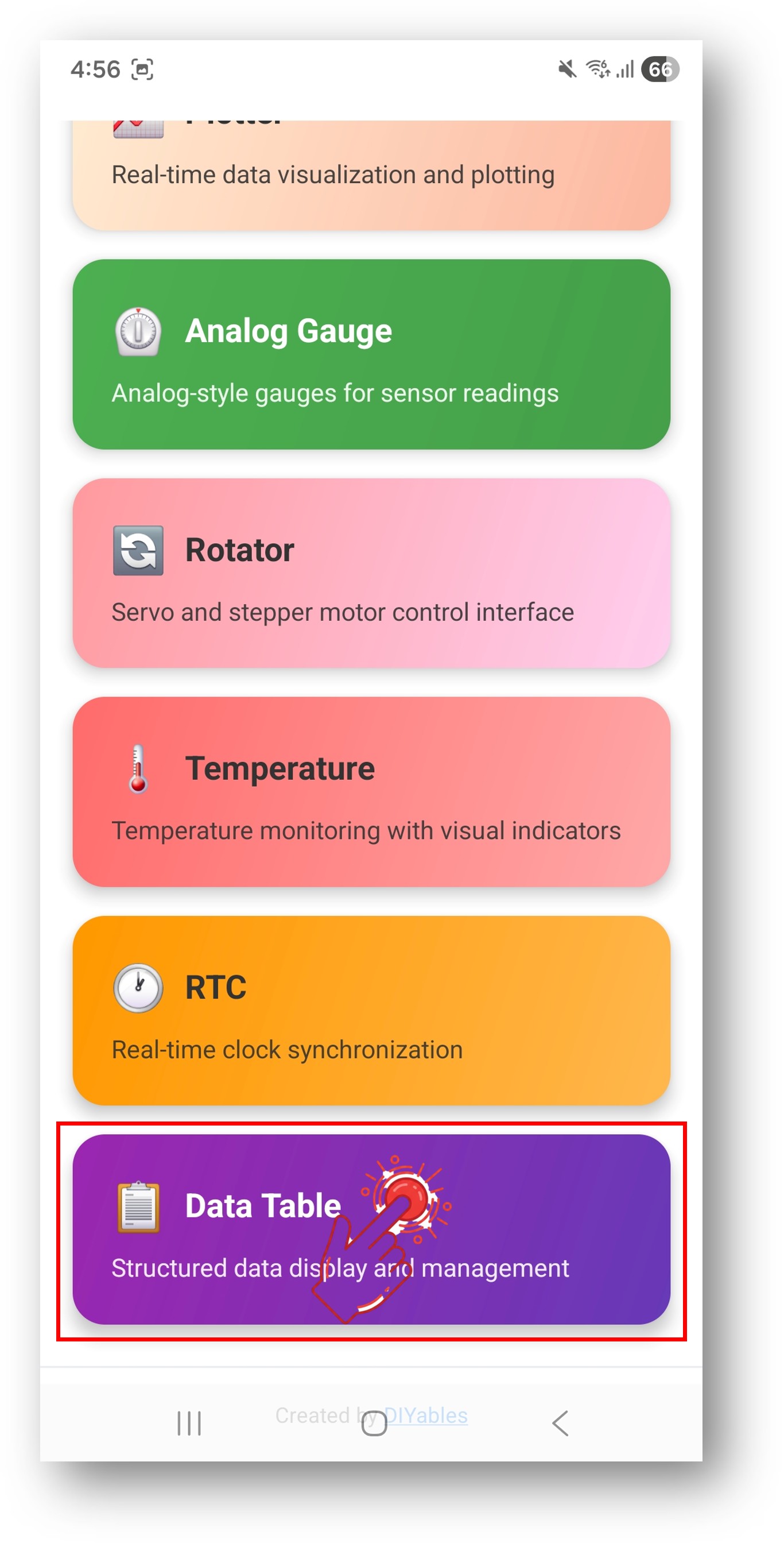
- Open the list view: tap Table in the app menu.
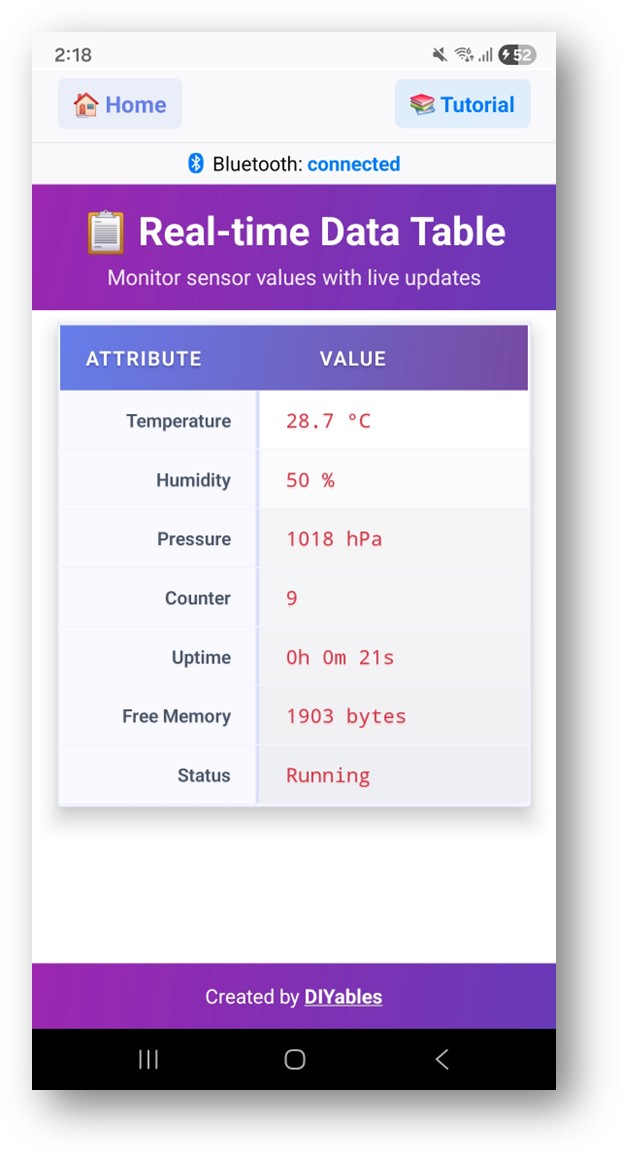
- Check the rows: names on the left, values on the right, all refreshed once per second.
- Pro tip: the gear icon on the home screen hides the screens you do not use. Every screen is described in the DIYables Bluetooth App User Manual.
Switch back to the Serial Monitor. The link and each refresh now show up:
Video Tutorial
See the ESP32 Uno build in action in the video below. The demo sketch reads a real DHT11 on D3 (GPIO25) and switches an external LED on D13 (GPIO18) every 3 seconds, and both show up as rows next to the test values. The DHT11 code needs one more library: add Adafruit's "DHT sensor library" through Library Manager first.
How the Sketch Works
This table maps each block of the ESP32 Uno sketch to its job.
| Code Part | What It Does |
|---|---|
| DIYables_Esp32BLE or DIYables_Esp32Bluetooth | Starts the radio under the name the phone sees |
| addRow() calls in setup() | Create the labels, top to bottom, up to 20 |
| setOnConnected() | Sends the row names and a first set of values as soon as a phone links |
| onDataRequest() | Sends names and values again when the app asks for them |
| updateTableValues() | Builds each value as text and pushes it with sendValueUpdate() |
| loop() with UPDATE_INTERVAL | Refreshes every row once per second, only while a phone is linked |
So the phone never shows an empty list, and no data goes out when nobody is listening.
ESP32 Uno vs UNO R4 for This Project
Moving the table from the UNO R4 WiFi to the ESP32 Uno swaps the radio layer and a few IDE settings.
| Item | Arduino UNO R4 WiFi | ESP32 Uno |
|---|---|---|
| Logic voltage | 5V | 3.3V |
| Bluetooth | BLE only | BLE and Classic Bluetooth |
| Library platform file | DIYables_ArduinoBLE.h | DIYables_Esp32BLE.h or DIYables_Esp32Bluetooth.h |
| Memory row | Simulated Free Memory | Real Free Heap from ESP.getFreeHeap() |
| Demo pins | DHT11 on D3 and the built-in LED | DHT11 on D3 (GPIO25) and an external LED on D13 (GPIO18) |
| Serial speed | 9600 baud | 115200 baud |
| Arduino IDE board | Arduino UNO R4 WiFi | ESP32 Dev Module with Huge APP partition |
The DHT11 stays on D3, so the demo wiring is the same. Run the DHT11 from 3.3V and add an LED with a resistor on D13, since there is no on-board LED to blink.
Shape the Table for Your Project
After this part, the rows show your own data instead of test numbers. Three calls do most of the work: addRow(), sendValueUpdate() and sendTableStructure().
Create the Rows
Call these in setup(). You can read the row count and any row name back later.
Change a Value
Point at a row by its label or by its position. Positions count from 0.
Reply When the App Asks
The app asks for the layout on connect and on refresh. Send the names first, then the values.
Wipe and Rebuild the Rows
Use this when your project switches mode and needs other labels. Push the new layout right after.
Know When the Phone Comes and Goes
These hooks are the right spot for a log line, or for pausing work while no phone is linked.
Reading the Table Screen
Know the two columns and the limits, and you can plan labels that fit a phone.
| Screen Part | Meaning |
|---|---|
| Left column | The labels you made with addRow() |
| Right column | The latest text sent with sendValueUpdate() |
| Refresh | A cell changes the moment new text arrives, with no button press |
| Row limit | 20 rows at most (MAX_TABLE_ROWS = 20) |
| Value type | Everything is shown as text, so add units yourself |
Short labels such as "Temp" or "RH" leave more room for the value on small screens.
Code Recipes
Each recipe shows only the lines that change. Keep the Bluetooth setup from the full sketch. Wires go to Uno header labels, while the code holds the matching GPIO numbers.
Recipe 1 — Five-Sensor Dashboard
Five rows refresh every 2 seconds. A light sensor sits on A3 (GPIO34) and an air quality sensor on A2 (GPIO35). readTemperature(), readHumidity() and readPressure() stand for your own sensor functions.
Good to know: analogSetAttenuation(ADC_11db) lets the ESP32 Uno analog pin read the full span, from 0V up to about 3.3V. Without a wide range, readings hit 4095 too early and the light and air values look wrong.
Recipe 2 — Board Health Panel
The board reports on itself: run time, free heap and chip temperature from temperatureRead().
Good to know: the chip temperature runs well above room temperature and drifts a lot. Treat it as a rough trend, not a thermometer.
Recipe 3 — Input Pin Watcher
One row per pin shows HIGH or LOW once a second. It watches seven Uno header pins: D2, D3, D4, D5, D6, D7 and D9. D8 and D10 are left out on purpose, because they are boot strapping pins.
An unconnected pin floats and flickers between HIGH and LOW. Switch to INPUT_PULLUP when you wire buttons or switches to these pins.
Recipe 4 — Analog Sensor List
A struct keeps name, pin, unit and scale together, so one new line adds one new sensor. The four inputs are A2 to A5 (GPIO35, GPIO34, GPIO36, GPIO39). These are input-only pins on the ESP32 Uno, which suits analog sensors well. The scale numbers are placeholders; set them for your sensors and the 0 to 4095 range.
WARNING
A2 to A5 take 3.3V at most. Never feed them a sensor output that can reach 5V. Run the sensor from 3.3V or put a resistor divider in front of the pin.
Smarter Values
A bare number is hard to read in a long list. These two tricks make rows clearer and cut BLE traffic.
Add a Symbol and a Word
The app prints any text, emojis included. The temperature row then says at a glance whether it is cold, fine or hot.
Send Only on Change
No timer here: a new value goes out only when the temperature moves by 0.5 °C or more. getTimestamp() is a function you write.
Real Hardware to Feed the Table
| Idea | What to Connect on the ESP32 Uno |
|---|---|
| BME280 weather rows | BME280 on SDA (GPIO21) and SCL (GPIO22), one row each for temperature, humidity and pressure |
| Multi-sensor panel | DHT22, BMP280, LDR and MQ-135, each in its own row, all signals at 3.3V or less |
| Board info card | Nothing to wire, list the chip type, MAC, heap left, flash size and run time |
Good to know: on the ESP32 Uno, A4 and A5 are not I2C. Wire every I2C module to the SDA and SCL header pins.
BLE or Classic Bluetooth on the ESP32 Uno?
The ESP32 Uno runs both sketches. Pick with this table.
| Point | BLE sketch (Esp32BLE_Table) | Classic sketch (Esp32Bluetooth_Table) |
|---|---|---|
| iPhone | Works | Does not work |
| Android | Works | Works |
| Current draw | Lower | Higher |
| Typical range | About 30 to 100 m | About 10 to 100 m |
| Data speed | Lower | Higher |
| Pairing in phone settings | Not needed | Needed once |
| Name in scan list | ESP32BLE_Table | ESP32_Table |
| Rows in the example | 7 | 8 (adds CPU Freq) |
Table values are short text, so BLE is fast enough and covers every phone. It is the safer default.
Debug Helper
When rows look wrong, dump what the board stores to the Serial Monitor. Compare it with the phone to see which side has the problem.
Build Ideas
| Area | Table Projects |
|---|---|
| Monitoring | Weather box, plant care panel with soil moisture and light, aquarium with temperature, pH and TDS |
| Board diagnostics | Free memory tracker, WiFi details, battery level, chip info |
| Data logging | Min, max and average of one sensor, event counter, response times, pin state summary |
| Home | Temperature per room, door and window states, energy use, alarm sensor status |
Pair the Table with More App Screens
One Bluetooth server on the ESP32 Uno can host several app screens side by side.
Table Plus Plotter
The table holds the latest number, and the plotter draws its history.
Table Plus Monitor
Rows keep the fixed values, and the monitor collects log lines and alerts.
Try These Next
With the table running, build on it with these ESP32 Uno pages:
- ESP32 Uno - Bluetooth Monitor — free text logging
- ESP32 Uno - Bluetooth Plotter — live graphs of your data
- ESP32 Uno - Bluetooth Temperature — a thermometer-style screen
- ESP32 Uno - Multiple Bluetooth Apps — the table next to other screens
Where to Get Help
- The API reference that ships with the DIYables Bluetooth library
- More app guides on diyables.io/bluetooth-app
- The Arduino community forums
Troubleshooting
| Problem | Possible Cause | Solution |
|---|---|---|
| No COM port appears in Arduino IDE | CH340 driver missing or a charge-only cable | Install the CH340 driver and use a USB Type-C cable that carries data |
| Upload stops at "Failed to connect" or "Waiting for download" | The board did not enter download mode | Hold the BOOT button while the upload starts, then let go |
| Compiler says the sketch is too big | Default partition has no room for Bluetooth | Choose Tools > Partition Scheme > Huge APP (3MB No OTA/1MB SPIFFS) |
| ESP32_Table is not listed on an iPhone | iOS has no Classic Bluetooth | Upload the BLE sketch and tap ESP32BLE_Table |
| Board name is missing from the scan | Sketch not running, phone Bluetooth off, or Classic not paired | Look for "Waiting for Bluetooth connection..." in the Serial Monitor, turn on Bluetooth, pair ESP32_Table first for Classic, and enable Location on Android 11 or older |
| The Table screen stays blank | No rows, or the layout was never sent | Add rows with addRow() in setup() and call sendTableStructure() inside onDataRequest() |
| One cell never updates | The label in sendValueUpdate() differs from the one in addRow() | Labels are case-sensitive, so copy the exact text or use the row index |
| More than 20 rows wanted, extra rows missing | The table holds 20 rows at most | Join two values in one row or rebuild the table with clearTable() |
| Temperature row reads nan in the video demo | DHT11 not answering | Verify the DATA wire goes to D3 (GPIO25) with power on 3.3V and a shared GND, and confirm the Adafruit DHT library is installed |
| Garbled symbols scroll in the Serial Monitor | Speed mismatch | Pick 115200 in the baud menu at the bottom right |
FAQ
Do I need to pair the ESP32 Uno before opening the table app?
Only with the Classic Bluetooth sketch. Pair "ESP32_Table" once in the Android Bluetooth settings, then connect from the app. The BLE sketch needs no pairing; you just scan inside the app and tap "ESP32BLE_Table".
How many values can one Bluetooth table hold?
Twenty rows. For more, put two readings in one cell, such as "24.6 °C / 51%", or switch between two layouts with clearTable() and a new set of addRow() calls.
Can a row show text instead of a number?
Yes. Every value is a string, so you can send words like "Door open", units, symbols or emojis. Build the text with String() and the + operator before you call sendValueUpdate().
Is it better to update a row by its name or by its number?
The name is easier to read and keeps working if you reorder rows. The index (from 0) is shorter and avoids typos. Both send the same data to the app.
How is the ESP32 Uno sketch different from the UNO R4 WiFi table code?
The UNO R4 WiFi uses ArduinoBLE_Table with the ArduinoBLE platform file and 9600 baud. The ESP32 Uno uses Esp32BLE_Table or Esp32Bluetooth_Table, prints at 115200 baud, needs the Huge APP partition, and reports real free heap with ESP.getFreeHeap() instead of a made-up memory number.
Why does the analog recipe call analogSetAttenuation(ADC_11db)?
It opens the ESP32 Uno ADC to about 0 to 3.3V, so a sensor swinging over that span fills the whole 0 to 4095 scale. Without it, the reading reaches 4095 far below 3.3V and the row shows a maxed-out value. UNO R4 code never needed this line; only the ESP32 Uno side uses it. Keep the sensor signal at 3.3V or lower.
Can I wire a button with INPUT_PULLUP to A2 to A5 for the pin watcher?
Not without help. A2 to A5 (GPIO35, 34, 36, 39) are input only and have no internal pull-up or pull-down. Add a 10kΩ resistor to 3.3V, or use the digital pins D2 to D7 and D9, which do have internal pull-ups.
Will analogRead() still work on A0 and A1 if I add WiFi later?
No. A0 (GPIO2) and A1 (GPIO4) are ADC2 pins, and ADC2 cannot be read while WiFi is on. With Bluetooth alone they read fine. For a project that also uses WiFi, put analog sensors on A2 to A5 or GPIO32/33, as the recipes on this page already do.
Do I need a driver to upload to the ESP32 Uno?
The board talks to the computer through a CH340 USB-to-serial chip. Windows and macOS may need the CH340 driver before a COM port appears. Install it once, then plug the cable in again.
What if my project needs more pins than the Uno headers give?
The ESP32 Uno has a few extra holes near the power header: GPIO32 and GPIO33 (I/O, PWM, analog on ADC1, so they keep reading while WiFi is on) and GPIO15 (I/O, PWM, analog on ADC2). Solder pin headers into them and use the GPIO number in code. For one or two more analog rows in your table, GPIO32 and GPIO33 are the best fit. Two warnings: GPIO15 and GPIO0 (the IO0 pin at the unused Uno NC position) are boot strapping pins, and a wrong connection can stop the board from booting or uploading code, so use GPIO32/33 first. Also never use the six holes under the digital header (SD0 to SD3, CMD, CLK = GPIO6 to GPIO11), because they connect to the flash chip and using them crashes the board.
Can I show the same table in a web browser?
Yes. The ESP32 Uno also has WiFi. The ESP32 Uno - Web Table page builds the same kind of row list on a web page that any phone or PC on your network can open.