
ESP32 UNO - Button - Debounce
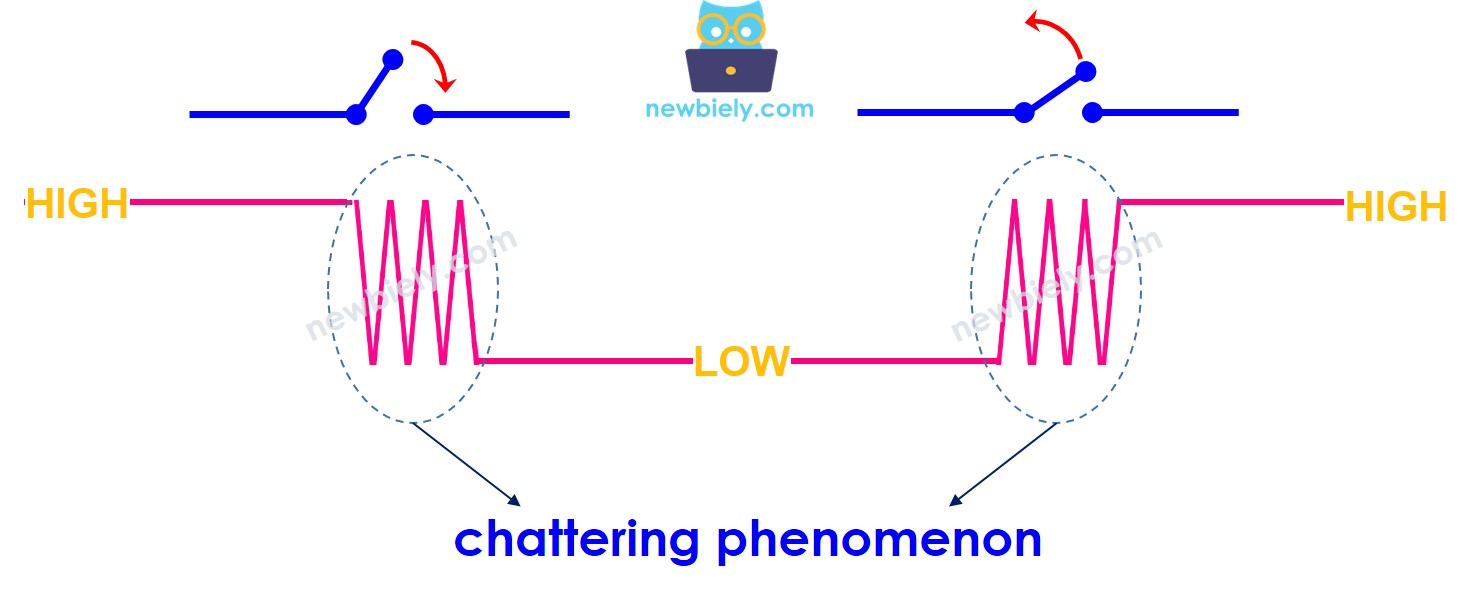
One tap, five "pressed" messages? Fix it with ESP32 Uno button debounce code that turns every real press into exactly one event. Inside a push button, two metal strips hit each other and spring back for a few milliseconds. The ESP32 Uno form board samples its pins thousands of times per second, so it catches each of those tiny jumps. A short time filter in your Arduino code, written by hand or taken from a library, hides them.
What you will do:
- Upload a plain button sketch and count the false events it prints
- Build a debounce filter based on the millis() timer
- Shrink the same job to a few lines with the ezButton library
- Read three buttons at once, each with its own debounce timer
Here is a scope-style view of the noisy edge a single press produces:
Components You Need
Or you can buy the following kits:
| 1 | × | DIYables Sensor Kit (18 sensors/displays) |
Additionally, some of these links are for products from our own brand, DIYables .
ESP32 Uno Pinout
The printed labels on the Uno headers are not the numbers you type in a sketch. Look up D6, D7 and D8 in this picture to find the GPIO number behind each one.

How to Connect the Button
By the end of this part, one button sits between D7 and GND.
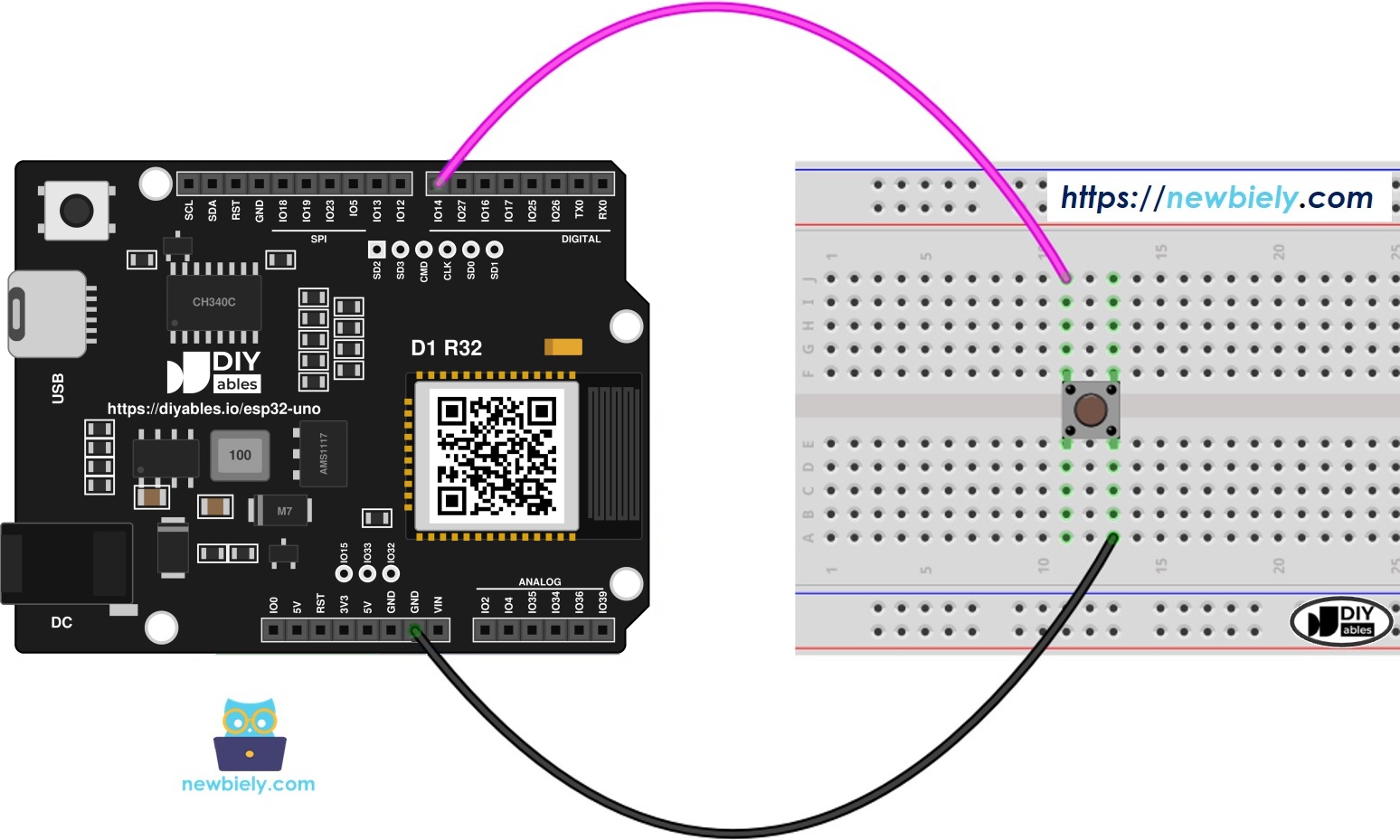
This image is created using Fritzing. Click to enlarge image
| Component Pin | ESP32 Uno Pin |
|---|---|
| Button leg 1 | D7 (GPIO14) |
| Button leg 2 | GND |
Good to know: you need no resistor here. The sketches call INPUT_PULLUP, which links GPIO14 to 3.3V inside the chip.
The first two sketches use this exact circuit. Run the raw version first, then the filtered one, and compare the two outputs.
The Shortcut: ESP32 Uno Button Debounce Code with ezButton
This part gets the same clean result with far less code.
The timer logic above grows long when you copy it for each button. Our ezButton library keeps one timer per button for you. Read the ezButton library guide for all its functions.
Step 1 — Install the library
Open Library Manager in the Arduino IDE, type "ezButton", and click Install on the library by ArduinoGetStarted.com.
Step 2 — Debounce one button
The wiring stays the same: one button from D7 (GPIO14) to GND.
| Code Part | What It Does |
|---|---|
| ezButton button(14) | Creates a button object on D7 (GPIO14) with the pull-up on |
| setDebounceTime(50) | Sets the quiet time to 50 ms |
| button.loop() | Samples the pin and runs the timer, so call it first in every pass |
| isPressed() / isReleased() | Returns true once for each clean press or release |
The output matches the hand-made filter, in about a third of the lines.
Step 3 — Debounce three buttons
Add two more buttons. Each one gets its own pin, its own object and its own timer.
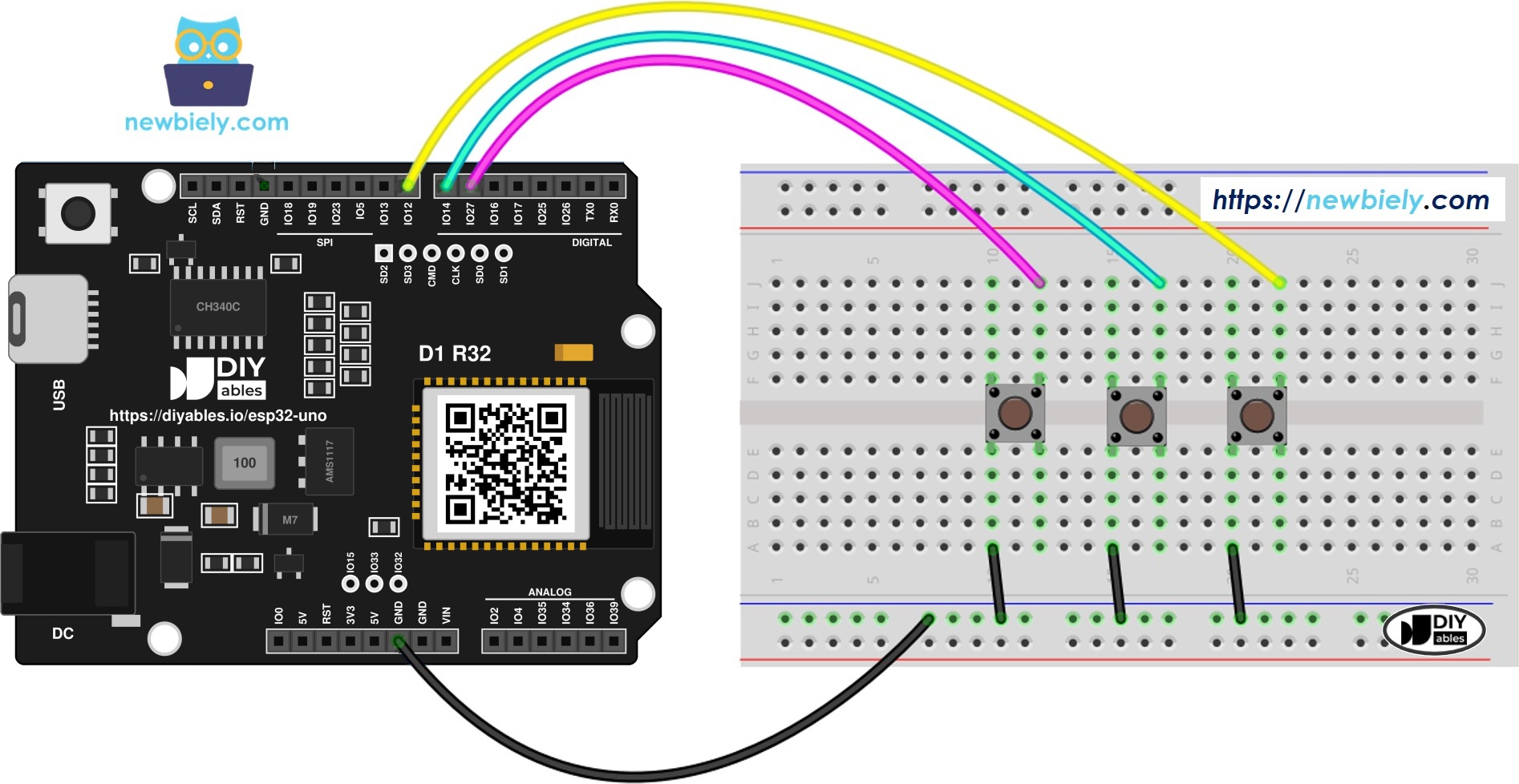
This image is created using Fritzing. Click to enlarge image
| Component Pin | ESP32 Uno Pin |
|---|---|
| Button 1 leg 1 | D6 (GPIO27) |
| Button 2 leg 1 | D7 (GPIO14) |
| Button 3 leg 1 | D8 (GPIO12) |
| Leg 2 of all three buttons | GND |
WARNING
The third button uses D8, which is GPIO12 and one of the boot strapping pins. It must be LOW when the board starts, or the flash gets the wrong voltage and the board will not boot. A button to GND can only pull the pin LOW, so this circuit is safe. Never wire anything to D8 that could pull it HIGH (for example a module output or a pull-up resistor to 3.3V). If the board fails to start or upload, unplug the D8 wire and try again.
Try pressing button 3, then button 1, then holding button 2 while you tap button 3. Each button reports on its own:
Video Tutorial
See the ESP32 Uno build in action in the video below.
Code Explanation
This part shows how the millis() filter decides what is real.
| Code Part | What It Does |
|---|---|
| BUTTON_PIN 14 | Points the sketch at D7 (GPIO14) |
| last_flickerable_state | Holds the newest raw level, bounces included |
| last_debounce_time = millis() | Restarts the clock on every raw change |
| millis() - last_debounce_time > DEBOUNCE_TIME | True only after 50 ms with no change |
| last_steady_state | Holds the accepted level and is compared with the new one to print pressed or released |
A bounce keeps resetting the clock, so only the final settled level passes the 50 ms test and gets printed.
ESP32 Uno vs UNO R4 for This Project
Moving this debounce project from the UNO R4 to the ESP32 Uno changes only the pin numbers and the logic level.
| Item | Arduino UNO R4 | ESP32 Uno |
|---|---|---|
| Logic voltage | 5V | 3.3V |
| Single button pin in code | 7 (D7) | 14 (D7) |
| Three-button pins in code | 6, 7, 8 | 27, 14, 12 |
| D8 at boot | Normal pin | Strapping pin, must stay LOW |
| Debounce logic and ezButton | Same code | Same code |
| Arduino IDE board | Arduino UNO R4 WiFi or Minima | ESP32 Dev Module |
The buttons go into the same header holes, so the circuit stays the same. Just never pull D8 HIGH at power-on.
Troubleshooting
| Problem | Possible Cause | Solution |
|---|---|---|
| No COM port shows up in Arduino IDE | CH340 driver not installed or a charge-only cable | Install the CH340 driver and use a USB cable that carries data |
| Upload stops at "Failed to connect" or "Waiting for download" | Board did not enter download mode | Hold the BOOT button while the upload starts, then release it |
| Board will not boot or upload with three buttons wired | Something pulls D8 (GPIO12) HIGH at startup | Make sure button 3 goes to GND only, or unplug the D8 wire while uploading |
| No lines appear when you press | Button leg not on D7 or not on GND | Put one leg on D7 (GPIO14) and the other on the GND rail |
| Lines appear with nobody touching the button | Floating pin from a loose jumper | Push the wires in firmly and keep INPUT_PULLUP in pinMode() |
| Doubled lines even with the debounce sketch | Button bounces longer than 50 ms | Raise DEBOUNCE_TIME or setDebounceTime() to 80 or 100 ms |
| Quick taps are lost | Debounce time longer than your press | Lower the value to 20 or 30 ms |
| Sketch uses pins 6, 7 and 8 and nothing works | Old Uno pin numbers left in the code | Use 27, 14 and 12, the GPIO numbers for D6, D7 and D8 |
| Compile error about ezButton.h | Library missing | Install ezButton from Library Manager |
FAQ
What is contact bounce in a push button?
It is the short burst of on-off changes that happens when the metal parts inside a button touch or separate. It lasts a few milliseconds, which is too fast for you to notice but slow enough for the ESP32 Uno to read many times.
Can a capacitor debounce the button instead of code?
Yes. A small capacitor (around 100 nF) from the pin to GND smooths the edge. Code is simpler, costs nothing and is easy to tune, so most projects use the software way shown here.
Is the ezButton library better than the millis() sketch?
They use the same idea. The hand-written sketch shows how the timer works. ezButton hides that code, gives one timer per button and adds handy functions like isPressed() and getCount().
Does debouncing slow down my ESP32 Uno sketch?
No. Neither method uses delay(). The code only compares two numbers in each loop pass, so the rest of your sketch keeps running at full speed.
Which GPIO number do I type for D7 on the ESP32 Uno?
Type 14. The ESP32 Uno code uses GPIO numbers, not the Uno labels, so D6 is 27 and D8 is 12. Typing 7 would point at a chip pin that is not on the D7 hole.
Why is D8 a risky pin on this board?
D8 is GPIO12, which the chip reads at boot to set the flash voltage. If it is HIGH at that moment, the board does not start. A button to GND is fine, but a module or resistor that pulls D8 up can stop the board from booting.
Can I wire a button to A2, A3, A4 or A5?
Yes, but these pins (GPIO35, 34, 36, 39) are input only and have no internal pull-up. INPUT_PULLUP does nothing on them, so add a 10k ohm resistor from the pin to 3.3V. The digital header pins avoid that extra part.
Does the UNO R4 debounce code run on the ESP32 Uno unchanged?
The logic does, and ezButton supports both boards. You only change the pin numbers, for example 7 becomes 14. The UNO R4 uses 5V logic, while ESP32 Uno pins take 3.3V only.
Do I need to install a driver for the ESP32 Uno?
Many computers need the CH340 driver, because this board uses a CH340 USB-to-serial chip. If no COM port appears after you plug it in, install the driver and try again.
Can I count how many times the button was pressed?
Yes. With ezButton, call button.setCountMode(COUNT_FALLING) in setup() and read button.getCount() in the loop. Thanks to the debounce, each press adds exactly one.
What if I need more button pins than the Uno headers give?
The ESP32 Uno has a few extra holes near the power header: GPIO32 and GPIO33 (I/O, PWM, analog on ADC1, so they also work while WiFi is on) and GPIO15 (I/O, PWM, analog on ADC2). Add pin headers to those holes and put the bare GPIO number in your sketch. For extra buttons, GPIO32 and GPIO33 are the best choice, since they have internal pull-ups. Two warnings: GPIO15 and GPIO0 (the IO0 pin at the unused Uno NC position) are boot strapping pins, and a wrong connection can stop the board from booting or uploading code, so use GPIO32/33 first. Never use the six holes under the digital header (SD0 to SD3, CMD, CLK = GPIO6 to GPIO11); they are wired to the flash chip and using them crashes the board.