
Arduino UNO R4 - 4-Channel Relay Module
This Arduino UNO R4 4-channel relay module guide shows you how to switch four high-voltage devices, such as pumps, fans, lamps or actuators, from one board. You get the module pinout, the wiring with a safe external power supply, and simple code for the Arduino IDE that turns all four relays on and off.
In this tutorial, you will:
- Learn what each pin on a 4-channel relay module does.
- Wire the relay module to the Arduino UNO R4 with an external 5V supply.
- Write code that controls four relays with pinMode() and digitalWrite().
- Upload the sketch and check the result in the Serial Monitor.
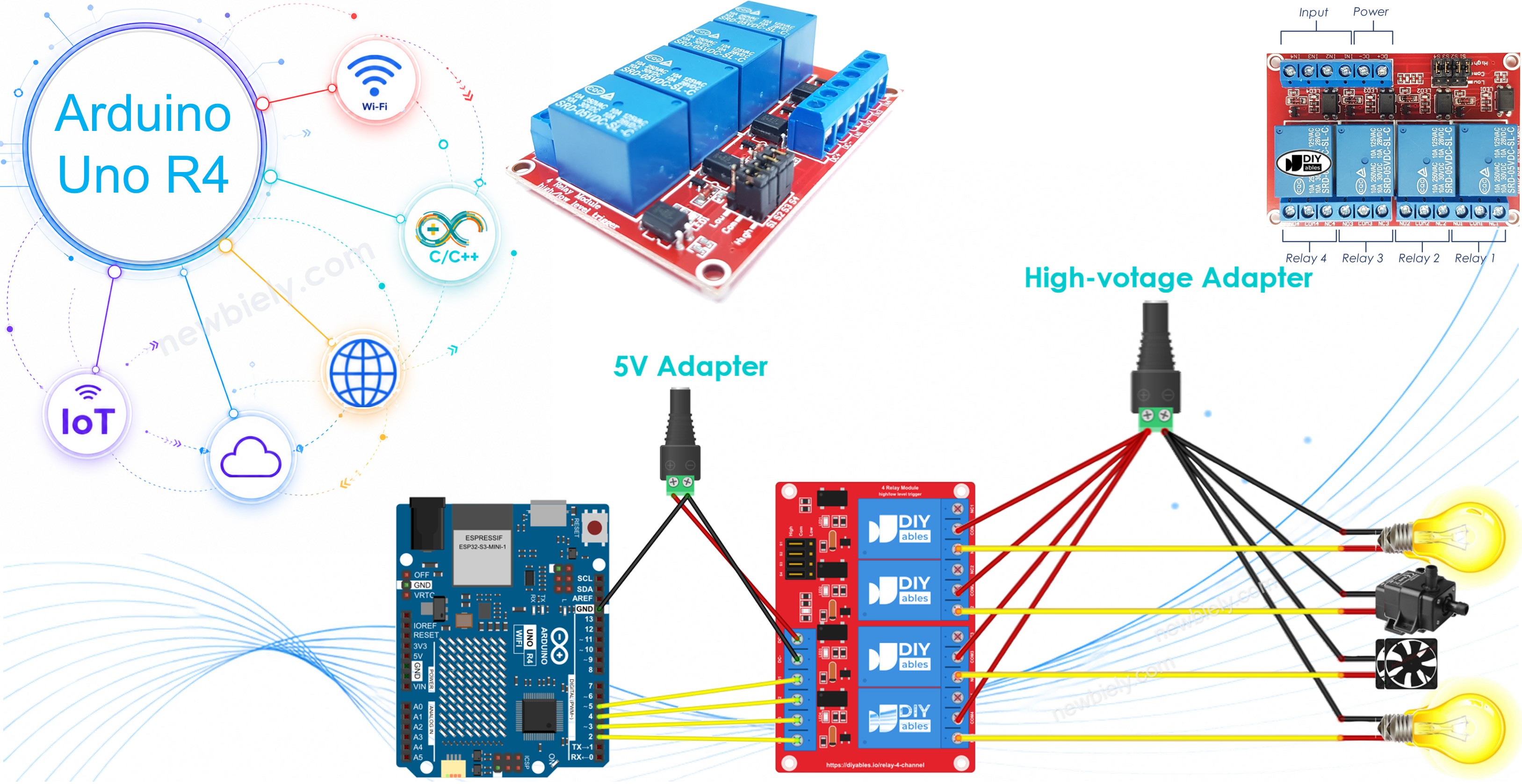
You could use four single relay modules to control four devices. But one 4-channel relay module is often the better choice:
- The wiring is simpler.
- It needs less space.
- It usually costs less.
- The code is exactly the same.
Hardware Preparation
Or you can buy the following kits:
| 1 | × | DIYables STEM V4 IoT Starter Kit (Arduino included) | |
| 1 | × | DIYables STEM V4B IoT Starter Kit (Arduino included) | |
| 1 | × | DIYables Sensor Kit (18 sensors/displays) |
Additionally, some of these links are for products from our own brand, DIYables .
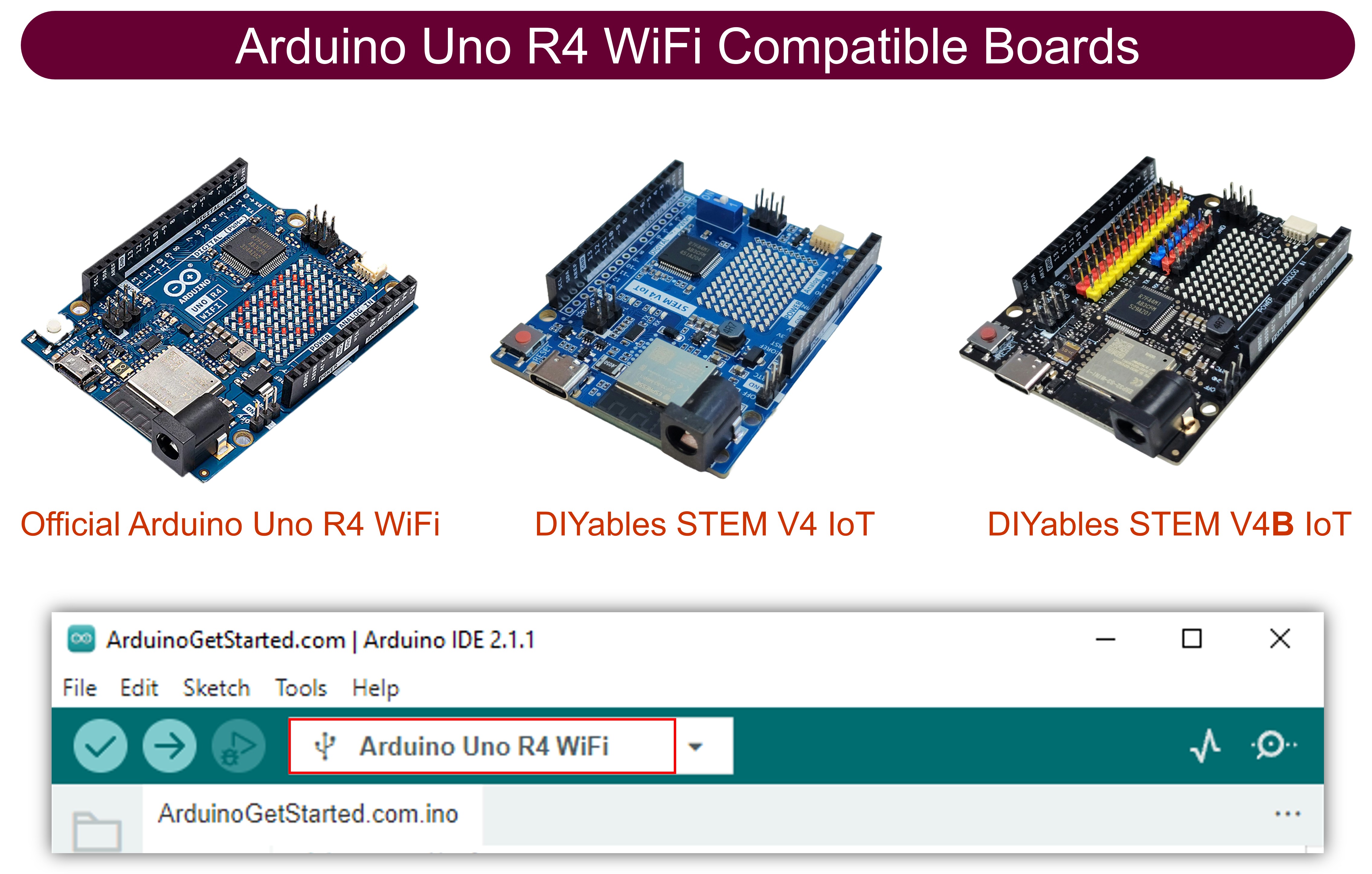
Overview of 4-Channel Relay Module
Before you wire anything, it helps to know what each pin is for. A 4-channel relay module has three groups of pins: power, signal and output. Once you know them, the wiring is easy.
Pinout
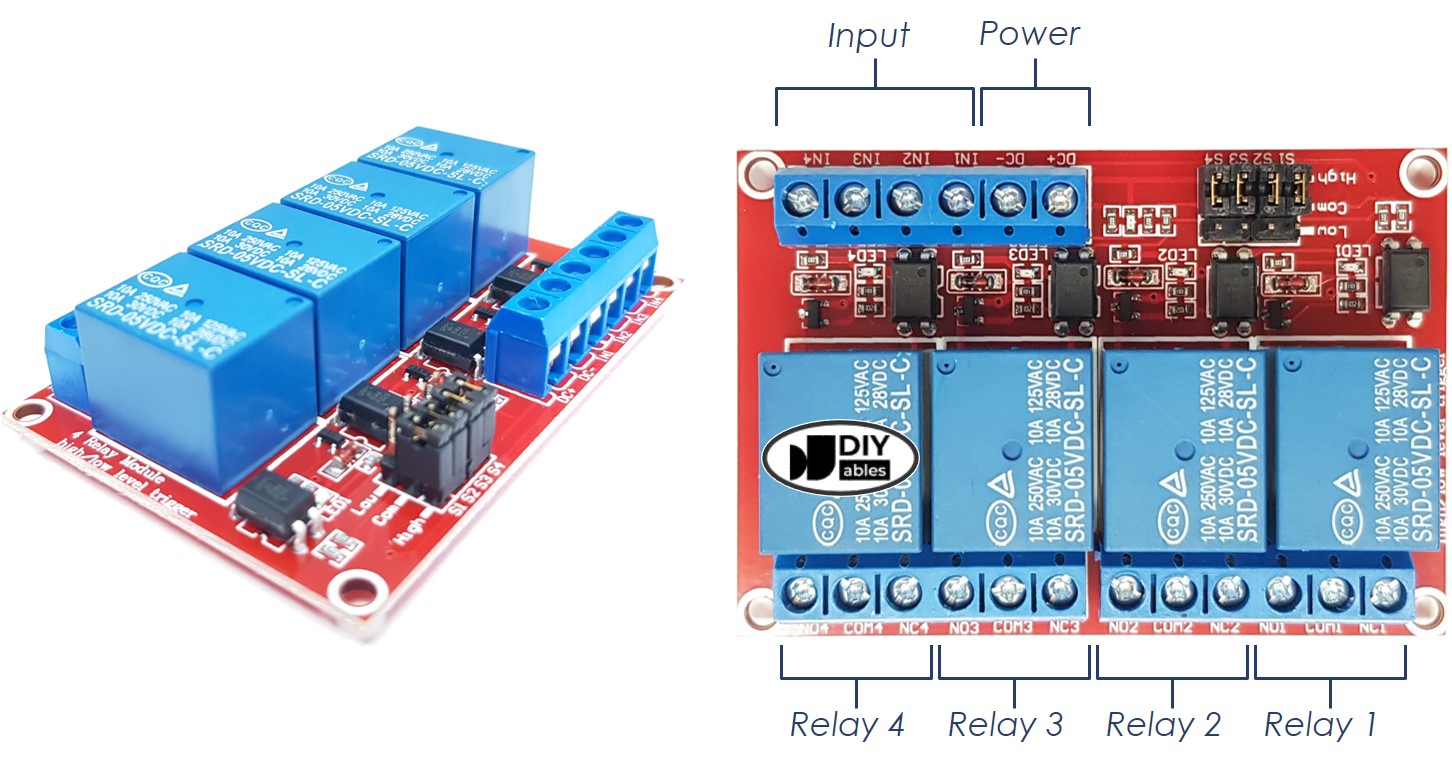
Power pins
These pins power the relay coils on the board.
- DC+: connect it to the 5V pin of the power supply.
- DC-: connect it to the GND pin of the power supply. Also connect it to a GND pin of the Arduino UNO R4, so both share the same ground.
Signal pins
The Arduino UNO R4 sends its control signals to these pins.
- IN1: controls relay 1.
- IN2: controls relay 2.
- IN3: controls relay 3.
- IN4: controls relay 4.
Output pins
Each relay has three output pins: NCx (normally closed), NOx (normally open) and COMx (common). You connect your high-voltage device to them.
- NC1, NO1, COM1: connect the device that relay 1 controls.
- NC2, NO2, COM2: connect the device that relay 2 controls.
- NC3, NO3, COM3: connect the device that relay 3 controls.
- NC4, NO4, COM4: connect the device that relay 4 controls.
Trigger jumpers
The module also has 4 jumpers. With them, you choose low-level trigger or high-level trigger for each relay.
New to relays? Read the Arduino UNO R4 - Relay tutorial first. It explains how to connect a relay to a high-voltage device, and how normally closed and normally open differ.
Wiring Diagram
Four relay coils draw a lot of current. So do NOT power the module from the 5V pin of the Arduino UNO R4. Use an external 5V power supply for the module instead.
In this setup you use three power sources:
- A 5V power adapter for the Arduino UNO R4.
- A 5V power adapter for the 4-channel relay module.
- A higher-voltage power adapter (12VDC, 24VDC, 48VDC, 220VAC...) for the devices that the relays switch.
The Arduino UNO R4 can get its power from the USB Type-C cable or from the power jack. This power source is not shown in the image. The table below lists the signal and power connections.
| Relay Module Pin | Connect To |
|---|---|
| DC+ | 5V of the relay power adapter |
| DC- | GND of the relay power adapter and GND of the Arduino UNO R4 |
| IN1 | D2 of the Arduino UNO R4 |
| IN2 | D3 of the Arduino UNO R4 |
| IN3 | D4 of the Arduino UNO R4 |
| IN4 | D5 of the Arduino UNO R4 |
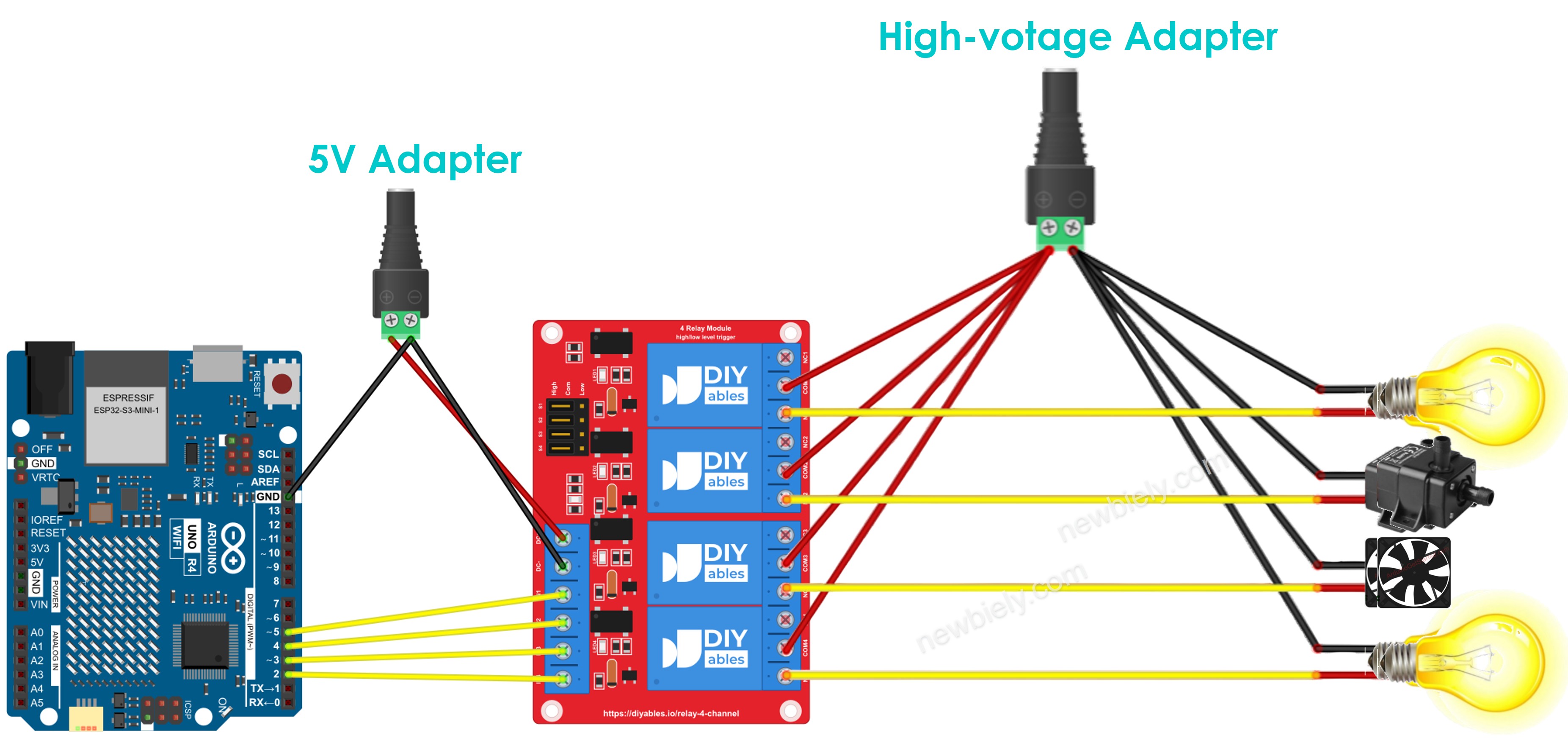
This image is created using Fritzing. Click to enlarge image
See The best way to supply power to the Arduino Uno R4 and other components.
※ NOTE THAT:
If all four devices need the same voltage, one high-voltage power adapter can power all of them. If they need different voltages, use a separate high-voltage power adapter for each device.
How To Program For 4-Channel Relay Module
Controlling a relay is just like turning an LED on or off. You only need two functions. Here is how they work for four relays.
- Set each relay pin of the Arduino UNO R4 as a digital output with the pinMode() function.
- Turn each relay on or off with the digitalWrite() function.
Arduino UNO R4 Code
This sketch sets pins D2, D3, D4 and D5 as outputs. In the loop, it turns all four relays on for one second and then off for one second. It also prints each step to the Serial Monitor.
Detailed Instructions
- New to the Arduino UNO R4? Follow setting up the environment for Arduino UNO R4 WiFi/Minima in the Arduino IDE first.
- Wire it up as shown in the diagram.
- Connect the board to your computer with a USB Type-C cable.
- Open Arduino IDE, choose the correct Arduino UNO R4 board (for example, Arduino UNO R4 WiFi) and the correct COM port.
- Copy the code above and paste it into the Arduino IDE.
- Upload the code by clicking the Upload button.
- Listen for the click of the relays. They should switch every second.
- Open the Serial Monitor at 9600 baud to see the messages.
Tip: Test the relays with no high-voltage load first. When you hear all four relays click and see the LEDs on the module change, you know the wiring and the code are correct.
Video Tutorial
Function References
FAQ
Can I power the 4-channel relay module from the 5V pin of the Arduino UNO R4?
It is not a good idea. Four relay coils together draw much more current than the board should supply. Use an external 5V supply for the module, and connect its GND to the GND of the Arduino UNO R4.
Can I control each relay on its own?
Yes. Each relay has its own IN pin and its own Arduino UNO R4 pin. Call digitalWrite() on one pin only, and only that relay changes.
My relays turn ON when the code says LOW. Why?
Your module is set to low-level trigger. Move the trigger jumpers to high-level trigger, or swap HIGH and LOW in the digitalWrite() lines.
Does this code work on both the Arduino UNO R4 WiFi and the Arduino UNO R4 Minima?
Yes. Both boards have the same pins and the same 5V logic. Just select the right board in the Arduino IDE before you upload.
Can I use code from the classic Arduino UNO?
Yes, mostly. The pins are the same, and standard functions like pinMode(), digitalWrite() and delay() work the same way. Only code that uses AVR registers directly needs to be changed.
Troubleshooting
| Problem | Possible Cause | Solution |
|---|---|---|
| No COM port appears in the Arduino IDE | Charge-only USB cable or board not in bootloader mode | Try another USB Type-C data cable, then double-press RESET to enter bootloader mode |
| No relay clicks | The module has no power or the grounds are not shared | Connect DC+ to the external 5V supply and join DC- with the GND of the Arduino UNO R4 |
| Only some relays work | An IN wire is loose or on the wrong pin | Check that IN1 to IN4 go to D2, D3, D4 and D5 |
| Relays work in reverse | The trigger jumpers are set to low-level trigger | Move the jumpers to high-level trigger or swap HIGH and LOW in the code |
| Board resets when the relays switch | The relay coils take power from the board | Power the module from an external 5V supply, not from the 5V pin |
| Relay clicks but the device does not turn on | The device is wired to the wrong output pin | Use COM and NO for a device that should be off by default, and check its own power adapter |
| Serial Monitor shows strange characters | Wrong baud rate | Set the Serial Monitor to 9600 baud |
Application Examples
With four relays, the Arduino UNO R4 can control four separate devices. Here are some ideas to grow this project.
- Build a four-zone garden watering system. Connect one water pump or valve to each relay, and use soil moisture sensors on the analog pins to decide which zone needs water.
- Make a smart room controller. Wire a lamp, a fan, a heater and a night light to the four relays, and add four buttons so each one toggles its own relay.
- Add a temperature control. Read a DS18B20 or DHT22 sensor, and let the Arduino UNO R4 turn on a fan relay when it is hot and a heater relay when it is cold.
- Control the relays from your phone. On the Arduino UNO R4 WiFi, run a small web server and switch each relay from a web page.
- Run devices on a schedule. Add a real-time clock module so the Arduino UNO R4 switches each relay at set times of the day.