
Arduino UNO R4 - GUVA-S12SD UV Sensor
In this guide, we will learn how to use the GUVA-S12SD UV sensor with the Arduino UNO R4. Your eyes cannot see ultraviolet light, but your skin feels it a few hours later as sunburn. This small module lets the Arduino UNO R4 put a number on that invisible light, so a project can say "put on sunscreen now" instead of you guessing. In detail, we will learn:
- What the two chips on the purple module do, and why a desk lamp hardly moves the reading.
- How to wire the SIG, GND and VCC pins to the Arduino UNO R4 WiFi or Minima.
- How to show the analogRead() number and the matching SIG voltage in the Serial Monitor.
- How to average a few readings, turn the voltage into a rough UV index, and print a WHO level from Low to Extreme.
Hardware Preparation
Or you can buy the following kits:
| 1 | × | DIYables STEM V4 IoT Starter Kit (Arduino included) | |
| 1 | × | DIYables STEM V4B IoT Starter Kit (Arduino included) | |
| 1 | × | DIYables Sensor Kit (18 sensors/displays) |
Additionally, some of these links are for products from our own brand, DIYables .
Overview of GUVA-S12SD UV Sensor
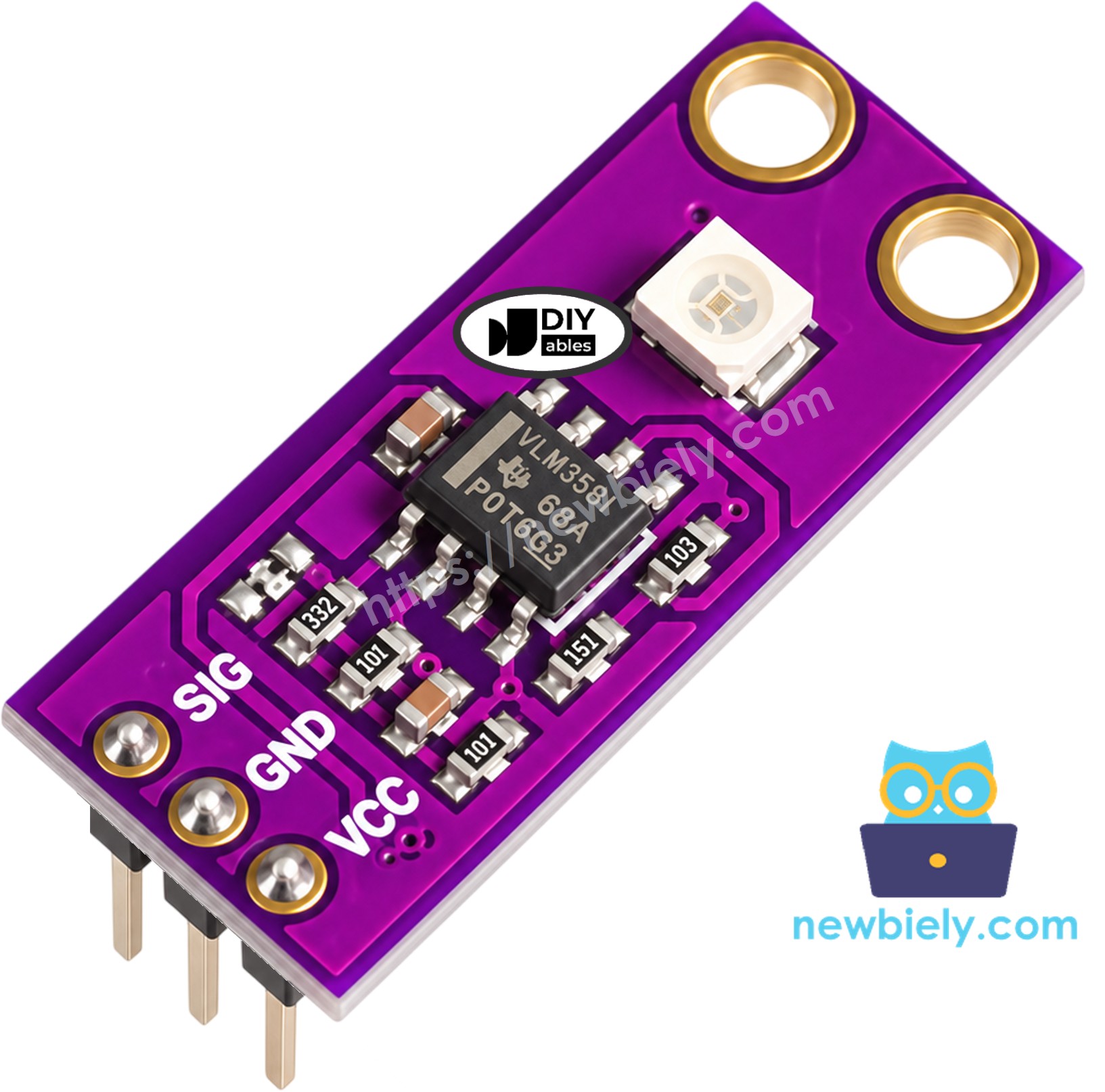
The DIYables GUVA-S12SD module is a narrow purple board, roughly 11mm by 27mm, with a mounting hole at each end. It comes in a pack of two, and the 3-pin header is already soldered, so you can plug jumper wires in right away.
Two parts do the work. The tiny white square is the GUVA-S12SD photodiode. When UV light falls on it, it passes a very small current, much too weak to measure directly. The second chip, a VLM358 op-amp, boosts that current into a voltage on the SIG pin. The Arduino UNO R4 then reads this voltage with analogRead(). In short: more UV, higher voltage.
The photodiode only "sees" UV-A and UV-B, from 240nm to 370nm, over a wide 130 degree angle. Ordinary room light is mostly visible light, so on a desk the sensor gives a voltage near 0V. That is normal. To get real numbers, carry the board outdoors into the sun, or point a UV flashlight (the kind used to check bank notes) at it.
| GUVA-S12SD UV Sensor Module | |
|---|---|
| Sensor chip | GUVA-S12SD UV photodiode |
| Signal amplifier | VLM358 op-amp |
| Wavelength range | 240nm to 370nm (UV-A and UV-B) |
| Viewing angle | 130 degrees |
| Power supply | 2.5V to 5V DC |
| SIG output | analog, near 0V without UV, about 1V or a bit more in strong sun |
| Size | about 11mm x 27mm, 2 mounting holes |
From left to right, the pins are printed SIG, GND, VCC:
- SIG pin: connect to an analog input of the Arduino UNO R4. This guide uses A0.
- GND pin: connect to GND (0V).
- VCC pin: connect to 3.3V (or 5V). The diagram uses 3.3V, but the module accepts anything from 2.5V to 5V.
From Voltage to UV Index
The UV index is the number you hear in weather reports. A simple rule used by many makers is: UV index ≈ SIG voltage / 0.1. Put another way, each 0.1V on SIG is about one index point, so 0.6V means about index 6. This is a good estimate for a hobby project, not a calibrated meter. The World Health Organization sorts the index into five levels:
| UV Index | Level | Simple advice |
|---|---|---|
| 0 to 2 | Low | no special care for most people |
| 3 to 5 | Moderate | wear a hat, use sunscreen |
| 6 to 7 | High | stay in the shade around noon |
| 8 to 10 | Very High | cover up, avoid long time in the sun |
| 11 and up | Extreme | stay inside if you can |
Wiring Diagram
Three jumper wires are all you need. SIG goes to A0, GND to GND, and VCC to the 3.3V pin, as the diagram shows. Moving VCC to the 5V pin also works if 3.3V is already in use.
| UV Sensor Pin | Arduino UNO R4 Pin |
|---|---|
| SIG | A0 |
| GND | GND |
| VCC | 3.3V (or 5V) |
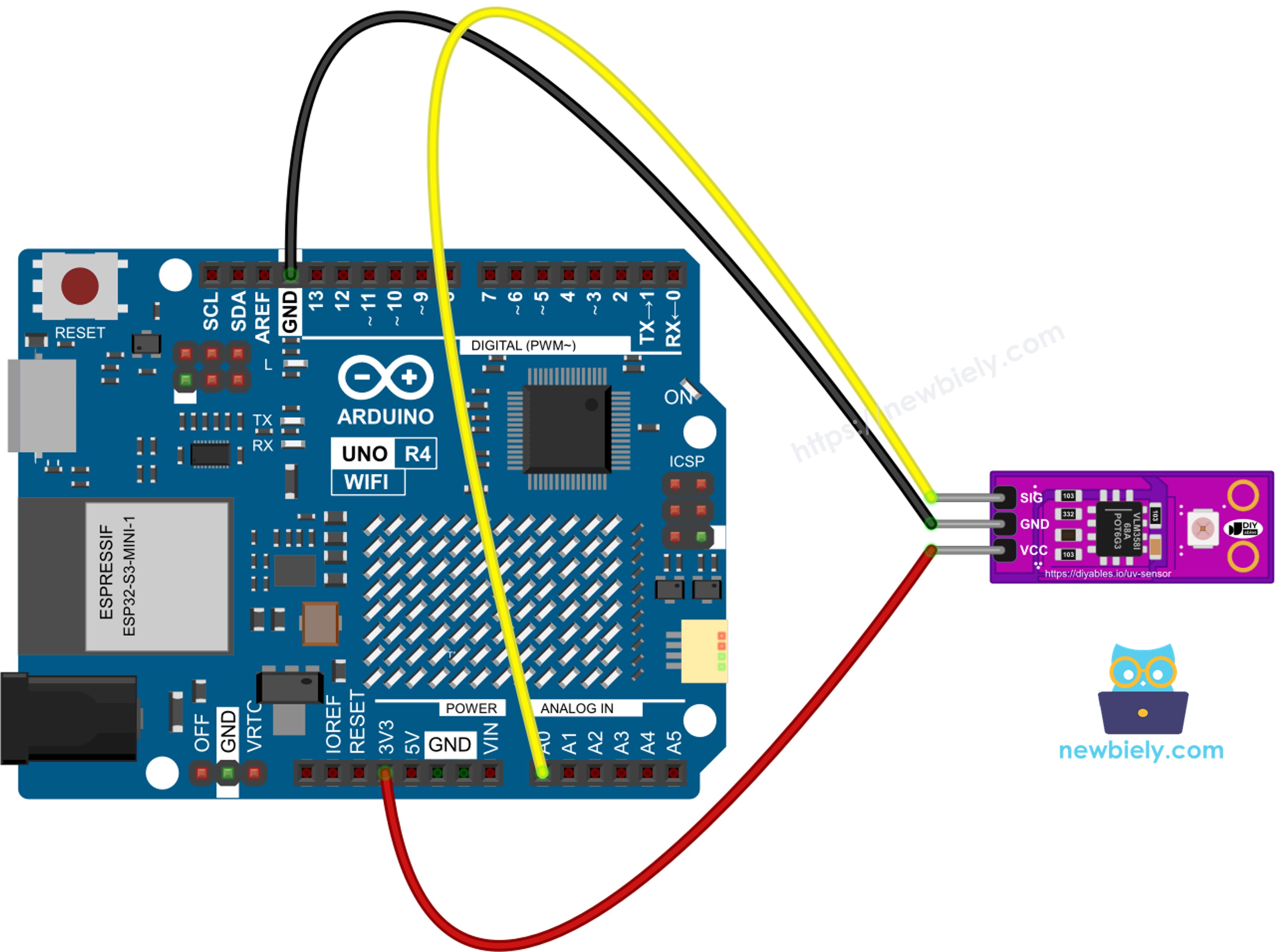
This image is created using Fritzing. Click to enlarge image
See The best way to supply power to the Arduino Uno R4 and other components.
Keep the white photodiode facing up and uncovered. A finger or a wire over it blocks the light and gives a false low value.
How To Program For GUVA-S12SD UV Sensor
There is no library to install. The sensor is just an analog voltage, and the Arduino core already knows how to read it.
- Name the analog pin that the SIG wire goes to:
- Read the pin. By default the Arduino UNO R4 gives a number from 0 to 1023:
- Change the number into volts. The analog reference of the Arduino UNO R4 is 5V, and it stays 5V even when the module is powered from 3.3V:
- Estimate the UV index:
※ NOTE THAT:
The ADC of the Arduino UNO R4 can do more than 10 bits. If you call analogReadResolution(14); in setup(), analogRead() returns 0 to 16383, and the formula becomes adcValue * 5.0 / 16383.0. Each step is then about 0.3mV instead of about 4.9mV. For a UV index with one decimal, the default 10 bits is already enough, so the code below keeps it simple.
Arduino UNO R4 Code - Read SIG Voltage
Start with the raw data. This sketch reads A0 a little faster than once per second and prints two values on one line: the ADC number and the voltage it stands for. It is the best way to check the wiring before doing any math.
Detailed Instructions
Follow these instructions step by step:
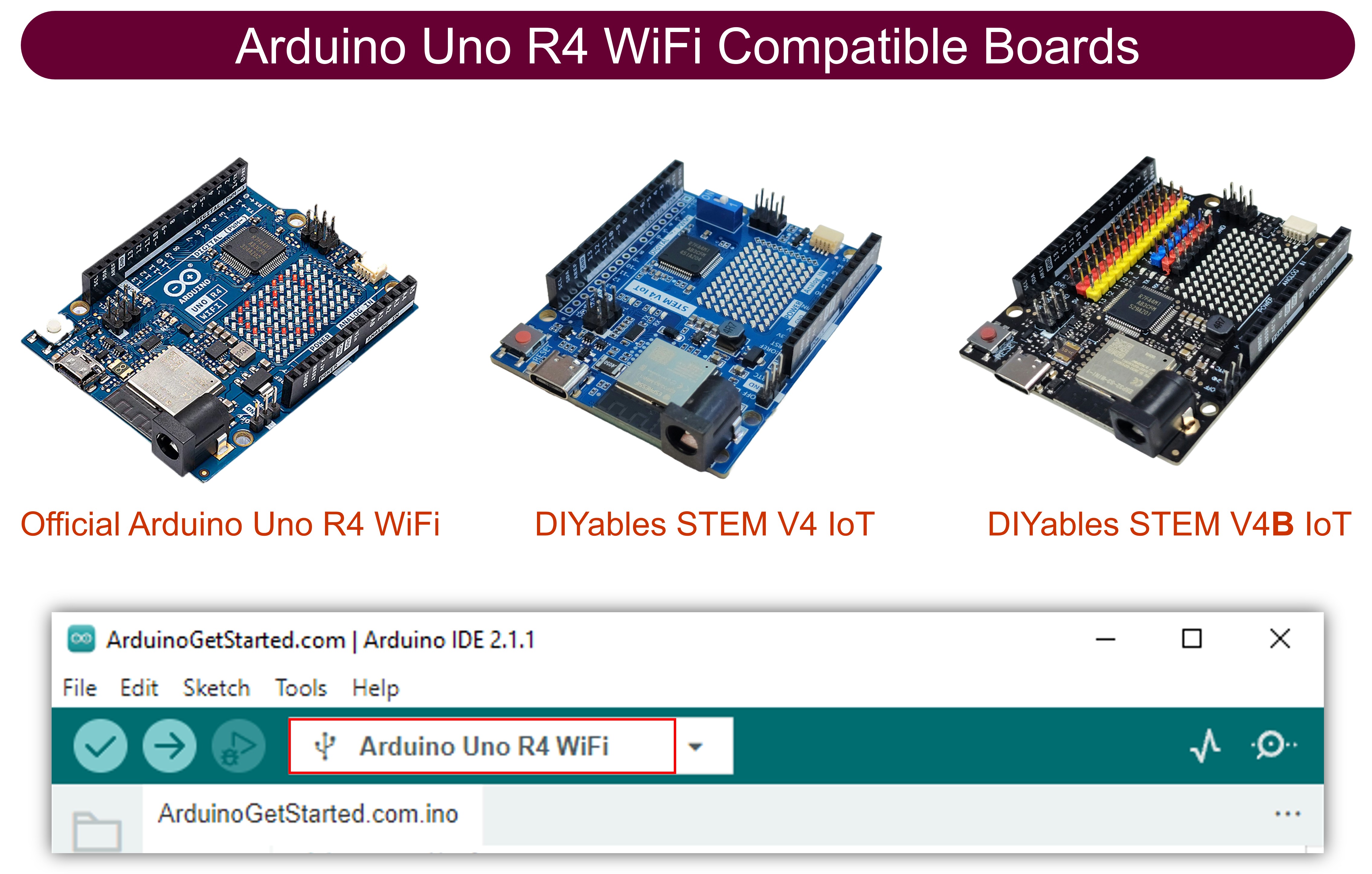
- If this is your first time using the Arduino Uno R4 WiFi/Minima, refer to the tutorial on setting up the environment for Arduino Uno R4 WiFi/Minima in the Arduino IDE.
- Wire the UV sensor module to the Arduino UNO R4 according to the provided diagram.
- Plug the Arduino UNO R4 into your computer with a USB Type-C cable.
- Launch the Arduino IDE on your computer.
- Select the appropriate Arduino UNO R4 board (e.g., Arduino UNO R4 WiFi or Arduino UNO R4 Minima) and COM port.
- Paste the code above into the Arduino IDE.
- Click the Upload button.
- Open the Serial Monitor at 9600 baud. On your desk, the numbers stay tiny.
- Now take the laptop and the board outside into the sun (closed window glass blocks much of the UV). The values jump up.
The first lines come from indoors, the last ones from direct sunlight. If the value stays at 0 even in the sun, check that SIG really goes to A0 and that VCC has power.
Arduino UNO R4 Code - UV Index and Level
Now let's make the reading useful. This sketch takes 16 quick readings, averages them so the number does not jump around, converts the result to a UV index, and adds the WHO level name.
Detailed Instructions
- Do not change the wiring.
- Copy this second sketch into the Arduino IDE and click Upload.
- Watch the Serial Monitor. Indoors you see "Low". Outside at midday, the level climbs.
A cloud passing over the sun can drop the index by a few points in seconds. Thin clouds let a lot of UV through, so do not trust a cloudy sky too much.
To check your result, compare it with the UV index in a local weather app at the same time. If your board is always a little high or low, you can change the 0.1 in the code to match.
Project Ideas
A few ways to build on this with the Arduino UNO R4:
- Sunscreen reminder: when the index reaches 3, beep a buzzer every hour you stay outside.
- UV level on the LED matrix: the Arduino UNO R4 WiFi has a 12x8 LED matrix on board, so it can show the current index number without any extra display.
- Online UV station: send the index from the Arduino UNO R4 WiFi to a web page on your phone, next to temperature and humidity.
- UV lamp tester: hold a UV LED or a nail-curing lamp over the sensor to see if it still gives out enough UV.
- Smart blind: use a servo motor to close a window blind when the UV level becomes High.