
Arduino Nano ESP32 - LED Module
In this guide, we will learn how to use a 10mm LED module with the Arduino Nano ESP32. A bare LED on a breadboard needs a resistor and the right polarity, and the 3.3V pins of the Nano ESP32 can only push a small current. The LED module solves both problems on its own small board. In detail, we will learn:
- How to connect the three pins of the LED module (GND, VCC, IN) to the Arduino Nano ESP32.
- How to write a program that blinks the LED once every two seconds and reports each change on the Serial Monitor.
- How to use PWM on the same pin so the light slowly rises to full power and then dims again.
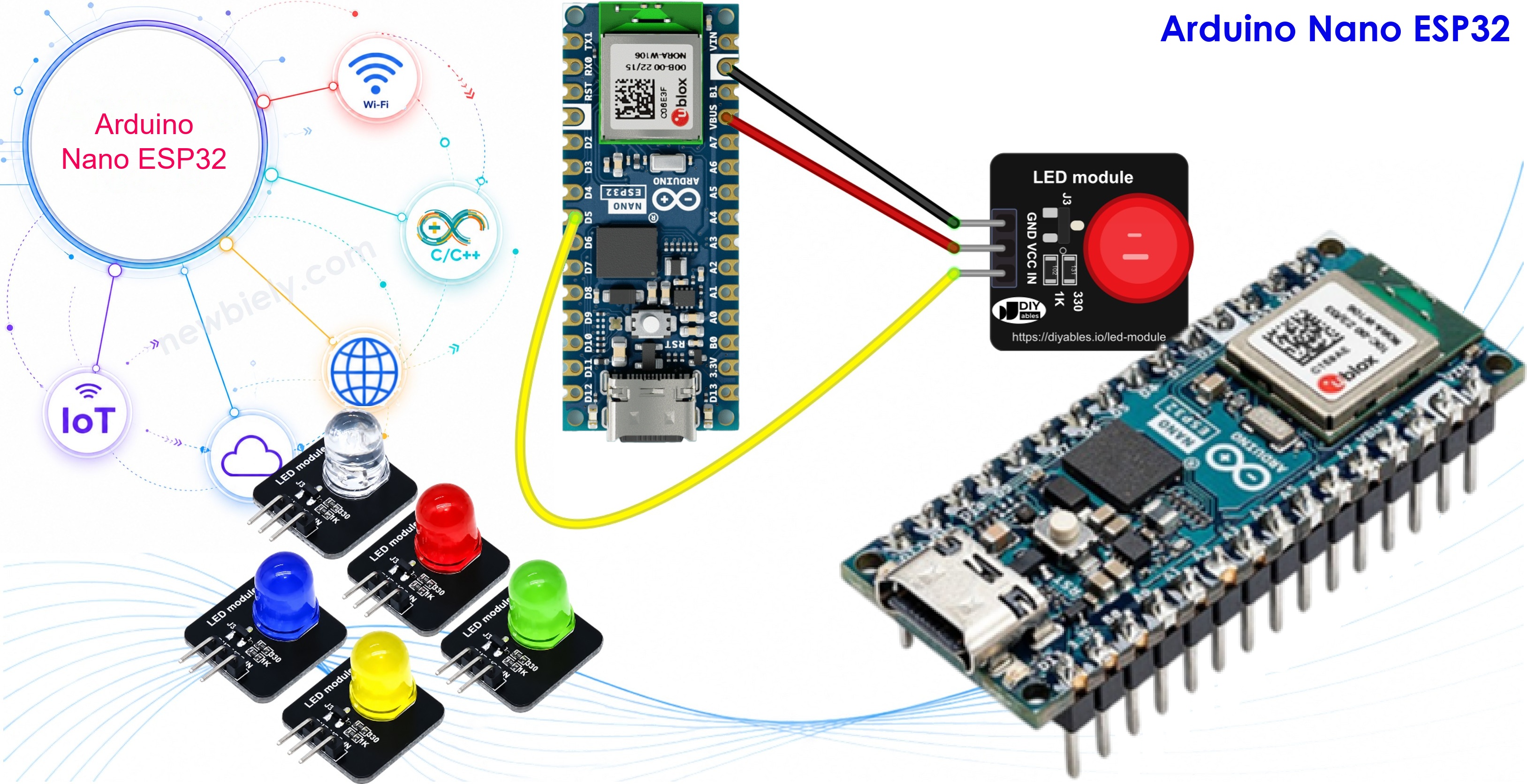
The Nano ESP32 has WiFi built in, so one small light like this is a handy way to show a status later on: connected, waiting, or error.
Hardware Preparation
Or you can buy the following kits:
| 1 | × | DIYables Sensor Kit (18 sensors/displays) |
Additionally, some of these links are for products from our own brand, DIYables .
Buy Note: Use the LED Module for easier wiring. It includes an integrated resistor.
Overview of LED Module
Look at the module and you will see a big 10mm diffused round LED sitting on a small black board, about 20mm x 20mm. Put simply, it is an LED that already has its resistor and its driver on the board. A 330Ω resistor limits the LED current, and a small transistor turns the LED on and off. The LED takes its power from the VCC pin, not from the signal pin. The IN pin only tells the transistor what to do, through a 1KΩ resistor, so the Nano ESP32 pin gives just a tiny current. That is why the light stays bright and even, though the board's pins work at 3.3V.
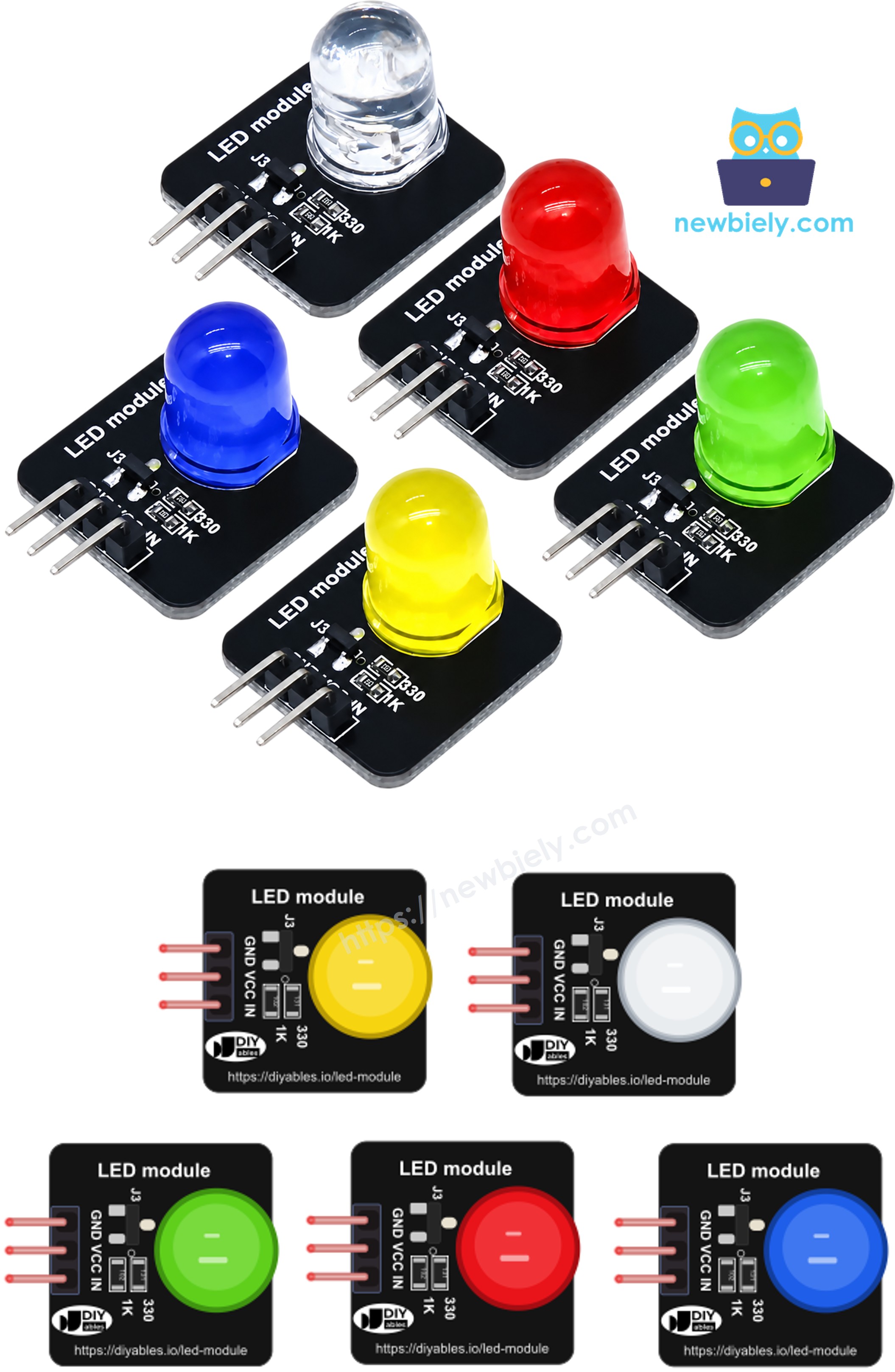
The module comes in a pack of five colors: red, yellow, blue, green and white. A 3-pin male header (2.54mm pitch, right-angle pins) is already soldered on. From one side to the other, the pins are labeled GND, VCC and IN:
- GND pin: connect to GND (0V)
- VCC pin: connect to 3.3V or 5V. On the Nano ESP32, the 3V3 pin is the easy choice.
- IN pin: connect to a digital output pin of the Arduino Nano ESP32. Pick a PWM pin if you want to dim the LED.
How the IN pin controls the light (active HIGH):
- IN is HIGH → the LED is ON.
- IN is LOW → the LED is OFF.
- IN gets a PWM signal → the LED glows at part brightness. A bigger duty cycle gives a brighter light.
Quick specs:
- Supply voltage: 3.3V to 5V DC
- LED: 10mm, diffused, round
- Board size: 20mm x 20mm
- Control: active HIGH, PWM accepted
The module is not only for learning. You can use it as a power or WiFi status light, a fault or alarm lamp, a "heartbeat" that shows your sketch is still running, or as one of the lights in a small traffic-light model.
Wiring Diagram
Only three short wires are needed and nothing else goes on the breadboard: GND to GND, VCC to the 3V3 pin, and IN to pin D5. D5 is the same pin used in the Arduino Nano ESP32 - LED - Blink tutorial, and it supports PWM, so both sketches below work without moving any wire.
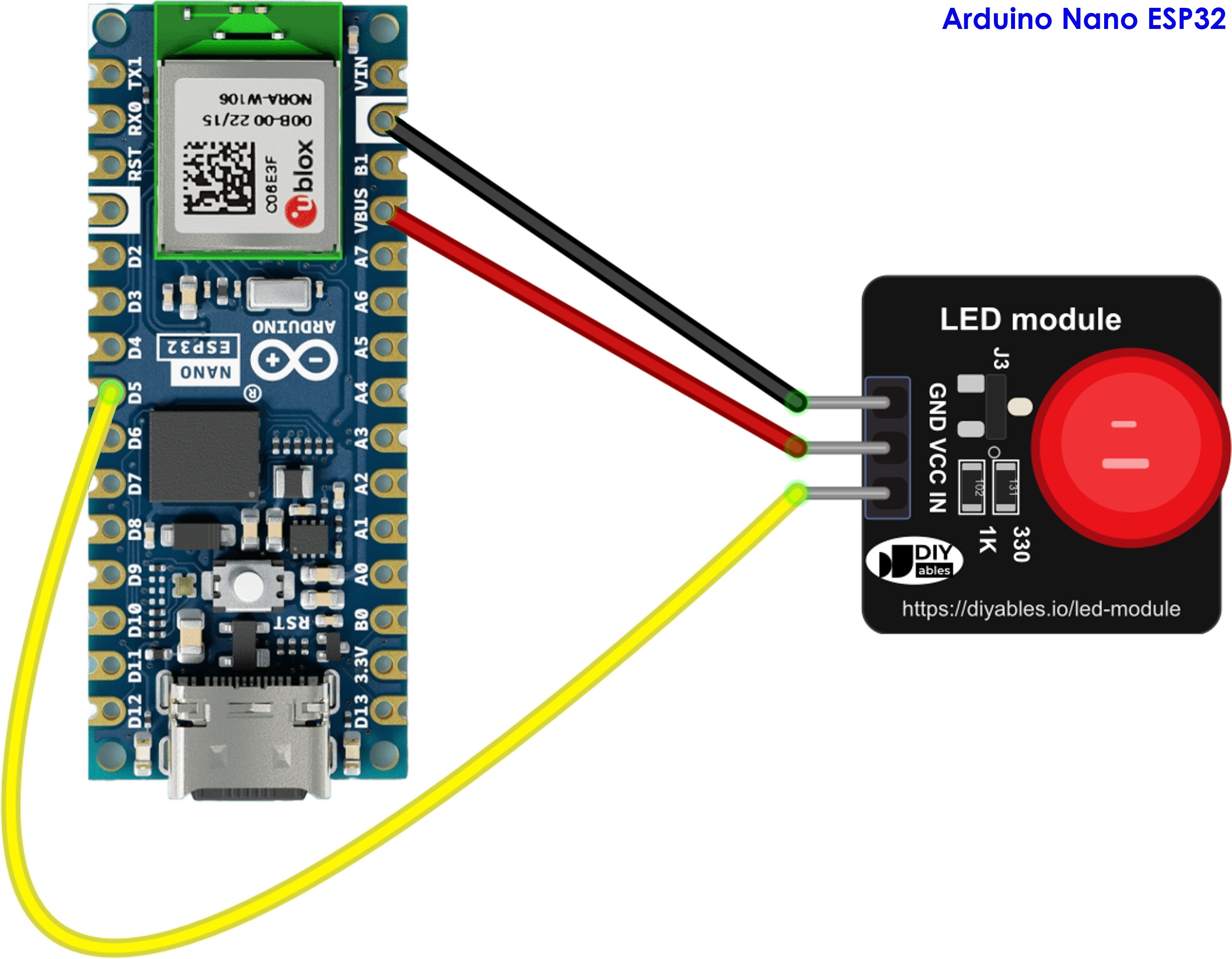
This image is created using Fritzing. Click to enlarge image
Wiring table of LED Module and Arduino Nano ESP32
| LED Module | Arduino Nano ESP32 |
|---|---|
| GND | → GND |
| VCC | → 3V3 |
| IN | → D5 |
If your Nano ESP32 is powered from USB, you can also feed VCC from the VBUS pin (5V). The LED gets a bit brighter, and the IN pin still works fine with the 3.3V signal from D5.
How To Program For LED Module
No library is needed. The sketches use only functions that are built into the Arduino core for the Nano ESP32.
- Give the IN pin a name:
- Make the pin an output in setup():
- Turn the LED ON and OFF:
- Set a brightness level from 0 (off) to 255 (full):
Arduino Nano ESP32 Code - LED Module Blink
This first sketch switches the LED ON for one second, then OFF for one second, again and again. It also counts the blinks and prints every change, so you can compare the Serial Monitor with what your eyes see.
Detailed Instructions
Follow these instructions step by step:
- If this is the first time you use Arduino Nano ESP32, see how to setup environment for Arduino Nano ESP32 on Arduino IDE.
- Wire the LED module to the Arduino Nano ESP32 as shown in the table and the diagram above.
- Plug the Arduino Nano ESP32 into your computer with a USB Type-C cable.
- Launch the Arduino IDE on your computer.
- Select the appropriate Arduino Nano ESP32 board (e.g., Arduino Nano ESP32) and COM port.
- Copy the code above and paste it into the Arduino IDE.
- Click the Upload button to send the code to the Arduino Nano ESP32.
- Open the Serial Monitor and set the baud rate to 9600.
- Watch the module: the LED lights up for one second and goes dark for one second.
※ NOTE THAT:
The LED stays dark but the Serial Monitor shows "LED ON"? Check the order of the three pins. Read the labels printed on the board: IN is the end pin next to VCC, and GND is at the other end. Also make sure the IN wire goes to D5, the pin used in the code.
Arduino Nano ESP32 Code - LED Module Fade
Now let's control the brightness, not just ON and OFF. The sketch below raises the PWM value from 0 to 255 in steps of 17, one step every 100 milliseconds, then brings it back down to 0. One full breath takes about three seconds.
Detailed Instructions
- Keep the same wiring. D5 already supports PWM.
- Copy the fade code above, paste it into the Arduino IDE and click Upload.
- Look at the LED: it slowly gets brighter, then slowly fades out, and repeats.
- Open the Serial Monitor (9600 baud) to follow the brightness values.
Want a smoother fade? Make FADE_STEP smaller (for example 5) and STEP_DELAY shorter (for example 20). For a fade that does not block other code, see the Arduino Nano ESP32 - LED - Fade tutorial. It also works with this module, since you only change the pin.