You do not need a motion sensor to see movement. The camera is already a sensor. In this tutorial the ESP32 S3 does image processing: it takes small black and white pictures all the time, compares each new picture with the one before, and works out whether something in front of the camera moved.
When it finds movement, it does two things:
It writes a line in the Serial Monitor, so you can see exactly what the camera saw
It saves a big colour photo to the microSD card
No extra part is needed. You only need the ESP32 S3 camera board and a microSD card. There is no PIR sensor, no wiring, and no breadboard in this project.
※ NOTE THAT:
This tutorial teaches the detection part only. Once your camera finds movement, you can send the news anywhere you like. Take the takeAndSavePhoto() function and replace it with the sending part of another tutorial:
The detection code stays the same. Only the last step changes.
What you'll build:
A camera that watches itself for movement, with no PIR sensor
A message in the Serial Monitor every time the camera sees something move
A big photo saved to the microSD card when something changes
Settings at the top of the code that you can change, to make the camera more or less sensitive, and to tell a person from a lamp or from leaves in the wind
A camera that also sees things a PIR sensor cannot, such as a cold object
Disclosure: Some of the links provided in this section are Amazon affiliate links. We may receive a commission for any purchases made through these links at no additional cost to you. Additionally, some of these links are for products from our own brand, DIYables .
※ NOTE THAT:
The ESP32 S3 camera board has 40 pins, but the screw terminal block and the breakout board have 44 pins. They still work together. Put the camera board in the center of the 44-pin board, so 2 pins stay free on the left side and 2 pins stay free on the right side.
The screw terminal block lets you connect wires with a screwdriver, with no soldering. The breakout board gives you easy pin headers for a breadboard.
How It Works
The idea is simple. Take a picture. Take another picture. Compare them.
The camera takes a small black and white picture, only 160 × 120 pixels.
In black and white, one pixel is one number between 0 (black) and 255 (white).
The code compares every pixel with the same pixel of the picture before.
If the two numbers are far apart, that pixel changed.
If many pixels changed, something moved.
Why Black and White, and Why So Small?
Choice
Reason
Black and white
One pixel is one number, so comparing is easy and fast
160 x 120
19200 numbers fit easily in the memory, and the board can compare them many times per second
Not JPEG
A JPEG is packed, so you cannot compare it pixel by pixel
The small picture is only for watching. When something moves, the code changes the camera to a big colour photo, saves it, and changes back.
There is no wiring in this project. You only put the microSD card into the slot.
This image is created using Fritzing. Click to enlarge image
Unplug the USB cable.
Make sure the camera module is connected with its flat cable.
Push the microSD card into the slot until you hear a small click.
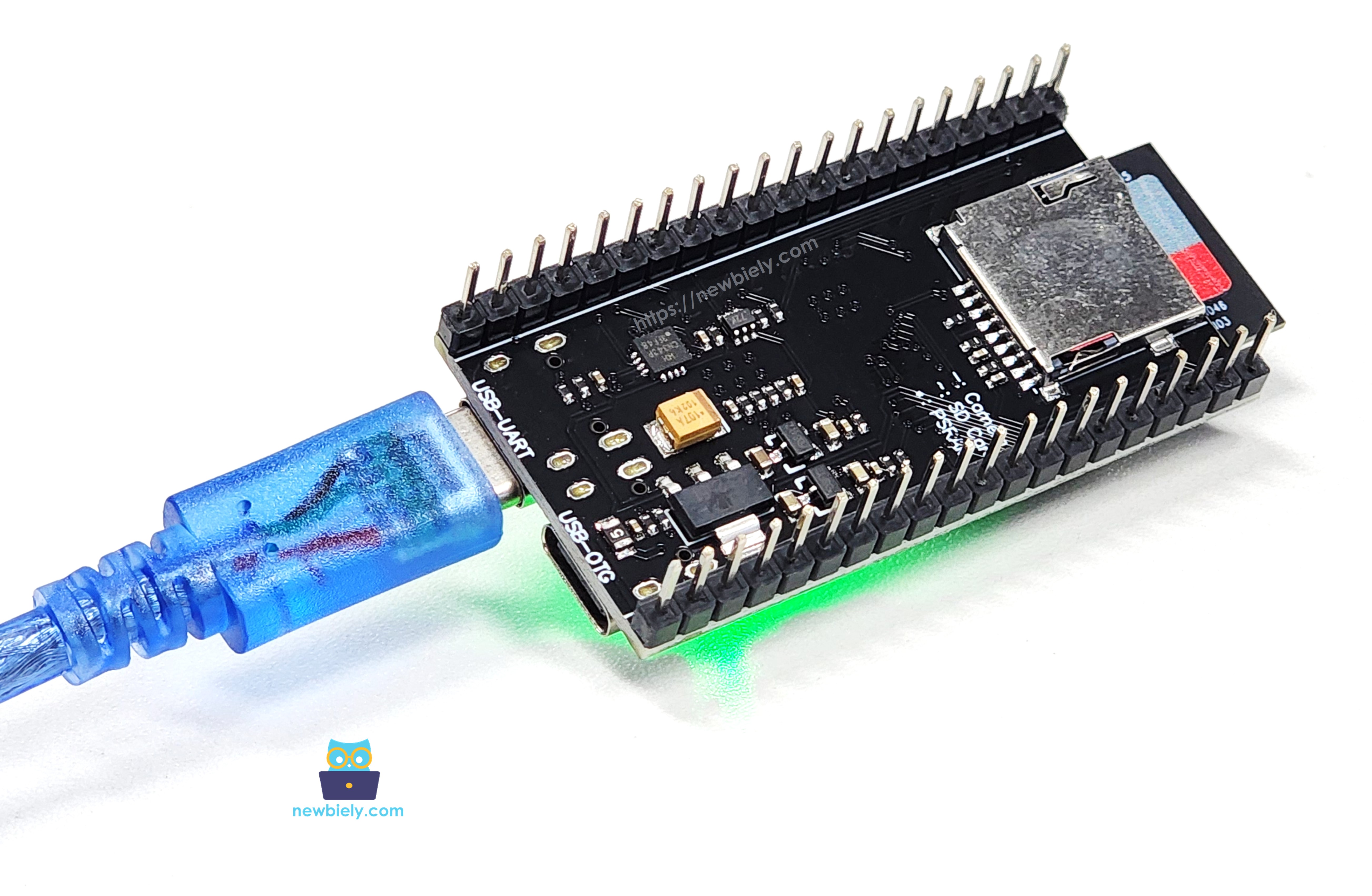
Plug in the USB cable.
Safety Notes
Never take the card out while the board is writing a photo. Always unplug the USB cable first, wait two seconds, then take the card out.
Arduino IDE Settings for ESP32 S3 Camera
The camera does not work with the default settings of the Arduino IDE. You must change some items in the Tools menu before you upload the code.
Tools Menu Item
Select This
Board
ESP32S3 Dev Module
Flash Size
16MB (128Mb)
PSRAM
OPI PSRAM
Partition Scheme
Huge APP (3MB No OTA/1MB SPIFFS)
CPU Frequency
240MHz (WiFi)
USB Mode
Hardware CDC and JTAG
Upload Mode
UART0 / Hardware CDC
Upload Speed
921600
USB CDC On Boot
Enabled
Three Examples, One Step at a Time
This tutorial has three programs. They all do the same job, but each one is better than the one before. Start with Example 1, make it work, then move on.
Example
What it adds
Good for
*i. Simple
Compares two pictures, counts changed pixels
Learning the idea. A quiet room indoors.
*i. Light safe
Everything of Example 1, PLUS lamps, clouds and the evening sun
A room with windows, or a lamp
*i. Light and wind safe
Everything of Example 2, PLUS leaves, curtains and shaking things
Outdoors, a garden, a window
※ NOTE THAT:
Every example saves a big photo to the microSD card. The difference is only when it decides that something moved.
Each example keeps everything from the one before it. Example 3 is not only wind safe, it is light safe as well:
Protection
Example 1
Example 2
Example 3
Sees a moving person
Yes
Yes
Yes
Takes the light change away (averageShift)
No
Yes
Yes
Refuses a whole-picture change (a lamp)
No
Yes
Yes
Waits after a light change (SETTLE_TIME)
No
Yes
Yes
Groups of blocks that touch (wind)
No
No
Yes
Must be seen in several pictures (CONFIRM_FRAMES)
No
No
Yes
Can ignore the top of the picture
No
No
Yes
※ NOTE THAT:
If you only want the best one, use Example 3. Example 1 and Example 2 are there so you can see why every part is needed. Upload them in order, break them on purpose, and the numbers in Example 3 will make sense.
ESP32 S3 Code - Example 1: Simple
This is the shortest version, and the easiest to read. It does exactly three things: take a small black and white picture, compare it with the picture before, and count how many pixels changed.
The Numbers You Can Change
Name
Start with
What it means
PIXEL_THRESHOLD
30
How different one pixel must be (0 to 255)
MOTION_PERCENT
2
How much of the picture must change, in percent
QUIET_TIME
5000
Milliseconds to wait before the next photo
Count the pixels that changed.
int countChangedPixels(uint8_t *now, uint8_t *before, size_t size) {int changed = 0;for (size_t i = 0; i < size; i++) {int difference = (int)now[i] - (int)before[i];if (difference < 0) difference = -difference; // we do not care if it is brighter or darkerif (difference > PIXEL_THRESHOLD) changed++; }return changed;}
/* * This ESP32 S3 code was developed by newbiely.com * * This ESP32 S3 code is made available for public use without any restriction * * For comprehensive instructions and wiring diagrams, please visit: * https://newbiely.com/tutorials/esp32-s3/esp32-s3-camera-detect-motion-without-a-sensor */#include"esp_camera.h"#include"FS.h"#include"SD_MMC.h"// How different one pixel must be before we call it "changed"#define PIXEL_THRESHOLD 30// How many pixels must change before we call it "motion".// The small picture has 160 x 120 = 19200 pixels, so 2% is about 384 pixels.#define MOTION_PERCENT 2#define QUIET_TIME 5000 // wait 5 seconds before the next photo// Camera pins of the ESP32-S3-N16R8 camera board.// The same pins work for the OV2640, OV3660 and OV5640 versions.#define PWDN_GPIO_NUM -1#define RESET_GPIO_NUM -1#define XCLK_GPIO_NUM 15#define SIOD_GPIO_NUM 4#define SIOC_GPIO_NUM 5#define Y9_GPIO_NUM 16#define Y8_GPIO_NUM 17#define Y7_GPIO_NUM 18#define Y6_GPIO_NUM 12#define Y5_GPIO_NUM 10#define Y4_GPIO_NUM 8#define Y3_GPIO_NUM 9#define Y2_GPIO_NUM 11#define VSYNC_GPIO_NUM 6#define HREF_GPIO_NUM 7#define PCLK_GPIO_NUM 13// Pins of the microSD card slot on the board#define SD_CLK_GPIO_NUM 39#define SD_CMD_GPIO_NUM 38#define SD_D0_GPIO_NUM 40camera_config_t cameraConfig; // we keep the settings, because we change them lateruint8_t *lastPicture = NULL; // the picture we saw the time beforesize_t pictureSize = 0;int photoNumber = 1;unsignedlong lastPhotoTime = 0;// Returns the name of the camera sensor that is installed on the boardconstchar *getSensorName(int pid) {switch (pid) {case OV2640_PID: return"OV2640 (2 MP, max UXGA 1600x1200)";case OV3660_PID: return"OV3660 (3 MP, max QXGA 2048x1536)";case OV5640_PID: return"OV5640 (5 MP, max QSXGA 2592x1944)";default: return"Unknown sensor"; }}// Each sensor needs slightly different settings.// We must call this again every time the camera restarts.void applyCameraSettings() { sensor_t *s = esp_camera_sensor_get();switch (s->id.PID) {case OV2640_PID: s->set_vflip(s, 0); s->set_hmirror(s, 0);break;case OV3660_PID: s->set_vflip(s, 1); // the OV3660 image is upside down by default s->set_brightness(s, 1); // make the image a little brighter s->set_saturation(s, -2); // make the colors a little softerbreak;case OV5640_PID: s->set_vflip(s, 0); s->set_hmirror(s, 0);break;default:break; }}// Starts the camera in the small black and white mode, used for watchingbool initCamera() { cameraConfig.ledc_channel = LEDC_CHANNEL_0; cameraConfig.ledc_timer = LEDC_TIMER_0; cameraConfig.pin_d0 = Y2_GPIO_NUM; cameraConfig.pin_d1 = Y3_GPIO_NUM; cameraConfig.pin_d2 = Y4_GPIO_NUM; cameraConfig.pin_d3 = Y5_GPIO_NUM; cameraConfig.pin_d4 = Y6_GPIO_NUM; cameraConfig.pin_d5 = Y7_GPIO_NUM; cameraConfig.pin_d6 = Y8_GPIO_NUM; cameraConfig.pin_d7 = Y9_GPIO_NUM; cameraConfig.pin_xclk = XCLK_GPIO_NUM; cameraConfig.pin_pclk = PCLK_GPIO_NUM; cameraConfig.pin_vsync = VSYNC_GPIO_NUM; cameraConfig.pin_href = HREF_GPIO_NUM; cameraConfig.pin_sccb_sda = SIOD_GPIO_NUM; cameraConfig.pin_sccb_scl = SIOC_GPIO_NUM; cameraConfig.pin_pwdn = PWDN_GPIO_NUM; cameraConfig.pin_reset = RESET_GPIO_NUM; cameraConfig.xclk_freq_hz = 20000000; cameraConfig.jpeg_quality = 10; cameraConfig.fb_count = 1; cameraConfig.fb_location = psramFound() ? CAMERA_FB_IN_PSRAM : CAMERA_FB_IN_DRAM; cameraConfig.grab_mode = CAMERA_GRAB_WHEN_EMPTY;// GRAYSCALE means black and white. One pixel is one byte, so it is easy to compare. cameraConfig.pixel_format = PIXFORMAT_GRAYSCALE; cameraConfig.frame_size = FRAMESIZE_QQVGA; // 160x120 - small and fastif (!psramFound())Serial.println("WARNING: PSRAM not found. Please set PSRAM to OPI PSRAM in the Tools menu."); esp_err_t err = esp_camera_init(&cameraConfig);if (err != ESP_OK) {Serial.printf("Camera init failed with error 0x%x\n", err);returnfalse; } sensor_t *s = esp_camera_sensor_get();Serial.printf("Camera sensor: %s\n", getSensorName(s->id.PID)); applyCameraSettings();returntrue;}bool initSDCard() { SD_MMC.setPins(SD_CLK_GPIO_NUM, SD_CMD_GPIO_NUM, SD_D0_GPIO_NUM);// true means 1-bit mode. The camera uses the other pins, so we cannot use 4-bit mode.if (!SD_MMC.begin("/sdcard", true)) {Serial.println("SD card not found. Please check the card and push it in again.");returnfalse; }if (SD_MMC.cardType() == CARD_NONE) {Serial.println("No SD card inside the slot");returnfalse; }Serial.printf("SD card size: %llu MB\n", SD_MMC.cardSize() / (1024 * 1024));returntrue;}String makeFileName(int number) {charname[32]; sprintf(name, "/change_%05d.jpg", number);returnString(name);}void findFirstFreeNumber() {while (SD_MMC.exists(makeFileName(photoNumber))) photoNumber++;Serial.printf("The next photo will be change_%05d.jpg\n", photoNumber);}// Compares the new picture with the old one and returns how many pixels changedint countChangedPixels(uint8_t *now, uint8_t *before, size_t size) {int changed = 0;for (size_t i = 0; i < size; i++) {int difference = (int)now[i] - (int)before[i];if (difference < 0) difference = -difference; // we do not care if it is brighter or darkerif (difference > PIXEL_THRESHOLD) changed++; }return changed;}// Changes the camera to the big colour mode, takes one photo, saves it,// and changes back to the small black and white modevoid takeAndSavePhoto() { cameraConfig.pixel_format = PIXFORMAT_JPEG; cameraConfig.frame_size = FRAMESIZE_SVGA;if (esp_camera_reconfigure(&cameraConfig) != ESP_OK) {Serial.println("Cannot change the camera to photo mode");return; } applyCameraSettings();delay(200); camera_fb_t *fb = esp_camera_fb_get();if (fb) {String fileName = makeFileName(photoNumber);File file = SD_MMC.open(fileName.c_str(), FILE_WRITE);if (file) { file.write(fb->buf, fb->len); file.close();Serial.printf("Saved %s (%u bytes)\n", fileName.c_str(), fb->len); photoNumber++; } else {Serial.printf("Cannot write the file %s\n", fileName.c_str()); } esp_camera_fb_return(fb); } else {Serial.println("Photo capture failed"); }// Back to watching mode cameraConfig.pixel_format = PIXFORMAT_GRAYSCALE; cameraConfig.frame_size = FRAMESIZE_QQVGA; esp_camera_reconfigure(&cameraConfig); applyCameraSettings();delay(200);// The old picture belongs to the other mode, so we forget itif (lastPicture) { free(lastPicture); lastPicture = NULL; }}voidsetup() {Serial.begin(115200);delay(1000);if (!initCamera()) {Serial.println("Stopped");while (true)delay(1000); }if (!initSDCard()) {Serial.println("Stopped");while (true)delay(1000); } findFirstFreeNumber();Serial.printf("Watching for movement. A photo is saved when more than %d%% of the picture changes.\n", MOTION_PERCENT);}voidloop() { camera_fb_t *fb = esp_camera_fb_get();if (!fb) {Serial.println("Frame capture failed");delay(500);return; }// The very first picture has nothing to compare with, so we only keep itif (lastPicture == NULL) { pictureSize = fb->len; lastPicture = (uint8_t *)malloc(pictureSize);if (lastPicture) memcpy(lastPicture, fb->buf, pictureSize); esp_camera_fb_return(fb);return; }int changed = countChangedPixels(fb->buf, lastPicture, pictureSize);int limit = (pictureSize * MOTION_PERCENT) / 100;if (changed > limit) {Serial.printf("Movement seen: %d pixels changed (the limit is %d)\n", changed, limit);if (millis() - lastPhotoTime >= QUIET_TIME) { esp_camera_fb_return(fb); takeAndSavePhoto(); lastPhotoTime = millis();return; } } memcpy(lastPicture, fb->buf, pictureSize); // remember this picture for the next time esp_camera_fb_return(fb);}
※ NOTE THAT:
Try this one first, indoors, with the curtains closed. It works very well in a quiet room. Then switch a lamp on and watch what happens: it saves a photo of an empty room. That problem is what Example 2 fixes.
ESP32 S3 Code - Example 2: Light Safe
When somebody turns on a lamp, or a cloud passes the sun, every pixel changes at the same time. Example 1 then says "movement!" and saves a photo of an empty room.
The camera makes it worse by itself. It sets its own brightness all the time, so even in steady light the whole picture shifts now and then.
The Numbers You Can Change
Name
Start with
What it means
PIXEL_THRESHOLD
30
How different one pixel must be (0 to 255)
MOTION_PERCENT
2
How much of the picture must change, in percent
LIGHT_CHANGE_PERCENT
50
Above this, it is a lamp and not a person
SETTLE_TIME
1000
Milliseconds to wait after a light change
QUIET_TIME
5000
Milliseconds to wait before the next photo
1. Take the Light Change Away
A lamp moves all the pixels by about the same amount. A person moves only some of them. So the code first measures how much the whole picture moved, then takes that amount away from every pixel:
int averageShift(uint8_t *now, uint8_t *before, size_t size) {long total = 0;for (size_t i = 0; i < size; i++) total += (int)now[i] - (int)before[i];return (int)(total / (long)size);}
And then, inside the compare:
int difference = ((int)now[i] - (int)before[i]) - shift;
※ NOTE THAT:
This is the important idea. If the whole room becomes 20 steps brighter, shift is about 20, and after taking it away every pixel looks unchanged again. But a person who walks through the picture still changes their own pixels much more than 20, so they are still seen.
2. Refuse Changes That Are Too Big
A person never fills half the picture. If more than LIGHT_CHANGE_PERCENT of the pixels changed, it must be the light:
if (changed > lightLimit) {Serial.printf("The light changed (%d pixels). No photo.\n", changed);delay(SETTLE_TIME); // let the camera set its brightness againreturn;}
※ NOTE THAT:
After a light change the code waits one second. The camera needs that time to set its own brightness, and without the wait the next two or three pictures would look changed as well.
/* * This ESP32 S3 code was developed by newbiely.com * * This ESP32 S3 code is made available for public use without any restriction * * For comprehensive instructions and wiring diagrams, please visit: * https://newbiely.com/tutorials/esp32-s3/esp32-s3-camera-detect-motion-without-a-sensor */#include"esp_camera.h"#include"FS.h"#include"SD_MMC.h"// How different one pixel must be before we call it "changed"#define PIXEL_THRESHOLD 30// How many pixels must change before we call it "motion".// The small picture has 160 x 120 = 19200 pixels, so 2% is about 384 pixels.#define MOTION_PERCENT 2// When MORE than this much of the picture changes, it is a light change and// not a person. A lamp, a cloud or a passing car light moves the whole picture.#define LIGHT_CHANGE_PERCENT 50#define SETTLE_TIME 1000 // after a light change, give the camera 1 second#define QUIET_TIME 5000 // wait 5 seconds before the next photo// Camera pins of the ESP32-S3-N16R8 camera board.// The same pins work for the OV2640, OV3660 and OV5640 versions.#define PWDN_GPIO_NUM -1#define RESET_GPIO_NUM -1#define XCLK_GPIO_NUM 15#define SIOD_GPIO_NUM 4#define SIOC_GPIO_NUM 5#define Y9_GPIO_NUM 16#define Y8_GPIO_NUM 17#define Y7_GPIO_NUM 18#define Y6_GPIO_NUM 12#define Y5_GPIO_NUM 10#define Y4_GPIO_NUM 8#define Y3_GPIO_NUM 9#define Y2_GPIO_NUM 11#define VSYNC_GPIO_NUM 6#define HREF_GPIO_NUM 7#define PCLK_GPIO_NUM 13// Pins of the microSD card slot on the board#define SD_CLK_GPIO_NUM 39#define SD_CMD_GPIO_NUM 38#define SD_D0_GPIO_NUM 40camera_config_t cameraConfig; // we keep the settings, because we change them lateruint8_t *lastPicture = NULL; // the picture we saw the time beforesize_t pictureSize = 0;int photoNumber = 1;unsignedlong lastPhotoTime = 0;// Returns the name of the camera sensor that is installed on the boardconstchar *getSensorName(int pid) {switch (pid) {case OV2640_PID: return"OV2640 (2 MP, max UXGA 1600x1200)";case OV3660_PID: return"OV3660 (3 MP, max QXGA 2048x1536)";case OV5640_PID: return"OV5640 (5 MP, max QSXGA 2592x1944)";default: return"Unknown sensor"; }}// Each sensor needs slightly different settings.// We must call this again every time the camera restarts.void applyCameraSettings() { sensor_t *s = esp_camera_sensor_get();switch (s->id.PID) {case OV2640_PID: s->set_vflip(s, 0); s->set_hmirror(s, 0);break;case OV3660_PID: s->set_vflip(s, 1); // the OV3660 image is upside down by default s->set_brightness(s, 1); // make the image a little brighter s->set_saturation(s, -2); // make the colors a little softerbreak;case OV5640_PID: s->set_vflip(s, 0); s->set_hmirror(s, 0);break;default:break; }}// Starts the camera in the small black and white mode, used for watchingbool initCamera() { cameraConfig.ledc_channel = LEDC_CHANNEL_0; cameraConfig.ledc_timer = LEDC_TIMER_0; cameraConfig.pin_d0 = Y2_GPIO_NUM; cameraConfig.pin_d1 = Y3_GPIO_NUM; cameraConfig.pin_d2 = Y4_GPIO_NUM; cameraConfig.pin_d3 = Y5_GPIO_NUM; cameraConfig.pin_d4 = Y6_GPIO_NUM; cameraConfig.pin_d5 = Y7_GPIO_NUM; cameraConfig.pin_d6 = Y8_GPIO_NUM; cameraConfig.pin_d7 = Y9_GPIO_NUM; cameraConfig.pin_xclk = XCLK_GPIO_NUM; cameraConfig.pin_pclk = PCLK_GPIO_NUM; cameraConfig.pin_vsync = VSYNC_GPIO_NUM; cameraConfig.pin_href = HREF_GPIO_NUM; cameraConfig.pin_sccb_sda = SIOD_GPIO_NUM; cameraConfig.pin_sccb_scl = SIOC_GPIO_NUM; cameraConfig.pin_pwdn = PWDN_GPIO_NUM; cameraConfig.pin_reset = RESET_GPIO_NUM; cameraConfig.xclk_freq_hz = 20000000; cameraConfig.jpeg_quality = 10; cameraConfig.fb_count = 1; cameraConfig.fb_location = psramFound() ? CAMERA_FB_IN_PSRAM : CAMERA_FB_IN_DRAM; cameraConfig.grab_mode = CAMERA_GRAB_WHEN_EMPTY;// GRAYSCALE means black and white. One pixel is one byte, so it is easy to compare. cameraConfig.pixel_format = PIXFORMAT_GRAYSCALE; cameraConfig.frame_size = FRAMESIZE_QQVGA; // 160x120 - small and fastif (!psramFound())Serial.println("WARNING: PSRAM not found. Please set PSRAM to OPI PSRAM in the Tools menu."); esp_err_t err = esp_camera_init(&cameraConfig);if (err != ESP_OK) {Serial.printf("Camera init failed with error 0x%x\n", err);returnfalse; } sensor_t *s = esp_camera_sensor_get();Serial.printf("Camera sensor: %s\n", getSensorName(s->id.PID)); applyCameraSettings();returntrue;}bool initSDCard() { SD_MMC.setPins(SD_CLK_GPIO_NUM, SD_CMD_GPIO_NUM, SD_D0_GPIO_NUM);// true means 1-bit mode. The camera uses the other pins, so we cannot use 4-bit mode.if (!SD_MMC.begin("/sdcard", true)) {Serial.println("SD card not found. Please check the card and push it in again.");returnfalse; }if (SD_MMC.cardType() == CARD_NONE) {Serial.println("No SD card inside the slot");returnfalse; }Serial.printf("SD card size: %llu MB\n", SD_MMC.cardSize() / (1024 * 1024));returntrue;}String makeFileName(int number) {charname[32]; sprintf(name, "/change_%05d.jpg", number);returnString(name);}void findFirstFreeNumber() {while (SD_MMC.exists(makeFileName(photoNumber))) photoNumber++;Serial.printf("The next photo will be change_%05d.jpg\n", photoNumber);}// Works out how much the WHOLE picture became brighter or darker.// A lamp, a cloud or the evening sun moves every pixel by about the same amount.int averageShift(uint8_t *now, uint8_t *before, size_t size) {long total = 0;for (size_t i = 0; i < size; i++) total += (int)now[i] - (int)before[i];return (int)(total / (long)size);}// Compares the new picture with the old one and returns how many pixels changed.// We take the light change away first, so only real movement is counted.int countChangedPixels(uint8_t *now, uint8_t *before, size_t size, int shift) {int changed = 0;for (size_t i = 0; i < size; i++) {int difference = ((int)now[i] - (int)before[i]) - shift;if (difference < 0) difference = -difference; // we do not care if it is brighter or darkerif (difference > PIXEL_THRESHOLD) changed++; }return changed;}// Changes the camera to the big colour mode, takes one photo, saves it,// and changes back to the small black and white modevoid takeAndSavePhoto() { cameraConfig.pixel_format = PIXFORMAT_JPEG; cameraConfig.frame_size = FRAMESIZE_SVGA;if (esp_camera_reconfigure(&cameraConfig) != ESP_OK) {Serial.println("Cannot change the camera to photo mode");return; } applyCameraSettings();delay(200); camera_fb_t *fb = esp_camera_fb_get();if (fb) {String fileName = makeFileName(photoNumber);File file = SD_MMC.open(fileName.c_str(), FILE_WRITE);if (file) { file.write(fb->buf, fb->len); file.close();Serial.printf("Saved %s (%u bytes)\n", fileName.c_str(), fb->len); photoNumber++; } else {Serial.printf("Cannot write the file %s\n", fileName.c_str()); } esp_camera_fb_return(fb); } else {Serial.println("Photo capture failed"); }// Back to watching mode cameraConfig.pixel_format = PIXFORMAT_GRAYSCALE; cameraConfig.frame_size = FRAMESIZE_QQVGA; esp_camera_reconfigure(&cameraConfig); applyCameraSettings();delay(200);// The old picture belongs to the other mode, so we forget itif (lastPicture) { free(lastPicture); lastPicture = NULL; }}voidsetup() {Serial.begin(115200);delay(1000);if (!initCamera()) {Serial.println("Stopped");while (true)delay(1000); }if (!initSDCard()) {Serial.println("Stopped");while (true)delay(1000); } findFirstFreeNumber();Serial.printf("Watching for movement. A photo is saved when more than %d%% of the picture changes.\n", MOTION_PERCENT);}voidloop() { camera_fb_t *fb = esp_camera_fb_get();if (!fb) {Serial.println("Frame capture failed");delay(500);return; }// The very first picture has nothing to compare with, so we only keep itif (lastPicture == NULL) { pictureSize = fb->len; lastPicture = (uint8_t *)malloc(pictureSize);if (lastPicture) memcpy(lastPicture, fb->buf, pictureSize); esp_camera_fb_return(fb);return; }int shift = averageShift(fb->buf, lastPicture, pictureSize);int changed = countChangedPixels(fb->buf, lastPicture, pictureSize, shift);int limit = (pictureSize * MOTION_PERCENT) / 100;int lightLimit = (pictureSize * LIGHT_CHANGE_PERCENT) / 100;// Almost the whole picture changed. A person is never that big,// so this is a light change, not a movement.if (changed > lightLimit) {Serial.printf("The light changed (%d pixels). No photo.\n", changed); memcpy(lastPicture, fb->buf, pictureSize); esp_camera_fb_return(fb);delay(SETTLE_TIME); // let the camera set its brightness againreturn; }if (changed > limit) {Serial.printf("Movement seen: %d pixels changed (the limit is %d, light shift %d)\n", changed, limit, shift);if (millis() - lastPhotoTime >= QUIET_TIME) { esp_camera_fb_return(fb); takeAndSavePhoto(); lastPhotoTime = millis();return; } } memcpy(lastPicture, fb->buf, pictureSize); // remember this picture for the next time esp_camera_fb_return(fb);}
※ NOTE THAT:
Now point the camera at a window with a tree outside, on a windy day. The leaves move, and the camera saves photo after photo of nothing. That problem is what Example 3 fixes.
ESP32 S3 Code - Example 3: Light and Wind Safe
Wind is a different problem from light. Leaves, a curtain or a flag change pixels all over the picture, in small spots. A person changes a group of pixels next to each other.
Counting pixels cannot tell the two apart, because both give a similar number. Looking at where they changed can.
The Picture Becomes Blocks
The code cuts the small picture into 8 × 8 = 64 blocks. Each block is 20 × 15 pixels. A block is "changed" when enough of its own pixels changed:
Both have about 8 changed blocks. But the wind blocks are alone, and the person blocks touch each other.
Find the Biggest Group That Touches
The code starts at one changed block and walks to every changed block next to it, then counts how big that group is. It keeps the biggest group it finds:
int group = biggestGroup();if (group >= MIN_GROUP_BLOCKS) {Serial.println("Something moved");} else {Serial.println("Ignored. Probably wind.");}
※ NOTE THAT:
This one idea removes most wind problems. Leaves almost never make 4 blocks that touch, but a person walking past always does.
Ask Again in the Next Picture
Leaves shake back and forth, so they look changed in one picture and normal in the next. A person keeps moving. So the code asks for the movement in several pictures in a row:
Trees, flags and the sky are usually in the upper part. IGNORE_TOP_ROWS throws away that many block rows:
#define IGNORE_TOP_ROWS 2 // ignore the top 2 rows of blocks
※ NOTE THAT:
With 8 rows of blocks, IGNORE_TOP_ROWS 2 throws away the top quarter of the picture. Use it when the trouble is always in the same place.
All the Numbers You Can Change
Name
Start with
What it means
Problem it solves
PIXEL_THRESHOLD
30
How different one pixel must be
Camera noise
BLOCK_PERCENT
20
How much of one block must change
Small noise inside a block
MIN_GROUP_BLOCKS
4
How many blocks must touch each other
Wind and leaves
LIGHT_CHANGE_BLOCKS
40
Above this, it is a light change
Lamps and clouds
CONFIRM_FRAMES
2
How many pictures in a row
Shaking and flicker
IGNORE_TOP_ROWS
0
How many block rows to ignore at the top
A tree in the upper part
SETTLE_TIME
1000
Wait after a light change
Camera re-exposure
QUIET_TIME
5000
Wait before the next photo
Too many photos
SHOW_MAP
true
Print the map in the Serial Monitor
Helps you set the numbers
/* * This ESP32 S3 code was developed by newbiely.com * * This ESP32 S3 code is made available for public use without any restriction * * For comprehensive instructions and wiring diagrams, please visit: * https://newbiely.com/tutorials/esp32-s3/esp32-s3-camera-detect-motion-without-a-sensor */#include"esp_camera.h"#include"FS.h"#include"SD_MMC.h"// ============================================================// SETTINGS YOU CAN CHANGE// Start with these numbers, then change ONE at a time and// watch the map in the Serial Monitor.// ============================================================// How different one pixel must be before we call it "changed" (0 to 255).// Bigger = less sensitive to camera noise.#define PIXEL_THRESHOLD 30// How much of ONE block must change before the block counts as changed (in %).// Bigger = a block must be really busy before it counts.#define BLOCK_PERCENT 20// How many blocks must be changed AND touching each other.// This is the number that stops wind. Bigger = only bigger objects count.#define MIN_GROUP_BLOCKS 4// When more blocks than this change at once, it is a light change, not a person.#define LIGHT_CHANGE_BLOCKS 40// The movement must be seen in this many pictures in a row before a photo is taken.// Bigger = leaves that shake back and forth are ignored.#define CONFIRM_FRAMES 2// Ignore this many block rows at the TOP of the picture.// Use it when there are trees, a sky or a flag in the upper part.#define IGNORE_TOP_ROWS 0#define SETTLE_TIME 1000 // after a light change, give the camera 1 second#define QUIET_TIME 5000 // wait 5 seconds before the next photo#define SHOW_MAP true// print the map of changed blocks// ============================================================// The picture is cut into blocks. 160 x 120 becomes 8 x 8 blocks// of 20 x 15 pixels each.// ============================================================#define IMG_WIDTH 160#define IMG_HEIGHT 120#define BLOCK_COLS 8#define BLOCK_ROWS 8#define BLOCK_WIDTH (IMG_WIDTH / BLOCK_COLS) // 20#define BLOCK_HEIGHT (IMG_HEIGHT / BLOCK_ROWS) // 15// Camera pins of the ESP32-S3-N16R8 camera board.// The same pins work for the OV2640, OV3660 and OV5640 versions.#define PWDN_GPIO_NUM -1#define RESET_GPIO_NUM -1#define XCLK_GPIO_NUM 15#define SIOD_GPIO_NUM 4#define SIOC_GPIO_NUM 5#define Y9_GPIO_NUM 16#define Y8_GPIO_NUM 17#define Y7_GPIO_NUM 18#define Y6_GPIO_NUM 12#define Y5_GPIO_NUM 10#define Y4_GPIO_NUM 8#define Y3_GPIO_NUM 9#define Y2_GPIO_NUM 11#define VSYNC_GPIO_NUM 6#define HREF_GPIO_NUM 7#define PCLK_GPIO_NUM 13// Pins of the microSD card slot on the board#define SD_CLK_GPIO_NUM 39#define SD_CMD_GPIO_NUM 38#define SD_D0_GPIO_NUM 40camera_config_t cameraConfig; // we keep the settings, because we change them lateruint8_t *lastPicture = NULL; // the picture we saw the time beforesize_t pictureSize = 0;bool blockChanged[BLOCK_ROWS][BLOCK_COLS];int photoNumber = 1;int confirmCount = 0; // how many pictures in a row showed movementunsignedlong lastPhotoTime = 0;// Returns the name of the camera sensor that is installed on the boardconstchar *getSensorName(int pid) {switch (pid) {case OV2640_PID: return"OV2640 (2 MP, max UXGA 1600x1200)";case OV3660_PID: return"OV3660 (3 MP, max QXGA 2048x1536)";case OV5640_PID: return"OV5640 (5 MP, max QSXGA 2592x1944)";default: return"Unknown sensor"; }}// Each sensor needs slightly different settings.// We must call this again every time the camera restarts.void applyCameraSettings() { sensor_t *s = esp_camera_sensor_get();switch (s->id.PID) {case OV2640_PID: s->set_vflip(s, 0); s->set_hmirror(s, 0);break;case OV3660_PID: s->set_vflip(s, 1); // the OV3660 image is upside down by default s->set_brightness(s, 1); // make the image a little brighter s->set_saturation(s, -2); // make the colors a little softerbreak;case OV5640_PID: s->set_vflip(s, 0); s->set_hmirror(s, 0);break;default:break; }}// Starts the camera in the small black and white mode, used for watchingbool initCamera() { cameraConfig.ledc_channel = LEDC_CHANNEL_0; cameraConfig.ledc_timer = LEDC_TIMER_0; cameraConfig.pin_d0 = Y2_GPIO_NUM; cameraConfig.pin_d1 = Y3_GPIO_NUM; cameraConfig.pin_d2 = Y4_GPIO_NUM; cameraConfig.pin_d3 = Y5_GPIO_NUM; cameraConfig.pin_d4 = Y6_GPIO_NUM; cameraConfig.pin_d5 = Y7_GPIO_NUM; cameraConfig.pin_d6 = Y8_GPIO_NUM; cameraConfig.pin_d7 = Y9_GPIO_NUM; cameraConfig.pin_xclk = XCLK_GPIO_NUM; cameraConfig.pin_pclk = PCLK_GPIO_NUM; cameraConfig.pin_vsync = VSYNC_GPIO_NUM; cameraConfig.pin_href = HREF_GPIO_NUM; cameraConfig.pin_sccb_sda = SIOD_GPIO_NUM; cameraConfig.pin_sccb_scl = SIOC_GPIO_NUM; cameraConfig.pin_pwdn = PWDN_GPIO_NUM; cameraConfig.pin_reset = RESET_GPIO_NUM; cameraConfig.xclk_freq_hz = 20000000; cameraConfig.jpeg_quality = 10; cameraConfig.fb_count = 1; cameraConfig.fb_location = psramFound() ? CAMERA_FB_IN_PSRAM : CAMERA_FB_IN_DRAM; cameraConfig.grab_mode = CAMERA_GRAB_WHEN_EMPTY;// GRAYSCALE means black and white. One pixel is one byte, so it is easy to compare. cameraConfig.pixel_format = PIXFORMAT_GRAYSCALE; cameraConfig.frame_size = FRAMESIZE_QQVGA; // 160x120 - small and fastif (!psramFound())Serial.println("WARNING: PSRAM not found. Please set PSRAM to OPI PSRAM in the Tools menu."); esp_err_t err = esp_camera_init(&cameraConfig);if (err != ESP_OK) {Serial.printf("Camera init failed with error 0x%x\n", err);returnfalse; } sensor_t *s = esp_camera_sensor_get();Serial.printf("Camera sensor: %s\n", getSensorName(s->id.PID)); applyCameraSettings();returntrue;}bool initSDCard() { SD_MMC.setPins(SD_CLK_GPIO_NUM, SD_CMD_GPIO_NUM, SD_D0_GPIO_NUM);// true means 1-bit mode. The camera uses the other pins, so we cannot use 4-bit mode.if (!SD_MMC.begin("/sdcard", true)) {Serial.println("SD card not found. Please check the card and push it in again.");returnfalse; }if (SD_MMC.cardType() == CARD_NONE) {Serial.println("No SD card inside the slot");returnfalse; }Serial.printf("SD card size: %llu MB\n", SD_MMC.cardSize() / (1024 * 1024));returntrue;}String makeFileName(int number) {charname[32]; sprintf(name, "/move_%05d.jpg", number);returnString(name);}void findFirstFreeNumber() {while (SD_MMC.exists(makeFileName(photoNumber))) photoNumber++;Serial.printf("The next photo will be move_%05d.jpg\n", photoNumber);}// Works out how much the WHOLE picture became brighter or darker.// A lamp, a cloud or the evening sun moves every pixel by about the same amount.int averageShift(uint8_t *now, uint8_t *before, size_t size) {long total = 0;for (size_t i = 0; i < size; i++) total += (int)now[i] - (int)before[i];return (int)(total / (long)size);}// Looks at every block and marks the ones that changed.// Returns how many blocks changed in the whole picture.int markChangedBlocks(uint8_t *now, uint8_t *before, int shift) {int pixelsPerBlock = BLOCK_WIDTH * BLOCK_HEIGHT;int neededPerBlock = (pixelsPerBlock * BLOCK_PERCENT) / 100;int changedBlocks = 0;for (int by = 0; by < BLOCK_ROWS; by++) {for (int bx = 0; bx < BLOCK_COLS; bx++) {int count = 0;for (int y = 0; y < BLOCK_HEIGHT; y++) {int rowStart = (by * BLOCK_HEIGHT + y) * IMG_WIDTH + bx * BLOCK_WIDTH;for (int x = 0; x < BLOCK_WIDTH; x++) {int difference = ((int)now[rowStart + x] - (int)before[rowStart + x]) - shift;if (difference < 0) difference = -difference;if (difference > PIXEL_THRESHOLD) count++; } }bool changed = (count >= neededPerBlock) && (by >= IGNORE_TOP_ROWS); blockChanged[by][bx] = changed;if (changed) changedBlocks++; } }return changedBlocks;}// Finds the biggest group of changed blocks that TOUCH each other.// Leaves in the wind change single blocks here and there.// A person changes a group of blocks next to each other.int biggestGroup() {bool visited[BLOCK_ROWS][BLOCK_COLS]; memset(visited, 0, sizeof(visited));int best = 0;int stackY[BLOCK_ROWS * BLOCK_COLS];int stackX[BLOCK_ROWS * BLOCK_COLS];for (int startY = 0; startY < BLOCK_ROWS; startY++) {for (int startX = 0; startX < BLOCK_COLS; startX++) {if (!blockChanged[startY][startX] || visited[startY][startX])continue;// Start a new group here and walk to every block that touches itint top = 0;intsize = 0; stackY[top] = startY; stackX[top] = startX; top++; visited[startY][startX] = true;while (top > 0) { top--;int y = stackY[top];int x = stackX[top];size++;// Look at the four neighbours: up, down, left, rightint nextY[4] = {y - 1, y + 1, y, y};int nextX[4] = {x, x, x - 1, x + 1};for (int i = 0; i < 4; i++) {int ny = nextY[i];int nx = nextX[i];if (ny < 0 || ny >= BLOCK_ROWS || nx < 0 || nx >= BLOCK_COLS)continue;if (blockChanged[ny][nx] && !visited[ny][nx]) { visited[ny][nx] = true; stackY[top] = ny; stackX[top] = nx; top++; } } }if (size > best) best = size; } }return best;}// Draws a small map in the Serial Monitor. A # is a changed block.void printMap() {for (int by = 0; by < BLOCK_ROWS; by++) {String line = " ";for (int bx = 0; bx < BLOCK_COLS; bx++) line += blockChanged[by][bx] ? '#' : '.';Serial.println(line); }}// Changes the camera to the big colour mode, takes one photo, saves it,// and changes back to the small black and white modevoid takeAndSavePhoto() { cameraConfig.pixel_format = PIXFORMAT_JPEG; cameraConfig.frame_size = FRAMESIZE_SVGA;if (esp_camera_reconfigure(&cameraConfig) != ESP_OK) {Serial.println("Cannot change the camera to photo mode");return; } applyCameraSettings();delay(200); camera_fb_t *fb = esp_camera_fb_get();if (fb) {String fileName = makeFileName(photoNumber);File file = SD_MMC.open(fileName.c_str(), FILE_WRITE);if (file) { file.write(fb->buf, fb->len); file.close();Serial.printf("Saved %s (%u bytes)\n", fileName.c_str(), fb->len); photoNumber++; } else {Serial.printf("Cannot write the file %s\n", fileName.c_str()); } esp_camera_fb_return(fb); } else {Serial.println("Photo capture failed"); }// Back to watching mode cameraConfig.pixel_format = PIXFORMAT_GRAYSCALE; cameraConfig.frame_size = FRAMESIZE_QQVGA; esp_camera_reconfigure(&cameraConfig); applyCameraSettings();delay(200);// The old picture belongs to the other mode, so we forget itif (lastPicture) { free(lastPicture); lastPicture = NULL; } confirmCount = 0;}voidsetup() {Serial.begin(115200);delay(1000);if (!initCamera()) {Serial.println("Stopped");while (true)delay(1000); }if (!initSDCard()) {Serial.println("Stopped");while (true)delay(1000); } findFirstFreeNumber();Serial.printf("Watching. A photo is saved when %d touching blocks change in %d pictures in a row.\n", MIN_GROUP_BLOCKS, CONFIRM_FRAMES);}voidloop() { camera_fb_t *fb = esp_camera_fb_get();if (!fb) {Serial.println("Frame capture failed");delay(500);return; }// The very first picture has nothing to compare with, so we only keep itif (lastPicture == NULL) { pictureSize = fb->len; lastPicture = (uint8_t *)malloc(pictureSize);if (lastPicture) memcpy(lastPicture, fb->buf, pictureSize); esp_camera_fb_return(fb);return; }int shift = averageShift(fb->buf, lastPicture, pictureSize);int changedBlocks = markChangedBlocks(fb->buf, lastPicture, shift);// 1. Too many blocks at once means the light changed, not a personif (changedBlocks > LIGHT_CHANGE_BLOCKS) {Serial.printf("The light changed (%d blocks). No photo.\n", changedBlocks); memcpy(lastPicture, fb->buf, pictureSize); esp_camera_fb_return(fb); confirmCount = 0;delay(SETTLE_TIME); // let the camera set its brightness againreturn; }// 2. Wind moves single blocks here and there. A person moves a GROUP of blocks.int group = biggestGroup();if (group >= MIN_GROUP_BLOCKS) { confirmCount++;Serial.printf("Something moved: %d blocks changed, biggest group %d (%d of %d pictures)\n", changedBlocks, group, confirmCount, CONFIRM_FRAMES);if (SHOW_MAP) printMap(); } else {if (confirmCount > 0 && group > 0)Serial.printf("Ignored: biggest group only %d blocks. Probably wind.\n", group); confirmCount = 0; }// 3. The movement must be there in several pictures in a rowif (confirmCount >= CONFIRM_FRAMES) {if (millis() - lastPhotoTime >= QUIET_TIME) { esp_camera_fb_return(fb); takeAndSavePhoto(); lastPhotoTime = millis();return; } confirmCount = 0; } memcpy(lastPicture, fb->buf, pictureSize); // remember this picture for the next time esp_camera_fb_return(fb);}
Format your microSD card as FAT32 on your computer.
Unplug the USB cable, then put the card into the slot.
Copy Example 1 and paste it into the Arduino IDE.
Change the settings in the Tools menu. See the table above.
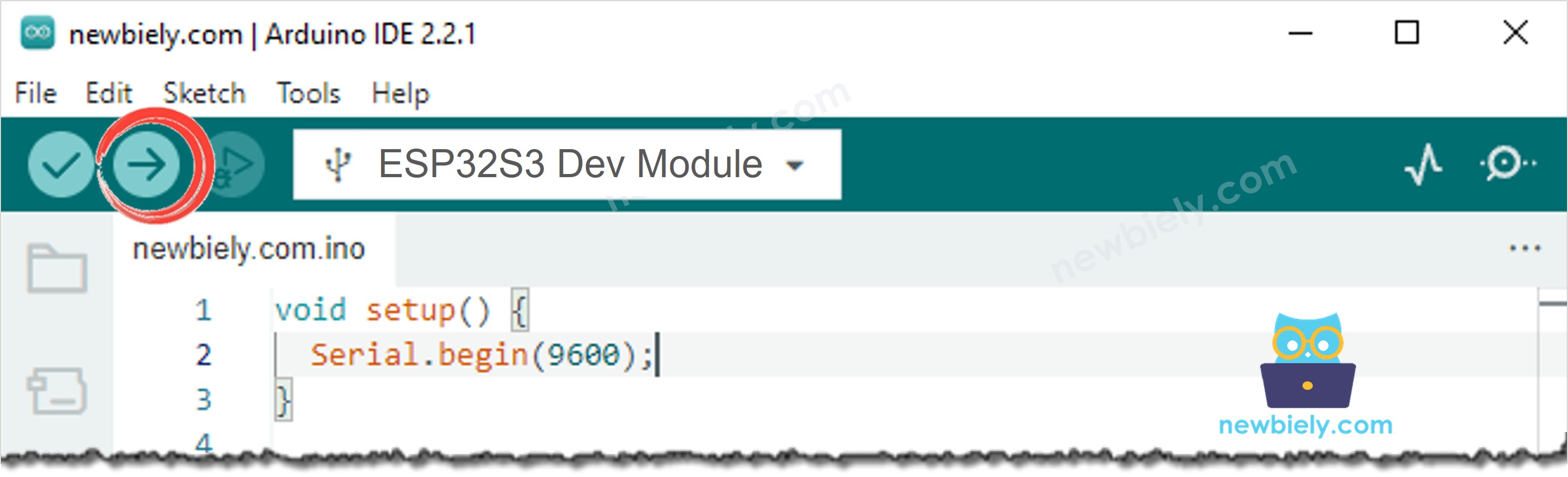
Compile and upload the code to the ESP32 S3 board by clicking the Upload button in Arduino IDE.
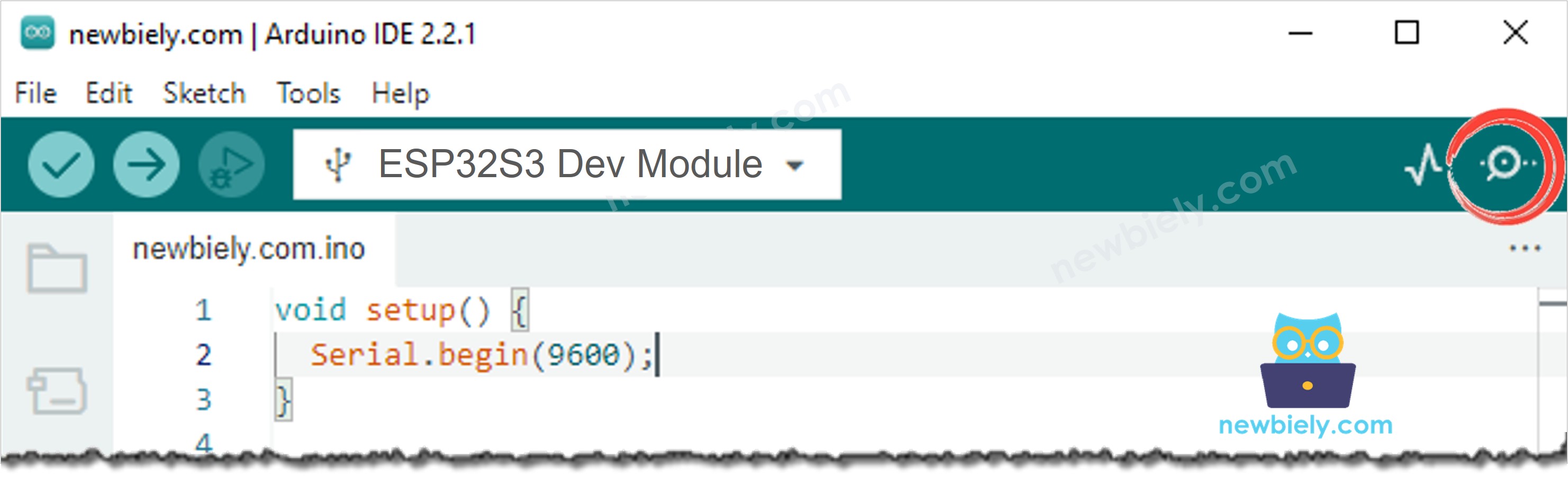
Open the Serial Monitor in Arduino IDE.
Press the RESET button one time.
Wave your hand in front of the camera. A photo is saved.
Now switch a lamp on and off. Example 1 saves photos of nothing.
Upload Example 2. Try the lamp again. Nothing is saved now.
Put the camera at a window with a tree, or in front of a moving curtain. Example 2 saves photos of nothing.
Upload Example 3. Watch the map in the Serial Monitor, and change the numbers until it is quiet.
Pro Tip: Put the board on something solid. If the board moves, the whole picture changes, and every small shake looks like movement.
Serial Monitor
Example 3 draws a small map, so you can see exactly what the camera saw. The following readings were captured in 2026:
Newbiely | Arduino IDE 2.3.8
──
☐
✕
File
Edit
Sketch
Tools
Help
ESP32S3 Dev Module
Newbiely.ino
···
8Serial.println("Hello World!");
Output
Serial Monitor
Message (Enter to send message to 'ESP32S3 Dev Module' on 'COM15')
New Line
9600 baud
[2026-09-28 13:00:01] Camera sensor: OV5640 (5 MP, max QSXGA 2592x1944)
[2026-09-28 13:00:01] SD card size: 15193 MB
[2026-09-28 13:00:01] The next photo will be move_00001.jpg
[2026-09-28 13:00:01] Watching. A photo is saved when 4 touching blocks change in 2 pictures in a row.
[2026-09-28 13:00:38] Ignored: biggest group only 2 blocks. Probably wind.
[2026-09-28 13:00:42] Something moved: 9 blocks changed, biggest group 7 (1 of 2 pictures)
[2026-09-28 13:00:42] ........
[2026-09-28 13:00:42] ...##...
[2026-09-28 13:00:42] ..###...
[2026-09-28 13:00:42] ...##...
[2026-09-28 13:00:42] ........
[2026-09-28 13:00:42] ........
[2026-09-28 13:00:42] ........
[2026-09-28 13:00:42] ........
[2026-09-28 13:00:42] Something moved: 11 blocks changed, biggest group 8 (2 of 2 pictures)
[2026-09-28 13:00:43] Saved /move_00001.jpg (51353 bytes)
[2026-09-28 13:01:09] The light changed (58 blocks). No photo.
Ln 11, Col 1
ESP32S3 Dev Module on COM15
2
※ NOTE THAT:
The map is the best tool you have. Watch it for one minute with nothing moving in the room. If you see # marks all the time, your numbers are too sensitive.
How To Set the Numbers
Change one number at a time, and watch the map after each change.
Problem
What to change
Photos with nothing in the room
Make PIXEL_THRESHOLD bigger (30 to 40 or 50)
A lamp still starts the camera
Make LIGHT_CHANGE_BLOCKS smaller (40 to 25)
Leaves and wind still start it
Make MIN_GROUP_BLOCKS bigger (4 to 6 or 8)
A curtain still starts it
Make CONFIRM_FRAMES bigger (2 to 4)
A tree in the upper part
Make IGNORE_TOP_ROWS bigger (0 to 2)
A person walks past and nothing happens
Make MIN_GROUP_BLOCKS smaller (4 to 2)
Only very big movements are seen
Make BLOCK_PERCENT smaller (20 to 10)
Many photos of the same person
Make QUIET_TIME bigger
※ NOTE THAT:
Do you want to remove the light problem completely? Switch off the automatic brightness of the camera with s->set_gain_ctrl(s, 0) and s->set_exposure_ctrl(s, 0). The picture then never changes by itself. The cost is that the camera cannot adapt any more, so it works only in a room where the light always stays the same.
What Still Fools It
Situation
Example 1
Example 2
Example 3
A person walks past
Yes
Yes
Yes
A lamp goes on or off
No
Yes
Yes
A cloud passes the sun
No
Yes
Yes
Leaves moving in the wind
No
No
Mostly
A curtain moving
No
No
Mostly
Rain or snow falling
No
No
Mostly
A shadow moving over a wall
No
No
No
A flickering lamp or a television
No
No
No
The board itself shaking
No
No
No
※ NOTE THAT:
No camera is perfect. Even a shop camera that costs a lot has these problems. The right answer for a hard place is often to use both ways together: a PIR motion sensorand this code, and save a photo only when both agree.
Troubleshooting
Photos are saved all the time, even in an empty room.
Make PIXEL_THRESHOLD bigger, for example 40.
Make sure the board cannot move or shake.
A room with a flickering lamp or a television changes all the time. Point the camera away from them.
Nothing is ever detected.
Make MOTION_PERCENT smaller, for example 1.
The room may be too dark. This method needs light, because the camera must see the change.
The Serial Monitor shows cam_hal: FB-OVF.
The image size was changed with s->set_framesize() somewhere. Use esp_camera_reconfigure() instead, as the code does.
The photos are saved, but the watching stops after the first photo.
The camera did not go back to the small black and white mode. Check that the second esp_camera_reconfigure() is called after the photo.
The Serial Monitor shows SD card not found.
Format the card as FAT32, use a card of 32 GB or smaller, and push the card in again.
The Serial Monitor shows nothing after the boot messages.
If your USB cable is in the port named UART, set USB CDC On Boot to Disabled. If it is in the port named USB, set it to Enabled.
Applications
This camera needs nothing but itself, so it goes anywhere and costs nothing extra. Here are practical projects you can build with this code:
Security camera with no extra parts: The cheapest way to watch a room.
Parcel and delivery camera: A PIR sensor does not see a cold parcel on the floor, but this camera does.
Car and driveway watcher: A car is cold, so only a camera can see it arrive.
Shop window watcher: A PIR sensor does not work through glass, but a camera does.
Machine and 3D printer failure detector: Save a photo the moment the picture changes in a strange way.
Bird feeder camera: Small animals are often too small for a PIR sensor.
Water level and leak watcher: Save a photo when the picture of a floor or a tank changes.
Classroom experiment: Show students how a computer "sees" movement with simple numbers.
Door and gate watcher: Works even when the door is behind glass.
Backup for a PIR camera: Run both ways at the same time, and compare which one is better in your room.
Video Tutorial
Watch the step-by-step video walkthrough for this ESP32 S3 project below.
Challenges
Beginner: Change MOTION_PERCENT from 2 to 5, and see how much bigger a movement must be.
Intermediate: Print the number of changed pixels every second, even when there is no movement, and watch how it behaves in your room during the day.
Advanced: Only look at the middle of the picture, and ignore the edges. Then a tree moving at the side of the image does not start the camera.
Please feel free to share the link of this tutorial. However, Please do not use our content on any other websites. We invested a lot of effort and time to create the content, please respect our work!