
ESP32 S3 - LED Module
A bare LED on a 3.3V pin always asks two questions: which leg goes where, and which resistor do I need? The 10mm LED module answers both for you, so your ESP32 S3 only has to send one signal wire to switch a big, bright status light.
What you'll build in this tutorial:
- What sits on the LED module board and why its IN pin is so easy to drive
- How to connect GND, VCC and IN to the ESP32 S3 with three jumper wires
- How to upload a sketch that blinks the module once per second and reports each change
- How to upload a second sketch that brightens and dims the module with PWM
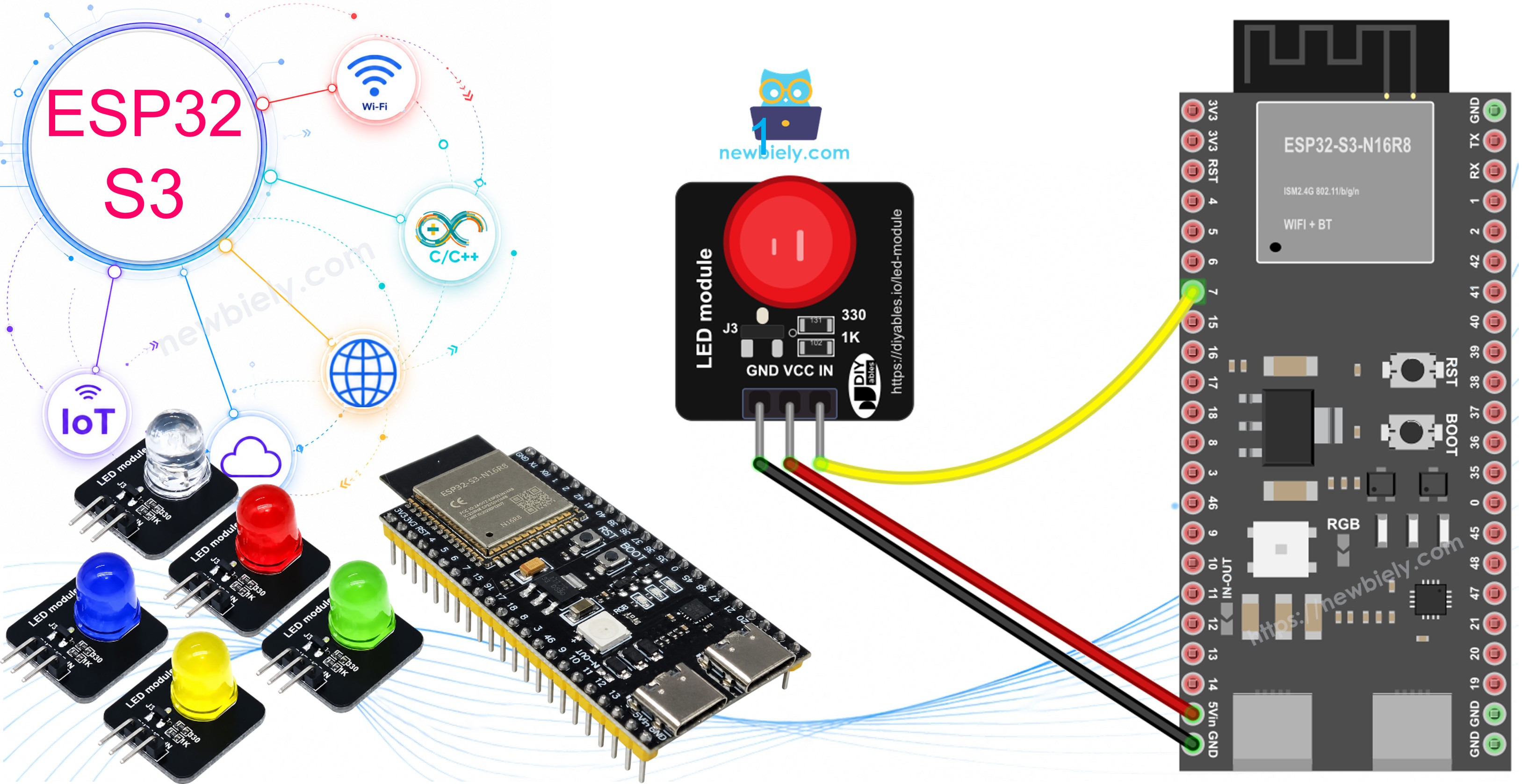
Hardware Preparation
Or you can buy the following kits:
| 1 | × | DIYables ESP32 S3 Starter Kit (ESP32 S3 included) | |
| 1 | × | DIYables Sensor Kit (18 sensors/displays) |
Additionally, some of these links are for products from our own brand, DIYables .
Buy Note: Use the LED Module for easier wiring. It includes an integrated resistor.
Overview of LED Module
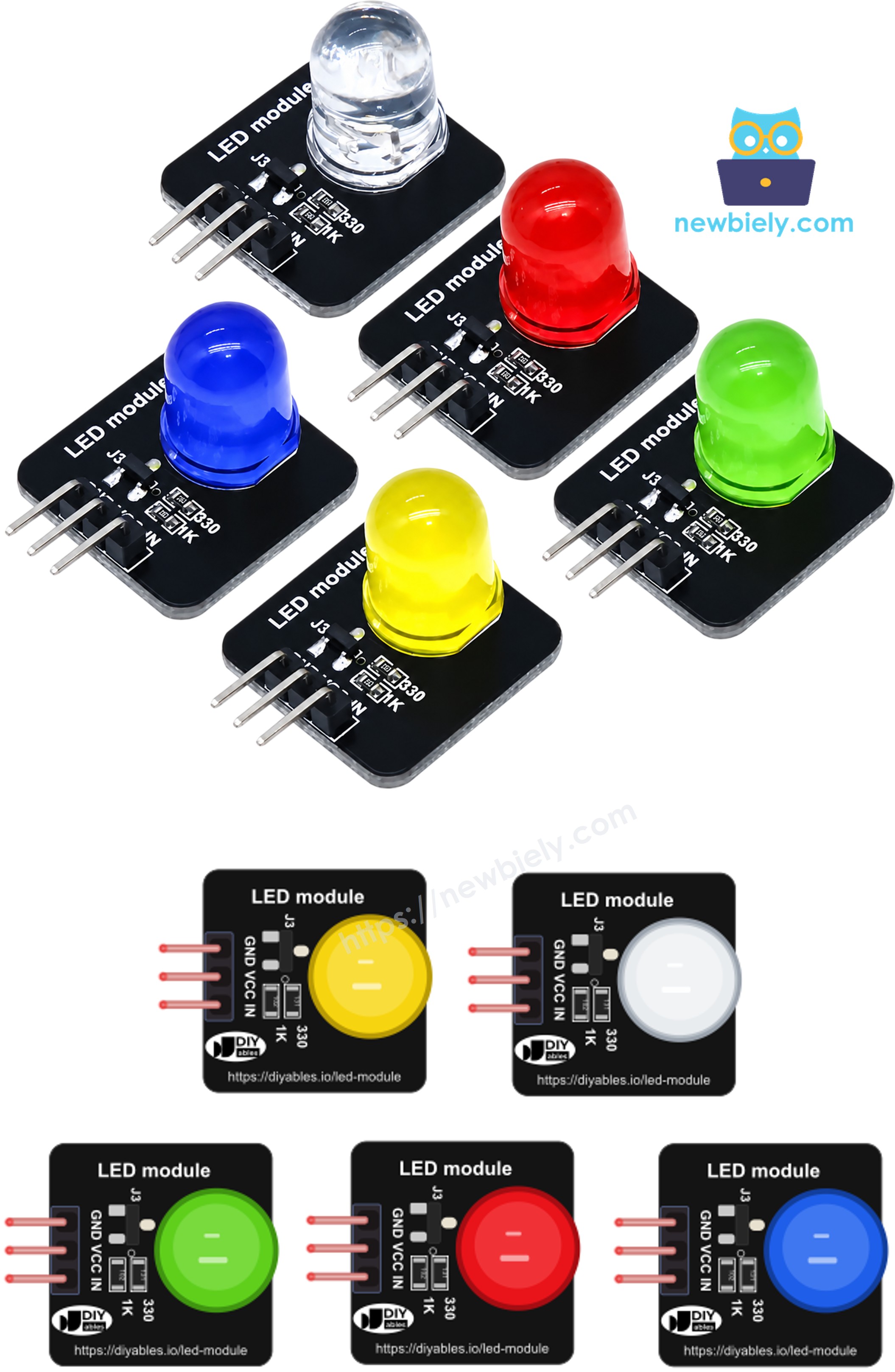
Think of this module as an LED that has already been wired for you. A 10mm diffused LED sits on a small black board, and right next to it are its 330Ω resistor and a tiny transistor switch. The LED takes its power from the VCC pin, not from the ESP32 S3. The IN pin only flips the transistor, through a 1KΩ resistor, so GPIO7 gives just a very small current. This is good news for a 3.3V board like the ESP32 S3: the light does not depend on how much current the GPIO pin can give.
Key Specifications
The board measures 20mm x 20mm and works from 3.3V to 5V DC. Control is active HIGH: IN at HIGH turns the light on, IN at LOW turns it off, and a PWM signal on IN sets any level in between. DIYables sells it as a pack of five colors (red, yellow, blue, green and white), so you can give each signal in a project its own color.
LED Module Pinout
A presoldered 3-pin header with right-angle pins (2.54mm pitch) sits on one edge, labeled in this order:
- GND — ground (0V); goes to any GND pin of the ESP32 S3
- VCC — power for the LED itself; 5V or 3.3V both work
- IN — control input; goes to a GPIO pin that can output PWM (GPIO7 in this guide)
Compared with a plain LED, you never need to find the anode or the cathode, and you never pick a resistor value. The pin names are printed on the board, so the only thing to check is that each wire lands on the right label.
Wiring Diagram
All three module pins go straight to the ESP32 S3 headers, with no other parts in between. Run GND to GND, VCC to the 5V pin, and IN to GPIO7, the same pin our ESP32 S3 LED fade tutorial uses.
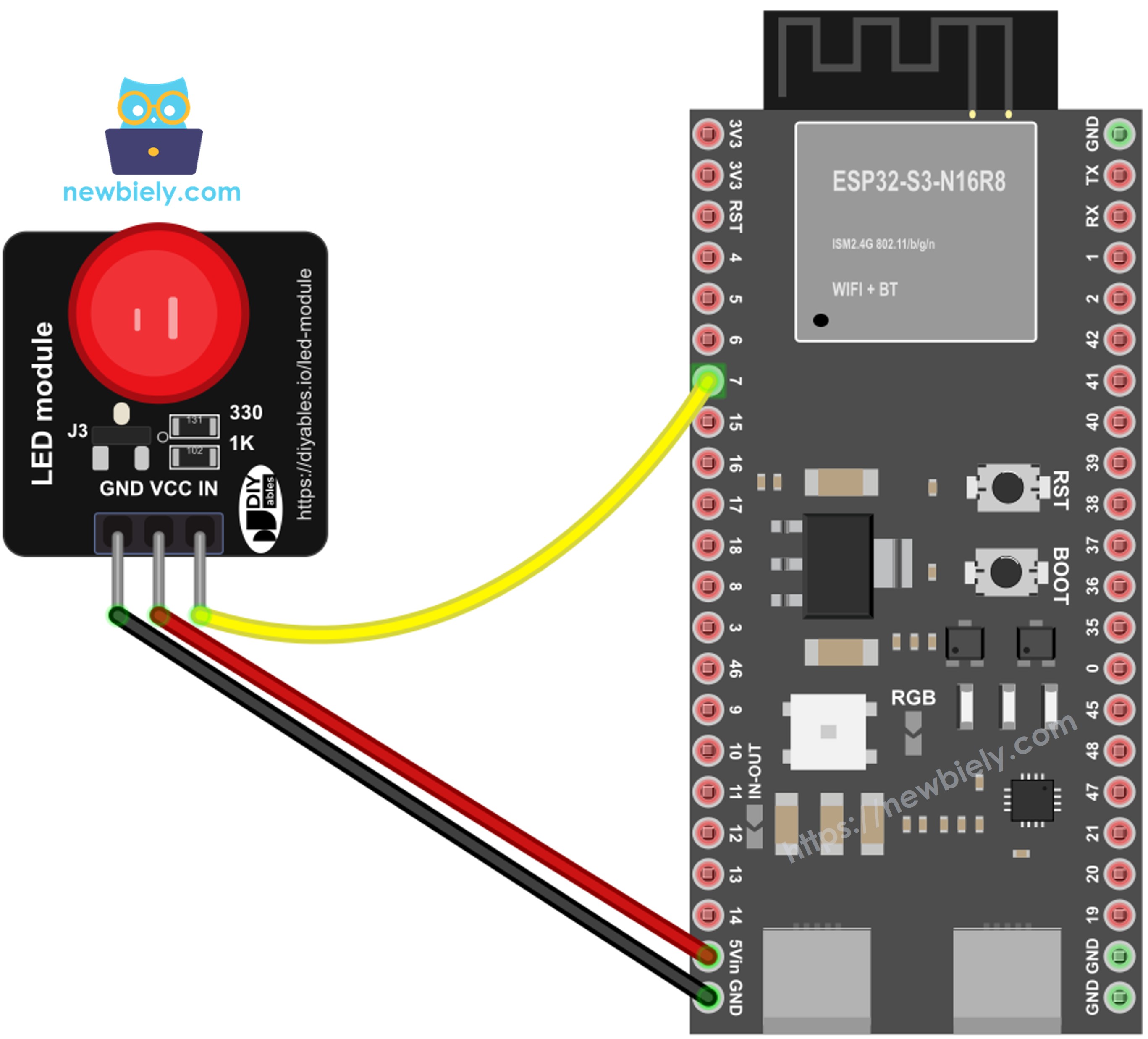
This image is created using Fritzing. Click to enlarge image
| LED Module Pin | ESP32 S3 Pin |
|---|---|
| GND | GND |
| VCC | 5V (or 3V3) |
| IN | GPIO7 |
Safety Notes
Plug or unplug the jumper wires only while the USB cable is out, because a VCC wire that slips onto a GPIO pin for a moment can harm the board. The IN pin is happy with 3.3V logic, so you never need a level shifter here. If you feed VCC from the 3V3 pin instead of 5V, the module still works, but blue and white LEDs may look a bit dimmer, since they need a higher voltage to glow at full strength.
How To Program For LED Module
No library is needed, because the module behaves just like one plain output. In setup(), pinMode() makes GPIO7 an output. After that, digitalWrite() with HIGH or LOW switches the light fully on or off, and analogWrite() with a value from 0 to 255 picks a brightness; on the ESP32 S3 the Arduino core turns that call into a hardware PWM signal for you.
ESP32 S3 Code - LED Module Blink
This first sketch is the classic test: the module shines for one second, rests for one second, and repeats. Each change is also printed to the Serial Monitor, so you can match what you see on the board with what the code is doing.
Detailed Instructions
- New to ESP32 S3? Complete our Getting Started with ESP32 S3 guide first.
- Place the ESP32 S3 on the breadboard and make the three connections from the wiring table.
- Plug the board into your computer with the Type-C USB cable.
- In the Arduino IDE, pick the ESP32 S3 board under Tools > Board and its COM port under Tools > Port.
- Paste the blink sketch into a new window and click Upload.
- Open the Serial Monitor and set the baud rate to 9600.
- Watch the module: one second lit, one second dark, over and over.
- Pro Tip: If the module never lights, swap the VCC and GND wires back to their labels first; a reversed power pair is the most common mistake with 3-pin modules.
ESP32 S3 Code - LED Module Fade
Now the IN pin gets a PWM signal instead of a plain HIGH or LOW. The duty value climbs from 0 to 255 in steps of 15, then walks back down to 0, and after a half-second pause the cycle starts again. The result is a smooth "breathing" light.
Detailed Instructions
- Keep the same wiring; GPIO7 already supports PWM, so nothing moves.
- Replace the blink sketch with the fade sketch and click Upload.
- Keep the Serial Monitor open at 9600 baud and watch the brightness numbers rise and fall.
- Pro Tip: Change FADE_STEP to 5 for a softer, slower glow, or STEP_DELAY to 20 for a fast pulse like a heartbeat.
Application and Project Ideas
A bright, ready-to-wire light like this fits almost any ESP32 S3 project that needs to show its state at a glance.
- WiFi status lamp: Keep a green module solid while the ESP32 S3 is online, and blink it while the board is trying to reconnect.
- Fault alarm light: Flash a red module fast whenever a sensor reading goes out of its safe range.
- Desk traffic-light model: Use red, yellow and green modules on three GPIO pins to rebuild a small crossing.
- Heartbeat light: Let a blue module breathe slowly with PWM to show that your sketch is still running.
- Message waiting light: Light a white module when the ESP32 S3 receives a new MQTT message, and turn it off when you press a button.
Challenge Yourself
- Beginner: Make the module blink twice quickly, then stay dark for two seconds, like a pager light.
- Intermediate: Read a potentiometer with analogRead() and use map() to set the module brightness from the knob.
- Advanced: Serve a small web page from the ESP32 S3 with ON, OFF and a brightness slider, and control the module from your phone.
Video Tutorial
Watch the step-by-step video walkthrough for this ESP32 S3 project below.