
Your ESP32 S3 project needs a way to listen to people: a start key, a doorbell, a mode switch. The button module gives you a clean, labeled input for that job, and this guide takes you from three jumper wires to press and release events that you can trust.
What you'll build in this tutorial:
What is on the button module and why it reads HIGH only while you hold it down
How to wire VCC, OUT and GND to the 3V3, GPIO21 and GND pins of the ESP32 S3
A first sketch that prints the raw level of the OUT pin
A second sketch that filters out bounce with a short delay and reports each press and release
A third sketch that lets the ezButton library do the debouncing without pausing your code
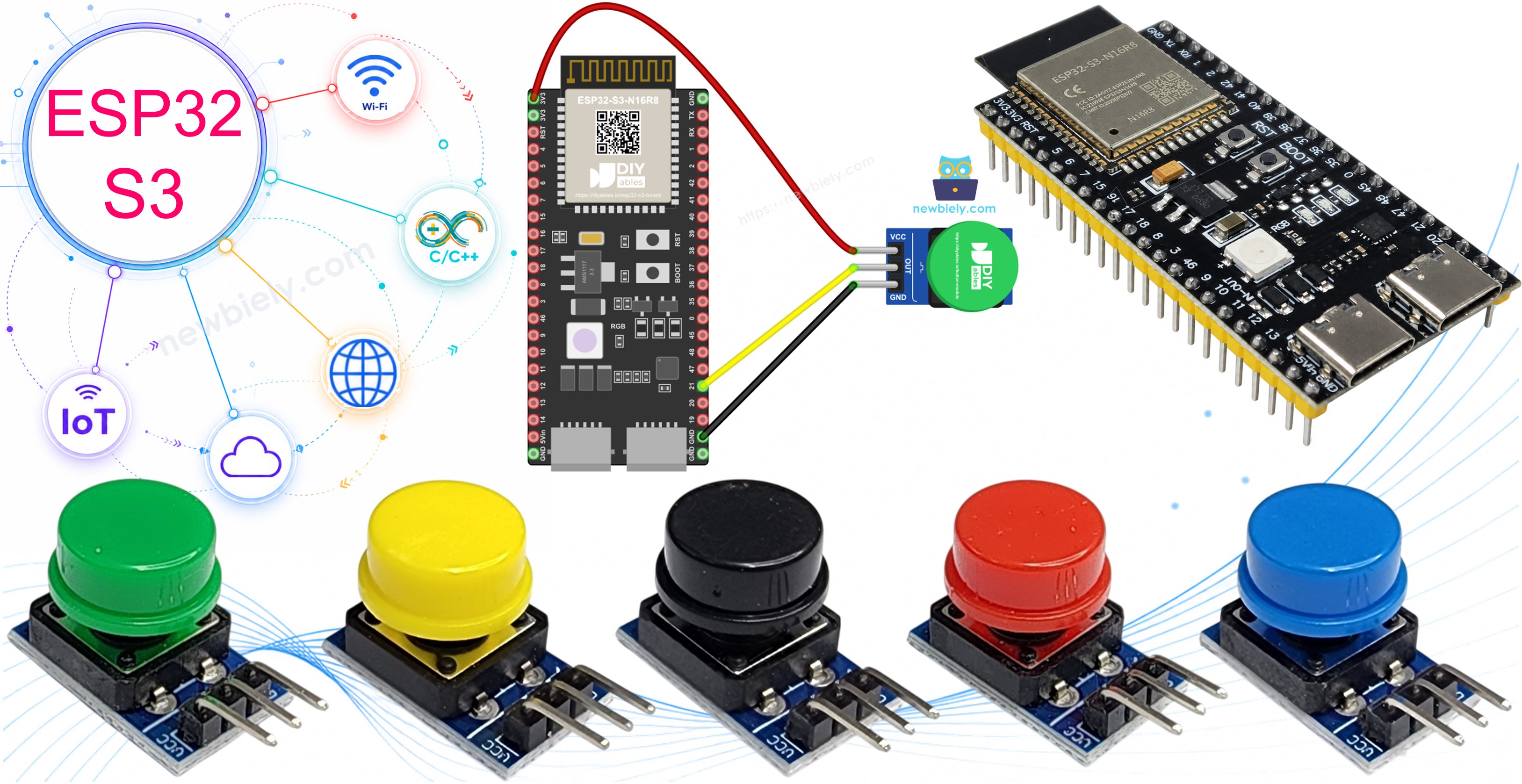
Disclosure: Some of the links provided in this section are Amazon affiliate links. We may receive a commission for any purchases made through these links at no additional cost to you. Additionally, some of these links are for products from our own brand, DIYables .
Overview of Button Module
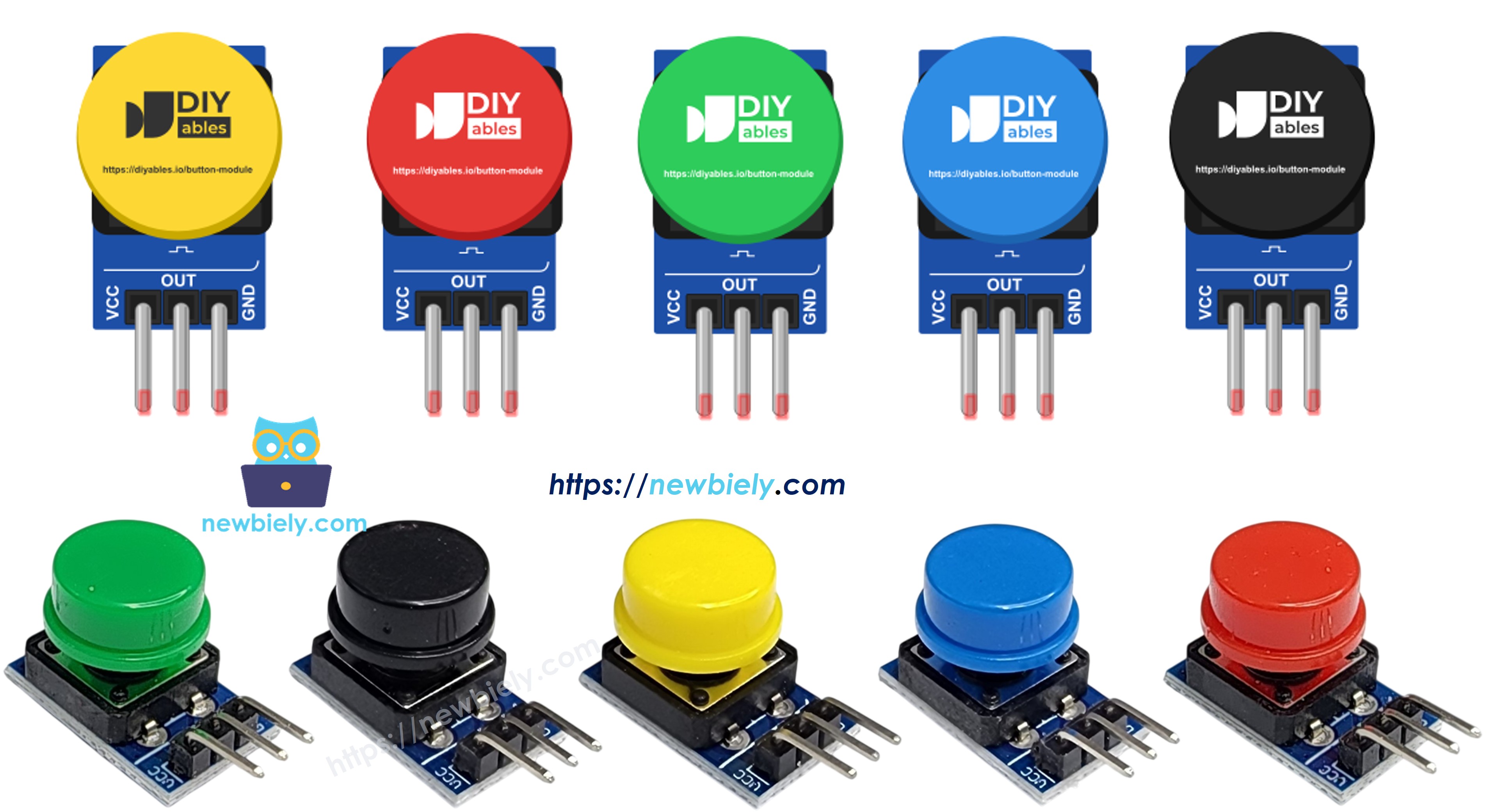
image source: diyables.io
In short, this is a push button with its resistor already on board. A momentary tactile switch with a colored cap is soldered to a small PCB, together with a pull-down resistor that holds the OUT pin at LOW while nobody touches the key. Press it, and the switch links OUT to VCC, so the pin goes HIGH; let go, and it falls back to LOW. Like every mechanical switch, the metal contacts bounce for a few milliseconds when they meet or part, so one press can look like several quick presses to a fast chip like the ESP32 S3. Two of the sketches below deal with that.
Key Specifications
The module runs from 3.3V to 5V DC and its output is active HIGH: HIGH while held, LOW while free. DIYables ships it as a pack of five, one cap each in red, yellow, green, blue and white, which makes it easy to tell several keys apart on one panel.
Button Module Pinout
The edge of the board carries a 3-pin header with 2.54mm spacing. The labels read, from one end to the other:
VCC — supply for the switch; on the ESP32 S3 this must be 3.3V (the 3V3 pin)
OUT — the signal line; HIGH when pressed, LOW when released (GPIO21 in this guide)
GND — ground (0V), shared with the ESP32 S3
Why choose this over a bare 4-leg push button? The bare switch has four legs joined in hidden pairs, which confuses many beginners, and it floats unless you add a resistor or turn on INPUT_PULLUP, which then flips the logic so that pressed reads LOW. The module removes both problems: the pins are named, the pull-down is built in, and pressed simply means HIGH. If you would like to compare, our ESP32 S3 - Button guide covers the bare version.
Wiring Diagram
Only three jumper wires are needed, and no resistor goes on the breadboard because the module brings its own. Connect VCC to the 3V3 pin, OUT to GPIO21, and GND to any GND pin of the ESP32 S3.
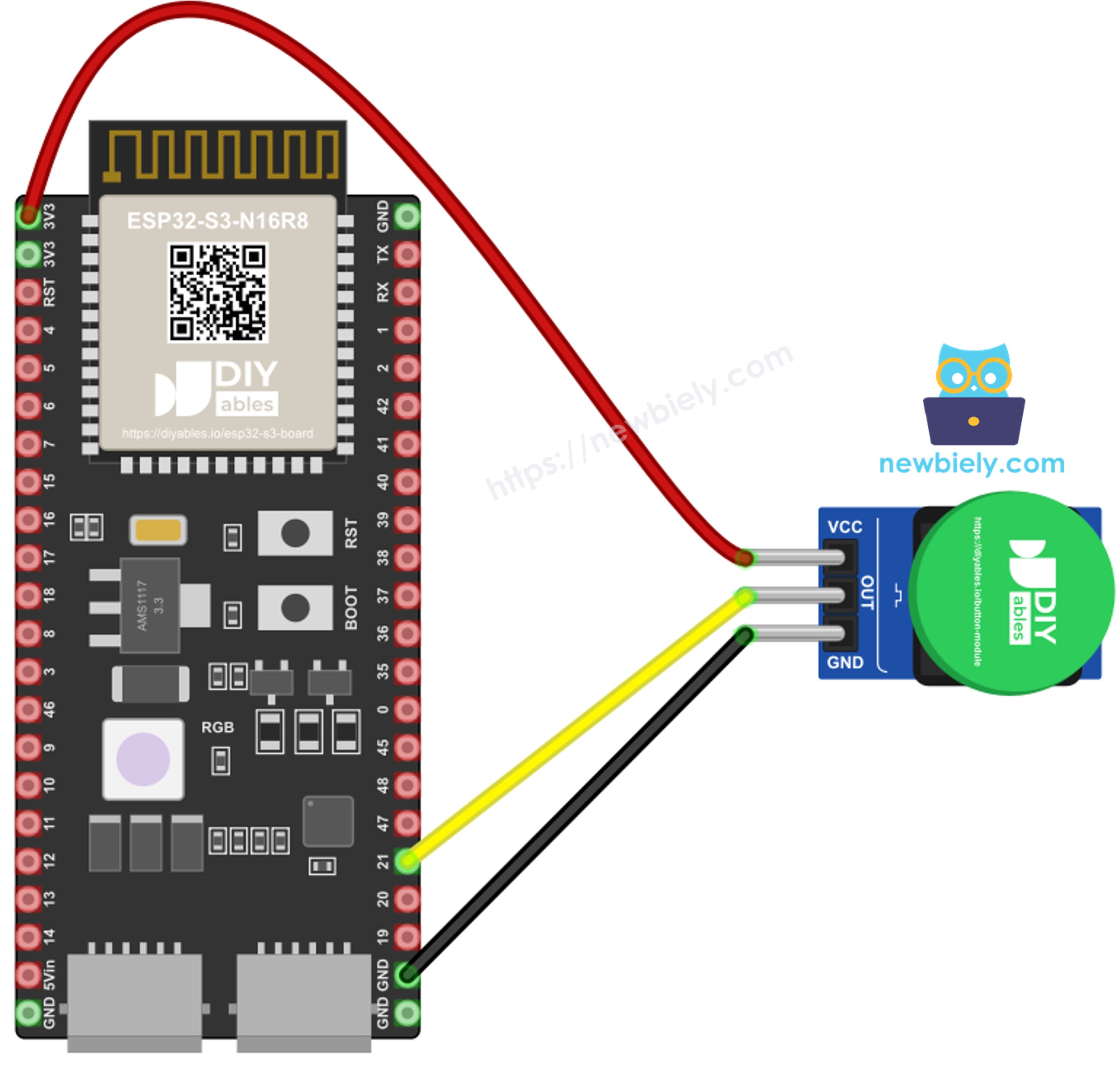
This image is created using Fritzing. Click to enlarge image
Button Module Pin
ESP32 S3 Pin
VCC
3V3
OUT
GPIO21
GND
GND
Safety Notes
Do not take power for this module from the 5V pin. When you press the key, OUT carries the same voltage as VCC, so a 5V supply would push 5V straight into GPIO21, and the ESP32 S3 pins are made for 3.3V only. Keep VCC on 3V3 and the signal stays in the safe range. Also make your wiring changes with the USB cable unplugged, so a loose wire cannot short 3V3 to GND by accident.
How To Program For Button Module
The ESP32 S3 reads the module like any digital input. In setup(), pinMode() sets GPIO21 as a plain INPUT; do not pick INPUT_PULLUP, because the internal pull-up would fight against the module's pull-down. In loop(), digitalRead() returns HIGH while the key is held and LOW otherwise. The three sketches build on this one call: the first prints it, the second checks it twice with a pause in between, and the third hands the job to the ezButton library.
ESP32 S3 Code - Read the Button Module State
This sketch is the simplest possible check of your wiring. Five times per second it reads GPIO21 and prints the level as 1 or 0, with a short note next to it, so you can see the pin follow your finger.
/* * This ESP32 S3 code was developed by newbiely.com * * This ESP32 S3 code is made available for public use without any restriction * * For comprehensive instructions and wiring diagrams, please visit: * https://newbiely.com/tutorials/esp32-s3/esp32-s3-button-module */#define BUTTON_MODULE_PIN 21 // ESP32 S3 GPIO21 connected to the OUT pin of the button modulevoidsetup() {Serial.begin(9600);// plain INPUT: the module already has its own pull-down resistor,// so do NOT use INPUT_PULLUP herepinMode(BUTTON_MODULE_PIN, INPUT);}voidloop() {int level = digitalRead(BUTTON_MODULE_PIN); // HIGH = pressed, LOW = releasedSerial.print("OUT level: ");Serial.print(level);if (level == HIGH)Serial.println(" -> key is down");elseSerial.println(" -> key is up");delay(200); // slow the printing down so it is easy to read}
Set the ESP32 S3 and the button module on the breadboard and run the three wires from the table: VCC to 3V3, OUT to GPIO21, GND to GND.
Connect the board to your computer with the Type-C cable.
In the Arduino IDE, choose the ESP32 S3 board in Tools > Board and the matching port in Tools > Port.
Paste the sketch into a new window and press Upload.
Open the Serial Monitor at 9600 baud.
Hold the key down for a second, then let it go, and watch the numbers change.
Pro Tip: If the monitor shows 1 all the time, check that the OUT wire is really on GPIO21 and not on the 3V3 pin next to the other wires.
Newbiely | Arduino IDE 2.3.8
──
☐
✕
File
Edit
Sketch
Tools
Help
ESP32S3 Dev Module
Newbiely.ino
···
8Serial.println("Hello World!");
Output
Serial Monitor
Message (Enter to send message to 'ESP32S3 Dev Module' on 'COM15')
New Line
9600 baud
OUT level: 0 -> key is up
OUT level: 1 -> key is down
OUT level: 0 -> key is up
Ln 11, Col 1
ESP32S3 Dev Module on COM15
2
ESP32 S3 Code - Press and Release Events with Delay Debounce
Printing the level over and over is fine for a test, but most projects only care about the moment the key goes down or comes up. This sketch keeps the last confirmed level. When a new reading is different, it waits 50 milliseconds for the contacts to settle, reads again, and only then prints one message. Note that delay() stops the whole loop during those 50 milliseconds, so nothing else can run while it waits.
/* * This ESP32 S3 code was developed by newbiely.com * * This ESP32 S3 code is made available for public use without any restriction * * For comprehensive instructions and wiring diagrams, please visit: * https://newbiely.com/tutorials/esp32-s3/esp32-s3-button-module */#define BUTTON_MODULE_PIN 21 // ESP32 S3 GPIO21 connected to the OUT pin of the button module#define SETTLE_TIME 50 // milliseconds to wait for the contacts to stop bouncingint last_level = LOW; // the module idles LOW thanks to its pull-down resistorvoidsetup() {Serial.begin(9600);pinMode(BUTTON_MODULE_PIN, INPUT); // no internal pull-up needed}voidloop() {int level = digitalRead(BUTTON_MODULE_PIN);if (level != last_level) { // the pin seems to have changeddelay(SETTLE_TIME); // wait for the bouncing to finish (this blocks the loop) level = digitalRead(BUTTON_MODULE_PIN); // read the pin againif (level != last_level) { // the change is realif (level == HIGH)Serial.println("The button is pressed");elseSerial.println("The button is released"); last_level = level; // remember the confirmed level } }}
Detailed Instructions
Leave the wiring exactly as it is.
Open the debounce sketch in place of the first one and click Upload.
With the Serial Monitor still at 9600 baud, give the key a few short taps and one long hold.
Pro Tip: If one tap still prints two presses, raise SETTLE_TIME to 80; if fast double-taps get missed, lower it to 30.
Newbiely | Arduino IDE 2.3.8
──
☐
✕
File
Edit
Sketch
Tools
Help
ESP32S3 Dev Module
Newbiely.ino
···
8Serial.println("Hello World!");
Output
Serial Monitor
Message (Enter to send message to 'ESP32S3 Dev Module' on 'COM15')
New Line
9600 baud
The button is pressed
The button is released
The button is pressed
The button is released
The button is pressed
The button is released
Ln 11, Col 1
ESP32S3 Dev Module on COM15
2
ESP32 S3 Code - Button Module with the ezButton Library
The delay method works, but a blocked loop is a problem once your ESP32 S3 also has to refresh a display, read a sensor, or keep WiFi alive. The ezButton library by ArduinoGetStarted.com debounces with timestamps instead, so its loop() call returns at once. Because the module pulls OUT down, the button object is created with EXTERNAL_PULLDOWN (available from ezButton 1.0.6); this tells the library that HIGH means pressed. After that, setDebounceTime() sets the filter, getState() gives the steady level, and isPressed() and isReleased() each report an event once.
/* * This ESP32 S3 code was developed by newbiely.com * * This ESP32 S3 code is made available for public use without any restriction * * For comprehensive instructions and wiring diagrams, please visit: * https://newbiely.com/tutorials/esp32-s3/esp32-s3-button-module */#include <ezButton.h>#define BUTTON_MODULE_PIN 21 // ESP32 S3 GPIO21 connected to the OUT pin of the button module// EXTERNAL_PULLDOWN tells ezButton that the module has its own pull-down// resistor, so HIGH means pressed (needs ezButton 1.0.6 or newer)ezButtonbutton(BUTTON_MODULE_PIN, EXTERNAL_PULLDOWN);int last_steady = -1; // used to print the steady state only when it changesvoidsetup() {Serial.begin(9600);button.setDebounceTime(50); // ignore bounces shorter than 50 milliseconds}voidloop() {button.loop(); // MUST be called first; it never blocksif (button.isPressed())Serial.println("Event: pressed");if (button.isReleased())Serial.println("Event: released");int steady = button.getState(); // debounced level of the OUT pinif (steady != last_steady) {Serial.print("Steady state: ");Serial.println(steady == HIGH ? "HIGH (held down)" : "LOW (not touched)"); last_steady = steady; }// other work can run here without waiting for the button}
Detailed Instructions
Click the Libraries icon on the left bar of the Arduino IDE.
Type ezButton in the search box and find the library by ArduinoGetStarted.com.
Click Install. If an older copy is already there, update it to version 1.0.6 or newer.
Search for ezButton created by ArduinoGetStarted.com and click the Install button.
Newbiely | Arduino IDE 2.3.8
──
☐
✕
File
Edit
Sketch
Tools
Help
ESP32S3 Dev Module
Library Manager
ezButton
Type:
All
Topic:
All
ezButtonby ArduinoGetStarted.com
Button library supports debounce, pressed/released events and the press counting. It is easy to use with multiple buttons. The library can be used for push-button, momentary switches, toggle switch, magnetic contact switch (door sensor)... It is designed for not only beginners but also experienced users.
More info
1.0.6
INSTALL
Newbiely.ino
···
1
voidsetup() {
Output
Serial Monitor
Ln 1, Col 1
ESP32S3 Dev Module on COM15
1
Paste the ezButton sketch, keep the same wiring, and click Upload.
Open the Serial Monitor at 9600 baud, then press and release the key a couple of times.
Pro Tip: Add more keys by making one ezButton object per module, and call loop() on each of them at the top of loop().
Newbiely | Arduino IDE 2.3.8
──
☐
✕
File
Edit
Sketch
Tools
Help
ESP32S3 Dev Module
Newbiely.ino
···
8Serial.println("Hello World!");
Output
Serial Monitor
Message (Enter to send message to 'ESP32S3 Dev Module' on 'COM15')
New Line
9600 baud
Steady state: LOW (not touched)
Event: pressed
Steady state: HIGH (held down)
Event: released
Steady state: LOW (not touched)
Event: pressed
Steady state: HIGH (held down)
Event: released
Steady state: LOW (not touched)
Ln 11, Col 1
ESP32S3 Dev Module on COM15
2
Application and Project Ideas
One labeled key with a clean HIGH signal is enough to start many ESP32 S3 builds.
WiFi doorbell: Send a phone notification through a web service each time the visitor presses the module.
Mode selector: Step through display pages or LED effects with every press of a single colored key.
Start/stop timer: Use a green module to start a stopwatch and a red one to stop it.
Quiz buzzer box: Give each player a different cap color and show who pressed first.
Mini game pad: Put four modules in a cross shape as direction keys for a small game on an OLED screen.
Challenge Yourself
Beginner: Count the presses and print the total each time the key is released.
Intermediate: Use the ezButton sketch to toggle an LED on GPIO7 with each press, as in our ESP32 S3 - Button LED tutorial.
Advanced: Measure how long the key is held and treat a hold of more than one second as a different command from a quick tap; the ESP32 S3 - Button - Debounce guide is a good place to look at timing ideas.
Video Tutorial
The video for this ESP32 S3 button module lesson will appear here.
Please feel free to share the link of this tutorial. However, Please do not use our content on any other websites. We invested a lot of effort and time to create the content, please respect our work!