
ESP32 S3 - IFTTT
This tutorial instructs you on how to use the ESP32 S3 with IFTTT to connect your project to a wide range of online services. IFTTT acts as a powerful bridge between ESP32 S3 and services like email, SMS, voice calls, and smart assistants such as Google Assistant and Amazon Alexa.
What you'll build:
- Understand what IFTTT is and how its Applets, triggers, and actions work
- Configure IFTTT Webhooks to communicate with the ESP32 S3
- Make the ESP32 S3 trigger IFTTT services (e.g. send an email or notification)
- Allow IFTTT to trigger the ESP32 S3 remotely from external services
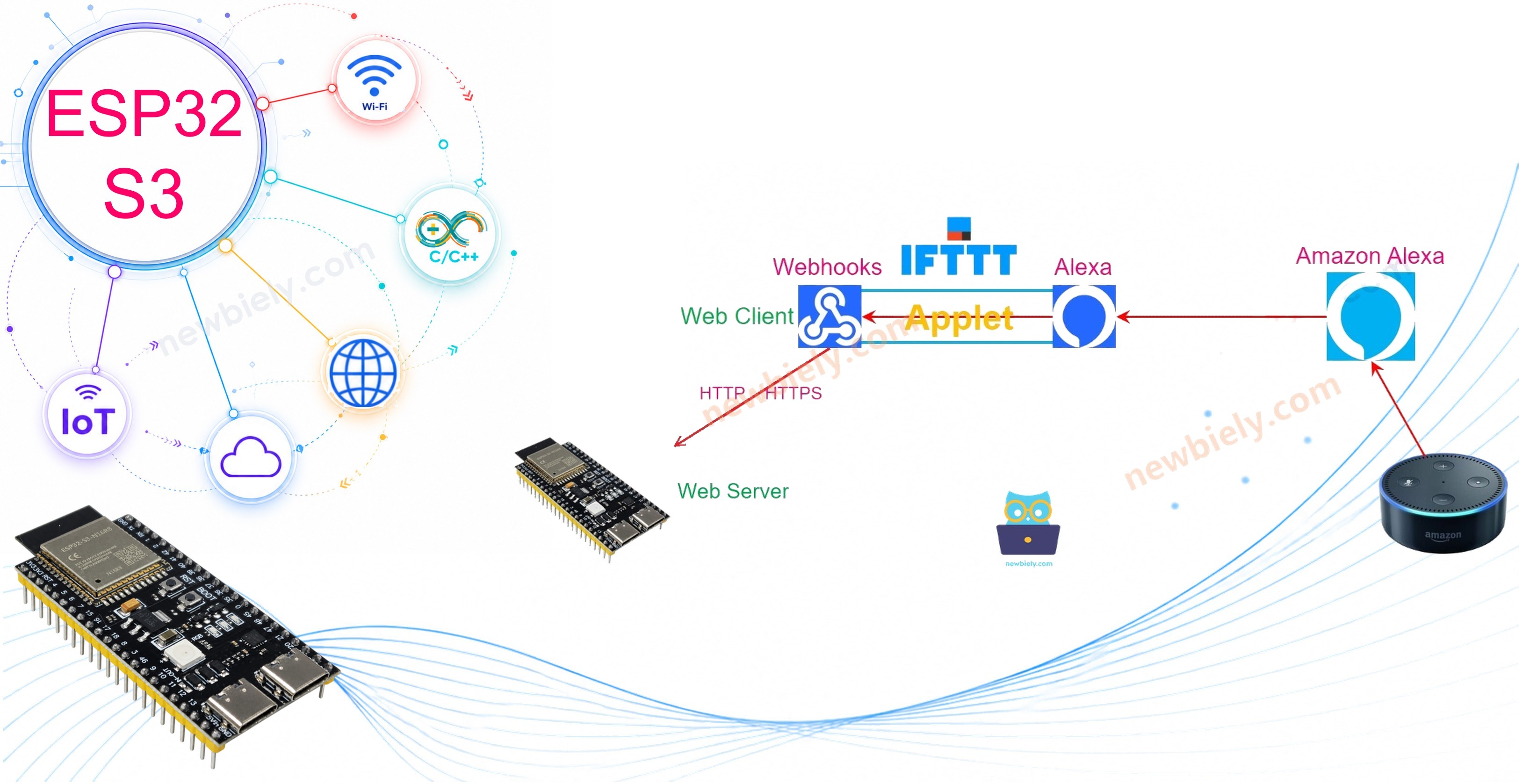
Hardware Preparation
Or you can buy the following kits:
| 1 | × | DIYables ESP32 S3 Starter Kit (ESP32 S3 included) | |
| 1 | × | DIYables Sensor Kit (18 sensors/displays) |
Additionally, some of these links are for products from our own brand, DIYables .
What is IFTTT?
IFTTT is a free web service that connects different services (e.g. Twitter, Facebook, Weather Service, Email ...) together. For example:
- IFFTT can help you automatically save images that you post on Facebook to Dropbox.
- IFFTT can help you automatically send an Email if it rains tomorrow.
IFTTT stands for If This Then That. It means if a service is triggered, other IFTTT service take the action
From ESP32 S3's point of view, IFTTT is a bridge between ESP32 S3 and other services. With IFTTT, ESP32 S3 can do some difficult things easily. For example:
- ESP32 S3 sends the notification to the smartphone
- ESP32 S3 sends the email, the SMS message
- Google Assistant, Alexa controls ESP32 S3
- Scheduling for ESP32 S3 via Google Calendar
When you learn about IFTTT, you need to know four important terms on IFTTT: Applet, service, trigger, and action.
- IFTTT comprises Applets.
- The Applet typically comprises two IFTTT services (e.g. Evernote, Facebook, Weather Service, Email...):
- One service is called a trigger
- One service is called an action
- ⇒ When something happens on the trigger, the action is taken
- Some service can be the trigger. Some service can be the action. Some service can be both trigger and action:
An Applet can be created:
- by IFTTT company: To use this kind of Applet, You just need to enable it
- by the third party: To use this kind of Applet, You just need to enable it
- by yourself: To use this kind of Applet, You need to create your own Applet first, and then enable it.
To use IFTTT Applet with ESP32 S3, you need to create an Applet by yourself. Don't worry, it is very easy.
The Applet created by yourself for ESP32 S3 is composed of:
- Webhooks service: this service interacts directly with ESP32 S3
- Another service: any service that you want to use (e.g. Twitter, Facebook, Weather Service, Email ...)
There are two use cases:
- ESP32 S3 triggers IFTTT: ESP32 S3 triggers IFTTT to do something. For example, ESP32 S3 triggers IFTTT to send email
- IFTTT triggers ESP32 S3: A outside service triggers IFTTT, and then IFTTT triggers ESP32 S3 to do something. For example, Alexa tells ESP32 S3 to turn on the light
We will learn both cases one by one.
How ESP32 S3 triggers IFTTT
We need to create an IFTTT Applet that:
- The Webhooks service acts as a trigger
- The other service (e.g. Email) acts as a action
After creating an IFTTT Applet for ESP32 S3:
- ESP32 S3 interacts with the Webhooks service in IFTTT by making HTTP/HTTPS request to the Webhooks service.
- The Webhooks service automatically triggers other service in IFTTT
- The other service in IFTTT takes action (e.g. send email)
How to make ESP32 S3 trigger IFTTT
- Create an IFTTT account
- Login to IFTTT
- Create an Applet, which connect Webhooks to a desired service (e.g Email, Twitter, VoIP ...)
- Go to Webhooks's document page to get the Webhooks key.
- Write ESP32 S3 code to make HTTP (POST or GET) request to Webhooks.
To learn how to make HTTP request using ESP32 S3.
What we need to include in the HTTP request
- Webhooks key: given by IFTTT. It is a unique and secret key to identifying your Webhooks. You can find this key by logging into the IFTTT website
- Event name: given by yourself when you create the applet. It is the name to identify the event.
- (Optional) Data: ESP32 S3 can include the data to HTTP request sent to IFTTT
Webhooks key and event name are parts of URL. Data is optional and is included in the query string. The IFTTT Webhook allows a query string has up to 3 variables with the fixed names: value1, value2, value3.
The HTTP GET request URL formats:
- The trigger without data:
- The trigger with one variable:
- The trigger with two variables:
- The trigger with three variables:
Replace EVENT_NAME and YOUR_KEY in the above formats.
How to send data from ESP32 S3 to IFTTT
To send data from ESP32 S3 to other IFTTT service (e.g. Email, facebook), we need to do:
- In ESP32 S3: Include data into HTTP request
- In Applet: modify the setting to extract data from the HTTP request.
The workflow:
- ESP32 S3 makes an HTTP/HTTPS request to IFTTT Webhooks service
- Webhooks service extracts the data from the HTTP request
- Webhooks service triggers another IFTTT service and including data to the trigger.
- Another service takes the action
There are five variables that can be specified in the Webhooks's configuration when creating the Applet:
| {{EventName}} | When specified this variable, the data will be extracted from HTTP request |
|---|---|
| {{OccurredAt}} | When specified this variable, the data will be the IFTTT system time |
| {{Value1}} | When specified this variable, the data will be extracted from the variable value1 in the query string in HTTP request |
| {{Value2}} | When specified this variable, the data will be extracted from the variable value2 in the query string in HTTP request |
| {{Value3}} | When specified this variable, the data will be extracted from the variable value3 in the query string in HTTP request |
The detailed instruction will be presented in specific tutorials.
Example Code
The instruction and example code of ESP32 S3 that sends data to other IFTTT service are available in the below tutorials:
Detailed Instructions
- New to ESP32 S3? Complete our Getting Started with ESP32 S3 guide first.
- Create a free IFTTT account and log in.
- Navigate to the IFTTT Applet creation page and choose Webhooks as your trigger or action service.
- Obtain your unique Webhooks key from the IFTTT Webhooks documentation page.
- In your ESP32 S3 sketch, construct the HTTP GET request URL using your Webhooks key and chosen event name.
- Upload the sketch to your ESP32 S3 and open the Serial Monitor (9600 baud) to verify connectivity.
- Test the trigger by observing the IFTTT activity log alongside the ESP32 S3 Serial Monitor output.
- Pro Tip: Use HTTPS requests instead of HTTP for added security when sending sensitive data or Webhooks keys to IFTTT. Pair IFTTT with ESP32 S3 MQTT for advanced IoT pipelines.
Serial Monitor Output
The following Serial Monitor readings show typical ESP32 S3 IFTTT activity. Open the Serial Monitor at 9600 baud to observe connection status and trigger confirmations.
Applications
The ESP32 S3 IFTTT integration opens up a rich ecosystem of automation possibilities across home, industrial, and educational domains.
- Home Automation Alerts: Trigger IFTTT from the ESP32 S3 to send an email or push notification when a door sensor or motion detector fires.
- Voice Control: Use Google Assistant or Amazon Alexa via IFTTT to remotely toggle relays, lights, or motors connected to the ESP32 S3.
- Environmental Monitoring: Have the ESP32 S3 post temperature or humidity readings to a Google Sheet via IFTTT for long-term data logging.
- Security Notifications: Send an SMS message through IFTTT whenever the ESP32 S3 detects an unexpected event such as a gas leak or water intrusion.
- Scheduling: Use Google Calendar as an IFTTT trigger to automate scheduled tasks on the ESP32 S3, such as turning on irrigation at a set time.
Video Tutorial
Watch the step-by-step video walkthrough for this ESP32 S3 project below.
Challenges
Extending this project is a great way to deepen your understanding of IoT integrations and cloud automation with the ESP32 S3.
- Beginner: Create an IFTTT Applet that sends you an email every time the ESP32 S3 boots and connects to WiFi.
- Intermediate: Build a two-way integration where a button press on the ESP32 S3 triggers an IFTTT email, and a Google Assistant voice command toggles an LED on the ESP32 S3 via IFTTT Webhooks.
- Advanced: Chain multiple IFTTT Applets so that the ESP32 S3 can post sensor data to a Google Sheet, trigger an SMS alert when a threshold is exceeded, and log all events with timestamps to an SD card simultaneously.
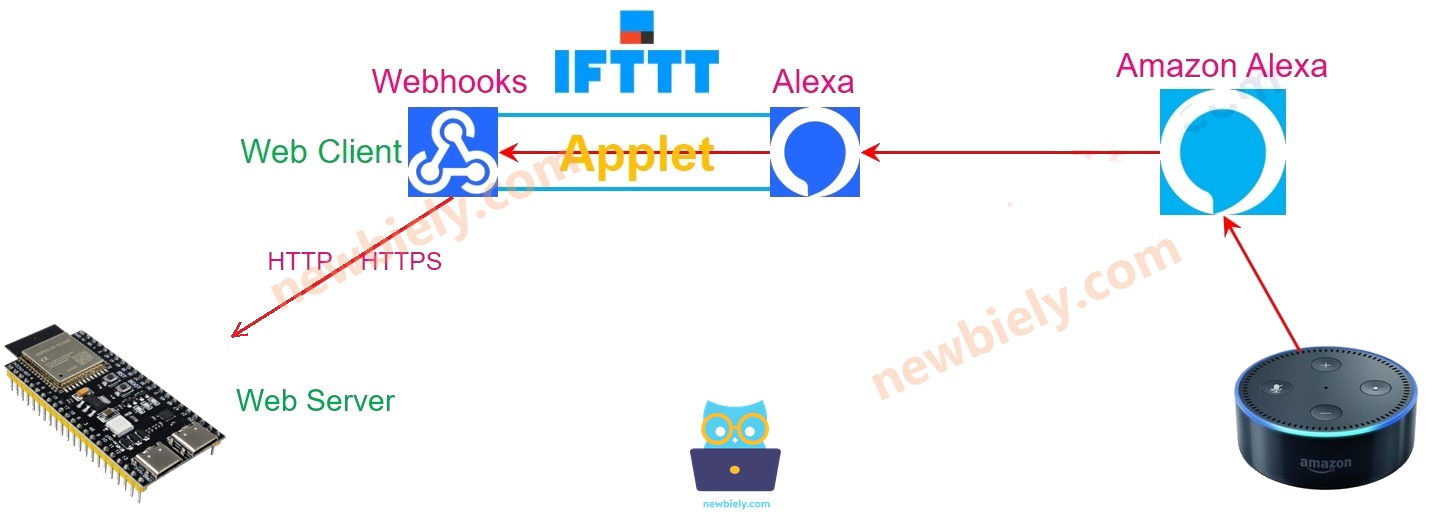
How IFTTT triggers ESP32 S3
- An outside service triggers a IFTTT service
- The IFTTT service automatically triggers the Webhooks service
- The Webhooks service automatically makes HTTP/HTTPS request to ESP32 S3. In this case, ESP32 S3 must works as a web server to handle the request from IFTTT Webhooks service
The below is an example of how ESP32 S3 interacts with Amazon Echo dot.
How To make IFTTT trigger ESP32 S3
- Login to The IFTTT
- Create an Applet, which connect a service (e.g Google Assistant, Amazon Alexa, Google Calendar ...) to the Webhooks service:
- The other service is the trigger
- The Webhooks service is the action
- Write ESP32 S3 code to handle HTTP requests from Webhooks.
When creating the Applet with Webhooks service is a trigger, The Webhook requires to input the ESP32 S3's IP address it's setting. When an event is triggered, IFTTT makes an HTTP request to ESP32 S3 via the inputted IP address.
The detailed instruction will be presented in specific tutorials.
Example Code
The instruction and example code of that IFTT triggers ESP32 S3 are available in the below tutorials: