
ESP8266 - TFT LCD Touch Display SPI

This is a practical, no-nonsense guide to connecting an SPI TFT display to an ESP8266 NodeMCU board. The ESP8266 is a compact Wi-Fi-enabled microcontroller that runs at 80-160 MHz and operates at 3.3V. Its hardware SPI bus sits on GPIO13 (MOSI), GPIO14 (SCK), and GPIO12 (MISO) - note these are NOT labeled D11/D13/D12 like Arduino boards.

Here is what we will cover:

This tutorial covers both touch and non-touch SPI TFT LCD displays. It works with 1.3, 1.54, 2.2, 2.4, 2.8, 3.2, and 3.5 inch panels driven by ILI9341, ILI9488, or ST7789 controller chips.
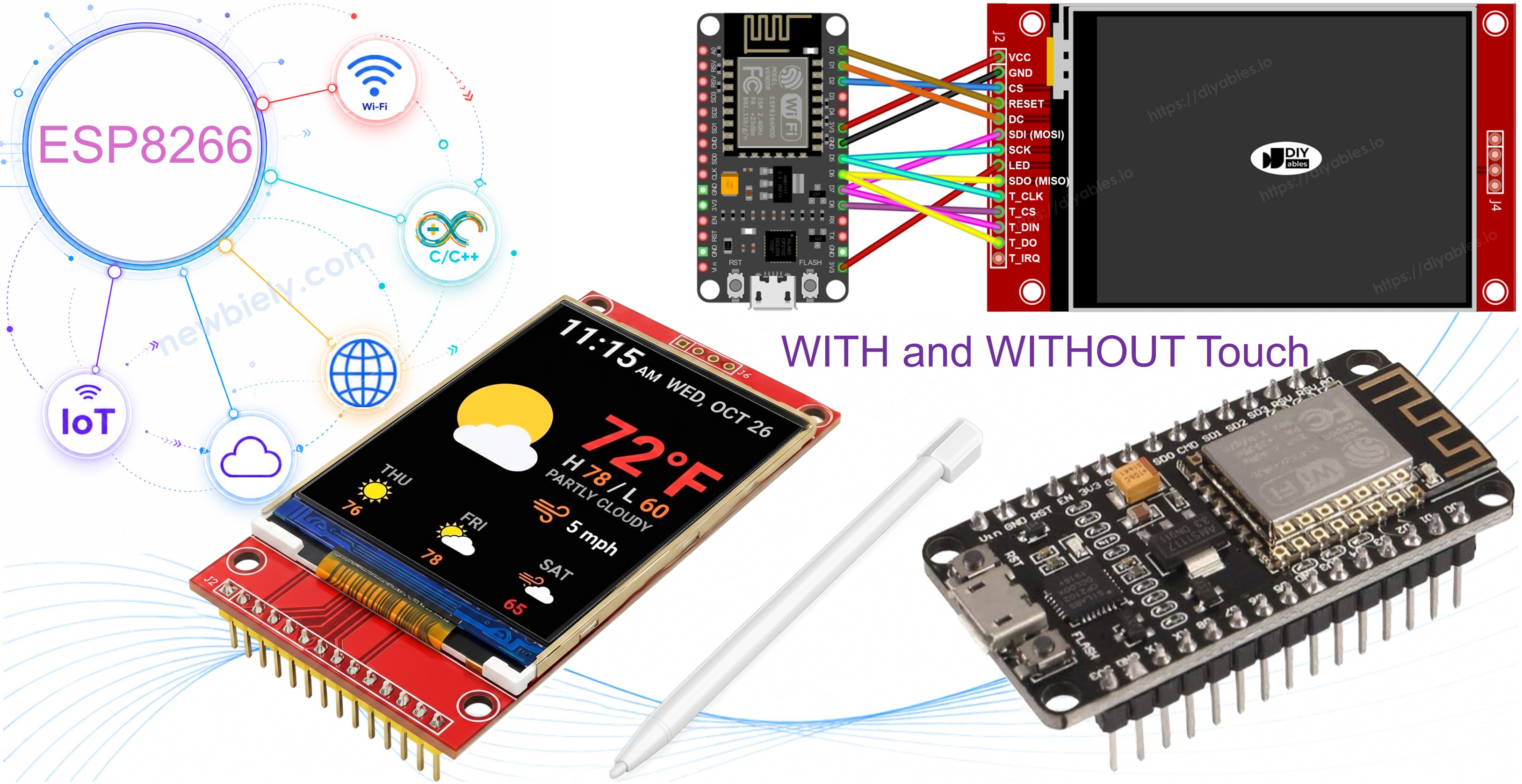
ESP8266 NodeMCU TFT SPI Display

Hardware Preparation

1×ESP8266 NodeMCU development board
1×USB Cable (Type-A to Micro-B)
1×SPI TFT display module
1×Jumper Wires
1×Breadboard
1×Recommended: Screw Terminal Expansion Board for ESP8266
1×Recommended: Power Splitter for ESP8266 Type-C

Or you can buy the following kits:

1×DIYables Sensor Kit (18 sensors/displays)
Disclosure: Some of the links provided in this section are Amazon affiliate links. We may receive a commission for any purchases made through these links at no additional cost to you.
Additionally, some of these links are for products from our own brand, DIYables .

The SPI TFT Display

SPI TFT modules use a dedicated driver IC to receive drawing commands and control the LCD pixels over a fast SPI link. Three drivers are supported:

  • ILI9341 - 16-bit RGB565 color, up to 40 MHz SPI.
  • ILI9488 - 18-bit RGB666 color over SPI, up to 24 MHz.
  • ST7789 - 16-bit RGB565 color, up to 40 MHz SPI.

Recommendation: If you have not yet purchased a display, we recommend the ST7789 driver. It is widely available, runs at full 40 MHz SPI speed, and is the most straightforward choice for new projects.

Drawing calls go through the Adafruit GFX API: shapes, text, fonts, and bitmaps are all available.

Note: The ESP8266 operates at 3.3V. Connect TFT VCC to the 3.3V pin. Do NOT apply 5V - it will damage the board.

Boot pin warning: GPIO0, GPIO2, and GPIO15 affect the boot mode on the ESP8266. Avoid using them for TFT CS, DC, or RST to prevent upload failures. GPIO4, GPIO5, and GPIO16 are safe choices.

Pinout

Most SPI TFT LCD displays have the following pins:

Display pins:

Pin Function
VCC Power supply
GND Ground
CS Chip Select — pulled low to select the display on the SPI bus
DC / RS Data / Command select — high for pixel data, low for commands
RST Hardware reset — optional; tie to 3.3V if unused
MOSI / SDI / SDA SPI data in (MCU → display)
SCK / CLK SPI clock
MISO / SDO SPI data out (display → MCU) — optional for display-only use
LED / BL / BLK Backlight power — connect to 3.3V or a PWM pin for dimming

SD card pins (if your application needs to access the SD card):

Pin Function
SD_CS / TF_CS SD card Chip Select
MOSI / SDI MOSI — data from MCU to SD card
SCK / CLK SCK — SPI clock
MISO / SDO MISO — data from SD card to MCU

For TFT displays that support touch, there are additional touch pins (if your application uses the touch function and the display supports it):

Pin Function
T_CS Touch controller Chip Select
T_CLK SCK — SPI clock
T_DIN MOSI — data from MCU to touch controller
T_DO MISO — data from touch controller to MCU
T_IRQ Touch interrupt — optional; signals when the screen is being touched

Note: Some non-touch display modules also expose T_CS, T_CLK, T_DIN, T_DO, and T_IRQ pins. These are non-functional on those boards — the touch controller IC is not populated. They appear because the PCB reuses the same layout as the touch-enabled version to reduce manufacturing variants.
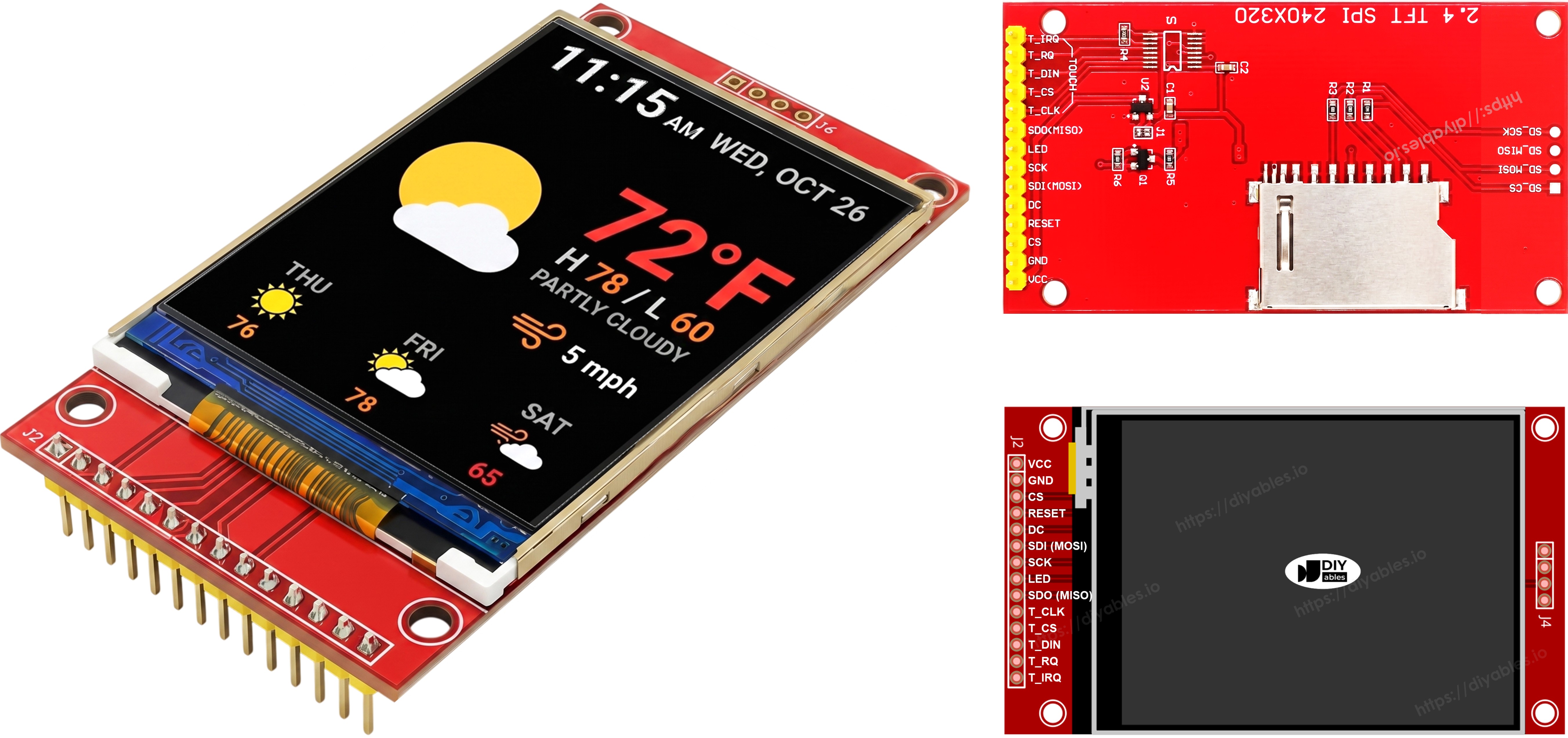
TFT SPI Display Pinout

Wiring Diagram

Without Touch

Connect MOSI to D7 (GPIO13), SCK to D5 (GPIO14), MISO to D6 (GPIO12) on the ESP8266 NodeMCU. CS, DC, and RST can be any available boot-safe GPIO — D2 (GPIO4), D1 (GPIO5), D0 (GPIO16) are used in the examples.

Display:

TFT Pin ESP8266 NodeMCU Pin GPIO Number Description
VCC 3V3 - Power supply (3.3V only)
GND GND - Ground
CS D2 GPIO4 Chip Select (boot-safe)
DC / RS D1 GPIO5 Data / Command select (boot-safe)
RST D0 GPIO16 Reset (boot-safe, optional)
MOSI / SDI D7 GPIO13 Hardware SPI MOSI
SCK D5 GPIO14 Hardware SPI clock
MISO / SDO D6 GPIO12 Hardware SPI MISO (optional)
LED / BL 3V3 - Backlight power

SD card (if your application needs to access the SD card):

SD Pin ESP8266 NodeMCU Pin GPIO Number Description
SD_CS / TF_CS D8 GPIO15 SD card Chip Select (boot-sensitive — see note below)
MOSI / SDI D7 GPIO13 Shared with display MOSI (D7/GPIO13)
SCK / CLK D5 GPIO14 Shared with display SCK (D5/GPIO14)
MISO / SDO D6 GPIO12 Shared with display MISO (D6/GPIO12)

⚠ Boot-pin note (SD_CS): GPIO15 (D8) must be LOW at boot. It is used for SD_CS in these examples. Standard SD modules have a pull-down resistor that satisfies this automatically. If uploads stop working after adding the SD module, disconnect the SD_CS wire and retry.
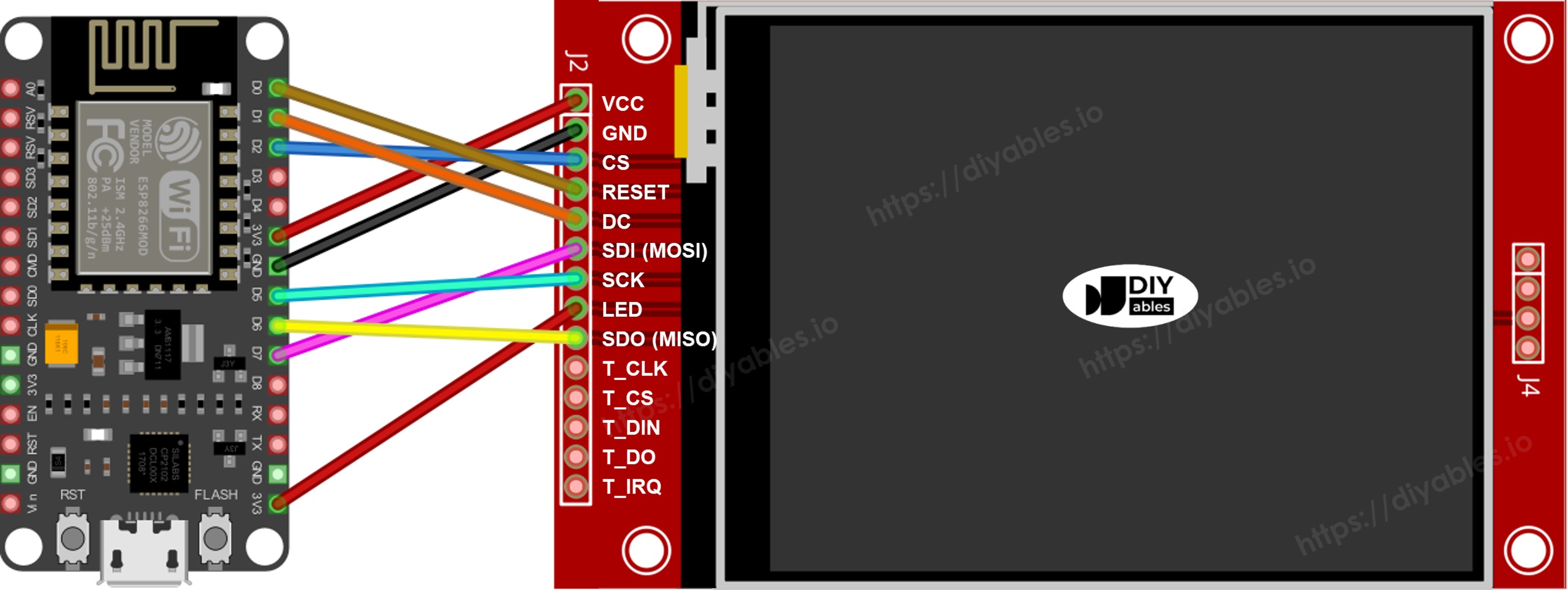
The wiring diagram between ESP8266 NodeMCU and TFT SPI Display  without touch

This image is created using Fritzing. Click to enlarge image

With Touch

Connect the XPT2046 touch controller to the ESP8266 NodeMCU SPI bus, sharing D7 (GPIO13), D5 (GPIO14), and D6 (GPIO12) with the display.

Display:

TFT Pin ESP8266 NodeMCU Pin GPIO Number Description
VCC 3V3 - Power supply (3.3V only)
GND GND - Ground
CS D2 GPIO4 Chip Select (boot-safe)
DC / RS D1 GPIO5 Data / Command select (boot-safe)
RST D0 GPIO16 Reset (boot-safe, optional)
MOSI / SDI D7 GPIO13 Hardware SPI MOSI
SCK D5 GPIO14 Hardware SPI clock
MISO / SDO D6 GPIO12 Hardware SPI MISO (optional)
LED / BL 3V3 - Backlight power

Touch controller (if your application uses the touch function and the display supports it):

Touch Pin ESP8266 NodeMCU Pin GPIO Number Description
T_CS D3 GPIO0 Touch Chip Select (boot-sensitive — see note below)
T_IRQ D4 GPIO2 Touch interrupt, optional (boot-sensitive — see note below)
T_DIN D7 GPIO13 Shared with display MOSI (D7/GPIO13)
T_CLK D5 GPIO14 Shared with display SCK (D5/GPIO14)
T_DO D6 GPIO12 Shared with display MISO (D6/GPIO12)

⚠ Boot-pin constraint note: The ESP8266 only has three boot-safe GPIOs that are not part of the hardware SPI bus: GPIO4 (D2), GPIO5 (D1), and GPIO16 (D0). These are already taken by TFT CS, DC, and RST. Every additional CS pin (TOUCH_CS, SD_CS) and the optional TOUCH_IRQ must therefore use one of the boot-sensitive pins:

  • GPIO0 / D3 — must be HIGH at boot. Used for TOUCH_CS in these examples.
  • GPIO2 / D4 — must be HIGH at boot. Used for TOUCH_IRQ in these examples.
  • GPIO15 / D8 — must be LOW at boot. Used for SD_CS in these examples.

These pins are fully usable at runtime. The NodeMCU board's on-board resistors normally satisfy the boot requirements. However, if a module actively drives one of these pins to the wrong level during power-on or reset, the board will boot into flash mode instead of running your sketch. If uploads stop working after adding a touch or SD module, disconnect the module's CS wire and retry the upload, then reconnect.
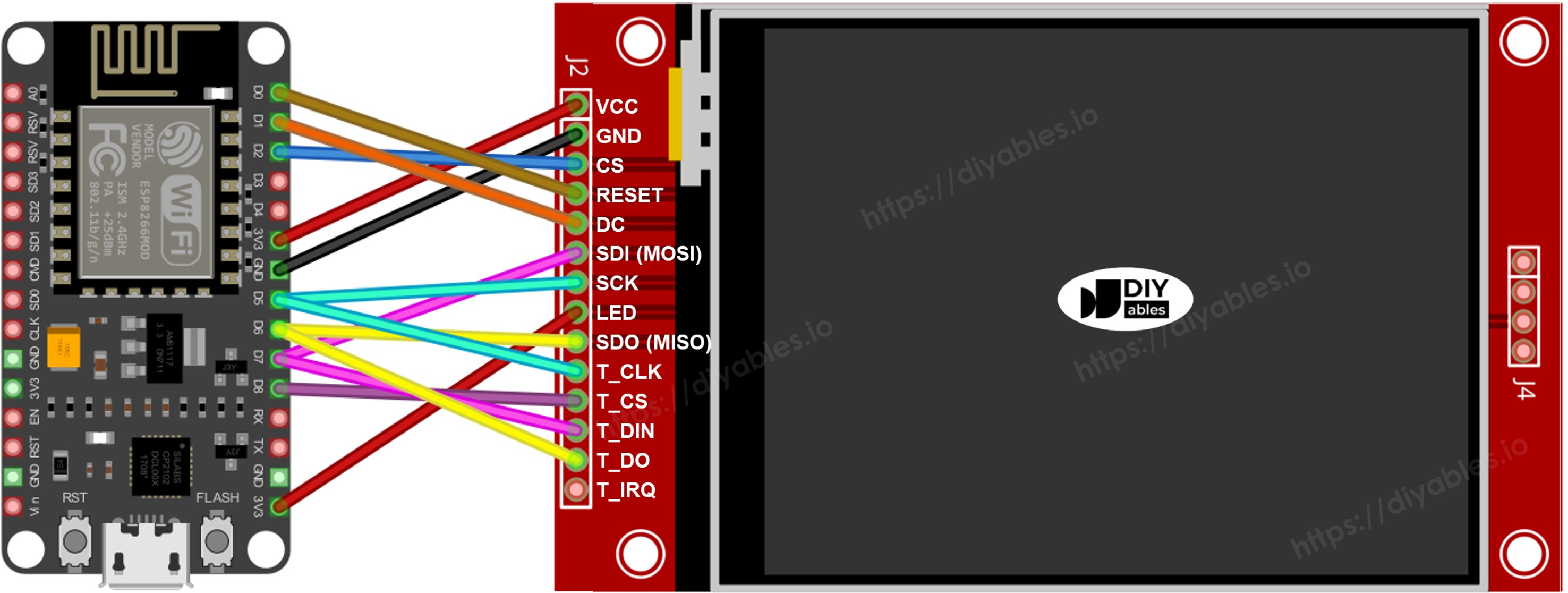
The wiring diagram between ESP8266 NodeMCU and TFT SPI Display  with touch

This image is created using Fritzing. Click to enlarge image

See more in ESP8266's pinout and how to supply power to the ESP8266 and other components.

If your MCU has two or more hardware SPI interfaces, you can assign each peripheral (display, SD card, touch controller) to its own dedicated SPI bus. If your MCU has only one hardware SPI interface, all three peripherals share the same three data lines (MOSI, SCK, MISO) — on the ESP8266 these are D7/GPIO13, D5/GPIO14, and D6/GPIO12. Each peripheral has its own CS pin, so only one is active at a time. The DIYables_TFT_SPI library manages both the display and the XPT2046 touch controller through a single API — no separate SPI library is needed for the touch side.

Library Installation

  1. Connect the NodeMCU to your computer with a Micro-B USB cable.
  2. Open Arduino IDE. Pick NodeMCU 1.0 (ESP-12E Module) from the board list and choose the correct port.
  3. Open the Libraries panel.
  4. Type "DIYables_TFT_SPI" in the search bar and find the DIYables entry.
  5. Click Install. Accept all dependency installations.
  • Search for DIYables TFT SPI created by DIYables.io and click the Install button.
Newbiely | Arduino IDE 2.3.8
──
File
Edit
Sketch
Tools
Help
Nodemcu 1.0 (ESP-12E Module)
Library Manager
Type:
All
Topic:
All
DIYables TFT SPI by DIYables.io
Supports ILI9341 (240x320, 16-bit RGB565), ILI9488 (320x480, 18-bit RGB666), and ST7789 (240x320, 16-bit RGB565) TFT displays over SPI interface. Extends Adafruit GFX for full graphics support. Works with any Arduino-compatible board that has SPI. More info
1.0.0
INSTALL
Newbiely.ino
···
1 void setup() {
Output
Serial Monitor
Ln 1, Col 1
Nodemcu 1.0 (ESP-12E Module) on COM15
1

Starting Point Code

Every ESP8266 TFT sketch starts from this foundation:

#include <DIYables_TFT_SPI.h> #define TFT_CS_PIN D2 // GPIO4 #define TFT_DC_PIN D1 // GPIO5 #define TFT_RST_PIN D0 // GPIO16 // Uncomment the line that matches your driver chip: // DIYables_ILI9341_SPI TFT_display(240, 320, TFT_CS_PIN, TFT_DC_PIN, TFT_RST_PIN); // DIYables_ILI9488_SPI TFT_display(320, 480, TFT_CS_PIN, TFT_DC_PIN, TFT_RST_PIN); DIYables_ST7789_SPI TFT_display(240, 320, TFT_CS_PIN, TFT_DC_PIN, TFT_RST_PIN); void setup() { TFT_display.begin(); TFT_display.setRotation(1); } void loop() { // drawing code here }

Try It Out - Draw Shapes

The DrawShapes example draws circles, triangles, rectangles, rounded rectangles, and lines using the Adafruit GFX drawing API.

/* * This ESP8266 NodeMCU code was developed by newbiely.com * * This ESP8266 NodeMCU code is made available for public use without any restriction * * For comprehensive instructions and wiring diagrams, please visit: * https://newbiely.com/tutorials/esp8266/esp8266-tft-lcd-touch-display-spi */ /* Created by DIYables This example code is in the public domain Product page: https://diyables.io */ // ============================================= // Single include brings in the base class plus all driver classes. // ============================================= #include <DIYables_TFT_SPI.h> // ============================================= // Wiring (ESP8266 NodeMCU) // --------------------------------------------- // TFT module ESP8266 NodeMCU // ------------ --------------------------------- // VCC -> 3.3V (NOT 5V!) // GND -> GND // CS -> D2 / GPIO4 (TFT_CS_PIN) boot-safe // RESET -> D0 / GPIO16 (TFT_RST_PIN) boot-safe // DC / RS -> D1 / GPIO5 (TFT_DC_PIN) boot-safe // SDI / MOSI -> D7 / GPIO13 (hardware SPI MOSI) // SCK -> D5 / GPIO14 (hardware SPI SCK) // SDO / MISO -> D6 / GPIO12 (hardware SPI MISO, optional) // LED -> 3.3V (or any GPIO via initBacklight) // ============================================= // ============================================= // SPI pin definitions (adjust for your board) // ============================================= #define TFT_CS_PIN D2 // GPIO4 #define TFT_DC_PIN D1 // GPIO5 #define TFT_RST_PIN D0 // GPIO16 // Panel resolution in native (portrait) orientation - change to match your module #define TFT_WIDTH 240 #define TFT_HEIGHT 320 // MOSI and SCK use default hardware SPI pins (GPIO13 / GPIO14) // ============================================= // Create display object (uncomment matching driver) // ============================================= // DIYables_ILI9341_SPI TFT_display(TFT_WIDTH, TFT_HEIGHT, TFT_CS_PIN, TFT_DC_PIN, TFT_RST_PIN); // DIYables_ILI9488_SPI TFT_display(TFT_WIDTH, TFT_HEIGHT, TFT_CS_PIN, TFT_DC_PIN, TFT_RST_PIN); DIYables_ST7789_SPI TFT_display(TFT_WIDTH, TFT_HEIGHT, TFT_CS_PIN, TFT_DC_PIN, TFT_RST_PIN); #define BLACK DIYables_TFT_SPI::colorRGB(0, 0, 0) #define BLUE DIYables_TFT_SPI::colorRGB(0, 0, 255) #define RED DIYables_TFT_SPI::colorRGB(255, 0, 0) #define GREEN DIYables_TFT_SPI::colorRGB(0, 255, 0) #define ORANGE DIYables_TFT_SPI::colorRGB(255, 165, 0) #define PINK DIYables_TFT_SPI::colorRGB(255, 192, 203) #define VIOLET DIYables_TFT_SPI::colorRGB(148, 0, 211) #define TURQUOISE DIYables_TFT_SPI::colorRGB(64, 224, 208) #define WHITE DIYables_TFT_SPI::colorRGB(255, 255, 255) // Helper to draw a filled diamond void fillDiamond(int cx, int cy, int h, int v, uint16_t color) { int x0 = cx, y0 = cy - v; int x1 = cx + h, y1 = cy; int x2 = cx, y2 = cy + v; int x3 = cx - h, y3 = cy; TFT_display.fillTriangle(x0, y0, x1, y1, x2, y2, color); TFT_display.fillTriangle(x0, y0, x2, y2, x3, y3, color); } void setup() { TFT_display.begin(); TFT_display.setRotation(1); // Landscape } void loop() { TFT_display.fillScreen(WHITE); uint16_t w = TFT_display.width(); uint16_t h = TFT_display.height(); // Scale positions relative to screen size with better spacing int col1 = w / 8; int col2 = w * 3 / 8; int col3 = w * 5 / 8; int col4 = w * 7 / 8; int row1 = h / 4; int row2 = h / 2; int row3 = h * 3 / 4; // Outlined circle TFT_display.drawCircle(col1, row1, 30, RED); // Filled circle TFT_display.fillCircle(col2, row1, 30, RED); // Outlined triangle TFT_display.drawTriangle(col3 - 30, row1 + 25, col3 + 30, row1 + 25, col3, row1 - 25, BLUE); // Filled triangle TFT_display.fillTriangle(col4 - 30, row1 + 25, col4 + 30, row1 + 25, col4, row1 - 25, GREEN); // Outlined rectangle TFT_display.drawRect(col1 - 35, row2 - 20, 70, 40, ORANGE); // Filled rectangle TFT_display.fillRect(col2 - 35, row2 - 20, 70, 40, TURQUOISE); // Outlined round rectangle TFT_display.drawRoundRect(col3 - 35, row2 - 20, 70, 40, 10, VIOLET); // Filled round rectangle TFT_display.fillRoundRect(col4 - 35, row2 - 20, 70, 40, 10, PINK); // Outlined diamond (centered between col1 and col2) int diamond1_x = (col1 + col2) / 2; TFT_display.drawLine(diamond1_x, row3 - 30, diamond1_x + 25, row3, GREEN); TFT_display.drawLine(diamond1_x + 25, row3, diamond1_x, row3 + 30, GREEN); TFT_display.drawLine(diamond1_x, row3 + 30, diamond1_x - 25, row3, GREEN); TFT_display.drawLine(diamond1_x - 25, row3, diamond1_x, row3 - 30, GREEN); // Filled diamond (centered between col3 and col4) int diamond2_x = (col3 + col4) / 2; fillDiamond(diamond2_x, row3, 25, 30, BLUE); delay(10000); }

Run the Code

  • Wire the TFT module to the NodeMCU using the table above. Power from 3.3V only.
  • Plug in the Micro-B USB cable.
  • In Arduino IDE, select the board and port, paste the code, and press Upload.
  • The display shows a repeating pattern of colored shapes.

Drawing Functions

Method What It Draws Example
begin() Initialize the display. TFT_display.begin();
setRotation(r) Set orientation 0-3. TFT_display.setRotation(1);
fillScreen(color) Fill screen with solid color. TFT_display.fillScreen(BLACK);
colorRGB(r,g,b) Build 16-bit color from R, G, B. colorRGB(255,200,0)
fillCircle(x,y,r,color) Solid circle. TFT_display.fillCircle(80,80,40,RED);
fillRect(x,y,w,h,color) Solid rectangle. TFT_display.fillRect(10,10,80,50,BLUE);
drawFastHLine(x,y,w,color) Horizontal line (fast). TFT_display.drawFastHLine(0,120,240,WHITE);

Try It Out - Show Text and Number

The ShowTextAndNumber example renders strings and numeric values using the Adafruit GFX text engine.

/* * This ESP8266 NodeMCU code was developed by newbiely.com * * This ESP8266 NodeMCU code is made available for public use without any restriction * * For comprehensive instructions and wiring diagrams, please visit: * https://newbiely.com/tutorials/esp8266/esp8266-tft-lcd-touch-display-spi */ /* Created by DIYables This example code is in the public domain Product page: https://diyables.io */ // ============================================= // Single include brings in the base class plus all driver classes. // ============================================= #include <DIYables_TFT_SPI.h> // ============================================= // Wiring (ESP8266 NodeMCU) // --------------------------------------------- // TFT module ESP8266 NodeMCU // ------------ --------------------------------- // VCC -> 3.3V (NOT 5V!) // GND -> GND // CS -> D2 / GPIO4 (TFT_CS_PIN) boot-safe // RESET -> D0 / GPIO16 (TFT_RST_PIN) boot-safe // DC / RS -> D1 / GPIO5 (TFT_DC_PIN) boot-safe // SDI / MOSI -> D7 / GPIO13 (hardware SPI MOSI) // SCK -> D5 / GPIO14 (hardware SPI SCK) // SDO / MISO -> D6 / GPIO12 (hardware SPI MISO, optional) // LED -> 3.3V (or any GPIO via initBacklight) // ============================================= // ============================================= // SPI pin definitions (adjust for your board) // ============================================= #define TFT_CS_PIN D2 // GPIO4 #define TFT_DC_PIN D1 // GPIO5 #define TFT_RST_PIN D0 // GPIO16 // Panel resolution in native (portrait) orientation - change to match your module #define TFT_WIDTH 240 #define TFT_HEIGHT 320 // ============================================= // Create display object (uncomment matching driver) // ============================================= // DIYables_ILI9341_SPI TFT_display(TFT_WIDTH, TFT_HEIGHT, TFT_CS_PIN, TFT_DC_PIN, TFT_RST_PIN); // DIYables_ILI9488_SPI TFT_display(TFT_WIDTH, TFT_HEIGHT, TFT_CS_PIN, TFT_DC_PIN, TFT_RST_PIN); DIYables_ST7789_SPI TFT_display(TFT_WIDTH, TFT_HEIGHT, TFT_CS_PIN, TFT_DC_PIN, TFT_RST_PIN); #define MAGENTA DIYables_TFT_SPI::colorRGB(255, 0, 255) #define WHITE DIYables_TFT_SPI::colorRGB(255, 255, 255) void setup() { Serial.begin(9600); Serial.println(F("TFT SPI Display - Show text and numbers")); TFT_display.begin(); TFT_display.setRotation(1); // Landscape TFT_display.fillScreen(WHITE); // Set text color and size TFT_display.setTextColor(MAGENTA); TFT_display.setTextSize(3); // Sample values float temperature = 23.5; float humidity = 78.6; // Display temperature TFT_display.setCursor(20, 20); TFT_display.print("Temperature: "); TFT_display.print(temperature, 1); TFT_display.print(char(247)); TFT_display.println("C"); // Display humidity TFT_display.setCursor(20, 60); TFT_display.print("Humidity: "); TFT_display.print(humidity, 1); TFT_display.print("%"); } void loop() { }

Run the Code

  • Wire and upload as above.
  • The display prints lines of text in different sizes and colors.

Drawing Functions

Method What It Draws Example
setTextColor(color) Sets the foreground color for text. TFT_display.setTextColor(WHITE);
setTextSize(size) Scales text. Size 1 = 6×8 px, size 2 = 12×16 px. TFT_display.setTextSize(2);
setCursor(x, y) Positions the text cursor at pixel (x, y). TFT_display.setCursor(10, 20);
print(value) Renders a string or number at the cursor. TFT_display.print("NodeMCU!");
println(value) Renders and moves cursor to the next line. TFT_display.println(42);

Try It Out - Draw Image

Try loading a bitmap image onto the display. The DrawImage example renders a full-color RGB565 image stored in program flash as a PROGMEM const uint16_t array inside bitmap.h. On the ESP8266, PROGMEM data is placed in the SPI flash memory and accessed via a read-from-flash instruction rather than direct pointer dereferencing. The DIYables_TFT_SPI library handles this transparently.

Place bitmap.h in the same folder as the sketch before compiling.

/* * This ESP8266 NodeMCU code was developed by newbiely.com * * This ESP8266 NodeMCU code is made available for public use without any restriction * * For comprehensive instructions and wiring diagrams, please visit: * https://newbiely.com/tutorials/esp8266/esp8266-tft-lcd-touch-display-spi */ /* Created by DIYables This example code is in the public domain Product page: https://diyables.io */ // ============================================= // Single include brings in the base class plus all driver classes. // ============================================= #include <DIYables_TFT_SPI.h> #include "bitmap.h" // ============================================= // Wiring (ESP8266 NodeMCU) // --------------------------------------------- // TFT module ESP8266 NodeMCU // ------------ --------------------------------- // VCC -> 3.3V (NOT 5V!) // GND -> GND // CS -> D2 / GPIO4 (TFT_CS_PIN) boot-safe // RESET -> D0 / GPIO16 (TFT_RST_PIN) boot-safe // DC / RS -> D1 / GPIO5 (TFT_DC_PIN) boot-safe // SDI / MOSI -> D7 / GPIO13 (hardware SPI MOSI) // SCK -> D5 / GPIO14 (hardware SPI SCK) // SDO / MISO -> D6 / GPIO12 (hardware SPI MISO, optional) // LED -> 3.3V (or any GPIO via initBacklight) // ============================================= // ============================================= // SPI pin definitions (adjust for your board) // ============================================= #define TFT_CS_PIN D2 // GPIO4 #define TFT_DC_PIN D1 // GPIO5 #define TFT_RST_PIN D0 // GPIO16 // Panel resolution in native (portrait) orientation - change to match your module #define TFT_WIDTH 240 #define TFT_HEIGHT 320 // ============================================= // Create display object (uncomment matching driver) // ============================================= // DIYables_ILI9341_SPI TFT_display(TFT_WIDTH, TFT_HEIGHT, TFT_CS_PIN, TFT_DC_PIN, TFT_RST_PIN); // DIYables_ILI9488_SPI TFT_display(TFT_WIDTH, TFT_HEIGHT, TFT_CS_PIN, TFT_DC_PIN, TFT_RST_PIN); DIYables_ST7789_SPI TFT_display(TFT_WIDTH, TFT_HEIGHT, TFT_CS_PIN, TFT_DC_PIN, TFT_RST_PIN); #define WHITE DIYables_TFT_SPI::colorRGB(255, 255, 255) int img_width = 120; int img_height = 53; void setup() { Serial.begin(9600); Serial.println(F("TFT SPI Display - Draw Image")); TFT_display.begin(); uint16_t SCREEN_WIDTH = TFT_display.width(); uint16_t SCREEN_HEIGHT = TFT_display.height(); int x = (SCREEN_WIDTH - img_width) / 2; int y = (SCREEN_HEIGHT - img_height) / 2; TFT_display.fillScreen(WHITE); TFT_display.drawRGBBitmap(x, y, myBitmap, img_width, img_height); } void loop() { delay(2000); TFT_display.invertDisplay(true); delay(2000); TFT_display.invertDisplay(false); }

Run the Code

  • Copy bitmap.h into the same folder as the sketch.
  • Wire the TFT module to the NodeMCU as shown above (GPIO13/14/12 for SPI, GPIO4/5/16 for CS/DC/RST). Use 3.3V for VCC.
  • Plug in the Micro-B USB cable.
  • In Arduino IDE, select the board and port, press Upload.
  • The display shows the bitmap image loaded from program flash.

Drawing Functions

Method What It Draws Example
drawRGBBitmap(x,y,bitmap,w,h) Renders an RGB565 PROGMEM bitmap with its top-left at (x, y). Use PROGMEM keyword on the array. TFT_display.drawRGBBitmap(0, 0, myImage, 240, 320);
fillScreen(color) Paints the entire screen one solid color before drawing. TFT_display.fillScreen(BLACK);

Try It Out - Draw Image SD Card

Try reading an image from an SD card. The DrawImageSDcard example streams a raw RGB565 binary file from a micro SD card directly to the display using a small buffer. This avoids holding the full image in the ESP8266's 80 KB heap.

Wire the SD module to the same SPI bus: GPIO13 (MOSI), GPIO14 (SCK), GPIO12 (MISO). The three boot-safe GPIOs (GPIO4, GPIO5, GPIO16) are already used for TFT CS, DC, and RST. SD_CS must therefore use a boot-sensitive pin. The examples use GPIO15 (D8), which must be LOW at boot — standard SD modules have a pull-down resistor that satisfies this automatically. See the boot-pin constraint note in the wiring section.

/* * This ESP8266 NodeMCU code was developed by newbiely.com * * This ESP8266 NodeMCU code is made available for public use without any restriction * * For comprehensive instructions and wiring diagrams, please visit: * https://newbiely.com/tutorials/esp8266/esp8266-tft-lcd-touch-display-spi */ /* Created by DIYables This example code is in the public domain Product page: https://diyables.io */ // ============================================= // Single include brings in the base class plus all driver classes. // ============================================= #include <DIYables_TFT_SPI.h> #include <SD.h> // ============================================= // Wiring (ESP8266 NodeMCU) // --------------------------------------------- // TFT + SD module ESP8266 NodeMCU // --------------------- --------------------------------- // VCC -> 3.3V (NOT 5V!) // GND -> GND // TFT CS -> D2 / GPIO4 (TFT_CS_PIN) boot-safe // TFT RESET -> D0 / GPIO16 (TFT_RST_PIN) boot-safe // TFT DC / RS -> D1 / GPIO5 (TFT_DC_PIN) boot-safe // SD CS -> D8 / GPIO15 (SD_CS) ⚠ boot-sensitive (must be LOW at boot) // SDI / MOSI (shared)-> D7 / GPIO13 (hardware SPI MOSI) // SDO / MISO (shared)-> D6 / GPIO12 (hardware SPI MISO) // SCK (shared)-> D5 / GPIO14 (hardware SPI SCK) // LED -> 3.3V (or any GPIO via initBacklight) // // NOTE: GPIO15 (D8) must be LOW at boot. Standard SD card modules have an // on-board pull-down that satisfies this automatically. If uploads fail after // connecting the SD module, disconnect D8 from SD_CS and retry uploading. // ============================================= // ============================================= // SPI pin definitions (adjust for your board) // ============================================= #define TFT_CS_PIN D2 // GPIO4 #define TFT_DC_PIN D1 // GPIO5 #define TFT_RST_PIN D0 // GPIO16 // Panel resolution in native (portrait) orientation - change to match your module #define TFT_WIDTH 240 #define TFT_HEIGHT 320 #define SD_CS D8 // GPIO15 (boot-sensitive: must be LOW at boot) // ============================================= // Create display object (uncomment matching driver) // ============================================= // DIYables_ILI9341_SPI TFT_display(TFT_WIDTH, TFT_HEIGHT, TFT_CS_PIN, TFT_DC_PIN, TFT_RST_PIN); // DIYables_ILI9488_SPI TFT_display(TFT_WIDTH, TFT_HEIGHT, TFT_CS_PIN, TFT_DC_PIN, TFT_RST_PIN); DIYables_ST7789_SPI TFT_display(TFT_WIDTH, TFT_HEIGHT, TFT_CS_PIN, TFT_DC_PIN, TFT_RST_PIN); #define WHITE DIYables_TFT_SPI::colorRGB(255, 255, 255) #define BUFFPIXEL 20 File bmpFile; uint16_t SCREEN_WIDTH; uint16_t SCREEN_HEIGHT; // Helper functions to read BMP file header uint16_t read16(File &f) { uint16_t result; result = f.read(); result |= (f.read() << 8); return result; } uint32_t read32(File &f) { uint32_t result; result = f.read(); result |= ((uint32_t)f.read() << 8); result |= ((uint32_t)f.read() << 16); result |= ((uint32_t)f.read() << 24); return result; } int32_t readS32(File &f) { int32_t result; result = f.read(); result |= ((uint32_t)f.read() << 8); result |= ((uint32_t)f.read() << 16); result |= ((uint32_t)f.read() << 24); return result; } bool getBMPDimensions(const char *filename, uint32_t &w, uint32_t &h) { File f = SD.open(filename); if (!f) return false; if (read16(f) != 0x4D42) { f.close(); return false; } read32(f); // file size read32(f); // reserved read32(f); // image offset read32(f); // DIB header size w = read32(f); int32_t sh = readS32(f); h = (sh < 0) ? -sh : sh; f.close(); return true; } void drawBMP(const char *filename, int x, int y) { bmpFile = SD.open(filename); if (!bmpFile) { Serial.println("File not found"); return; } if (read16(bmpFile) != 0x4D42) { Serial.println("Not a BMP file"); bmpFile.close(); return; } uint32_t fileSize = read32(bmpFile); read32(bmpFile); // Reserved uint32_t imageOffset = read32(bmpFile); uint32_t dibHeaderSize = read32(bmpFile); uint32_t bmpWidth = read32(bmpFile); int32_t bmpHeight = readS32(bmpFile); bool topDown = false; if (bmpHeight < 0) { bmpHeight = -bmpHeight; topDown = true; } if (read16(bmpFile) != 1) { Serial.println("Invalid BMP file"); bmpFile.close(); return; } uint16_t depth = read16(bmpFile); if (depth != 24) { Serial.println("Only 24-bit BMP is supported"); bmpFile.close(); return; } if (read32(bmpFile) != 0) { Serial.println("Unsupported BMP compression"); bmpFile.close(); return; } bmpFile.seek(imageOffset); uint8_t sdbuffer[3 * BUFFPIXEL]; uint16_t color; uint32_t rowSize = (bmpWidth * 3 + 3) & ~3; if (x >= SCREEN_WIDTH || y >= SCREEN_HEIGHT) return; uint32_t maxRow = min((uint32_t)bmpHeight, (uint32_t)(SCREEN_HEIGHT - y)); uint32_t maxCol = min(bmpWidth, (uint32_t)(SCREEN_WIDTH - x)); for (uint32_t row = 0; row < maxRow; row++) { int32_t rowPos = topDown ? row : bmpHeight - 1 - row; uint32_t filePosition = imageOffset + rowPos * rowSize; bmpFile.seek(filePosition); for (uint32_t col = 0; col < maxCol; col += BUFFPIXEL) { uint32_t pixelsToRead = min((uint32_t)BUFFPIXEL, maxCol - col); bmpFile.read(sdbuffer, 3 * pixelsToRead); for (uint32_t i = 0; i < pixelsToRead; i++) { uint8_t b = sdbuffer[i * 3]; uint8_t g = sdbuffer[i * 3 + 1]; uint8_t r = sdbuffer[i * 3 + 2]; color = DIYables_TFT_SPI::colorRGB(r, g, b); if ((x + col + i) < SCREEN_WIDTH && (y + row) < SCREEN_HEIGHT) { TFT_display.drawPixel(x + col + i, y + row, color); } } } } bmpFile.close(); Serial.println("BMP drawn"); } void setup() { Serial.begin(9600); if (!SD.begin(SD_CS)) { Serial.println("SD card initialization failed!"); return; } Serial.println("SD card initialized."); TFT_display.begin(); TFT_display.setRotation(1); // Landscape SCREEN_WIDTH = TFT_display.width(); SCREEN_HEIGHT = TFT_display.height(); TFT_display.fillScreen(WHITE); uint32_t imgWidth, imgHeight; if (getBMPDimensions("diyables.bmp", imgWidth, imgHeight)) { int x = (SCREEN_WIDTH - imgWidth) / 2; int y = (SCREEN_HEIGHT - imgHeight) / 2; drawBMP("diyables.bmp", x, y); } else { Serial.println("Failed to get BMP dimensions"); } } void loop() { }

Run the Code

  • Wire the SD module to the NodeMCU, sharing GPIO13/14/12 with the display. Connect SD CS to D8 (GPIO15) as defined in the code. GPIO15 must be LOW at boot — standard SD modules satisfy this with an on-board pull-down.
  • Copy a raw RGB565 binary image file to the SD card root. Dimensions must match the panel.
  • Plug in the Micro-B USB cable.
  • In Arduino IDE, select board and port, press Upload.
  • The display renders the image streamed from the SD card.

Drawing Functions

Method What It Draws Example
startWrite() Opens a direct SPI write session, asserting the display CS (GPIO4). TFT_display.startWrite();
setAddrWindow(x0,y0,x1,y1) Sets the rectangular region to receive pixel data. TFT_display.setAddrWindow(0, 0, 239, 319);
pushColors(buf, len) Writes a buffer of RGB565 pixel values to the display. Keep the buffer small to stay within heap limits. TFT_display.pushColors(buf, 256);
endWrite() Closes the SPI session and releases CS. TFT_display.endWrite();

Try It Out - Use External Font

Try rendering text with a sharper font. The UseExternalFont example replaces the built-in 5×7 pixel font with a high-quality Adafruit GFX-compatible custom font. The font descriptor is included as a header file and activated with a single call to setFont(). Call setFont(NULL) to go back to the built-in font.

/* * This ESP8266 NodeMCU code was developed by newbiely.com * * This ESP8266 NodeMCU code is made available for public use without any restriction * * For comprehensive instructions and wiring diagrams, please visit: * https://newbiely.com/tutorials/esp8266/esp8266-tft-lcd-touch-display-spi */ /* Created by DIYables This example code is in the public domain Product page: https://diyables.io */ // ============================================= // Single include brings in the base class plus all driver classes. // ============================================= #include <DIYables_TFT_SPI.h> #include <Fonts/FreeSansBold12pt7b.h> // ============================================= // Wiring (ESP8266 NodeMCU) // --------------------------------------------- // TFT module ESP8266 NodeMCU // ------------ --------------------------------- // VCC -> 3.3V (NOT 5V!) // GND -> GND // CS -> D2 / GPIO4 (TFT_CS_PIN) boot-safe // RESET -> D0 / GPIO16 (TFT_RST_PIN) boot-safe // DC / RS -> D1 / GPIO5 (TFT_DC_PIN) boot-safe // SDI / MOSI -> D7 / GPIO13 (hardware SPI MOSI) // SCK -> D5 / GPIO14 (hardware SPI SCK) // SDO / MISO -> D6 / GPIO12 (hardware SPI MISO, optional) // LED -> 3.3V (or any GPIO via initBacklight) // ============================================= // ============================================= // SPI pin definitions (adjust for your board) // ============================================= #define TFT_CS_PIN D2 // GPIO4 #define TFT_DC_PIN D1 // GPIO5 #define TFT_RST_PIN D0 // GPIO16 // Panel resolution in native (portrait) orientation - change to match your module #define TFT_WIDTH 240 #define TFT_HEIGHT 320 // ============================================= // Create display object (uncomment matching driver) // ============================================= // DIYables_ILI9341_SPI TFT_display(TFT_WIDTH, TFT_HEIGHT, TFT_CS_PIN, TFT_DC_PIN, TFT_RST_PIN); // DIYables_ILI9488_SPI TFT_display(TFT_WIDTH, TFT_HEIGHT, TFT_CS_PIN, TFT_DC_PIN, TFT_RST_PIN); DIYables_ST7789_SPI TFT_display(TFT_WIDTH, TFT_HEIGHT, TFT_CS_PIN, TFT_DC_PIN, TFT_RST_PIN); #define MAGENTA DIYables_TFT_SPI::colorRGB(255, 0, 255) #define WHITE DIYables_TFT_SPI::colorRGB(255, 255, 255) void setup() { Serial.begin(9600); Serial.println(F("TFT SPI Display - Use external font")); TFT_display.begin(); TFT_display.setFont(&FreeSansBold12pt7b); TFT_display.setRotation(1); // Landscape TFT_display.fillScreen(WHITE); TFT_display.setTextColor(MAGENTA); TFT_display.setTextSize(1); float temperature = 23.5; float humidity = 78.6; TFT_display.setCursor(20, 30); TFT_display.print("Temperature: "); TFT_display.print(temperature, 1); TFT_display.print(char(247)); TFT_display.println("C"); TFT_display.setCursor(20, 70); TFT_display.print("Humidity: "); TFT_display.print(humidity, 1); TFT_display.print("%"); } void loop() { }

Run the Code

  • Wire the TFT module to the NodeMCU as described in the wiring section. Use 3.3V for VCC.
  • Plug in the Micro-B USB cable.
  • In Arduino IDE, select board and port, press Upload.
  • The display renders text using the custom font. The glyph quality is noticeably better than the built-in font.

Drawing Functions

Method What It Draws Example
setFont(&FontName) Switches to a custom GFX font. Passing NULL restores the built-in 5×7 pixel font. TFT_display.setFont(&FreeSans12pt7b);
setCursor(x, y) Moves the text cursor to the given pixel position. TFT_display.setCursor(10, 40);
setTextColor(color) Sets the text foreground color. TFT_display.setTextColor(WHITE);
print(text) Prints a string at the cursor using the active font. TFT_display.print("NodeMCU!");

Try It Out - Touch Get Point

Try reading raw touch coordinates. The TouchGetPoint example wires an XPT2046 touch controller to the NodeMCU and prints raw ADC values to the Serial Monitor for every touch. Run this before the calibration step so you know the actual ADC range your panel produces.

Wiring: T_CLK→D5 (GPIO14), T_DIN→D7 (GPIO13), T_DO→D6 (GPIO12). These share the SPI bus with the display. T_CS→D3 (GPIO0), T_IRQ→D4 (GPIO2). Note: GPIO0 and GPIO2 are boot-mode pins — they must be HIGH at power-on. They are safe to use at runtime. See the boot-pin constraint note in the wiring section above.

/* * This ESP8266 NodeMCU code was developed by newbiely.com * * This ESP8266 NodeMCU code is made available for public use without any restriction * * For comprehensive instructions and wiring diagrams, please visit: * https://newbiely.com/tutorials/esp8266/esp8266-tft-lcd-touch-display-spi */ /* Touch Get Point Example ----------------------- This example demonstrates how to read and display touch coordinates using a DIYables SPI TFT display with a 4-wire resistive touch panel. When you touch the screen, the sketch prints the mapped (screen) X and Y coordinates to the Serial Monitor and draws a red dot at the touched location. NOTE: Run the TouchCalibration example first and paste the calibration values into setTouchCalibration() below if the touch coordinates are inaccurate. Created by DIYables This example code is in the public domain Product page: https://diyables.io */ // ============================================= // Single include brings in the base class plus all driver classes. // ============================================= #include <DIYables_TFT_SPI.h> // ============================================= // Wiring (ESP8266 NodeMCU) // --------------------------------------------- // TFT module ESP8266 NodeMCU // ------------ --------------------------------- // VCC -> 3.3V (NOT 5V!) // GND -> GND // CS -> D2 / GPIO4 (TFT_CS_PIN) boot-safe // RESET -> D0 / GPIO16 (TFT_RST_PIN) boot-safe // DC / RS -> D1 / GPIO5 (TFT_DC_PIN) boot-safe // SDI / MOSI -> D7 / GPIO13 (hardware SPI MOSI) // SCK -> D5 / GPIO14 (hardware SPI SCK) // SDO / MISO -> D6 / GPIO12 (hardware SPI MISO, optional) // LED -> 3.3V (or any GPIO via initBacklight) // // XPT2046 / ADS7843 SPI touch controller // (modules with pins: T_CS, T_CLK, T_DIN, T_DO, T_IRQ) // Touch pin ESP8266 NodeMCU // ------------ --------------------------------- // T_CS -> D3 / GPIO0 (TOUCH_CS_PIN) ⚠ boot-sensitive (must be HIGH at boot) // T_IRQ -> D4 / GPIO2 (TOUCH_IRQ_PIN) ⚠ boot-sensitive (must be HIGH at boot) // T_CLK -> D5 / GPIO14 (shared with display SCK) // T_DIN -> D7 / GPIO13 (shared with display MOSI) // T_DO -> D6 / GPIO12 (shared with display MISO) // // NOTE: GPIO0 (D3) and GPIO2 (D4) must be HIGH at power-on. The NodeMCU // board has pull-up resistors that normally satisfy this. If uploads fail // after connecting the touch module, disconnect T_CS/T_IRQ and retry. // ============================================= // ============================================= // SPI pin definitions (adjust for your board) // ============================================= #define TFT_CS_PIN D2 // GPIO4 #define TFT_DC_PIN D1 // GPIO5 #define TFT_RST_PIN D0 // GPIO16 // Panel resolution in native (portrait) orientation - change to match your module #define TFT_WIDTH 240 #define TFT_HEIGHT 320 // MOSI and SCK use default hardware SPI pins (GPIO13 / GPIO14) // ============================================= // Touch pin definitions (XPT2046 SPI touch controller) // ============================================= #define TOUCH_CS_PIN D3 // GPIO0 (boot-sensitive: must be HIGH at boot) #define TOUCH_IRQ_PIN D4 // GPIO2 (boot-sensitive: must be HIGH at boot) // ============================================= // ============================================= // Calibration values. // Run the TouchCalibration example and update these if touch is inaccurate. // Typical raw ranges: // - XPT2046 : ~200..3900 (default below) // - 4-wire resistive : ~100..900 // ============================================= #define TOUCH_LEFT_X 300 #define TOUCH_RIGHT_X 3700 #define TOUCH_TOP_Y 300 #define TOUCH_BOT_Y 3700 // ============================================= // Create display object (uncomment matching driver) // ============================================= // DIYables_ILI9341_SPI TFT_display(TFT_WIDTH, TFT_HEIGHT, TFT_CS_PIN, TFT_DC_PIN, TFT_RST_PIN); // DIYables_ILI9488_SPI TFT_display(TFT_WIDTH, TFT_HEIGHT, TFT_CS_PIN, TFT_DC_PIN, TFT_RST_PIN); DIYables_ST7789_SPI TFT_display(TFT_WIDTH, TFT_HEIGHT, TFT_CS_PIN, TFT_DC_PIN, TFT_RST_PIN); #define RED DIYables_TFT_SPI::colorRGB(255, 0, 0) #define WHITE DIYables_TFT_SPI::colorRGB(255, 255, 255) void setup() { Serial.begin(9600); TFT_display.begin(); TFT_display.setRotation(0); TFT_display.fillScreen(WHITE); TFT_display.initTouchSPI(TOUCH_CS_PIN, TOUCH_IRQ_PIN); TFT_display.setTouchCalibration(TOUCH_LEFT_X, TOUCH_RIGHT_X, TOUCH_TOP_Y, TOUCH_BOT_Y); Serial.println("Touch the screen to see coordinates."); } void loop() { int x, y; if (TFT_display.getTouch(x, y)) { Serial.print("Touch at: "); Serial.print(x); Serial.print(", "); Serial.println(y); TFT_display.fillCircle(x, y, 4, RED); delay(200); } }

Run the Code

  • Wire the XPT2046 to the NodeMCU. T_CLK→D5 (GPIO14), T_DIN→D7 (GPIO13), T_DO→D6 (GPIO12), T_CS→D3 (GPIO0), T_IRQ→D4 (GPIO2). GPIO0 and GPIO2 must be HIGH at power-on — see the boot-pin note in the wiring section.
  • Plug in the Micro-B USB cable.
  • In Arduino IDE, select board and port, press Upload.
  • Open the Serial Monitor at 9600 baud. Touch the display to see raw X, Y, and pressure Z values.

Drawing Functions

Method What It Draws Example
initTouchSPI(cs, irq) Initializes the XPT2046 on the shared SPI bus. Pass -1 for irq if the interrupt pin is not wired. TFT_display.initTouchSPI(0, 2);
readTouchRaw(x, y, z) Returns raw ADC touch values without calibration. Returns true when the screen is pressed. TFT_display.readTouchRaw(x, y, z);

Try It Out - Touch Draw

Try drawing on screen with a finger. The TouchDraw example uses calibrated XPT2046 coordinates to paint small colored dots wherever the finger touches. Drag across the display to produce a continuous painted stroke.

/* * This ESP8266 NodeMCU code was developed by newbiely.com * * This ESP8266 NodeMCU code is made available for public use without any restriction * * For comprehensive instructions and wiring diagrams, please visit: * https://newbiely.com/tutorials/esp8266/esp8266-tft-lcd-touch-display-spi */ /* Touch Draw Lines Example ------------------------- Draws lines on the screen following the pen. - Touch and drag on the screen to draw. - Lift the pen to stop drawing. - Touch again to start a new line from the last point. NOTE: Run the TouchCalibration example and update setTouchCalibration() below if the touch coordinates are inaccurate. Created by DIYables This example code is in the public domain Product page: https://diyables.io */ // ============================================= // Single include brings in the base class plus all driver classes. // ============================================= #include <DIYables_TFT_SPI.h> // ============================================= // Wiring (ESP8266 NodeMCU) // --------------------------------------------- // TFT module ESP8266 NodeMCU // ------------ --------------------------------- // VCC -> 3.3V (NOT 5V!) // GND -> GND // CS -> D2 / GPIO4 (TFT_CS_PIN) boot-safe // RESET -> D0 / GPIO16 (TFT_RST_PIN) boot-safe // DC / RS -> D1 / GPIO5 (TFT_DC_PIN) boot-safe // SDI / MOSI -> D7 / GPIO13 (hardware SPI MOSI) // SCK -> D5 / GPIO14 (hardware SPI SCK) // SDO / MISO -> D6 / GPIO12 (hardware SPI MISO, optional) // LED -> 3.3V (or any GPIO via initBacklight) // // XPT2046 / ADS7843 SPI touch controller // (modules with pins: T_CS, T_CLK, T_DIN, T_DO, T_IRQ) // Touch pin ESP8266 NodeMCU // ------------ --------------------------------- // T_CS -> D3 / GPIO0 (TOUCH_CS_PIN) ⚠ boot-sensitive (must be HIGH at boot) // T_IRQ -> D4 / GPIO2 (TOUCH_IRQ_PIN) ⚠ boot-sensitive (must be HIGH at boot) // T_CLK -> D5 / GPIO14 (shared with display SCK) // T_DIN -> D7 / GPIO13 (shared with display MOSI) // T_DO -> D6 / GPIO12 (shared with display MISO) // // NOTE: GPIO0 (D3) and GPIO2 (D4) must be HIGH at power-on. The NodeMCU // board has pull-up resistors that normally satisfy this. If uploads fail // after connecting the touch module, disconnect T_CS/T_IRQ and retry. // ============================================= // ============================================= // SPI pin definitions (adjust for your board) // ============================================= #define TFT_CS_PIN D2 // GPIO4 #define TFT_DC_PIN D1 // GPIO5 #define TFT_RST_PIN D0 // GPIO16 // Panel resolution in native (portrait) orientation - change to match your module #define TFT_WIDTH 240 #define TFT_HEIGHT 320 // ============================================= // Touch pin definitions (XPT2046 SPI touch controller) // ============================================= #define TOUCH_CS_PIN D3 // GPIO0 (boot-sensitive: must be HIGH at boot) #define TOUCH_IRQ_PIN D4 // GPIO2 (boot-sensitive: must be HIGH at boot) // ============================================= // ============================================= // Calibration values. // Run the TouchCalibration example and update these if touch is inaccurate. // Typical raw ranges: // - XPT2046 : ~200..3900 (default below) // - 4-wire resistive : ~100..900 // ============================================= #define TOUCH_LEFT_X 300 #define TOUCH_RIGHT_X 3700 #define TOUCH_TOP_Y 300 #define TOUCH_BOT_Y 3700 // ============================================= // Create display object (uncomment matching driver) // ============================================= // DIYables_ILI9341_SPI TFT_display(TFT_WIDTH, TFT_HEIGHT, TFT_CS_PIN, TFT_DC_PIN, TFT_RST_PIN); // DIYables_ILI9488_SPI TFT_display(TFT_WIDTH, TFT_HEIGHT, TFT_CS_PIN, TFT_DC_PIN, TFT_RST_PIN); DIYables_ST7789_SPI TFT_display(TFT_WIDTH, TFT_HEIGHT, TFT_CS_PIN, TFT_DC_PIN, TFT_RST_PIN); #define RED DIYables_TFT_SPI::colorRGB(255, 0, 0) #define WHITE DIYables_TFT_SPI::colorRGB(255, 255, 255) #define PEN_RADIUS 3 void setup() { TFT_display.begin(); TFT_display.setRotation(0); TFT_display.fillScreen(WHITE); TFT_display.initTouchSPI(TOUCH_CS_PIN, TOUCH_IRQ_PIN); TFT_display.setTouchCalibration(TOUCH_LEFT_X, TOUCH_RIGHT_X, TOUCH_TOP_Y, TOUCH_BOT_Y); } void loop() { int x, y; if (TFT_display.getTouch(x, y)) { TFT_display.fillCircle(x, y, PEN_RADIUS, RED); } }

Run the Code

  • Wire the XPT2046 to the NodeMCU as described in the Touch Get Point section above.
  • Plug in the Micro-B USB cable.
  • In Arduino IDE, select board and port, press Upload.
  • Drag a finger across the display to draw.

Drawing Functions

Method What It Draws Example
initTouchSPI(cs, irq) Initializes the XPT2046 on the shared SPI bus. TFT_display.initTouchSPI(0, 2);
setTouchCalibration(minX,maxX,minY,maxY) Maps raw ADC values to screen pixel coordinates. Get these numbers from the TouchCalibration example. TFT_display.setTouchCalibration(200, 3800, 300, 3700);
getTouch(x, y) Returns calibrated touch coordinates in screen pixels. Returns true while the screen is pressed. if (TFT_display.getTouch(x, y)) { ... }
fillCircle(x, y, r, color) Draws a dot at the touch position to build up the stroke. TFT_display.fillCircle(x, y, 3, RED);

Try It Out - Touch Button

Try creating on-screen touch buttons. The TouchButton example draws colored rectangular buttons on the display and checks calibrated touch coordinates against each button's bounding box on every loop. A confirmed tap highlights the button and triggers the action.

T_IRQ does not need to be connected for this example. Pass -1 as the irq argument to poll without an interrupt pin.

/* * This ESP8266 NodeMCU code was developed by newbiely.com * * This ESP8266 NodeMCU code is made available for public use without any restriction * * For comprehensive instructions and wiring diagrams, please visit: * https://newbiely.com/tutorials/esp8266/esp8266-tft-lcd-touch-display-spi */ /* Touch Button Press/Release Example ------------------------------------ This example shows how to detect press and release events on a rectangular button using a DIYables SPI TFT display with a 4-wire resistive touch panel. When you touch inside the button, it changes colour and shows "PRESSED". When you release, it returns to its original state. NOTE: Run the TouchCalibration example and update setTouchCalibration() below if the touch coordinates are inaccurate. Created by DIYables This example code is in the public domain Product page: https://diyables.io */ // ============================================= // Single include brings in the base class plus all driver classes. // ============================================= #include <DIYables_TFT_SPI.h> // ============================================= // Wiring (ESP8266 NodeMCU) // --------------------------------------------- // TFT module ESP8266 NodeMCU // ------------ --------------------------------- // VCC -> 3.3V (NOT 5V!) // GND -> GND // CS -> D2 / GPIO4 (TFT_CS_PIN) boot-safe // RESET -> D0 / GPIO16 (TFT_RST_PIN) boot-safe // DC / RS -> D1 / GPIO5 (TFT_DC_PIN) boot-safe // SDI / MOSI -> D7 / GPIO13 (hardware SPI MOSI) // SCK -> D5 / GPIO14 (hardware SPI SCK) // SDO / MISO -> D6 / GPIO12 (hardware SPI MISO, optional) // LED -> 3.3V (or any GPIO via initBacklight) // // XPT2046 / ADS7843 SPI touch controller // (modules with pins: T_CS, T_CLK, T_DIN, T_DO, T_IRQ) // Touch pin ESP8266 NodeMCU // ------------ --------------------------------- // T_CS -> D3 / GPIO0 (TOUCH_CS_PIN) ⚠ boot-sensitive (must be HIGH at boot) // T_IRQ not connected (-1) // T_CLK -> D5 / GPIO14 (shared with display SCK) // T_DIN -> D7 / GPIO13 (shared with display MOSI) // T_DO -> D6 / GPIO12 (shared with display MISO) // // NOTE: GPIO0 (D3) must be HIGH at power-on. The NodeMCU board has a // pull-up resistor that normally satisfies this. If uploads fail after // connecting the touch module, disconnect T_CS and retry. // ============================================= // ============================================= // SPI pin definitions (adjust for your board) // ============================================= #define TFT_CS_PIN D2 // GPIO4 #define TFT_DC_PIN D1 // GPIO5 #define TFT_RST_PIN D0 // GPIO16 // Panel resolution in native (portrait) orientation - change to match your module #define TFT_WIDTH 240 #define TFT_HEIGHT 320 // ============================================= // Touch pin definitions (XPT2046 SPI touch controller) // ============================================= #define TOUCH_CS_PIN D3 // GPIO0 (boot-sensitive: must be HIGH at boot) #define TOUCH_IRQ_PIN -1 // T_IRQ not connected (polling mode) // ============================================= // ============================================= // Calibration values. // Run the TouchCalibration example and update these if touch is inaccurate. // Typical raw ranges: // - XPT2046 : ~200..3900 (default below) // - 4-wire resistive : ~100..900 // ============================================= #define TOUCH_LEFT_X 300 #define TOUCH_RIGHT_X 3700 #define TOUCH_TOP_Y 300 #define TOUCH_BOT_Y 3700 // ============================================= // Create display object (uncomment matching driver) // ============================================= // DIYables_ILI9341_SPI TFT_display(TFT_WIDTH, TFT_HEIGHT, TFT_CS_PIN, TFT_DC_PIN, TFT_RST_PIN); // DIYables_ILI9488_SPI TFT_display(TFT_WIDTH, TFT_HEIGHT, TFT_CS_PIN, TFT_DC_PIN, TFT_RST_PIN); DIYables_ST7789_SPI TFT_display(TFT_WIDTH, TFT_HEIGHT, TFT_CS_PIN, TFT_DC_PIN, TFT_RST_PIN); #define BLACK DIYables_TFT_SPI::colorRGB( 0, 0, 0) #define WHITE DIYables_TFT_SPI::colorRGB(255, 255, 255) #define GRAY DIYables_TFT_SPI::colorRGB(128, 128, 128) #define RED DIYables_TFT_SPI::colorRGB(255, 0, 0) #define BUTTON_X 30 #define BUTTON_Y 100 #define BUTTON_W 180 #define BUTTON_H 60 #define DEBOUNCE_DELAY 50 bool lastPressed = false; bool stablePressed = false; unsigned long lastDebounceTime = 0; void drawButton(bool pressed) { uint16_t bg = pressed ? GRAY : RED; TFT_display.fillRect(BUTTON_X, BUTTON_Y, BUTTON_W, BUTTON_H, bg); TFT_display.drawRect(BUTTON_X, BUTTON_Y, BUTTON_W, BUTTON_H, BLACK); TFT_display.setTextColor(WHITE, bg); TFT_display.setTextSize(3); TFT_display.setCursor(BUTTON_X + 10, BUTTON_Y + 16); TFT_display.print(pressed ? "PRESSED" : " PRESS "); } void setup() { Serial.begin(9600); TFT_display.begin(); TFT_display.setRotation(0); TFT_display.fillScreen(WHITE); TFT_display.initTouchSPI(TOUCH_CS_PIN, TOUCH_IRQ_PIN); TFT_display.setTouchCalibration(TOUCH_LEFT_X, TOUCH_RIGHT_X, TOUCH_TOP_Y, TOUCH_BOT_Y); drawButton(false); } void loop() { int x, y; bool pressed = false; if (TFT_display.getTouch(x, y)) { if (x >= BUTTON_X && x < (BUTTON_X + BUTTON_W) && y >= BUTTON_Y && y < (BUTTON_Y + BUTTON_H)) { pressed = true; } } if (pressed != lastPressed) { lastDebounceTime = millis(); } lastPressed = pressed; if ((millis() - lastDebounceTime) > DEBOUNCE_DELAY) { if (pressed != stablePressed) { stablePressed = pressed; drawButton(stablePressed); Serial.println(stablePressed ? "Button PRESSED" : "Button RELEASED"); } } }

Run the Code

  • Connect T_CS to D3 (GPIO0). T_IRQ can be left unconnected (pass -1). GPIO0 must be HIGH at power-on — see the boot-pin note in the wiring section.
  • Plug in the Micro-B USB cable.
  • In Arduino IDE, select board and port, press Upload.
  • Tap the buttons on the display. Each button should highlight and trigger its action.

Drawing Functions

Method What It Draws Example
initTouchSPI(cs, irq) Initializes the XPT2046. Pass -1 for irq to use polling mode. TFT_display.initTouchSPI(0, -1);
setTouchCalibration(minX,maxX,minY,maxY) Applies calibration so getTouch() returns display-pixel coordinates. TFT_display.setTouchCalibration(200, 3800, 300, 3700);
getTouch(x, y) Gets the calibrated touch position. Returns true while the screen is pressed. if (TFT_display.getTouch(x, y)) { ... }
fillRect(x, y, w, h, color) Draws a button as a solid colored rectangle. TFT_display.fillRect(10, 10, 100, 50, BLUE);

Try It Out - Touch Calibration

Try calibrating your touch panel. The TouchCalibration example walks you through touching each corner of the screen in sequence. The raw ADC minimum and maximum values for X and Y are printed to the Serial Monitor. Record those four numbers — they are the calibration constants for setTouchCalibration() in all other touch sketches.

/* * This ESP8266 NodeMCU code was developed by newbiely.com * * This ESP8266 NodeMCU code is made available for public use without any restriction * * For comprehensive instructions and wiring diagrams, please visit: * https://newbiely.com/tutorials/esp8266/esp8266-tft-lcd-touch-display-spi */ /* Touch Screen Calibration Example --------------------------------- This example measures the raw touch coordinates at all four screen corners and prints ready-to-use calibration values to the Serial Monitor. It uses readTouchRaw() directly - it does NOT rely on getTouch() or any existing calibration values, so it works even when touch is completely broken. INSTRUCTIONS: 1. Upload this sketch to your board. 2. Open the Serial Monitor (Ctrl+Shift+M) and set baud rate to 9600. 3. The screen shows a blinking red dot in each corner, numbered 1-4: 1 = Top-left 2 = Top-right 3 = Bottom-right 4 = Bottom-left 4. Press and HOLD firmly on the blinking dot. Keep holding until the Serial Monitor prints "Captured!" for that corner. 5. Release, then wait for the next dot to appear and repeat. 6. After all 4 corners, the Serial Monitor prints the calibration values and a ready-to-use setTouchCalibration() call. Copy it into your sketch. NOTE: While waiting, the Serial Monitor continuously prints the live raw Z/X/Y readings so you can confirm that touch is being detected. Created by DIYables This example code is in the public domain Product page: https://diyables.io */ // ============================================= // Single include brings in the base class plus all driver classes. // ============================================= #include <DIYables_TFT_SPI.h> // ============================================= // Wiring (ESP8266 NodeMCU) // --------------------------------------------- // TFT module ESP8266 NodeMCU // ------------ --------------------------------- // VCC -> 3.3V (NOT 5V!) // GND -> GND // CS -> D2 / GPIO4 (TFT_CS_PIN) boot-safe // RESET -> D0 / GPIO16 (TFT_RST_PIN) boot-safe // DC / RS -> D1 / GPIO5 (TFT_DC_PIN) boot-safe // SDI / MOSI -> D7 / GPIO13 (hardware SPI MOSI) // SCK -> D5 / GPIO14 (hardware SPI SCK) // SDO / MISO -> D6 / GPIO12 (hardware SPI MISO, optional) // LED -> 3.3V (or any GPIO via initBacklight) // // XPT2046 / ADS7843 SPI touch controller // (modules with pins: T_CS, T_CLK, T_DIN, T_DO, T_IRQ) // Touch pin ESP8266 NodeMCU // ------------ --------------------------------- // T_CS -> D3 / GPIO0 (TOUCH_CS_PIN) ⚠ boot-sensitive (must be HIGH at boot) // T_IRQ -> D4 / GPIO2 (TOUCH_IRQ_PIN) ⚠ boot-sensitive (must be HIGH at boot) // T_CLK -> D5 / GPIO14 (shared with display SCK) // T_DIN -> D7 / GPIO13 (shared with display MOSI) // T_DO -> D6 / GPIO12 (shared with display MISO) // // NOTE: GPIO0 (D3) and GPIO2 (D4) must be HIGH at power-on. The NodeMCU // board has pull-up resistors that normally satisfy this. If uploads fail // after connecting the touch module, disconnect T_CS/T_IRQ and retry. // ============================================= // ============================================= // SPI pin definitions (adjust for your board) // ============================================= #define TFT_CS_PIN D2 // GPIO4 #define TFT_DC_PIN D1 // GPIO5 #define TFT_RST_PIN D0 // GPIO16 // Panel resolution in native (portrait) orientation - change to match your module #define TFT_WIDTH 240 #define TFT_HEIGHT 320 // ============================================= // Touch pin definitions (XPT2046 SPI touch controller) // ============================================= #define TOUCH_CS_PIN D3 // GPIO0 (boot-sensitive: must be HIGH at boot) #define TOUCH_IRQ_PIN D4 // GPIO2 (boot-sensitive: must be HIGH at boot) // ============================================= // ============================================= // Create display object (uncomment matching driver) // ============================================= // DIYables_ILI9341_SPI TFT_display(TFT_WIDTH, TFT_HEIGHT, TFT_CS_PIN, TFT_DC_PIN, TFT_RST_PIN); // DIYables_ILI9488_SPI TFT_display(TFT_WIDTH, TFT_HEIGHT, TFT_CS_PIN, TFT_DC_PIN, TFT_RST_PIN); DIYables_ST7789_SPI TFT_display(TFT_WIDTH, TFT_HEIGHT, TFT_CS_PIN, TFT_DC_PIN, TFT_RST_PIN); // Minimum pressure to count as a valid touch. #define TOUCH_Z_MIN 10 // How many consecutive valid samples required before a corner is accepted. #define SAMPLES_NEEDED 10 // Delay between samples (ms). #define SAMPLE_DELAY_MS 30 #define DOT_RADIUS 12 #define BLACK DIYables_TFT_SPI::colorRGB( 0, 0, 0) #define WHITE DIYables_TFT_SPI::colorRGB(255, 255, 255) #define RED DIYables_TFT_SPI::colorRGB(255, 0, 0) // Corner pixel positions - filled in setup() once display size is known. // Order: 0=top-left, 1=top-right, 2=bottom-right, 3=bottom-left int cx[4], cy[4]; // Captured averaged raw values per corner. int cap_x[4], cap_y[4]; // ----------------------------------------------------------------------- void drawDot(int corner, bool on) { uint16_t color = on ? RED : WHITE; TFT_display.fillCircle(cx[corner], cy[corner], DOT_RADIUS, color); TFT_display.setTextSize(2); TFT_display.setTextColor(BLACK, color); TFT_display.setCursor(cx[corner] - 6, cy[corner] - 8); TFT_display.print(corner + 1); } void captureCorner(int corner) { const char* names[] = { "Top-left", "Top-right", "Bottom-right", "Bottom-left" }; Serial.println(); Serial.print("Corner "); Serial.print(corner + 1); Serial.print(" ("); Serial.print(names[corner]); Serial.println(")"); Serial.println(" Press and HOLD firmly on the blinking dot."); Serial.println(" Keep holding until you see 'Captured!'"); unsigned long lastBlink = 0; unsigned long lastPrint = 0; bool dotOn = false; int goodSamples = 0; long sumX = 0, sumY = 0; while (true) { // Blink the dot if (millis() - lastBlink > 400) { lastBlink = millis(); dotOn = !dotOn; drawDot(corner, dotOn); } int raw_x, raw_y, z; TFT_display.readTouchRaw(raw_x, raw_y, z); // Print live readings every 500 ms if (millis() - lastPrint > 500) { lastPrint = millis(); Serial.print(" Z="); Serial.print(z); Serial.print(" X="); Serial.print(raw_x); Serial.print(" Y="); Serial.println(raw_y); } if (z >= TOUCH_Z_MIN) { sumX += raw_x; sumY += raw_y; goodSamples++; if (goodSamples >= SAMPLES_NEEDED) { cap_x[corner] = sumX / goodSamples; cap_y[corner] = sumY / goodSamples; Serial.print(" Captured! raw_x="); Serial.print(cap_x[corner]); Serial.print(" raw_y="); Serial.println(cap_y[corner]); drawDot(corner, false); delay(500); return; } } else { goodSamples = 0; sumX = 0; sumY = 0; } delay(SAMPLE_DELAY_MS); } } // ----------------------------------------------------------------------- void setup() { Serial.begin(9600); TFT_display.begin(); TFT_display.setRotation(0); // Always calibrate in rotation 0 TFT_display.fillScreen(WHITE); TFT_display.initTouchSPI(TOUCH_CS_PIN, TOUCH_IRQ_PIN); int w = TFT_display.width(); int h = TFT_display.height(); int m = DOT_RADIUS + 4; cx[0] = m; cy[0] = m; cx[1] = w - m; cy[1] = m; cx[2] = w - m; cy[2] = h - m; cx[3] = m; cy[3] = h - m; Serial.println("=== Touch Calibration ==="); for (int i = 0; i < 4; i++) { captureCorner(i); } // Derive calibration values from the four corners int min_x = (cap_x[0] + cap_x[3]) / 2; // left edge int max_x = (cap_x[1] + cap_x[2]) / 2; // right edge int min_y = (cap_y[0] + cap_y[1]) / 2; // top edge int max_y = (cap_y[2] + cap_y[3]) / 2; // bottom edge Serial.println(); Serial.println("=== Calibration Results ==="); Serial.print(" Left X (min_x): "); Serial.println(min_x); Serial.print(" Right X (max_x): "); Serial.println(max_x); Serial.print(" Top Y (min_y): "); Serial.println(min_y); Serial.print(" Bot Y (max_y): "); Serial.println(max_y); Serial.println(); Serial.println("Copy this line into your sketch:"); Serial.print(" TFT_display.setTouchCalibration("); Serial.print(min_x); Serial.print(", "); Serial.print(max_x); Serial.print(", "); Serial.print(min_y); Serial.print(", "); Serial.print(max_y); Serial.println(");"); TFT_display.fillScreen(WHITE); TFT_display.setTextColor(BLACK); TFT_display.setTextSize(2); TFT_display.setCursor(10, 10); TFT_display.println("Done! Check"); TFT_display.setCursor(10, 35); TFT_display.println("Serial Monitor"); } void loop() {}

Run the Code

  • Wire the XPT2046 to the NodeMCU as described in the Touch Get Point section.
  • Plug in the Micro-B USB cable.
  • In Arduino IDE, select board and port, press Upload.
  • Open the Serial Monitor at 9600 baud. Touch each corner of the display when prompted.
  • Write down the four printed values and paste them into setTouchCalibration() in all other touch sketches.

Drawing Functions

Method What It Draws Example
initTouchSPI(cs, irq) Initializes the XPT2046 controller. TFT_display.initTouchSPI(0, 2);
readTouchRaw(x, y, z) Reads raw ADC values used to determine the calibration range. TFT_display.readTouchRaw(x, y, z);
setTouchCalibration(minX,maxX,minY,maxY) Stores calibration values so getTouch() maps raw readings to correct pixel positions. TFT_display.setTouchCalibration(200, 3800, 300, 3700);

Try It Out - Custom SPI

Try running the display on the explicit SPI bus reference. The ESP8266 has one hardware SPI bus on GPIO13 (MOSI), GPIO14 (SCK), GPIO12 (MISO). The CustomSPI example shows how to pass &SPI explicitly to the constructor and how to reduce the SPI clock frequency — useful when the wires between the NodeMCU and display are long or when the display glitches at the default speed.

/* * This ESP8266 NodeMCU code was developed by newbiely.com * * This ESP8266 NodeMCU code is made available for public use without any restriction * * For comprehensive instructions and wiring diagrams, please visit: * https://newbiely.com/tutorials/esp8266/esp8266-tft-lcd-touch-display-spi */ /* Created by DIYables This example code is in the public domain Product page: https://diyables.io This example demonstrates how to use a custom (non-default) SPI bus with the DIYables TFT SPI library. This is useful on boards that have multiple SPI interfaces, such as: - ESP32: HSPI / VSPI - Arduino Giga / Portenta: SPI1 - Raspberry Pi Pico: SPI1 Note: The ESP8266 NodeMCU has only ONE hardware SPI bus (GPIO13/14/12). This example passes &SPI explicitly to the constructor and shows how to reduce the SPI clock frequency — useful when wires are long or when the display glitches at the default speed. */ // ============================================= // Single include brings in the base class plus all driver classes. // ============================================= #include <DIYables_TFT_SPI.h> // ============================================= // Wiring (ESP8266 NodeMCU - default SPI bus) // --------------------------------------------- // TFT module ESP8266 NodeMCU // ------------ --------------------------------- // VCC -> 3.3V (NOT 5V!) // GND -> GND // CS -> D2 / GPIO4 (TFT_CS_PIN) boot-safe // RESET -> D0 / GPIO16 (TFT_RST_PIN) boot-safe // DC / RS -> D1 / GPIO5 (TFT_DC_PIN) boot-safe // SDI / MOSI -> D7 / GPIO13 (hardware SPI MOSI) // SCK -> D5 / GPIO14 (hardware SPI SCK) // SDO / MISO -> D6 / GPIO12 (hardware SPI MISO, optional) // LED -> 3.3V (or any GPIO via initBacklight) // ============================================= // ============================================= // SPI pin definitions (adjust for your board) // ============================================= #define TFT_CS_PIN D2 // GPIO4 #define TFT_DC_PIN D1 // GPIO5 #define TFT_RST_PIN D0 // GPIO16 // Panel resolution in native (portrait) orientation - change to match your module #define TFT_WIDTH 240 #define TFT_HEIGHT 320 // ============================================= // Select SPI bus // The ESP8266 has only one hardware SPI bus, so &SPI is the only option. // ============================================= #define MY_SPI &SPI // ============================================= // Create display object with custom SPI bus // (uncomment matching driver) // ============================================= // DIYables_ILI9341_SPI TFT_display(TFT_WIDTH, TFT_HEIGHT, TFT_CS_PIN, TFT_DC_PIN, TFT_RST_PIN, MY_SPI); // DIYables_ILI9488_SPI TFT_display(TFT_WIDTH, TFT_HEIGHT, TFT_CS_PIN, TFT_DC_PIN, TFT_RST_PIN, MY_SPI); DIYables_ST7789_SPI TFT_display(TFT_WIDTH, TFT_HEIGHT, TFT_CS_PIN, TFT_DC_PIN, TFT_RST_PIN, MY_SPI); #define BLACK DIYables_TFT_SPI::colorRGB(0, 0, 0) #define WHITE DIYables_TFT_SPI::colorRGB(255, 255, 255) #define RED DIYables_TFT_SPI::colorRGB(255, 0, 0) #define GREEN DIYables_TFT_SPI::colorRGB(0, 255, 0) #define BLUE DIYables_TFT_SPI::colorRGB(0, 0, 255) void setup() { Serial.begin(9600); TFT_display.begin(); TFT_display.setRotation(1); // Landscape TFT_display.fillScreen(BLACK); uint16_t w = TFT_display.width(); uint16_t h = TFT_display.height(); // Draw a simple test pattern TFT_display.fillRect(0, 0, w / 3, h, RED); TFT_display.fillRect(w / 3, 0, w / 3, h, GREEN); TFT_display.fillRect(w * 2 / 3, 0, w / 3, h, BLUE); TFT_display.setTextColor(WHITE); TFT_display.setTextSize(2); TFT_display.setCursor(10, h / 2 - 10); TFT_display.print("Custom SPI bus OK"); } void loop() { // Nothing to do }

Run the Code

  • Wire the TFT display to the NodeMCU as described in the wiring section. GPIO13/14/12 for data, GPIO4/5/16 for CS/DC/RST.
  • Plug in the Micro-B USB cable.
  • In Arduino IDE, select board and port, press Upload.
  • The display starts on the configured SPI bus and shows a color-bar test pattern to confirm it is working.

Drawing Functions

Method What It Draws Example
DIYables_ILI9341_SPI(w,h,cs,dc,rst,spi) Constructor that accepts an explicit SPIClass pointer. Omit the last argument to default to &SPI. DIYables_ILI9341_SPI tft(240, 320, 4, 5, 16, &SPI);
begin() Initializes the display on the configured SPI bus. TFT_display.begin();

Troubleshoot

  • Blank screen -- Confirm VCC is 3.3V (not 5V). Check MOSI (GPIO13), SCK (GPIO14), CS (GPIO4), DC (GPIO5).
  • Board won't upload after adding touch or SD -- GPIO0 (T_CS), GPIO2 (T_IRQ), and GPIO15 (SD_CS) are boot-mode pins. If a module drives one of these to the wrong level at power-on, the ESP8266 boots into flash mode instead of your sketch. Disconnect the module's CS wire, press Upload, wait for "Connecting...", then reconnect.
  • Board won't upload (display only) -- TFT CS/DC/RST use boot-safe GPIOs (GPIO4/5/16) and should not cause upload issues. Confirm no other module is connected to GPIO0, GPIO2, or GPIO15.
  • Garbled display -- Only one driver constructor should be uncommented. Make sure it matches your panel.
  • Touch not responding -- Run the TouchCalibration example first and copy the printed values into your sketch.
  • Wrong colors -- Verify SPI MOSI and SCK are not swapped.

Platform Support

The library uses Arduino standard APIs only and the architectures=* setting means it compiles for ESP8266 and all other Arduino-compatible platforms.

※ OUR MESSAGES

  • As freelancers, We are AVAILABLE for HIRE. See how to outsource your project to us
  • Please feel free to share the link of this tutorial. However, Please do not use our content on any other websites. We invested a lot of effort and time to create the content, please respect our work!