
ESP8266 - SW520D Tilt Sensor
The SW520D tilt sensor module has the capability to detect tilt or orientation changes in its surroundings. It can be employed to create projects that respond to tilt, like an alarm that activates when an object is disturbed or a servo motor that responds to orientation changes.
This tutorial instructs you how to use the ESP8266 and a SW520D tilt sensor to detect tilt. We will explore:
- How to connect the SW520D tilt sensor to the ESP8266
- How to program the ESP8266 to detect tilt using the SW520D tilt sensor.
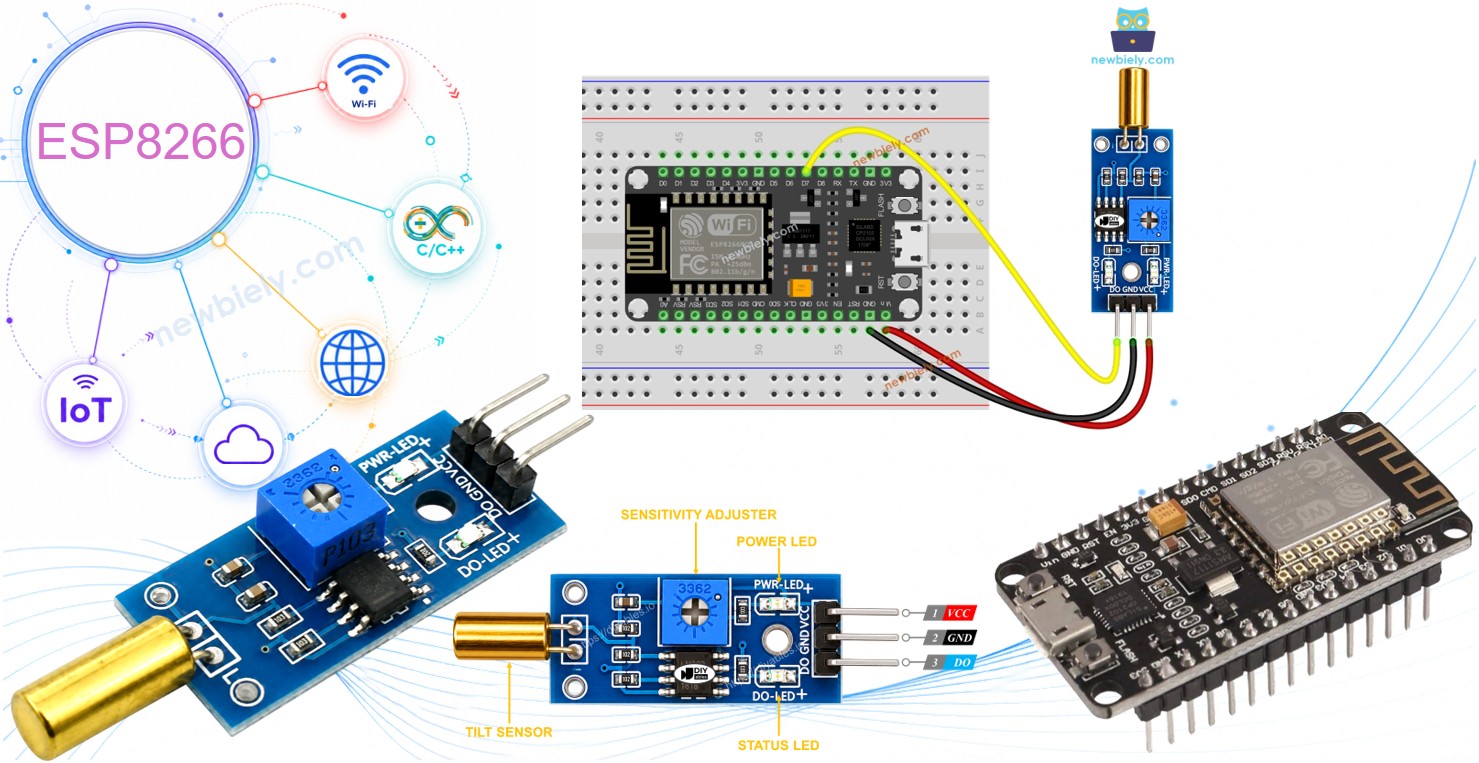
Subsequently, you have the option to modify the code to trigger the activation of an LED or a light (using a relay) upon tilt detection, or even make a servo motor rotate.
Hardware Preparation
Or you can buy the following kits:
| 1 | × | DIYables Sensor Kit (18 sensors/displays) |
Additionally, some of these links are for products from our own brand, DIYables .
Overview of SW520D Tilt Sensor
The SW520D tilt sensor module can be used to detect tilt or orientation changes in the environment around it. Inside the module, there is a small metal ball that rolls between two electrical contacts depending on the tilt angle. The module outputs a simple digital signal (ON/OFF), which makes it easy to interface with the ESP8266.
The SW520D Tilt Sensor Pinout
The SW520D tilt sensor has three pins:
- VCC pin: needs to be connected to VCC (3.3V to 5V)
- GND pin: needs to be connected to GND (0V)
- DO pin: is an output pin: HIGH when the sensor is upright and LOW when the sensor is tilted. This pin needs to be connected to ESP8266's input pin.
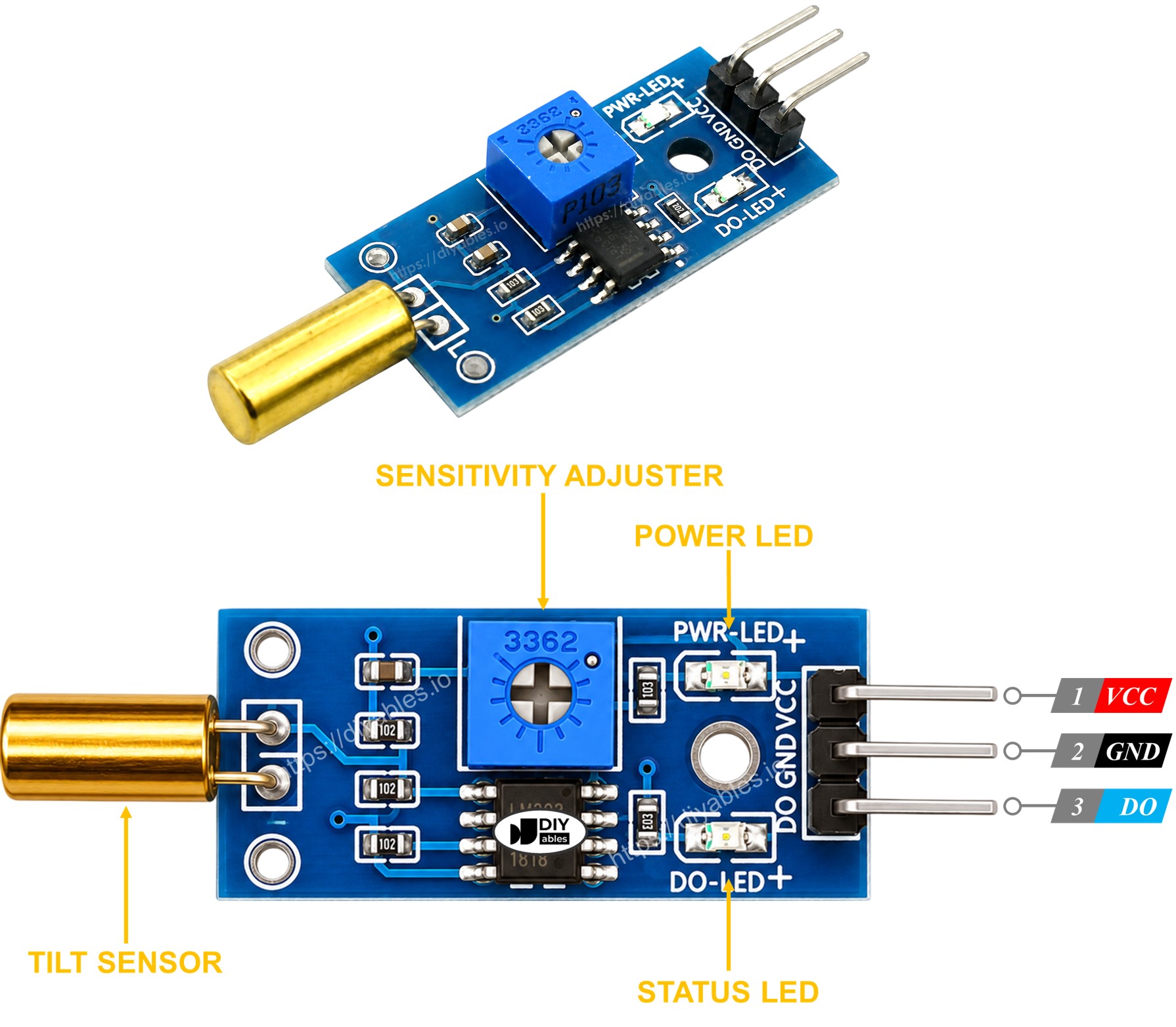
The SW520D tilt sensor module comes with two LED indicators:
- One LED indicates the power status.
- Another LED indicates the tilt state: it turns on when the sensor is upright and off when it is tilted.
How It Works
Here's how the sensor behaves:
- When the sensor is upright, the metal ball inside closes the contact, and the output pin is set to HIGH.
- When the sensor is tilted, the metal ball inside opens the contact, and the output pin is set to LOW.
Wiring Diagram
- The wiring diagram between ESP8266 and SW520D tilt sensor when powering via USB port
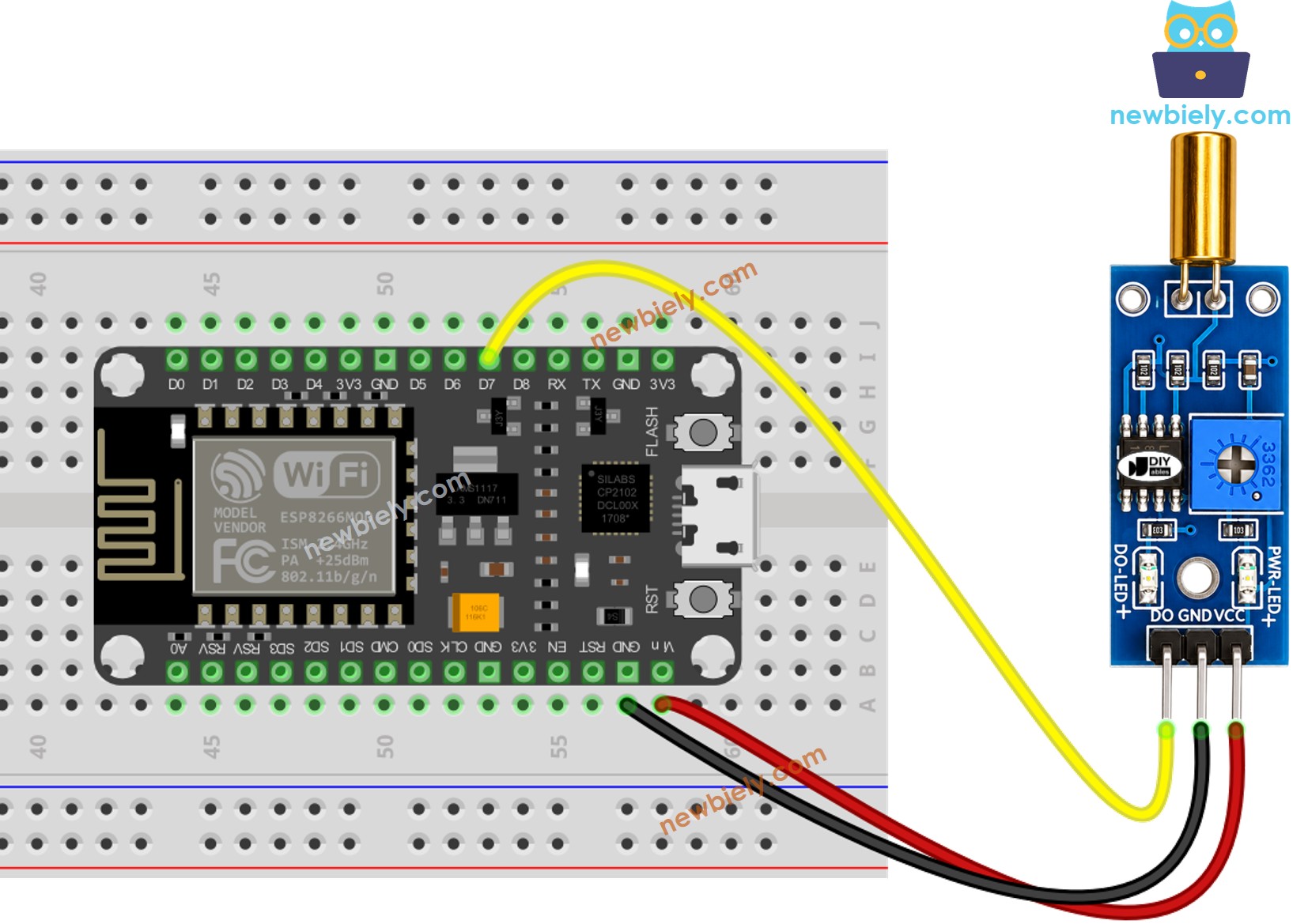
This image is created using Fritzing. Click to enlarge image
- The wiring diagram between ESP8266 and SW520D tilt sensor when powering via Vin
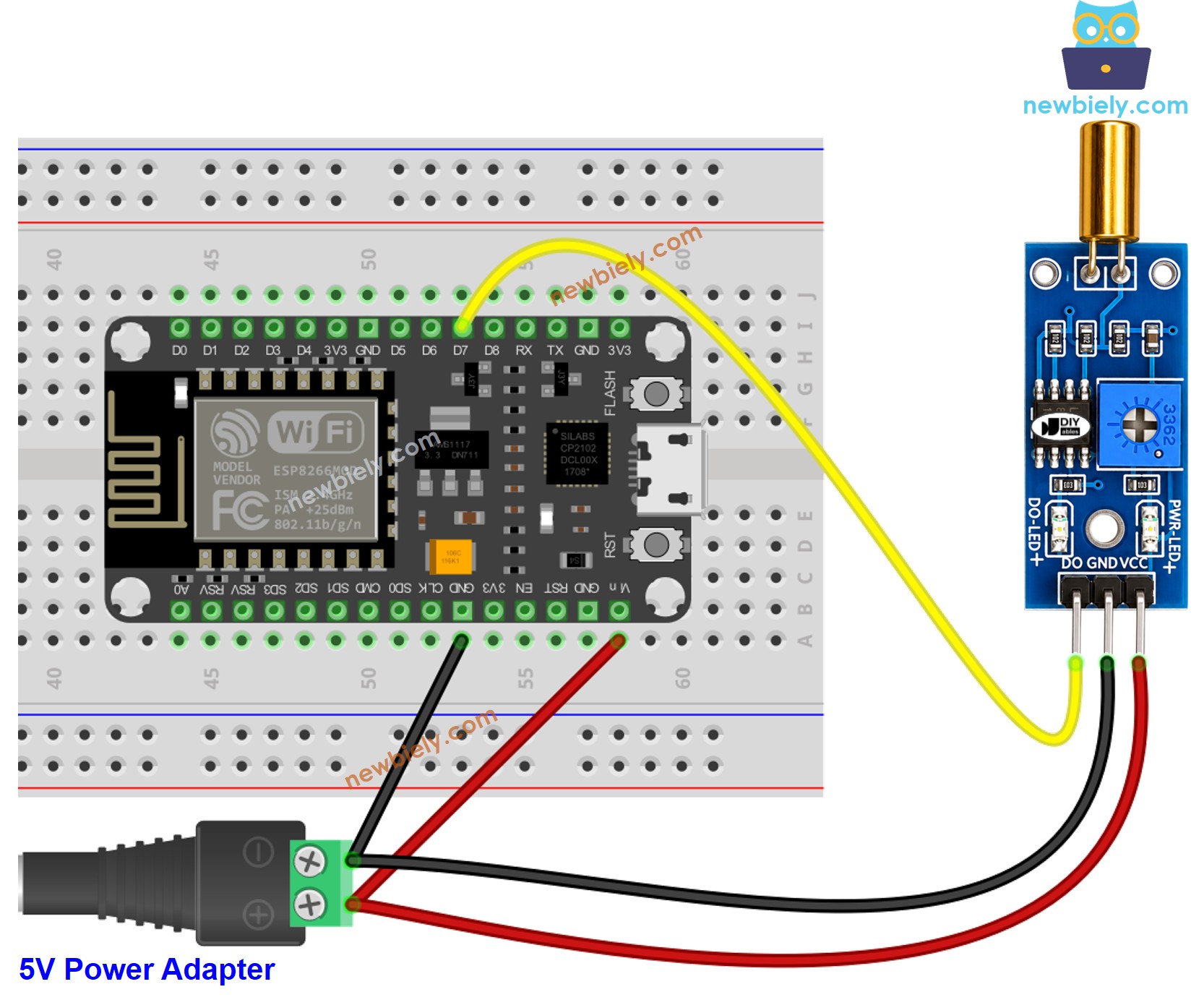
This image is created using Fritzing. Click to enlarge image
See more in ESP8266's pinout and how to supply power to the ESP8266 and other components.
How To Program For SW520D Tilt Sensor
- Initializes the ESP8266 pin to the digital input mode by using pinMode() function. For example, pin D7
- Reads the state of the ESP8266 pin by using digitalRead() function.
ESP8266 Code - Detecting the tilt
Detailed Instructions
To get started with ESP8266 on Arduino IDE, follow these steps:
- Check out the how to setup environment for ESP8266 on Arduino IDE tutorial if this is your first time using ESP8266.
- Wire the components as shown in the diagram.
- Connect the ESP8266 board to your computer using a USB cable.
- Open Arduino IDE on your computer.
- Choose the correct ESP8266 board (e.g. NodeMCU 1.0 (ESP-12E Module)), and its respective COM port.
- Copy the above code and open with Arduino IDE
- Click Upload button on Arduino IDE to upload code to ESP8266
- Tilt the SW520D sensor back and forth
- Check out the result on the Serial Monitor.
Now, with the code customized, we can make it activate an LED or a light when a tilt is detected. We can even make a servo motor rotate. For detailed instructions and additional information, please refer to the tutorials provided at the end of this guide.
Troubleshooting
If you encounter issues with the SW520D tilt sensor not functioning correctly, try the following troubleshooting steps:
- Check the orientation: The SW520D is sensitive to its mounting orientation. Make sure it is installed in the correct upright position for reliable detection.
- Reduce vibrations: Mechanical vibrations can affect the performance of the tilt sensor. Mounting it on a stable surface can help minimize false triggers.
- Check the wiring: Make sure the VCC, GND, and DO pins are connected correctly.
- Check the power supply: Ensure that the power supply is clean and stable for consistent readings.